Cody Fink

61 posts on MacStories since January 2010

Former MacStories contributor.

This Week's Sponsor:

SoundSource

New Year, New Audio Setup: SoundSource 6 from Rogue Amoeba


How Apple is Quelling Motion Sickness and Making iOS More Accessible with iOS 7.1

For The Guardian, Craig Grannell writes about many of Apple’s new animations for iOS 7.1, and what that means for people who previously got motion sick. While iOS 7 had lots of nice visual touches, bouncy animations and parallax effects made some customers feel physically ill when using their iPhone. In addition to numerous visual changes that aim to reduce physical illness in iOS 7.1, Apple has also been hard at work making iOS even more accessible by reintroducing button hints.

Josh de Lioncourt at Macworld also runs through some new additions in accessibility that should help those with low-vision or motor impairments. For example, the camera button can be turned into a switch that turns on head tracking, reducing the need for a separate device.

Permalink

Paper 1.6.1 Refreshed for iOS 7, Adds Dot Sizing

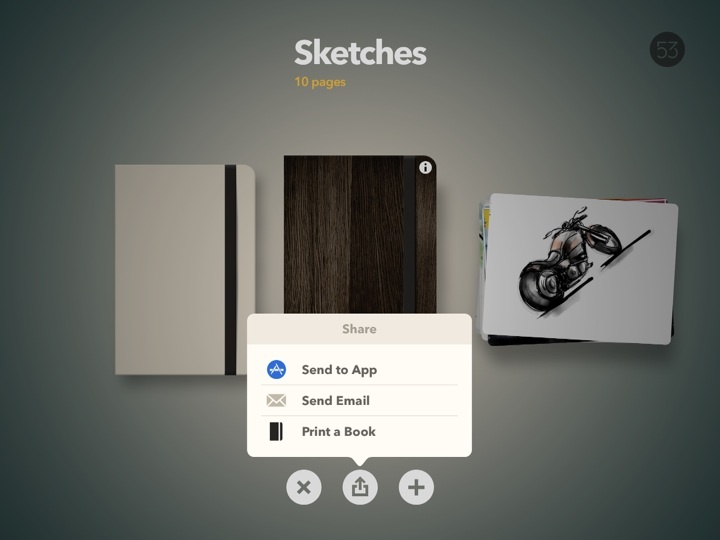
Paper is one of our must have apps, and it’s recently been updated with iOS 7 in mind. While the app’s design and personality free it from many of iOS 7’s visual styles, popovers and menus have been refreshed with a flatter, cleaner look.

Two additional small but important changes to Paper’s drawing tools should make drawing detailed characters, things, and environments much easier than before. When using the loupe to zoom in, the drawing tools you use will adjust their size as well, giving you finer control over all of the smaller details. And lastly, drawing dots has become much easier, with long presses generating bigger dots.

Paper is free to download in the App Store, with tools available for sale in the app individually or as a bundle.


Verbs 3.0 is Updated for iOS 7, Integrates with Dropbox

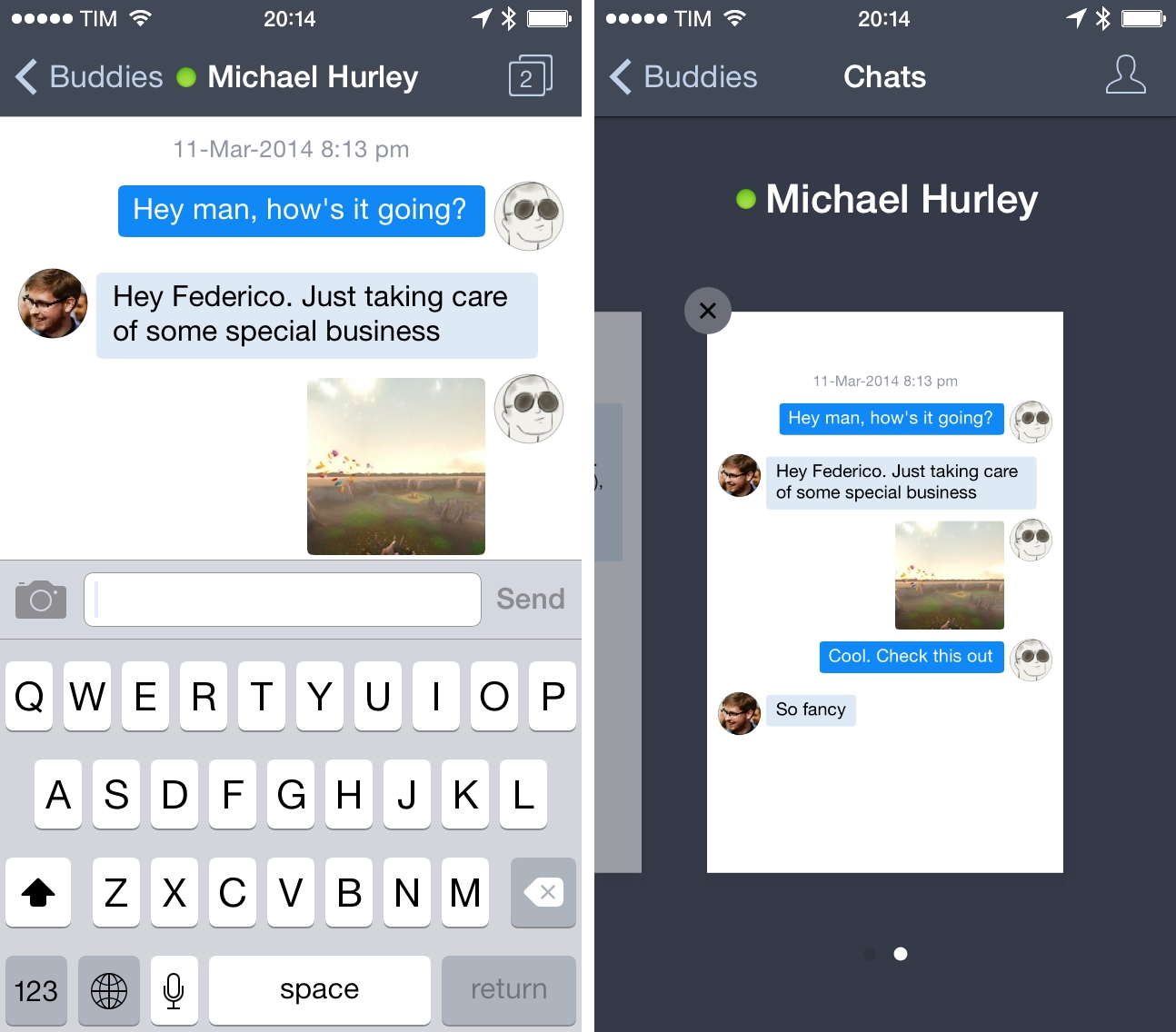
Previous owners of Verbs, an instant messaging app for iOS, will find a free update on the App Store that readies the app for iOS 7, while introducing a slew of new notification options, support for Jabber, and integration with Dropbox for sharing files and photos in chat. Verbs has also added a couple of read later options for sending links to Pocket and Safari’s Reading List.

As conversations take place outside of the conversation view, the status bar will flicker when new texts appear, much like status updates in Tweetbot or Mailbox. Inside the conversation view, Verbs has added some small contextual changes to message bubbles, changing their color when they’re delivered, and adding the option to use shapes to indicate your buddy’s availability status.

Dropbox integration with the app works out of the gate without a lot of setup. If you have Dropbox installed on your iOS device and are already logged in, you can pick a file and share the link with a friend. If you setup your Dropbox account, you can add files as well.

While I still don’t like how you switch between conversations views throw a Safari-like carousel, the remainder of Verbs feels fresh, and the app has always maintained a decided simplicity for simply sending and receiving messages from common services. If you don’t have Verbs yet, you can give it a try for $2.99 from the App Store.


Cathode Brings the Vintage Terminal to iOS

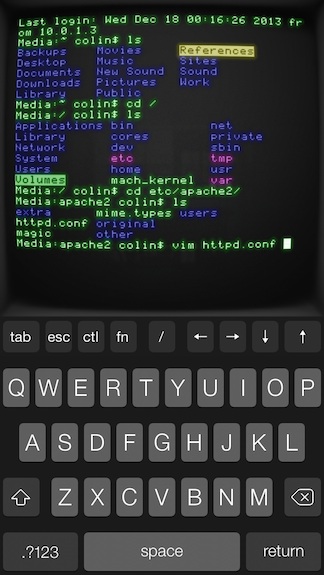
Your favorite customizable terminal app for the Mac is now available for iPhones and iPads, letting you wirelessly connect to any computer offering SSH access. The app gives you lots of control over its vintage look and feel, letting you change color, lighting, “shape,” and your choice of retro bitmap fonts. For iPad owners, the app supports Bluetooth keyboards, and works in both portrait and landscape orientation. Cathode supports multiple sessions and can automatically connect to nearby computers using Bonjour. For the geeks out there, Cathode costs a cool $5.99 from the App Store.


GoodReader Gets a Big Update for iOS 7

GoodReader is the missing file manager for the iPhone[1]. It virtually eliminates the compromises you have to make on a mobile device by allowing you to download files from the web; view and arrange documents, photos, music, and video into folders; and connect to local servers over Wi-Fi or your Dropbox, SkyDrive, Google Drive, WebDAV, or FTP server on the web. Conveniently, you can connect to GoodReader over your local network to grab files by plugging in an IP address on your Mac or Windows box.

GoodReader’s most immediate change is their update interface, which puts all of the most used tools in a tab bar at the bottom of the display. The two tabs you’ll likely use the most are WiFi and Connect, which starts a WiFi transfer or lets you grab files from the web. Otherwise, a tools button in the top right of the file browser brings up the usual action sheet for selecting files, creating new text documents, creating folders, renaming files, opening files in other apps, etc. In short, everything’s a lot easier to find[2].

Tossing an album onto your iPhone? GoodReader finally lets you listen to audio in the background while you read or do other things on your iPhone.

Images copied in the clipboard can be pasted as a file in GoodReader[3]. Look in the second page of tools for the paste command when an image is copied to the clipboard. The opposite is true as well: you can copy images to the clipboard to paste into other apps like Mail. Images can now also be imported / exported directly into and out of GoodReader, so multiple photos can be saved to your camera roll at once for example. This can be incredibly useful for shuffling files from your iPhone between multiple online services, like Dropbox and a hosted web server.

Various improvements to PDFs have been added across the board, such as faster rendering for certain files and the ability to flatten (embed) annotations as they’re emailed prior to sending. And while GoodReader itself doesn’t require iOS 7, GoodReader will open iWork 2013 files for those that are running Apple’s the latest iOS.

The iPad and iPhone versions can be purchased separately on the App Store, each version costing $4.99. Links below:


  1. What I mainly use GoodReader for: if I purchase an eBook on the go, I can paste the download link into GoodReader, which will usually suck down a ZIP file since all the DRM free formats are there. I can unzip the archive, send the EPUB to iBooks, and send my other files to my computer or to a service. You don’t have to manage much on OS X if you use something like Hazel so MOBI files are automatically dropped into your Kindle the next time you plug it into your Mac. As a nice bonus: iTunes doesn’t mediate anything. And you can apply this system to a lot of things, such as music downloads if you make purchases on anything outside of iTunes or Amazon (i.e. Bandcamp) or even documents a friend might share with you from Dropbox or SendSpace.  ↩
  2. Remember when you had to visit that red web downloads folder to get files from the web?  ↩
  3. Part of the problem is that images are often linked to other web pages, and the Copy action in Safari copies the URL the image links to, not the actual image itself. Unless you can get to the root of the image on your iPhone or iPad, getting to images on mobile is not as easy as right clicking and selecting “view image” on a desktop browser.  ↩

An Overview of OmniOutliner 4

Finally.

It was just over a year ago that CEO Ken Case of The Omni Group outlined the company’s plans for 2013, following a successful “iPad or Bust!” campaign that allowed the company to bring all five (well okay… “four”) of their desktop productivity apps to the iPad. So it was back to the Mac as it were, with OmniFocus 2 being at the forefront of the company’s plans with OmniOutliner 4 due afterwards in the first quarter. As an app that was first released in January, 2005, OmniOutliner 3 was in need of an update. As Ken Case said himself, “… other than a few tweaks to the inspectors and toolbars, its design has mostly stayed the same: it’s starting to feel a bit long in the tooth.” 2013 came and went, and as they say, all good things take time.

OmniOutliner 4 is a big update. For posterity, we’ll call it Outliner for the rest of our overview. And honestly, I really don’t know where to start.

Read more


Evernote’s New Web Clipper for Safari

Bake in Clearly, integrate Skitch, toss in the clipper from Evernote’s helper, then add sharing, and you end up with Evernote’s new Web Clipper for Safari. Once a pop-up that simply copied the full page or URL, the new Web Clipper condenses page grabs and annotation tools into a simple sidebar, adding almost all of the base features you’d find in Skitch, a standalone screenshot, image, and PDF markup and sharing application for desktops and mobile devices.

The new Web Clipper is activated by clicking on the toolbar button, which slides out a sidebar that’s reminiscent of the formatting bar found in iWork’s updated apps for OS X Mavericks. All of the actions are organized neatly into various sections for cropping the web page, drawing shapes, and sharing the results. Arrows, squares, and text can be dragged around, rotated, and resized using onscreen handles for annotating webpages. Clip tools give you a wide variety of options, including the ability to format the page into a readable article view as Clearly would before taking the final screen grab. Sharing gives you a URL that you can paste into a chat app or your favorite website, while also presenting options to share via Facebook, Twitter, or publicly via Evernote itself. There’s a couple kinks with the extension, mainly that it doesn’t like to be used with swipe back gestures or the back button while the sidebar is open, but otherwise the tools work just as Skitch lets you on a Mac.

Saving web pages into Evernote is a great way to remember a cool design, highlight an important note, or refer back to a piece of content for later reading, homework, and marketing research in an instantly searchable database. The extension is a complete revamp over the previous one, putting all of the tools that used to require two or three apps into a streamlined list of actions that doesn’t get in the way. Chrome received the new look a while ago, and hopefully the Firefox extension is next.

Learn more and grab the Safari extension here from Evernote.


Marked 2.1 Improves Word Repetition Visualization and Text Statistics

Marked 2’s first point release has landed, and it’s chock full of great improvements. If you haven’t purchased Marked yet, think of it as fancy document preview tool that helps you catch formatting mistakes, catches overused words, and highlights cliché phrases. It’s a mini-editor for your text documents, especially useful for those who write in Markdown and publish text on the web. For those who already have Marked, download the latest update to grab bug fixes and notable feature improvements such as background calculation for text statistics.

Permalink

Pocket’s Refresh for the Web

If I had any previous complaint about Pocket, it’s that their website felt too much like a tablet app and wasn’t easy to use on the desktop. Following Pocket’s iOS 7 update, they’ve redesigned their website making it significantly easier to use. Everything has been unified into a single cohesive toolbar, it’s faster, and it’s visually more appealing. If you’re at the office or on the go, Pocket on the web is now just as great as its native iOS and Mac apps.

Permalink