


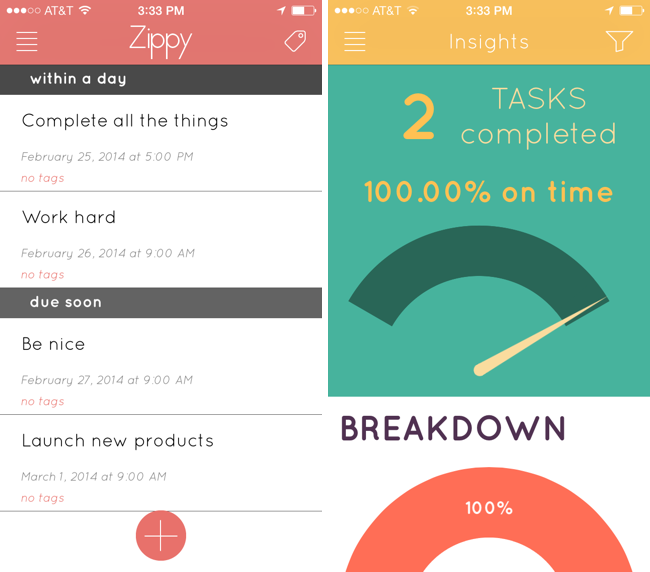
There’s lots of task managers on the iPhone, but how many break down just how good you are at getting things done? Zippy adds some recent features that have found their way into apps like Mailbox, such as a flyover grid of options for snoozing tasks until a later date, and maintains a list of completed tasks and whether you’ve completed them on time. Tags help keep your tasks organized so you can attribute things to home, work, and personal projects, and view tasks per tag. Perhaps the only improvement Zippy could make is the ability to add tags when creating tasks themselves. The insight’s tab is Zippy’s most original feature, and it breaks down things like when you complete tasks, how good you are at planning in advance, and what times of the day you’re most likely to mark things as done. Analyze your daily routine and replace your stack of sticky notes with Zippy, which is only a dollar until March 4th. Grab it from the App Store.
OS X 10.9.2 Update Adds FaceTime Audio Calling, iMessage Blocking, Fixes Mail and Security Bugs→
If you have a Mac running OS X Mavericks, update 10.9.2 has been pushed to the Mac App Store, which adds several new features, fixes a variety of bugs, and namely fixes the SSL/TLS vulnerability. On the feature side, 10.9.2 adds the ability to initiate and receive FaceTime audio calls, while also blocking individual senders on iMessage. Mail is named as having received a slew of bug fixes: compatibility improvements for Gmail’s Archive folder and labels are listed, as well as resolutions for a bug that prevented Mail from receiving messages from “certain providers.” The update will require a restart for installation.
- More information about 10.9.2 can be found here: http://support.apple.com/kb/HT6114
- Security details about 10.9.2 can be found here: http://support.apple.com/kb/HT6150
- Download link for the combo update (for advanced users installing the update outside of the Mac App Store): http://support.apple.com/kb/DL1726
Yahoo News Digest 1.1 Adds “What You’ve Read” and Other Improvements→
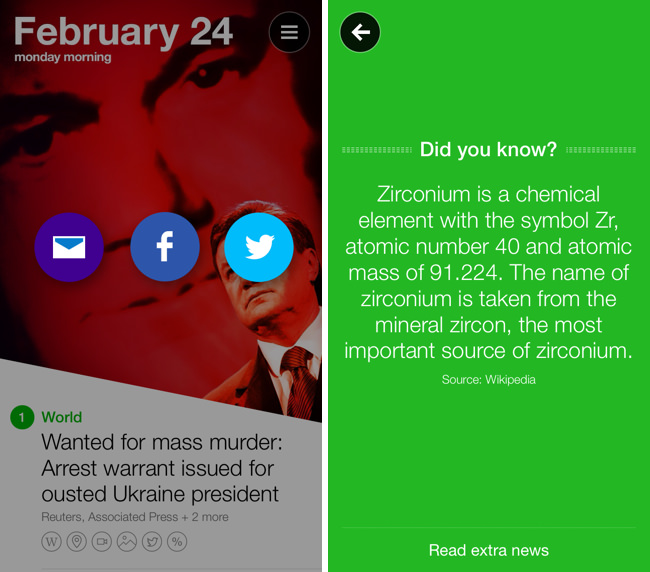
I’m a fan of Yahoo News Digest simply for the fact that it breaks me out of the tech news bubble in short spurts. The latest point update adds atoms for Weather and Statistics, new sharing options such as the ability to tweet Cover Posters, and a new “What You’ve Read” overview has been added that shows you a grid of what digests you’ve browsed through. Shown above, there’s also a little “Did you know?” section that now precedes extra articles in the app. Yahoo News Digest is free to download from the App Store.
Macworld’s FAQ on Apple’s SSL Bug in Plain English→
On Friday, Apple issued what seemed at first to be a run-of-the-mill security update. According to the update’s initial documentation, the patch was supposed to “provide a fix for SSL connection verification.” But when Apple posted the patch’s security information to its website, the company revealed that the fix was for something quite serious: Without the patch, “an attacker with a privileged network position may capture or modify data in sessions protected by SSL/TLS.” That was hardly run-of-the-mill.
The next time your friends, family, or coworkers tell you that Apple has been hacked or if they ask you what’s going on, send them this article by Macworld. A few of the authors on the site put together some nice tidbits of information explaining what the SSL bug is, what’s vulnerable, and what you can do to secure your communications online. Update your iOS devices if you haven’t already, and use an alternate web browser on your Mac until a patch can be downloaded.
Google Music for Mac Brings the Web Player to the Desktop
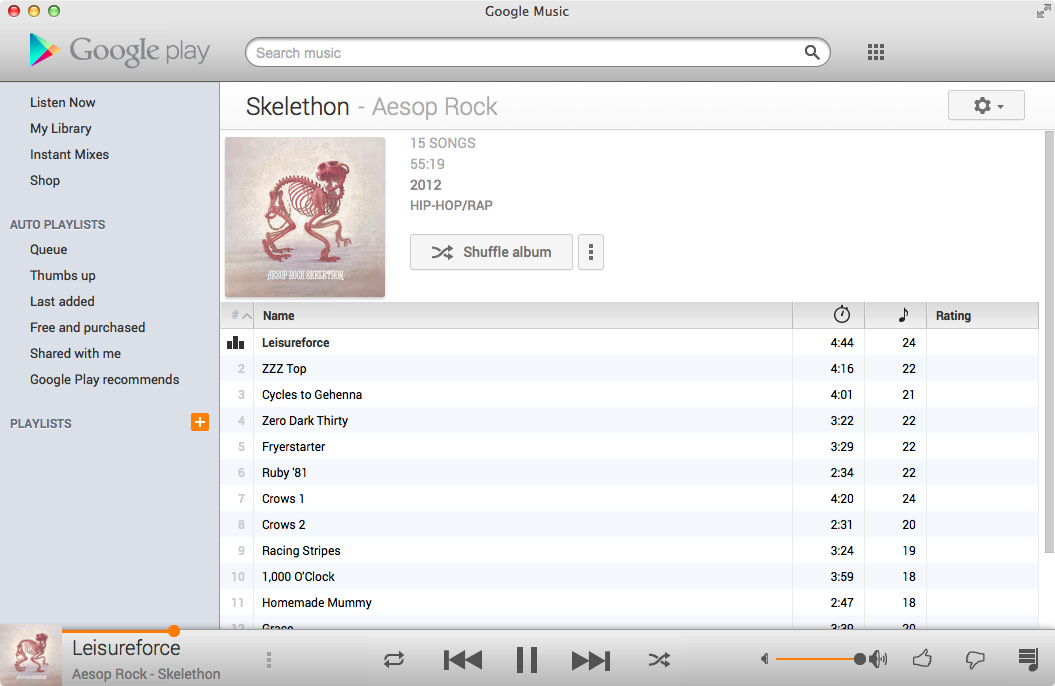
One of the least talked about music services is Google’s Play Music service, a combination music store and digital locker that can match up to 20,000 songs from your local library and stream them to your devices over the web for free. With All Access, you can stream Google’s entire catalog of music for $9.99 a month.
I’ve dabbled with the service before, using it with my previous storage limited MacBook and giving it an honest shot when away from home. The service has some nice touches, such as a miniature spectrum visualizer that designates the currently playing track and album in a variety of views, thumbs-up and thumbs-down ratings in contrast to stars, and instant mixes that create Genius-like playlists from your music library on the fly. I’ve always thought the player itself was good, and it’s certainly a usable alternative to iTunes for those listening on their work machine or Chromebook. The separate manager for matching songs is a little clumsy, but it’s not a deal breaker.
While the service offers a proper mobile experience on iOS and Android, the desktop experience is limited to the browser. At least that was until Google Music for Mac, an open source application that wraps the experience in a native player and binds the app to your Mac’s media keys.
The app lets you play your music Library through its native experience or, like Fluid, simply present the web app in a window. The experience largely reminds of Pocket for Mac, with the Google Play logo, search, and popover menus comprising the native wrapper.
I like the player. While I don’t see the purpose of including a button for other Google apps, the player rightfully does Google’s service justice on the desktop. You’ll have to log into the app using your username and password, and for those who are security conscious, the app does display your email address in the top right. Regardless, the app itself does a swell job of presenting your music (and Free from Google tunes) in a presentable interface. Small touches reformat the sidebar into something more appealing for OS X. All the little details from the web service have been carried over as-is, such as how album artwork fades into view, how soft shadows bring artists and albums forward, and Google’s distinct orange highlights. Shortcuts are peppered throughout the app, letting you create playlists or jump to an artist view without having to go through library links or categories. Highlighting the scrubber brings up the play timer, and takes to you whatever point in the song you click.
The app’s free to download from Google Music for Mac’s project page, letting you skip Github if you’re not interested in the repository.
[Hat tip @smileykeith]
Setting Up a Family Friendly Environment on iOS with Restrictions, Guided Access, and OpenDNS
When I handed down my iPad to a loved one, they were given a device that would give them unlimited access to the Internet. For the first time, they could access the news and weather, research articles, and Google just about anything without having to rely on me or someone else to help them. iOS devices like the iPad are lauded because they make doing things like this ridiculously easy for someone who isn’t computer savvy, and I’m comforted in knowing that the iPad isn’t likely going to suddenly stop working or become infected by a virus. At the same time, I want to make sure their experience is pleasant, and that they don’t accidentally enter a password in a phishing site or stumble upon something that might be offensive to them. We either have parents or grandparents who’re just learning about what devices like the iPad can offer them, and it’s our job to make sure they stay safe.
Parents don’t want their young child stumbling upon anything they shouldn’t, and we certainly don’t want curious kids making accidental in-app purchases, rummaging through our email, or deleting personal apps. Parents want to create safe and fun environments for their children, especially if the intention is to use an iOS device as an educational tool.
In a family setting, it’s about striking a balance. How do you make it comfortable for the grownups in the house who want to use their devices as is, while keeping your child safe online?
The Unexpected Costs of Background Fetch→
David Smith talks about how one of iOS 7’s most important features can unexpectedly increase costs for developers, as data is more frequently requested in the background.
My first example of this was when I added Background Fetch to Check the Weather. A weather app’s primary function is displaying up-to-the-minute, constantly changing data so in my initial iOS 7 update I experimented with adding highly frequent background updates. The result was far more dramatic than I’d expected. […]
Units is a Highly Customizable Unit Converter→
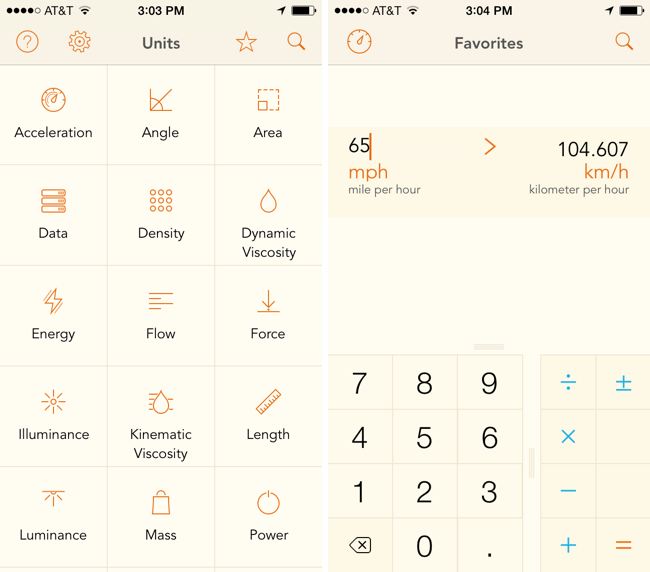
Units avoids needless scrolling through its sizable library of measurements by letting you search and favorite pairs of units, which saves oft-used conversions in a personalized list. The app can make conversions for just about anything you can think of, like units of data, force, luminance, and time. Like similar converters, the design is split between two columns of units, which you simply line up to make a conversion. A basic calculator is built into the app so you can perform basic operations like adding and multiplying. The app is fully customizable, letting you change the font, font color, and background color, so you can mix and match styles to your liking. The app’s $2.99 on the App Store.
Units doesn’t convert currencies, so for that you may want to check out Banca instead.
Troubleshooting and Replacing a SSD in a MacBook Air→
Dan Moren of Macworld, faced with a failing SSD in his MacBook Air, took up his screwdriver and fixed his own laptop without need of the Genius Bar. Better yet, he saved some cash and got comfortable doing repairs in the process. The article has lots of good links to tools and guides you’ll need to get the job done. Really, working on the innards of your Mac or PC isn’t all that scary, and while Apple’s guts are largely proprietary, removing the rear case is to get to components is a lot simpler than it used to be.
I’ve had my fair share of drives die, and I can vouch for SuperDuper being one of the most invaluable pieces of software on my Mac. While you’re waiting for your new SSD for your MacBook Air to come in, you can just boot up off an external drive and keep working like nothing happened — provided your SuperDuper backup is up-to-date of course.