TJ Luoma

17 posts on MacStories since February 2015

Tj went to college as a Computer Science major and came out as a Presbyterian pastor. It’s kind of a long story. He’s been using OS X since the days of NeXTStep. These days he enjoys finding ways to automate his Mac with Keyboard Maestro, Hazel, launchd, and/or shell scripts. Brett Terpstra once called him insane (but in a good way). He believes in keeping his dock on the left side, multiple backups, and the Oxford comma. When he’s not writing at MacStories, you can find him at Luo.ma.

This Week's Sponsor:

SoundSource

New Year, New Audio Setup: SoundSource 6 from Rogue Amoeba


The MacSparky Hazel Video Field Guide

Mac Power Users co-host David Sparks has released his latest MacSparky publication:
The Hazel Video Field Guide. Hazel is one of my favorite automation tools, and was recently updated to version 4. I bought it before I even downloaded the new version. That’s how great of a tool it is.

As David says: “The thing I love about Hazel is the way it can turn mere mortals into automation gods. Anybody can do this. You don’t need a lick of programming knowledge.” He’s right. Hazel is easier than Folder Actions, and a lot more powerful too. If you can write Mail.app rules, you can automate your Mac with Hazel.

But what if you’ve never used Hazel and want to jump right in and learn the best of what it has to offer? That’s where David comes in. In almost 2.5 hours of video, David will walk you through Hazel, showing you everything from the basics to more advanced features using AppleScript. I’ve been using Hazel for years and would call myself a power user, but I learned some new tricks from David in this guide.

Read more


BitTorrent Sync: For Privacy, Speed, and Control

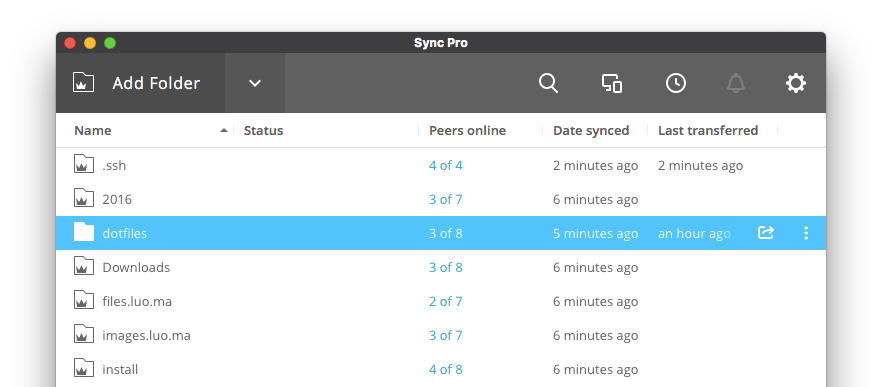
BitTorrent Sync (or “BTS” for short) is a newer player in the space of personal file syncing compared to Dropbox or Google Drive, but it has some power and flexibility that I have not found anywhere else. Today I want to tell you about the first of what I suspect will eventually be a series of posts about “How I Use BTS” over the coming months.

Read more


Knock to Unlock, but Also to Keep Your Mac Moving

The only downside to Apple’s fabulous Touch ID is that, once you have it, you miss it everywhere it doesn’t exist. I miss it the most on the Mac. Yes, I know about MacID. No, that isn’t what I want.

For me, the closest thing to achieving the convenience of Touch ID on the Mac is Knock a/k/a “Knock To Unlock.” It’s not all the way there yet for example, it can’t unlock 1Password on my Mac), but let me explain why it has such a place in my heart.

Read more


What to Do When the Mac App Store App Just Spins and Spins

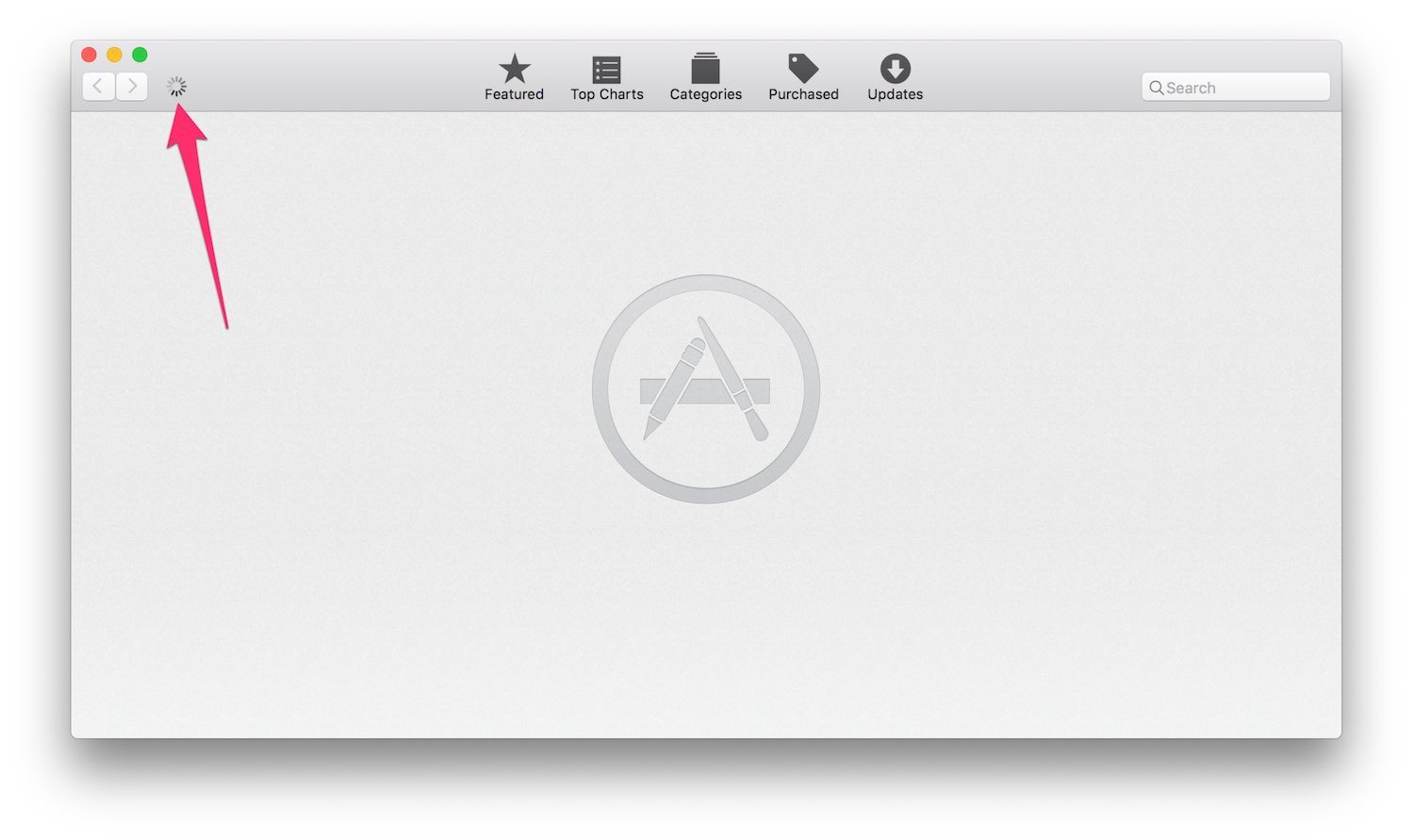
Recently I found myself in a bind: the Mac App Store app on my Retina MacBook would launch, but would not show me anything except a little spinning circle near the top-left corner. I left it like that overnight and when I came back the next morning it was still spinning. Fixing it was tricky, even for an experienced Mac user like myself, so I thought I’d share what worked for me in case you ever find yourself in that situation.

Read more


A Cautionary Tale About Contacts and Backups

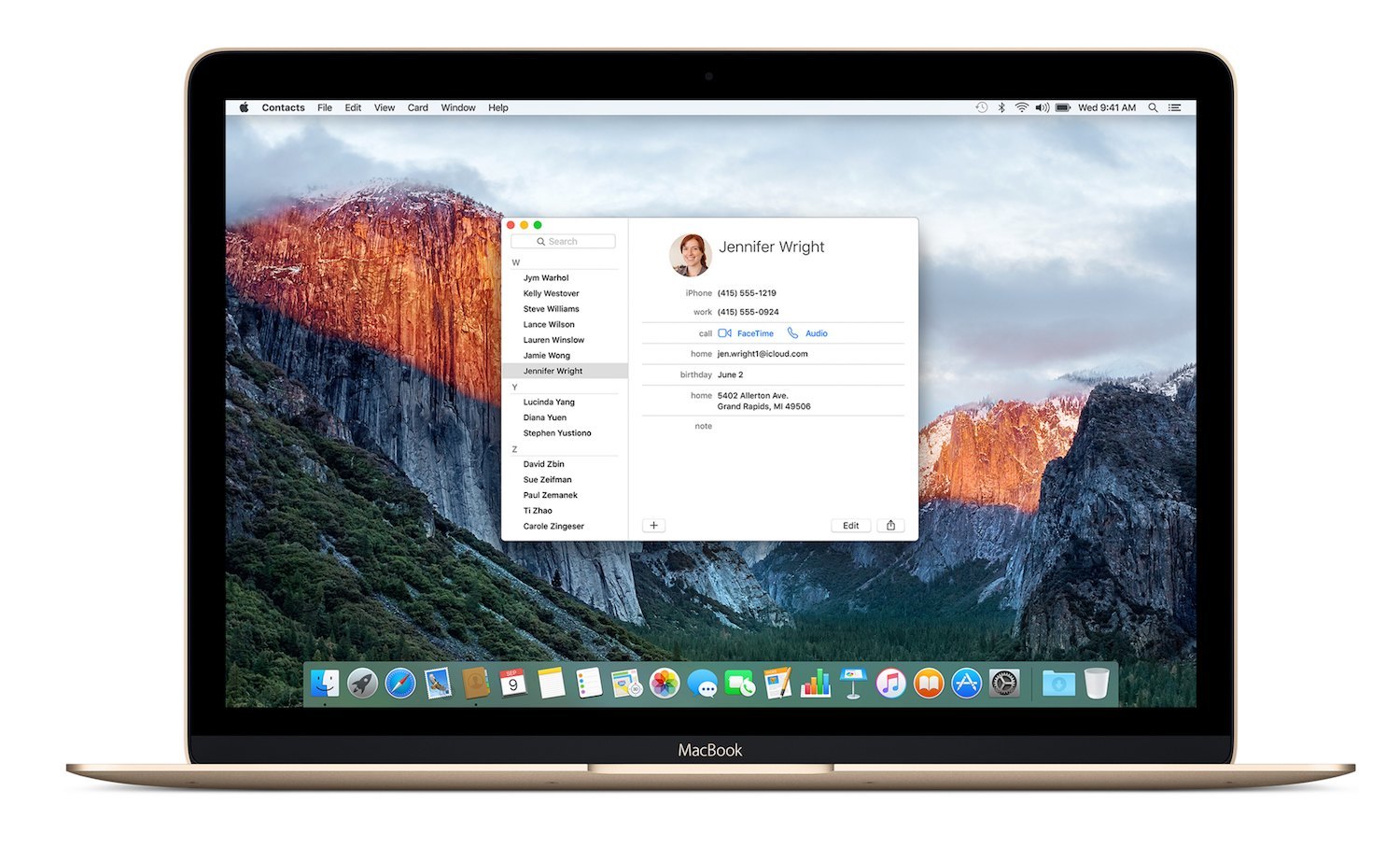
On episode 306 of Mac Power Users, David and Katie talked about contacts on OS X and iOS, including a discussion of Interact, which sounds pretty much like the app that Apple should have built for contacts on iOS. They also mentioned Contacts Cleaner which I consider an indispensable tool for managing contacts on OS X.

However, there are a few details about backing up and restoring contacts that I wanted to add. And by “details” I mean “war stories” and by “war stories” I mean “let me tell you how I got these scars.”

Read more


Browser Fairy Overcomes Browser Commitment Phobia

Browser Fairy allows you to set different browsers to open different links, rather than having to use the same browser for everything.

If this sounds familiar, you might be remembering Choosy, which worked as a Preference Pane and did a very similar thing. I have written about Choosy on several occasions, and MacStories covered it back in 2009! However, Choosy has not been updated in a long time, and I have happily moved to Browser Fairy, if for no other reason than its ability to import/export its own settings, so I can move those settings between Macs and back them up.

I generally use Safari as my web browser, but I make two exceptions: I use Google Chrome for any Google-related sites, and I use a Facebook-specific Fluid browser for anything related to Facebook, which I do to prevent Facebook from tracking what I do on other websites. (I started doing this before I started using Ghostery.)

This is especially important if you are trying to maximize battery life on a laptop, where Safari is far superior to Google Chrome (“Using Safari full time is like getting a new battery. Not even kidding.” — @bradleychambers), but need/want to use Chrome for some websites.

Bonus Tip: If you are looking at a website in Safari and need/want to quickly open it in Chrome (for example, if you come across a page that, for some inexplicable reason, still uses Flash), Bradley Chambers has an Alfred workflow to open the current Safari URL in Chrome. Browser Fairy also has browser extensions to send the current URL to another browser easily.

Browser Fairy ($5, Mac App Store) requires OS X 10.7 or later.

Thanks to Abby for first introducing me to Browser Fairy.


Resolutionator Makes It Easy to Switch Your Mac’s Screen Resolution

Resolutionator is a handy new utility from the great team at Many Tricks which is the best and easiest way that I have found to quickly switch between different screen resolutions.

Why would I need to do this? Well, one of the things I have started doing with my my new 12” Retina MacBook is adjusting the resolution between its “native” size (1280x800) and the “more space” (1440x900) options, depending on what I am doing.

I also need to adjust the resolution on my Dell UltraWide U2913WM 29” Monitor when I connect to it via screen-sharing, because 2560x1080 is a lot of pixels, and 1280x960 is a lot easier to manage over VNC.

My favorite feature is a keyboard shortcut which brings up a quick list of the available resolutions:

If I had one feature request it would be the ability to exclude resolutions that I don’t use or somehow easily select between just options that I do use. That Dell UltraWide has a myriad of resolution options, but I only ever use about two.

Download Resolutionator (requires 10.8 or later) and check out the free trial, and then you can buy it for $3.


Suspicious Package Lets You Inspect .pkg Files Before You Install Them

Suspicious Package is a free Quick Look plug-in which allows you to inspect package files (.pkg) on the Mac.

Package files on the Mac are awesome, because they can install all of the various files that you need in the right places, and do all of the right things to make sure that you can use them.

Package files on the Mac are terrifying, because they can install all of these various files all over the place and you probably have no idea what they are doing.

If you download a .pkg file from a reasonably trustworthy source, chances are extremely high that the package is completely safe and won’t do anything nefarious. But .pkg files also have the potential to do a lot of damage, especially because they almost always require that you enter your administrator password. Suspicious Package allows you to see inside .pkg files, including the any scripts which will be run during the installation process. All of this gives you a much better chance of understanding what a particular package will do before you install it.

Plus, it’s free, so there’s no good reason not to install it. You can download it here either as a .pkg file (yes, irony) or manually. If you want to see a good example of why .pkg files can be a very helpful thing, look at the instructions for installing this manually!

I’m not trying to make you paranoid, I just want you to be able to make more informed decisions.