TJ Luoma

17 posts on MacStories since February 2015

Tj went to college as a Computer Science major and came out as a Presbyterian pastor. It’s kind of a long story. He’s been using OS X since the days of NeXTStep. These days he enjoys finding ways to automate his Mac with Keyboard Maestro, Hazel, launchd, and/or shell scripts. Brett Terpstra once called him insane (but in a good way). He believes in keeping his dock on the left side, multiple backups, and the Oxford comma. When he’s not writing at MacStories, you can find him at Luo.ma.

This Week's Sponsor:

SoundSource

New Year, New Audio Setup: SoundSource 6 from Rogue Amoeba


Set Up Your Own OmniFocus Sync Server

The fine folks at The Omni Group offer a free service called, logically enough, the Omni Sync Server. It will sync your OmniFocus and documents from your other Omni* apps. I use and love this service.

But what if, for some reason, you don’t want to use someone else’s sync service? What if you want to host it all privately? Well, the good news is that you can do that, and pretty easily too. The sync feature of the Omni* apps will work with any standard WebDAV server. If you don’t know how to go about setting up a WebDAV server, the OmniGroup folks have two options for you:

  1. If you use OS X Server, see Setting Up an OmniFocus Sync Server With Server.app.
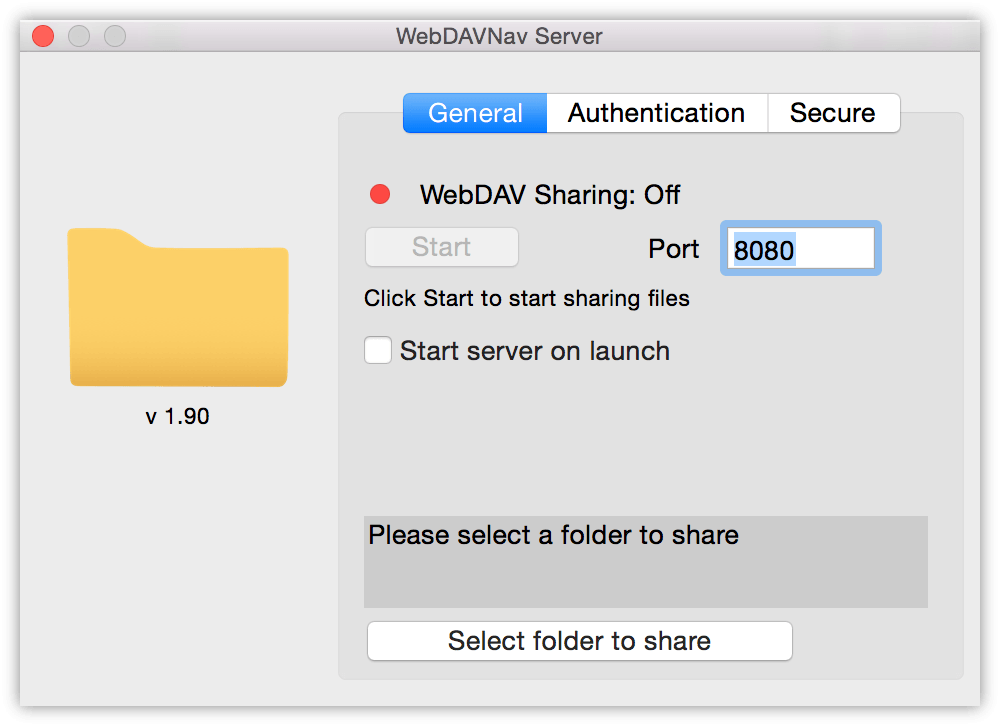
  2. If you want to use a Mac without OS X Server, see Setting Up an OmniFocus Sync Server With WebDAVNav Server which uses the free WebDAVNav Server app which you can download from the Mac App Store.

You can use either of these options to sync your devices on your home network, or even across the Internet if you configure the appropriate ports in your router. If I didn’t use OmniGroup’s server, this would be yet another thing I would host on my Macminicolo machine.

Permalink

Replacing QuickCursor with Keyboard Maestro

QuickCursor was a great app which allowed you to use your favorite text editor to edit text anywhere on the Mac. For example, rather than writing a blog post in a form field in your browser, you could press a keyboard shortcut and then whatever text you had written would be sent BBEdit (or any other text editor). You could finish writing your post using all of the features of your preferred text editor (and, most importantly, not have to worry about your browser window crashing or anything else that might cause you to lose your work). When you finished writing, your text would automatically be sent from your text editor back to the web browser. (If the awesomeness of this is not immediately obvious, watch this short YouTube video showing how QuickCursor worked.)

Read more


How to Configure Gmail with OS X Yosemite Mail

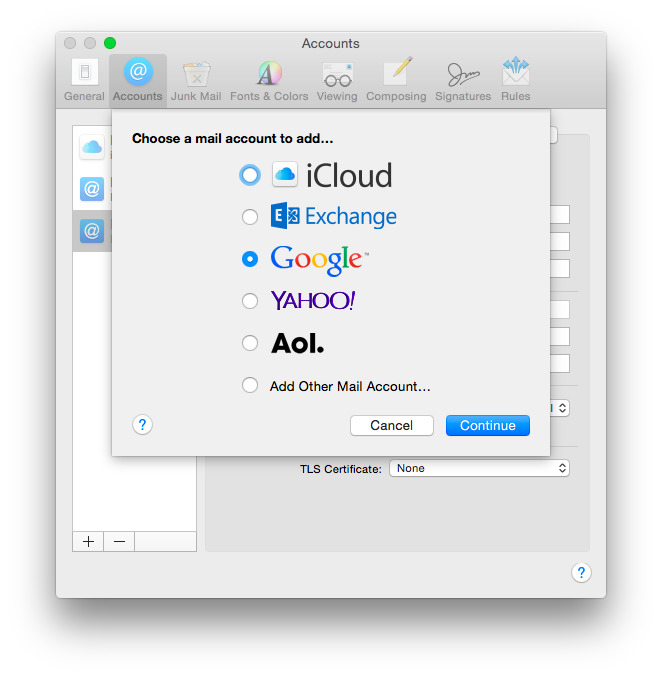
My friend Amy is having her first experience with using Gmail, and, it, um, isn’t going as well as she’d like. The good news is that although Apple’s Mail.app and Gmail have had a rocky relationship in the past, Mail.app in Yosemite works pretty well with Gmail, but there are some things that you should understand before you proceed.

Read more


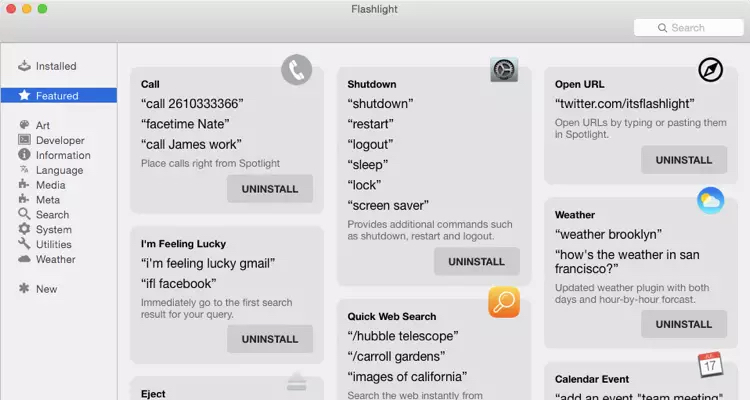
Flashlight Adds 160+ Features to Spotlight

First drafts aren’t meant to be good, they’re meant to be a starting point.[1] Sometimes we see “first drafts” released into the wild and we think “Wow, that’s a terrible idea.” Sometimes we see them and think “That could be great.” Flashlight is an example of the latter. Late last year, it was released as a beta[2] which even its developer described as a “terrible hack.” But the idea was great, and I remember thinking: “Imagine if Spotlight could do all of these things.”

Today, Flashlight is being released as a 1.0, with much more polish, and much less of that first-draft smell. It’s also free and open source. It extends Spotlight to do a bunch of different things (there’s a list below) but even more importantly it offers an API for others who want to hook into Flashlight’s power to do new and different things. Its plugin system also means that you can disable features that you don’t want or won’t use.

Read more


Switching from Google Authenticator or Authy to 1Password

Editorial Preview

If you have been using Google Authenticator or Authy for two-step verification (“2FA” for short), you may have wondered whether you should switch to 1Password, now that it offers the same functionality. You may have wondered how much of a hassle it would be to change from one app to another, and if it would be worth it.

If that describes you, well, then you’re in luck, because I just completed the switch and I’m here to report my results. (Spoiler Alert: it was easier than I expected, and I already like it more than Authy, despite having really liked Authy.) There are a few “tips and tricks” which can makes the transition a little easier.

Read more


Spring Cleaning, or How I Fell in Love with 1Password Vaults

I’ve been using 1Password since January of 2008, which means that I have a lot of passwords and other bits of secure information stored in there.[1] Recently it started to feel like I had too much in there. Search results were cluttered with accounts that I no longer use, don’t use very often, or other information that I might need some day.

At first I went through and attempted to deactivate/delete accounts that I no longer use (i.e. the user forum for some piece of software that I used 3 years ago). Most often I found that the account could not be deleted unless I contacted someone, or the login information was no longer valid. The process was boring, time-consuming and frustrating. I found myself trying to guess if I might need something later. (Do I need to save the password for a friend’s WiFi login if I only see them once or twice a year? Couldn’t I just ask them for it again if I did need it? Do I need to keep a copy of my mother-in-law’s Gmail password in case she forgets it? Yes. Do I need to see it every time I search for “Google” in 1Password? No.) It is hard to know if I might ever need something again, and so I tended to err on the side of caution, meaning that I would keep things, even if I didn’t use them all that often. The end result was that I didn’t get rid of very much, and it still felt like I had more in my 1Password database than I really needed.

Read more


Make Keyboard Shortcuts for Two Menu Items with the Same Name

OS X has an easy way to add keyboard shortcuts: in System Preferences.app go to the “Keyboard” preference pane, click on “Shortcuts” and then “App Shortcuts”. You can create a “global” keyboard shortcut (which will work in any application which has a matching menu item), or you can create an app specific shortcut which will only work in one particular application.

That’s great, but what happens if an application has two menu items with the same name? How can you tell which menu item will be used for the keyboard shortcut? Turns out there’s an easy way to do this, but one that I had never heard of, and I’m guessing others might not have known it either. I’m going to use 1Password as an example, but this will work in any OS X app.

Read more


How I Control My Mac with Automatic + IFTTT + Dropbox

The other day, Federico asked about why people use web services such as IFTTT. I have a few of these that I use frequently, but the geekiest one is this: controlling my Mac with my car.

More specifically, when I turn my car’s ignition on or off in the parking lot at my office, Automatic triggers an IFTTT recipe, creating a text file in a special Dropbox folder which is monitored by launchd[1] and runs a shell script depending on which file is created.

It sounds more complicated than it is. No, really.

Read more