Federico Viticci

10804 posts on MacStories since April 2009

Federico is the founder and Editor-in-Chief of MacStories, where he writes about Apple with a focus on apps, developers, iPad, and iOS productivity. He founded MacStories in April 2009 and has been writing about Apple since. Federico is also the co-host of AppStories, a weekly podcast exploring the world of apps, Unwind, a fun exploration of media and more, and NPC: Next Portable Console, a show about portable gaming and the handheld revolution.

Insert Markdown Image Links Interactively with Editorial

Stefan Wolfrum:

Because the markdown documents I write contain usually a few images from web sites I research (not from my iPad image library) and because Editorial includes its own web browser I asked myself: why can’t I just somehow insert a markdown image link in my document to an image that’s on the web page I see in Editorial’s browser? Either I’m missing something or it just isn’t there (yet). Well, because I’m always eager to learn I started to implement exactly that.

One of the most clever workflows I’ve seen in a while. I’m using a similar trick in my Feed Wrangler workflows, and Stefan’s idea can be easily repurposed for other scenarios. Well done.

Permalink

The Rate Friday Initiative

Luc Vandal:

You see, we independent developers rarely get any positive feedback. A lot of it is composed of bad reviews (that are actually support or feature requests) with the occasional pat on the back.

I’m also a consumer and, like most of you, I rarely take the time to write a review for apps I use daily. I’m also guilty of leaving bad reviews that may not have been deserved or didn’t bother to contact the developer first.

With over one million apps on the App Store, it’s getting harder and harder to have your app stand out in such a crowded market.

This is a good idea. Most people don’t know how positive ratings and reviews can help in the App Store. The fact that users tend to publicly point out the things they don’t like rather than describe the ones they enjoy doesn’t help either.

If apps make your personal life or work even just a little better every day, consider using 10 minutes of your time to rate them on the App Store. If you have more detailed feedback or feature requests, send an email to the developers directly. I know what I’m doing tonight.

Permalink

Infuse 2

Speaking of the Apple TV, the app I used to stream movies to my television wirelessly was Infuse. Developed by FireCore, Infuse is a good-looking video player with support for multiple formats, Dolby Digital Plus sound, integration with the TheMovieDB and TheTVDB for metadata, and AirPlay.

I wasn’t interested in features like trakt, social sharing, or subtitles – I just wanted an easy way to stream videos from my iPad to the Apple TV without loss in terms of quality and smoothness. I downloaded Infuse, connected the iPad to my Mac (my movies are on an external drive), and used iTunes’ file manager to drop files into Infuse. Seconds after the copy was finished, Infuse would see the video, collect metadata, and display a gorgeous artwork preview with cast information and technical details on the file.

To stream videos with AirPlay, you need to unlock the $4.99 “Infuse Pro” In-App Purchase, which I bought immediately and didn’t regret. I gave Infuse various formats including MKV and AVI at both 720p and 1080p and streaming to my second-gen Apple TV was always smooth and fast.

I’m impressed by Infuse because, once it had my videos, it didn’t require me to fiddle with any setting or file conversion – it just worked with AirPlay and videos looked great. Infuse is free on the App Store and you can read more about supported formats (for video, audio tracks, and subtitles) here.

Permalink

Apple TV Tips

A Reddit thread with a series of great tips for Apple TV settings and AirPlay-compatible apps I didn’t know about. I could have used some of these suggestions (like Beamer and the Menu shortcut) for Christmas, as I watched movies with my family through the Apple TV every day. It takes a while to read through the comments, but it’s worth it.

Permalink


This Week 1.2 Adds iPad Support

In December, I covered This Week, a lightweight Reminders client for iPhone that displayed todos on a weekly basis, providing a simpler and more intuitive interface than Apple’s Reminders app. Since my post, the developers added three additional views to the app (List, Day, and Month) and, last week, released version 1.2 with iPad support, making This Week Universal.

On the iPad, This Week is a nice alternative to the stock Reminders app: on the left side of the screen, you’ll get a small calendar widget at the top and view filters at the bottom. Depending on the view you choose, time blocks in the calendar will be highlighted with a white selection; by default, All > Month gives you a complete summary of all your due and overdue reminders from all your lists. Tap one of the lists, however, and the app will filter results on the right, dimming unselected lists in the sidebar. You can tap reminders to view details in a popover, or tap & hold them to open the popover in “Information” mode, where you can’t edit and you’re limited to viewing details.

This Week 1.2 is a nice update but the app still has a long way to go to become a full-featured Reminders client. URLs in notes aren’t tappable and there are no settings to control font size; there’s no URL scheme for power users, and the app could use more filter and navigation tools to, say, only show repeating reminders or those with a location attached. Considering the scarcity of Reminders clients for iPad, though, This Week 1.2 is a welcome addition, and $4.99 on the App Store.


Ecoute 2.1 Adds Up Next, Queue Management

Ecoute 2.1

Ecoute 2.1

In my review of Ecoute 2 for iPhone, I noted how the app lacked a proper queue management system to replicate the Up Next feature of iTunes for Mac:

Ecoute has a “Play next” feature, but, alas, there’s no Up Next-like queue management: adding a song to the queue will put it at the top of the queue, not at the bottom after songs you’ve already queued up. On iTunes for Mac, you can either play a song next or add it to Up Next, but Ecoute can only “play next”. Furthermore, the Play Next button is based on another workaround that’s a byproduct of playback managed by the Music app: Ecoute can’t create a real queue in Music, and therefore every time you’ll add a song to the queue you’ll hear a brief interruption as the currently playing song stops and resumes itself. This is a hack, and it works, but it’s not elegant and the app doesn’t have all the queue-related features of iTunes 11, which is unfortunate.

In an otherwise excellent update that made Ecoute 2 my favorite alternative to Apple’s Music app, the lack of Up Next stood out. Fortunately, developers Louka Desroziers and Julien Sagot were already working on improvements to the queue functionality, which are available today in version 2.1 of Ecoute, released on the App Store.

When playing music in Ecoute, you can now choose between “Play Next” and “Add Up Next” from the tap & hold menu; this works for individual songs as well as entire albums or playlists. The way Ecoute’s queue works mirrors iTunes 11: you can play a song immediately after the currently playing one, or you can stack songs at the bottom of the queue.

Up Next can be accessed by tapping the clock icon in the Now Playing screen (which has been redesigned to show blurred album art in the background, like Apple’s Remote app). Songs can be removed and rearranged in the queue, and you can add more through the “+” button in the top left corner. Right now, Ecoute uses the default Music picker to add songs manually to the queue, but the developers confirmed they are working on their own solution.

There are still some bugs and hacks that Ecoute has to employ to work around Apple’s limitations for iTunes Match and queue management on iOS. Overall, though, Up Next is a solid addition to an app that I already considered superior to Music for navigation and responsiveness of the interface. Ecoute is $2.99 on the App Store.


The King Of Clash

To those of us raised in the world before social media, it is a given that the “real” world is the one in which you sit in traffic on your way to pick up the dry cleaning. Our connection to this world is the chief measure of our sanity. But if we’re honest about it, reality is hardly so simple now. When a guy like George Yao can plow through an anesthetizing day of mortgage regulations only to return at night to a digital fraternity where he is loved and celebrated, with friends who share his daily experience, who’s to say which is real and which is illusory? If a game can make you famous, if it can yield genuine friendships and even a new career, then why shouldn’t it become, at least for a time, the epicenter of your life?

From the NYTimes’ profile of Jorge Yao, a former top player of Clash of Clans. See also: the WSJ’s article on Supercell from October.

Permalink

Simulating Multiple Cursors in Editorial

Editorial

Editorial

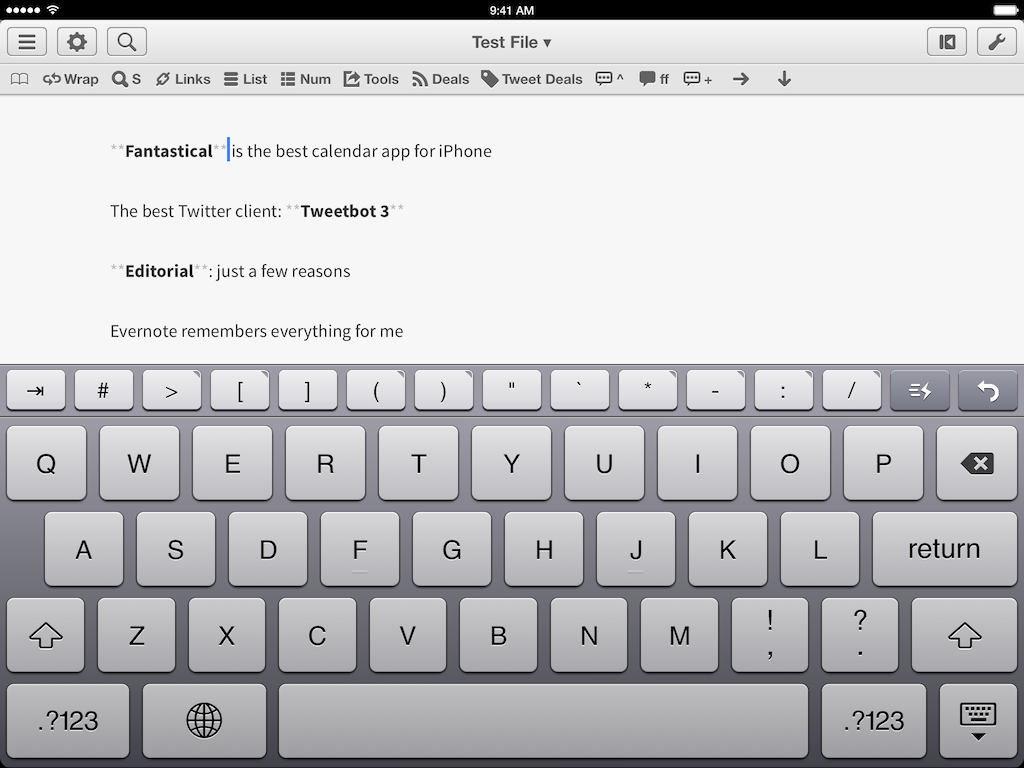
When I’m writing with Editorial or Byword, I miss the multiple cursors feature of Sublime Text. Seemingly an extra geeky addition with no practical utility, multiple cursors had become part of my editing workflow as they allowed me to select multiple positions in a document and act on them at once. For example, I could select multiple lines and prefix them with an asterisk to turn them into a Markdown list, or select multiple instances of a word and modify them with a single keystroke without using Find/Replace or other hacks. The feature was built into Sublime and it was great. So of course I made a workflow for Editorial.

Because it’s the end of the year and I’m feeling festive and thankful, I’m posting two workflows to simulate multiple cursors in Editorial. The first one allows you to save selections for multiple bits of non-contiguous text at once and, when you’re done, wrap them inside any character(s); it’s useful if you want to make multiple words bold/italic, or if you want to enclose them inside parentheses. The second workflow lets you add inline Markdown links for each selection, fetching a webpage URL from the Editorial browser. Read more