


You may have noticed that I haven’t written much lately. In mid-March, I decided I needed to take some time off the site to rest and focus on some ideas and changes for MacStories that I’ve been thinking about for quite a while. I came to the conclusion that I need to be able to share more links to interesting news, apps, and articles here on MacStories. I want MacStories to be the place where readers can find our own articles as well as cool stuff produced by others. Read more
Panic Status Board Review
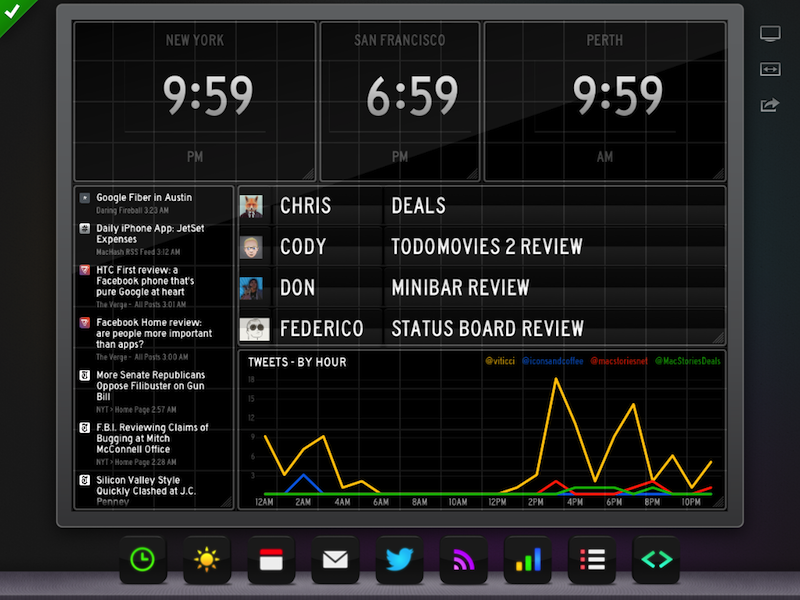
Since the introduction of the iPad three years ago, several developers tried to create second-screen experiences to leverage the device’s large display as a window for additional content coming from a user’s primary device – traditionally a desktop computer. It wasn’t clear at the time how an iPad could be used as a “creation device” – either because of a lack of apps or imagination – so developers started playing around with the idea of iPad as an external display, iPad as an alarm clock, or iPad as a digital weather station to place on a desk next to a Mac. As years passed and people started using the iPad as, effectively, a computer capable of real work, Apple still added functionalities related to screen-sharing to iOS: users could hook up the iPad to an external monitor for an even bigger second-screen experience, or connect apps and games to an Apple TV via AirPlay to display more information and data on the iPad’s screen.[1]
Panic’s latest app, Status Board, takes the concept of using the iPad as a desk accessory one step further by turning it into a dashboard for a variety of data that you’d normally check in dedicated apps or websites. Read more
Sponsor: MacPaw
Our thanks to MacPaw for sponsoring MacStories this week with CleanMyMac 2.
CleanMyMac 2 is the successor to MacPaw’s award winning system utility, rebuilt and redesigned from the ground up to make it easier than ever to remove the cruft that’s taking up unnecessary storage space on your Mac. CleanMyMac 2 scans your hard drive, looking for unneeded temporary files, unused caches, forgotten files, and even cleans up application-specific trash in applications like iPhoto. It can also optimize your iPhoto library, removing original versions of images that you’ve since modified while editing. CleanMyMac 2 even helps you take care of plug-ins and widgets, while ensuring applications are completely uninstalled.
CleanMyMac 2 is free to try, and a single license is available for only $39.95. A license for up to five Macs is only $89.95.
For families with PCs in addition to Macs there’s also CleanMyPC, which brings the same easy-to-use interface to the Windows desktop.
Sponsor: CrashPlan
My thanks to CrashPlan for sponsoring MacStories this week.
–
CrashPlan lets you backup your data to your own computers and hard drives or friends & family with no storage limits. CrashPlan gives you the peace-of-mind that only comes with continuous, minute-to-minute backup. CrashPlan has been a favorite of the Mac community for years because of its “set it and forget it” ease of use and ability to provide continuous, minute-by-minute backup without interfering with normal Mac operations. Using sophisticated byte pattern analysis and data de-duplication to detect file changes, CrashPlan preserves multiple versions of files; if you don’t want to always use your Mac, the files you were just working on minutes ago can be accessed from our phone or tablet using CrashPlan’s free mobile apps.
Find out more about CrashPlan here.
Sponsor: Doxie
My thanks to Apparent for sponsoring MacStories this week with Doxie.
Doxie is an award-winning scanner that works anywhere – no computer required – and then syncs to your Mac, iPad, and various cloud services. Doxie’s small and portable hardware comes in two models: Doxie One and Doxie Go. The Doxie’s scanning process is simple: just push a button and insert your sheet of paper to save it thanks to the Doxie’s built-in battery and memory chip.
I have been using a Doxie Go since January 2012. My paperless workflow consists of scanning quick receipts with the iPhone’s Camera and larger documents with the Doxie Go. The Doxie provides high-quality scans that I import with the Doxie Mac app, which provides an option to save PDFs with or without OCR; on the Mac, I then save everything to Evernote directly from the Doxie app. The Doxie Go is the only scanner I’ve ever owned and I’m very happy with it.
Learn more about Doxie here.
Apple Releases OS X 10.8.3
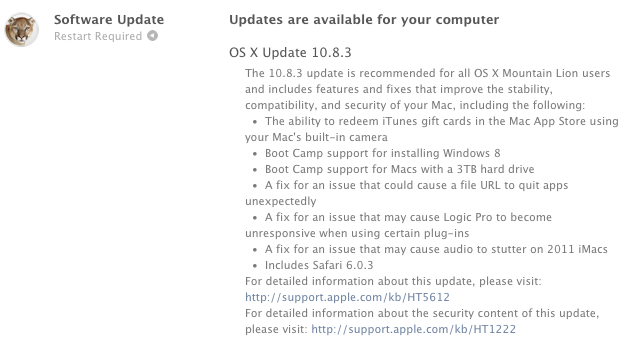
After nearly four months in testing and thirteen betas seeded to developers, Apple has today released OS X Mountain Lion 10.8.3. As with previous software updates, the new version is available on both the Mac App Store and Apple’s website.
10.8.3 includes some new features and bug fixes. Notably, the update comes with the usual stability improvements, but, this time, also a fix for the notorious File:/// URL bug that could crash certain Mac apps. Safari 6.0.3 is also part of the update, with improvements for scrolling on Facebook.com, fixes for zoom, restoring position, and bookmarks issues that could cause bookmarks to be duplicated on iOS devices.
As far as new features go, Boot Camp now comes with support for Windows 8 and Macs with a 3 TB hard drive. Introduced in late November 2012 with iTunes 11, Mac App Store gift cards can now be redeemed using a computer’s camera.
Detailed release notes can be found here. The software can be downloaded with the links below:
Characters for Mac
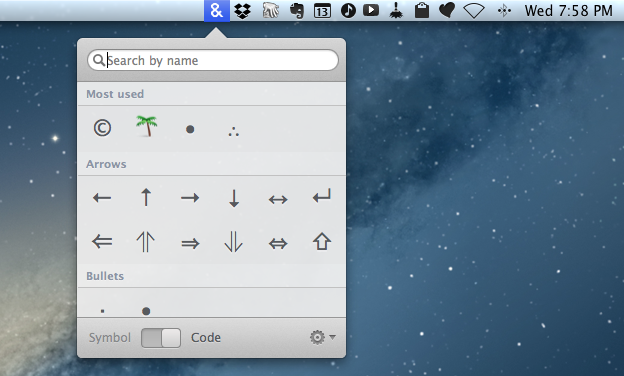
Special characters are the bane of my scripting hobby. In dealing with text on a daily basis and constantly playing around with scripts and macros to make text editing faster, I inevitably come across the occasional Unicode Error that increases my headache and coffee consumption rate. Which is why, if you have the same issues with Python, I recommend watching this video that Dr. Drang kindly sent me a few weeks ago on Twitter.
Characters for Mac is a menubar app that wants to make the process of copying special character effortless and simple for both users and developers. Read more
Saving Quotes In Quotebook With Instapaper and Mr. Reader
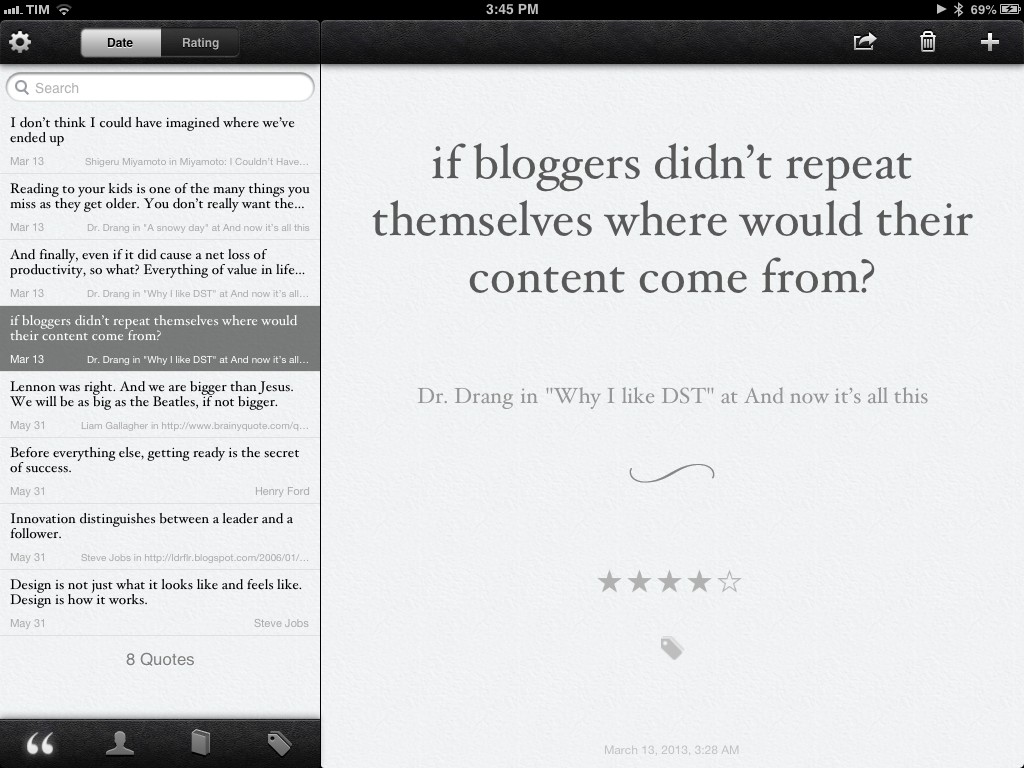
I am a fan of Lickability’s Quotebook, an iOS app to save, organize, and rate quotes. In the past two years, I reviewed both the 1.0 and 2.0 versions here on MacStories, calling Quotebook a “simple and elegant” solution. After reading Sean Korzdorfer’s workflow on how to process quotes with Drafts and Pythonista, I realized I wasn’t using two obvious iOS services perfectly suited for the job.
I do most of my reading in Mr. Reader, Instapaper, Google Chrome, and The Magazine. When saving a bit of text in Quotebook, I want to be able to send as much information as possible at once: text, author name, and source. Instapaper and Mr. Reader make this easy; I’ll save the discussion about tips for Chrome and The Magazine for another article.
A Better Chrome To Safari Bookmarklet
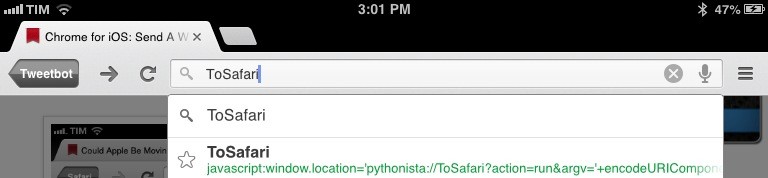
In January, I tried to put together a bookmarklet to send the webpage currently open in Google Chrome for iOS to Apple’s Safari. That turned out to be a surprisingly complex effort as Google didn’t think offering an “Open In Safari” option would be a good idea, and the app’s URL scheme produced some interesting results when opening and closing Chrome.
I was reminded of the bookmarklet this morning by reader @CNWLshadow, and I realized that I never posted the solution I settled with. It consists of a browser bookmarklet and a Pythonista script, and it works with just one tap.