Federico Viticci

10804 posts on MacStories since April 2009

Federico is the founder and Editor-in-Chief of MacStories, where he writes about Apple with a focus on apps, developers, iPad, and iOS productivity. He founded MacStories in April 2009 and has been writing about Apple since. Federico is also the co-host of AppStories, a weekly podcast exploring the world of apps, Unwind, a fun exploration of media and more, and NPC: Next Portable Console, a show about portable gaming and the handheld revolution.

Google Voice Search for iOS: Not A Siri Competitor, Still A Solid App

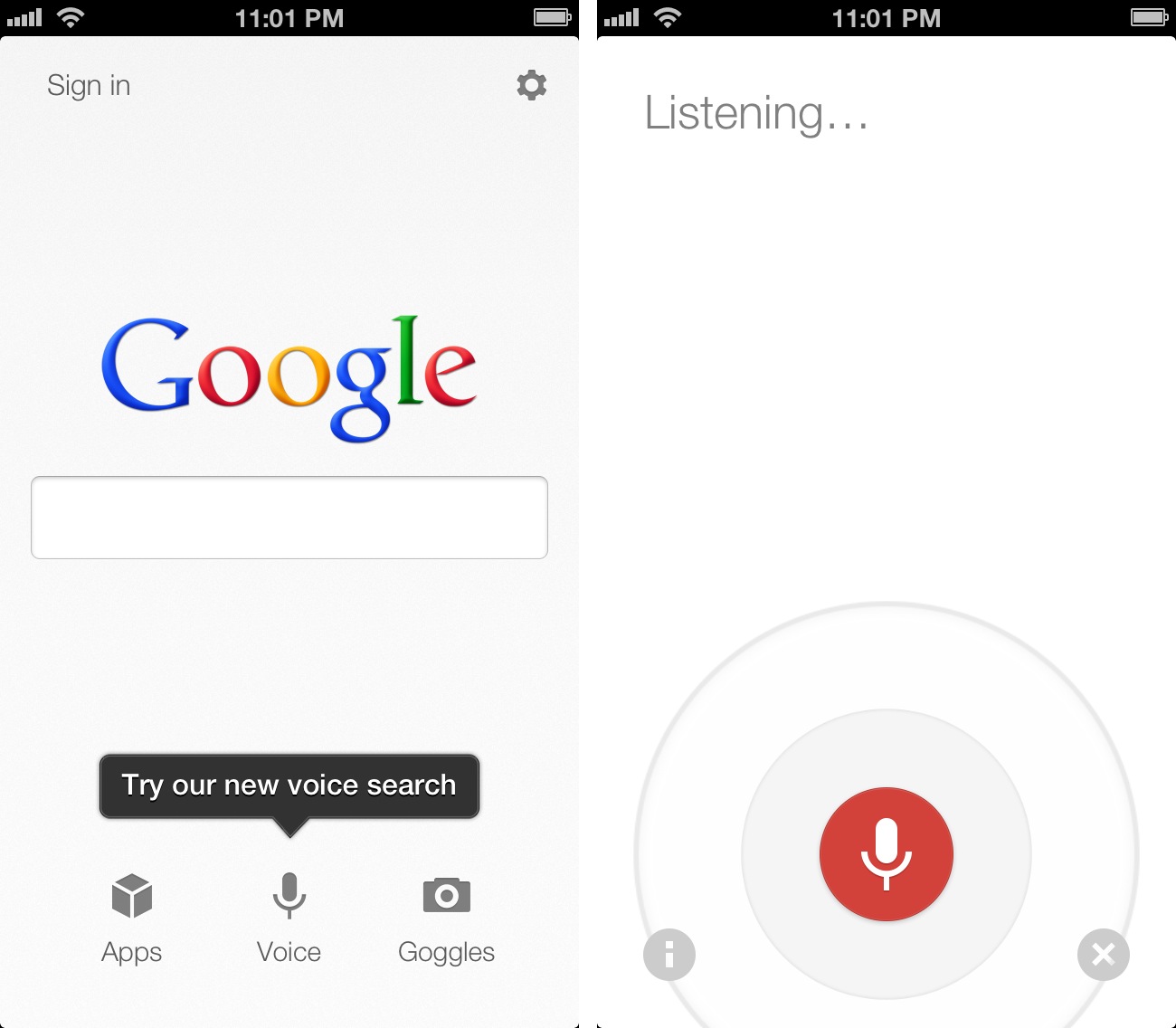
Earlier today, Google released an update to its Search app for iOS (a longtime favorite of mine both on the iPhone and iPad) to include an “Improved Voice Search” experience. Apparently, the app had been submitted a while ago, but Apple approved it this week.

The new Voice Search of the app may seem Siri-like in terms of overall concept. Essentially, it allows you to ask questions in natural language without typing, and get results back. I took some time to test the app, and, in actual usage, the scope is considerably different from Apple’s Siri, at least for now. And, at the same time, the technology behind it is much different. Read more


iTunes 11 Delayed To November

iTunes 11 Delayed To November


As reported by AllThingsD, an Apple spokesperson has confirmed iTunes 11, expected by the end of October, has been delayed until November.

The new iTunes is taking longer than expected and we wanted to take a little extra time to get it right. We look forward to releasing this new version of iTunes with its dramatically simpler and cleaner interface, and seamless integration with iCloud before the end of November.

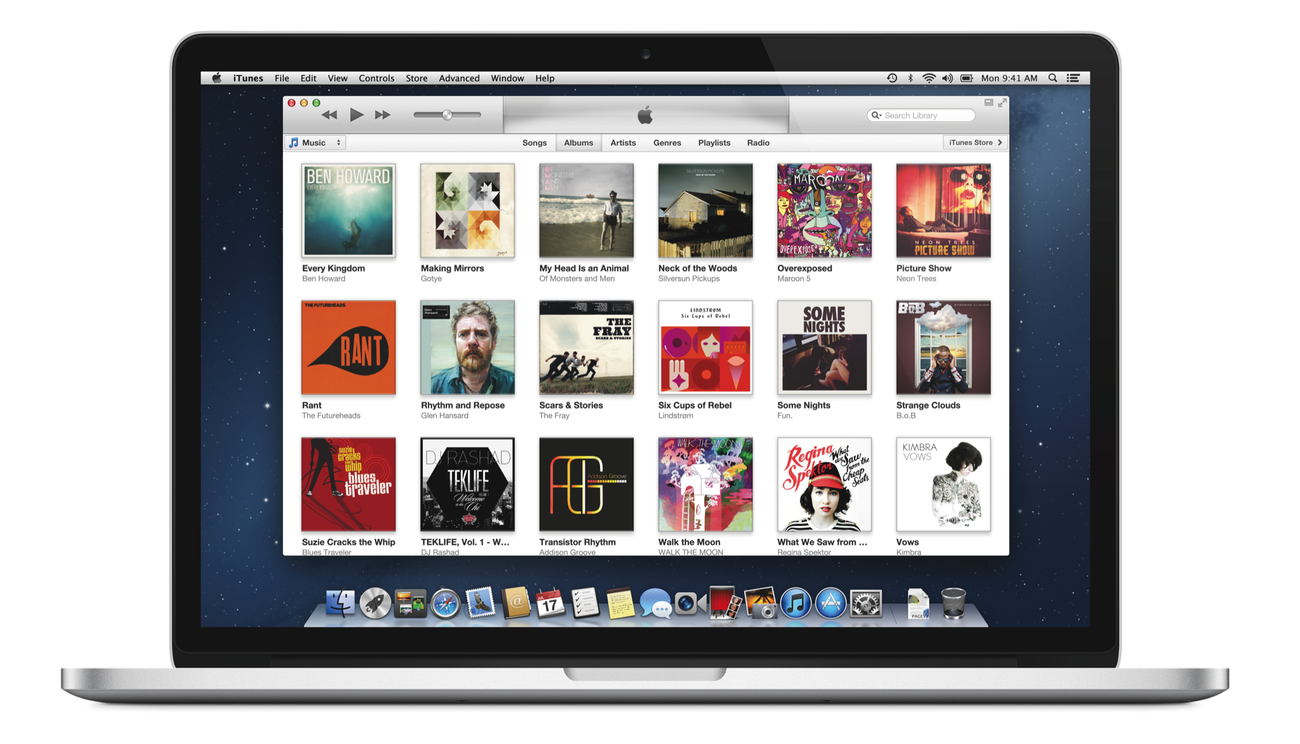
Originally announced at the iPhone 5 event on September 12, the new iTunes features a new edge-to-edge design that is reminiscent of the Music app for iPad. iTunes 11 also brings popovers that present a drop down of upcoming songs, and improved search results as you filter through music in your library. One of the big new features is expanded view, which lets users see all the songs of an album in place without opening a different view. The background of an album in expanded view is automatically generated by iTunes based on the item’s artwork.

iTunes 11 will also add iCloud integration, a new Up Next feature, a redesigned MiniPlayer, and more. In a preview available online, Apple is showcasing some of the new design choices and functionalities of iTunes 11, but it’s still unclear how the app will handle other media such as apps, books, or podcasts.

Check out Apple’s official preview of Tunes 11 here.

Permalink

Automatic Screenshot Uploading with Dropbox and Automator

Automatic Screenshot Uploading with Dropbox and Automator

Matteo Agosti figured out a simple yet effective way to upload items to your Dropbox Public folder and automatically receive their URLs in the clipboard: Automator.

After long time using various utilities to automatically share my screen shots when I updated to Montain Lion I had to find another solution as many of them stopped working. It came to my mind that OS X is bundled with Automator, an extremely powerful utility that I always relegated to thumbnails generation. So I decided to give it a try and I eventually made it. That’s how I did.

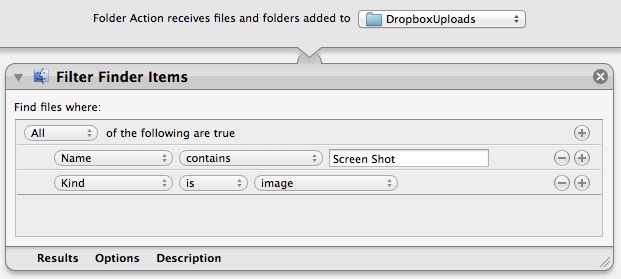
His folder action is extremely simple: it monitors a folder, filters items that begin with “Screen Shot” and that are images, then moves them to your Dropbox Public folder. By using your unique Dropbox ID, it places a link in the clipboard guessing what the final URL will look like; the URL is made of the standard initial “dropbox.com/u/” portion combined with a URL-encoded version of the file’s name.

The obvious downside is that this workflow isn’t directly communicating (i.e. uploading) with Dropbox: it’s simply moving files and composing the link that you will get once the upload is finished. In my tests, for instance, the URL received by the workflow became available after 10-20 seconds – when the Dropbox app actually finished uploading the file. After that, the URL was indeed correct.

Still, if you’re looking for a simple way to upload public Dropbox files and get a link back, you should check out Matteo’s post.

Permalink

Brief Thoughts and Questions On Apple’s Changes

It’s unclear whether today’s news of a major shake-up at Apple will reveal its actual effects a few months from now, many months from now, or at next year’s new product announcements in the Fall. I’d say WWDC would be a good stage to introduce “the new Apple”.

Rumors of internal struggles between the “political” Scott Forstall have been floating around for quite some time, and we just don’t know whether today’s press release was just that – a press release – or the result of more internal fights. We don’t know for how long this move has been in the works. But I’ll point out the precise timing of the announcement: it comes after the release of iOS 6, the iPhone 5, new iPod products, new Macs, the iPad mini, and an earnings call. It allows Apple to formally mention the efforts of a new executive line-up at a record-setting (per the company’s own guidance) holiday quarter. Coincidentally, as the US market is closing tomorrow due to Sandy, it gives Apple (and analysts and investors) an extra day to properly digest the news. I also guess this explains why Forstall didn’t give a demo at the iPad mini event. He’s being pushed out; I’m curious about timing.

That said, I have some questions. Think of the following list as a collection of thoughts following Apple PR’s announcement; I believe this is, for many reasons, one of the biggest changes to happen at Apple since the release of the original iPhone. It’s a major milestone for where the company is going from here. Read more


Major Changes at Apple: Scott Forstall Leaving, Jony Ive To Lead Human Interface Across Company

With a press release published a few minutes ago, Apple announced major changes in the structure of the company. The big news is that SVP of iOS Software Scott Forstall will be leaving Apple in 2013, with SVP of Industrial Design Jony Ive taking over to “provide leadership and direction for Human Interface (HI) across the company”. Forstall will stay on as an “advisor” to CEO Tim Cook in the meantime; Forstall joined Apple in 1997 coming from NeXT, and he was later promoted to Senior Vice President in 2003.

Jony Ive will provide leadership and direction for Human Interface (HI) across the company in addition to his role as the leader of Industrial Design. His incredible design aesthetic has been the driving force behind the look and feel of Apple’s products for more than a decade.

But there’s a lot more in Apple’s official statement: essentially, in the coming months Apple will undergo major changes in several aspects of its internal structure, both in terms of executive leadership and teams. Bob Mansfield, who announced his retirement earlier this year but then decided to stay at Apple, will lead a new Technologies group:

Bob Mansfield will lead a new group, Technologies, which combines all of Apple’s wireless teams across the company in one organization, fostering innovation in this area at an even higher level. This organization will also include the semiconductor teams, who have ambitious plans for the future.

Craig Federighi, recently promoted to SVP of Mac Software Engineering, will go on to lead both the iOS and OS X groups:

Craig Federighi will lead both iOS and OS X. Apple has the most advanced mobile and desktop operating systems, and this move brings together the OS teams to make it even easier to deliver the best technology and user experience innovations to both platforms.

Additionally, head of Services Eddy Cue will take over responsibilities for Maps and Siri, and John Browett, Apple’s head of Retail, will be leaving the company as well. Notably, Browett was hired only ten months ago, but he’s been criticized for many of his recent decisions in Apple’s retail operations.

CEO Tim Cook was quotes in the press release:

The amazing products that we’ve introduced in September and October, iPhone 5, iOS 6, iPad mini, iPad, iMac, MacBook Pro, iPod touch, iPod nano and many of our applications, could only have been created at Apple and are the direct result of our relentless focus on tightly integrating world-class hardware, software and services

The focus of the statement is, in fact, a tighter integration of hardware, software, and services. Read more


Netbot 1.1 Adds Push Notifications, Search

Netbot, Tapbots’ iOS client for App.net, has been updated today to version 1.1, which adds two of the most requested features from the app’s userbase: push notifications and search.

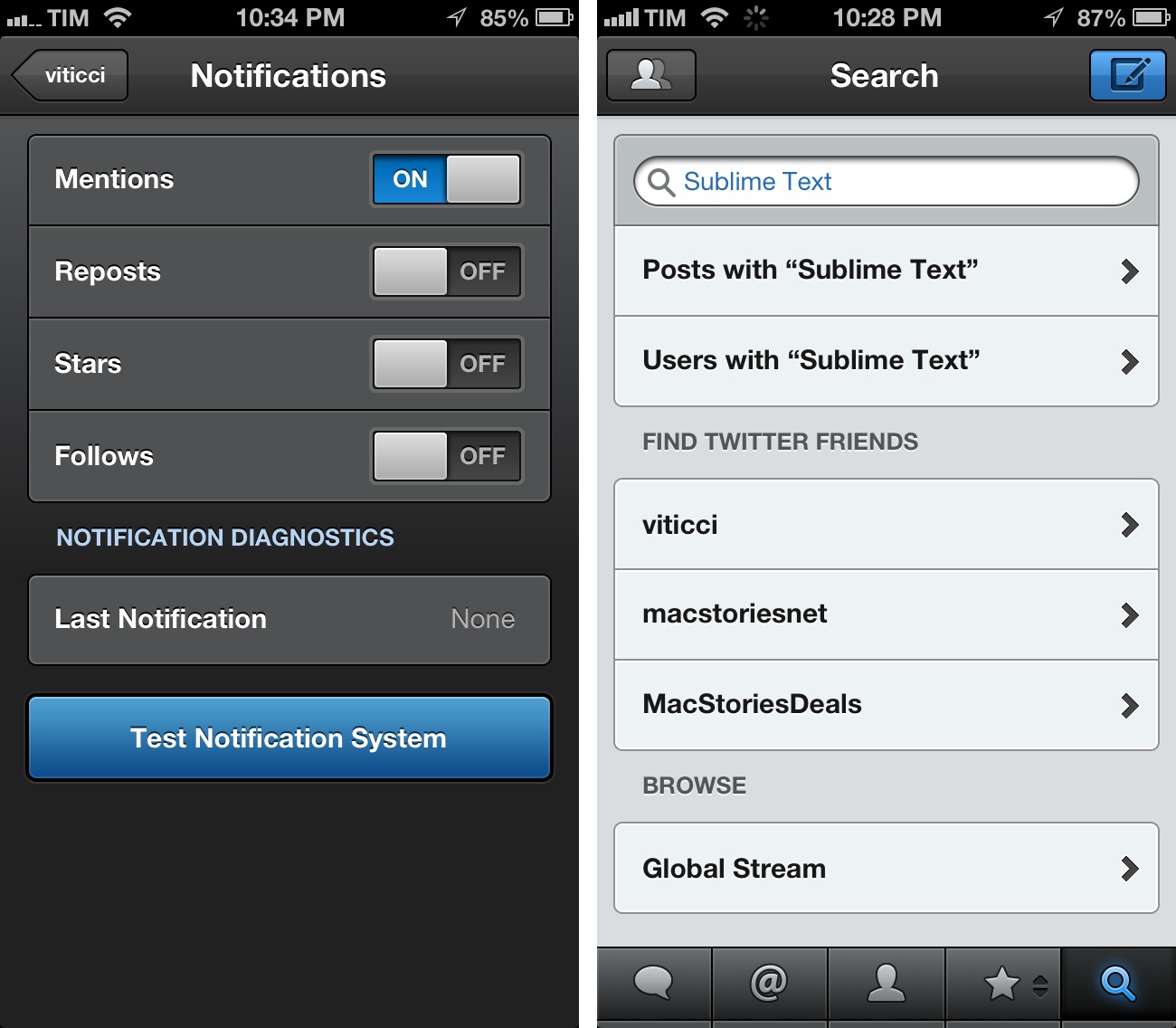
Both features have been created by Tapbots’ developer Paul Haddad on top of App.net’s streaming component of the API. This means that, while Netbot isn’t streaming timelines like Tweetbot yet, it’ll be able to send you notifications for Mentions, Reposts, Stars, and new Follows. Once again, this works just like Tweetbot: head over your account’s Settings and select Notifications to choose which kind of information you’d like to receive. In my tests, Netbot’s push notifications were reliable and fast. Read more


Automatically Convert .iconset to .icns with Drag & Drop

Automatically Convert .iconset to .icns with Drag & Drop

Earlier today I indirectly asked on App.net and Twitter if there was a way to automate the process of converting sets of icons for non-Retina and Retina devices. On its developer documentation, Apple recommends using iconutil and tiffutil to convert application icons and graphic resources, respectively. Once you’ve packaged, for instance, .png files inside an .iconset folder, you should fire up the Terminal, and run the command for the .iconset folder you want to convert. How about automating the process for batch conversion of multiple files?

As it often turns out, if you can think about it, then someone likely already blogged about it. Jono Hunt wrote a drag & drop utility earlier this year to do just that: select multiple .iconset folders, drop them onto the app, receive converted .icns files.

Apple have changed the way you should compile .icns files used for Mac application icons. Instead of using Icon Composer you should now use the “iconutil” Terminal command with .png images contained in folders with the .iconset extension. I created an AppleScript droplet to simplify the process. Just drag the .iconset folder containing your .png files on to the app to easily create a retina ready .icns icon.

Jono has also released versions of the script that work with Alfred and Automator. He also build a counterpart for tiffutil, available for download here.

Permalink

Sublime Text 2 and Markdown: Tips, Tricks, and Links

After a brief stint with TextMate 2, I recently started playing around with Sublime Text 2 for writing, and I thought I’d share the links and tips I’ve collected so far. I use Sublime Text 2 for both writing (in Markdown) and coding (that is, the basics of Python that I’m learning), but the links I’ve collected are primarily Markdown-related, as that’s how I spend most of my time on a computer: writing.

To begin, download Sublime Text 2. Or, download the Dev build, which will get you access to the latest features. Read more


Control OS X Function Keys with Palua

Control OS X Function Keys with Palua

In fiddling around with Sublime Text 2 today, at one point I stumbled upon a command that needed F2 and F3 keys to be executed. I remember I once heard about a Mac app that let you easily toggle between “Function mode” and “Apple mode” for the F keys, so I went to Google, and eventually ended up back on MacStories.

In May 2011, our Cody Fink covered Palua, a menubar utility to do exactly that:

If you are going to be making use of the functions while working in a specific app, Palua for Mac allows you to toggle the function keys on and off so you don’t have to mash the fn key with each command. More interested in getting use out of those function keys than changing the volume? From the menubar or a simple ⌥⌘⇥ (option-command-tab) keystroke, Palua will activate and deactivate the function keys as needed when working in various projects.

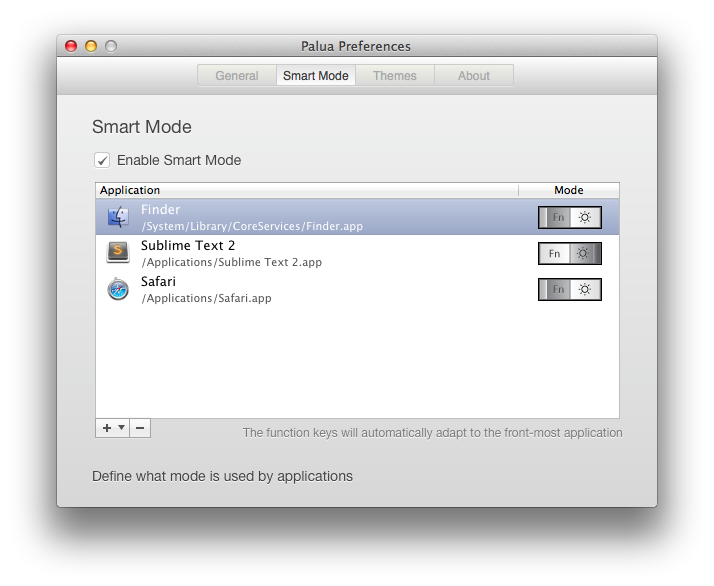
The app has gotten much better since Cody’s original article. Version 3.0 adds an option to rely on Palua automatically by “app mode”, which is what I was looking for. Essentially, you can enable a “Smart Mode” to always use a mode in a specific app. So, for instance, I can default to “Apple mode” in every app, but activate “Function mode” only in Sublime Text. This means I can have my F2 shortcut in Sublime Text by directly hitting the key; in the Finder, Safari, and every other app, “Apple mode” will let me change volume, brightness, and all the other functions associated with those keys.

Palua is another example of a simple utility that does one thing extremely well. It scratches an itch and solves a problem with elegance, a variety of options, and unobtrusiveness. Best of all, it’s only $0.99 on the Mac App Store.

For more information and videos, check out the detailed explanations at Palua’s website.

Permalink