Federico Viticci

10804 posts on MacStories since April 2009

Federico is the founder and Editor-in-Chief of MacStories, where he writes about Apple with a focus on apps, developers, iPad, and iOS productivity. He founded MacStories in April 2009 and has been writing about Apple since. Federico is also the co-host of AppStories, a weekly podcast exploring the world of apps, Unwind, a fun exploration of media and more, and NPC: Next Portable Console, a show about portable gaming and the handheld revolution.

Marco Arment’s The Magazine: At The Intersection of Technology and Writing

When people ask me about my job, I usually reply: “I write about technology”.

Just a little over three years ago, I found myself unemployed, so I started MacStories. It wasn’t easy. Not because of WordPress, FTP, or getting black pixels to appear on a white background. I’ve never had a problem with putting words on a screen.

It wasn’t easy because where I live, a small town in Italy, writing about technology sounds a lot like “I spend my days at home looking at a computer while I drink coffee” . Which, to be fair, is a pretty accurate representation of my daily agenda. But how I do it, and why I do it, and understanding the whole idea of seeing technology as more than a bunch of cables – well, that was the not-so-easy part.

It still is. I know it will be for a long time. And yet I keep typing on this keyboard because I think it’s worth it. I do what I can by writing about my experiences.

Because, hopefully, thanks to technology, our kids will have a better future.

Because twenty years from now, people won’t “find out” they have cancer. They will know in advance, thanks to technology.

That’s quite a goal I, and others like me, are priding ourselves upon, you’d argue, when, effectively, what we do is reviewing apps and reflecting on the latest news. In practical terms, that’s what I do. But I see it as more than that.

Writing is about making connections.

In the past three years, I’ve seen how the great technology writers I look up to are able to make connections between topics and streams of thoughts: they look at the big picture.

On the flip side, technology writing, a scene that’s built on its very distinct and yet cohesive communities, has created connections between people. I wouldn’t have met the MacStories team if it weren’t for writing and following the same writers. I wouldn’t have gotten to know friends like Shawn, Stephen, Gabe, David, Matt, Matthew, Justin, Brett, and many more.

In fact, if it weren’t for this little writing thing of ours, I wouldn’t have met any of you.

Great writing creates connections inside and outside of text.

The Magazine

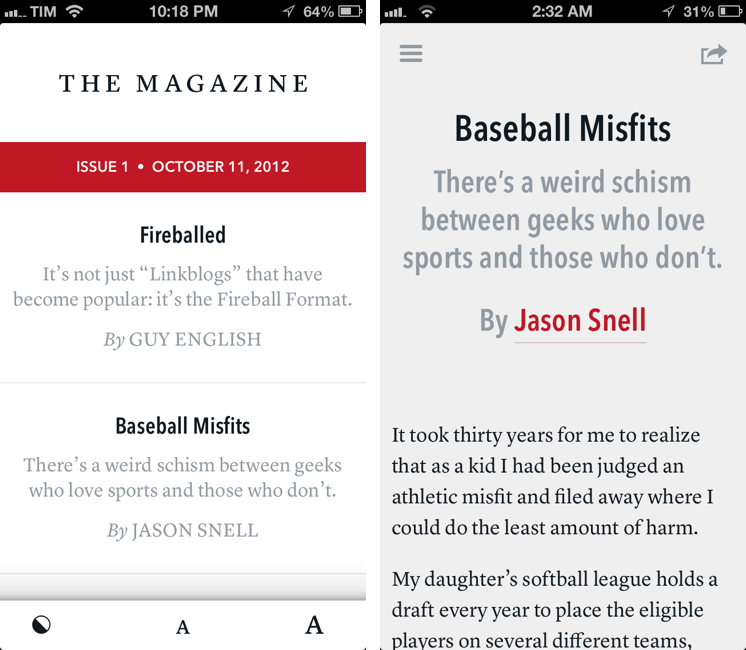
Marco Arment’s The Magazine falls exactly under this aspect of writing. It’s about people who love technology, delivered as a curated collection of articles from great writers. In a way, it’s the opposite of Instapaper: while Marco’s more popular app is what you make of it, The Magazine is Marco’s own vision. So, yes – you’ll have to trust him on this one.

I’ve never met Marco in real life. We’ve exchanged emails a couple of times and perhaps replied to each other on Twitter. The other day we talked about pears on App.net. But see, the great thing about the Internet is that I genuinely like this guy only because of his work and passion for technology.

I think The Magazine is a promising and notable initiative for a variety of reasons. Firstly, for as much as I praise the tech community, there are aspects of it that I’m not particularly fond of. I don’t like rumors and linkbaity headlines. Sometimes I think that it’s too much when a site tries to tell me everything about a topic with 20 articles. In the words of Marco, The Magazine will take a “a measured approach to the big picture” with “meaningful editorial and big-picture articles”. Or, as Guy English writes in “Fireballed” for the first issue, The Magazine is both old and new. It’s old in that it won’t share the same publication schedule of most blogs; it’s new, because it should encourage writers to create more, new “timeless pieces” based on a business model that their “Fireball Format” website wouldn’t probably allow. I suggest you read Guy’s article in the first issue (there is a free 7-day trial).

I’ve heard from several people who received copies of The Magazine in advance that, in hindsight, the idea is obvious. Get articles from great writers and make an app out of it with new content available periodically. To me, The Magazine seemed “obvious” more because of the technology it’s built with.

Earlier this week I wrote a post on how to hide Newsstand from iOS 6. The Magazine is entirely based on Newsstand, and, a year after the launch of iOS 5, it’s the first app that gives it a purpose, at least for me. Read more
iTunes and App Store Reminders with Recall

I don’t like some of the changes of the new App Store in iOS 6. That’s not a secret. But there is a single annoyance that goes way back before the iOS 6 days, all the way to when the App Store was relatively new in late 2008 and I got my first iPhone: the lack of a wish list.

I use the Wish List feature of iTunes a lot on my computer. Because I use iTunes mainly for buying apps and checking for updates, I rely on the Wish List to save interesting apps and games to check out later. However, I’ve dropped the occasional song or movie in the Wish List too.

The iTunes Wish List is simple and effective.

Too bad it doesn’t work on iOS devices.

While there have been some rumors on dedicated wish list features coming with an iOS update, in its current state the App Store (and iTunes Store) can’t use your iCloud account to sync items you’ve added to your wish list.

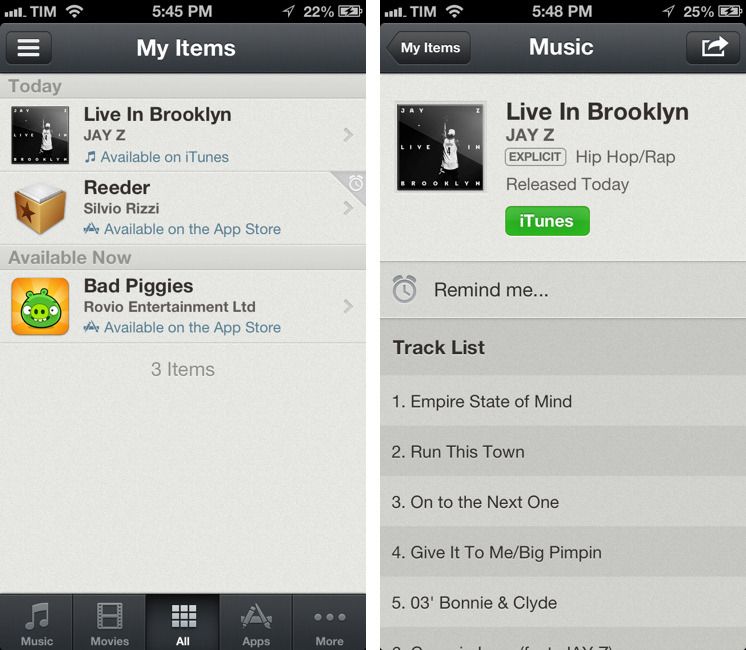
Recall by Overcommitted is not a wish list replacement in the sense that it’ll provide you with a list that syncs across devices. For that, I still use (and recommend) AppShopper, which is just phenomenal when it comes to tracking app updates and price drops with push notifications. Instead, Recall is about “never forgetting iTunes recommendations again”. It provides an alternative interface for the iTunes and App Stores, allowing you to save recommendations and create reminders for them. Read more


Best MultiMarkdown Previews On iOS

As a quick follow-up to my Nebulous Notes post on MultiMarkdown macros, I decided to put together a quick representation of how various apps I have tested handle MultiMarkdown previews on iOS.

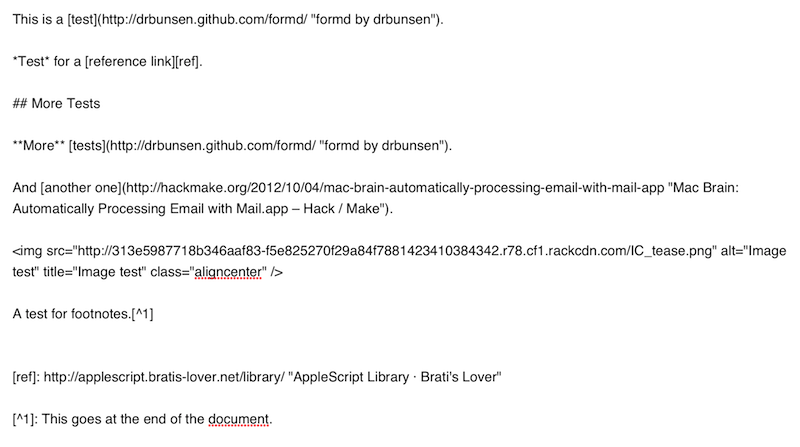
For reference, this is the text I previewed in each editor:

It’s a mix of regular Markdown (reference, inline links, bold and italics, section headers), MultiMarkdown (footnotes) and regular HTML (the centered image). I always write with this combination of syntaxes because that’s how articles end up on MacStories. The mix is also a good stress test to see how an app can handle various implementations of Markdown and HTML simultaneously.

Read more


Send Flagged Mail Messages To OmniFocus Automatically

Send Flagged Mail Messages To OmniFocus Automatically

Sven Fechner pointed today to an AppleScript published in late 2011 by Hunter Hillegas to send flagged Mail.app messages to OmniFocus’ inbox on the Mac.

In iOS 5, Apple added the ability to flag a message, just as you’ve been able to do on the desktop forever. I created an AppleScript that looks for flagged messages. When it finds them, it adds them to OmniFocus and links them back to Mail.app, just like the Services action does. It then also unflags the message, resetting the state back to normal. This script runs every five minutes.

In iOS 6’s Mail.app, it’s now even easier to mark a message as flagged. I have tried the script, and it works as advertised. I would modify it to include only the latest message of a thread in the task note, but I see the appeal of having an entire conversation saved in OmniFocus for reference.

Obviously, the script is best enjoyed if executed on a Mac that’s running all the time. In this way, you can set a message as flagged on iOS, wait a few seconds, and find it in OmniFocus right away.

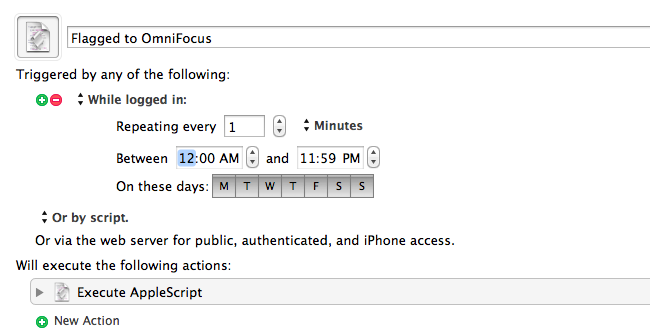
Personally, I run my own OmniFocus sync (every minute) so that I always have up-to-date sync that I can control. To implement this script in my workflow, I just had to create a new Keyboard Maestro macro (pictured above) that runs the AppleScript every minute if I’m logged in. In the way the script is designed, flagged messages are processed, then set back to “unflagged” so they won’t be added again in the future (unless you flag them manually).

You can find the AppleScript here.

Permalink

iOS 6 Concepts: Multitasking and App Store

iOS 6 Concepts: Multitasking and App Store

The past couple of days has seen a fresh round of new iOS 6 concepts surface online. Specifically, Rene Ritchie at iMore posted a series of mockups showing possible improvements for the current (poor) state of App Store search on the iPhone, while The Verge featured a forum post by member Sentry about multitasking on iOS.

For the App Store, I’ve already largely discussed why I think the new interface represents a step backwards in several areas. Especially on the iPhone, discovery is hampered by a new card-based layout for search results that’s slow and makes terrible use of information desnsity on our device’s screens. Rene offers some interesting solutions:

Taking it one step further, Apple could implement the portrait interface they use for app categories and present a few horizontal list views. The first could present search results filtered by keyword relevance, the second by rating, the third by how many “friends” have the app, the fourth by recency of release, etc. So, for example, a search for “Twitter” could result in the official Twitter for iPhone app showing up first for relevancy, Tweetbot first for friends who have the app, and Flurry for most recent.

Filters are interesting. With iOS 6, not only does Apple have data from Genius and Game Center, they also have direct integration with Facebook and Twitter. I’m not sure this is a path Apple could go down with for such a core feature of the system, but it’d be curious to see, say, how a Facebook-enabled App Store could recommend apps that my friends are liking and using. I’m not sure about the privacy implications, but the appeal of such a functionality could be big for the average user who just wants good app recommendations.

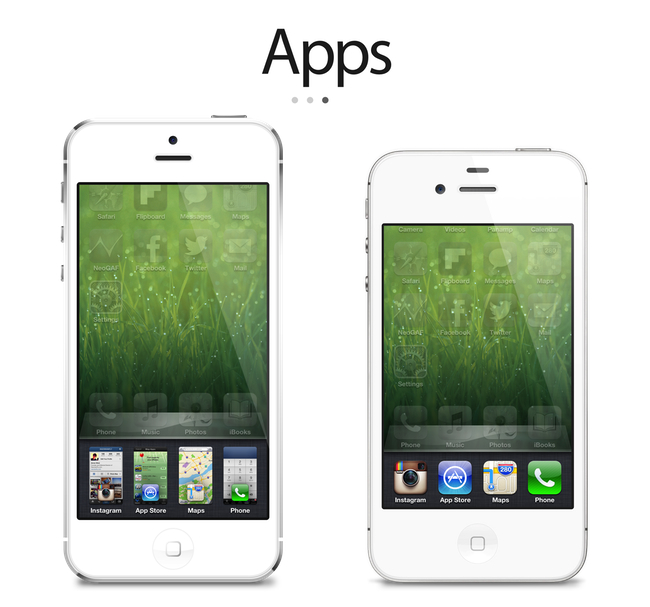
On The Verge, forum member Sentry has an elegant and very Apple-like take on how the multitasking tray could be improved. Practically unchanged since iOS 4, Sentry argues that iOS 6 should make better use of the extra screen space of the iPhone 5 for multitasking. Instead of proposing the usual Mission Control-like UI we’ve seen in dozens of mockups, he says that users are very entrenched into the simplicity of the multitasking tray: it shouldn’t change too much.

In an attempt to offer more functionality and features, they lose the core simplicity of the switcher which made it particularly usable to begin with. Some concepts use the entire screen space to display a grid of app previews, others only double the switcher height to include an extra row of icons. While both offer additional functionality, they actually hinder the flow and ease of app-switching. Whether it’s a full screen grid solution or displaying two rows in the switcher instead of one, both require more from your thumb than Apple’s original solute while tending to be overly brash in appearance as well.

I agree about the app switcher: it’s very easy to use, and, while geeks like us would like to have more options for “real” multitasking, typical iPhone users don’t have any problems with switching apps. I’m still not completely sold on the concept of live app previews for the switcher, but I know (at least I very much hope so) that Apple won’t change this part of the experience unless they come up with something better. An improvement that’s useful, not just different for change’s sake.

Check out the concepts by clicking on the source links above. Also recently: a great concept on how to enhance Spotlight by giving it Siri-like features based on text input.

Permalink

Sakura Quick Math

I’ve always been bad at mathematics. It’s not that I don’t like the subject per se: I prefer words.

However, as they teach you in school, numbers are important. Some would argue our universe is made of numbers and mathematic relationships between their entities. Personally, I’d be fine just being able to jot down a quick addition or subtraction and having the result in my head without pulling out my iPhone’s calculator. The meaning of the universe can wait.

I think Sakura Quick Math is an interesting experiment for kids who want to improve their arithmetic skills for schools, as well as people like me who are way past high school and are often reminded that they’re terrible at calculations. Sakura Quick Math combines a clean, typography-oriented UI approach with the personal goal of getting better at stuff like additions, multiplications, divisions, and so forth.

Sakura Quick Math is perfect for students in grades 3, 4, 5 & 6 or those people who want to improve their all round mathematics ability. Multiple difficulty levels allow the app to grow with your skills. Developed in partnership with several schools, teachers and psychologists, with dedicated practice Quick Math should improve mathematics skills.

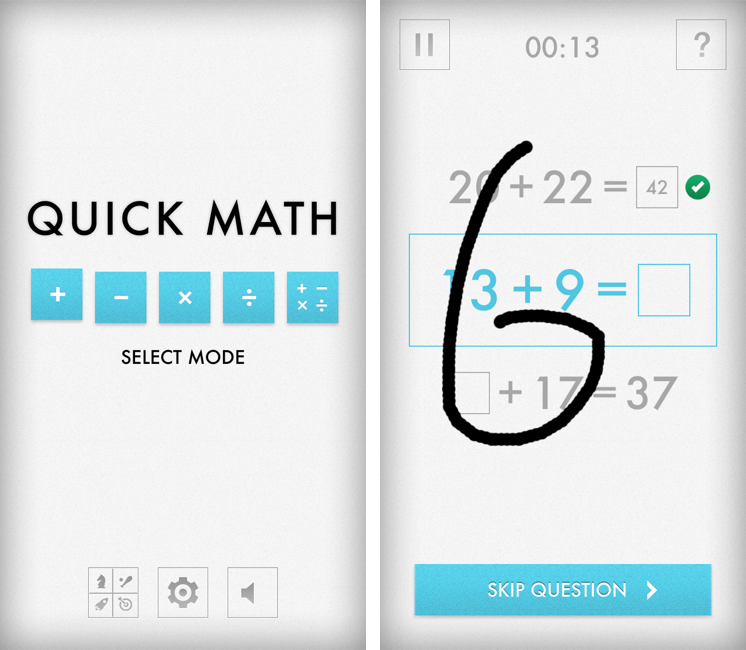
I like the app for a variety of reasons. It’s a game, but it’s also an educational tool; it reminds me of the Brain Age/Brain Training “games” that were so popular on the Nintendo DS a few years ago. Just like Brain Age, Sakura Quick Math takes advantage of the platform it runs on with a fully touch-based interaction. Through built-in handwriting recognition, the app “understands” the numbers you’re writing on screen. In my tests, I’ve found the app to be really clever at figuring out my scribbles, though it sometimes hung on “4” and “9”. However, it was just a matter of getting how the app wanted those numbers to be written (tip: don’t lift your finger off the screen).

There are various difficulty levels for five modes. The main screen allows you to pick one of these modes, disable sounds, or open the Settings to adjust the handwriting recognition method. You can also check out Game Center leaderboards if you want to feel bad about yourself.

When you’re playing, you have to be fast in writing your answer, as shorter times is what you’re going after. You can write anywhere on the screen, and you can clear your answer with a two-finger swipe if you’re not sure about it. Otherwise, the game will take a correct answer as soon as it’s entered. You can skip questions, or end games and go back to the main screen. The app has a nice selection of sound effects and it displays records on a chart that puts the focus on “getting better” rather than “beating someone else”. It’s a subtle but important difference.

I’ve found Beginner to represent an enjoyable challenge, but then again I’m bad at this kind of stuff, as I said above. You’d probably want to look at the Advanced level for the last mode, which mixes everything in a single game.

Sakura Quick Math looks good, is fun to play, and it’ll probably make my rusty brain a little less old when it comes to arithmetics. Plus, it’s only $0.99 on the App Store, so check it out if you’re looking for something different than the usual Angry Birds or Temple Run-style game.


Ecoute for iOS

Ecoute for iOS

A while ago our Lukas Hermann published an in-depth review of Ecoute for iOS:

From now on, Ecoute for iOS is my new default music player for iOS. Its UI features every design decision I ever wanted to have on my iPod touch. Plus, it eases up changing and pausing tracks while browsing through your music library, something I often do while I’m on the go. I can’t wait to see this thing on the iPad as well. If you’re a music and design enthusiast like me, or just dislike the system music player on your iPhone or iPod touch, you have to try it out.

Last week, I saw Ecoute had been updated for the iPhone 5, and I decided to give it a try. I’m glad I did, because the app works perfectly for the way I think of browsing my music collection.

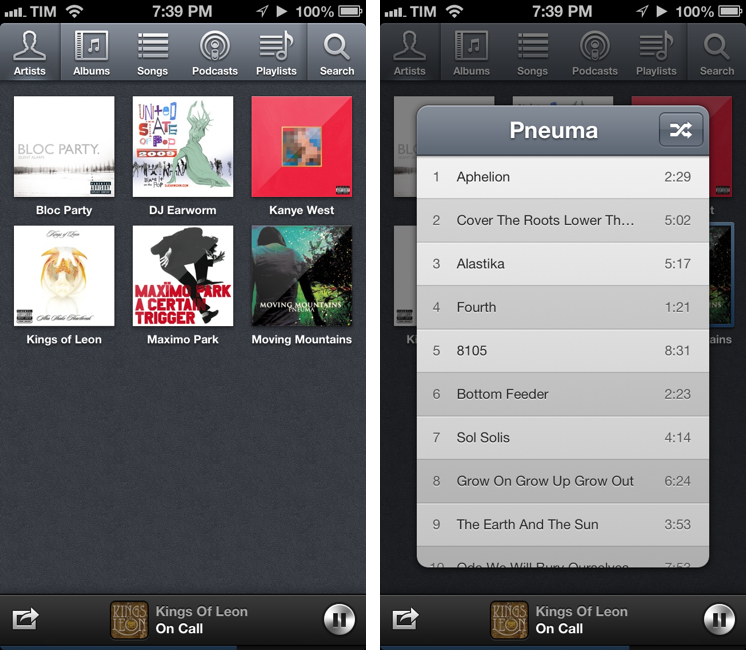
The thing I like about Ecoute is that it displays Artists using album thumbnails. The Music app does this only for the Albums view, and then again they’re small thumbnails arranged in a list view. Ecoute is more similar to iTunes’ grid view, which I use on my Mac. When you tap on an album, instead of going deeper into the level views, Ecoute brings up a modal popup that you can dismiss with a swipe – this is not too dissimilar from how the upcoming iTunes 11 will expand albums inline. If you tap on an artist that has multiple albums, a nice animation will “drill down” to show the album thumbnails. Last, when you tap on a song, it starts playing in a bottom bar without opening a new view in the foreground – and that’s exectly all I want from a music app.

Ecoute looks gorgeous on the iPhone 5. If you’re looking for a complete overview of all its features, check out Lukas’ review. For me, Ecoute works better than Apple’s Music app because it reflects the way I tend to browse my music collection.

Ecoute is available at $2.99 on the App Store.

Permalink

Hide Newsstand In A Folder On iOS 6 With One Click, No Jailbreak Required

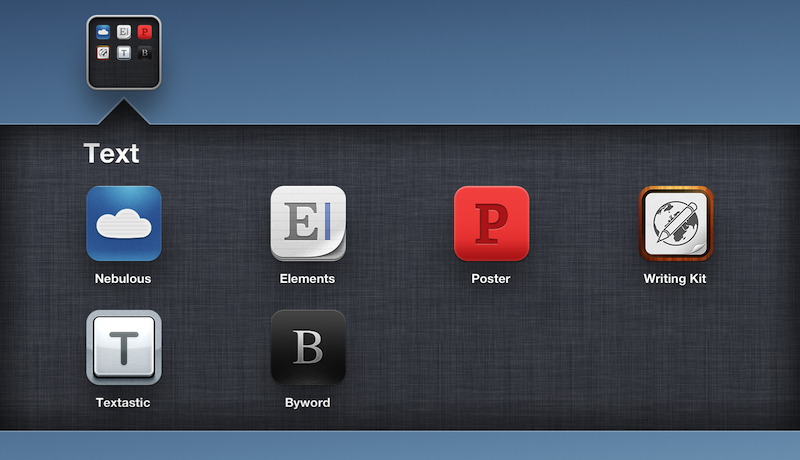
After the release of iOS 5 last year, several users complained that the Newsstand app (effectively a “folder” for magazine and newspaper subscriptions) couldn’t be hidden from the Springboard. Because of its nature of glorified folder, users couldn’t even put it away in an existing folder on the Home screen. However, people soon figured out a trick to make the Springboard hide Newsstand.

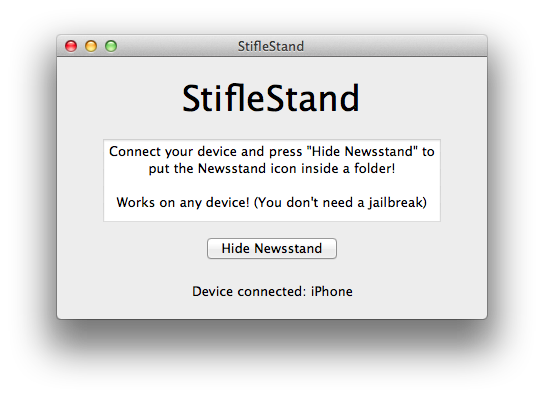
This year, well-known Cydia developer Filippo Bigarella has released a simple Mac app to hide Newsstand from any iOS device with a single click. I’ve just tested the app personally on my iPhone 5 running iOS 6, and it works as advertised. Even better, the app doesn’t require a jailbreak at all, as it leverages the existing “folder trick”, albeit making it easier to access.

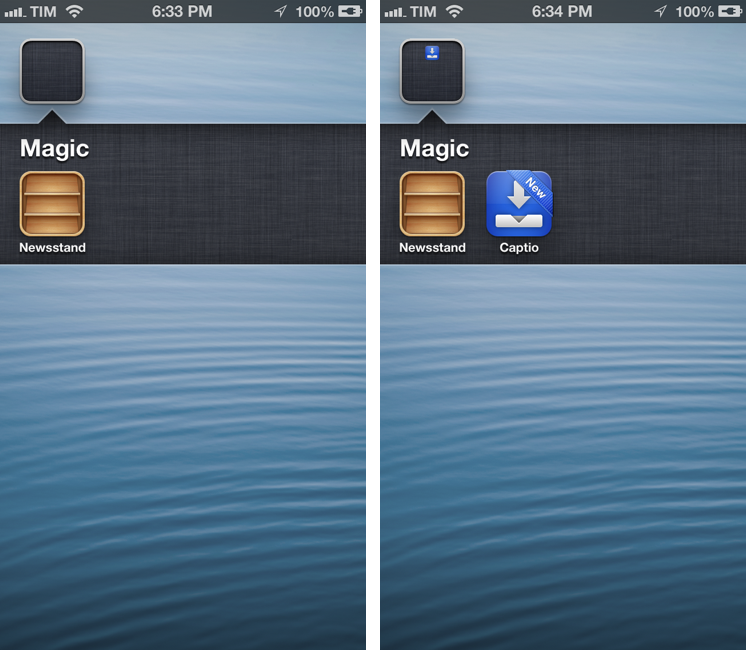
Simply download StifleStand, and open it on your Mac. Make sure a device is plugged in and recognized by the app. Hit the Hide Newsstand button, and watch as Newsstand gets put into a folder called “Magic” on your Home screen. It literally takes one second to complete.

Please note: Just like on iOS 5 last year, opening Newsstand from a folder will crash Springboard. Use this tweak only if you don’t use Newsstand.

You can then rename the folder and put more apps into it. One bug I’ve noticed is that, because Newsstand isn’t meant to be put into a folder, if the folder is closed you won’t see the smaller preview icon for Newsstand. You can avoid this by placing more apps into the folder, leaving Newsstand at the end, so you won’t see the empty spot from your Home screen.

StifleStand works on any device and it’s super-easy to use. Download it here, and watch a demo video by iDownloadBlog here.


Uniconsole: Copy & Paste Unicode Characters and Symbols

In putting together my Nebulous Notes macros, I ended up having to choose icons for the buttons that would sit on top of my keyboard. As you can see from my screenshots, I’m using specific Unicode characters that add a touch of personality to the interface. I copied those characters using Uniconsole.

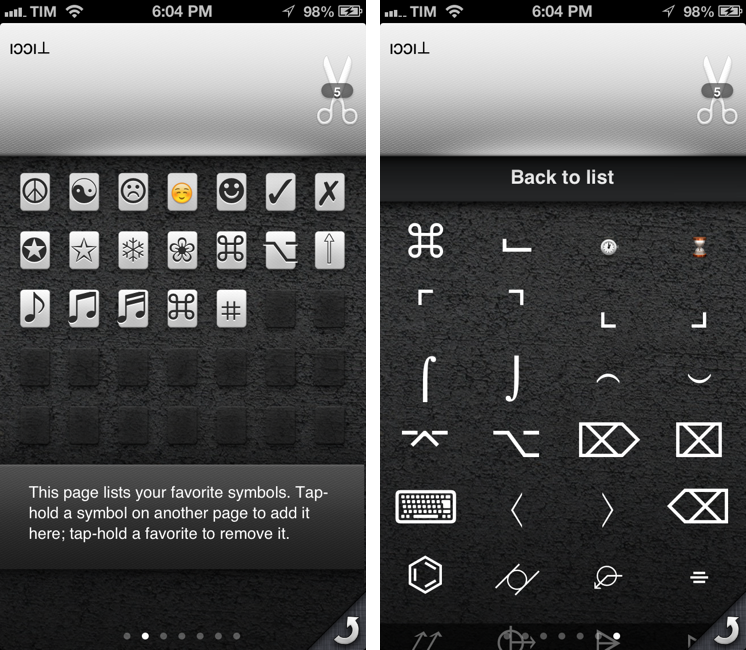
Uniconsole is a very simple, do-one-thing-well $1.99 app that runs on the iPhone and iPad. It fully supports iOS 6 and the new iPhone 5 display. Uniconsole lets you copy “unconvential” Unicode characters and symbols of various kinds and alphabets. While you can find these for free on the web, Uniconsole provides a nice interface to switch between alphabets and sections, save favorites, and copy them to the iOS clipboard. You can copy single characters or multiple ones at once; on iOS, you can bring up the native share sheet by tapping and holding on the scissors icon in the text box.

There are various pages of default symbols and characters; by swiping all the way to the right, you can access sections, including:

  • Dingbats
  • Arrows
  • Shapes
  • Letters
  • Technical
  • Currency
  • Old and New Emoji
  • Mathematical

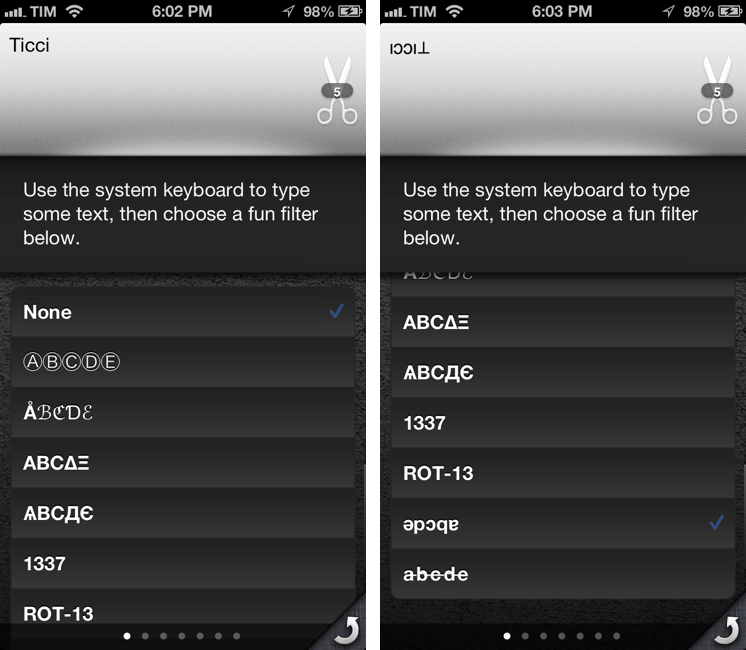
The selection is very rich, and the app is easy to navigate. There’s also a dedicated page that lets you type anything with the system keyboard, and apply a “fun filter” to your text. Filters include things like flip upside down or custom strikethrough.

Uniconsole does one thing extremely well, and while the characters and symbols it collects can be found online with a bit of research, I’ll take the convenience of a Universal app over wasting my time looking for a Unicode arrow any time. If you’re looking for this kind of functionality, $1.99 is money well spent for Uniconsole.