Federico Viticci

10804 posts on MacStories since April 2009

Federico is the founder and Editor-in-Chief of MacStories, where he writes about Apple with a focus on apps, developers, iPad, and iOS productivity. He founded MacStories in April 2009 and has been writing about Apple since. Federico is also the co-host of AppStories, a weekly podcast exploring the world of apps, Unwind, a fun exploration of media and more, and NPC: Next Portable Console, a show about portable gaming and the handheld revolution.

Google Drive App with Document Editing Now Available

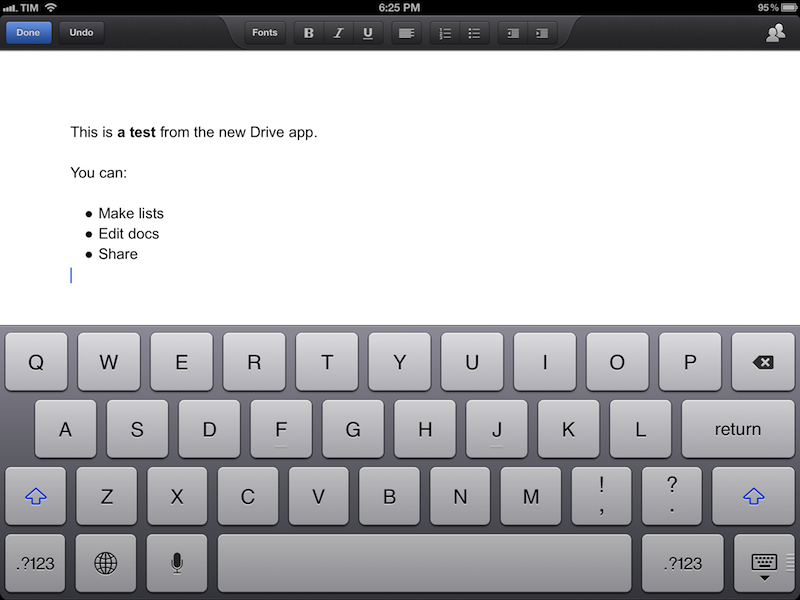
The official Google Drive app for iOS, available for free on the App Store, has been updated today to include support for editing documents directly on an iPhone or iPad. A major new feature of the app, users can now create new documents, edit them, format them, and share them with collaborators; the interface is reminiscent of Apple’s Pages word processor, with a formatting bar at the top to make text bold, italic, or underlined, insert lists, format paragraphs, and more.

In my tests, I have noticed the typing speed of the app’s cursor isn’t nearly as smooth as Apple’s Pages. Somehow, it feels like writing text inside a web view – there is a small delay between hitting a key and seeing a letter appear on screen – in spite Drive’s native nature. The aforementioned delay in typing is substantial enough to be noticed immediately and, I believe, could become an annoyance for many over time. However, it is quite impressive to see how Google managed to integrate live editing inside a document: if you’re collaborating with someone, you’ll see a green cursor appear on screen, typing words in real-time. You can also try this by opening the same document with your account on multiple devices and see what happens.

The formatting I applied on the iPhone and iPad correctly carried over to the web interface, which, obviously, still has more features, such as image uploading and easier link insertion. On iOS, you can’t paste images from, say, the Photos app onto Drive’s editing window; at least, however, Google implemented a font-picking menu with possibility to choose text and background color.

Also noteworthy in this update is the option to move files and delete them. Photos and videos can be uploaded directly from the iOS Camera roll (you can also create new ones with a Camera menu) and, if you use presentations, you should see richer animations and speaker notes (I haven’t been able to test this feature).

Overall, while not as fluid and responsive as Apple’s Pages, Drive’s document editing offers some solid online collaboration functionalities and decent formatting options. Personally, I don’t use Drive for file storage, so I was only interested in checking out the document editing aspect, and I didn’t came away disappointed by it. I wish that in a future update Google will figure out a way to integrate online editing while improving typing responsiveness, which isn’t that great right now.
You can get the app for free on the App Store. Read more


Behind The Scenes of “Sh*t Apple Fanatics Say”

Behind The Scenes of “Sh*t Apple Fanatics Say”

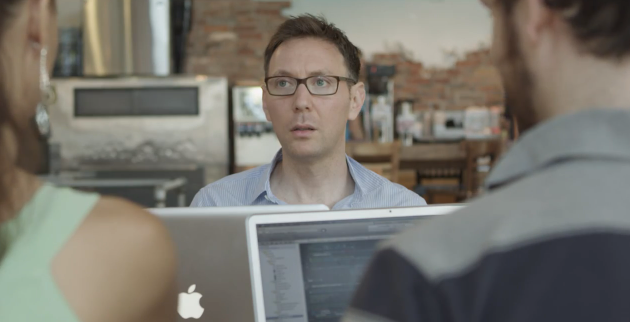
Ken Segall (author of Insanely Simple) has posted an article detailing the story behind ”Sh*t Apple Fanatics Say”, a viral video that ironically collects many of the things Apple fans typically say when “defending” the company and its (sometimes questionable) choices.

Produced by Scott Rose, Mac consultant and FileMaker Pro developer, the two videos of the series (Part 1, Part 2) have been viewed over 900,000 times on YouTube. Interestingly, the video started as a side project that should have been completed in a couple of days, but eventually the “team” behind it spent “one day of location scouting, one day of writing, 2.5 days of shooting and five days of editing”.

The pair wrote over 100 lines and recorded all of them at each location, and improvised as well. That resulted in over eight hours of video that had to be whittled down to just a few minutes.

Make sure to check out the full interview over at Ken Segall’s Observatory.

“Apple can totally survive with Tim Cook, as long as he keeps hiring great people like John Browett”. 

Permalink

OmniFocus Browser Bookmarklet and Safari 6

OmniFocus Browser Bookmarklet and Safari 6

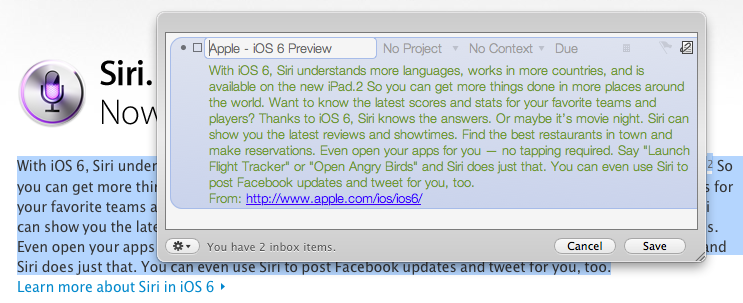
Ever since upgrading to Safari 6 and Mountain Lion, I’ve noticed the OmniFocus bookmarklet I had installed stopped working properly. The OmniFocus bookmarklet is a handy addition to my workflow, in that it allows me to quickly save webpages I need to act upon at a later date, while preserving their title, link, and text selection. I often do this for linked posts that end up here on MacStories, or pages that I need to check out but that I’m not ready to bookmark yet (for that, I use Pinboard).

In theory, the OmniFocus bookmarklet should be capable of grabbing a webpage’s URL and selection (if any) as a note. However, of the two bookmarklets provided by The OmniGroup, none of them manages to successfully grab text selection on my machine running Safari 6 and OS X 10.8.1. So I set out to find a better bookmarklet, and I found this version by Alex Popescu that, besides working correctly, has also some nice integration with Gmail.

For Gmail, the bookmarklet creates a new task with the email title as the task title and a note with the current selection (if any), plus a from line in the form: From: email subject:(email subject) email_thread_url. For normal web pages, the bookmarklet creates a new task with the document title as the task title and a note with the current selection (if any), plus a from line in the form: From: page_url.

I tested this on Safari 6, and it works as advertised. The bookmarklet also works on iOS devices, albeit the iPhone’s Mobile Safari can’t send the current text selection from a page to OmniFocus.

Get the bookmarklet here.

Permalink

App.net’s First Two iOS Clients: Rhino and Adian

Speaking of App.net, the developer community has been busy building iOS, Mac, and web clients for the service, which promises it’ll never try to purposefully harm or limit the third-party ecosystem. Of all the iOS and Mac clients currently in development (I’m testing a bunch of them, and good things are coming soon), two are currently available on the App Store: Rhino and Adian.

As John Gruber wrote in 2009, Twitter clients used to be a UI design playground for developers attracted to the service that was just about to become mainstream. The App.net clients available today sit in the middle ground of leveraging the conventions established by Tweetie, Twitterrific, and Tweetbot while working with a service that’s not nearly as popular as the Twitter of 2009, when third-party clients exploded in terms of popularity and usage.

Most of the App.net clients currently in development look and perform exactly like Twitter clients, but they are working with a platform with a much smaller scale, even by 2009 Twitter standards. This is perhaps indicative of the current status of App.net – a service that uses the foundation of Twitter while quickly adding its own unique features – and is undoubtedly helping with creating these clients (a smaller community means easier scaling and lots of feedback), but it also leaves a strange feeling of “seen that, done that”.

App.net clients will have to find their own identity just like App.net will have to grow into a different yet solid alternative to Twitter. Developers need time to figure this out. Read more


An Overview Of App.net

An Overview Of App.net

According to their website, ”App.net is a real-time social feed without the ads”. A new social network born out the uncertainty towards Twitter’s recent shift from a real-time platform to a media company, App.net is a new kind of network aimed at encouraging users and third-party developers to experiment with the platform, not be intimidated by it. Glenn Fleishman’s article at TidBITS from August 28th provides a great overview of what App.net is right now, the problems it’s facing, and how the promise of a “dumb network” sold at a price might turn into a truly next-gen platform.

Architecturally, App.net most resembles Twitter in that the system is optimized around managing sending short messages (currently 256 characters) with various properties in those messages, as well as maintaining a user-defined set of relationships (the “social graph”). Third-party software, including Web apps, will be able to access messages through different means. That can include reading and posting client software, or tools that analyze streams of public messages.

Even more interestingly, Glenn later goes on to consider the potentialities of App.net for developers, and he proposes various possible implementations of the API, including:

For computer-to-computer interaction, offer an alternative to HTTP, proprietary software, or email. Lightweight “listening” modules and libraries could use App.net as the backbone for sending automated messages, keeping them persistent for later review, queuing them in the event of network or server outages on the ends, and notifying humans of problems or status.

I have been using App.net alongside Twitter, and I think it’s a very exciting time for the service. I have been using Twitter since 2009, and I’m pretty sure 50% of the people I know online and the work relationships I have established wouldn’t have been possible without it. But as I wrote, it’s all about the people: my readers, the developers I know, my friends, my co-workers. Sadly, Twitter the new media company isn’t the same anymore; it’s not the same company that empowered us to create these relationships. It changed – and it’s changing – both technically and conceptually. Twitter used to care about how people used their service; now, with a business to figure out, it’s about brands, Cards, deprecated features, and business speak. It almost feels as if suits took over Twitter.com and, in the process, Twitter lost its emotion.

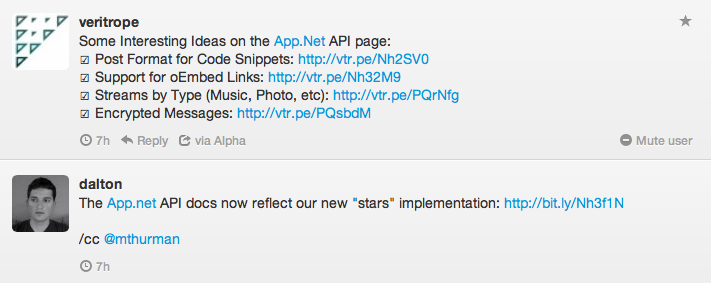
To me, App.net is exciting because it feels like the Twitter of 2008 and 2009, only getting around doing the things Twitter never did. Annotations; games that use the service’s pipe; post formats in apps. Check out the API, and think about the possibilities for third-party apps and services. Very cool things are happening right now just as Twitter becomes more hostile by the day.

For my job, I talk to developers and creators on a daily basis. And right now, developers are picking up some good vibes from App.net. There’s a lot of experimentation going on, support from the company, and an overall feeling that, if this is will work, maybe a better (and different) Twitter could be possible. It’s too early to tell – after all, Twitter still works – but it’s a good start nevertheless.

Check out Glenn’s overview here. And, I’m on App.net.

Permalink

Apple Preps Yerba Buena For Next Week’s iPhone Event

Less than a week ahead of next week’s media event, rumored to be focused on the next-generation iPhone, Apple has started decorating the Yerba Buena Center for the Arts with its typical banners to indicate the upcoming event. Earlier this week, Apple sent invitations to the press for the event they will hold in San Francisco on September 12th, starting at 10 AM PST.

As usual, our friend @SteveStreza has managed to capture a series of photos of the work in progress at Yerba Buena.

Update: We’ve had a go at recreating the poster after it was discovered that the poster was created by stretching iPhone app icons vertically.

We are updating this post with more photos of Apple’s banners at the Yerba Buena Center past the break — these banners are typically of little indication of what the company will announce, but they’re always interesting to check out, if anything from a design standpoint.

Read more


Plain Text Primer

Plain Text Primer

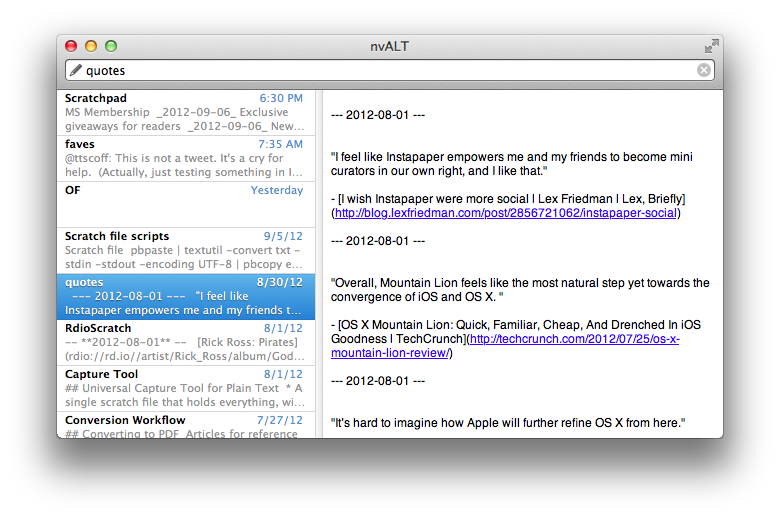
Michael Schechter has kicked off a new series over at A Better Mess, detailing the basics of working with plain text. In today’s article, he covers nvALT, Brett Terpstra’s excellent fork of Notational Velocity.

nvALT is a free note-taking tool with some great features for plain text and markdown editing. It serves as the foundation for my plain text workflows. It stores all of my text files in an environment that is lightening fast for creating and searching through notes. I use nvALT as a repository for everything.

Personally, I’m a big fan of both plain text and nvALT. As I have written on multiple occasions before, plain text is portable, timeless, and it happens to work with some of the finest apps on the App Store.

Michael’s overview is a good starting point if you’re interested in plain text. Check it out here, and here.

Permalink

Create OmniFocus Tasks From Drafts, Scratch, Or Any Text Editor Through Dropbox

Back in October 2010, I posted a tutorial on how to add new tasks to OmniFocus or Things using Dropbox, AppleScript, and PlainText by Hog Bay Software. In June 2011, I wrote about more ways to add tasks to OmniFocus (my GTD app of choice), and noted how I had only “scratched the surface of what’s possible to do with OmniFocus and task creation”.

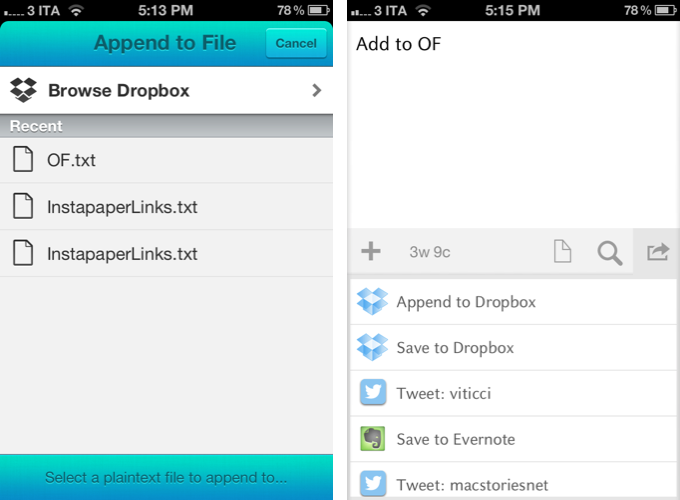
I decided to slightly revisit my workflow now that several “quick Dropbox note-taking apps” like Scratch and Drafts have come out. These apps are already integrated in my daily routine, but the following method works with any text editor, and, obviously, using Dropbox is recommended if you want to be able to create tasks from anywhere. Read more


Change Text Case With AppleScript

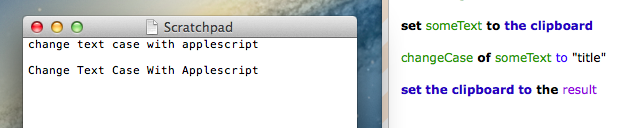
Last night, I was looking for a quick way to change a string of text from lowercase to Title Case, which is the format I use for headlines here at MacStories. Normally, I would recommend installing WordService by DEVONtechnologies, but that’s a system Service, and I don’t seem to be able to install those without logging out and back in (I didn’t want to log out).

As I’ve come to learn lately, when you’re looking for ways to automate your Mac, the solution has likely already been posted on MacScripter. Among all the possible combinations of AppleScript to change text to a particular case format, I like this one by forum member “kai”. Essentially, the script takes the someText property and transforms its text items through changeCase to four possible options: upper, lower, title, and sentence.

To customize the script to my needs, I set someText to get the contents of my clipboard, change the case, then turn the result over to the clipboard again. In this way, I can select any text, copy it (so the original version is available in ClipMenu’s history), change the case, and paste back. To run AppleScripts with a keyboard shortcut, I use either Keyboard Maestro or Alfred.

Check out the AppleScript here.