Federico Viticci

10804 posts on MacStories since April 2009

Federico is the founder and Editor-in-Chief of MacStories, where he writes about Apple with a focus on apps, developers, iPad, and iOS productivity. He founded MacStories in April 2009 and has been writing about Apple since. Federico is also the co-host of AppStories, a weekly podcast exploring the world of apps, Unwind, a fun exploration of media and more, and NPC: Next Portable Console, a show about portable gaming and the handheld revolution.

EmojiBar Puts Emoji In Your Lion Menubar

With OS X Lion, Apple introduced system-wide support for Emoji characters, implemented on iOS 4’s Japanese keyboard last year and recently extended to all international keyboards in iOS 5 beta. Emoji characters are a cute, fun way to share more detailed emoticons with friends on social networks and messaging apps, and because they’re based on Unicode, they can be used in a variety of other ways, including domain names.

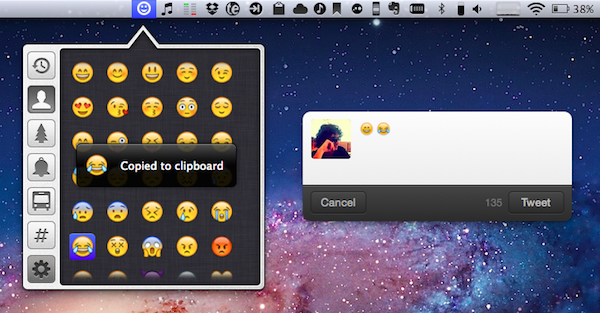
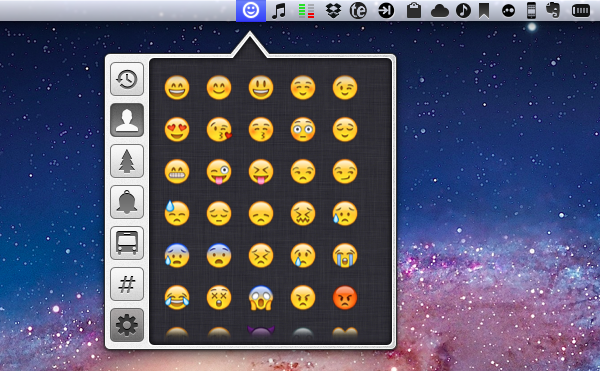
On Lion, users can display Emoji characters and easily insert them using the OS’ default character picker; EmojiBar, a $0.99 app available on the Mac App Store, makes emoji-picking even easier by putting those characters right into the menubar, accessible from a popover. EmojiBar is very simple, and nicely designed: a click on its icon opens the popover, another click on the emoji you need will copy it to the clipboard, and display a notification (notifications can be disabled in the Settings). Icons on the left let you switch between different kinds of emoji characters, whilst the Recents tab gives you access to your most used emojis (presumably your favorite ones as well).

I like the app’s simple approach and design. I know OS X can accomplish the basic functionality by itself, but it’s always nice to see an app doing one thing, and one thing well. You can download EmojiBar here.


Yoink: Enhanced Drag & Drop for Lion’s Full-Screen Apps

As I noted in my MacBook Air 13-inch review, the smaller the screen, the better full-screen apps get on Lion. For those still unaware of the new feature, OS X Lion comes with the possibility of enlarging applications to fill the entire screen – thus the name “full-screen mode” – so that, similarly to iOS, users can focus on one app at a time. Whereas some full-screen apps can look comically large on bigger displays such as a 21.5-inch iMac or Apple Thunderbolt Display, I found that smaller screens make more sense in regards to full-screen mode in that you don’t feel like you’re wasting available pixel space. Apple’s system applications have already been updated to take advantage of full-screen mode, and we’ve seen third party developers starting to play around with the new API as well, coming up with interesting solutions to modify the user interface accordingly to full-screen mode.

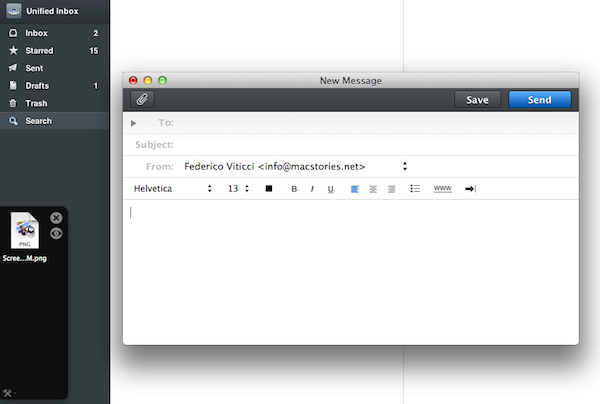
Personally, I have enjoyed using apps like Evernote, Sparrow and Reeder in full-screen mode on my MacBook Air. With a four-finger swipe, I can easily switch between these apps, and go back to my main desktop where all my other application windows reside. However, as full-screen apps live in their own separate graphical environment, I wished on a couple of occasions that Apple would implement an easier method to move files between spaces and full-screen apps in Lion. Rather than delving into the technical details of drag & drop and APIs, here’s a practical example: say I run Sparrow in full-screen mode, and I need to quickly drop an attachment onto a new message window. I could use the app’s “attach file” dialog, but drag & drop would be more intuitive. On Lion, there’s no simple way to drag files from Desktop 1, and drop them into a full-screen app. In fact, the “easiest” trick I’ve discovered to achieve such a functionality is to click & hold a file, hit the Mission Control key on my MacBook Air’s keyboard, select a a full-screen app and wait for it to “spring load” (e.g. the window flashes and after a few seconds comes in the foreground), then drop the file. Clumsy and slow.

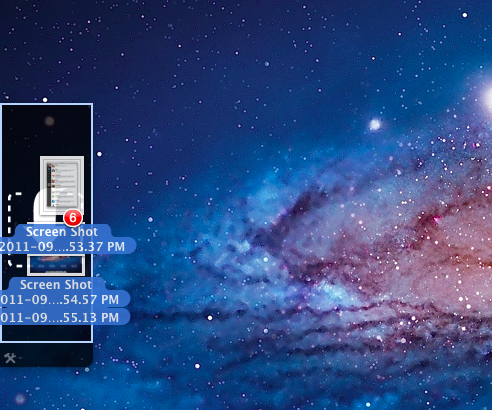
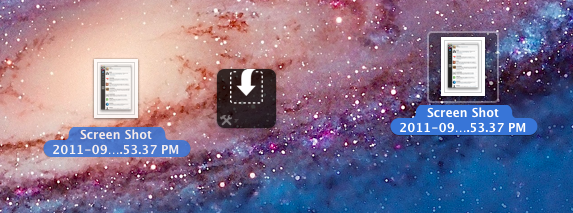
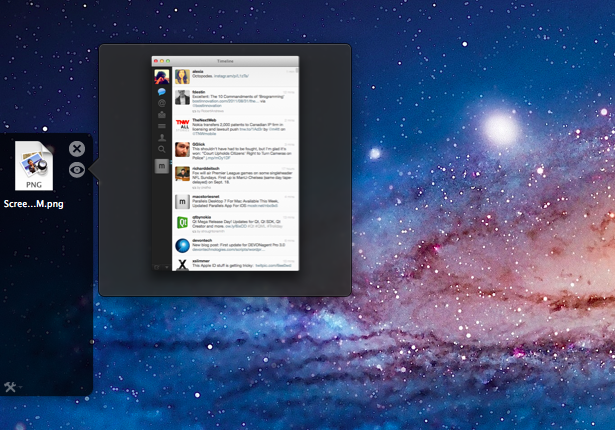
A new app by Eternal Storms – makers of Flickery and ScreenFloat, among others – called Yoink, aims at improving Lion’s behavior with drag & drop and full-screen apps. Built from the ground-up with Lion-only APIs, Yoink places an unobtrusive, translucent “shelf” at the side of your Mac’s screen every time you start dragging a file. Drop the file in there, switch to your full-screen app with a gesture, get the file out of the shelf. Done.

Yoink is a drag & drop assistant for Lion, in that it provides you with a virtual “safe zone” to temporarily store files – or rather, links to them – you want to move from one location (say your desktop) to another space or full-screen app.

Yoink doesn’t “copy” a file, or multiple ones, to its shelf: it only acts as a bridge between the original file, and the destination of the drop. So, back to my Sparrow example: I can select a bunch of files from my desktop, drop them into Yoink, switch back to Sparrow with a gesture, and get the files out of Yoink. Very simple. This works with any full-screen app, any space – Yoink works wherever you can drop a file. In fact, nothing stops you from using the app as a drag & drop utility for your Finder windows instead of full-screen apps, although the app is clearly focused on the latter.

In my tests, I’ve found Yoink to be very lightweight in memory footprint, and easy to use. The app only appears when you start dragging a file – you won’t see its window all the time – and you can customize it to sit on the left, or right of the screen. Alternatively, you can tell Yoink to quickly move next to your cursor as you drag a file, then go back to screen’s side. Yoink can store multiple files, Quick Look them, and let you scroll and select multiple items with CMD-click.

Yoink is available at $2.99 on the App Store, and you can head over the developer’s website to check out a demo video and get a better idea of the app in action. If you work with full-screen apps on a daily basis and you’d like to enhance Lion’s drag & drop support, Yoink is a must-have.


Apple Releases iOS 5 Beta 7

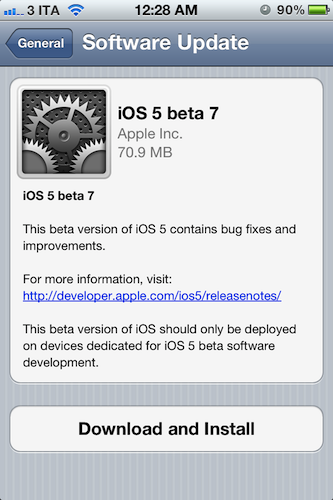
Apple has just pushed iOS 5 beta 7 to developers, releasing the new build through Software Update on iOS devices. At the moment of writing this, the iOS Dev Center still reports beta 6 as the latest version available. iOS 5 beta 6 was seeded on August 19, bringing several bug fixes and performances improvements to the next major version of iOS that’s expected to become publicly available this Fall.

iOS 5 comes with new features such as direct Twitter integration, PC-Free setup, iCloud support, and a new notification system. We will update this post with more information on the latest beta as it becomes available.

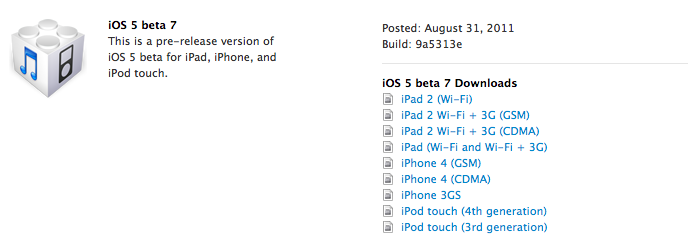
Update: iOS 5 beta 7 is now available on the Dev Center alongside a new Xcode Developer Preview, iTunes 10.5 beta, and Apple TV Software.


Another iPhone Prototype Lost In A Bar

As reported  by CNET, in a bizarre turn of events it appears Apple may have lost another unreleased iPhone model in a bar, this time at the Cava22 in San Francisco. According to the website, Apple never filed a police report based on such loss, likely from an employee field-testing the unit, although it ”sparked a scramble by Apple security” in an effort to recover it quickly. The device, CNET says, was lost in July. Rumors surrounding the next-generation iPhone date back to late 2010, although they have intensified lately as the company approaches the rumored October release date for the “iPhone 5”.

You may recall last year’s loss of an iPhone 4 prototype, which was lost by an Apple employee and sold to Gawker Media’s Gizmodo. Steve Jobs eventually joked on the incident, but Apple did intervene in a legal action against Gizmodo and the “seller” of the device, saying that unreleased prototypes are “priceless” in regards of the kind of information that gets out to competitors ahead of time.

This year’s lost iPhone. however, hasn’t showed up on the Internet yet, and it may have been sold on Craigslist for around $200.

Apple electronically traced the phone to a two-floor, single-family home in San Francisco’s Bernal Heights neighborhood, according to the source.

When San Francisco police and Apple’s investigators visited the house, they spoke with a man in his twenties who acknowledged being at Cava 22 on the night the device went missing. But he denied knowing anything about the phone. The man gave police permission to search the house, and they found nothing, the source said.

Apple usually goes to great lengths in order to protect its iPhone prototypes, using special cases to make these devices look like older models, as with last year’s lost iPhone 4 that was actually found inside a 3GS-like case. It’s not clear whether this year’s (allegedly) lost iPhone is the same version that will end up in consumers’ hands later this year, or if it’s an iPhone 4 prototype running a faster chip that was apparently sent to developers for testing months ago. CNET’s report doesn’t specify whether Apple ever got the phone back, and Craigslist didn’t respond to a request for comments, either.


Customize Your Mac’s “Paste and Match Style”

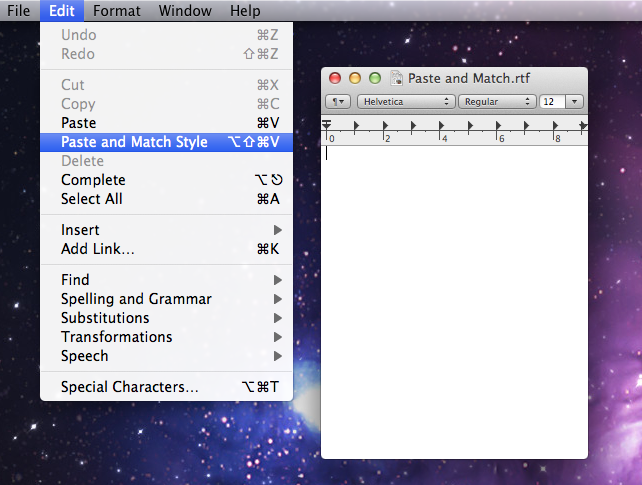
On the Mac, the paste function associated with the CMD + V keyboard shortcut has a well-known side effect: if you’re writing a document and you paste something from your clipboard, the document’s style won’t be automatically matched. Quite possibly a “feature” per Apple’s design choice, since I switched to the Mac I’ve always been annoyed by such “remember every style” behavior, and from the reaction I’ve seen on Twitter, it turns out quite a few people dislike when they end up with weird styles in their outlines or email messages as well.

But, you might argue, there is a way to paste and match style, and that’s represented by the ⌥⇧⌘V shortcut…which requires four fingers to execute, and it’s not always implemented in the same way in third party apps. Chrome, for instance, uses ⇧⌘V, and many other apps follow a similar trend to modify the default shortcut for Paste and Match Style.

In the past few days, I’ve come across some interesting solutions to unify Paste and Match Style with a simpler keyboard shortcut, and make it the default paste action on OS X if you never want to paste with “styles”. This can be particularly handy for writers, who often prefer a plain text environment or a styled one that’s, however, consistent throughout a document. Read more


App Journal, Episode 1: Writron, Tempus, BillMinder

App Journal is a new series aimed at showcasing apps we have enjoyed using on our iPhones, iPads, and Macs, but decided not to feature in a standalone, lengthy review here on MacStories. Sometimes, an app is so simple, so focused on one task that a full review in our typical format would be unnecessary. But at the same time, we felt like we needed a way to get the word out about these little gems, other than a quick tweet or footnote on #MacStoriesDeals.

Think of App Journal as a mix of classic reviews, weekly app recommendations, and a diary of our experiences with apps that still deserve a proper mention. Because after all, that’s what we love: talking about great software.

In Episode 1 of App Journal, I take a look at Writron for iPhone, Tempus and BillMinder. Stay tuned for new App Journal episodes in the next weeks.

Writron

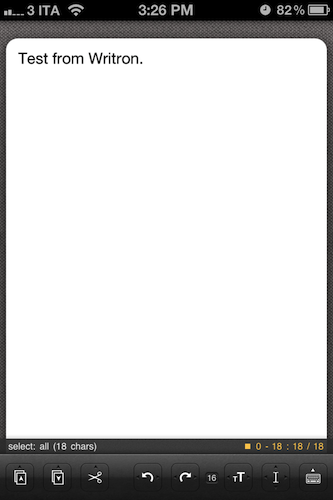
Writron is an app I found on the App Store last week and bought because of its simple, elegant icon and price tag. Admittedly, these are two factors that contribute to impulsive app-buying when iTunes credit is available, and curiosity takes over. Writron is a “text input tool” that can forward text to other apps and online services. That’s it. Once you’ve written some text using the app, you can tap & hold the sharing button to send it to Mail, Twitterrific, or other services supported with Mobile Safari such as Google, Evernote, Twitter, and Wikipedia. You can edit the “send to” menu to include options like Maps, Google Translate, Wikipanion, Wiktionary, and Twitter for iPhone. Additional templates will be added periodically and can be downloaded within the app.

Writron achieves two goals: it’s a text input tool with a heavy sharing component. And whilst sharing isn’t too dissimilar from what other apps like Note & Share offer, the writing experience is quite different. Writron comes with a toolbar between the keyboard and the text field; this toolbar has buttons to share, paste, cut, undo and redo, increase/decrease font size and move the iOS’ default cursor. Whereas tapping on these buttons triggers their basic functionality, Writron’s full potential is unlocked when you “tap, hold, and slide”. Here’s an example: tapping and holding the undo button will get you access to a scrollable timeline of words you typed, which you can control by sliding your finger across the toolbar itself. You don’t see a list of previously typed words and letters when you do so – instead, Writron directly manipulates text as you slide you finger back and forth through history, letting you know when you’re “out of undos and redos”. The same sliding concept applies to the “move cursor” action: you can tap on it to select a word, an entire sentence, or move to the beginning of your text, but it’s when you begin sliding that you’ll notice Writron can freely move the cursor between letters according to your finger’s movement. It’s seriously cool.

Writron may not revolutionize your workflow but it’s a neat little app that I’m sure will have its own passionate niche of aficionados. Writron is only $0.99 on the App Store. Read more


“Shrine of Apple” Wants To Photograph Every Apple Product Ever Made

Brought to my attention this morning by The Loop’s Jim Dalrymple, Shrine of Apple is a new website that launched last night with a very ambitious goal: to photograph every Apple product ever made. Not just the ones from 2007 up until today – all of them. From the About page:

Our mission is to showcase the entire spectrum of products that Apple have sold to the public since 1976 – every product Apple Inc has ever produced, in the highest quality and definition possible. Every desktop, every laptop, every notebook, monitor, iPod, iPad, iPhone, mouse, keyboard, modem, cable, port, adapter, docking station, memory expansion card….and that’s just their hardware. Operating systems, productivity suites and all the great software titles that Apple have published will make an appearance too!

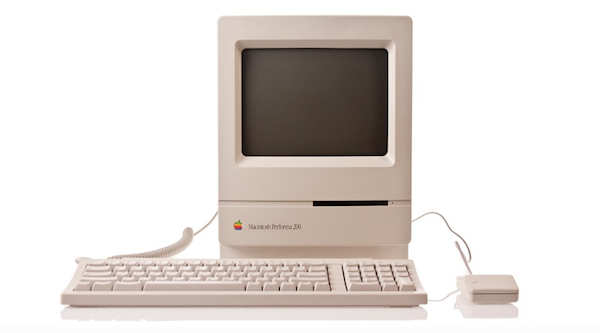
The website launched with a relatively small collection of products, with many more queued up for the next weeks. Shrine of Apple’s database consists of detailed high-res photos of products complete with original packaging when available, manuals, and cables. The website’s categories include Desktops, Displays, iPads, iPhones, iPods, Laptops, Peripherals, PDAs, Servers and Software, with more to come. The current selection includes old gems like the Apple IIe Numeric Keypad, Lisa 7/7 Office software, and the Macintosh PowerBook 150.

With high-res photography, descriptions, related links and a true passion for Apple products, I wouldn’t be surprised to see Shrine of Apple becoming a de-facto standard for Apple fans looking up information on old computers and devices, provided by someone who really “knows” and cares about these products, not a faceless online database. Shrine of Apple is, in fact, the creation of Jonathan Zufi, “leading expert in the field of mobility and wireless devices by day – vivid Apple collector by night”.

Make sure to check out Shrine of Apple, and follow the website on Twitter for updates on new products and photos.


Apple’s Bold Move: iTunes Match and Streaming

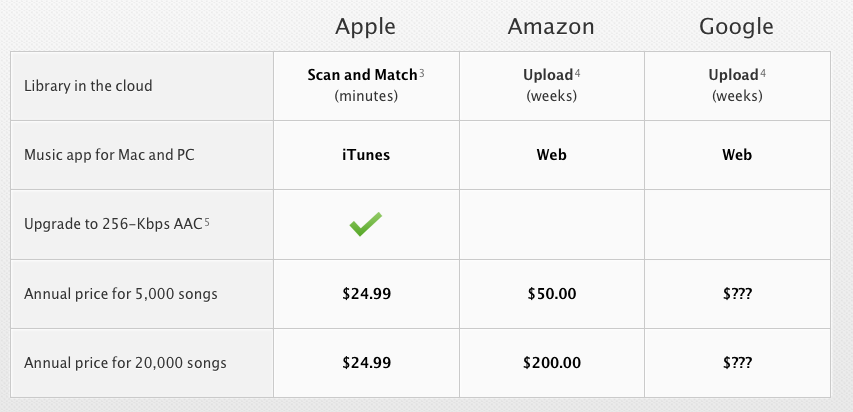
With the launch of the first iTunes Match beta for developers last night, Apple unveiled the last piece of the iCloud puzzle that was originally previewed at the WWDC in June, when Steve Jobs announced that iTunes Match would be available this Fall at $24.99 per year for 25,000 songs, allowing customers to download songs stored in their iCloud accounts. Because iTunes Match scans a user’s iTunes library before uploading files, songs compatible with Apple’s iTunes Store catalogue are automatically upgraded to 256 Kbps (even if the original copy was of lower quality) and “matched” with the copy on the server, whilst the ones not found on Apple’s servers are manually uploaded to iCloud. This happens for two reasons: first, Apple cut deals with several music labels and publishers to enable this “scan & match” technology that compares songs on a computer versus the higher quality copy on the servers, and doesn’t upload the original file; second, Apple wanted to eliminate the need of having to wait days for large uploads to finish – something that has affected “cloud locker” services from Google, Amazon, and many others.

The iTunes Match that was announced back in June, however, and promoted on Apple’s website up until today, made no specific mention of “streaming” songs matched/uploaded to iCloud; the way Apple originally explained it, Match was a clever way to fill an iCloud account with songs and albums to later download on iOS devices or a Mac. For as much as the technology behind it seemed intriguing, many were disappointed to find out that Apple couldn’t find a way around streaming songs without having to download the full copy first. Other services like Rdio and Spotify allow users to stream songs they don’t own by hitting “play” and waiting a few seconds for the stream to start (depending on the Internet connection’s speed). iTunes Match is actually a service for songs users own and decide to store in iCloud at $24.99 per year, so many assumed streaming required a different kind of licensing deal that Apple couldn’t make in time for WWDC.

Last night, as developers started subscribing to the first beta of iTunes Match, it turned out that, even in this first version, Apple is allowing for both downloading and streaming of songs, both on the Mac and iOS devices. The interface makes it easy to match and listen: once a music collection is built in iCloud (e.g. iTunes has scanned, matched, and uploaded songs to your account), music will be available on the Mac in iTunes’ Music tab, and on iOS 5 in the new Music app. Once iTunes Match is enabled on iOS it replaces the local music library, and you can tell the difference by a small iCloud icon next to each song.

Whereas Apple’s announcement at WWDC implied users would have to push a button to download songs, and build a music library off a master collection in the cloud, this first beta actually delivers more: users can still hit the button and download songs locally, but they can also tap on songs and start streaming them without a download.

The process is detailed in two videos posted by Insanely Great Mac. Streaming can occur both on the desktop and iOS, and it doesn’t look any different from a local iTunes library except for the aforementioned iCloud library. With this first beta, Apple isn’t accepting iTunes LPs and Extras, some file types aren’t supported and, for testing purposes, Apple will periodically delete developers’ iCloud music libraries to increase iTunes’ performances and reliability.

Streaming is a big deal for Apple, and not just because it increases iTunes’ functionalities to avoid manual downloads and waiting times. With iTunes Match streaming, Apple could directly compete with services like Spotify (recently landed in the U.S.) and Rdio, which let users stream songs over WiFi and 3G and even cache them for offline access. However, as of this beta, Apple’s iTunes Match comes with a unique spin on streaming: it doesn’t need downloads, and it’s based on music libraries made from songs users own. With the combination of local copies (the library), scan & match, iCloud, downloads and streaming, Apple could build a music service like no other in that it’s a combination of “owning your music”, and paying a yearly fee to get online access to it. Spotify is often criticized for being a streaming service that doesn’t let you “own” your library; most recently, the company added the possibility of importing local files and playing them in Spotify, but it’s not the same of being able to take local files and mirror them to the cloud. Reports citing streaming with “iTunes in the cloud” from May are now starting to make more sense, and let’s not forget Apple has patented a technology to make streaming effortless and faster by syncing small bits of data locally.

Still, many questions are left unanswered with this week’s iTunes Match beta. Was iTunes Match supposed to get only song downloads, with the current streaming implementation being just a glitch? Or are we in for a streaming surprise come Apple’s next keynote? Moreover, will Apple further tweak iTunes and iOS 5 to put the focus on streaming, allowing for advanced iCloud-based playlist creation? And how will music labels react to the news that iTunes Match is capable of streaming, too? Perhaps this is already part of Apple’s grand iCloud plan, and music labels knew all along that iTunes Match would stream songs, as Businessweek suggested in May. Or, streaming came unexpected to them as it did to everyone else in this first beta. But more importantly, will iTunes Match be available outside the U.S. once iOS 5 and iCloud are publicly released? Early signs pointed to “no”, with sources claiming the UK wouldn’t see iTunes Match until 2012. Currently, iTunes Match is a developer-only beta (closed at the moment with more openings “over the next days”) that requires a U.S. credit card (not just regular iTunes credit – e.g. promo codes and gift cards) for automatic billing. It’s unclear whether or not Apple will open the final version of iTunes Match to any kind of U.S. iTunes account, or if they’ll keep it exclusive for U.S. iTunes customers with a credit card on file.

As usual with betas, things can change before the final release. There’s a fragmented market out there, and Apple has a chance to disrupt it with iCloud and iOS 5. As it stands now, iTunes Match looks like Apple’s boldest move in the online music space since 2003.

Update: AllThingsD now weighs in writing that, according to an Apple spokesperson, iTunes Match still isn’t streaming. What looks like a stream is actually a simultaneous listen and download, although Apple isn’t providing additional details on the technology behind iTunes Match. AllThingsD speculates that Apple may be using some sort of caching mechanism for when users don’t “download” songs from iCloud, though that’s just an “educated guess”. From the videos posted this morning, indeed it looked like an iPhone was capable of streaming songs off iCloud.

AllThingsD also reports that Apple has the licensing rights to streaming, but they’re not implementing it due to a design choice – Apple apparently doesn’t believe mobile networks are advanced enough to allow for streaming of large music libraries. Check out the full report here.

Read more


Apple Releases New iTunes Beta with iTunes Match

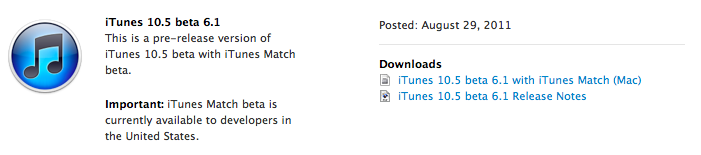
Apple just seeded a new version of iTunes 10.5 to developers, enabling the iTunes Match functionality that will allow users to upload songs to Apple’s iCloud directly from their iTunes libraries this Fall. Unlike other “cloud locker” services from Google and Amazon, Apple’s iTunes Match uses a “scan & match” technology that will try to match songs from a user’s library to the ones found on Apple’s iTunes Store servers, thus avoiding to upload a library in its entirety. The iTunes Match beta is currently available to developers in the United States, and as Apple explains in the release notes the music libraries added during this beta period may be subject to deletion, thus leading to additional re-scans and uploads.

As Apple also mentions in the release notes, iTunes Match beta subscribers “will receive the beta period and an additional 3 months of service with their 12 month subscription”, which as previously announced it’s set at $24.99 per year for 25,000 songs. iTunes LP and Extras are currently unsupported by Match, which is available as a subscription from iTunes’ new interface. From Apple’s official iTunes Match webpage:

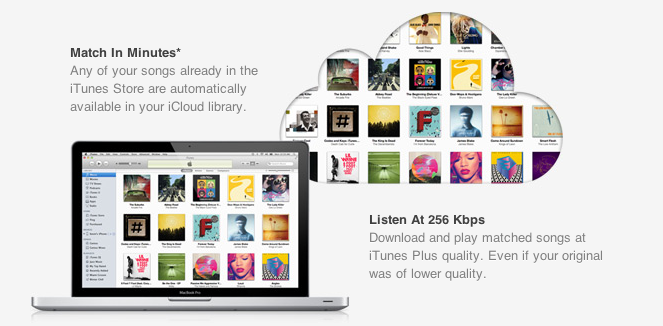
Here’s how it works: iTunes determines which songs in your collection are available in the iTunes Store. Any music with a match is automatically added to your iCloud library for you to listen to anytime, on any device. Since there are more than 18 million songs in the iTunes Store, most of your music is probably already in iCloud. All you have to upload is what iTunes can’t match. Which is much faster than starting from scratch. And all the music iTunes matches plays back at 256-Kbps iTunes Plus quality — even if your original copy was of lower quality.

The first beta of iTunes Match comes with a few known issues such as impossibility to add music to iCloud from more than one computer at a time, or some playback issues on iOS. Apple is suggesting developers to backup their iTunes music libraries before installing and subscribing.

More information about iTunes Match is available on Apple’s website. Ars Technica also had a good write-up about this new service back in June.

Read more