This Week's Sponsor:

Turbulence Forecast

Know before you go. Get detailed turbulence forecasts for your exact route, now available 5 days in advance.


Posts in reviews

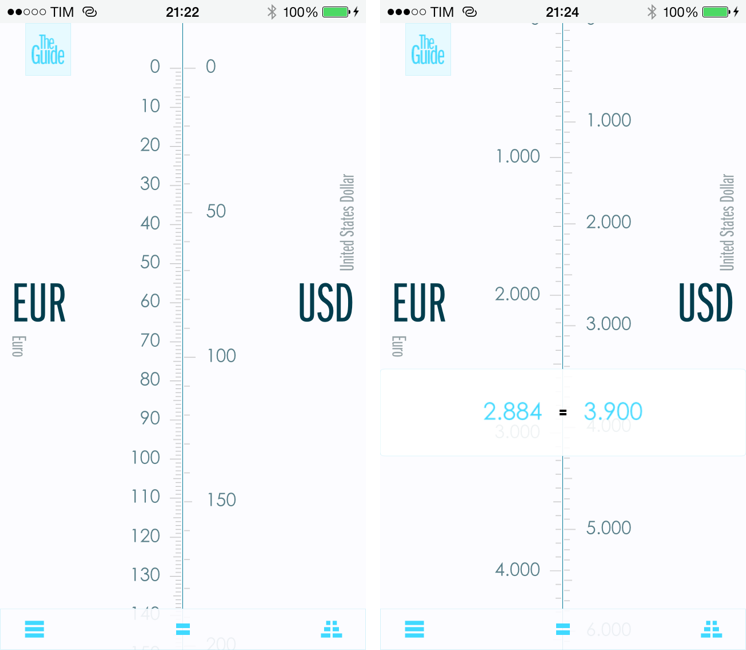
The Converted: A Different Take On Unit Conversions

Unit converters are perfect as iOS apps: their feature set is limited, they can work with and without an Internet connection, and, because of their constraints and purpose-oriented nature, they allow developers to experiment with touch and UI interactions. They’re less celebrated than Twitter clients and weather apps, but they’re UI playgrounds too.

As such, I’m having a hard time settling with a specific unit converter because every week new interesting ones come out and I’m lucky enough to get to try them because trying apps is part of my job. I suppose that if converting units was a recurring task of my daily life I would be forced to pick one and stick with it, but, instead, I’m free to experiment and let my readers judge.

In the past year, I’ve taken a look at various unit and currency converters like Denominations, Convertible, Measures, and, recently, Amount. Each one of them solves a problem in a different way, either with a particular interface design or through advanced features. The Converted, developed by Ideon, is a $2.99 app that eschews manual input through a keypad to show you the relation betwen units in a unique presentation that I haven’t found in other iOS apps. Read more


Simple Photo Collages with Diptic PDQ

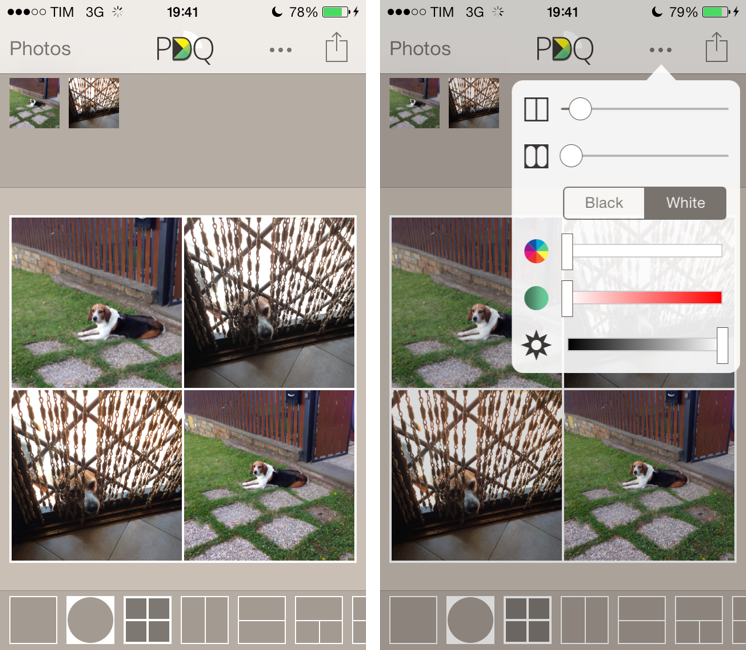
I’ve never been into the idea of sharing my photos as “collages”, especially because all the iPhone and iPad apps that promised to make it easy to assemble collages looked overly social, filter-oriented, or just badly designed. However, I recently wanted to send a photo collage of my dog to my parents, and I conveniently came across Diptic PDQ on the App Store thanks to Apple’s feature for iOS 7-ready apps. Apparently, PDQ (a Universal app) is the “lighter” version of Peak Systems’ more advanced Diptic app, which comes with all sorts of settings, textures, and In-App Purchases. I just needed to create simple collages with thin borders, so I bought PDQ and have been using it for the past week with nice results. Read more


Shazam for iOS 7

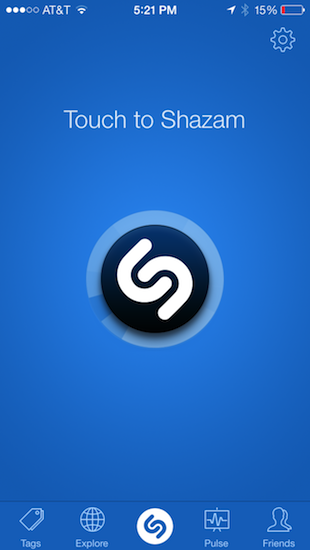
Much like Twitterrific’s update for iOS 7, Shazam has spruced up their app with flattened, descriptive wiry icons and simple color palettes that make the app feel at home on Apple’s new OS. Perhaps the only noticeable difference is that Shazam asks for Microphone access, a new requirement as of iOS 7, so that it can listen to what’s playing in the background to identify songs. It’s visually a nice update, but much of it is the same as before. It’s cleaner and more focused, with nice looking fades and animations as you switch between tabs.

The features added to iOS 7 revolve around social maps and Facebook. Eh. I don’t know how Shazam feels about people like me, but I’m not so intent on sharing songs with friends and seeing what people are listening to around me. I said the same thing when I took a look at the revamped iPad app earlier in the year, and I feel somewhat alienated since the only thing I really want to use Shazam for is ID’ing tracks playing at over loudspeakers, on the radio, or when some remixed version of a song pops up on a livestream somewhere. The social stuff… I don’t want any part of it. It’s cool. It’s just not for me.

Shazam currently sells a free version of Shazam, complete with advertisements that you can remove with an in-app purchase. For a few bucks you can straight up buy a version of Shazam with a darker blue icon free of ads. And then there’s a product RED version of the app that looks cool, and also removes ads. I’d rather see a single version of Shazam that’s free, with Lifetime (or Encore) as an IAP and RED as an optional theme, which you could also pay for. It’d remove a lot of the confusion about which version is which on the App Store. Regardless, if you’d like to give Shazam a try (the ID stuff is amazing — why don’t you have it?), you can download one of the following variants from the App Store:


Logacal: A Smarter Visualization Of Calendar Events

Logacal

Logacal

In the past few months, I’ve been obsessed with finding the best Calendar and Reminders clients for my iPhone and iPad. While I wouldn’t call myself a calendar power user, I do rely on iCloud Calendar to organize my daily appointments and events that require my complete attention, and I’ve been lured by the simplicity and immediacy of Reminders. As I noted in my article on living with iOS 7, I’ve also been liking the OS’ new Today view in Notification Center, which gives me a summary of all the things – events or reminders – I have to do today.

I don’t like calendar apps that are limited by old rules defined by physical calendars. For instance, what’s the point of showing a full month with past events when our devices know what the current day is? Why showing empty days in views that should list upcoming events? Our devices have a little, powerful silicon brain inside them, and yet so many calendar apps – supposedly, digital assistants for the modern age – are still stuck with concepts and metaphors of two decades ago. This is a topic that other smart people have also touched upon in the past, and I recommend reading this piece by Jason Snell.

Earlier this week I was browsing the App Store and I came across Logacal, a $2.99 iPhone app developed by Czech developer Pavel Doležal. I was intrigued by the app’s clean iOS 7 design and description:

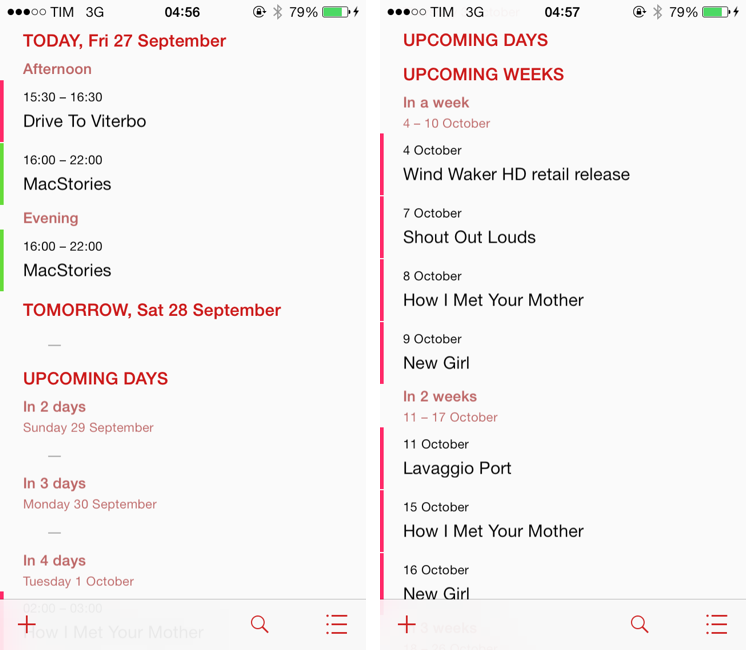
Unlike traditional month, week or day-based calendars, Logacal doesn’t split time equally, but instead depending on how far in the future it is.

And:

Its design is vastly inspired by logarithmic scale that enables you to see and manage your calendar in a very natural and intuitive way.

Now, I’m no expert of logarithmic scales and other high level mathematical theories, but I’m good enough at clicking the Buy button in iTunes and doing some reading on Wikipedia. Apparently, some of our senses operate in a logarithmic fashion, and Pavel’s idea was to represent future days, weeks, months, and years on a scale that gets less granular as you move further in time. Read more


Twitterrific Revisited for iOS 7

Twitterrific, for a long time, was my mainstay Twitter app. It’s beautiful, functional, and extremely fast, but I’ve found myself gravitating away towards Tweetbot and Twitter’s own app. It’s not that I don’t like Twitterrific, but I needed a change of scenery, and Twitter’s own Connect tab has spoiled me with a wealth of information such as follows, RTs, and yellow stars intermingled with mentions — things I swore I never cared about. I think the biggest killer for me has been the prolonged wait for an updated Twitterrific on the Mac, which feels outdated in comparison to its iOS counterpart.

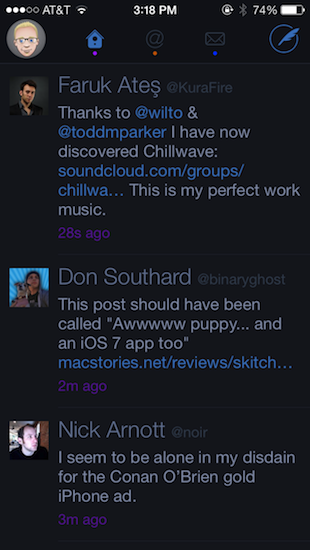
The neat thing about Twitterrific was that it was practically already ready for iOS 7. At least visually, Twitterrific had already adopted thin fonts, bright neon colors that go great with the iPhone 5c, and a sleek barebones interface. This doesn’t even account for Twitterrific’s unique layout; much of the app doesn’t really conform to traditional iOS conventions anyway (consider the tab bar at the top of the screen rather than the bottom). With iOS 7 the visual updates are relatively minor, with wire-thin icons and small visual updates prevalent throughout. Not even Ollie changed too much in Twitterific’s new stark white icon.

Twitterrific’s biggest notable update is background refreshing (The Iconfactory calls it “fetching”). Streaming isn’t something Twitterrific has been known for, but as long as the app is kept in the background, it will load new tweets in so they’ll be ready to read when you open the app. That to me makes Twitterrific much more viable as a daily Twitter app.[1]

There’s lots of minor updates. You can tweet links directly from the in-app browser (great feature) and you can additionally opt to open links in Chrome. Various links are now tappable in bios. They’re all things that continue to make Twitterrific super friendly.

In fact, of all the current Twitter apps, I’d say Twitterrific is still the most friendly. Gestures are broad, sensible, and fast to execute. Twitterrific’s blazing performance continues to be stellar: tweets load unbelievably quickly as you swipe to view conversations. The core experience is about messages, whereas Twitter’s official app feels like it teeters on personal branding and brand engagement, while Tweetbot is dense with features but a little slower and not yet updated for iOS 7.

Twitterrific for iOS 7 is largely the same as its predecessors, but it continues to get faster in every iteration. I don’t know how much more performance The Iconfactory can wring out of their app before Twitterrific flies off the face of the phone. With refreshed graphics, speedy improvements, and gesture updates that better let Twitterrific mingle with iOS 7’s native gestures, you might want to consider taking another look at the blue bird if you haven’t already.

Twitterrific can be downloaded from the App Store for $2.99 for a limited time, 50% off the regular price.


  1. In fact, I almost don’t like Apple’s new multitasking interface for this reason. It encourages people to close apps, but if you do, those apps can’t perform background tasks. The new multitasking interface is perhaps misleading and counterintuitive for this reason. ↩︎

Skitch 3: Reimagined for iOS 7

Skitch 3

Skitch 3

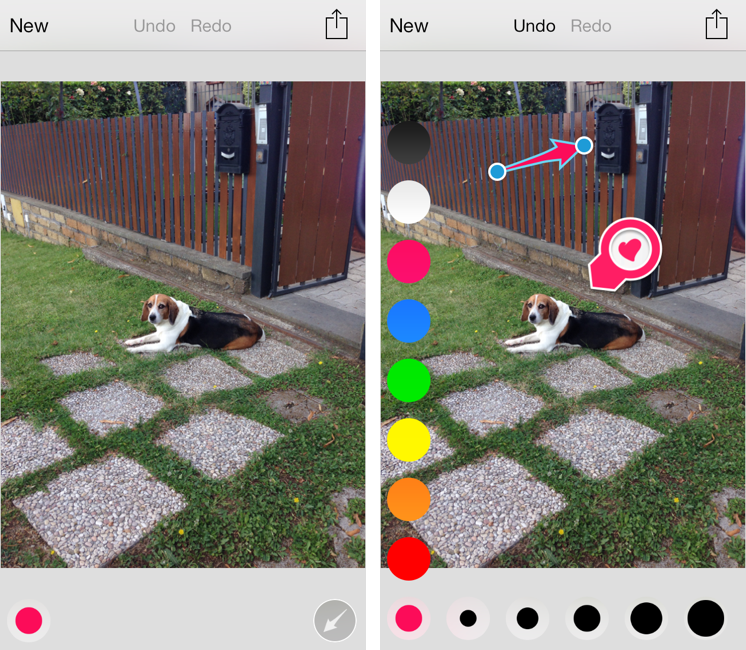
Released today during the third annual Evernote Conference, Skitch 3 is a complete redesign of the app that Evernote acquired in 2011 and started integrating into the main desktop and iOS apps. Skitch 3 has been redesigned and rebuilt for iOS 7, stripped away of the direct integration with an Evernote notebook, rebranded, and relaunched as a visual note-taking app focused on quick and fast markup. I have been testing Skitch 3 for the past few weeks, and, after an initial shock, I think it’s an excellent change. Read more


Marked 2 Review

One of the most indispensable pieces of software currently on my Mac is Marked. Paired with TextEdit, I write in plain text and format words in Markdown, letting Marked transform working documents into live previews complete with clickable links and footnotes. At the end of my session, I can convert everything into HTML that I can copy and paste into WordPress. It’s a brilliant little tool that I don’t utilize the full capabilities of, but it makes my life significantly easier when it comes to just writing stuff. For most writers, these few features alone are enough.

For writers willing to put in the work, Marked can display previews that match your website’s style and theme by creating a custom CSS template. There’s handy keyboard shortcuts, like Command-U for viewing source code and Shift-Command-C for saving HTML to the clipboard. You’ll additionally find things like a viewable table of contents built in that let you jump to specific sections for documents with multiple headings. Plus, Marked happily works with the text editor you’re already using.

Yet there’s so much more underneath the hood. For screenwriters, Marked works with apps like Scrivener and markup languages like Fountain. Those who have to write and publish formulas can do so with MathJax. And old Markdown hands can specify their own custom processors… something that’s possibly over my head. Marked is a labor of love, catering to geeks while remaining accessible for writers like me who want easy previews and invaluable features like the ability to process Markdown within source code.

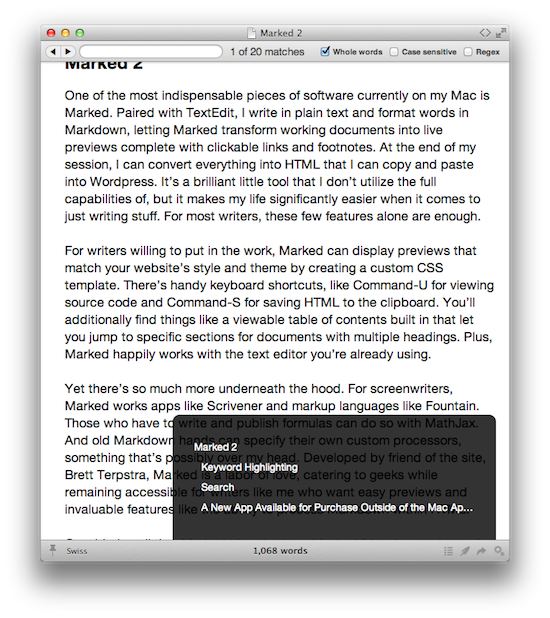
Considering all that Marked already does, Marked 2 is a huge release that adds a ton of new features for editor, bloggers, and people who would rather write in Markdown than open Microsoft Word. Instead of running through every new feature, I’d rather focus on the two that have the greatest impact on me. Keyword highlighting makes self editing much easier, while new searching features let me skip past the results I don’t need to see.

Read more


GeniusCam for iOS 7

It’s been two years since Apple announced the iPad 2, and the company still thinks that bringing Photo Booth to the iPhone isn’t worth it. It’s also been two years since Italian developer Libero Spagnolini released FaceMan, but, unlike Apple, today he’s back with a sequel to his original Photo Booth alternative, GeniusCam.

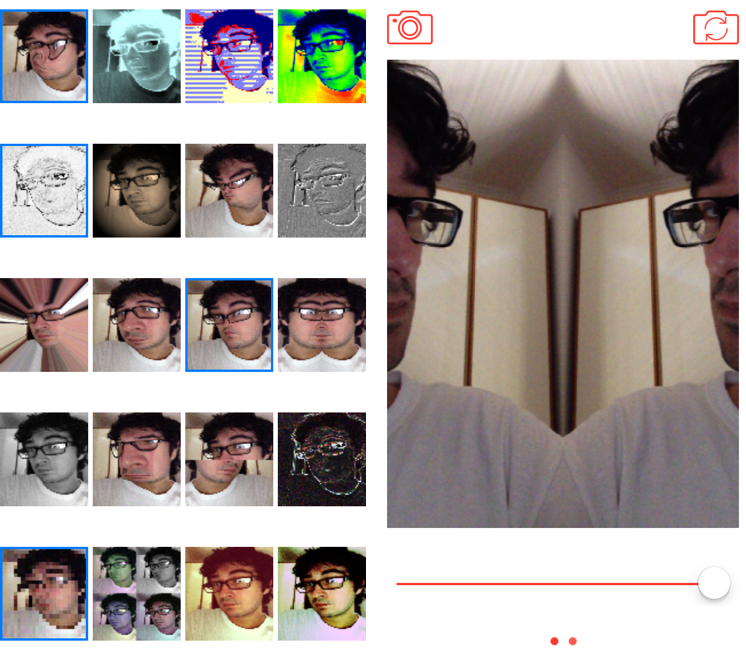
Made for iOS 7 and Universal, GeniusCam is, essentially, Photo Booth ported to the iPhone with some extra flair. There are 20 filters and effects to choose from, ranging from artsy ones like black & white and technicolor to fun ones like variations of Apple’s “Space Alien” and “Chipmunk” effects. You can see a live preview of the camera with each effect in the app’s main screen, which is a grid of live thumbnails; tap one, and the thumbnail turns into a larger camera view with the effect still applied, previewed live on screen. The animations and physics that power GeniusCam are sparse but constantly playful, and, together with the graphics and photo engines, they prove how developers can take advantage of the new iOS 7 APIs in cool ways.

GeniusCam’s camera interface is simple: at the top, you can switch between photo/video and front/rear facing camera, while at the bottom you’ll find a shutter button and a slider (you have to swipe to see the slider). In my tests, GeniusCam has been stable and fast with photos, but I have experienced crashes when saving videos. The slider allows you to tweak the intensity of effects in real time, and it’s cool to play around with it just to see your face morphing on the screen as you reduce or increase an effect’s intensity.

GeniusCam is a fun, impressive utility that provides a great follow-up to 2011’s FaceMan to take advantage of iOS 7. The app is free on the App Store but limited to 4 effects; you can unlock UI themes with a $0.99 In-App Purchase, all 20 effects for another $0.99, or buy the All Inclusive IAP for $1.99.


Enhanced for iOS 7, Dispatch 1.2 Brings Background Fetch, Advanced Search, and Custom Salutations

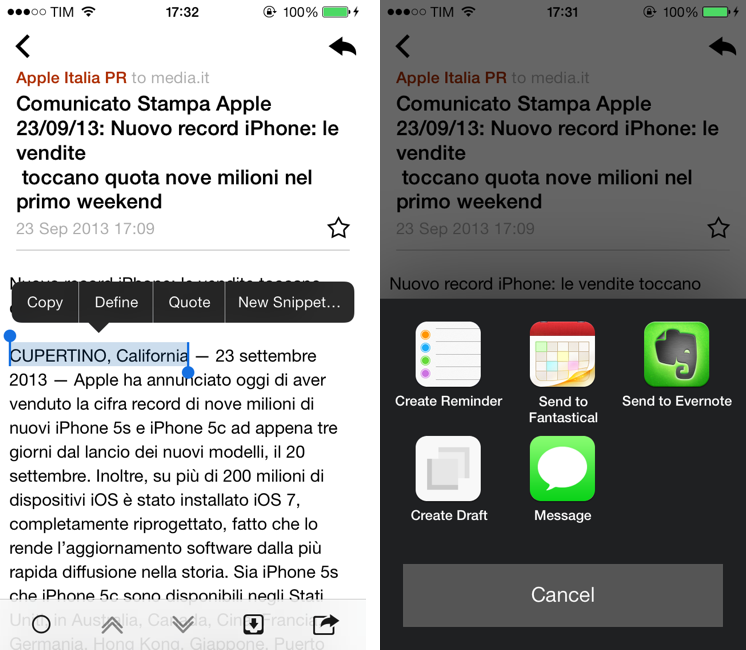
Dispatch, which I first reviewed in June, is an innovative email client for iPhone that eschews social features and push notifications for more power user-oriented functionalities such as default salutations, snippets, and built-in app actions. Here’s how I described message actions:

Dispatch has multiple sets of actions for message content and iOS data detectors – web links, dates and times, phone numbers and emails, and addresses can be tapped to bring up different actions. For third-party apps, Dispatch supports Due, OmniFocus, Things, Asana, Evernote, Drafts, Chrome, 1Password, Instapaper, and Google Maps; native iOS integrations include Messages, Maps, Reminders, Safari, Copy to Clipboard, Calendar, FaceTime, and Contacts. These actions are presented either by hitting the Share button in a message or by tapping a link or other bits of text that are recognized by iOS as, say, addresses or dates.

Being able to save a message to OmniFocus or directly into Evernote (preserving formatting) is incredibly handy, and I’m surprised that nobody else thought of this before. For years, I used Apple Mail and profoundly despised the round-tripping that it forced upon me to send text to other apps such as my task manager or text editor. Some email apps enable you to open links in other browsers, but Dispatch takes it to the next level with one-tap message sharing.

When I’m on my Mac, I can put together a Keyboard Maestro macro to archive a message for reference in Evernote, but when I’m on iOS, that’s a problem because there’s no native communication between Apple Mail and Evernote. The developers of Dispatch understand that people who work on iOS need to use multiple apps, and they’re trying to fix email’s inter-app communication problems with their own take on an email client.

I have been testing Dispatch 1.2, released last week alongside iOS 7, for a few months now, and I think it’s a good update that takes advantage of the new OS in interesting ways. Read more