

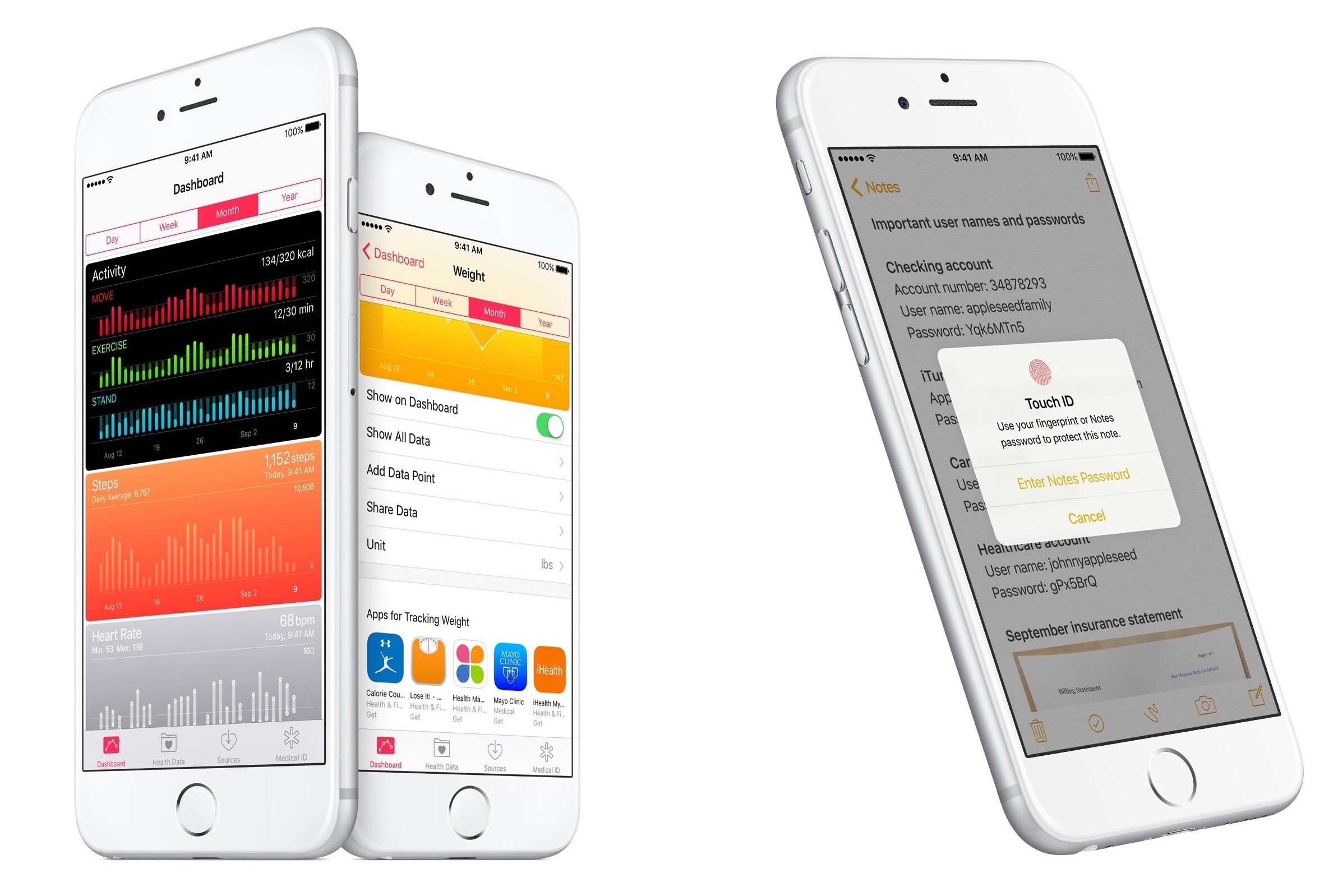
Earlier today, Apple released the first developer beta of iOS 9.3, which will introduce several new functionalities for built-in apps and for education users. To highlight some of the changes in this release, Apple has launched a mini-site with screenshots and descriptions of what’s coming in iOS 9.3.
Posts tagged with "iOS"
Apple Previews iOS 9.3 with Night Shift, Health and News Improvements, New Education Features
Pythonista 2.0 Brings Action Extension, iPad Pro Support, Code Editor Improvements, and More
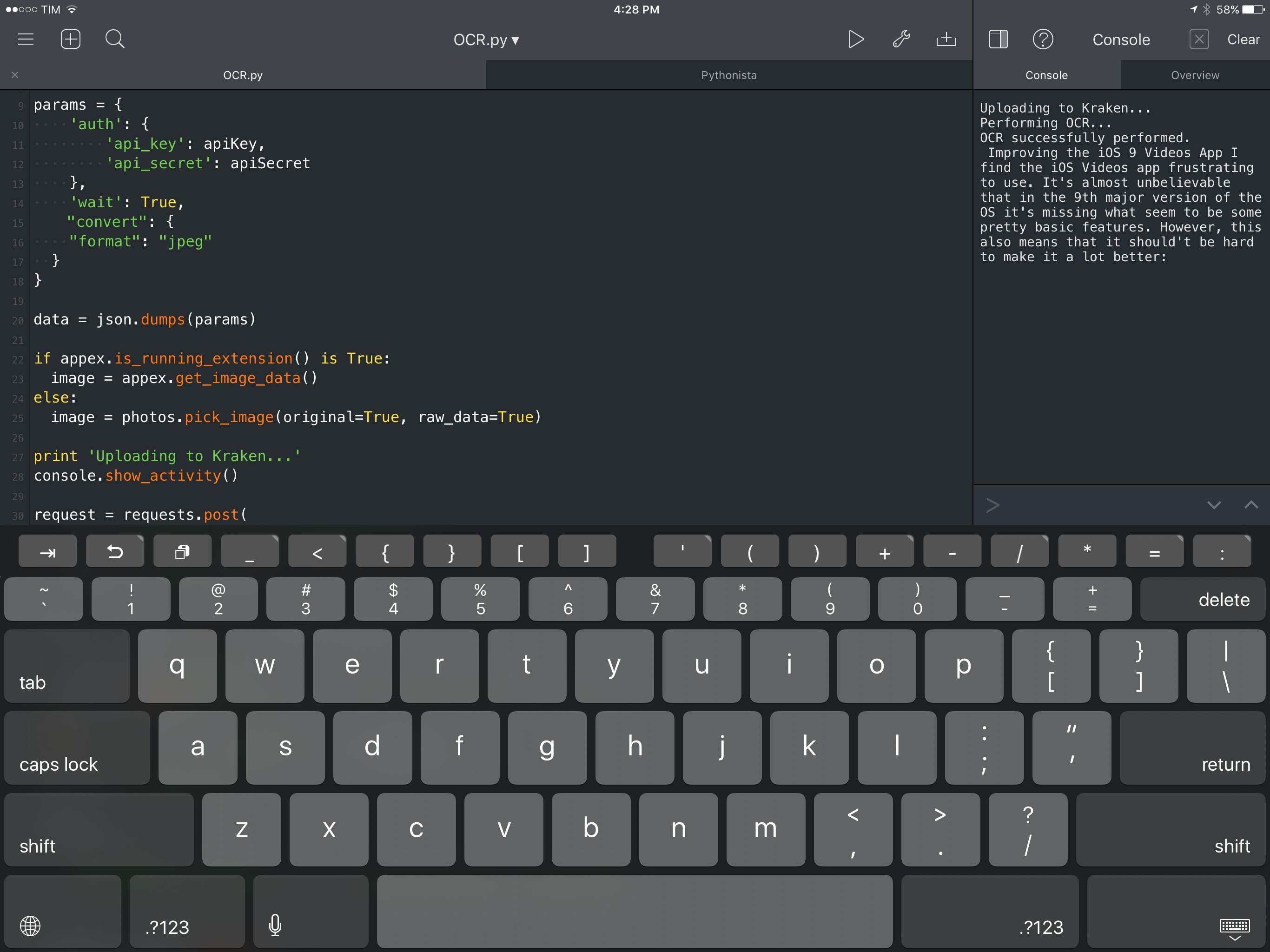
Back in the Fall of 2012, a few months after I had taken it upon myself to start moving all my work from OS X to iOS, I came across Ole Zorn’s Pythonista. A Python interpreter for iPhone and iPad that could natively integrate with iOS system features, Pythonista opened up a new world to me, demonstrating how I could automate tedious tasks on iOS devices via scripting. Since then, other apps have come along and shown how iOS tasks can be automated with visual interfaces and pre-packaged actions (above all, Workflow and Launch Center Pro), but Pythonista is, in many ways, the crown jewel of iOS automation and scripting for advanced users.
There’s nothing quite like Pythonista on iOS. As I’ve documented over the past three years, Ole Zorn has slowly but steadily extended the app’s capabilities with native ties to iOS interfaces via a UIKit bridge, support for location and the Reminders database, and even matplotlib and motion sensors. As it stands today, Pythonista is, by far, the richest and most powerful scripting app to integrate with native iOS features. Despite the variety of options now available for iOS automation and the continued evolution of iOS that cut down the number of tasks I need to automate (case in point: Split View and using two apps at once), I love keeping Pythonista around for key aspects of my workflow that can’t be automated in any other way.
For the past several months, I’ve been using version 2.0 of Pythonista on my iPhone and iPad, which, after a few rejections from Apple, has been approved and is launching today on the App Store. A free update for existing customers, Pythonista 2.0 brings a refreshed UI, support for the iPad Pro, new modules, and, more importantly, a redesigned code editor and an action extension.
Behind the scenes, Pythonista 2.0 has played an essential role in helping me assemble my reviews of iOS 9 and the iPad Pro, with an action extension I rely upon for all my image uploads, OCR, text statistics, and more.
My Must-Have iOS Apps, 2015 Edition
Over the past year, I’ve gone all-in with iOS.
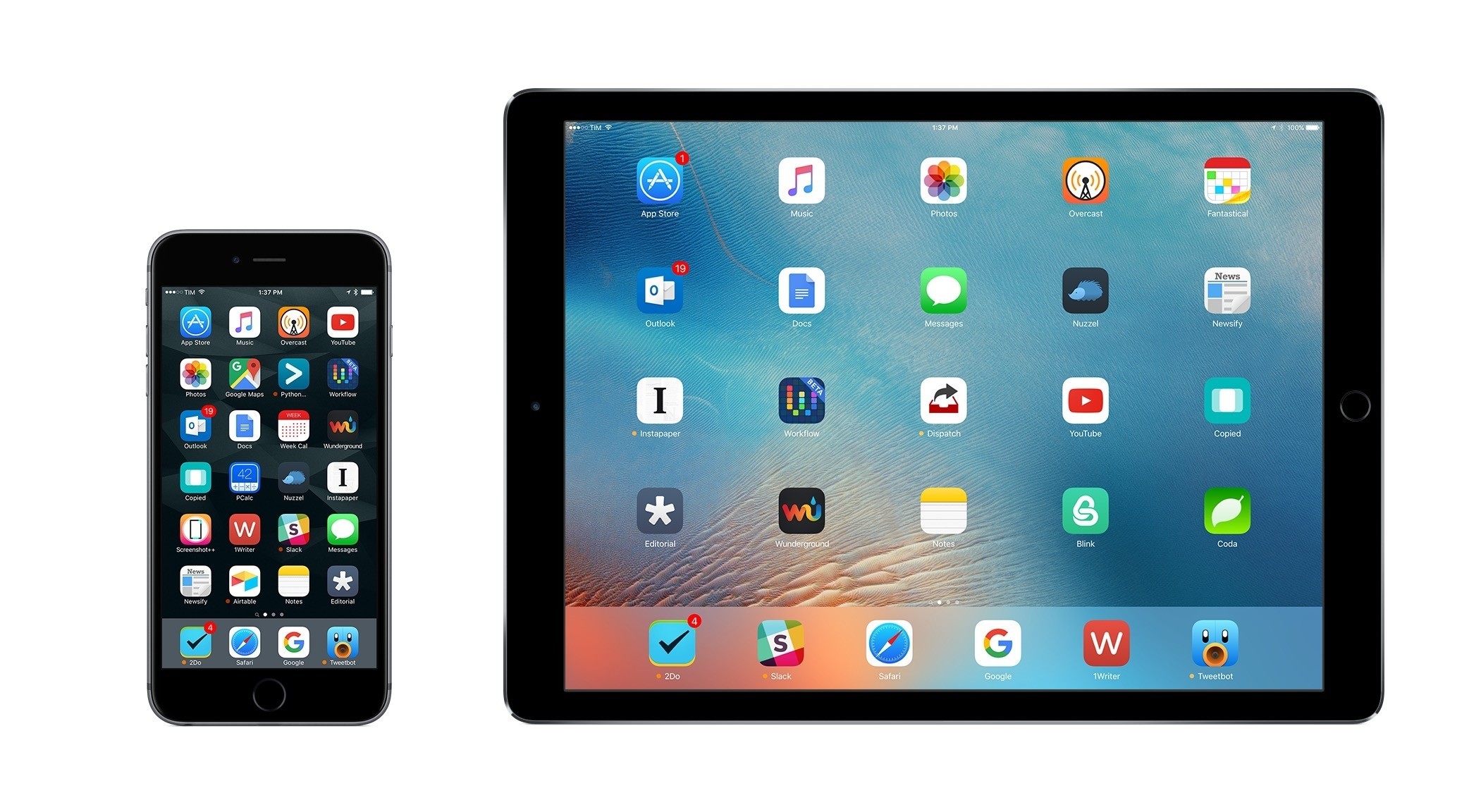
Following years of experiments, struggles to switch from a Mac-centric workflow, and encouraging signs of maturity from the platform, I chose to make the iPad my primary computer. I used the iPad Air 2 more than any other iOS device before, and the iPad Pro is filling that role now with great success. After being convinced to give the iPhone 6 Plus a try by a good friend, I realized that a bigger phone was better for my needs, which resulted in an instant 6s Plus purchase a few months ago. The iPhone isn’t only my pocket computer and Twitter machine – it’s my music, my camera (which I used to shoot this video), my portable gaming device, and my stream of living memories thanks to Live Photos.
At this point, I’m only using my MacBook three hours a week to record two podcasts on Skype. Effectively, all my computing – work or entertainment-related – is done on iOS, and I treat my iPhone and iPad with the same care and respect that others would treat their Retina iMacs and Mac Pros. The iPad Pro in particular is the computer that enables me to write and pay the bills. It’s not just a nice thing to have – it’s the tool upon which my livelihood hinges.
It’s not surprising, then, that I’m just as scrupulous when it comes to the apps I choose to get work done. While part of my job is about discovering new apps, such effort isn’t mandated by a shallow pursuit of “new” without merit. I’m constantly on the lookout for tools that can make me faster, produce better content in less time, and approach what I do in different ways. It’s a functional curiosity, not a shtick. The virtuous cycle of finding new apps, trying them, and documenting what trickles down to my daily workflow is at the very foundation of MacStories.
At the end of the year, I always like to take a couple of weeks to look back on the past 12 months and assess the state of my favorite apps. I’ve been doing this in various forms for five years now, but I’ve kept the same criteria in mind: which apps truly help me work from my iPhone and iPad? What are the tools that let me enjoy my devices for personal and professional use as much as possible?
With the increased importance of iOS 9 and the iPad Pro in my life this year and given some growing trends on the App Store, I thought I’d shake things up a little. Instead of having two separate articles for my must-have iPhone and iPad apps, I combined my 50 picks in a single list and organized them in eight categories.
- Work Essentials
- Social
- News
- Health
- Home
- Entertainment
- Utilities
- Photo & Video
I believe this makes sense given that only 7 apps out of 50 are not Universal downloads from the App Store. The vast majority of my favorite apps are available on both the iPhone and iPad and I use them on both platforms; it’s more logical to consider them as single entities.
Below, you’ll find my Must-Have iOS Apps for 2015 – the ones that have been essential for my workflow over the past 12 months. At the end of the list, you’ll also find my App of the Year and two Runners-Up. Each app has been listed with a direct link to its App Store page; wherever possible, I included links to previous MacStories coverage as well.
Daylite 6 for Mac and iOS
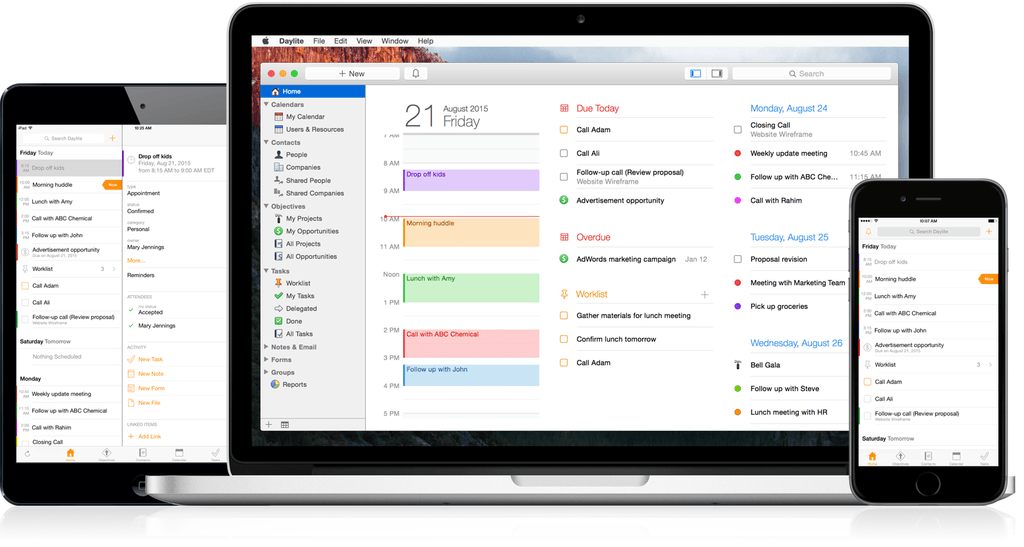
Daylite 6 was released today for both Mac and iOS, and it’s a major upgrade for the business productivity app. Already boasting a complete set of tools for managing projects, clients, and tasks for an individual or workgroup, the new version adds a slew of new features that take the app even further.
One of the major highlights of this release is the announcement of “Daylite Cloud.” Previously, centralizing a group’s Daylite data required running a copy of Daylite Server. With Daylite Cloud, it’s all handled seamlessly, allows offline access, is cheaper, and has no barrier to incorporating it into your company workflow.
The task management features of Daylite have also expanded. The constraints of the previous Pipeline/Activity Set features have been augmented by a “Task Lists” feature, allowing free-form creation of task lists that might not be assigned to a linear timeline, with complete control over ordering, a new entry interface, and additional fields for time, location, estimated time, and other details. There’s also a new “Smart Filtering Bar” for viewing tasks by details such as assigned team member, category, or keyword.
The iOS version has new goodies as well, with features including Today Widgets, full filtering capabilities, and improved editing of Daylite entries. It also adds file linking tools which allow you to snap a photo and link it to one or more items in Daylite.
If you’re a Mail.app user, also check out the Daylite Mail Assistant. It’s not a new feature, but it’s impressive. It allows you to link emails to Daylite items, schedule meetings, and share data without a chain of cc’s and forwards, all from within Mail.
For a complete rundown of all the new features, check out the announcement post on the Daylite blog. You can learn more about Daylite on the Marketcircle website.
Publishing Articles to WordPress with Workflow on iOS
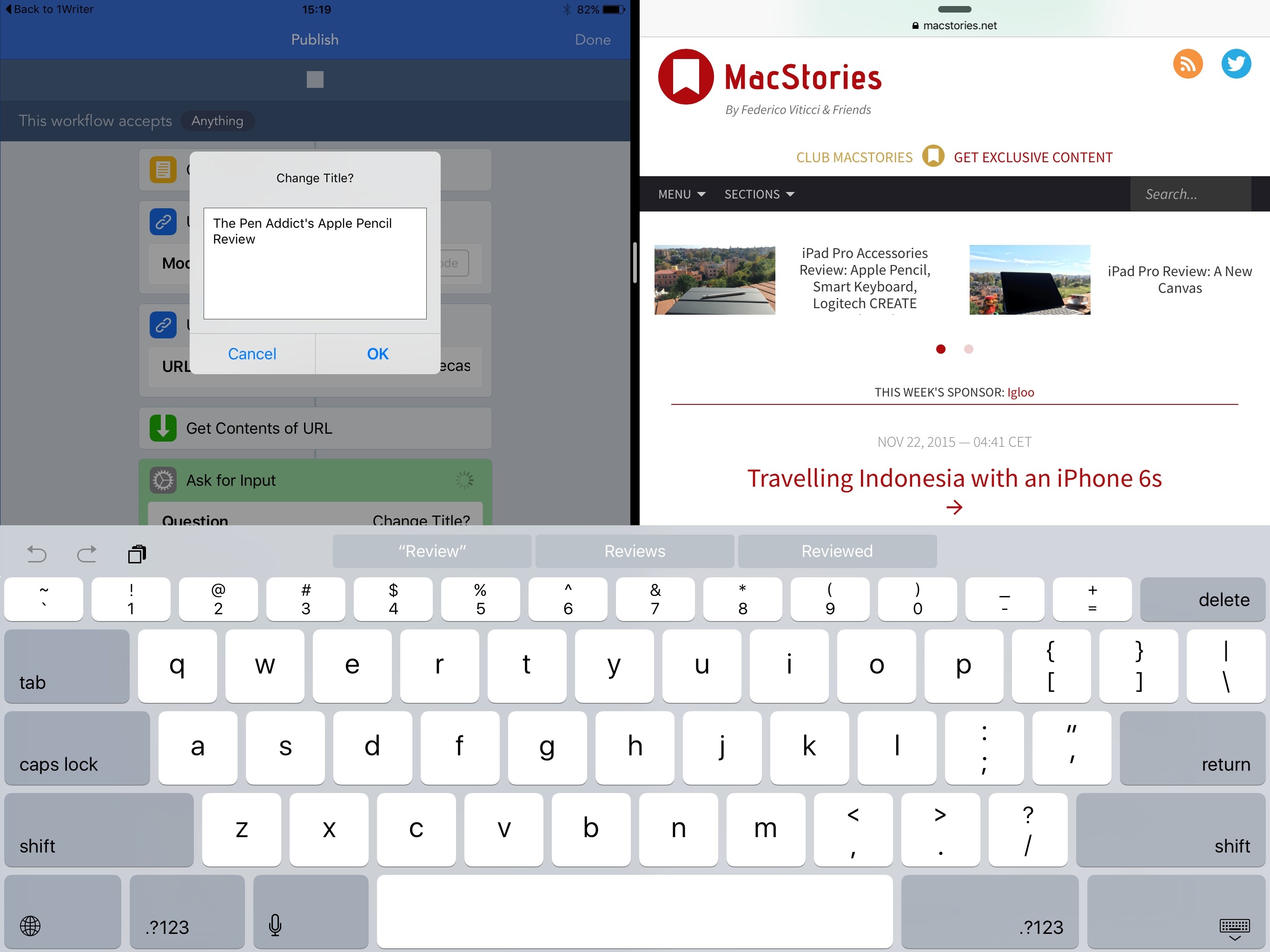
For the past two years, I’ve been publishing articles and linked posts on MacStories via Python. This inelegant solution was my only option to automate the process of publishing directly from Editorial (most recently, 1Writer): when it comes to writing on iOS, I’m too fussy to accept primitive copy & paste into WordPress’ official client. Despite its minimal GUI, crude Python code, and lack of advanced features, my ‘Publish to WordPress’ script served me well for two years.1 99% of my MacStories articles since late 2013 have been published with it.
Still, I knew that something better would come along eventually. When the Workflow team pinged me about a new action they were developing to enable WordPress publishing from the app, I couldn’t believe they were considering it. Workflow, an app that I employ on a daily basis to speed up core parts of my job, combined with the single task that powers my entire business – posting new content. It was almost too good to be true.
Fortunately, great things do happen in the third-party iOS ecosystem. Today’s update to Workflow (version 1.4.2) adds, among more actions, a brand new WordPress action to publish posts and pages to configured WordPress blogs (both wordpress.com and self-hosted ones) and which can be combined with any other existing action or workflow for deeper automaton. After using a beta of this action for the past few weeks, I can say that it’s, by far, the best automated publishing workflow I’ve ever had, and I don’t want to go back to anything else.
Markdown and Automation Experiments with 1Writer
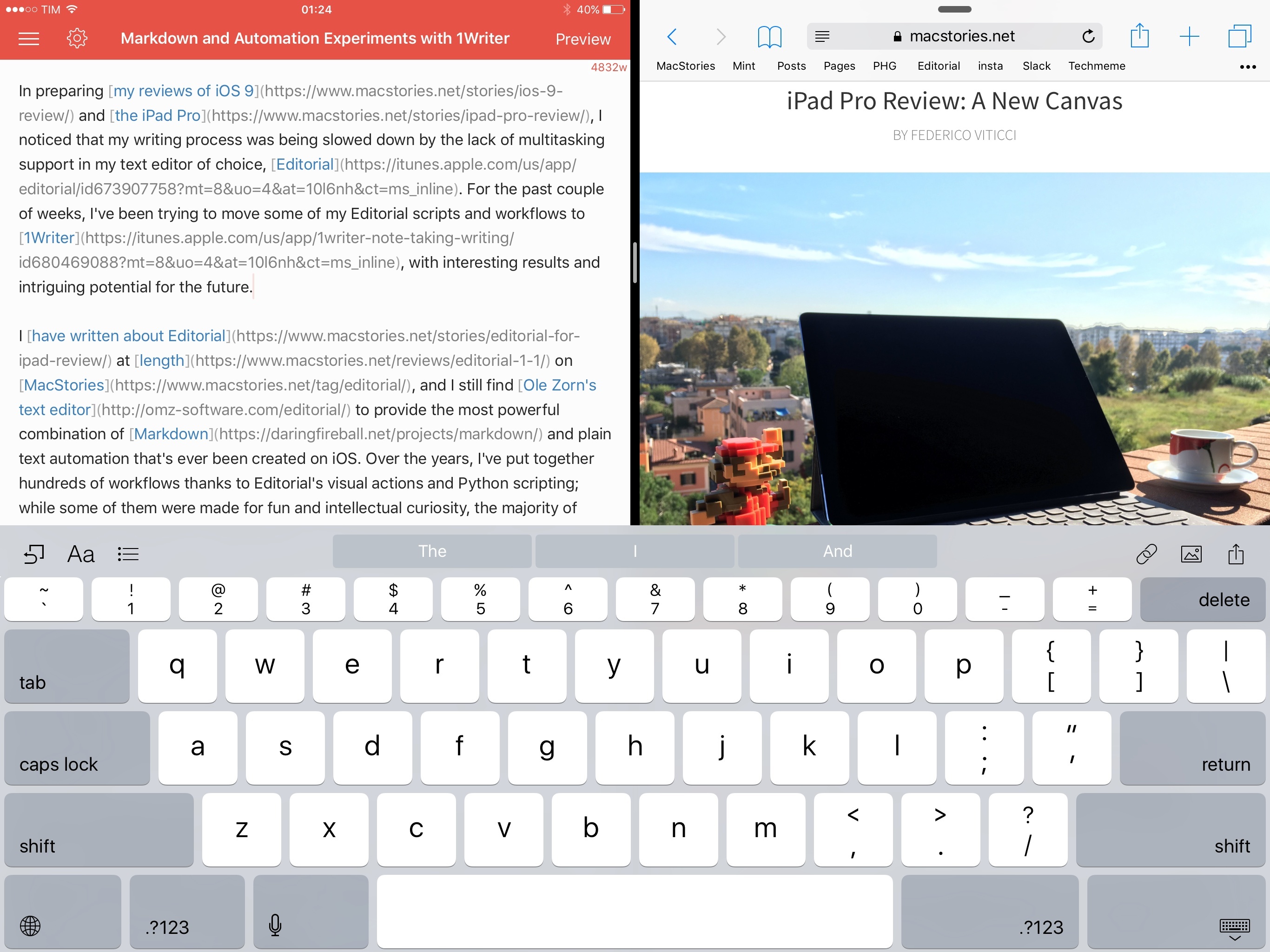
In preparing my reviews of iOS 9 and the iPad Pro, I noticed that my writing process was being slowed down by the lack of multitasking support in my text editor of choice, Editorial. For the past couple of weeks, I’ve been trying to move some of my Editorial scripts and workflows to 1Writer, with interesting results and potential for the future.
I have written about Editorial at length on MacStories, and I still find Ole Zorn’s text editor to provide the most powerful combination of Markdown and plain text automation that’s ever been created on iOS. Over the years, I’ve put together hundreds of workflows thanks to Editorial’s visual actions and Python scripting; while some of them were made for fun and intellectual curiosity, the majority of them helped me save time when doing actual work for this website, Relay FM, and Club MacStories. There is no other app with the same feature set and rich Markdown support of Editorial.
Since iOS 9, however, I’ve been wondering whether part of Editorial’s automation could be taken somewhere else, possibly in another app that offered full integration with iOS 9 multitasking. I may have several workflows in Editorial, but I only use a tiny fraction of them on a daily basis for regular work on this website. I’d rather use a text editor that excels at a subset of Markdown workflows and integrates with iOS 9 than a single text editor with every imaginable workflow without proper iOS 9 integration.
It was this realization that pushed me to give 1Writer another look. I first bought the app years ago, but because I had no excuse to explore the world outside of Editorial, I didn’t try to recreate any workflows in it. This time around, I was motivated to rebuild the core of my setup in 1Writer, so I took a deep dive into the app’s automation engine.
Things will likely change again once Editorial supports iOS 9, but in the meantime I’ve developed an appreciation for 1Writer’s design and features that helped me understand the app better.
Shooting and Directing Live Music Exclusively with iOS→
Fascinating work by Brian King, who shot, directed, and live streamed a Jukebox the Ghost show using iOS devices:
Leading up to the show, I made a lot of disclaimers to the band and their label. This was my first time really using Switcher Studio Pro, and the odds of everything falling apart seemed high. To my surprise, all of the iPads, phones, battery and wifi connection managed to get through the whole night without melting, crashing, or otherwise falling apart. The only adjustment I had to make during the set was re-seating the Olloclip on Jesse’s drum-cam. At the end of the night, getting access to full quality video recordings from each of the stage-cameras was no problem. Overall, the stability of the software and iOS was better than I could have expected.
And his takeaway:
As a professional in broadcasting, this development really excites me. Big gigs are not going to throw away Steadicams & Zoom lenses for iOS devices and iPhone broadcasts are not going to cannibalize the market for large-scale professional shows. Instead, smaller live acts broadcasting more shows with Switcher Studio is going to create a demand for more live content, foster more widespread exposure to the acts and build audiences that see the value in seeing high quality live streams more often. Just look at what happened to prerecorded video shooting and editing in the past decade—accessible software and hardware is a huge deal.
As a live music fan and iOS user, what Brian has accomplished with iPhones and iPads seems amazing. Make sure to check out his post for photos and details on the setup.
Browsecurely Brings Safari View Controller Anywhere with an Action Extension
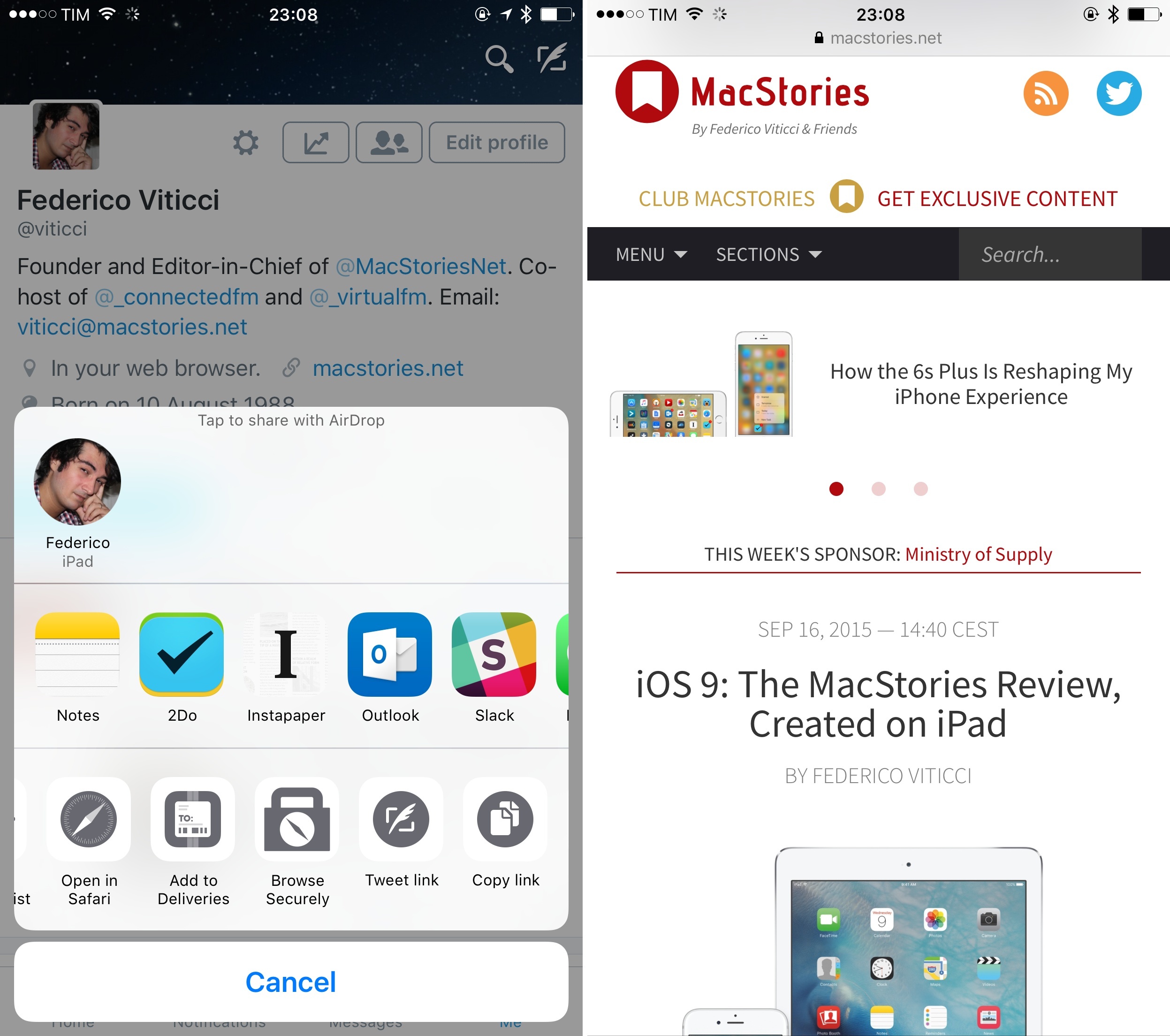
One of the best details of Peace, Marco Arment’s original Ghostery-based Content Blocker for iOS 9, was the ability to summon Safari View Controller anywhere with an extension. As I wrote in my review:
Open Unrestricted and Open in Peace are interesting, as they leverage Safari View Controller to temporarily disable (Unrestricted) or use Peace for a link passed to the extension. This means that, besides Safari and apps that support Safari View Controller, you can enjoy the benefits of Peace from the system share sheet. Even if an app doesn’t integrate with Safari View Controller – such as Twitter, but there will be many others – as long as they can share a URL with native extensions, you’ll be able to use Peace’s Content Blocker and Safari View Controller. This is a genius way to circumvent apps that don’t support the superior Safari View Controller experience in iOS 9, and I bet that other developers will be “inspired” by it once they see it.
Developed by Martin Gordon, Browsecurely is a new app for iPhone and iPad that lets you open Safari-based web views in every app that supports the iOS share sheet.
The idea is extremely simple: in spite of the many advantages of Safari View Controller (which include privacy features, performance gains, Content Blockers, and an experience consistent with the system browser), there are still some apps –like Twitter’s official client – that prefer not to implement it, using their own web views independent from Safari. Browsecurely offers a way out from those web views: as long as you can share a webpage’s URL with native extensions, you’ll be able to open the selected webpage with Safari View Controller using the Browsecurely action extension. By doing this, you’ll simply be opening a URL in Safari View Controller without leaving the app you’re using; current Content Blocker, Reader, and other Safari settings will carry over from the browser automatically.
I was waiting for someone to replicate Peace’s Safari View Controller extension in a dedicated app, and it doesn’t surprise me that this basic functionality is available for free with an optional In-App Purchase to support the developer. Browsecurely has no additional features – it’s just a way to open links in Safari View Controller with an extension.
I have to wonder if, eventually, Apple will make a Safari extension themselves, allowing users to always open links with Safari View Controller as a system-level option available in every app. In the meantime, Browsecurely comes in handy to quickly view webpages in Safari View Controller from the share sheet, and it’s available for free on the App Store.
Billings Pro 2 with iOS 9 Multitasking Features→
Billings Pro 2 is out, with full support for iOS 9 multitasking features. I mentioned Billings Pro in August, and adding these features to the set of iOS (and Apple Watch) features I covered extends its usefulness for freelancers and business owners even further.