Posts tagged with "iOS"

Workflow 1.1: Deeper iOS Automation

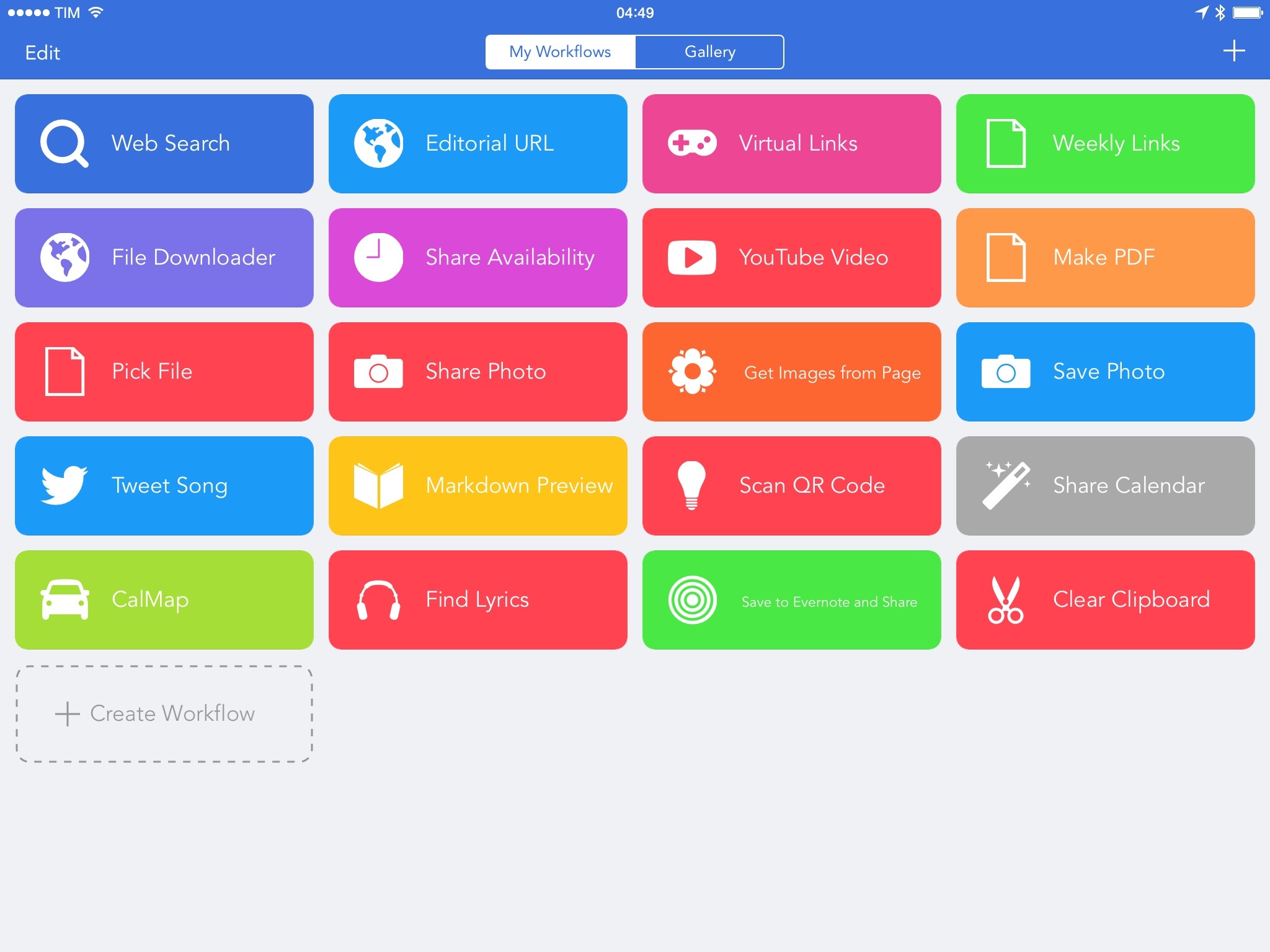
Released by a small team of indies in December 2014, Workflow reinvented iOS automation. Combining an interface reminiscent of Apple’s Automator for OS X with easy access to native iOS features such as Safari, the photo library, and iOS 8 extensions, Workflow promised to make automating tasks on an iPhone and iPad a simple and pleasant affair. The results spoke for themselves: Apple selected Workflow as Editor’s Choice, the app trended for weeks in the App Store’s Top Charts, and thousands of users released interesting and useful workflows in various online communities. MacStories readers may remember that Workflow was my iPad app of the year.

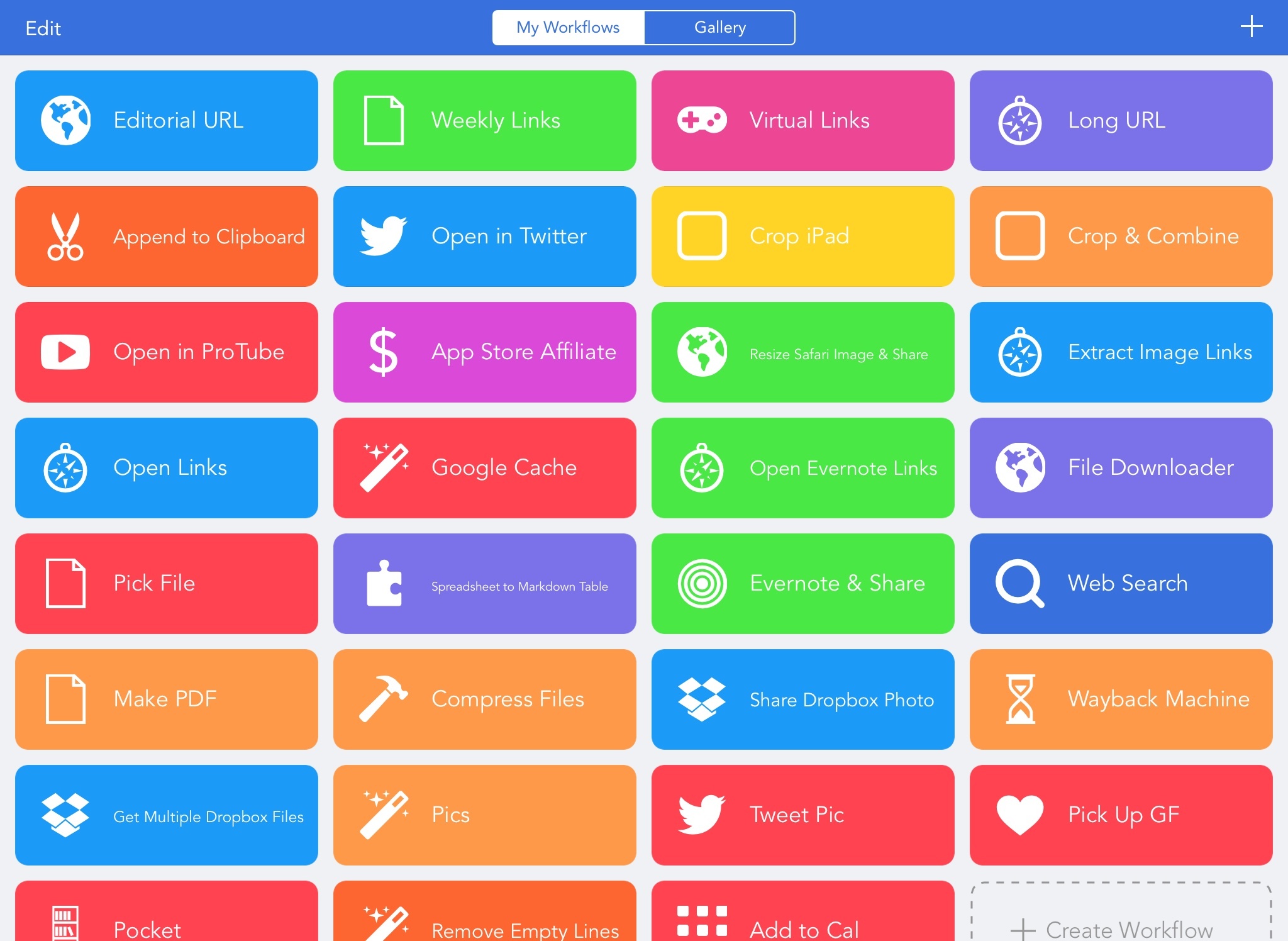
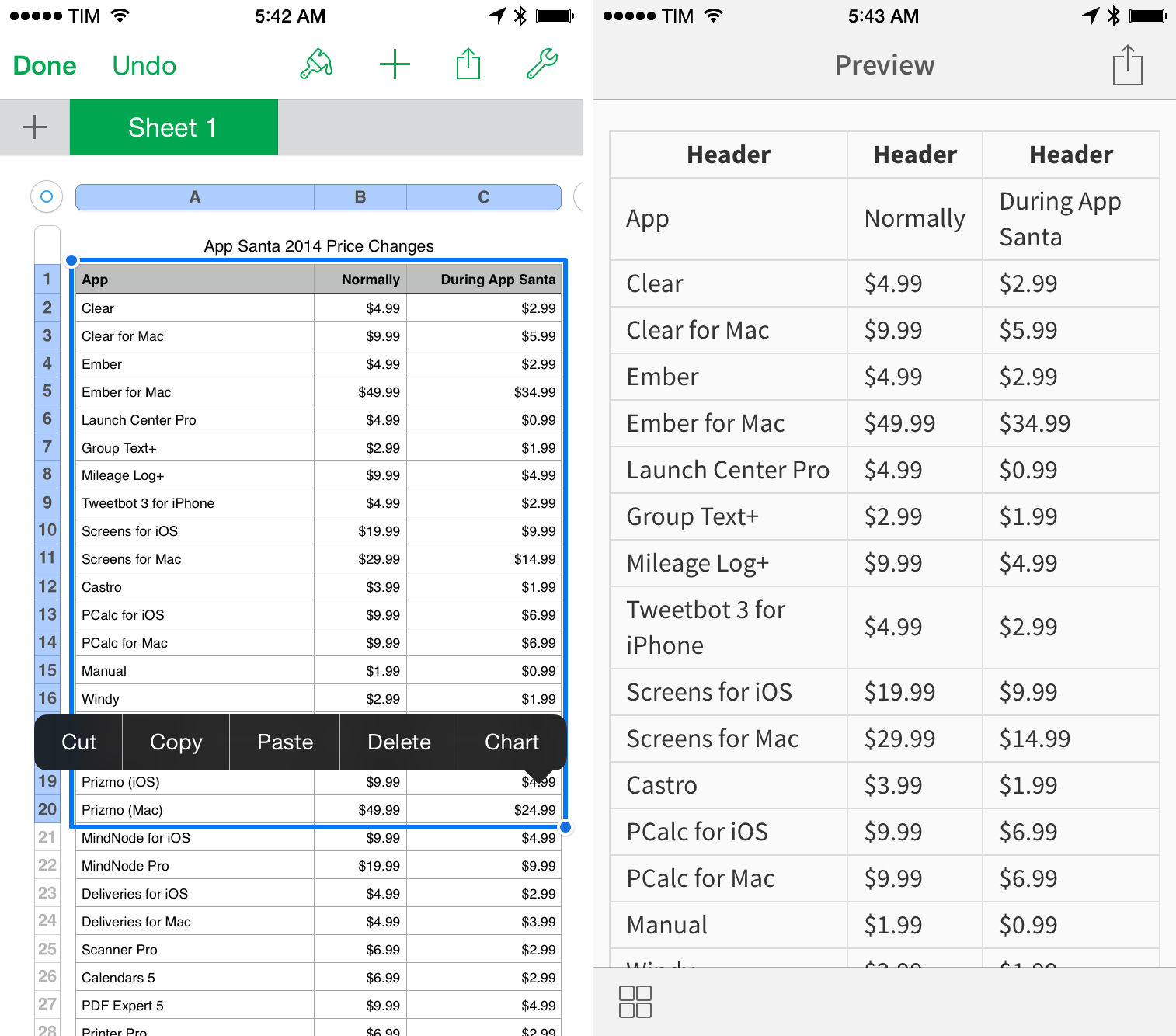
Workflow is one of those few apps that have dramatically changed how I work on my iPad. For me, the point of using Workflow isn’t to put together chains of actions to show off the app’s power – I just want to save time I can spend doing something else. While I have fun experimenting with Workflow and understanding its capabilities, ultimately the app just sits there in the background, waiting for me to call a series of actions I need. I love Workflow the most when it’s summoned for those two seconds and it does something magic that would have normally required minutes of manual interaction. Things like appending links to Evernote, converting spreadsheets to Markdown tables, or adding text to the clipboard.

Workflow fits my routine like a glove. I’ve used it every day to automate aspects of my work that speed up how I write and communicate on my iOS devices. And with Workflow 1.1, released today on the App Store, its developers are further expanding the app’s capabilities with powerful new functionality that includes filtering, better conditionals and image manipulation, URL expansion and deeper calendar access, and even the ability to open multiple links at once in a web browser.

Version 1.1 of Workflow includes over 50 new actions and dozens of fixes, improvements, and changes to existing actions. Core parts of the app have been revised for a faster experience and the foundation laid with the Content Graph has started to pay off with the addition of metadata and filters. Because I’ve been playing around with Workflow 1.1 since the app’s original release two months ago, I’m going to offer some practical examples with a high-level overview of the changes.
Read more


Balance

When I started MacStories in 2009, two pillars sustained the narrative around Apple: its “attention to detail” and the “just works” aspect of its software. Since iOS 7, it feels like those pillars have begun eroding at a quicker pace.

Read more


My Must-Have iPhone Apps, 2014 Edition

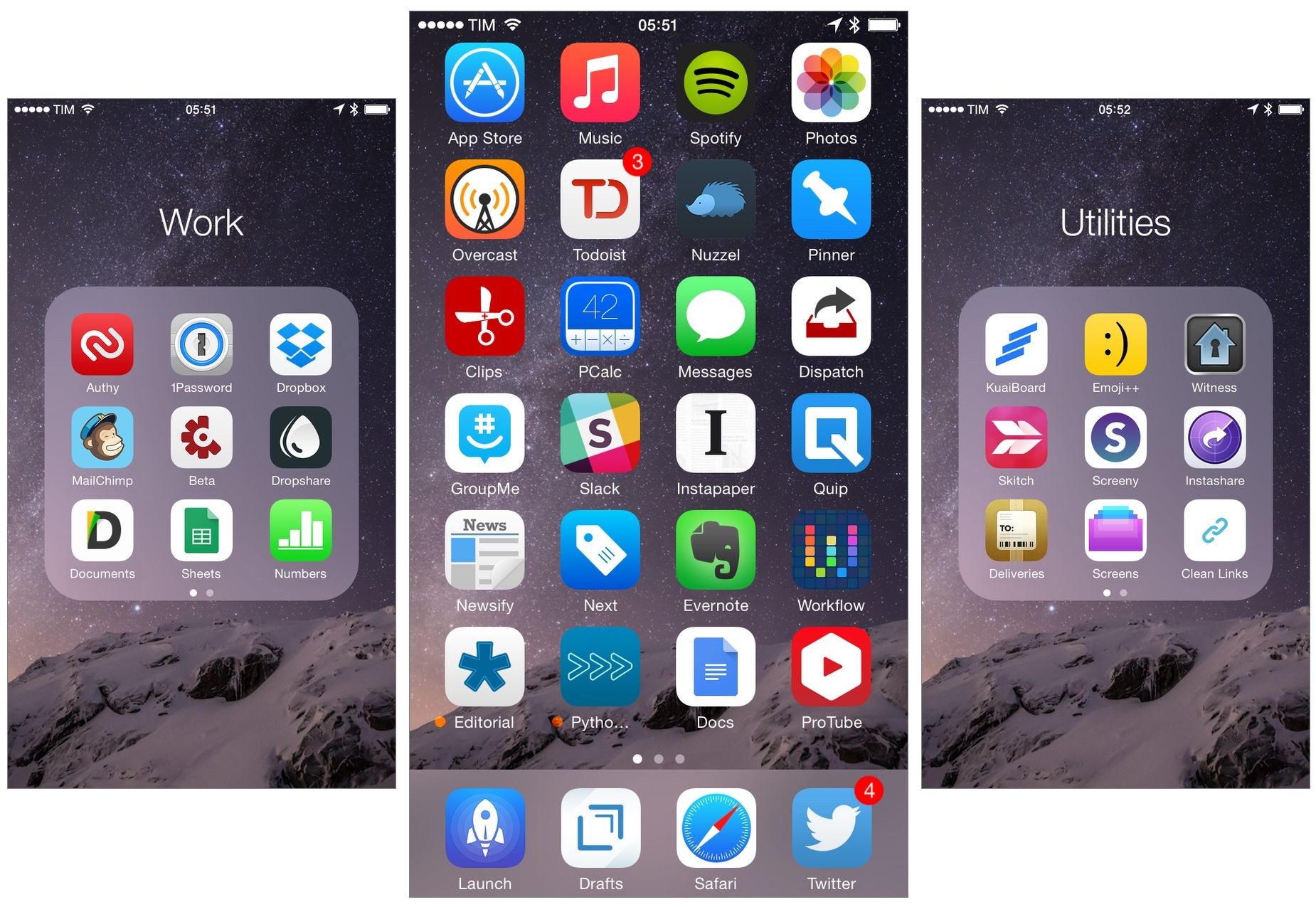
For the past four years, I’ve been running a series called My Must-Have Apps that, once a year, collects all the apps I find indispensable to get work done on my iPhone, iPad, and Mac. Considering changes to my daily life and workflow, this year only features my must-have iPad and iPhone apps.

The iPhone has changed my professional life, and it’s a powerful and essential pocket computer that I carry with me all the time. But I prefer to get work done on my iPad.

There was a time when I thought that I could work entirely from my iPhone; after upgrading to a cellular iPad two years ago and once I began moving to an iPad-centric workflow, I realized that the tablet was the iOS device that I preferred for writing, reading, doing email, and watching movies. For millions of users, the iPhone turns into a mobile computer as soon as they step away from the comfort of a desk with a Mac. But I’ve come to realize that I’d rather have two iOS devices with me at all times – a smaller iPhone and a bigger iPad – than one that tries to do everything at once. Which is why, ultimately, I decided to go with an iPhone 6 and an iPad Air 2 this year.

In spite of my personal preference, though, I can’t deny the fact that, nowadays, it’s hard to find iOS apps – and especially utilities or productivity-related apps – that aren’t Universal. The trend of “iPad-only” and “iPhone-only” apps has been substantially downsized in recent years – none of the apps on my iPad Home screen are exclusive to the iPad at this point. So while I like and use the iPhone more for listening to music, taking pictures, or monitoring my health data, I still end up installing a text editor, a shortcut launcher, and a Python interpreter on my iPhone because they’re available and because why not. This isn’t an ideal scenario – too many developers are making iOS apps that simply scale across screen sizes without taking advantage of the unique features of each platform – but that’s beyond the scope of this series.

It was tough to compile a list of must-have iPhone apps this year: I’ve already covered most of them in my iPad article, and I don’t use the iPhone as much as my iPad. But at the same time, I realized that, for those times when I needed to work from my iPhone, those smaller iPad apps were absolutely necessary, even if not running on a screen size that I’m comfortable with. And, more importantly, I believe the article can be useful to readers who had no interest in iPad apps and my iPad workflow.

This year, I’ve only covered iPad and iPhone apps, as I practically don’t use a Mac anymore. For apps shared across my iPad and iPhone, I used the same base descriptions, with differences for the iPhone versions noted and rewritten where necessary. This is a remix and addendum to my must-have iPad apps.

In the list below, you’ll find apps organized in seven sections:

  • Work Essentials
  • Social
  • Audio and Music
  • Photos and Screenshots
  • News
  • Health
  • Utilities

At the end of the article, you’ll also find my iPhone App of the Year and a Runner-up. Each app has a direct iTunes link, and, where possible, I’ve included links to previous MacStories coverage as well.

Read more


“Fork iOS for iPad”

Khoi Vinh, writing about iOS for iPad:

Unlike the projects above, this one could positively affect Apple’s bottom line: as I wrote in October, I believe that the iPad is at a crossroads. Its growth has stalled, and it’s failed to serve as a launching pad for transformative new software experiences and businesses the way its older sibling the iPhone has. What the iPad needs now is unique reasons for being—something that may be difficult to achieve while it remains in lockstep with the iPhone. Forking the operating system so that a dedicated team can focus exclusively on improvements that benefit the iPad solely could provide the right opportunity to open up new vistas for the device.

Of course, we’ll have to wait and see results for the holiday quarter to assess sales of Apple’s new iPad lineup and there have been major changes in iPad initiatives lately, but Khoi has a point.

I’ve long argued (see: iOS 7) that iOS doesn’t feel truly optimized for the iPad and that several components of the OS are enlarged versions of their iPhone counterparts. Simplicity has always been one of the core tenets of the iPad, but sometimes simplicity works against user experience when functionality is too closely modelled after a smaller display for the sake of consistency or, worse, time constraints. I don’t know if Apple needs to “fork” iOS for iPad and make it a separate entity, but improvements meant solely for iPad software would be great (multitasking, perhaps?).

Permalink


Workflow Tip: Append Text to the iOS Clipboard

If you do any sort of note-taking or writing on iOS, you probably find yourself wishing you’d be able to copy separate bits of text in the clipboard simultaneously. While that’s still not possible because the iOS clipboard only supports one entry at a time, the process can be sped up with Workflow.

A few weeks ago, I wrote about how I was looking for an extension to append links to an existing note through the system share sheet. I eventually downloaded NoteBox, which has an iOS 8 extension that can quickly capture any string of text and that has a merge feature to collect separate notes into a single one. That wasn’t perfect, but it allowed me to collect dozens of tweets and prepare them for a blog post on MacStories in just a couple of minutes.

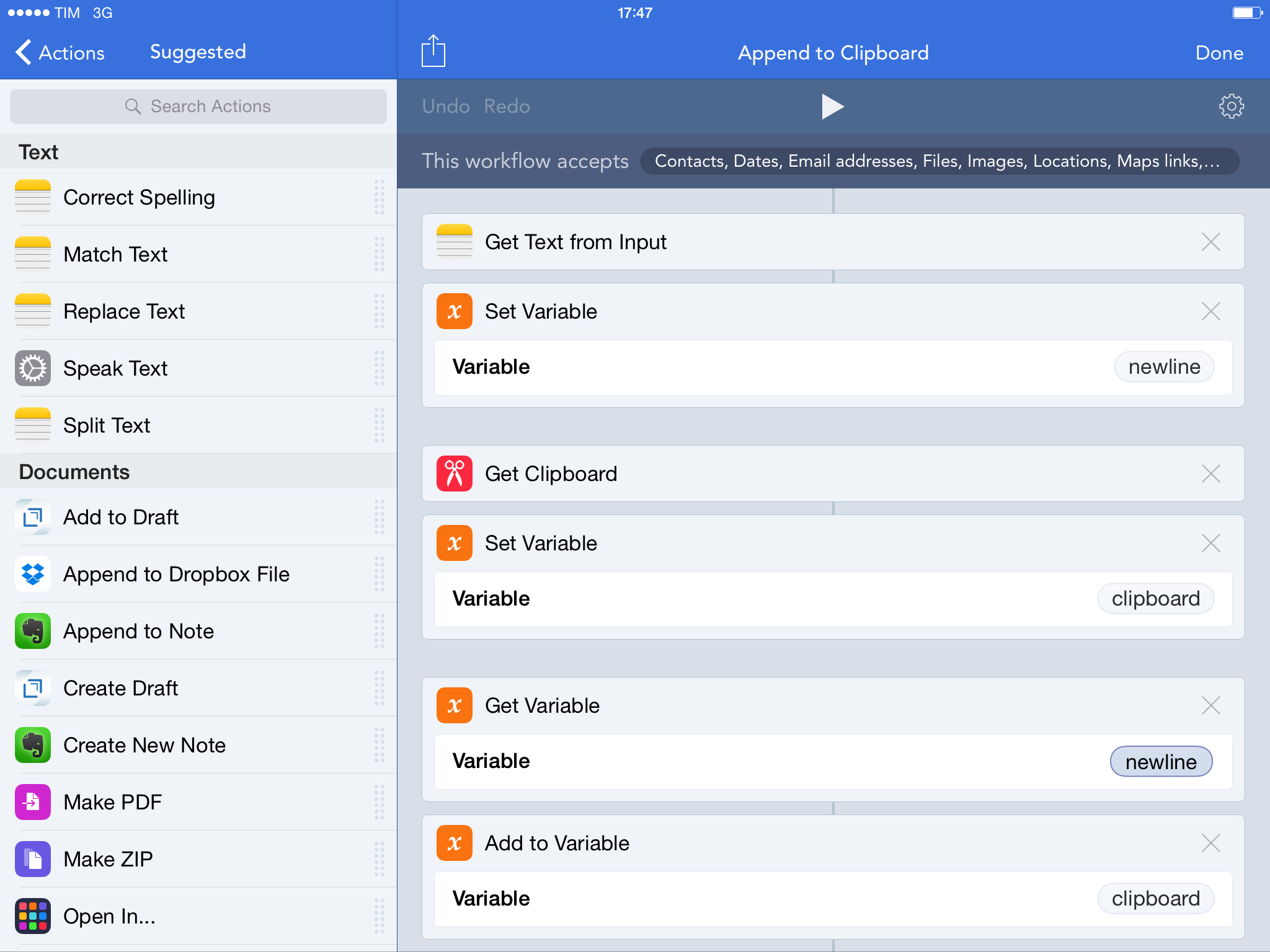
With Workflow, I came up with a better system that uses extensions and the ability to append text to the iOS clipboard. This is the workflow I use, which does three simple things:

  1. Receives input (text) from the Workflow action extension;
  2. Adds the input to your existing clipboard;
  3. Updates the system clipboard with the added input text.

In practice, this means that, using any app capable of showing the share sheet, you can add some text to your clipboard as a new line without convoluted steps of manual copy & paste. Want to add some tweets to a link you copied? In Twitterrific, run the workflow on those tweets and they will be added to the clipboard. Multiple links in Safari or RSS? Copy the first one as you’d normally do, then add more through the workflow. You won’t have to manually merge the contents of the clipboard as long as you use the Workflow action extension to append text.

I’m using this workflow every day to end up with a clipboard that contains multiple links, email addresses, or generic strings of text, and it’s been a great timesaver. You can download the workflow here.


My Must-Have iPad Apps, 2014 Edition

For the past four years, I’ve been running a series called My Must-Have Apps that, once a year, collects all the apps I find indispensable to get work done on my iPhone, iPad, and Mac. Considering changes to my daily life and workflow, this year will only feature my must-have iPad and iPhone apps. As with last year, I want to start from the iPad.

Over the past two and a half years, my workflow has become increasingly iOS-centric. Changes in my personal and professional life have convinced me that iOS is the best platform for me, with a rich ecosystem of apps that allow me to work faster and more efficiently no matter where I am. This year, my iPad has essentially replaced my MacBook Air, which I now primarily use to watch movies and record podcasts.

There’s a few tasks that I still can’t get done on an iPad, but the list is shrinking, and, thanks to iOS 8, developers are coming up with new ways to make working on iOS more feasible and pleasant. I don’t use my iPad as a computer just to prove a point or because it’s a popular topic among readers and listeners of Connected: I need my iPad, the apps it runs, and the workflows I’ve created to automate what I do on iOS.

It is with extreme seriousness, then, that I take a look at the apps I consider my “must-haves” each December and compile them in a list for MacStories. This allows me to sit down and calmly evaluate how I use my devices, the software I depend on, and how much the way I use apps has changed in 12 months.

This year, I’ll only cover iPad and iPhone apps, starting with the iPad. In the list below, you’ll find apps organized in eight sections:

  • Work Essentials (apps that I need and use for work every day)
  • Social
  • News & Links (apps to read and discover interesting news)
  • Audio (apps for music and podcasts)
  • Calculators
  • Images
  • Extensions, Widgets, and Keyboards
  • Everything Else

At the end of the article, you’ll also find a few statistics about this year’s collection as compared to last year’s and my iPad App of the Year. Each app has a direct iTunes link, and, where possible, I’ve included links to previous MacStories coverage as well.

Read more


Drafts 4 Review

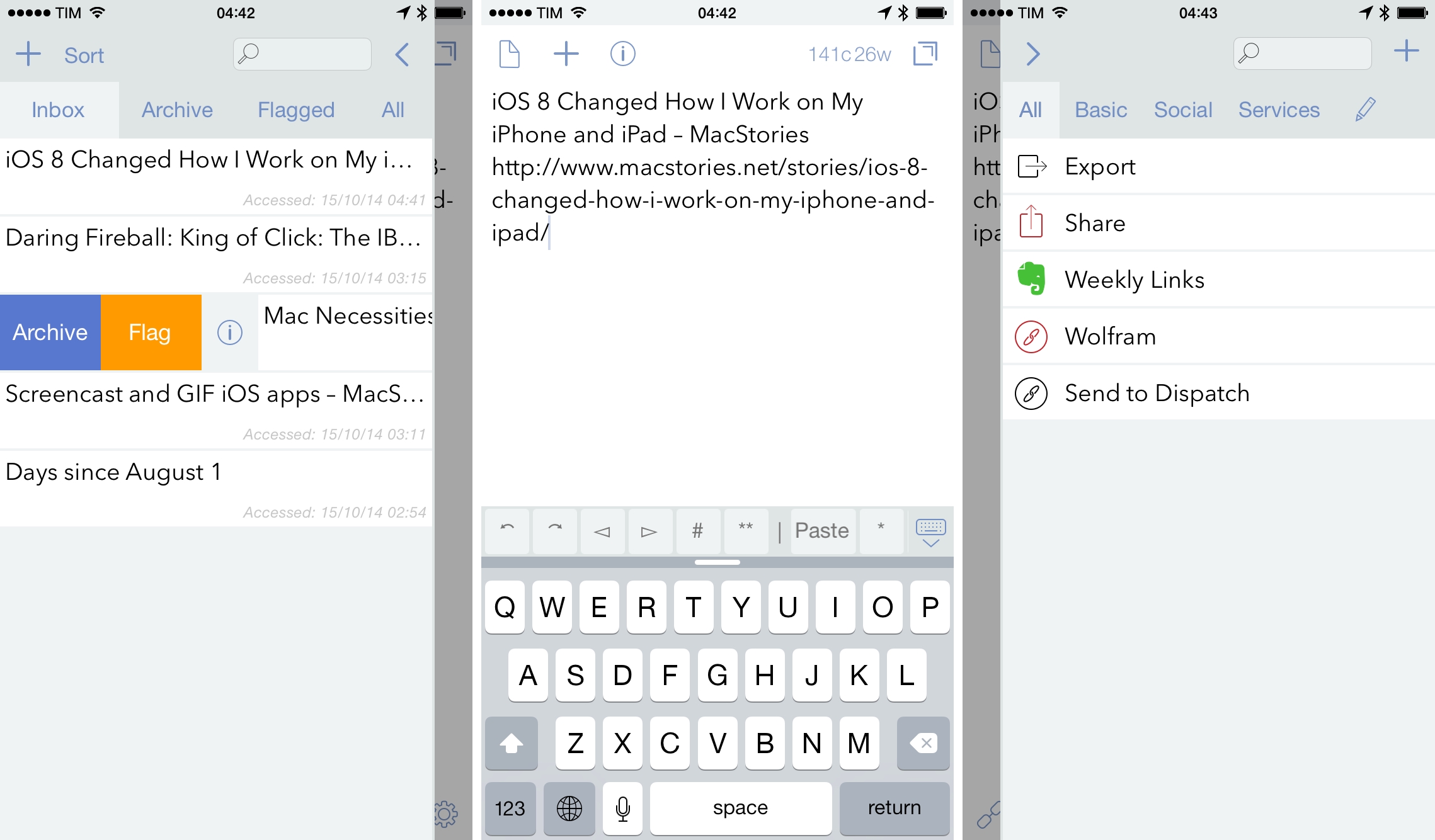
Drafts is one of my all-time favorite apps on iOS, not only for its amazing utility, but also because it was the app that got me started writing about technology, so it has a special place in my heart. However, surveying what the app has looked like since its last big update over a year ago, it’s been clear to me that an unchanged Drafts would stagnate in the post-iOS 8 world. In the face of new methods of inter-app communication such as extensions, documents pickers, and widgets, surviving on URL scheme-based utilities alone would likely not be enough to keep Drafts relevant.

This is Drafts though, an app that has been at the forefront of iOS automation since the field began. I should not have been worried. Released today on the App Store as a new, iOS 8-only, and Universal app, Drafts 4 is an evolution which boasts a huge number of improvements and represents a much needed shift in direction. With a UI refresh, a smarter and more accessible interface for building actions, a fantastic Share extension, a customizable extended keyboard, an enhanced URL scheme, and the intriguing introduction of JavaScript scripts for text manipulation, Drafts 4 is Agile Tortoise’s statement that they are ready for the challenges of a modern iOS.

Read more