

Apple recently revamped its Education website with updated sections on iPad and Mac usage in education and a focus on students with special needs and Accessibility. Make sure to check out the Real Stories webpage, which provides several examples of how teachers are using the iPad in the classroom.
Posts tagged with "iPad"
Apple and Education→
Reinventing iOS Automation: Editorial Review
Update: I have turned this review into an interactive book with additional & exclusive content. You can find it on iTunes, on sale for a limited time. More information is available here.
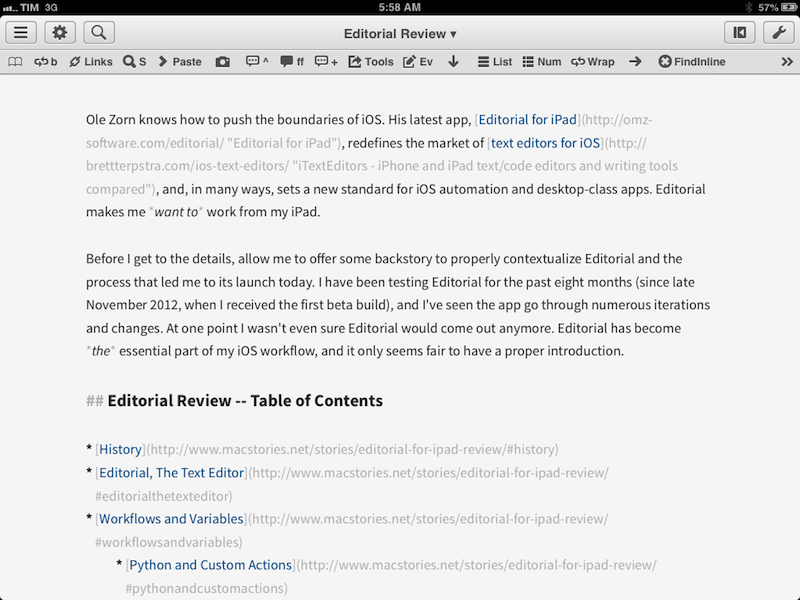
Ole Zorn knows how to push the boundaries of iOS. His latest app, Editorial for iPad, redefines the market of text editors for iOS, and, in many ways, sets a new standard for iOS automation and desktop-class apps. Editorial makes me want to work from my iPad.
Before I get to the details, allow me to offer some backstory to properly contextualize Editorial and the process that led me to its launch today. I have been testing Editorial for the past eight months (since late November 2012, when I received the first beta build), and I’ve seen the app go through numerous iterations and changes. At one point I wasn’t even sure Editorial would come out anymore. Editorial has become the essential part of my iOS workflow, and it only seems fair to have a proper introduction.
Google Maps for iPad Now Available

With a 2.0 update released today on the App Store, Google has brought Google Maps to the iPad, adding the enhancements and new features that the company announced last week.
Google Maps, first released in December 2012 following Apple’s apology for issues with their own iOS 6 Maps service, can now take advantage of improved navigation with accident information and live traffic reports whenever available; using Zagat and Offers, Google Maps can now recommend the best places around you with reviews and exclusive deals; for selected areas, Google Maps features indoor mapping for malls, train stations, and airports.
Results for businesses are displayed on a grid that shows inline photo previews, distance from your current location, and total amount of available reviews; tapping on a result brings up a dedicated page with buttons to save, share (via Message, Mail, or Clipboard), get directions, see Street View, and view photos.
The app now puts more focus on discovering places to “eat, drink, sleep, and shop” with a new card-based layout that aims at simplifying the process of finding nearby businesses. As we expected, Maps for iPad follows Google’s relaunched web app and client for Android tablets in the way it displays large, full-screen map views with search boxes and “cards” on the left side of the screen to find places, see suggestions, and preview directions. A list button in the top left corner of the app allows you to view Traffic and Public Transit information (if available for your area); directions are displayed in a floating card with alternate routes stacked directly below it. Overall, the iPad app is consistent with the design language and animations of the iPhone app and redesigned web experience.
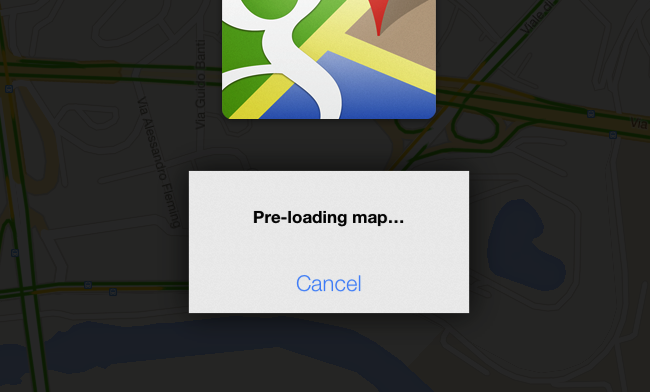
It’s also possible to cache a portion of a map for offline usage (what Google calls “pre-loading”). Simply zoom into an area, and search for “OK Maps” to activate the command that will tell the app to save a cache of the currently displayed area. In my tests, this indeed enabled me to load cached areas with no Internet connection available – without, however, being able to use search or anything else. Also, if you try to save larger areas with the “OK Maps” command, Google will warn you that the map is too large for pre-loading.
Google Maps 2.0 is available on the App Store.
Google Announces Google Maps App Coming to iPad “Soon”

In a a blog post published today to detail the new features of Google Maps for Android devices, Google has announced that the app will also be released for iPad “soon”. Following the removal of the native, Google-based Maps app in iOS 6 (replaced with a new Maps app using Apple data), Google released a native iPhone app last December.
In describing the tablet version of Maps for Android, Google says that the larger screen makes “exploring the world from the comfort of your living room much more fluid, smooth and fun”. Based on the Android screenshot shown on Google’s blog, it appears the Maps app for iPad may be somewhat influenced by the new Google Maps for the web with fullscreen map views and floating cards for menus and discovery.
The updated Google Maps app will focus on exploration to browse and discover new places through a new cards interface that shows “great places to eat, drink, sleep and shop”. Alongside improvements to navigation and reporting of traffic conditions, Google will also bring Zagat and Offers integration, retire Latitude and My Maps, and release new location sharing and check-in options for Google+ (coming soon to iOS). According to Google, the My Maps functionality will return to future versions of the app.
You can read Google’s blog post (with screenshots of the new Google Maps app for Android) here.
Getting Safari’s Selection on iPad As HTML With A JavaScript Bookmarklet→
I modified this bookmarklet posted by “Tim Down” on StackOverflow to send selected text from Safari to Drafts as HTML. The result is the following code:
javascript:(function(){var%20h="",s,g,c,i;if(window.getSelection){s=window.getSelection();if(s.rangeCount){c=document.createElement("div");for(i=0;i<s.rangeCount;++i){c.appendChild(s.getRangeAt(i).cloneContents());}h=c.innerHTML}}else%20if((s=document.selection)&&s.type=="Text"){h=s.createRange().htmlText;}window.location='drafts://x-callback-url/create?text='+(h);})()
So let’s say you want to grab the first paragraph in this post. Normally, in Safari for iPad you’d end up with the plain text fetched by window.getSelection:
This is a fantastic report with lots of data points for any developer trying to get their apps featured by Apple. Dave Addey’s highly interactive regional graphs and notes are very well done. Be sure to check out Dave Addey’s other works on his main blog.
As you can see, formatting and hyperlinks have been removed. With the bookmarklet above, you’ll receive the HTML version of the selection – which looks like this. But what’s the point?
My idea was that I wanted to be able to automate the process of capturing rich text from iOS’ Safari; I wanted to achieve the same kind of functionality I have on the Mac, where rich text can be dragged from Safari or Chrome and dropped into Evernote, preserving styles, hyperlinks, and images. I thought that combining HTML output with an Evernote Append action (with the “Send as Markdown HTML” option turned on) would let me receive valid HTML content in Evernote starting from an iOS workflow. And, for the most part, I was right, because the workflow does mostly work.
As it turns out, Evernote is extremely cautious with the HTML tags they accept, and the ones that are supported follow the XHTML guidelines as ENML is a superset of XHTML. This means that my bookmarklet will work for something as simple as selecting a single paragraph, but may easily fail with multiple selections, inline images, complex styles, and so forth. When that will happen, Drafts will return an error when trying to append HTML to Evernote; obviously, this will work just fine with Dropbox, which doesn’t care about the kind of text you’re using in your actions. Even better, this should work very well with Textastic’s just-released update that supports x-callback-url.
I guess the solution would be to build a Pythonista-based converter for Evernote-approved XHTML tags and place it between Safari and Drafts, converting HTML tags Evernote won’t like to compatible ones. If you’re interested, my birthday is August 10.
Connecting An iPad To A Floppy Disk→
Via TUAW, a cool, albeit useless hack demonstrated by YouTube user napabar (make sure to check out his other videos featuring a Mac 512K).
I guess “useless” is subjective, though. Maybe there are people out there who need to import QuickTake photos or ClarisWorks documents on an iPad today.
Chris Hadfield And His iPad In Space→
Chris Hadfield And His iPad In Space
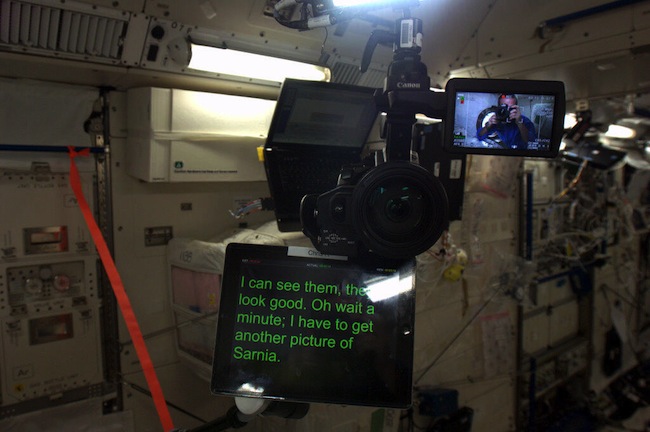
Canadian Space Agency astronaut Chris Hadfield has been orbiting Earth 16 times a day on the International Space Station. When he’s not busy operating advanced machinery like the Canadarm2, Hadfield seems to be enjoying his iPad a lot.
I got curious when I saw Hadfield’s photo of his iPad teleprompter yesterday on Twitter; as noted by Cult of Mac, the app should be Teleprompt+. I did some research, and it looks like Hadfield is using his iPad as an entertainment hub for the entire ISS as well. As written by the Canadian Space Agency:
Chris Hadfield has put a lot of music on International Space Station (ISS) already, directly from his iPad ─ thousands of songs.
In seeing the teleprompter photo, however, I also wondered: how did Hadfield lock the iPad in landscape mode in absence of gravity? The iPad has an accelerometer, and my limited science knowledge told me that gravity is a factor to consider when developing devices with embedded accelerometers on Earth. Did he lock his iPad in landscape mode before leaving Earth?
Of course, I asked Dr. Drang. The simple answer is: give the iPad a shake. The complex, scientific answer is here.
Kickstarter: Thermodo by Robocat - The Tiny Thermometer for Mobile Devices
Robocat, a Danish software studio co-founded by Michael Flarup and Willi Wu, has been building unique digital products out of Copenhagen for the last 3 years. They’ve created several weather-related apps like Outside, Ultraviolet, Thermo and Haze, which was featured by Apple as Editor’s Choice a few weeks ago.
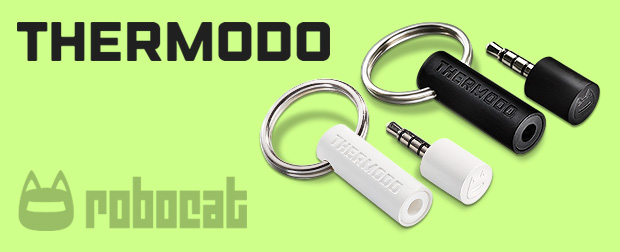
Today, Robocat launched a Kickstarter project based on weather – but this time as hardware, not software. It’s called Thermodo. Thermodo is a tiny electrical thermometer that lets you measure the temperature in the exact location where you are by using a piece of hardware that connects to the headphone jack on your mobile device. It’s for iPhone, iPad, Android & more. They’re looking to get $35,000 in 33 days to pay for the further development of Thermodo.
Thermodo consists of a passive temperature sensor built into a standard 4 pole audio jack enclosed by a sturdy housing. This allows your mobile device to read Thermodo’s temperature straight from the audio input. Thermodo sends an audio signal through the temperature sensor. This sensor will then attenuate the signal amplitude depending on the actual temperature. This attenuation can now be detected on the microphone input and through software we calculate the corresponding temperature. Easy peasy! We call this the Thermodo Principle™. Simply plug Thermodo into your device and start the companion app or any other Thermodo enabled apps of your choice. The temperature reading takes place instantly. Thermodo is powered by your device. No external power is required, it can even run in the background while you do important stuff.
You can measure the temperature indoors as well as outdoors. Track the temperature and see how it rises after you turned on the radiator or check how the temperature drops during a summer night. No network connection required. Thermodo comes with a neat little keyring so you’ll always have it with you.
Video and more after the break. Read more
RegexMatch for iPad
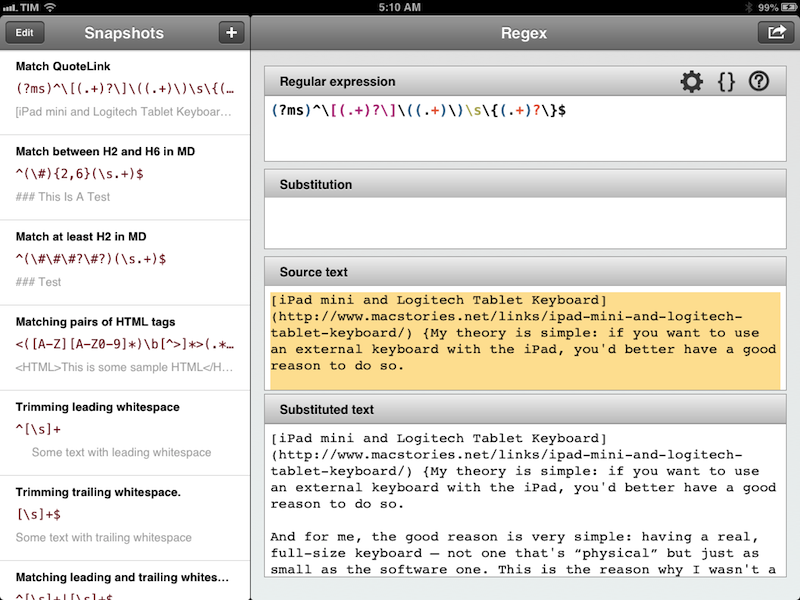
There seems to be a scarcity of easy-to-use, well designed iOS apps for testing and previewing regular expressions. I’ve only seen a few on the App Store, and they tend to look ugly or lack the feature set that I need. Fortunately, RegexMatch is a good start if you’ve been looking for a way to test and save regexes on the iPad.
RegexMatch has a clean interface that’s easy to navigate and good-looking. On the left side, there’s a sidebar listing all your Snapshots – regular expressions you’ve created and saved manually. You can create as many snapshots as you want, but I wish there was some kind of folder organization for people who, like me, will test several versions of the same regex. Read more