This Week's Sponsor:

Turbulence Forecast

Know before you go. Get detailed turbulence forecasts for your exact route, now available 5 days in advance.


Posts tagged with "iPad"

Apple Confirms: Three Million iPads Sold In 4 Days

Apple just confirmed with a press release they have sold over 3 million iPads since the device’s debut on March 16.

The new iPad is a blockbuster with three million sold―the strongest iPad launch yet,” said Philip Schiller, Apple’s senior vice president of Worldwide Marketing. “Customers are loving the incredible new features of iPad, including the stunning Retina display, and we can’t wait to get it into the hands of even more customers around the world this Friday.

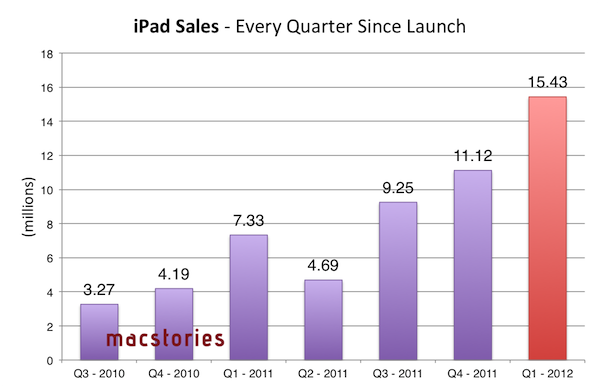
To put these numbers in perspective, let’s take a trip down Apple’s iPad memory lane again and remember how iPad sales evolved over time.

And then, of course, the company kept pushing the iPad quarter after quarter with new software, new apps, and a new version in March 2011, achieving these results:

It is worth noting, however, that the original iPad and iPad 2 went on sale exclusively in the United States on Day One, whilst today’s iPad numbers include sales and pre-orders for the United States and 9 more launch countries from March 16, 2012. This Friday (March 23), the device will go on sale in Austria, Belgium, Bulgaria, Czech Republic, Denmark, Finland, Greece, Hungary, Iceland, Ireland, Italy, Liechtenstein, Luxembourg, Macau, Mexico, The Netherlands, New Zealand, Norway, Poland, Portugal, Romania, Slovakia, Slovenia, Spain and Sweden.

For comparison, the new iPad has sold 3 million units in 4 days, while the iPhone 4S sold 4 million units in 3 days last October (the 4S went on sale in 7 countries on October 14, 2011). The iPhone 4S has been the Apple’s biggest success with the iPhone line so far, reporting over 37 million units sold in the last quarter. If these initial are of any indication, it seems like Apple’s strategy with multiple, international rollouts a week from each other may lead to the biggest iPad launch to date.

Earlier today, Apple CEO Tim Cook said the company saw “record” sales for the new iPad in its opening weekend. The new iPad launched to very positive reviews from the press (which mentioned the device’s Retina display, LTE, and battery life as great selling points) and long lines around the world.


New iPad Shipping Times Slip To 2-3 Weeks In Many Apple Online Stores [Update]

Update 3/10: Apple has confirmed in a statement to CNET that initial iPad units available for pre-order are sold out.

Customer response to the new iPad has been off the charts and the quantity available for pre-order has been purchased,” an Apple representative told CNET. “Customers can continue to order online and receive an estimated delivery date. Beginning Friday, March 16, the new iPad will be available for purchase at Apple’s retail stores and select Apple Authorized Resellers on a first come, first-served basis.

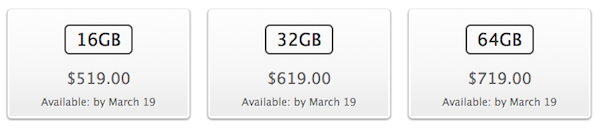
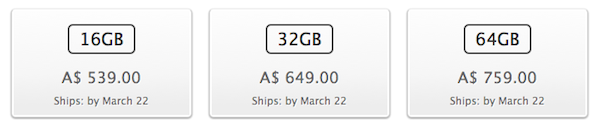
As noted by Matthew Panzarino at The Next Web, shipping times for the recently announced new iPad have slipped to 2-3 weeks in several online stores worldwide. The new device, announced at a media event on Wednesday, was made available through online pre-orders immediately after the event; in the hours following the refresh of the Apple online store with new products, the company had to face technical problems with the site not loading correctly due to heavy traffic. That hasn’t stopped customers, however, from sending their orders for the new iPad, whose initial shipments are now sold out in many international versions of the store – shipping times of 2-3 weeks are now reported in the UK, Germany, Japan, France, and Australia. Curiously enough, at the moment of writing this US shipping times had slipped to 2-3 weeks as well, only to go back to March 19 right before publishing.

Other stores of the initial launch countries are now reporting delays as well: in Canada, new iPad orders will be shipped on March 19, in Singapore and Australia on March 22.

On March 16th, the new iPad will go on sale in:

  • US
  • Canada
  • UK
  • France
  • Germany
  • Switzerland
  • Japan
  • Hong Kong
  • Singapore
  • Australia

25 more countries will follow one week later on March 23rd:

  • Austria
  • Belgium
  • Bulgaria
  • Czech Republic
  • Denmark
  • Finland
  • Greece
  • Hungary
  • Iceland
  • Italy
  • Liechtenstein
  • Luxembourg
  • Macau
  • Mexico
  • Netherlands
  • New Zealand
  • Norway
  • Poland
  • Portugal
  • Puerto Rico
  • Romania
  • Slovakia
  • Slovenia
  • Spain
  • Sweden

You can read more about the new iPad, which carries a Retina display, LTE, Bluetooth 4.0 and quad-core GPU, in our overview.


The Essence of a Name

Following yesterday’s announcement of the new iPad, a debate has arisen as to whether Apple should have called the new iPad something along the lines of “iPad 3” or “iPad HD” so to give the device a unique name easily understandable by consumers. I think Macworld has the two smartest (and most balanced) takes on the subjects.

Dan Moren thinks going with “iPad” is a good move:

Constantly reinventing a nomenclature is unsustainable. Is every iPad between now and 2022 going to have a different number, letter, or some combination appended? Is Apple going to eventually reach the iPad 13GS+ Extreme? I’d argue that’s exactly what the company doesn’t want.

Lex Friedman disagrees:

I drive a Honda Accord. It’s a 2006 model. If Apple wants to keep the same names for its products each year like car companies do, adding a year to the product name seems like a fine approach. I always know which wipers to get for my 2006 Accord. I think the average consumer ought to know which case fits their iPad, too; making them instead rely on distinctions like third-generation—that aren’t in the official product names, or printed on the devices themselves—just makes things harder.

The first few seconds after Tim Cook was photographed on stage with a big “The new iPad” image behind him, I, too, was slightly confused and disappointed. Why would Apple want to go back to just iPad, after years of iPhone 4, iPad 2, and iPhone 4S? But then I, like Lex, thought about car companies. I am not driving a Polo 13. My mom doesn’t drive a Meriva 2S. Yet, in case of necessity, both my mom and I – the polar opposites on a scale from consumer to nerd – would know how to look up the company’s proper model name – the “version” – of the cars we drive. Mine’s a 2003 Polo. Not every car company does this, but it’s very common (and easy to understand).

I hear the concerns of people like Lex. Not having a unique name for each generation of device does make things harder when it comes to support, referencing a product in an article, or looking up information on Google. It means you have to do more work. It means you have to type a little more to find out – either in manuals or support docs or the Apple Store itself – what generation of device you are talking about. It’s about Apple not giving us a unique way to call the iPad – well, actually they do, it’s iPad, but that makes some people uncomfortable. It’s unsettling at first, because we were used to a different convention.

But here’s the thing: people are not stupid. Sure, some people are geekier than others, but as car companies prove, eventually people find a way to properly retrieve information about the products they use. Eventually, as in more work. Which could mean using Google, reading a manual, asking a friend, or driving to the nearest Apple Store. Apple has the best customer support around, and no tech company beats Apple’s online Support resources. No one ever died from looking up a model name. 1

But why? The trade-off is an increase in simplicity and elegance. Otherwise, we’d end up like Samsung and Square-Enix, naming our products with monickers like “Epic” or “XIV” (good luck telling a 10 year-old kid that’s 14, and not “xiv”).

More importantly, Apple’s new name puts the focus on the essence of the product, not the way it follows its predecessor year after year. It’s iPad, my friend Matthew was told by Apple. And I see the thinking behind such choice: by combining a more elegant name with new features, Apple will, yes, end up having to explain better its model numbers, but they will gain in user-friendliness and overall message. Because, again, our faith in humanity might falter every once in a while, but people know how to refer to a product. If anything, my dad would have a hard time differentiating between 3GS, 4S and 3G. But he sure knows how to say “that new iPad”.

It’s about context. People will understand, and will find a way to explain what they are talking about. And if they want to be precise, hey, Apple has a way for that too.

Peter Cohen writes:

I’d also like to point out that when the first iPad was introduced, its name was the subject of huge controversy in the blogosphere and among the tech punditry, many of whom considered the name silly or likened it to a feminine hygiene product.

I also like to see it this way: by going back to “iPad”, Apple reminds us that is the iPad that should have always been. The realization of a vision. The most advanced display ever seen in a mobile device, the fastest networking available, the most apps to choose from. It’s the new iPad, but it’s also the iPad that should have been here in the first place. Now we have the technology that makes it possible.

I thought the keynote’s theme would have been “the biggest leap since the original iPad”. Tim Cook said it better: “We have redefined, once again, the category that Apple created”.


  1. To those arguing that specific names and version numbers are necessary for support, especially in software: I agree, and indeed Apple has a complete name for the iPad on its site and online Store. I could also argue that it’s harder to describe software (bits) compared to a product (a physical object).↩︎

The New iPad Keynote Roundup

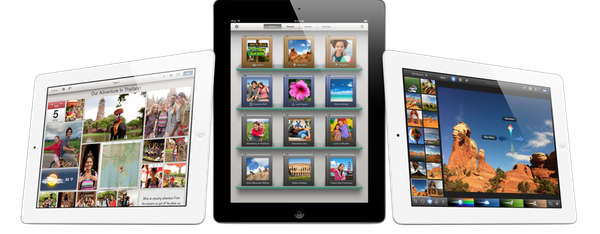
iLife on 3 3rd Gen iPads

iLife on 3 3rd Gen iPads

Today’s one of those days when I can sit happily at my desk and know that the tech press didn’t win. Despite the mounting evidence, the alleged photographs of bits and pieces, and the last minute rumors of x-chip and y-feature for a gadget we seemingly knew everything about, Apple still managed to pull a fast one that was so obvious it makes even the most certain journalists curse under their breaths. iPad. You should have seen it coming right? Even the iPad 2 was simply referred to as the iPad on its aluminum shell. iPad. Even if it was just a little surprise, it’s a simple reminder that not even those with the best sources can fully beat Apple at its own game. As long as this continues to be true, I’m pretty sure that means Apple is doing alright.

With that said, let’s check out all of the great stuff Apple just launched.

Read more


Apple Updates Most of Its iOS Apps for the new iPad

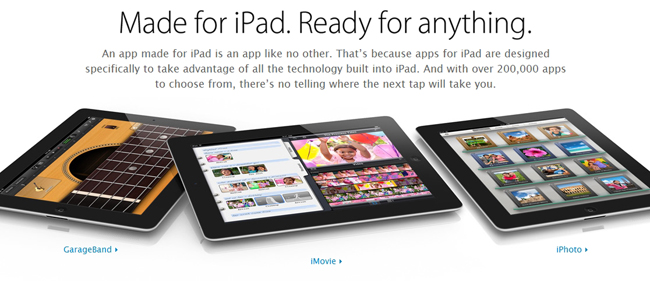
Today, during Apple’s Keynote, they showed off updates for iWork, iMovie and GarageBand after revealing the new iPad. After the Keynote, many more of Apple’s iOS apps also received updates as well. All these updates are available now in support of the new iPad. Lucky for you we have the entire list (with direct links) for our loyal readers!

iOS Apps

Find My Friends 1.1:

  • Support for Retina display-capable devices
  • Bug Fixes
  • Stability enhancements

iTunes U 1.1:

  • Now designed for the spectacular Retina display on the all new iPad.
  • This version also includes a number of performance improvements.

GarageBand 1.2:

  • Start a Jam Session to play or record live with up to three of your friends using iPad, iPhone, or iPod touch*
  • Conduct an entire string orchestra using Smart Strings
  • Use the Note Editor to adjust or fine-tune any Touch Instrument recording
  • Combine recordings to free up additional tracks using Track Merge
  • Keep your GarageBand songs up to date across all your iOS devices with iCloud*
  • Share your songs directly to Facebook, YouTube, and SoundCloud
  • Perform retro and modern synth bass lines and grooves with new Smart Bass instruments
  • Play synth melodies and arpeggios with new Smart Keyboard instruments

*Jam Session and iCloud are available on iPhone 4 or later, 4th generation iPod touch, and all iPad models.

iMovie 1.3:

  • Create beautiful movie trailers with stunning graphics and world-class soundtracks*
  • Swipe up on the playhead to freeze a frame in your video
  • Preview music and sound effects in the Audio Browser
  • Create a song in GarageBand and send it directly to iMovie

*Trailers are available on iPhone 4 or later and iPad 2 or later

Find My iPhone 1.4:

  • Support for Retina display-capable devices
  • Bug Fixes
  • Stability enhancements

iBooks 2.1:

  • Read books more easily with sharply detailed text on the new iPad’s amazing Retina display
  • See page numbers that correspond to the printed edition of select titles
  • Search for a page number to jump to a desired page with a single tap
  • Use your finger as a highlighter when swiping over text
  • This version also includes a number of important stability and performance improvements

Numbers 1.6: (Numbers 1.6 requires iOS 5.1 software update or later)

  • Create and view stunning 3D bar, line, area, and pie charts
  • Numbers 1.6 is enhanced to take advantage of the Retina display on the new iPad
  • Includes performance improvements

Keynote 1.6: (Keynote 1.6 requires iOS 5.1 software update or later)

  • Create and view stunning 3D bar, line, area, and pie charts
  • Animate your 3D charts with Crane, Grow, Radial, Rotate, Rotate & Grow, and Z Axis builds
  • Keynote 1.6 is enhanced to take advantage of the Retina display on the new iPad
  • Use new builds and transitions including Iris, Shimmer, Wipe, Flame, Perspective, Swing, Object Push, Object Zoom, and Fade Through Color
  • Includes performance improvements

Pages 1.6: (Pages 1.6 requires iOS 5.1 software update or later)

  • Easily enter text using the landscape keyboard on iPhone and iPod touch
  • Create and view stunning 3D bar, line, area, and pie charts
  • Pages 1.6 is enhanced to take advantage of the Retina display on the new iPad
  • Includes performance improvements

Remote 2.3:

  • Support for iTunes Match on Apple TV
  • Support for Retina display on iPad

Mac Apps

Xcode 4.3.1:

  • Includes SDKs for Mac OS X 10.7 Lion and iOS 5.1
  • New code signing workflow supports signing OS X apps with Developer ID
  • Adds installation of command-line tools to the Downloads preference pane
  • Open Developer Tool menu launches Instruments, File Merge, and other tools
  • ARC migration tool converts both retain/release and garbage collected code
  • Additional bug fixes and stability improvements

iBooks Author 1.1:

  • iBooks Author 1.1 is enhanced to create books that take advantage of the Retina display on the new iPad
  • Includes performance and stability improvements

iPhoto 9.2.2:

  • Photos can now be deleted from Photo Stream

OmniOutliner 1.2 for iPad Sets the Stage for iCloud Sync

OmniOutliner 1.2 Document Browser

OmniOutliner 1.2 Document Browser

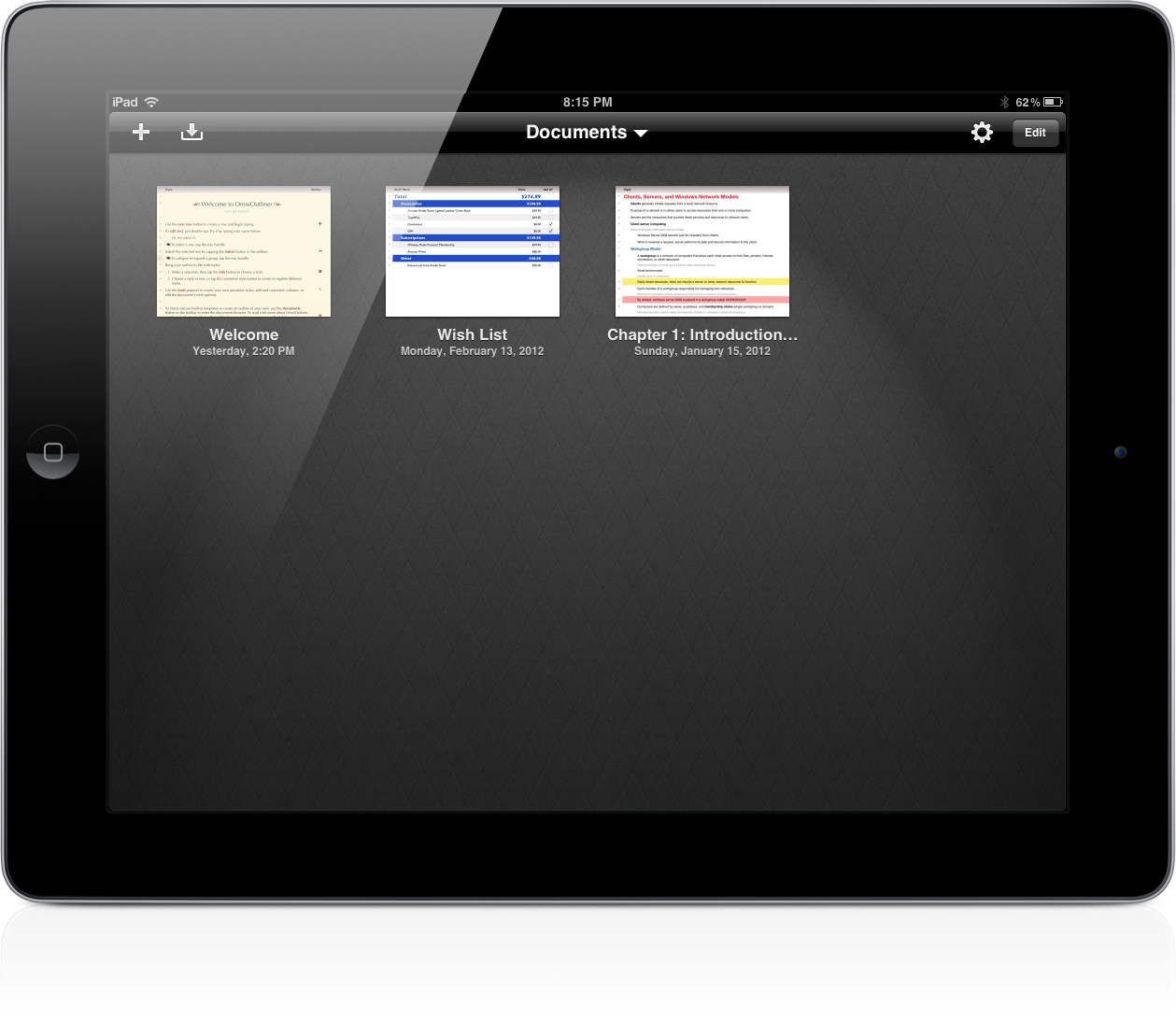
The Omni Group have removed the carousel in OmniOutliner 1.2 for a new document browser that closely resembles Pages’. Giving a broader overview of your outlines, the new file browser makes it much easier to scroll through dozens of documents without having to individually file past each one. The new file browser doesn’t let you create folders or sync to the cloud, but the original WebDAV and iDisk implementations are still available for online storage.

Read more


Exploring MoneyWiz: Complete Personal Finance Control On Your iPad

It wasn’t originally a New Year’s resolution to keep better track of my spending, but by the way things have turned out, it almost seems as if it was one. Early in January I began looking for a good Mac app for exactly this task. Originally I had hoped that Saver, an app I reviewed last year had since released an iPad app that I had not heard about – I really liked the app but wanted it on the iPad or Mac. Unfortunately Saver is still iPhone only, so I looked around a bit longer, asked around and tried a few apps on the Mac. I wasn’t thrilled with what I found. They all seemed a little to complex for what I wanted, so I kept looking. I forget how, but I eventually stumbled upon MoneyWiz which is available on the iPad and iPhone (at the time it was called SilverWiz). The developers haven’t yet released a Mac version (they’re working on it and expect to launch it in Spring this year), but they did give me an early look at the recent update to MoneyWiz for iPad (version 1.3), which launched late last week.

MoneyWiz for iPad does a couple of things: it keeps track of your expenses, allows you to set budgets (and track your progress), and provides you with the ability to create reports on various aspects of your financial situation. More importantly, I found MoneyWiz to be very flexible, not overly complex like some of the Mac apps I tried, and, at the same time, full of a wealth of features that should be sufficient for most individuals. Read more


Adobe Photoshop Touch Review

When I first heard that Adobe was bringing Photoshop to the iPad sometime last year, I was sceptical. I presumed it would be a very limited app compared to the powerful desktop app, or maybe just a slightly improved version of Photoshop Express. At best I thought it might give you some good editing tools to fix and correct photographs, perhaps with some layer support and effects. I didn’t think Adobe could pull off creating a great tablet version of Photoshop, and I wasn’t sure the iPad would be a good fit for the tasks in Photoshop.

So when I finally got to try out Adobe Photoshop Touch, I was intrigued to see what Adobe had accomplished. After a couple of hours playing around in the app (it accidentally went live yesterday, then Adobe pulled it) I’ve come away very impressed with what Adobe has accomplished. Photoshop Touch is a powerful and capable version of Photoshop for the iPad, without a doubt. To me, it is the latest iPad app that has demonstrated that the iPad is for more than “content consumption” — that’s just an old myth now.

It’s the apps that make the iPad great and Photoshop Touch is perhaps the prime example of the potential of the device and how flexible it is at becoming a great machine for a whole slew of different tasks, from reading, to writing, to viewing to editing and now, to using Photoshop for more than just basic photo edits. Sure, Photoshop Touch is still not as powerful as the desktop version, in fact it’s quite a distance away from reaching such parity — but it all comes down to the car Vs. truck analogy that Steve Jobs rather famously explained. Photoshop on your Mac or PC is still available for when you need to do complicated and advanced tasks, but for a lot of other tasks, you could probably migrate to the iPad and Photoshop Touch.

Enough with the introduction, let’s dive into our review of Photoshop Touch.

Read more


Twelve South Wants To Elevate Your iPad with HoverBar

Those who have been Mac users long enough to remember the good old lampshade iMac and happen to have made the transition to newer, slicker aluminum models from the past few years might want to take a look at Twelve South’s latest product, the HoverBar. Meant to be used on an iMac-powered desk and available today at $79.99, the HoverBar is a flexible L-shaped arm that connects your iMac to an iPad; you’ll be able to turn your tablet into a secondary screen with iOS apps that support Lion’s multiple displays, a touch-based dashboard for your Twitter feed or RSS, or just about anything else you can come up with thanks to the plethora of apps available on the App Store.

HoverBar can be used with an iPad 2, iMac, or an Apple external display, and Twelve South says it can also be installed independently as, for instance, a kitchen mount. Obviously, the silicone lined clamp of HoverBar will work best when directly attached to an iMac, as it seems like Twelve South really wanted to place this product as a desktop Mac companion to achieve an iOS/OS X workstation worth of Apple’s design polish.

HoverBar turns iPad into the ultimate sidecar for an iMac or Apple display, presenting more ways to use iPad more often. Connect HoverBar to your Mac, snap iPad 2 into the secure clip and you now have one powerful dual-computer work setup. Having iPad floating next to your Mac allows you to monitor your Twitter stream, stocks and local weather – or run FaceTime on your iPad while you email, edit a file, or cut a video on your Mac. There is no reason to leave iPad in your computer bag when you have a HoverBar. This accessory expands the way you use and interact with iPad 2.

The HoverBar’s flexible arm allows you to place the iPad both in portrait and landscape orientation, and whilst some might argue that reaching out with your arm to touch an iPad can be uncomfortable over time, I actually believe there is a market for iOS desktop accessories that enable you to enjoy the rich selection of iPad apps when using a Mac at your desk. Plus, Twelve South’s promo video (which we have embedded after the break), shows some interesting additional usage scenarios for the HoverBar, such as attaching it to a desk and use it with AirPlay Mirroring to an Apple TV, or mounted on a bed for hands-free reading. I look forward to getting one of these things and see if it’ll turn out to be weird, or incredibly useful. Either way, it’s a very interesting product decision from Twelve South.

The HoverBar is available at $79.99 from Twelve South’s website. Read more