This Week's Sponsor:

Turbulence Forecast

Know before you go. Get detailed turbulence forecasts for your exact route, now available 5 days in advance.


Posts tagged with "iPad"

Facebook Has A Working iPad App Hidden In The iPhone Version

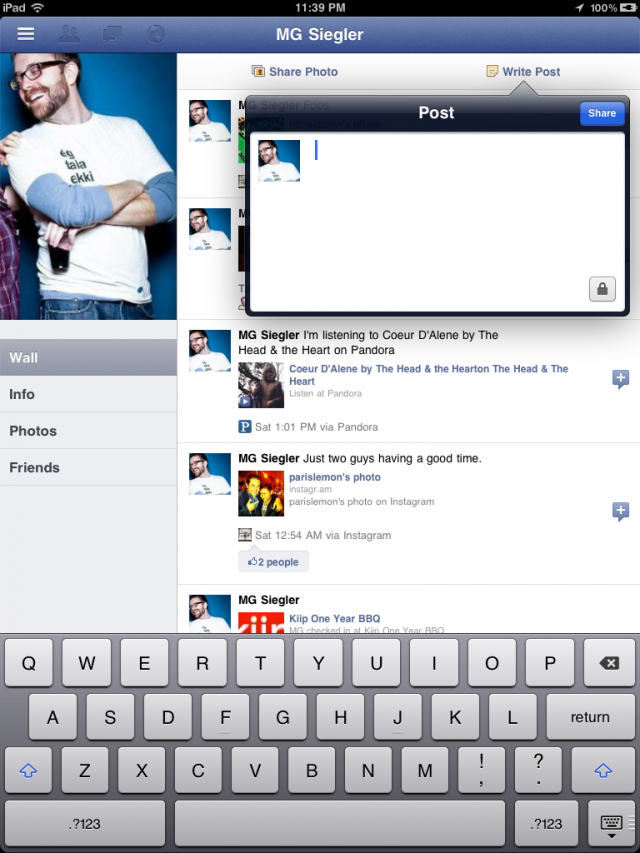
As revealed by TechCrunch, it appears the official Facebook app for iPad may become available in the App Store relatively soon, as the iPad app is actually hidden away, inside the iPhone app and actually executable! It is unclear when and how Facebook will announce the availability of Facebook for iPad, however as MG Siegler explains, it is a completely re-imagined Facebook experience for the tablet that takes advantage of the iPad’s screen to lay out a different view for your photo albums, friends, profile, and more. The app does seem to use an iPad optimized web view in the main Facebook interface (just like on the iPhone), but several other UI elements are native to iOS and built specifically for the iPad.

Facebook for iPad uses a concept not too dissimilar from Twitter’s iPad app – rather than displaying all content vertically, the app heavily relies on horizontal navigation to access various Facebook sections, the news feed, chats, liked posts, and so forth. For instance, a sidebar on the left contains tabs below your main profile to open your News Feed, Messages, Events, Places, Friends, and Photos. In the same sidebar, there are links to jump to the groups you’re subscribed to – it almost appears as Facebook wants to put the focus on Groups as much as Google gave Circles, its friend-organization tool, a huge role in Google+. There are two top bars in the middle panel: one has buttons to upload photos from your iPad’s camera and library, the other two are associated with a regular status update and check-ins. In the blue toolbar, the app has a series of additional icons to open the friend requests panel, messages, and notifications – this looks very similar to Facebook on the desktop, and the design is very distant from Facebook’s implementation on the iPhone. There is also a search function in the app, though it’s been placed at the top of the sidebar, rather than the toolbar. As for the stream, judging from the screenshots it seems to be a web view optimized for the iPad’s new app UI.

Facebook for iPad includes a Chat sidebar on the right and a full interface for Messages, which look very similar to Apple’s own iMessage model – at least as far as the design goes – with recipients listed on the left and the actual message inside a larger panel on the right.

UPDATE: TechCrunch has posted an album-full of screenshots of the app here. We’ve embedded a sample of these below the break, but here’s one:

[Via TechCrunch]

Read more


Apple Posts New iPad 2 Commercial: “We’ll Always”

We’ll never stop sharing our memories. Or getting lost in a good book. We’ll always cook dinner, and cheer for our favorite team. We’ll still go to meetings, make home movies, and learn new things. But how do all this, we’ll never be the same.

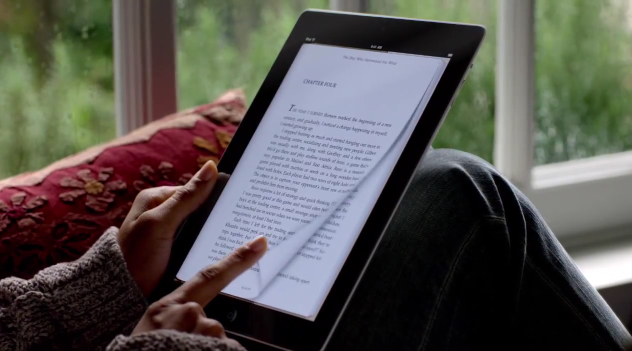
Apple posted a new iPad 2 commercial on its website and YouTube channel, once again highlighting how the device is changing the way people do things in their lives. With the “We’ll always” ad, Apple wants to show how the iPad has changed, and perhaps improved, the most basic tasks like cooking dinner or editing a quick video in iMovie. Just like other commercials like “Now” and “If You Asked”, Apple’s focus is on apps – the software – rather than technical specifications and hardware features. In this latest video, the iPad is seen organizing photos in the native Photos app, streaming a baseball match and flipping pages of an iBook – among other things. The built-in iOS and the apps – not the screen or the thin form factor – are the real stars in Apple’s iPad commercials.

Apple’s previous iPad 2 commercials were called “We Believe”“If You Asked” and “Now”. Check out the new video below. [YouTube via 9to5mac]
Read more


Due 1.6 Adds Natural Date & Time Parsing, We Celebrate With Another Giveaway

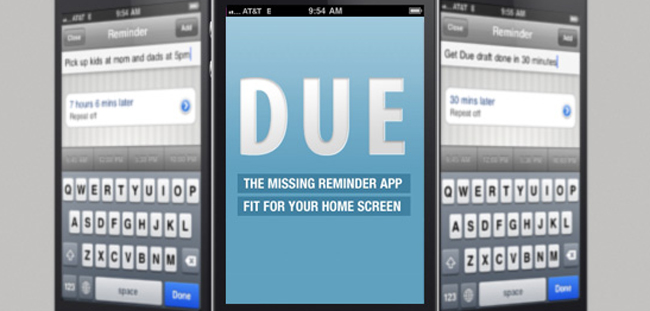
The ever popular reminder app Due has recently received another major update, 1.6. The newest version adds natural date and time parsing for reminders, much like Fantastical is doing for the Mac. This method lets you create reminders while the due date fills in automatically by typing into the title directly, i.e. “Wash the car in 20 mins”, “Leave for soccer at 3pm on Friday”, “Buy gift for Ticci’s birthday on July 30 at 1pm”, etc. Due also handles more than 64 reminders and timers as there was a limit before.

There were some tweaks and changes as well like interval on date picker now dynamically changing to accommodate due times that cannot be accurately displayed by a user’s preferred interval setting. Editing the value of a timer with an auto-generated label now updates the label to match the new countdown value. The app now hides any transient animation on quit to prevent jarring transition on next resume. Overdue and Today+Overdue badging is now faster when setting up a new repeating reminder and ‘Repeat from date’ follows the ‘Due date’ automatically.

There were a number of fixes as well and all the full change-log can be found on the Due’s blog. Read more


Stylapps, A Beautiful Showcase of Stylish iPad Apps

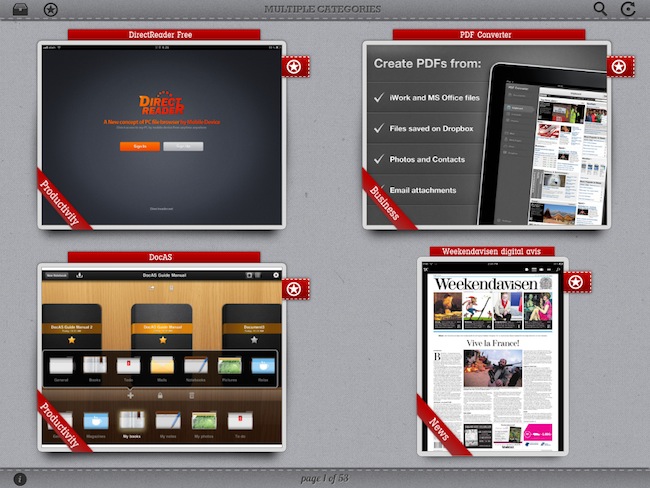
As a geek, I’m always excited about the next great app that may solve one of the annoyances in my workflow or provide a better solution to a problem I didn’t know I had. Whilst functionality is still king when it comes down to choosing the proper tools to administer our workflows and check things off our to-do manager, more often than not we’re also looking for beautiful software that meets our iOS expectations for elegant interfaces and intuitive navigation schemes. Stylapps, a free iPad app released in late June, aggregates “stylish iPad applications” that are becoming increasingly difficult to find in the tumultuous sea of daily App Store releases.

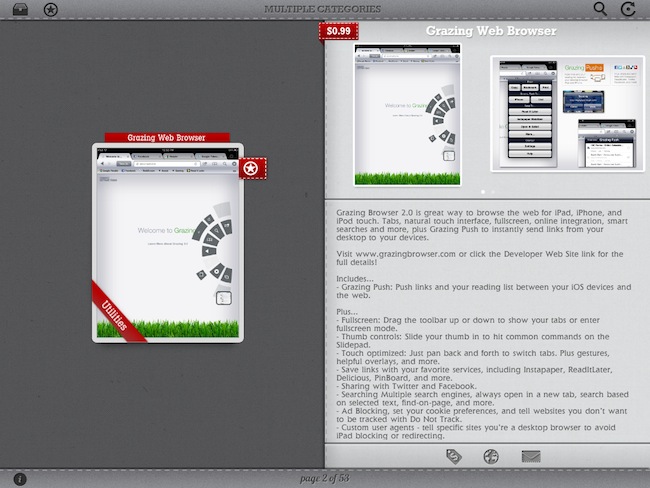
Stylapps starts up with an elegant grid of iPad screenshots placed against a light background that greatly contributes to enhancing the colors of the apps that are being presented on screen. The app comes with refresh and search buttons to find your way through specific releases, but more importantly there is a filter icon in the upper left corner that allows you to pick certain categories to check out new apps released on the App Store and hand-picked by Stylapps. So if you don’t want to learn about stylish new Games, but you’re in for a Productivity and Business treat, you can drill down into the aforementioned categories and start looking for new apps that may suit your needs. Screenshots in the main page are large enough to provide a quick preview of what you’re looking at, however you can also tap on a thumbnail to open a single-app view with description, iTunes screenshots, App Store button and a link back to the developer’s website. To go back to the main list, you just have to swipe your finger on screen; a two-finger swipe lets you jump 10 pages of app picks. A “star” button next to each thumbnail enables you to save an app to your favorites, a section that lives locally on your iPad to collect apps you may want to check out later.

Stylapps’ curated section of beautiful and stylish apps quite resembles my tastes, but in my tests I’ve found the app to be far from perfect as far as stability goes. I’ve experienced a few crashes when navigating between pages, and a bug with opening screenshots will sometime “freeze” the app into a lightbox overlay mode that will force you to quit and re-open.

Still, these issues occurred rarely and I was able to browse the selection of software offered by Stylapps to find some interesting new apps I hadn’t covered here on MacStories. Stylapps is free, looks very nice on the iPad, and it’ll probably help you find the next gorgeous app you didn’t know about.


Students Can Save Big With Amazon Kindle Textbook Rentals

As companies experiment with the idea of digital textbooks (look at Inkling for a perfect example on the iPad), new and affordable models for distribution will be thought of along the way. Amazon announced this morning that students will have the opportunity to save up to 80% on textbooks by renting them from the Kindle Store. The 80% discount applies to the initial 30-day renting period, which students can adjust to fit the length of their short or long semesters (normally eight to sixteen weeks at my community college). You can rent books for up to a year, but at that point I’d just buy the book.

What’s interesting to me is how Amazon is tackling the ability to retain your notes. My biggest fear with digital textbooks is that they aren’t cheap enough to buy (I can always sell a textbook back and get up to 60% back of what I initially paid), and that any notes I’ve taken will be lost if I’ve written in the margins. This same concern is expressed by Amazon, whom have tied these features in with Whispersync. All of your notes will be kept in the Amazon Cloud, where you can pull notes back down and read related passages even after the rental period of your textbook is up. I find this intriguing (particularly so if notes are easy to take in the first place).

I’ve always purchased textbooks from Amazon, but now they raise the question of whether I should rent a digital book. Textbooks are available to read across devices from the iPad, iPhone, Mac, and the Kindle itself (along other devices that support Amazon’s Kindle app). Students who want to remove a couple of six pound textbooks from their backpacks (and save their backs) might want to invest in a slim messenger back and an iPad instead, but with the Kindle you know there will the issue of finding pages (with its weird take on page numbers), and its unclear how well graphics and margin notes will be presented. Maybe one of you dear readers would be bold enough to take the dive? Have you purchased digital textbooks in the past? Let us know in the comments!

[Kindle Textbook Rental via Amazon Media Room & TUAW]


Twitter and Google+ Polls: The iPad’s “Must-Have” & Top Productivity Apps

Over the past two months, I’ve run what I consider an interesting experiment with my Twitter and Google+ followers: I’ve asked them what their favorite iPad apps were, and noted down the results. More specifically, back in May I asked my Twitter followers what their “5 must-have” iPad apps were. That question included all the possible categories of the App Store, free and paid apps, universal and iPad-only apps – literally anything that could run natively on the iPad. I received dozens of replies, saved the results as “votes” in Evernote, and filed the note away for future usage. Then on July 13th, I asked about “top productivity apps” on Google+. This second poll was more specific: whereas the first one was just a matter of personal preference for any category and app type, the Google+ poll implied that people had to decide what they considered “productive” on the iPad. And because I was asking people, and not a computer-generated algorithm, the results of what people considered as “productive” were noteworthy. I waited a few days, saved the replies as votes, and created another note in Evernote.

The results are listed below but before you jump after the break, a disclaimer: by no means this is an official “poll” or “survey” – it’s just the results of two questions I asked with my personal accounts on Twitter and Google+. I don’t know each person that follows me on these social networks, but if I had to guess – I’d say they’re mostly geeks passionate about great apps and new software. For this reason the demographic of these polls is pretty much restricted to a certain category of App Store users – those who spend time browsing for new apps, care about the quality of design and, when possible, like solutions that are available cross-platform on the Mac and iOS.

That said, check out the Top Productivity Apps and Must-Have iPad Apps after the break. Read more