Posts tagged with "mac"

1Password for Mac Adds OS X Lion Support

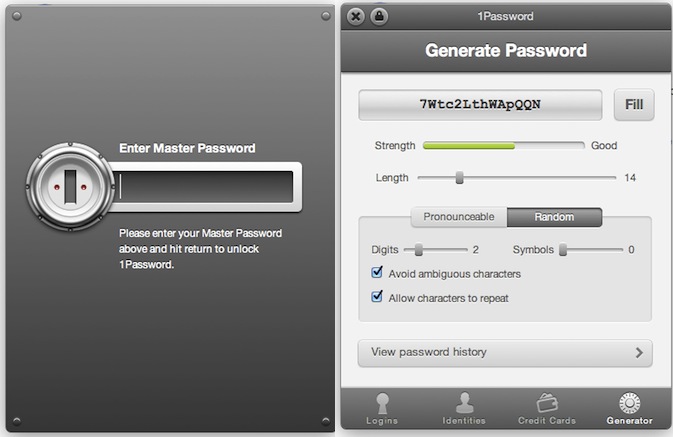
1Password for Mac, the must-have utility we at MacStories use on a daily basis to manage and organize our web logins, credit card data and anything else that can go into AgileBits’ secure and encrypted database, was updated a few minutes ago to include support for OS X Lion and Mozilla’s latest desktop browser, Firefox 5. For those who have been keeping an eye on 1Password’s releases, you might have noticed the developers put great effort into building an amazing Google Chrome extension that allows you to easily access your web logins, identities, or generate passwords for new accounts. The Google Chrome extension was far superior to the Safari 4 counterpart, which was stuck on old interface schemes with less features and a clunky menu to fill web fields and account credentials. 1Password 3.6 finally brings the same extension seen on Chrome to Safari 5.1 on Lion and, after a quick test, I can say the extension looks even better than Chrome’s version as it’s powered by a neat animation for opening / closing. Overall, the new 1Password extension on Lion looks great, it’s fast and, from what I’ve seen so far, very stable when browsing around, filling logins and generating new passwords.

1Password 3.6 also adds support for apps created with Fluid 1.0, as well as Firefox 5. As AgileBits have added support for OS X 10.7 and Mozilla’s new browsers, the developers recommend people willing to use Leopard or older versions of Firefox to stay on 1Password 3.5.9. Support for new OSes and browsers aside, 1Password 3.6 is filled with welcome minor changes and bug fixes: whilst you can see the full list when upgrading from 3.5.9 to 3.6 in the built-in changelog screen, let me highlight that the new 1Password supports the latest Dropbox file configuration for sync, and it brings improved backups to detect problems with the app’s backup folder. On top of that, Lion-specific improvements will make the app a joy to use for those who have already made the jump on Apple’s new big cat.

1Password is a priceless utility that at $39.99 (Mac version) will change the way you manage, save, organize and keep data safe on your computers. The Mac app can be downloaded here, and you can find iOS counterparts for iPhone and iPad (with sync) here, here, and here.
CleanShot Removes The Clutter From Your Mac Screenshots

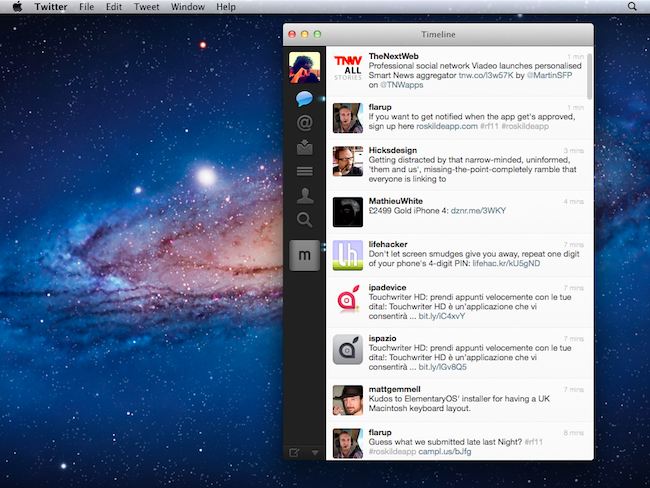
How many times have you found yourself taking a screenshot of your Mac, only to realize that all that clutter on your desktop won’t make any good once the picture goes online, straight to Twitter or any other service where people can take a peek at your icons and apps? Let’s be clear about this: if you’re one of those people who care about the elegance and minimalism of your Mac desktop, being able to take perfect screenshots is nice; but you’re a blogger and you write about apps on a daily basis, you need to be able to take clear, simple screenshots that put the focus on the app, rather than those PDF documents and folders sitting behind the app’s main window. For this very reason, developer Stefan Fuerst at Media Atelier has created CleanShot, a $4.99 Mac utility that will help you grab better screenshots without the clutter of all your open apps, documents, and desktop folders.

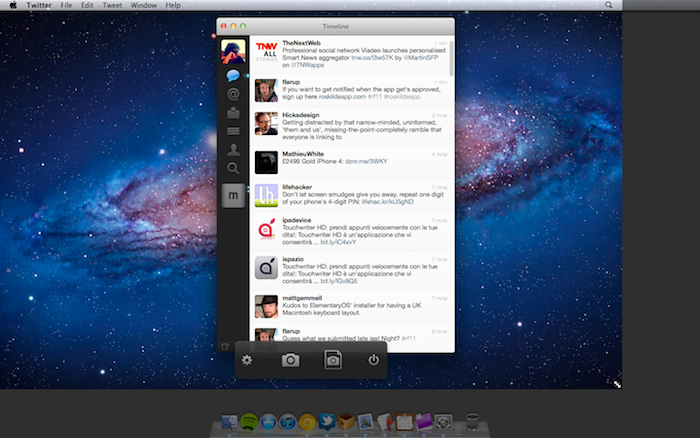
CleanShot basically allows you to take a screenshot of your default desktop at different resolutions, with one app at the time in the foregound if you want. Once launched, CleanShot pops up as an overlay to your current desktop setup, removing all the apps from your view, focusing on the one you were working on. In addition to displaying one app and the default OS X background, CleanShot removes all desktop folders and icons, strips away content from the menubar and lets you even choose what default icons to display up there, such as AirPort, battery and Spotlight. In this way, you’ll be able to create “default” screenshots that don’t come with your personal stuff like documents, apps, and so forth.

As for the resolutions available in CleanShot, you can tweak them in the settings, but by default the app comes with standard ones like 1024x768, 1280x800, as well as the one currently set on your machine. In the settings, you can choose a custom desktop background; upon exporting, CleanShot will allow you to choose between a standard file saving menu, or a “copy to clipboard” action.

At $4.99 on the Mac App Store, CleanShot is an indispensable tool for bloggers, and a useful addition for those users constantly willing to take perfect screenshots without any clutter. Give it a try.


Link Your Computer And iOS Device With myPhoneDesktop: Double Pass Giveaway!

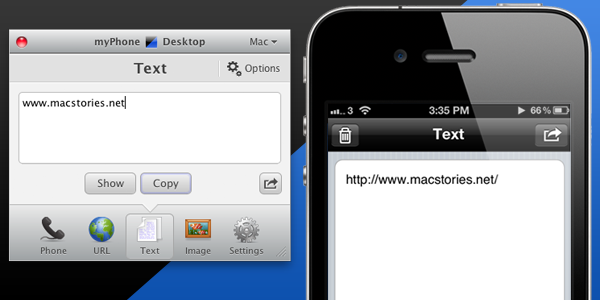
We’ve talked about myPhoneDesktop before on MacStories but we thought it deserved a short ‘re-review’ to accompany today’s giveaway. Keeping it simple, the premise of myPhoneDesktop is that it provides a portal through which you can easily transfer data and information from your desktop computer to your iPhone or iPad.

Broadly speaking the app transfers four types of data including phone data (both numbers and text messages), website URLs, text and images. When you send any of that data from your computer, and there is both a desktop and web client, it will be pushed straight to your device with a notification.

But where I think the app becomes most powerful is when you have the data on your iPhone or iPad. In the corner of the app it has the “Open in” icon where it literally has a wealth of options for your data. There is everything from the obligatory search with Google, to send by email, add to contact, send SMS or launching another app with that data. Importantly, the developers aren’t resting on their laurels, since we last talked about myPhoneDesktop there have been a few updates that continue to add more app integrations including Navigon and InstaTodo.

In reality I have only just scraped the surface of what this app can do, for example it also integrates with Google Voice and Skype, so make sure to check out the myPhoneDesktop website to learn more and get your own copy. Today we’re giving away 5 ‘double passes’ of myPhone desktop – in other words the five winners will receive two promo codes, perfect to give one copy to a iPhone-toting friend or family member, or (god forbid) use it as a belated Father’s Day gift. Details of the give away are past the break.

Read more


#MacStoriesDeals - Friday

In case you missed yesterday’s Deals, we kept them in today as well. Happy early Father’s Day! Here are today’s @MacStoriesDeals on iOS, Mac, and Mac App Store apps that are on sale for a limited time, so get them before they end!

Read more


Alien Blue Reddit Client Coming To The Mac

Alien Blue, the popular Reddit client for iPhone and iPad, is coming to the Mac with a native version that will be released on the Mac App Store. For those who haven’t tried Alien Blue, it’s an unofficial Reddit application that’s been very successful on the App Store thanks to its clean design, possibility to create shortcuts for subreddits (categories) to reduce the number of taps to navigate the website, as well as inline media viewing for pictures and video, undoubtedly a huge part of Reddit’s success. Alien Blue for iOS (an app that I’ve personally enjoyed using over the past months), is a full-featured Reddit client with login features to check on your Reddit account and leave comments, Read It Later, Instapaper and Readability integration and many more functionalities including a “search” feature to look into Reddit’s archive of posts.

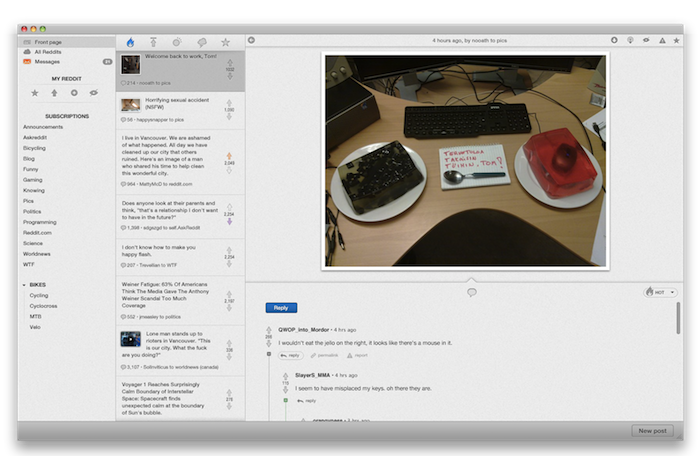
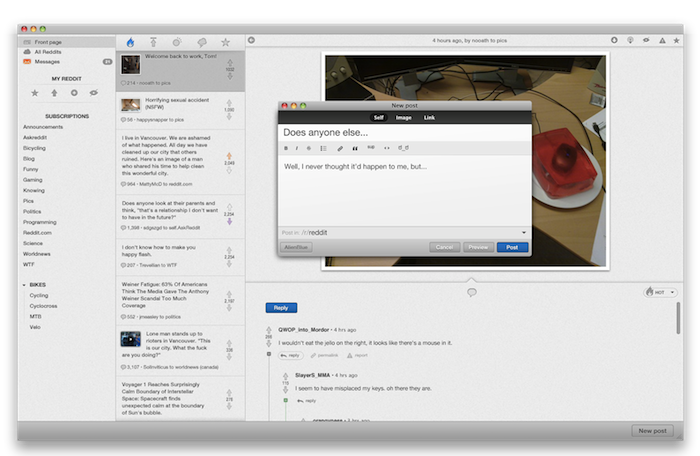
The Mac version of Alien Blue, teased on the app’s website today, looks very elegant and falls in line with the iOS counterpart’s minimal, yet powerful approach to the social sharing / commenting website. Alien Blue for Mac will have a three-panel interface with a column on the left to switch between front page, subreddits and your account’s sections. The mid panel will be used to scroll posts, or check on your messages and notifications. The right panel, the larger one, will allow you to see the actual posts, images and videos. As you can see from the screenshots, everything will be reformatted and redesigned to fit Alien Blue’s aesthetics and color scheme. From a first impression, the app seems to be slightly inspired from Reeder, Sparrow and OS X Lion in general in the way it makes use of monocrome icons, large rounded buttons and a compose window similar to the one seen in the alternative mail client. It looks very intriguing overall, but of course some things may change come the final release.

The developer also writes on the website Alien Blue for Mac will integrate HTML5 technology for YouTube and Vimeo videos, implement Readability to elegantly lay out webpages, and folder for groups of subreddits.

To follow the development of Alien Blue, you can check out Reddit’s dedicated section, or follow the developer on Twitter.


Why the $100 gift card is better than an iPod

This year, Apple isn’t offering an iPod touch with the purchase of a new Mac. Instead, Apple is handing out a $100 gift card, advertising that the extra money is best spent on apps from the Mac App Store. You could argue that a $229 iPod touch is more valuable since you can resell it, but that ends up being a hassle as you have to buy the device upfront, mail in a rebate, and receive a check from Apple at a later date. Some might want the free iPod touch, but you could argue that a majority of senior high and college students already have one (or an iPhone), and wouldn’t benefit from an additional model. Apple no longer needs to make the iPod touch popular. By giving students a $100 gift card instead of offering a physical device, Apple is getting students to invest in the future. While the past decade was primarily about the iPod, this decade’s focus is shifting towards apps and Apple’s iCloud.

Apple is leveraging this year’s Back to School promotion to make the Mac App Store popular. While the credit can be spent in the App Store, iTunes Store, or the iBookstore, Apple wants you to load up your Mac with new software. In a matter of minutes, students can open their Macs, create an Apple ID, and download the entire iWork suite with little effort. Developers should be incredibly happy about this: Apple is giving potential customers money to spend on their applications. I would be coming out of my socks right now if I was the developer of Smartr or iStudiez Pro. This is a huge win-win for everyone involved. By handing out a $100 gift card, Apple accomplishes three things:

  1. Students have the opportunity to load up their Macs with paid software at no cost from the Mac App Store.
  2. Apple is aiding developers in the sales of their apps.
  3. Apple takes a 30% cut of each app downloaded.

By teaching students to purchase apps from the Mac App Store, Apple can lock new customers into their ecosystem, and get people used to the idea that software doesn’t come on a disc. Developers will be getting a lot of exposure during the duration of this program, although I think Apple will benefit again when the iWork suite will likely be the first thing students download. The beauty of handing students $100 worth of credit for apps, music, and books is that Apple will eventually make thirty percent of that credit back if students spend the entirety their cards in the Mac App Store or otherwise. Apple is investing in students to use their products, in developers to develop new apps on the Mac, and in their own ecosystem in one fell swoop. This is a great marketing strategy by Apple.


Send2Mac: An Easy Way To Send Webpages To A Mac Browser

Over the past few weeks I’ve mentioned on Twitter and in a couple of articles a service I’ve started using on my Macs and iOS devices, a simple tool that has contributed to making the process of sending webpages to remote computers incredibly easy. Send2Mac, a free service by developer Bastian Woelfle, installs as an app on your Mac and a bookmarklet in your browser to enable you to instantly send a webpage from any device or computer, to another Mac. It doesn’t matter where the target Mac is, or what kind of Internet connection you’re using on your iPhone, iPad, or office PC: as long as you can run a web browser and the remote Mac is connected to the Internet, the webpage will magically open in a few seconds.

In the past months, I’ve actually been busy trying to find the best way to remotely send webpages from a device to another. First, I came up with a Dropbox tweak to email links to myself, and watch them open in my desktop browser. Then I stumbled upon Push Browser, an iOS app and Chrome extension that enables you to send webpages back and forth between devices and desktop computers. I love Push Browser, but it’s got one major downside: on a Mac, it’s limited to Google Chrome, and I haven’t heard back from the developer about a possible Safari or system-wide integration. That’s why I thought of giving Send2Mac a try: rather than having a dedicated extension for each browser, this app directly plugs into a Mac’s default browser, whatever it is, and can send webpages to it. Simple. On the other end, Send2Mac generates a unique bookmarklet for each of your target machines, based on an API key thet you’re given randomly every time you visit send2mac.com to set up a new computer.

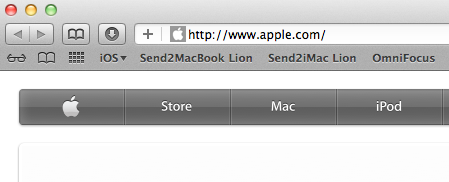
It works like this: I have two Macs, and both of them run the Send2Mac utility in the background. My MacBook Pro and iMac, however, have been assigned different API keys: they’re different, because they correspond to two different bookmarklets that let me send webpages from my iOS devices – or other computers I might happen to have. So when I’m on my iPhone and I find a webpage I’d like to check out later on my iMac, I hit the “Send2iMac” bookmarklet and it goes straight to the iMac, in a couple of seconds. If I want the page to open on my MacBook Pro, I hit the bookmarklet for that computer. If I want the page to open on my iMac, but while running Lion, I have another bookmarklet. It’s really simple: each target machine and OS has its own key and bookmarklet. No menus to navigate and no interface, you hit a button and the webpage travels from a browser to another.

I’d pay for Send2Mac if it were a premium service, but it’s surprisingly free and “might be really buggy”, as the developer writes on the app’s website. In my tests, I’ve found Send2Mac to work reliably as it’s even capable of launching a closed browser with the new webpage I sent because it’s a process that runs in the background all the time, alongside the default browser of your Mac. You can configure Send2Mac on iOS and Mac browsers, send webpages from Mac to Mac, iOS to Mac and even Windows to Mac as long as you have the bookmarklet installed.

You can start using Send2Mac by heading over here with your device, and generating a new API key for your Mac.


Evernote for Mac Update Brings New View, Useful Note Links

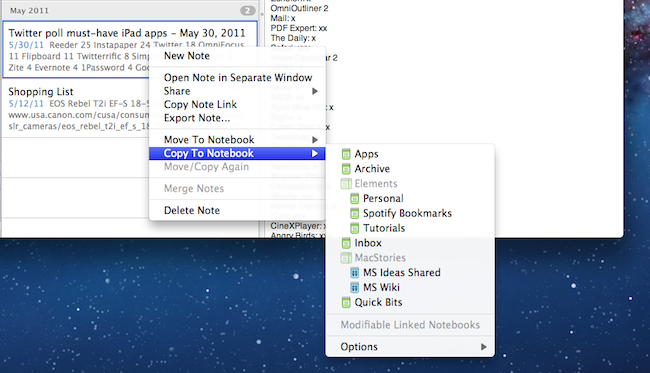
An important update for Evernote, the cross-platform “memory tool” that allows you to capture notes, ideas, images and webpages, is coming out today on Mac and Windows and, after some weeks of testing, I can say it’s one of the most interesting new versions of the desktop app to date. The new Evernote 2.2, in fact, heavily relies on a new feature called “note links” that assigns a unique URL to each note in your Evernote account – meaning, you can generate a note link, paste it somewhere else on your Mac, and clicking on it will automatically open that note in Evernote. It’s very handy if you’ve always wanted to add relevant Evernote information to, say, calendar events or OmniFocus but never found the right way to do so. With note links and the new “copy to notebook” functionality, notes in Evernote 2.2 can be linked, duplicated and accessed from anywhere. If you paste a note link on your iOS device, the system will try to launch the Evernote app with that note in the foreground – again, this is a very welcome addition that has greatly improved my Evernote workflow in the way I can reference notes and link items between various notebooks. On top of that, you can also select multiple notes and grab a list of links with a single click.

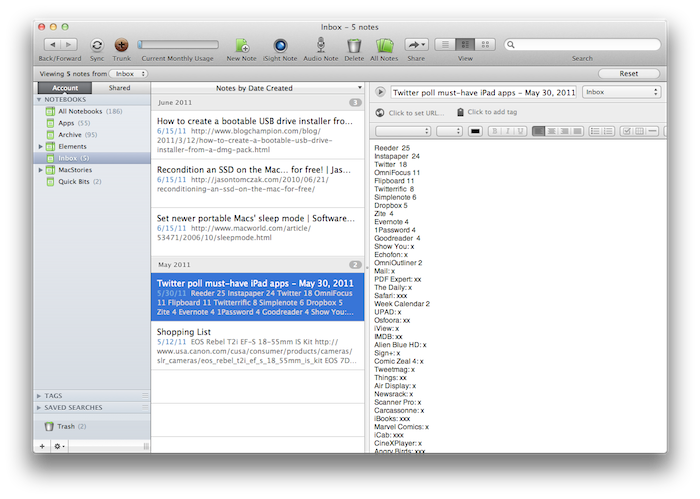
There’s more in Evernote 2.2 however: the new Snippet view, much like on the iPhone, allows you to view text and image thumbnails for notes in your account at a glance. Rather than displaying a simple list of note titles, snippet view combines text, tags, dates and media to offer an integrated view of what’s in your Evernote – plus, it looks really nice. Evernote writes on the official blog:

If you use Mixed View in your note list, the most obvious change you’ll see is the new Snippet View. Snippets are designed to provide the most useful information possible at a glance. If your note contains only text, then the Snippet will display the text at full width. If the note contains both images and text, then it will show text and a thumbnail. If it’s just an image, then the snippet will show the note title and a larger thumbnail. Not only does this view give you more information about the content of the notes, but it also makes browsing through your notes easier.

Last, new navigation buttons in the upper left corner let you easily navigate back and forth between content you’ve viewed and archived, and just like the web browser click & hold on the buttons will bring up a menu with more navigation options.

While waiting for the promised huge update for the iPad version that will bring a new UI and rich text editing capabilities, you can get the new Mac version from the Mac App Store or Evernote’s website. Evernote 2.2 is propagating at the moment of writing this, so if you don’t see the update right away, you should try later today.