This Week's Sponsor:

Turbulence Forecast

Know before you go. Get detailed turbulence forecasts for your exact route, now available 5 days in advance.


Posts tagged with "safari"

Extending Evernote: AppleScripts for Chrome, Safari, Instapaper and Alfred

Evernote is a cross-platform note taking solution that is adored by many for its ability to not just store snippets of information but also serve as an external brain. Among the many reasons users are drawn to this product is its extensibility. You may not realize this but Evernote has a very in-depth AppleScript dictionary that you can use to extend the feature set and make it do some pretty neat things you can’t do with it out of the box. I am going to show you how simple AppleScripting can add a few cool features to your Evernote workflow.

Note: These scripts work best when called with a global keyboard shortcut using an app like Keyboard Maestro, FastScripts, or Alfred.

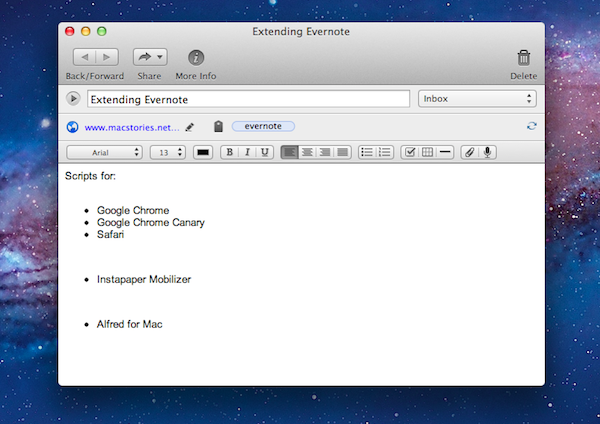
This first AppleScript is used for storing a URL to whatever webpage you are currently viewing and it works with Safari, Chrome, and Chrome Canary. By default Evernote stores the entire webpage including images, navigational menus, and even advertising links. Having a snapshot of a page is great for some situations, but most of the time you just want to grab a link to the site and safely store it in Evernote so it can be easily retrieved. This script will check to see which browsers are running and it will grab the frontmost tab from the browser that is currently active; it’ll then neatly format the information into a note with the proper title and source url, and automatically sync Evernote.

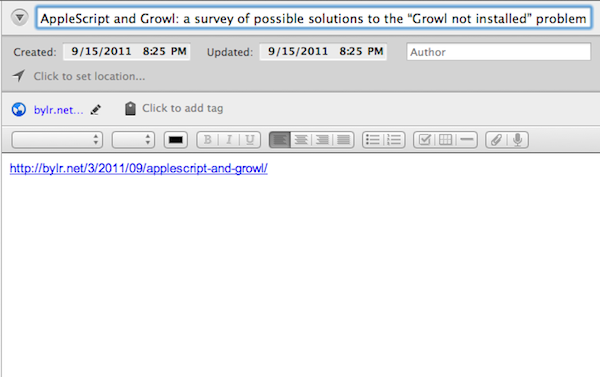
Here is an example of a page I enjoyed and wanted to be able to find again at a later time. Everything is neatly formatted with no extra fluff.

URL to Evernote

URL to Evernote

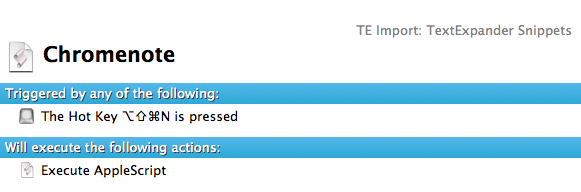
Here is an example macro to launch it from Keyboard Maestro:

Download the script: Webpage Link to Evernote AppleScript Read more


Footnotify Safari & Chrome Extension Turns Footnotes into Popovers

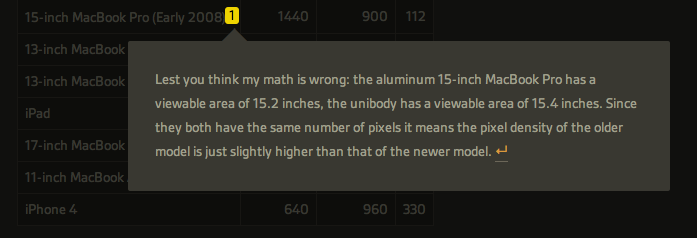
As an avid reader of John Gruber’s Daring Fireball, Ben Brooks and Shawn Blanc, I often find myself scrolling entire articles to reach the end and read the footnotes the authors decided to include. Anchor-linked footnotes are often used online as an alternative to the more classic parenthesis to elaborate on thoughts or data that won’t fit the main article’s body, but are still relevant to its context. Because I want to know immediately what these guys are referring to with a footnote, and because the only way to read footnotes is by interrupting the flow of an article and manually “jumping” to them, I’m forced to click on an anchor-linked note, read it, and scroll back to where I left off.

Footnotify, an extension for Safari and Google Chrome, makes the entire process of quickly reading footnotes faster, more intuitive and good-looking by displaying a footnote inside a popover that will overlay the page you’re reading without automatically scrolling to the end of the article, thus “disrupting” your reading flow. Once installed, Footnotify will fade in footnotes keeping the original style of the website, allowing you to click outside the popover to dismiss a footnote.

Footnotify can be downloaded over at Ideon Open Ideas, and it worked very well with every website from my RSS subscription list that used footnotes in blog posts. You can try it now here, or here.


FlashtoHTML5 Turns YouTube In To A Flash-Free Zone On Safari

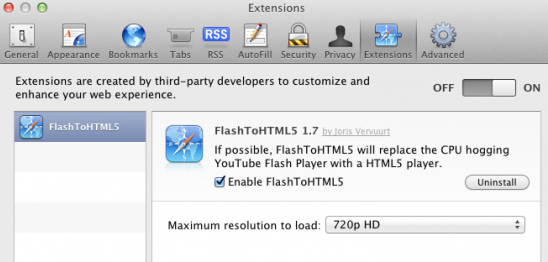
No-one really likes when their Mac’s fan decides to emulate a jet engine after you’ve been watching YouTube for a while because Flash has been running. It is particularly frustrating when you know that YouTube has been rolling out an experimental HTML5 video player that could work perfectly in Safari. Thankfully a new Safari plug-in, FlashtoHTML5, forces Safari to use that HTML5 YouTube whenever available (which is most of the time).

The plug-in from Juris Vervuurt will automatically choose the maximum video resolution available, up to 4K, although this can be manually changed. There are three minor caveats with FlashtoHTML5: this plug-in only works for Safari,  not all YouTube videos yet support the HTML5 version and subtitles and captions do not work in the HTML5 version. You can download FlashtoHTML5 for free.

[Via 9to5 Mac]


Fullscreen Safari Trick

Fullscreen Safari Trick

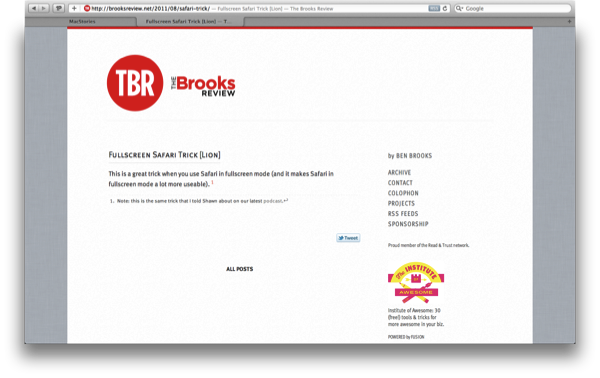
When using Safari in Lion’s Full-Screen mode, you can grab the edges of the browser and drag inward to reduce the width, making fluid websites easier to read on wide monitors, while keeping a nice clutter free view.

For as much as I’ve used Safari in Full-Screen mode on the Mac, I’ve never noticed that the cursor changes at the left and right edges of the display to signify that you can resize the webpage. It’s a neat effect, and it almost looks a little 37signals-ish when you have a webpage resized to show the light linen in the background. What’s nice is that the width will remain as you navigate the web — there’s no need to resize per webpage, although the new width isn’t shared between tabs. Hat tip to The Brooks Review for pointing out this clever trick from Finer Things in Mac.

Permalink

Safari’s Growth Outshines Dulled Chrome in July

Browser Wars - it’s not surprising that competition for the best browser is always fueled by which is the fastest, most reliable and doesn’t suck up all your resources on your desktop and mobile machines.

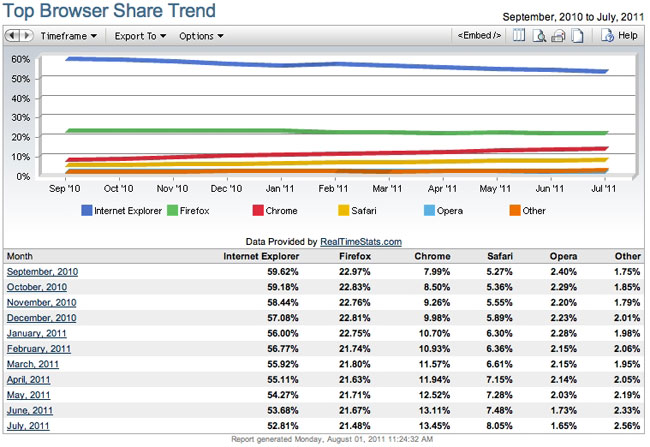
According to Net Applications newest report, July was a great month for Apple’s Safari browser. July boasted the largest increase ever, with Safari being used by 8.1 percent of all web users.

Apple’s iOS devices (iPad, iPhone and iPod Touch) make up for more that a third of the usage for Safari. The growth rate surpassed (and doubled) Chrome as well, jumping .6 percent for July while Google’s Chrome only grew .3 percent.

Statistics say that Safari has had continual growth for 17 months now while Microsoft’s own Internet Explorer has been declining. IE still has 52.8% of the market but solid declines month to month help Apple and others cut in to Microsoft’s dominance in the browser market. IE 9 is being used more with Windows 7 adopters but the overall browser share for IE is still declining.

If Apple and Chrome are growing and IE is shrinking, where is Firefox and Opera in all of this? Numbers show that Opera is down to a minimal 1.7% of the web market - this is where it was back in 2007. Firefox is mostly steady but had a slight decline from 23% a year ago to 21.5% now.

Safari isn’t King of the Jungle yet but is making great strides. Apple’s strength in mobile devices and increases in Mac sales will help Safari continue to grow and grow. Safari had a major update 2 weeks ago with version 5.1 that supports full screen mode and gestures (Mac), Reading List and more. The upcoming iOS 5 adds some great new features for Apple’s mobile version like tabbed browsing, Reader and Reading List as well as an improved performance on all iOS devices.

[via TUAW]


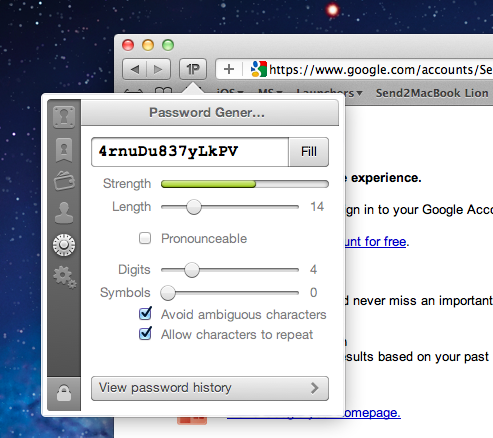
1Password Safari Extension Gets Complete Redesign with New Features

Ever since the release of OS X Lion and Safari 5.1, the Agile Bits team has been busy updating its 1Password Safari extension to work with the new OS and the updated version of the browser, which brings major changes both on Snow Leopard and Lion. Whilst initial Lion support (alongside Firefox 5 and Fluid 1.0 compatibility) was rolled out on June 20, Agile Bits spent the last month releasing new public and beta versions of 1Password for Mac, tweaking its extension engine and re-implementing features requested by their customers in an attempt to bring old functionalities back to Lion and Safari 5.1. First came support for Safari 5.1 on Snow Leopard (which has less features than its Lion counterpart, but still is a major upgrade from Safari 5.0), then Agile Bits released 1Password 3.7 for Mac through the public beta channel, adding features like copy to clipboard from the extension, universal unlock (if 1Password is already unlocked, so is the Safari extension), improved Auto Submit and a bunch of other changes and optimizations throughout the app and extension. You can read more about 3.7 beta here.

In the meantime though, Agile Bits was working on a complete redesign for the Safari extension, teased on the developer’s blog exactly a week ago. The new extension is now live, and as usual it needs to be installed from 1Password’s desktop Preferences panel (more information here). Read more


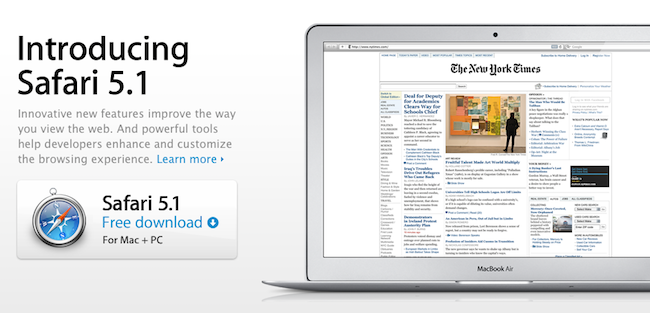
Apple Releases Safari 5.1: Full-Screen, Gestures, Reading List, And More

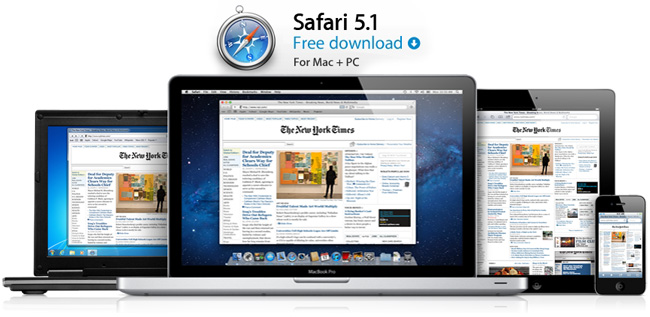
Alongside OS X Lion, new MacBook Airs, new Mac Minis and Thunderbolt Display, Apple just released a major update to Safari, reaching version 5.1. Available to developers for quite some time, the new Safari brings extensive support for gestures, the Reading List, new privacy and security features, full-screen browsing and more.

Safari isn’t just the world’s most innovative web browser. It changes the way you interact with the web. With great new features that take advantage of OS X Lion, you’ll become completely immersed in everything you see, touch, read, and watch. Oh, and browse.

The Reading List allows users to save webpages for later, and read them at any time by accessing them from a new sidebar. Reading List will gain iOS sync capabilities with iCloud this Fall, but in the meantime it works perfectly in conjunction with Safari Reader, which can strip out the clutter off webpages saved in the Reading List easily.

New multi-touch gestures and full-screen are exclusive to Lion, as they take advantage of the new APIs introduced by Apple in the new OS. You can double-tap to zoom, swipe to navigate as detailed in our Lion review, or pinch to zoom to better focus on content. Read more


PDF Converter for iPad Creates New PDFs Off Webpages, Contacts, Docs, More

iOS comes with a fast and elegant built-in PDF viewer (in fact, the latest JailbreakMe 3.0 is largely based upon a security hole in the PDF display engine), but unlike Mac OS X the options to convert documents into new PDF files are limited. PDF Converter, a new app by Readdle (the makers of PDF Expert and Terra web browser, among others), aims at providing an easy to use yet powerful solution to turn almost anything on your iPad (webpages, documents, clipboard contents, even photos) into new PDF documents to save locally or send to an external physical or virtual printer.

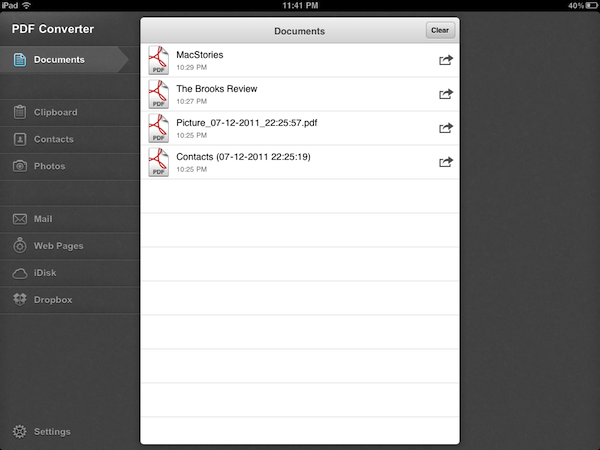
Released earlier today at $6.99 on the App Store, PDF Converter runs as an iPad-only application for now. The interface resembles Readdle’s previous works for the iPhone and iPad – namely ReaddleDocs and PDF Expert – with a narrow sidebar on the left side of the screen allowing to switch between the different types of content you can convert to PDF. The app supports PDF creation off clipboard contents, Address Book contacts, photos, webpages and just about any document that can be sent to third-party apps using iOS’ native “Open In” menu. By opening a document into PDF Converter, in fact, the app will take care of turning it into a properly formatted PDF document that keeps pagination and line breaks (as well as layout and graphics) intact, while making the doc’s text entirely selectable as you would expect from a PDF. Unlike ReaddleDocs and PDF Expert the app doesn’t come with direct iDisk and Dropbox access, but the developers recommend you use the “Open In” menu in those apps if you wish to get documents into PDF Converter.

In my tests, I’ve found PDF Converter to perform reliably with a variety of content and clipboard contents sent from iOS apps to Readdle’s utility. The built-in Address Book integration will allow you to print out contacts in a simple plain-text layout with all available fields (email, phone, address), but more importantly full clipboard integration means you’ll be able to, say, copy a web address from Safari into your system’s clipboard, launch PDF Converter and have the webpage you just visited available as a PDF you can print, email, or open into another app (you can’t rename PDF files in the current version of the app, but Readdle says that’s coming with an update soon). Furthermore, the developers have enabled a unique URI shortcut system for PDF Converter that will let you send a webpage from Safari to the app by simply adding “pdf” (without quotes) before the http:// string of a webpage, in the address bar. Change a URL to “pdfhttp://”, wait a few seconds, and the webpage will become a new document in PDF Converter. I tried this by saving MacStories’ and Brooks Review’s homepages as new docs in PDF Converter, and then I sent them off to a virtual printer on my Mac using the amazing Printopia desktop printing tool. Not only did the PDF transfer just fine, unlike other solutions to generate PDFs off webpages, PDF Converter’s engine kept the layout of both sites exactly the way I’m used to see it in Safari. For offline reading and webpage archiving (perhaps paired with Evernote on the Mac, or other apps like Yojimbo and DEVONthink), this is very useful.

At $6.99, with PDF Converter you get a powerful tool to create new PDFs on your iPad, and share them with other apps that support document interaction with iOS’ built-in features. The price may be a little steep and the app definitely isn’t for everyone – it’s a rather niche software that, however, addresses a common complaint with elegance, and good interoperability with Readdle’s other PDF app, PDF Expert. Read more



3 Column Reader Safari Extension Makes Google Reader Beautiful

Based on the Pure Reader mod for Google Reader we covered back in December, 3 Column Reader is a new Safari extension released in June and updated last week that enables you to turn the Google Reader website into a beautiful, three-column reading experience for your RSS feeds. Developed by Zackary Corbett, 3 Column Reader is only compatible with Safari for now, and it’s got a minor glitch with the settings icon from Google’s new sharing toolbar launched alongside the Plus social network. However, the extension is being actively developed so we wouldn’t be surprised to see a fix for users logged into Google+ soon.

For everything else, 3 Column Reader looks great: the extension takes Pure Reader’s color scheme (which reminds us of Reeder’s sepia background and monochrome icons) to lay out a three-column setup perfect for widescreen monitors: folders and feeds are listed on the left, a mid panel visualizes the feeds’ titles and excerpts, and the full articles with images are displayed on the right. You can hide the source list by hitting an icon in the mid panel, and most of Google Reader’s web app functionalities are retained, such as popup menus to sort articles, or buttons to mark items as favorite. I didn’t encounter any other compatibility issues when using 3 Column Reader on Safari 5.1 for Lion GM. Read more