John Voorhees

5429 posts on MacStories since November 2015

John is MacStories' Managing Editor, has been writing about Apple and apps since joining the team in 2015, and today, runs the site alongside Federico. John also co-hosts four MacStories podcasts: AppStories, which covers the world of apps, MacStories Unwind, which explores the fun differences between American and Italian culture and recommends media to listeners, Ruminate, a show about the weird web and unusual snacks, and NPC: Next Portable Console, a show about the games we take with us.

Vision Pro App Spotlight: Parchi Brings Voice-Created Sticky Notes into Your Environment

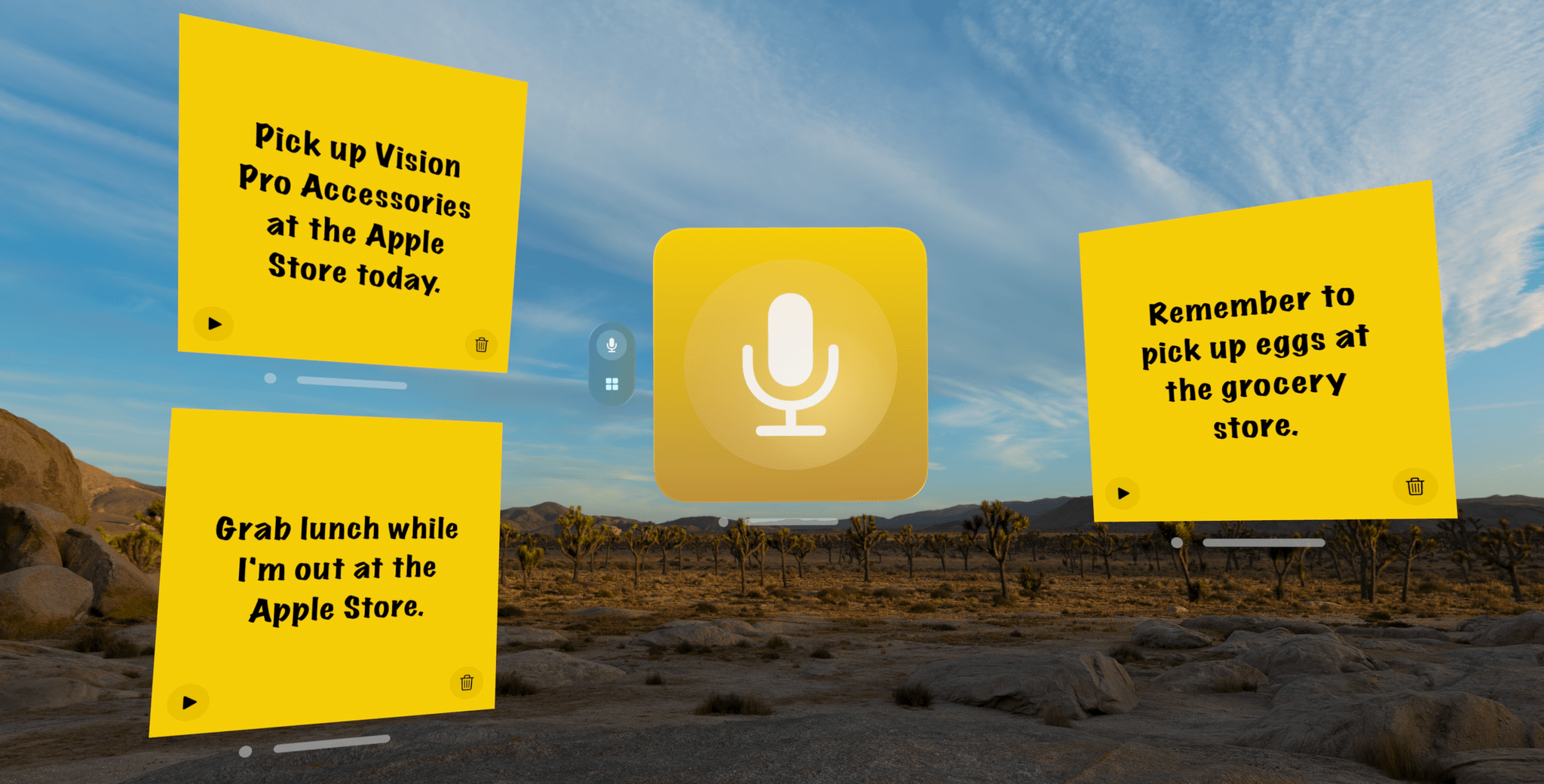
Parchi is a new visionOS sticky note app by Vidit Bhargava, the maker of the dictionary app LookUp. The app is a straightforward, but handy utility for jotting down a quick note using your voice.
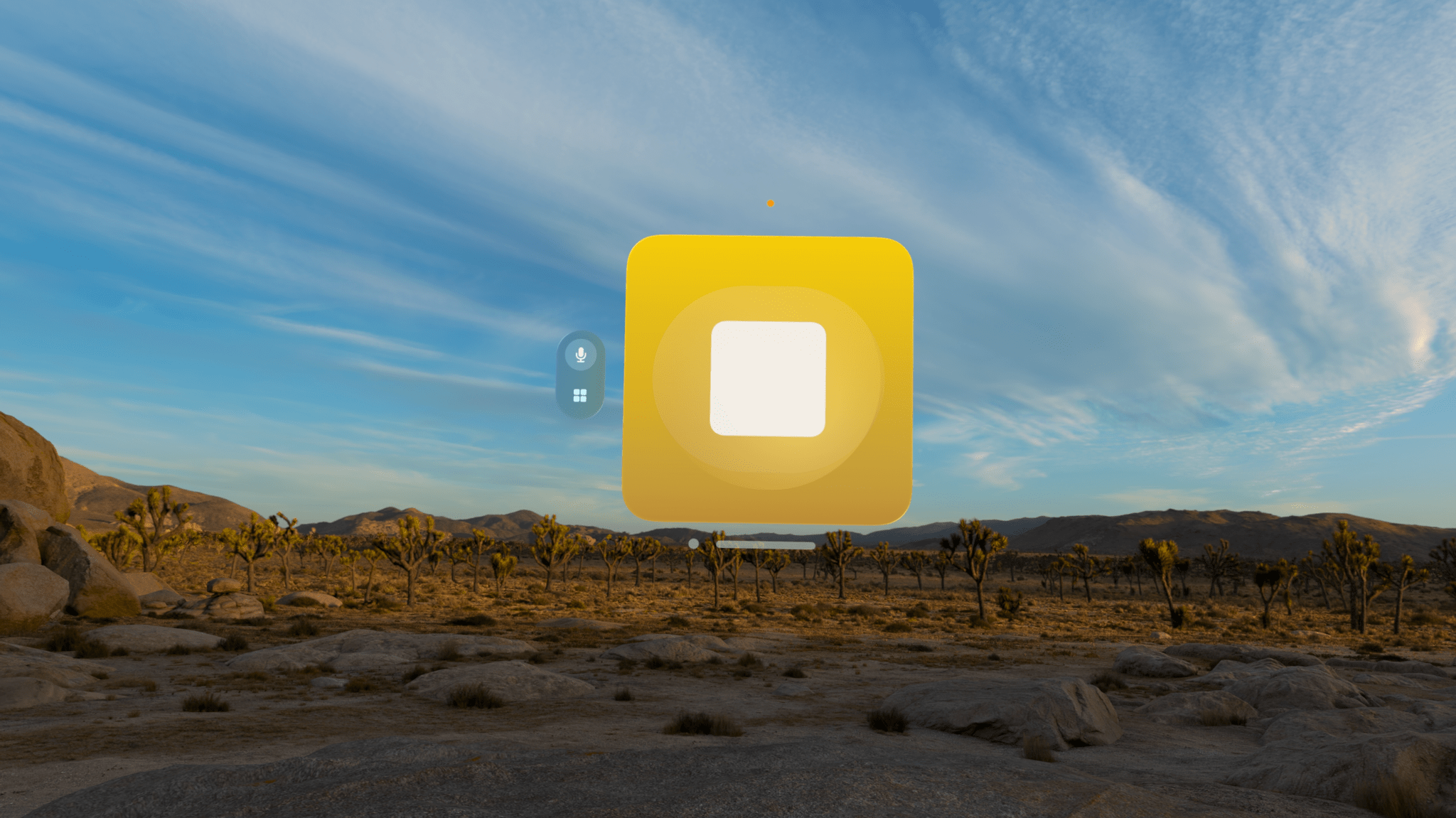
When you start recording, Parchi's record button turns into a big stop button.

When you start recording, Parchi’s record button turns into a big stop button.

When you launch the app, you’re greeted by a bright yellow gradient window with a big record button in the middle. Tap it and start speaking to record a note. Tap again to stop, and your audio recording will transform into a yellow sticky note with your recording transcribed into text. Once created, you can drag notes around your environment, leaving them in places where they will serve as valuable reminders. In the bottom corners of the note are buttons to play back your audio and delete the note.
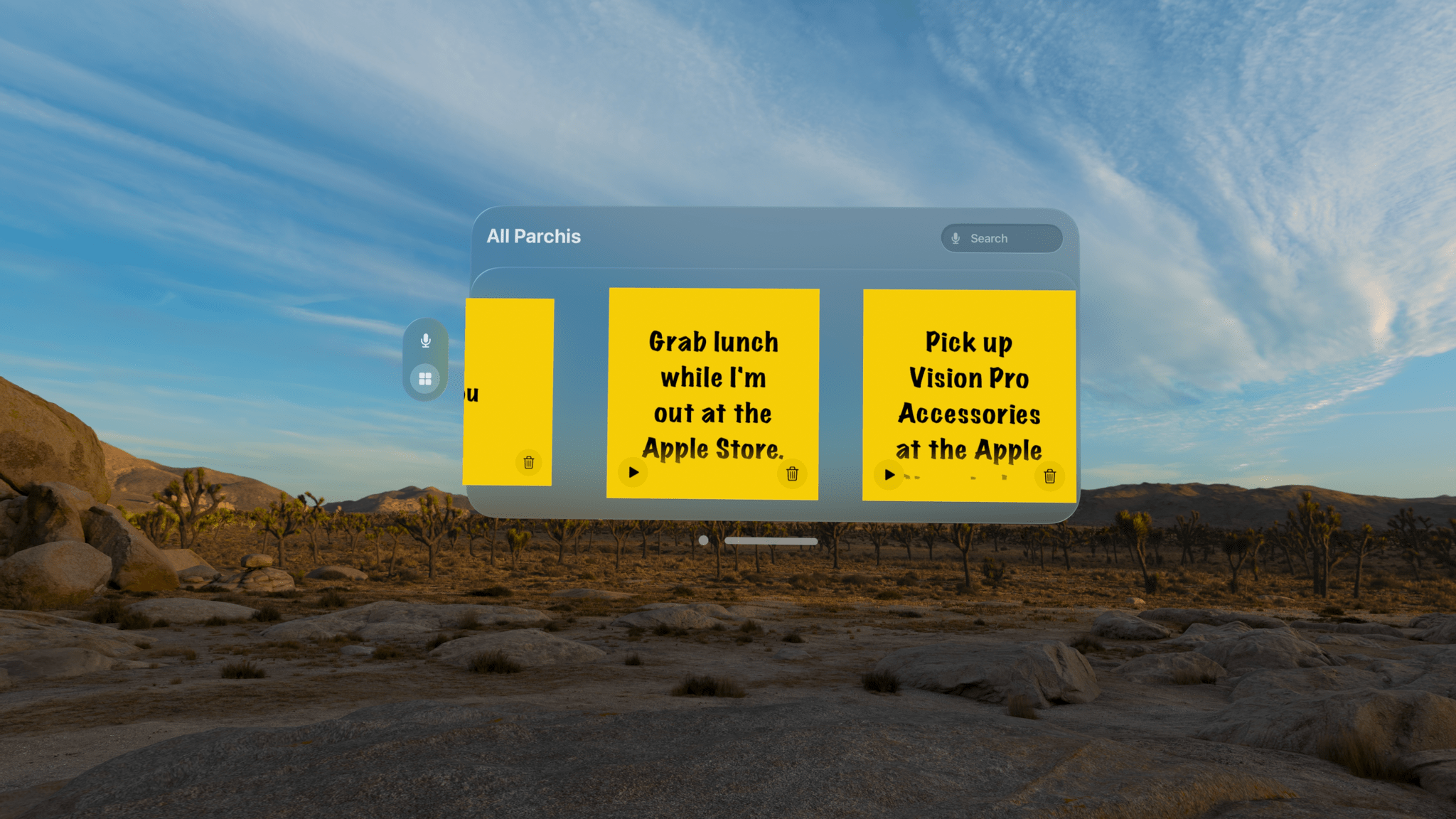
The All Parchi view.

The All Parchi view.

You can also access all of your notes from the app’s main UI by switching from the ‘Parchi Recorder’ view to ‘All Parchis,’ which displays each of your notes as a horizontally scrolling collection. The ‘All Parchis’ view also includes a search field for finding particular notes in a large collection.
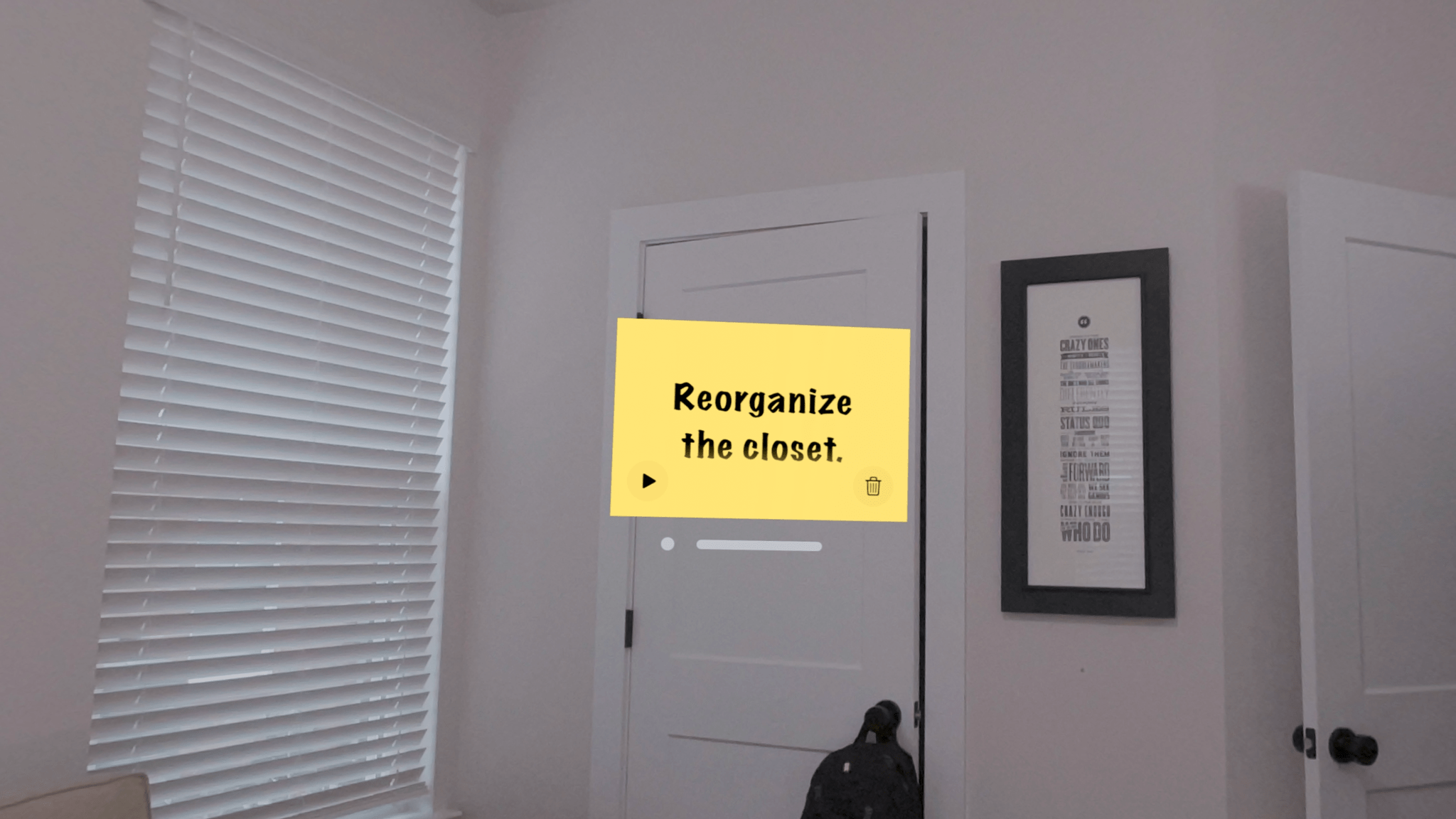
Leave notes where they make the most sense within your environment.

Leave notes where they make the most sense within your environment.

I love Parchi’s simplicity and ease of use, but I’d like to see it expanded a little too. The smallest size note is still somewhat large. It would be great if I could shrink them even further with the text transforming into a play button when there isn’t enough room to display it. I’d also like to see Siri and Shortcuts support added to make it possible to create a note without first opening the app. Finally, a copy button would make Parchi a better complement to task managers and other apps by allowing text to be moved to other apps as needed.

Overall, though, I’ve really enjoyed using Parchi. It’s the kind of quick interaction I appreciate when I’ve got something on my mind that I want to jot down without interrupting the flow of whatever else I’m doing.

Parchi is available on the App Store for $2.99.


MacStories Teams Up with ScreenCastsONLINE for a Big Discount for Club Members

For more than fifteen years, ScreenCastsONLINE has been a leading resource for online tutorials for Mac, iPhone, and iPad users. So we’re very pleased to announce today that we’ve teamed up with ScreenCastsONLINE to offer Club MacStories+ and Club Premier members who first-time subscribers to ScreenCastsONLINE: a 50% discount on their first year of an annual subscription. Club MacStories+ and Premier members can use this link to take advantage of ScreenCastsONLINE’s special discount as well as the other deals offered by Club MacStories. Not a Club member yet? Learn more here.

ScreenCastsONLINE has an incredibly deep catalog of tutorials that includes tutorials on:

  • Apple OS updates
  • Shortcuts and other automation tools
  • Apple system apps
  • Photography apps
  • Productivity apps
  • Music apps
  • And much more

Many of our favorite apps are included among ScreenCastsONLINE’s videos, making it a terrific compliment to the reviews and other app coverage you find on MacStories. So, if you haven’t joined Club MacStories before or are thinking of rejoining, now is a great time to join and become a ScreenCastsONLINE member too.

Discounts are just one of the many Club MacStories perks.

Discounts are just one of the many Club MacStories perks.

To put the Club deals into context, taking advantage of them all would save you enough to pay for more than two years of Club Premier, the highest Club tier. That’s before you even consider the many other perks Club MacStories+ and Club Premier members enjoy, including:

  • Weekly and monthly newsletters 
  • A sophisticated web app with search and filtering tools to navigate eight years of content
  • Customizable RSS feeds
  • Bonus columns
  • An early and ad-free version of our Internet culture and media podcast, MacStories Unwind
  • A vibrant Discord community of smart app and automation fans who trade a wealth of tips and discoveries every day
  • Live Discord audio events after Apple events and at other times of the year, including one coming this week about the Apple Vision Pro

On top of that, Club Premier members get AppStories+, an extended, ad-free version of our flagship podcast that we deliver early every week in high-bitrate audio.

Use the buttons below to learn more and sign up for Club MacStories+ or Club Premier.

Join Club MacStories+:

Join Club Premier:


Apple Vision Pro: Hardware First Impressions

AppStories+ Deeper into the world of apps

AppStories Episode 370 - Apple Vision Pro: Hardware First Impressions

0:00
50:26

AppStories+ Deeper into the world of apps

This week, Federico and John tell the story of how Federico got his Apple Vision Pro before sharing their first impressions of the Vision Pro hardware.

Read more


MacStories Unwind: Like a Self-Reliant Final Fantasy Dragon

AppStories+ Deeper into the world of apps
0:00
26:05

AppStories+ Deeper into the world of apps


This week on MacStories Unwind, Federico recommends the Final Fantasy VII Rebirth demo and Like a Dragon: Infinite Wealth, while I enjoy Self Reliance on Hulu.

  • Memberful – Help Your Clients Monetize Their Passion

Picks

MacStories Unwind+

We deliver MacStories Unwind+ to Club MacStories subscribers ad-free and early with high bitrate audio every week.

To learn more about the benefits of a Club MacStories subscription, visit our Plans page.

Read more


The Best Way to Take Screenshots on Apple Vision Pro

Taking good-looking screenshots on the Apple Vision Pro isn’t easy, but it’s not impossible either. I’ve already spent many hours taking screenshots on the device, and I thought I’d share my experience and some practical tips for getting the best screenshots possible.

Although I’ve only had the Apple Vision Pro for a week, I’ve already spent a lot of time thinking about and refining my screenshot workflow out of necessity. That’s because after I spent around three hours writing my first visionOS app review of CARROT Weather and Mercury Weather, I spent at least as much time trying to get the screenshots I wanted. If that had been a review of the iOS versions of those apps, the same number of screenshots would have taken less than a half hour. That’s a problem because I simply don’t have that much time to devote to screenshots.

Taking screenshots with the Apple Vision Pro is difficult because of the way the device works. Like other headsets, the Apple Vision Pro uses something called foveated rendering, a technique that’s used to reduce the computing power needed to display the headset’s images. In practical terms, the technique means that the only part of the device’s view that is in focus is where you’re looking. The focal point changes as your eyes move, so you don’t notice that part of the view is blurry. In fact, this is how the human eye works, so as long as the eye tracking is good, which it is on the Apple Vision Pro, the experience is good too.

However, as well as foveated rendering works for using the Apple Vision Pro, it’s terrible for screenshots. You can take a quick screenshot by pressing the top button and Digital Crown, but you’ll immediately see that everything except where you were looking when you took the screen-grab is out of focus. That’s fine for sharing a quick image with a friend, but if you want something suitable for publishing, it’s not a good option.

Fortunately, Apple thought of this, and there’s a solution, but it involves using Xcode and another developer tool. Of course, using Xcode to take screenshots is a little like using Logic Pro to record voice memos, except there are plenty of simple apps for recording voice memos, whereas Xcode is currently your only choice for taking crisp screenshots on the Vision Pro. So until there’s another option, it pays to learn your way around these developer tools to get the highest quality screenshots as efficiently as possible.

Read more