John Voorhees

5429 posts on MacStories since November 2015

John is MacStories' Managing Editor, has been writing about Apple and apps since joining the team in 2015, and today, runs the site alongside Federico. John also co-hosts four MacStories podcasts: AppStories, which covers the world of apps, MacStories Unwind, which explores the fun differences between American and Italian culture and recommends media to listeners, Ruminate, a show about the weird web and unusual snacks, and NPC: Next Portable Console, a show about the games we take with us.

Fontcase Simplifies Custom Font Installation on iOS and iPadOS

On Friday, The Iconfactory announced that it has collaborated with Manolo Sañudo, the developer of open-source font installation utility xFonts, on a new version of the app, which has been renamed Fontcase. The app greatly simplifies the process of installing custom fonts on iOS and iPadOS. Fontcase isn’t the first utility to do this. However, Fontcase has the advantage of being free and open-source, which should provide users confidence that it’s secure.

Security is an issue with font installers because they require a configuration profile to be installed in the Settings → General section of your iPhone or iPad. Configuration profiles can control important aspects of iOS and iPadOS that could be misused. Because Fontcase is open source, its code is publicly available for anyone to review to make sure it isn’t doing anything unexpected. However, even if you don’t review the code yourself, the mere fact that it is publicly available provides some comfort that someone else has done so.
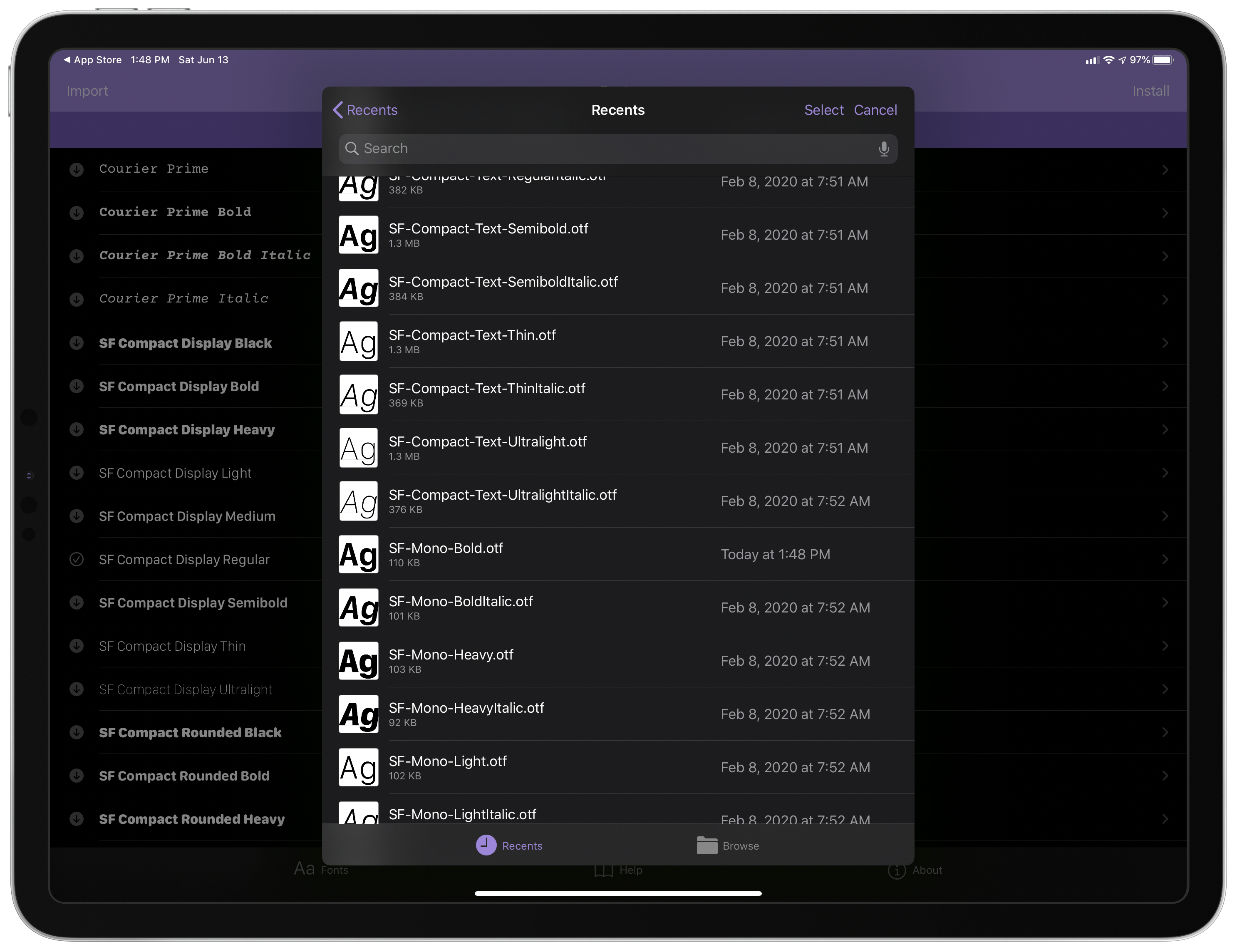
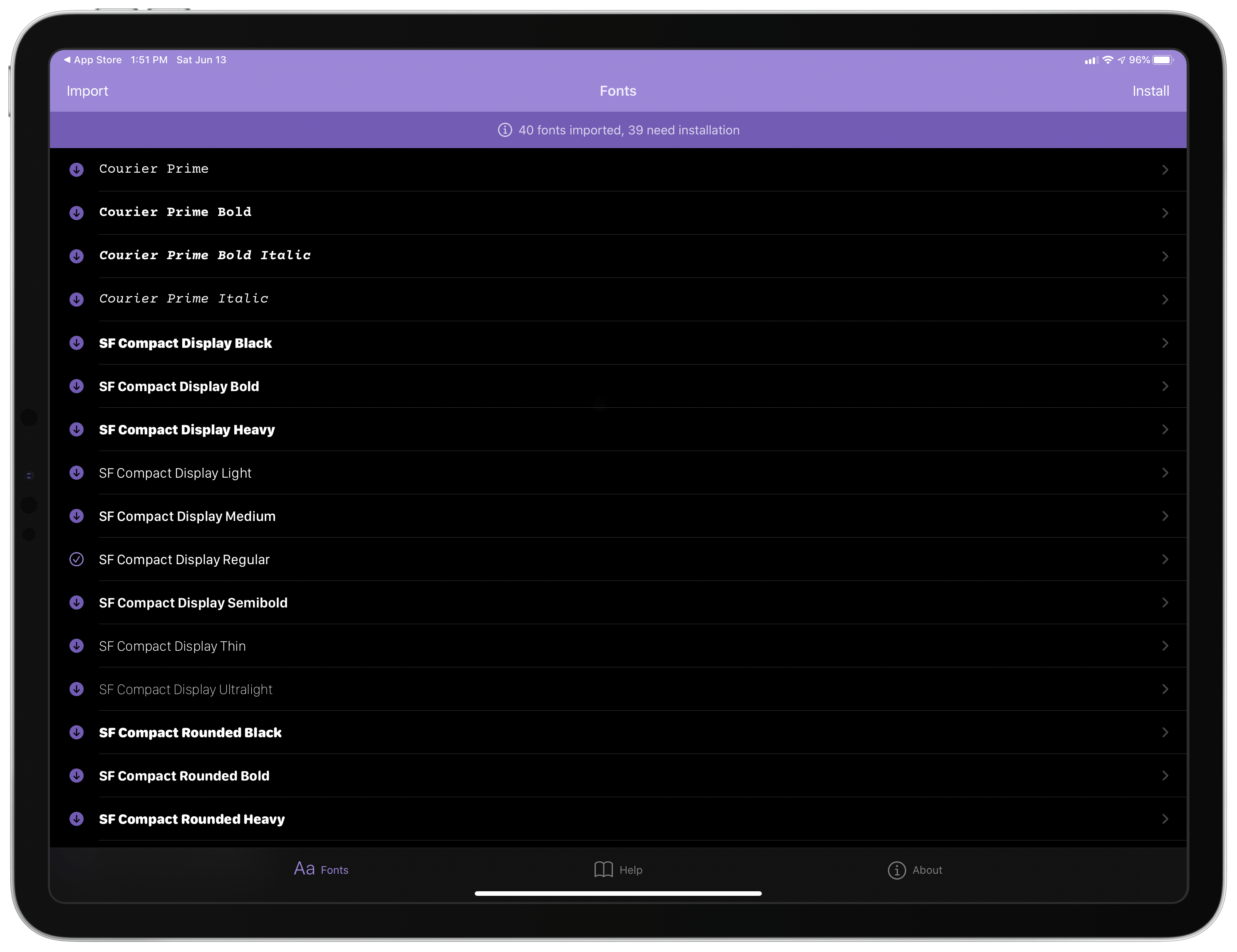
Using Fontcase’s document browser integration to locate fonts to install.

Using Fontcase’s document browser integration to locate fonts to install.

You’ll spend most of your time in Fontcase’s Fonts tab, which is controlled by two buttons marked Import and Install. Import takes advantage of the document browser feature of iOS and iPadOS, opening the familiar Files UI for navigating to a folder in iCloud Drive, Dropbox, or another file provider where you have fonts saved that you want to install. Select the fonts you want and tap Open, and they will appear in Fontcase’s UI using the font itself to provide users with a mini-preview.
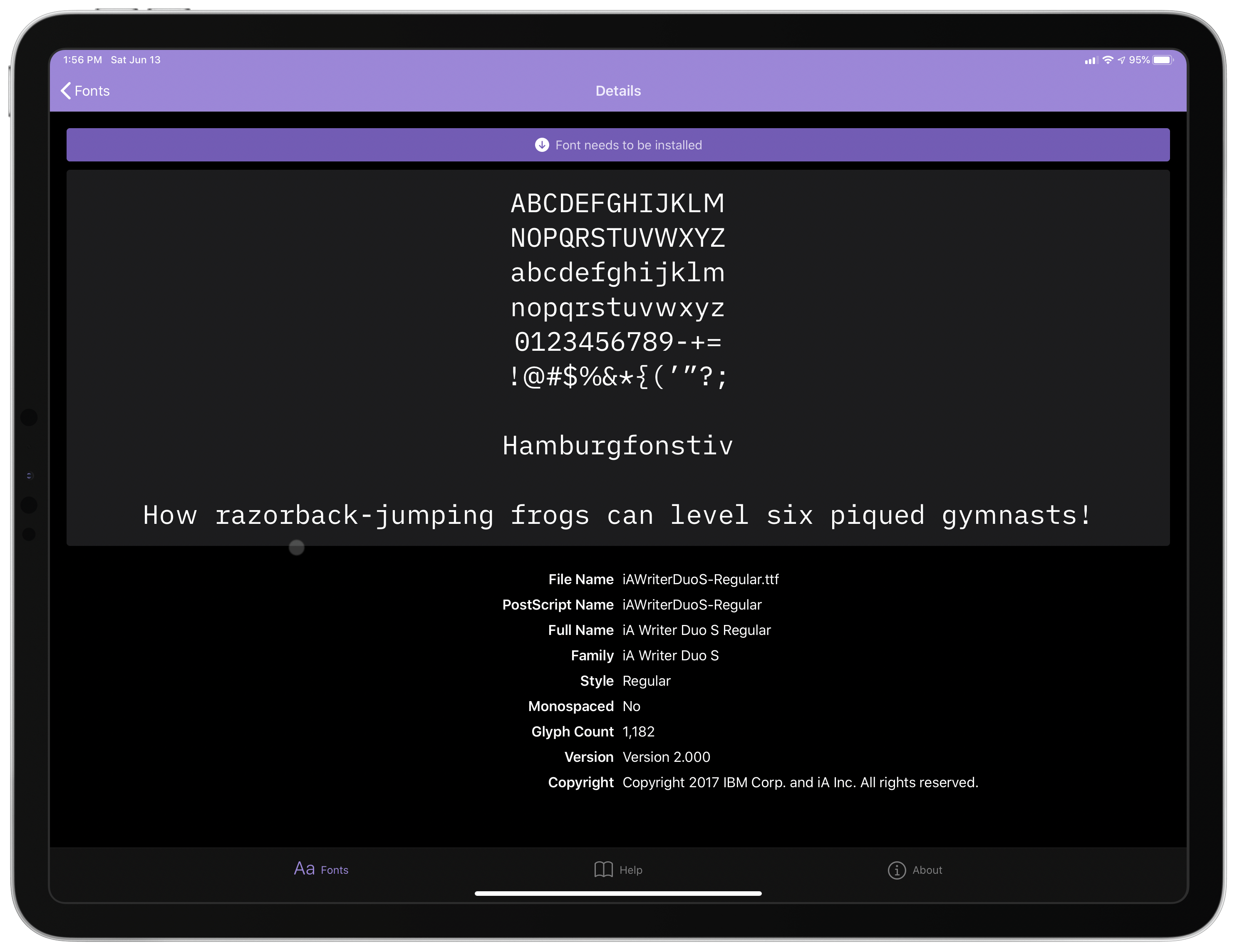
Tap any font you’ve imported to see metadata and a preview.

Tap any font you’ve imported to see metadata and a preview.

Tap on a font imported into Fontcase, and the app displays metadata about it along with a full preview of the font. On the iPhone, this makes sense, but it’s too bad that on the iPad, Fontcase doesn’t make use of a list and detailed view layout for the preview of fonts. Instead, there’s a vast empty space on the right-hand side of the iPad UI.
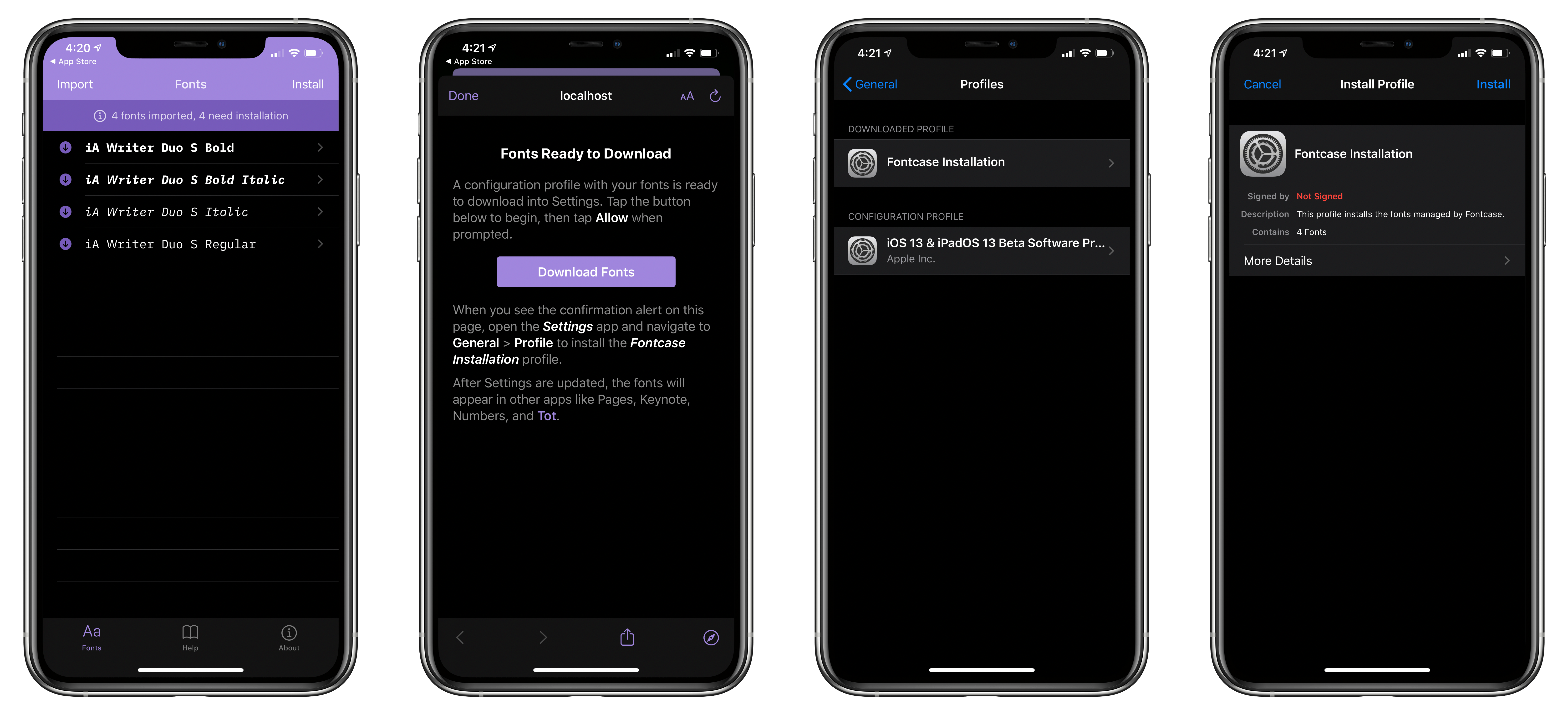
Fontcase’s installation workflow.

Fontcase’s installation workflow.

Once you’re ready to install your collection of fonts, tap Install, which bundles all of the fonts you’ve imported into a single configuration profile. Tap Download Fonts, and the profile is saved and ready for installation in Settings → General → Profiles. Tap on the Fontcase Installation profile in the Downloaded Profile section and follow the prompts to finalize the installation. Once installed, the fonts will be available alongside the system-provided fonts in apps like The Iconfactory’s Tot, as well as many other apps that support custom fonts, including Apple’s own Pages.

It’s nice to see The Iconfactory contributing to an open-source project to provide a safe and simple way to add fonts to iOS and iPadOS. If you’re looking for good writing fonts to try with the app, I like iA Writer’s Duo font and Courier Prime, both of which are available to download for free.

Fontcase is available as a free download on the App Store and is compatible with the iPhone and iPad.



MacStories Unwind: WWDC, OmniFocus Custom Perspectives, and New Read-It-Later and Camera Apps

AppStories+ Deeper into the world of apps
0:00
27:03

AppStories+ Deeper into the world of apps


This week on MacStories Unwind:

MacStories

Club MacStories

  • MacStories Weekly
    • Federico shares a shortcut for browsing articles by topic and domain in Reeder and GoodLinks
    • Ryan highlights apps with great implementations of features announced at WWDC 2019
    • John imagines what better external display support for the iPad Pro might look like
    • Plus lots of apps, Q&A, Links and more
  • MacStories Unplugged
    • John travels west and Federico reveals his fascination with small town America before they dive into a discussion of optimism in technology writing and explore a new trend they are seeing emerge in the App Store.

AppStories

Unwind Picks


Adobe Photoshop Camera Brings Real-Time Filters and AI to Photo Sharing

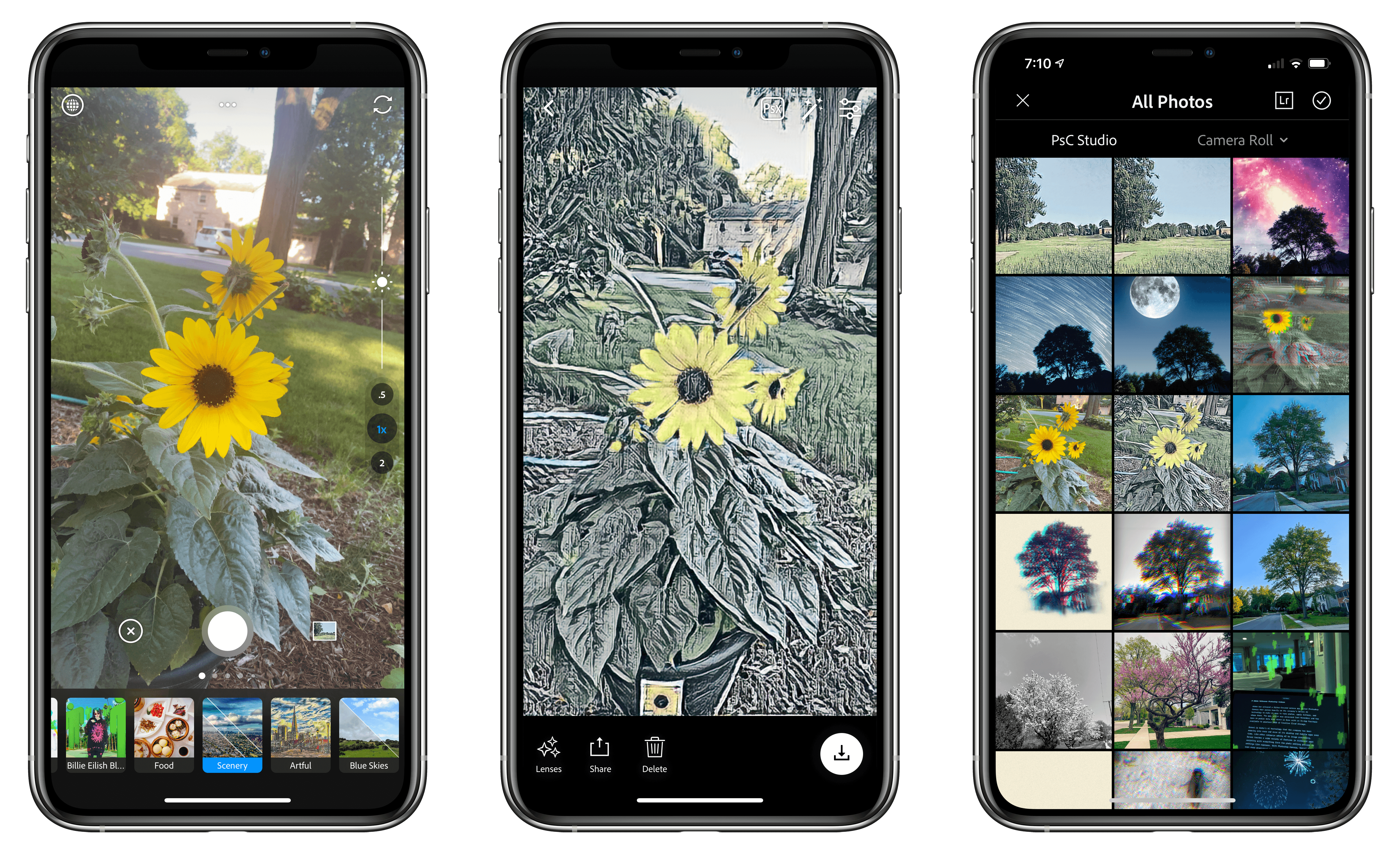
Adobe has released a filter-focused camera app called Photoshop Camera that relies heavily on the company’s Sensei AI technology to make it easy to take photos, apply filters, and share them. The app, which was announced last November and has been in beta ever since then, is free with an In-App Purchase available to unlock 20GB of Creative Cloud storage.

Sensei is Adobe’s AI technology that the company has been weaving into more and more of its desktop and mobile apps. Like other companies adding AI to image processing, Sensei touches a wide variety of features in different apps, assisting with everything from aspects of the photo editing process like object selection to settings like exposure. With Photoshop Camera, Sensei plays an even more pronounced role, automating the process of mobile photography and applying filters to create an experience that balances ease-of-use with image quality.

As Adobe explained last fall:

With Photoshop Camera you can capture, edit, and share stunning photos and moments – both natural and creative – using real-time Photoshop-grade magic right from the viewfinder, leaving you free to focus on storytelling with powerful tools and effects. Leveraging Adobe Sensei intelligence, the app can instantly recognize the subject in your photo and provide recommendations, and automatically apply sophisticated, unique features at the moment of capture (i.e. portraits, landscapes, selfies, food shots), while always preserving an original shot. It also understands the technical content (i.e. dynamic range, tonality, scene-type, face regions) of the photo and automatically applies complex adjustments.

Photoshop Camera comes with several pre-installed filters, which Adobe calls Lenses, with additional ones available for download from the app’s built-in Lens Library. Some Lenses have been designed by Adobe, while others have been created by third-party photographers, and even musician Billie Eilish. There are a wide variety of Lenses available at launch, and the company says new ones will be released weekly going forward. The Lens Library also lets users manage their collection of Lenses, adding new ones, deleting others, and reordering them to customize the app to your tastes.

Read more


GoodLinks Review: A Flexible Read-it-Later Link Manager Packed with Automation Options

The original crop of read-it-later apps that date back to the earliest days of the App Store were based on web services maintained by the developers of those apps. Apps like Instapaper and Pocket, the two biggest names in the space, have always been backed by web services that integrate tightly with native apps across Apple’s platforms. It’s a model that worked, and although those apps have continued to evolve and change with regular updates over the years, new entrants into the category were few and far between in this once hyper-competitive category – until now.

Thanks to relatively recent changes to Apple’s OSes, a new generation of read-it-later apps are emerging. They no longer need to run their own web services and are leveraging the latest OS technologies in new and interesting ways. One of the very best is GoodLinks, a new read-it-later app and link manager released today by Ngoc Luu, the developer of the well-known text editor 1Writer.

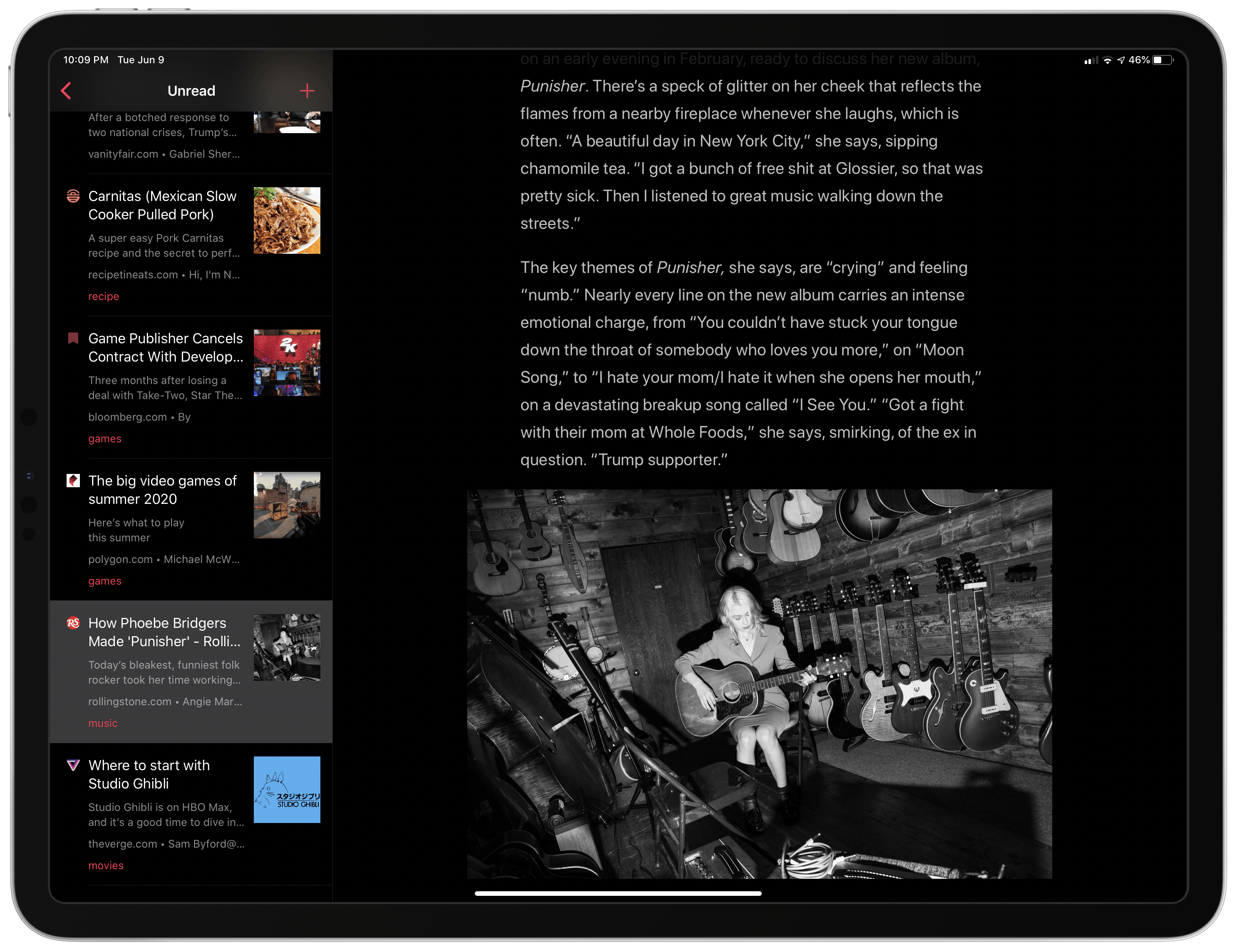
GoodLinks' main UI.

GoodLinks’ main UI.

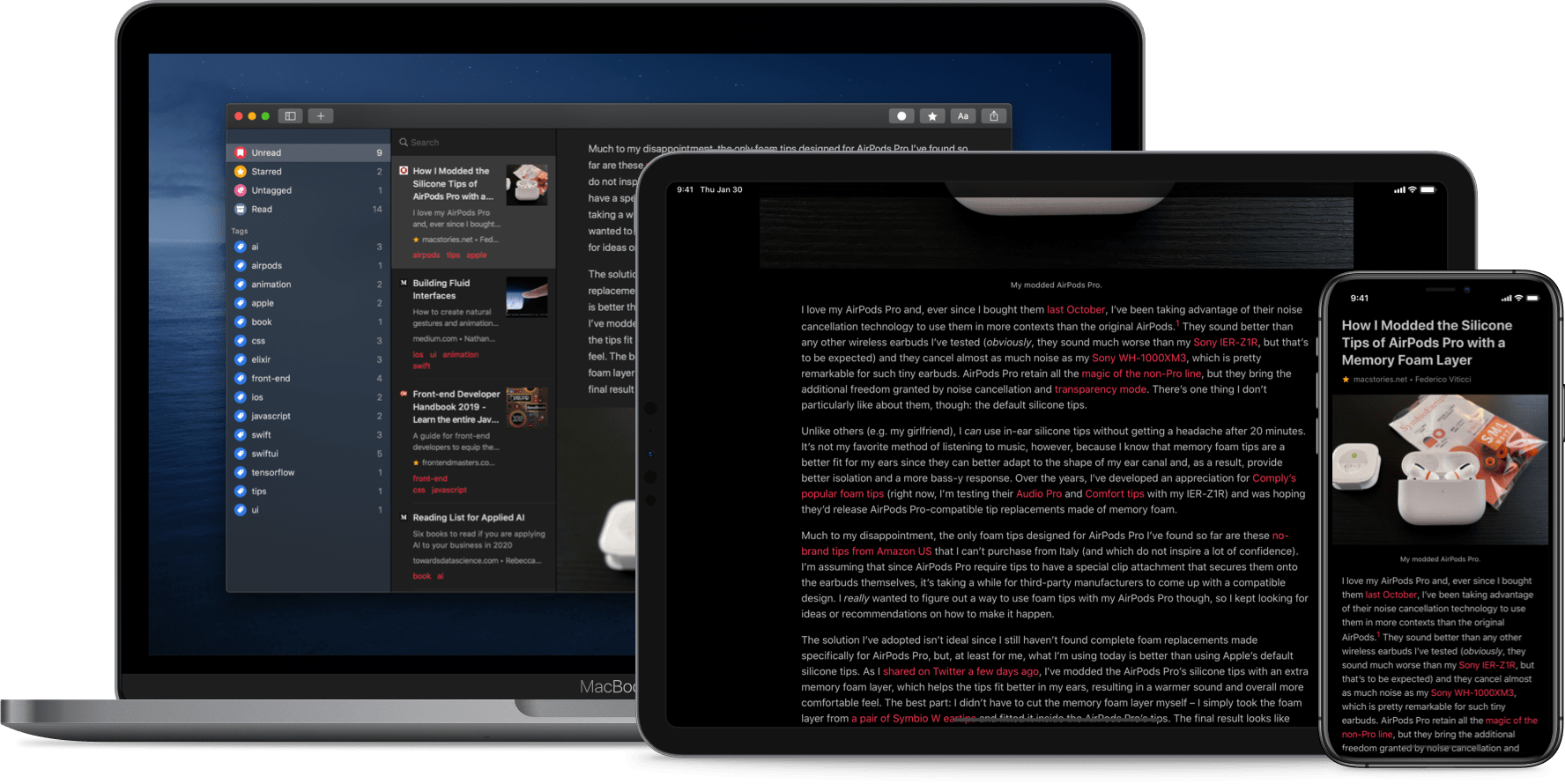
Since returning to Reeder for the RSS feeds I follow, I’ve been using its read-it-later service, which is terrific. We’ve also covered apps like Abyss and Readit in MacStories Weekly. Like GoodLinks, those apps use iCloud sync to keep articles you save synced across all the devices they support instead of using a developer-maintained web service. That’s a relatively new development for these sorts of apps, but the difference in this new generation of read-it-later apps runs deeper. New features of the OSes on which GoodLinks runs have breathed new life into the category, and its developer has taken advantage of these features to provide new utility to users.

Having settled into a comfortable Reeder workflow, I didn’t expect the way I manage links to be upended anytime soon. However, that’s exactly what has happened since I began using GoodLinks. What grabbed me is a versatility that stems from the fluidity of getting links into the app, managing them, and getting them out again. There’s built-in flexibility to GoodLinks that allows it to adapt exceedingly well to a wide variety of use cases. As with any 1.0 app, there’s room for improvement, but my wishes for GoodLinks are just that: wishes borne of enthusiasm for a terrific app that has quickly found its way into my daily workflow. Let’s dig into the details.

Read more


Our macOS WWDC Wishes

AppStories+ Deeper into the world of apps

AppStories Episode 167 - Our macOS WWDC Wishes

0:00
34:51

AppStories+ Deeper into the world of apps

This week Federico and John continue their WWDC wishes series with a look at macOS, including the bug fixes, system-level changes, and Apple app enhancements they would like to see at WWDC this year.

Read more