Ryan Christoffel

991 posts on MacStories since November 2016

Ryan is an editor for MacStories and co-hosts the [Adapt](https://www.relay.fm/adapt) podcast on Relay FM. He most commonly works and plays on his iPad Pro and bears no regrets about moving on from the Mac. He and his wife live in New York City.

Google Maps Adds Your Timeline, Directions Widget, and iMessage App

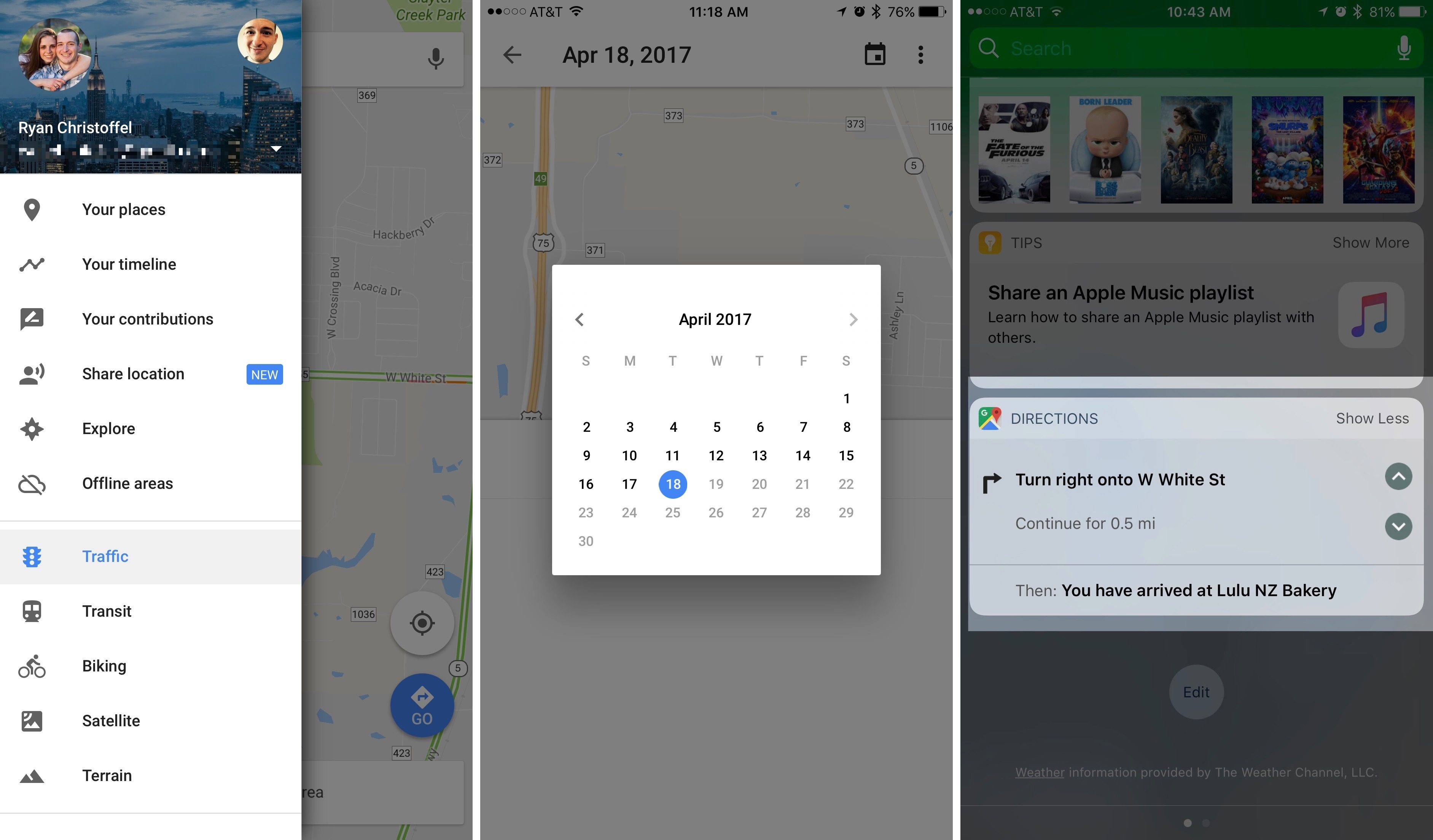
In its latest update, Google has added several new features to Google Maps for iOS. Most prominent among them is Your Timeline, a feature that has been available on the web and on Android since 2015, but is welcome nonetheless. Your Timeline keeps track of all the locations you’ve visited and allows you to easily view that travel history in one place.

Your Timeline is available in a couple of different locations within the Google Maps app. The primary way to access it is from the main menu, where it’s prominently listed near the top. The other place Your Timeline will appear is on the place cards of locations you’ve visited before. While viewing information about, for instance, a restaurant you visited on a prior vacation to London, you would see a label that tells you how long ago you last visited. Tapping that label will take you straight to Your Timeline and to the date of your visit, so you can easily view other exploits from your trip.

There are a couple of nice touches with Your Timeline that deserve mention. One is that you have the option to fully customize the information that’s logged in Your Timeline. Besides simply editing a location’s name or other basic details, you can also assign an activity to that trip. Options include ‘Boating,’ ‘Hiking,’ ‘Catching Pokémon,’ and many more. A second feature is that you can opt-in to receive monthly emails summarizing all the places you visited that prior month, which is a nice way to revisit and reflect on time past, and perhaps a source of encouragement to visit new places and try new things more often.

Although Your Timeline took almost two years to reach iOS, time has at least meant that it’s arrived well-polished.

The latest update to Google Maps also brought with it a new directions widget and an iMessage app. The directions widget provides directions for your current trip, allowing you to scroll through each step of the journey without needing to unlock your device. The new iMessage app serves only a single purpose: sending your static location to friends. Once you open the iMessage app, a still image of your current location is loaded up and available to send by message. It’s a simple utility, but perhaps some will find it useful.


Snapchat Introduces New AR Feature: World Lenses

One of the most popular Snapchat features since its launch has been Lenses, the AR tool that enables you to overlay photo subjects with all kinds of fun, sometimes wacky filters – you can make yourself or someone else look like a dog, bunny, or bumblebee, give them disproportionate features, colored hair, and more.

Today Snapchat has launched an expansion of its Lenses feature called World Lenses. Snap shares the news:

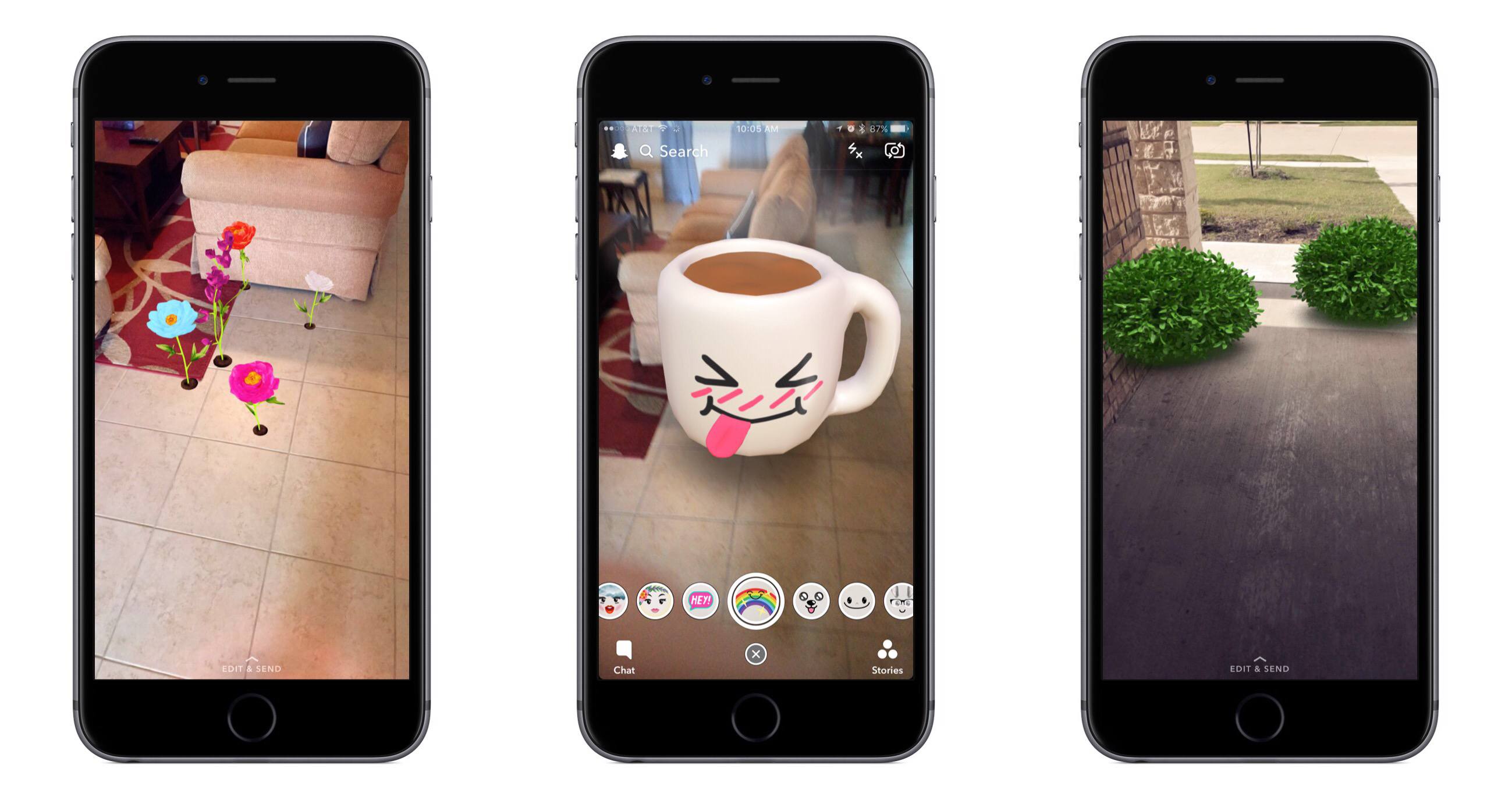
While Snapping with the rear-facing camera, simply tap the camera screen to find new Lenses that can paint the world around you with new 3D experiences!

There are a wide variety of Lenses available today, including floating bubbles, speech phrases, a house of mirrors-like effect, and more. Many of the Lenses contain several options within themselves – the speech phrases, for example, can be tapped on to cycle through alternate words and styles.

The current number of World Lenses available in the app seems healthy, but there are apparently many more in the pipeline. The Verge reports that the lineup of Lenses will change daily.

Snap has released a short video that shows World Lenses in action.


Instagram Adds Tools to Organize Saved Posts into Collections

Instagram has a new feature rolling out this week to enhance the current tool that enables saving other users’ posts:

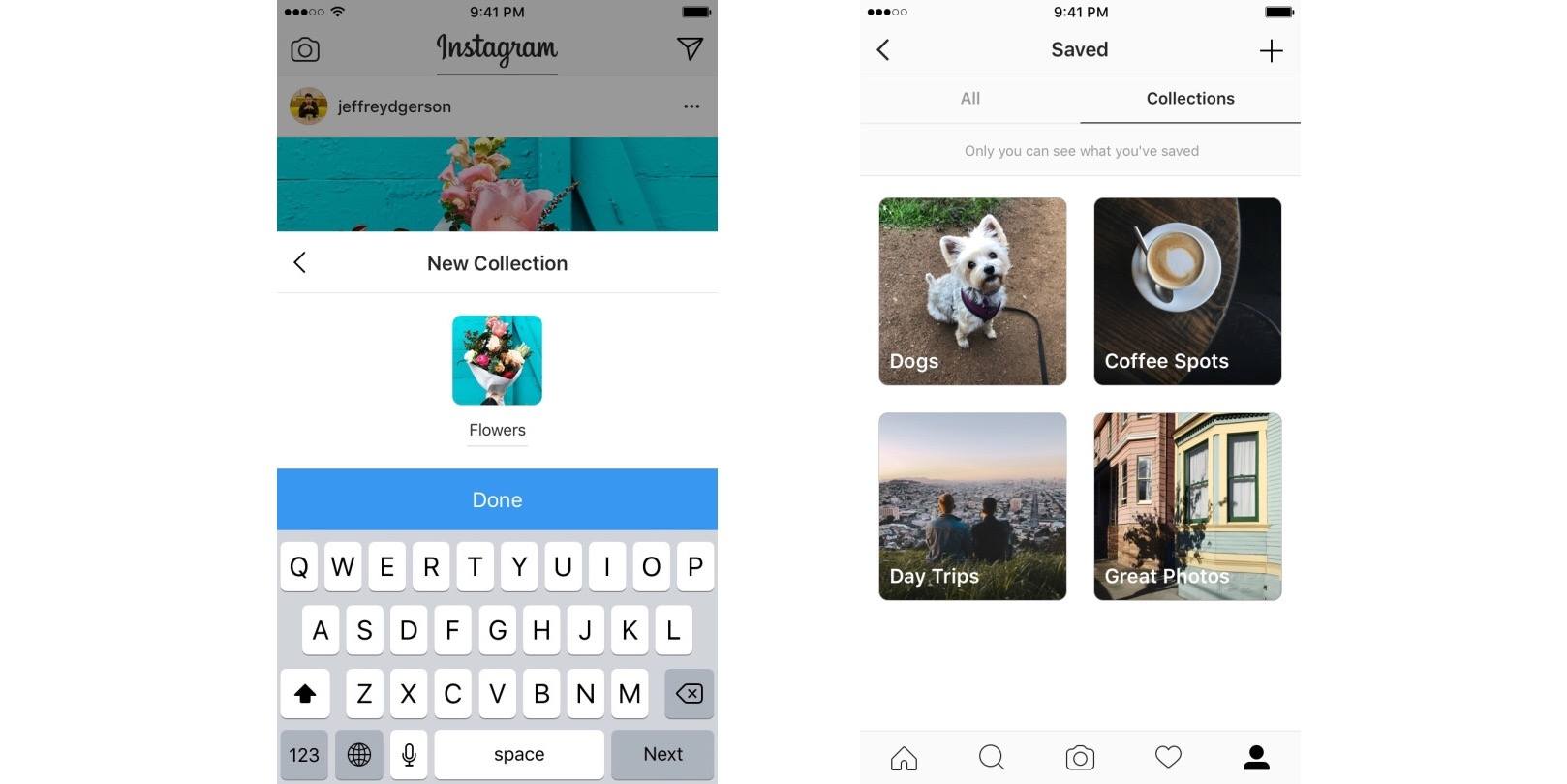
Starting this week, you can save posts into private collections. Tap and hold the bookmark icon underneath any post to save it directly to a collection. You can create and name a new collection when you save a post, or you can add it to one you’ve already created. You can also create a collection out of your existing saved posts. Tap the plus icon in the top right corner, give your collection a name and select the saved posts you’d like to add.

You can find your collections on the saved posts tab on your profile. Just like all saved posts, your collections are private — only you can see them.

While some of Instagram’s biggest new features of late have appeared focused on targeting Snapchat, the ability to save and organize posts into collections brings Instagram closer into Pinterest’s space. Although all collections of saved posts are private at the moment, it wouldn’t be too surprising to see a future option to make select collections public.

Permalink


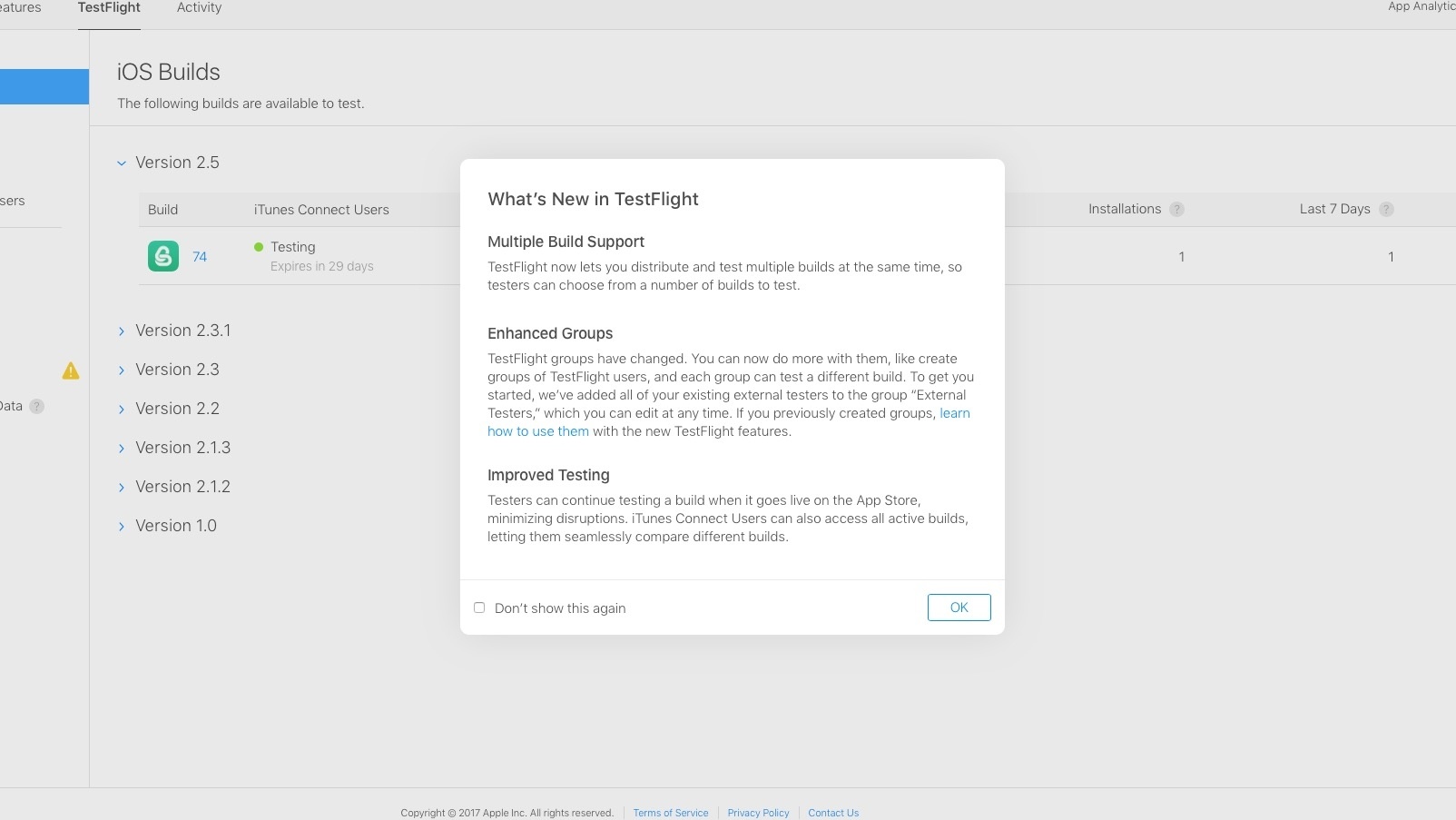
Apple Updates TestFlight with Improved Testing Options

Yesterday Apple launched TestFlight 1.5 on the App Store. The update’s release notes didn’t highlight any specific changes, but developers are discovering today that its release was timed with a few major updates.

Developers can now create different builds of an app to be distributed to different groups of testers. These changes will make A/B testing of apps possible for the first time, so developers can gauge feedback from different groups who are testing different versions of the same app.

Multiple builds can also be distributed to the same people so that testers can choose from a variety of builds that they wish to test.

https://twitter.com/stroughtonsmith/status/851837283900825600

Longer testing periods is another change – up from 60 days to 90 days. These are not yet noted in Apple’s official documentation, so they are likely still in the process of rolling out. Developers we’ve spoken with as well as the MacStories team have been able to see builds with an expiration time of 90 days.


Starbucks Launches New iMessage App with a Giveaway

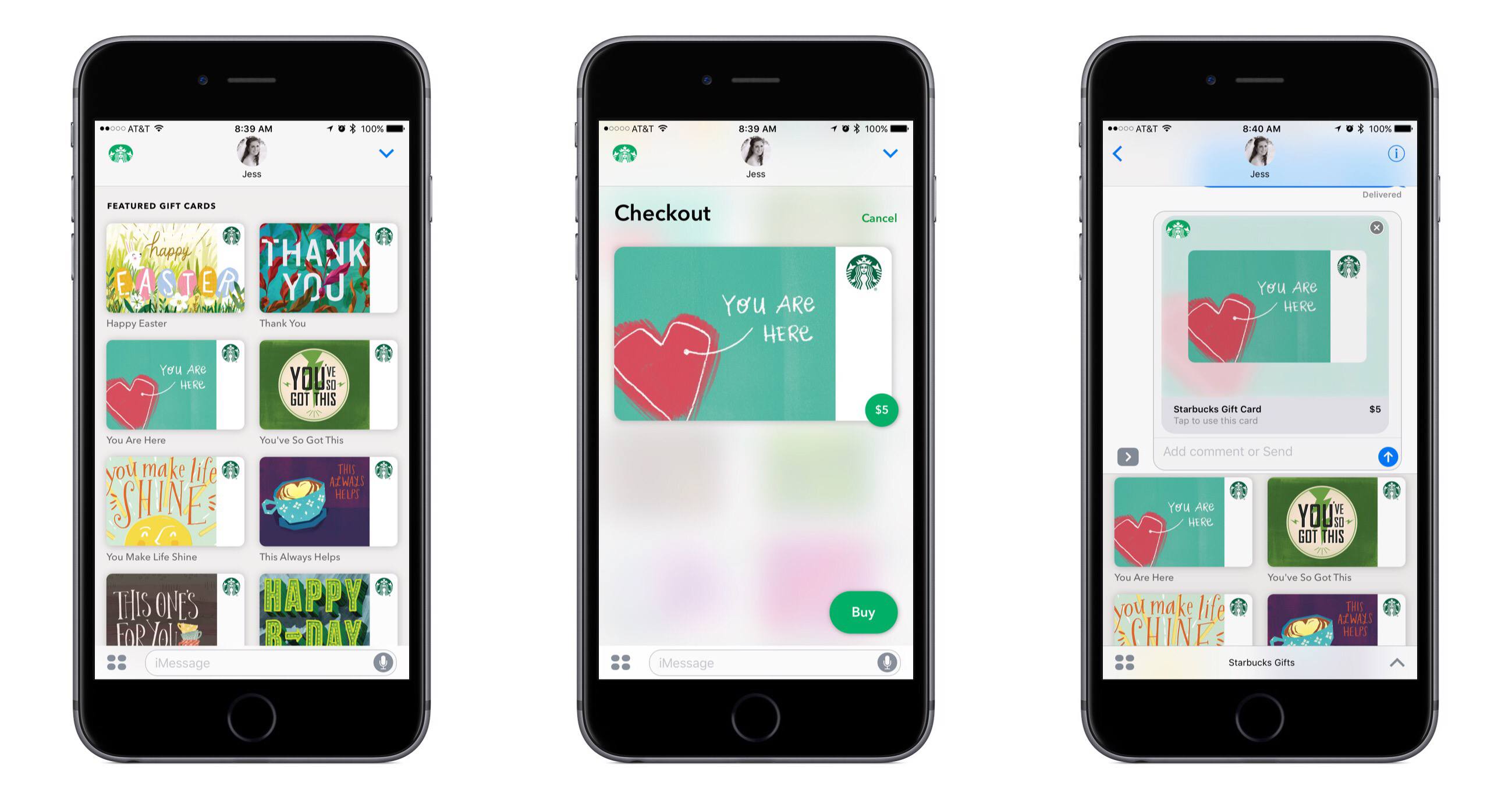
Starbucks launched a new iMessage app recently, and yesterday they announced a nice incentive for users to give it a try:

Now you can send Starbucks Gifts with iMessage with Apple Pay. Be one of the first to send a $5 or more Starbucks Gift via iMessage and receive a $5 Starbucks Gift for yourself - while supplies last.

The promotion ends on April 23rd, or after 45,000 people have taken advantage of it – whichever comes first.

The process of sending a gift card through iMessage is extremely simple. Assuming you already have Apple Pay setup on your device, you just select the style of gift card – options include things like ‘Congrats,’ ‘Thanks So Much,’ and ‘Happy Birthday’ – select a quantity of $5, $10, or $25, then hit ‘Buy’ and authorize Apple Pay. The whole process takes mere seconds.

While the idea of sending gifts through iMessage had never occurred to me before, Starbucks has convinced me that it can be a great experience.

Permalink

‘The Most Important Computer in History’

Kurt Schlosser, writing for GeekWire:

The Living Computers: Museum + Labs in Seattle is home to some of the most noteworthy machines ever created. But a new exhibit opening this week will showcase what one official at the Paul Allen-founded institution called “the most important computer in history.”

Lāth Carlson, executive director of Living Computers, added to that designation by saying the metal box with a keyboard is “also the most boring to look at.” But for fans of computing and Apple in particular, the Apple I that once sat in founder Steve Jobs’ office is exciting for a whole host of reasons.

The piece states that only about seven Apple I computers remain operable today, and Living Computers’ model is one of those seven. Carlson shares, “We’re going to be running Steve Wozniak’s version of BASIC that he wrote on it.”

If you’re in the Seattle area, it sounds like a great exhibit to check out.

Permalink