Ryan Christoffel

992 posts on MacStories since November 2016

Ryan is an editor for MacStories and co-hosts the [Adapt](https://www.relay.fm/adapt) podcast on Relay FM. He most commonly works and plays on his iPad Pro and bears no regrets about moving on from the Mac. He and his wife live in New York City.

Defining Apple’s Decade

Benjamin Mayo of 9to5Mac has published an excellent journey down memory lane of Apple’s last decade:

Apple entered the 2010s just as the iPhone began to explode in popularity. The iPhone became the most successful consumer product, ever. Sales surged for another five years and still make up a majority of Apple’s revenues. However, we exit the decade with the iPhone making up a smaller portion of Apple’s business than ever before, as the company diversifies into strong lineups of wearables, tablets and services offerings.

But nothing is a simple straight line. Apple had to graduate through the passing of its founder, juggle relationships with an ever-expanding list of consumer and professional market segments, and adapt to the public attention and scrunity that only comes along as a consequence of being the biggest company in the world. This is a decade in Apple, on one page.

Mayo’s first Apple product was an iMac in 2010, so the timeframe of the decade lines up with his own initial interest in Apple, leading all the way to today, when he’s one of the most prominent Apple reporters. I always enjoy reading Mayo’s perspective on Apple, so it was especially fun getting to hear his personal takes of the biggest moments of the company’s past decade. If you want to spend time basking in the nostalgia of Apple’s last 10 years, Mayo’s story is a great way to do that.

Permalink

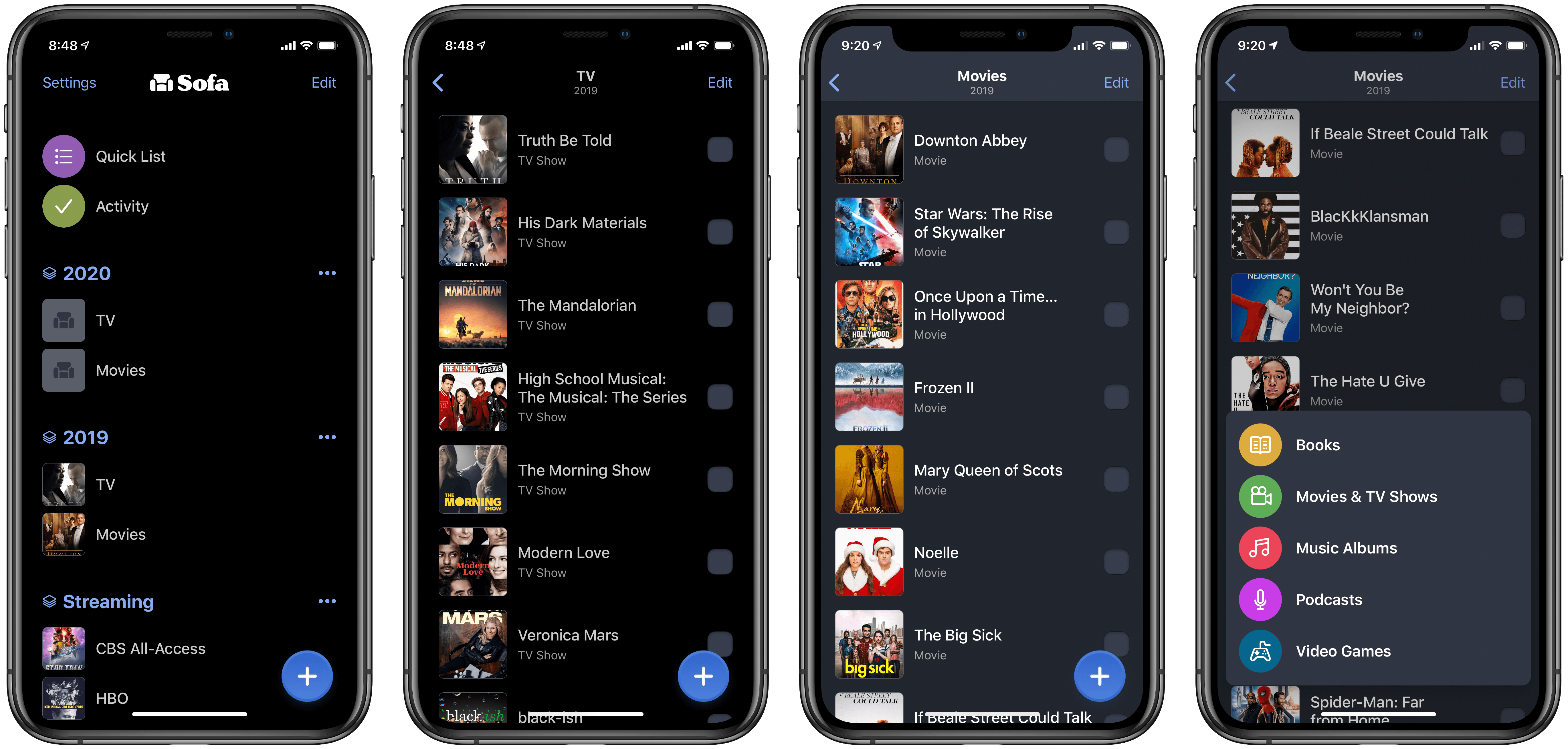
Using Sofa to Track TV Shows and Movies Watched in 2019

As December comes to a close, now is the perfect time to reflect on how the year was spent, both with deep existential questions but also lighter, fun matters – such as surveying your TV and movie consumption over the year. Until recently I didn’t have a system I was satisfied with for tracking my viewing history, but now I’ve settled on Sofa.

Read more


Tech Life Improvements in 2019

One of my favorite things to do as each year ends is reflect on how life went over the last 365 days, asking what’s changed since the end of the prior year, if I’ve made progress toward goals in that time, and if there are any directional shifts I should make moving into the new...


MacStories Selects 2019 Honorable Mentions

Earlier this week we recognized the year’s best apps, updates, features, and more in our 2019 MacStories Selects awards. As always, though, despite how many different apps we were able to highlight – 20 this year – there are always plenty of excellent runners-up that are left out. That’s where today’s Collection comes in: although...


Things’ Quick Find Feature Upgraded Across iPhone, iPad, and Mac

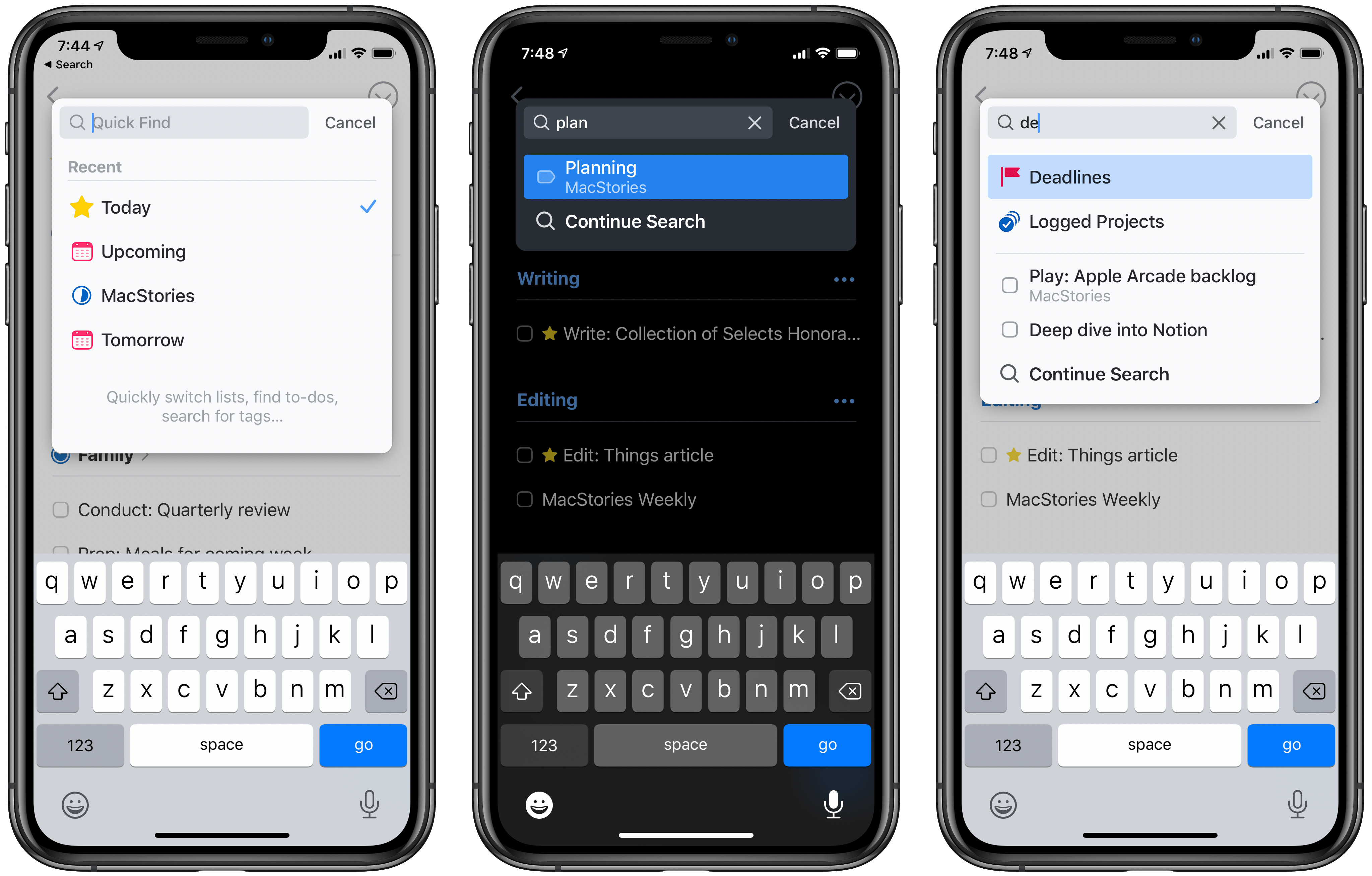
Today the popular task manager Things was updated with several small, but noteworthy enhancements to its Quick Find feature across iPhone and iPad versions, with the Mac update arriving shortly. There’s a convenient new way to access Quick Find, recent lists are now displayed automatically, headings can be searched, and there are a variety of new lists that Things recognizes as search parameters.

One of my favorite details in Things is the ability to pull down from the top of a list to open Quick Find; the matching animation is lovely, and it’s accompanied by a perfect touch of haptic feedback on iPhone. Sometimes though, getting back to the top of a long list can take too long, so now you can simply tap a list’s name, which perpetually sits at the top-center of the UI, and Quick Find will immediately open. Also, the Quick Find window now always displays the four most recent lists you’ve visited; whether you searched for those lists or just accessed them from the sidebar menu, you’ll always see your last-visited lists in the search box.

The other big improvement to Quick Find is the new search parameters it now accepts. There are changes here in two areas: headings and special lists. Headings are an organizational tool you can use to sort your Things projects into divided sections; essentially, they’re a lightweight additional option for organization. Previously, none of your created headings could be searched in Quick Find, but that issue has now been remedied. Any and every heading you create in a project can be surfaced in Quick Find.

Things now offers a handful of special lists that aren’t accessible from the sidebar, but only through Quick Find. These include the following:

  • Tomorrow: Like Today, but for tomorrow’s tasks.
  • Deadlines: All tasks with deadlines.
  • Repeating: All repeating tasks.
  • Logged Projects: Completed projects, including completion date for each.
  • All Projects: Every current project.

Searching for any of these lists will grant easy access to them. I only wish Things provided the option to add one or more of these to the sidebar; hopefully a customizable sidebar is in the cards for Things in 2020.

Historically, iPhone and iPad apps haven’t been as feature-rich as Mac apps when it comes to search functionality. Where Mac apps often enable very granular search options, and power user features like saved searches, search on the iPhone and iPad is typically a bare-minimum approach. For that reason, it’s exciting to see the team behind Things devote a whole update to making search better, not only on the Mac, but across all platforms. Just as it did last year with keyboard shortcuts on the iPad, Things sets a strong example of pushing an oft-neglected iOS feature forward to be on par with its Mac equivalent.

Things is available on the App Store for iPhone, iPad, and Mac.


Apple Podcasts Now Available on Amazon Alexa Devices

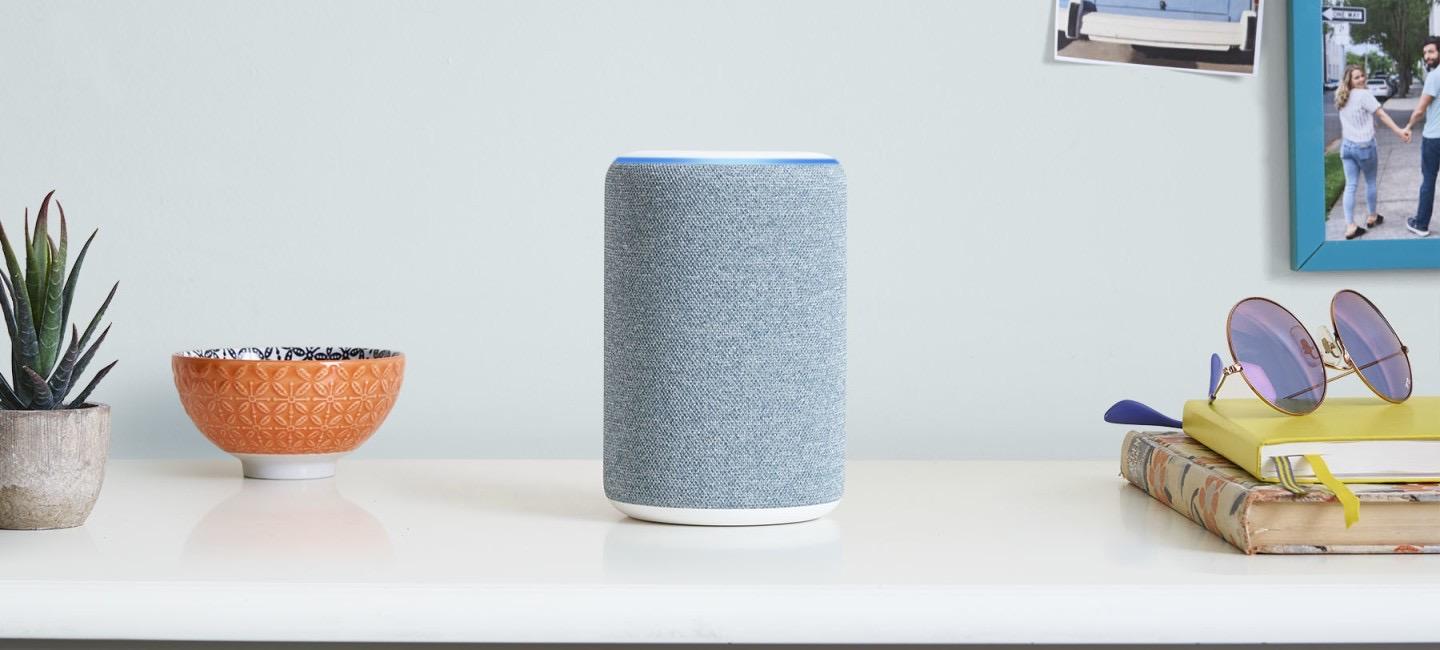
Amazon today has announced a new partnership with Apple that brings the full Apple Podcasts catalog to all Alexa-enabled devices in the U.S.:

Beginning today, Alexa customers in the U.S. will be able to listen to more than 800,000 podcasts available through Apple Podcasts on their Alexa-enabled device.

Whether you’re listening at home or on the go, you don’t need to worry about losing your spot. Link your account in the Alexa app using your Apple ID, and you can seamlessly pick up where you left off listening on the Apple Podcasts App or your Alexa device. Pause the subscribed episode you’re listening to in the Apple Podcasts app on your commute, and continue listening with your Alexa device at home by asking Alexa to resume the podcast.

When you first start using Apple Podcasts on an Alexa device, you’ll need to specify “on Apple Podcasts” in your command; for example, “Alexa, play The Daily from yesterday on Apple Podcasts.” However, you can remove that requirement by setting Apple as your default podcast provider.

If you’d like to make Apple Podcasts your preferred podcast provider with Alexa, you can set Apple Podcasts as your default podcast provider in the Alexa app. To do so, open the Alexa app, go to Settings, select Music & Podcasts, and link/manage new services. Then, each time you request a podcast, we’ll prioritize playing it from Apple Podcasts if it’s available.

This announcement marks a major expansion of Apple Podcasts and the latest evidence of Apple’s multi-platform services strategy. Just last year, Apple Music arrived on Alexa devices, and earlier this fall the Apple TV app debuted on Amazon Fire TV. Those two moves were in some ways less surprising than this one though, since they both involved granting access to Apple’s paid services, Music and TV+. Apple Podcasts, on the other hand, is entirely free, at least at the moment. Rumors have indicated Apple may be funding some exclusive new podcast content, but it’s unknown whether that will be part of a forthcoming paid subscription service, or simply an added perk of using Apple Podcasts.

Spotify this past year has made significant moves in the podcasting space, and it’s likely that their efforts, which have developed real momentum in the market, are propelling Apple to invest more heavily in its own podcast ecosystem – great news for users.


App Wish List for 2020

2019 isn’t quite over yet, but that’s no reason to hold off sharing wishes for the new year that’s rapidly approaching. Yesterday on Adapt, Federico and I shared our iPad wishes for 2020, and for the Club today I wanted to take my wishes in a related, but more pointed direction, focusing on app trends...


iPad Keyboard Shortcuts When Tapping Links in Safari

If you’re an iPad user, Safari is probably one of the most common apps you use, making it all the more valuable to know all the tips and tricks Apple has packed into the app. Particularly following its big update in iPadOS this year, Safari offers a lot of keyboard shortcuts, and there are...


Twitter Adds Support for iOS Live Photos by Making Them GIFs

Twitter today announced long-overdue support for iOS Live Photos. Rolling out now on all compatible platforms, whenever you add a Live Photo to a tweet you’re composing, you’ll see a new GIF button in the corner of the image. By default the button is crossed out, indicating the Live Photo will be shared as a still image. However, with a single tap you can choose to share your Live Photo as a GIF instead.

https://twitter.com/twitter/status/1204827212731625473

Live Photos first debuted in 2015 alongside the iPhone 6s and 6s Plus, but there were plenty of questions at the time about whether the feature would be adopted by social media services or not. For Twitter we now know that the answer was yes, eventually.

I think turning Live Photos into GIFs is a great idea, especially since Twitter auto-plays GIFs by default as you scroll your timeline. Not every Live Photo deserves to be converted to a GIF, which is why I’m glad the feature isn’t on by default, but being able to change that with a single tap is a nice option to have.