Ryan Christoffel

991 posts on MacStories since November 2016

Ryan is an editor for MacStories and co-hosts the [Adapt](https://www.relay.fm/adapt) podcast on Relay FM. He most commonly works and plays on his iPad Pro and bears no regrets about moving on from the Mac. He and his wife live in New York City.

Google Integrates Assistant App with Siri Shortcuts on iOS

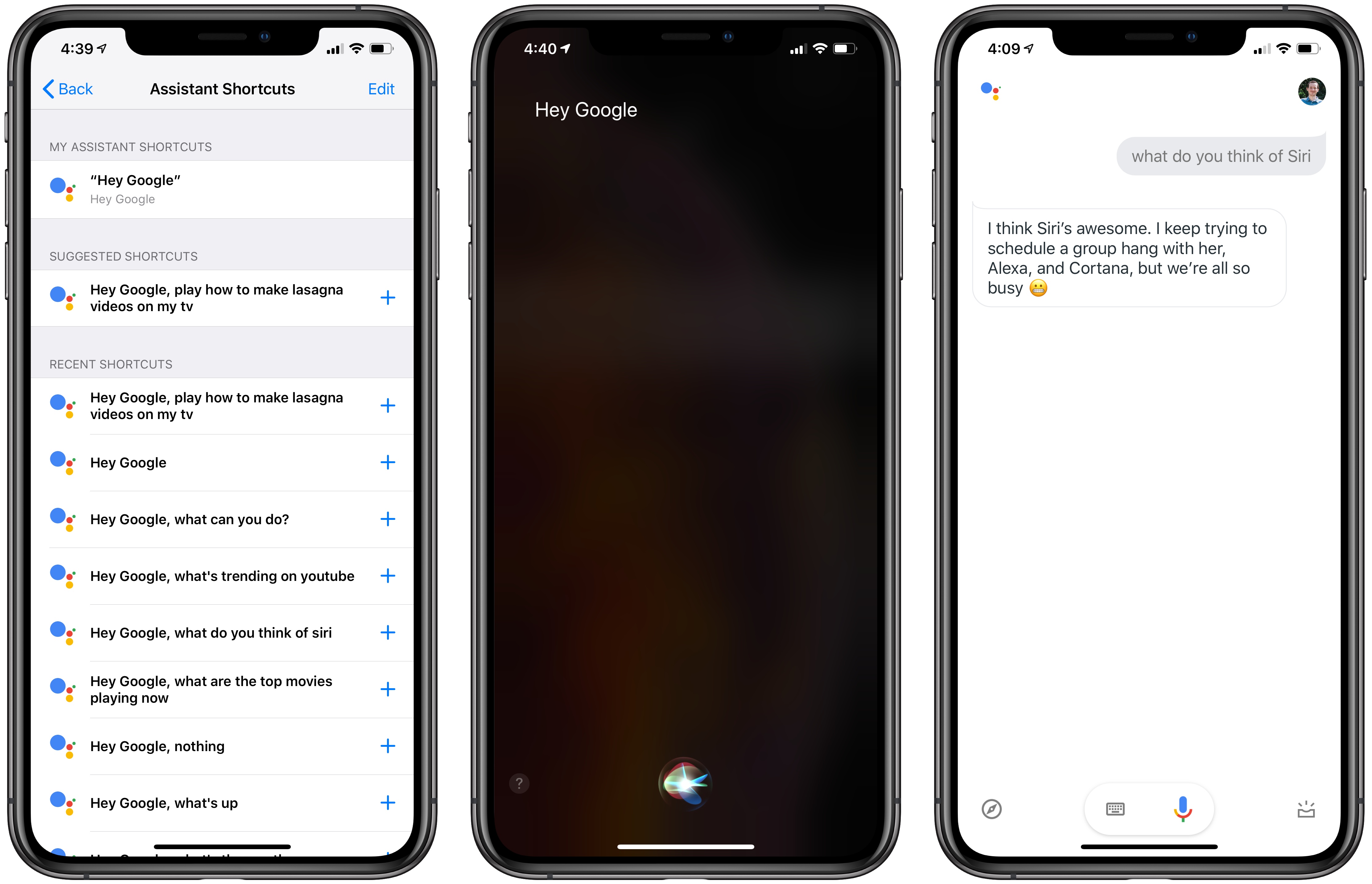
Google released an exciting update for its Assistant iOS app today, bringing support for Siri shortcuts and, for the first time, opening lines of communication between the two competing assistants.

Siri and the Google Assistant have historically been unable to work together in any way, but thanks to the opening up of Siri via shortcuts in iOS 12, that changes now. With the latest update, you can set up a shortcut in iOS to immediately, via Siri, trigger any command you’d like to give Google’s Assistant.

Read more


My Today at Apple Experience

It took nearly 18 months of Apple’s regular Today at Apple promotions through keynote events and press releases, but I finally had my interest in the program piqued. As I wrote earlier this month, whereas every other Apple product is analyzed to death by writers, podcasters, and YouTubers, the company’s retail stores and Today at Apple program are often ignored by tech media. But Apple’s increased trumpeting of its retail initiatives, in the face of a collective shrug from the press, made me wonder what exactly we’re all missing out on here. I mean, if the company is passionate enough about Today at Apple to host over 18,000 sessions per week, then there must be something special about the program.

So I attended my first session.

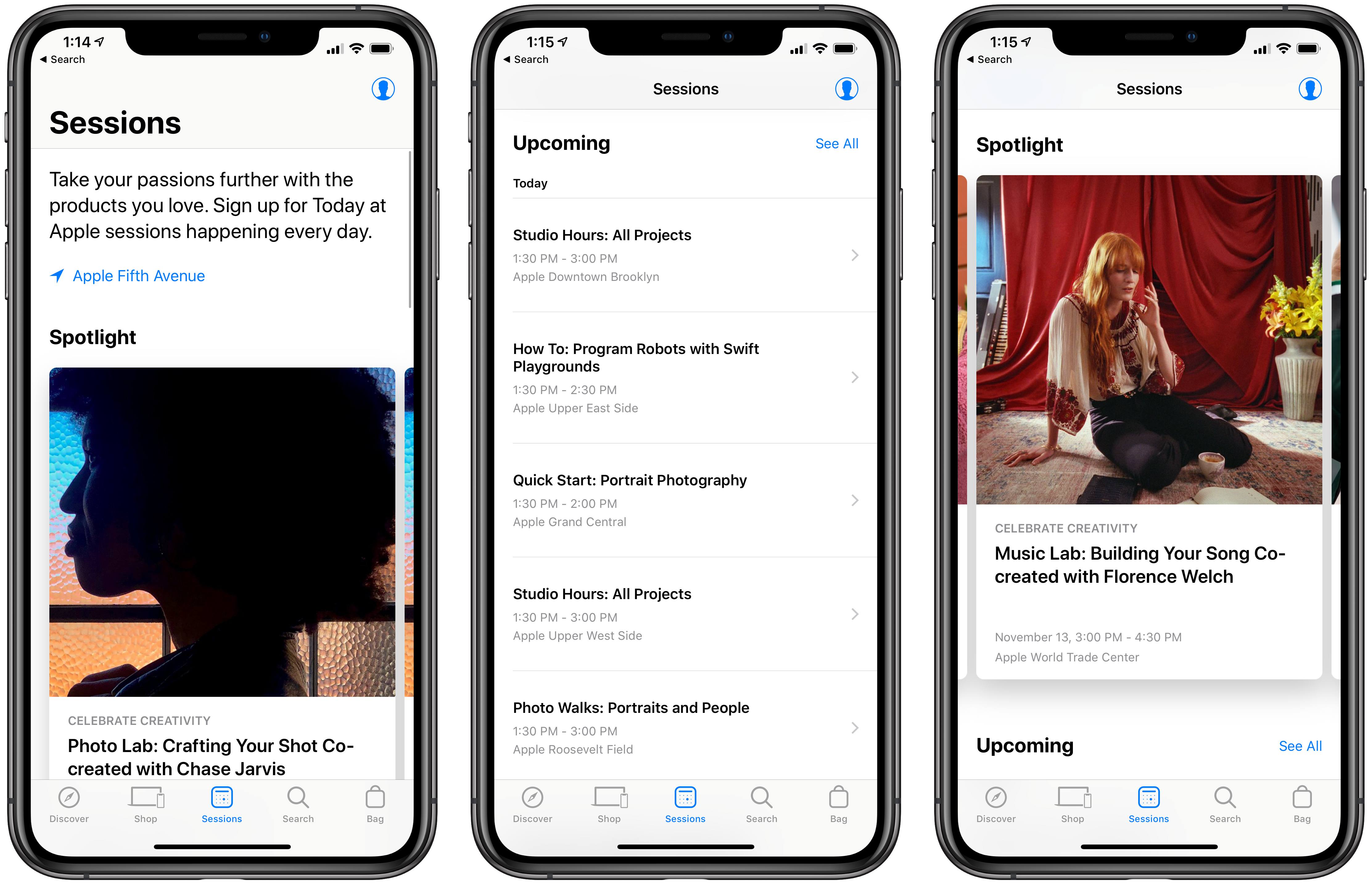
Last Monday morning I opened the Apple Store app and booked a session at Apple Fifth Avenue called “Photo Lab: Crafting Your Shot Co-created with Chase Jarvis.” As I suspect is true of most iPhone owners, I love taking pictures with my phone, but I know absolutely nothing about the ins and outs of quality photography. As a result, the Photo Lab session seemed like a great place to start.

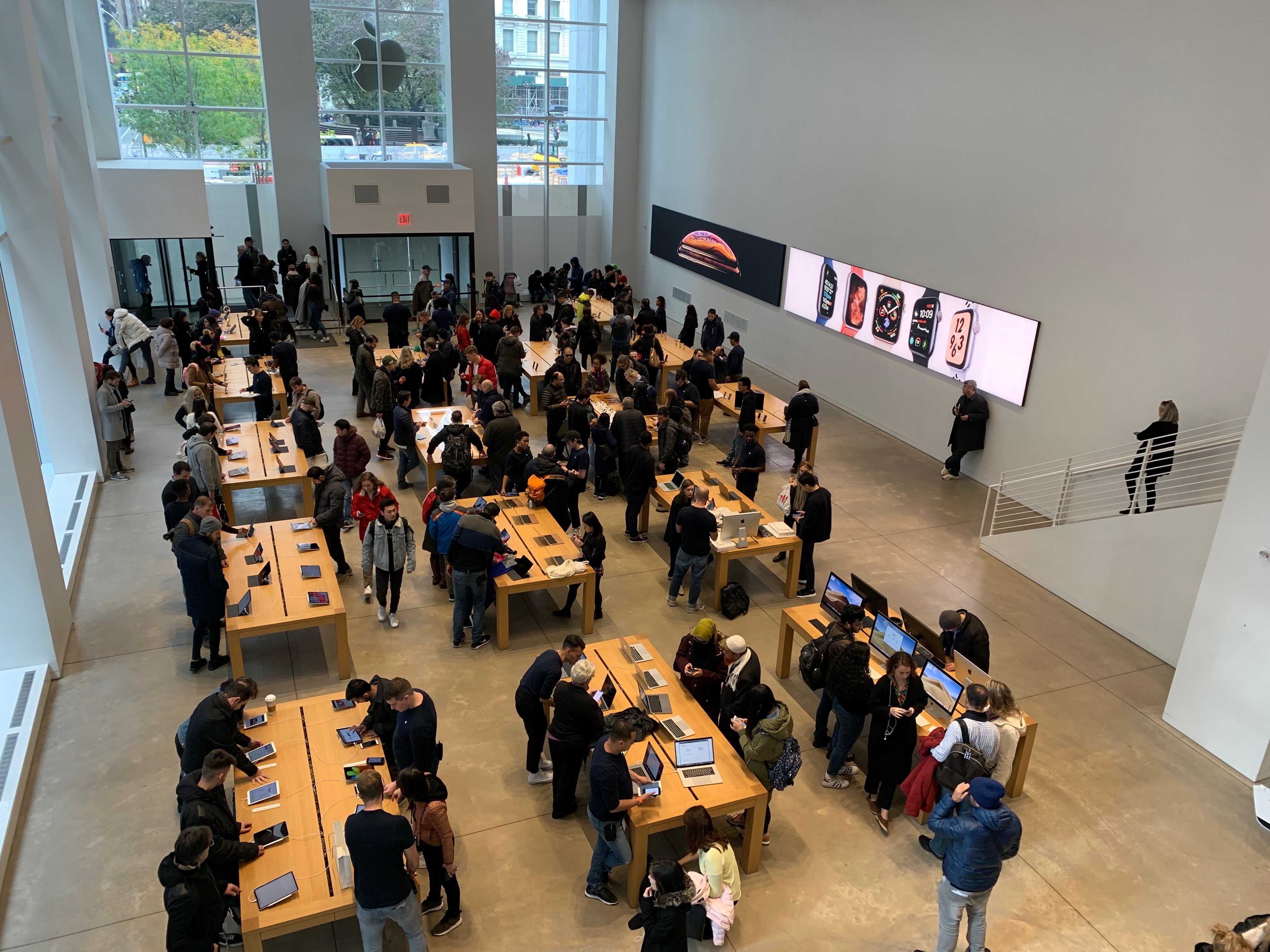
Much of the time when Apple promotes Today at Apple, it highlights sessions taking place in its global flagship stores, with beautiful open forums and enormous wall displays. My experience was a lot more low-key, as the Fifth Avenue location is currently approaching two full years in temporary housing as major renovations to its previous location near completion. While the revamped Fifth Avenue store will undoubtedly come with all the beauty and grandeur of locations like Michigan Avenue and Regent Street, for now the site lacks all those modern bells and whistles; rather than taking place in a forum, my Today at Apple session took place around a small table that sat eight participants.

I’m not going to get much into the specifics of the session’s contents, which were solid overall; instead, I want to share three simple takeaways from this first Today at Apple experience. They’re the three main things that were on my mind following the session, and after rewatching portions of Apple’s October event in Brooklyn, I realized that my takeaways actually line up with statements shared by executives at the event.

Read more


Pocket Casts 7: A Host of Improvements Make the App Feel Brand New

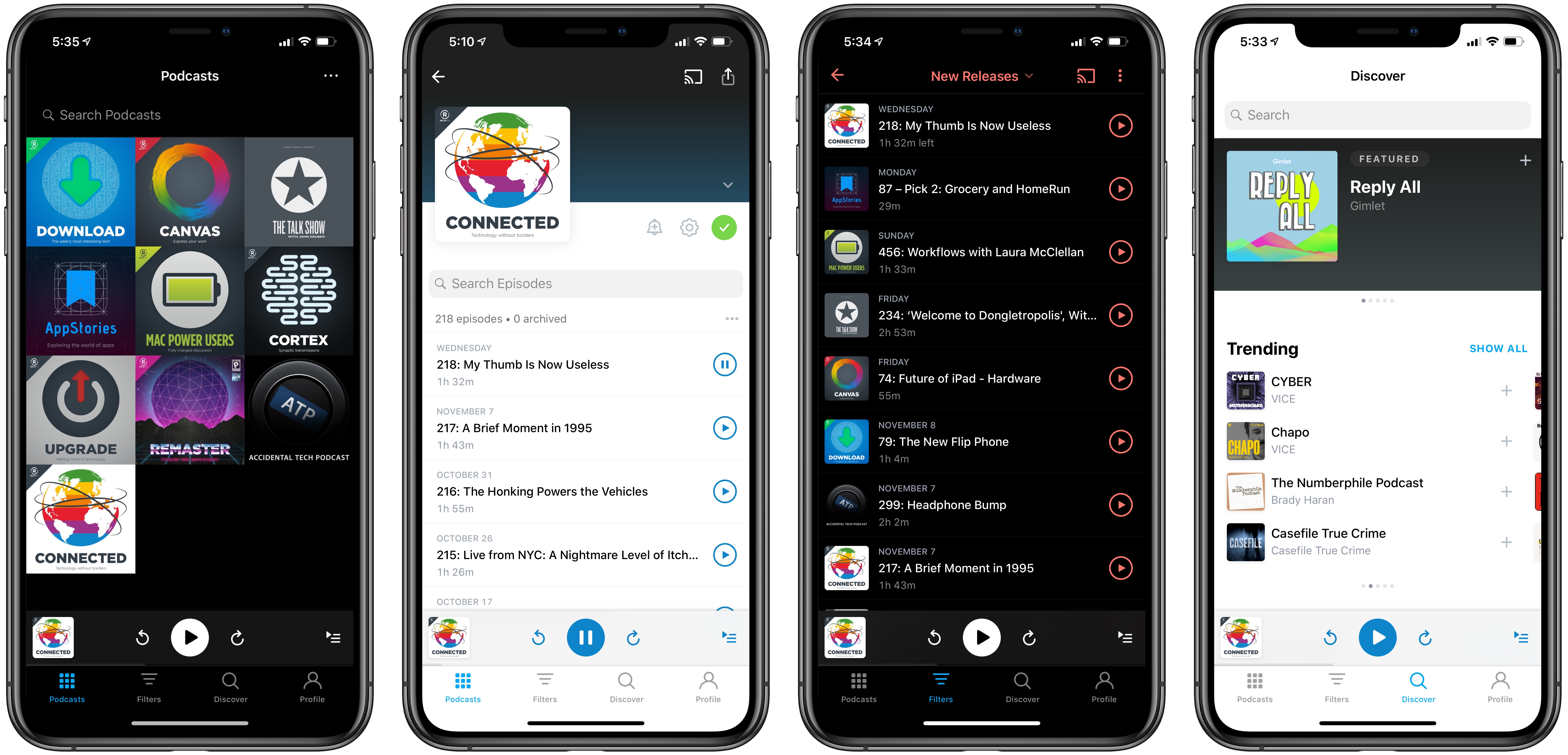
It’s been over two years since the last major version of Pocket Casts debuted. A lot has happened in the podcasting world since then, including Pocket Casts itself being acquired by a consortium of radio stations and podcast companies. The app has also faced strong competition from alternatives like Overcast and Castro. Pocket Casts remains one of the best third-party podcast clients on iOS, but it has started to show its age of late. Updates to the app over the last year have been fairly minor and unimpressive. In hindsight though, it’s easy to understand why: the app’s development team has been plugging away on a major new update that’s officially launched today.

Pocket Casts 7 makes the podcast client feel modern again. It introduces a new design alongside important features like Siri shortcuts and AirPlay 2 support, Up Next syncing, episode search, Listening History, and a lot more. If you haven’t given the app a try in a while, now is definitely the time to do so.

Read more


Spotify Debuts on Apple Watch, Promising Advanced Features Still to Come

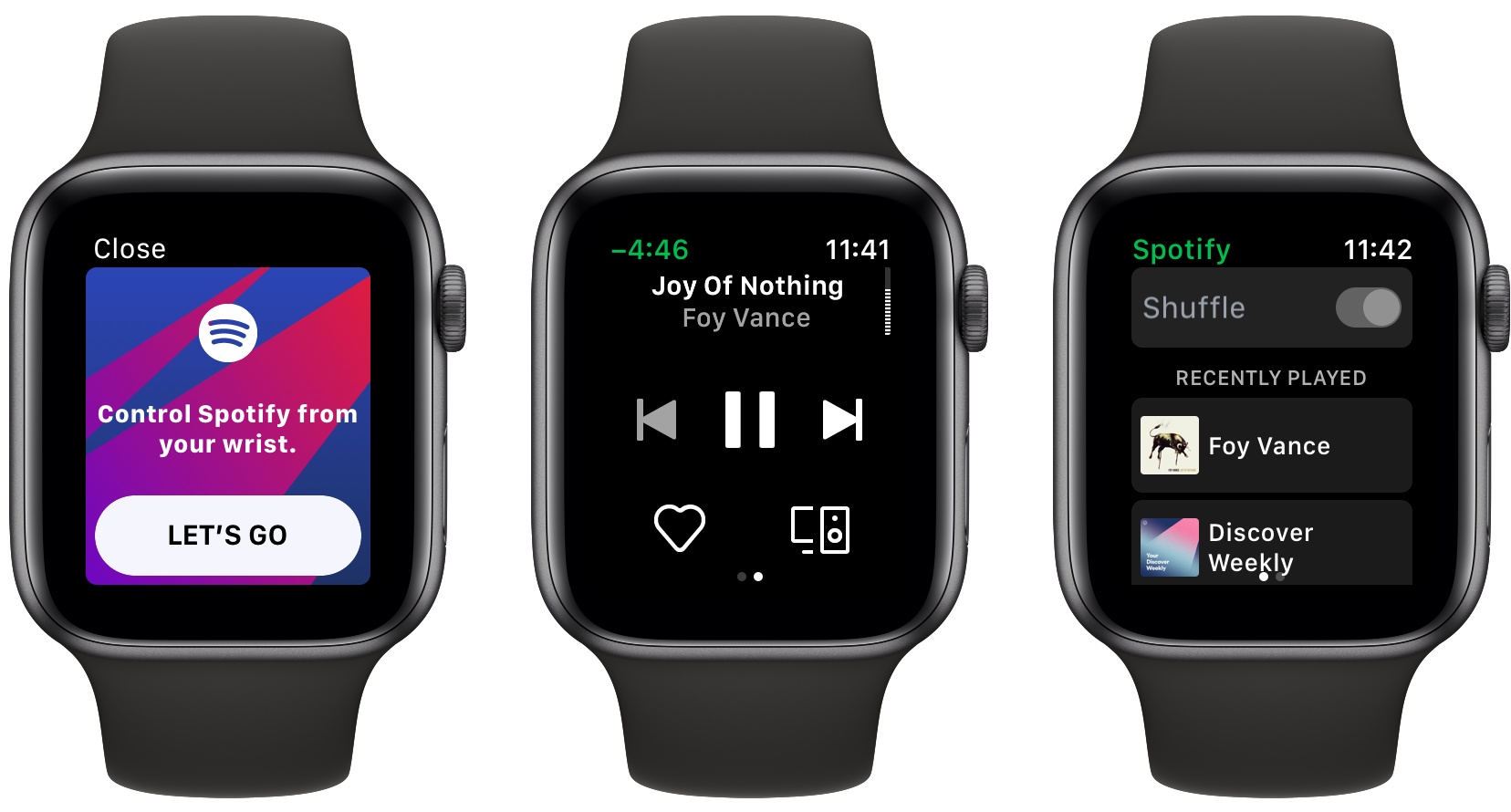
The latest version of Spotify for iOS has been released, and it includes the music player’s first Apple Watch app. The App Store release notes stress this is merely a “first version” of the Watch app, which is reassuring considering how limited the app is now.

Spotify’s Watch app currently serves as a way to start playback of recently played music, and control that playback via play/pause, skip, and volume controls. You can also choose a connected device to send music to, and like a song to add it to your collection. And that’s it.

As a 1.0, Spotify’s Watch app covers the basics well. I’m especially pleased that volume control via the Digital Crown is enabled here. Spotify has designed its own custom volume indicator, visualized as a vertical dotted line in the upper right corner of the screen, and it’s especially satisfying to see each area of the line fill in sync with the haptic clicks of the Series 4 Watch’s Digital Crown.

One strikingly disappointing oversight is that Spotify isn’t optimized for the new 40 and 44mm Series 4 displays, as you’ll notice in the framed images above. Launching two months after new devices debut, but without support for those devices, is not a good look. I’m hopeful we won’t have to wait long for that issue to be remedied, though. In its announcement post for the Watch app, Spotify candidly acknowledged that there’s plenty more work to be done to create the best Watch experience – “we have many exciting things coming up —including the ability to listen to your music and podcasts offline.” Surely support for modern Watch displays is one of those ‘exciting things.’


Reminder and GoodTask: Third-Party Upgrades to Apple’s Reminders

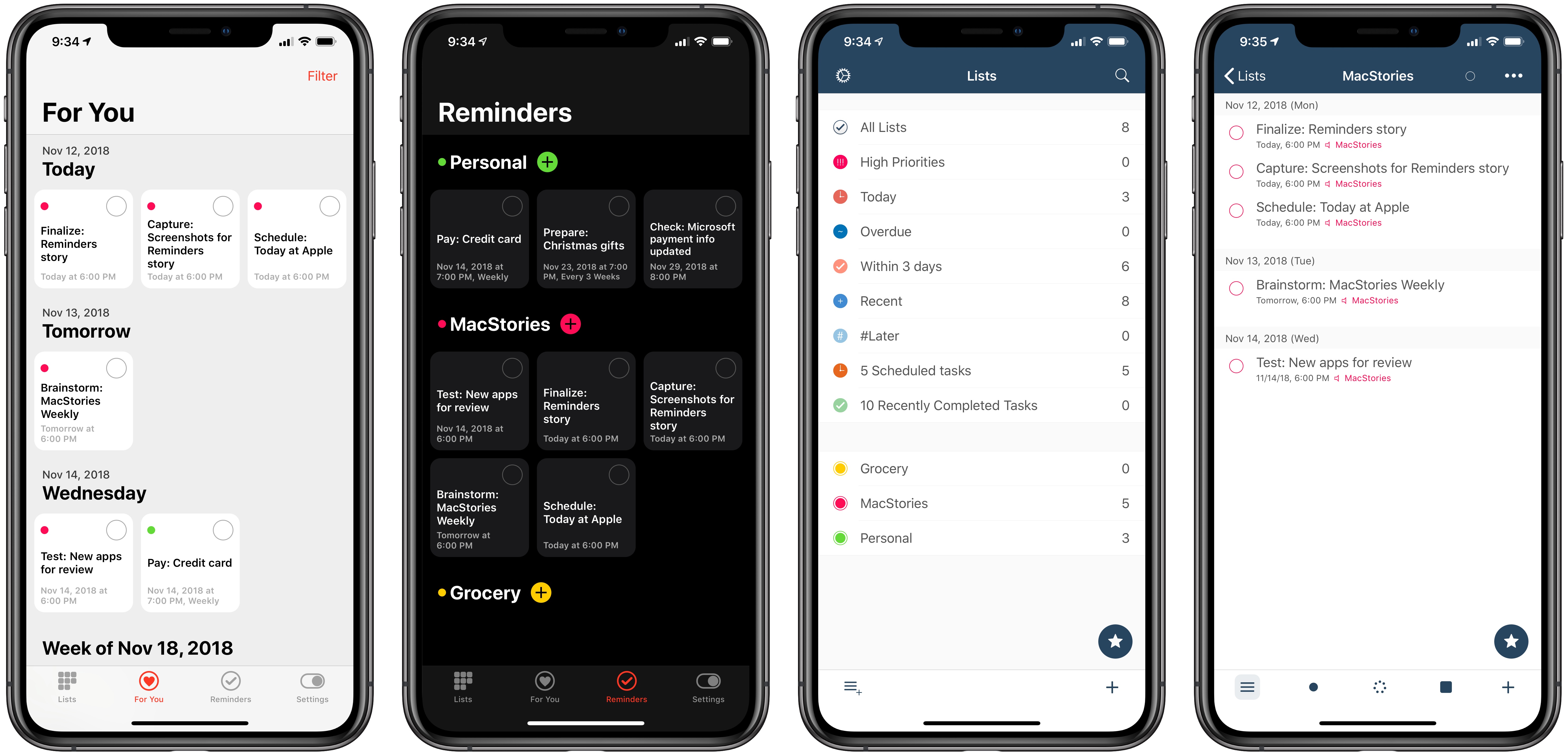
Reminder (left) and GoodTask (right)

Reminder (left) and GoodTask (right)

Apple has long prided itself on being a company that carefully weaves hardware, software, and services together to offer a holistic user experience. Because of this, every purchaser of Apple products benefits from the built-in apps and services that accompany those products. And on the two most popular sellers, the iPhone and iPad, one of those bundled apps is Reminders.

At its core, Reminders is a simple list and to-do app that can be surprisingly powerful thanks to features like repeating tasks, location-based reminders, collaborative lists, and note support. Many times over the years Reminders has been my primary task manager and served me fairly well. It may not be as capable as alternatives like Things, but the app remains an appealing tool for those whose needs are light, and who value the ease afforded by Apple’s built-in ecosystem.

Unlike most of Apple’s other iOS apps, Reminders is built on a framework that’s accessible to third-party developers. Though developers can’t build apps that hook in directly with your Messages or Notes databases, Reminders is a different story. The underlying system powering Reminders is calendar-based, meaning it’s not tied to a single first-party app. Just as Fantastical and Timepage offer access to your existing iCloud calendars, developers can similarly build entire replacements for the Reminders app utilizing your existing collection of lists and to-dos. Two such apps, Reminder and GoodTask, serve as perhaps the best third-party Reminders clients on the App Store.

Each app takes a different approach to enhancing Reminders, with one focusing on modern design while the other offers power user features and flexibility; both, however, retain some of the benefits of staying in the Apple ecosystem while improving upon the first-party Reminders app.

Read more


Apple’s Clips Introduces New Selfie Scenes, Filters, and More

On launch day for the new iPad Pros, which feature the iPhone’s TrueDepth camera system for the first time, Apple has upgraded its Clips video app with new features that take advantage of TrueDepth’s power. Today’s update also brings new camera filters, posters, stickers, and soundtrack options.

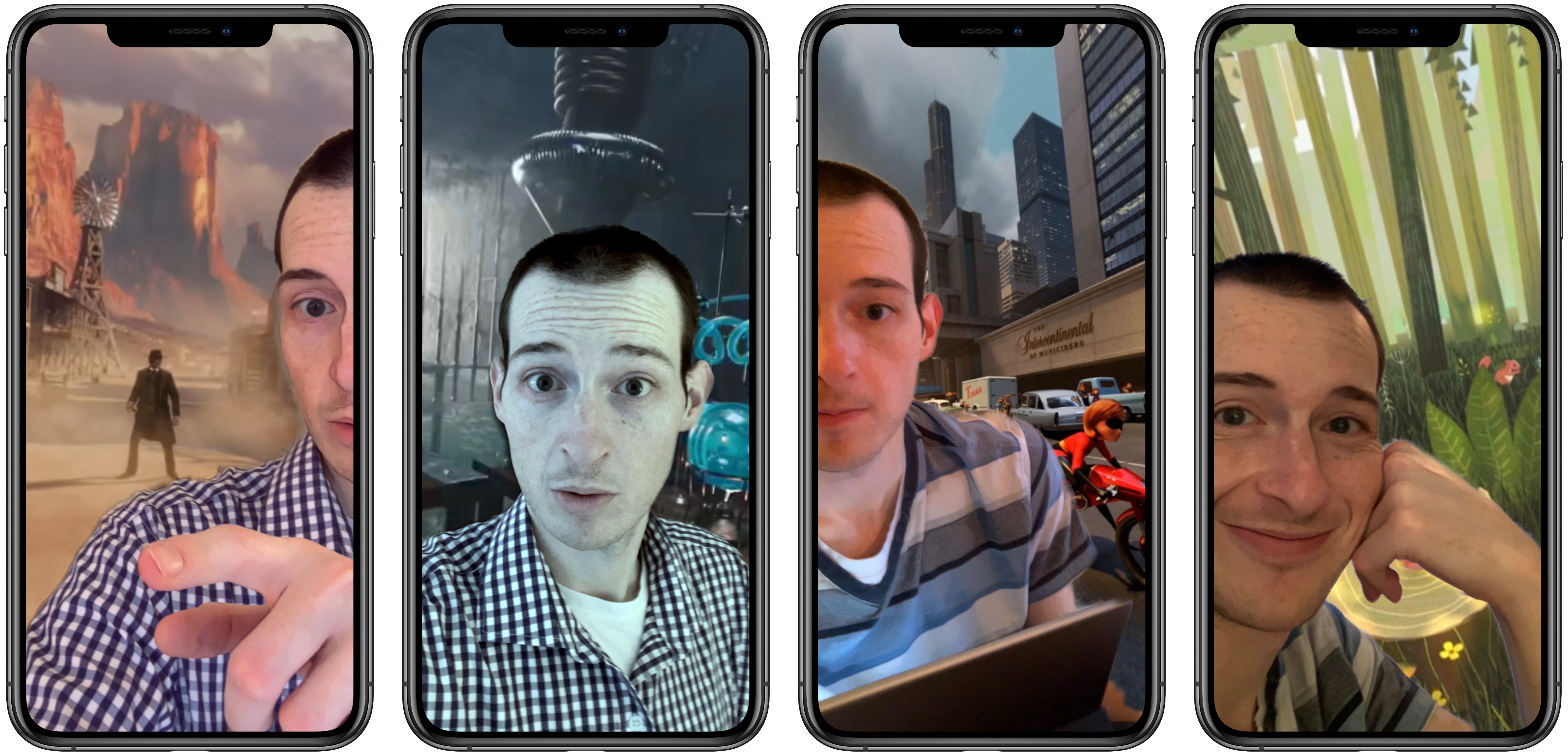
If you have an iPhone X, XS, or XR, or one of the new iPad Pros, the highlight of this release is a batch of six new Selfie Scenes. Last year when the iPhone X launched, Clips debuted Selfie Scenes as a fun and impressive way to utilize the new device’s TrueDepth camera system. Selfie Scenes isolate you from your environment and replace your surroundings with interesting digital backgrounds, such as the Millennium Falcon from Star Wars, or an animated world. The new scenes added in today’s update are called Clouds, High Noon, Big Backyard, Monster Lab, Animal Forest, and Municiberg Mayhem, a scene from The Incredibles 2. They’re all a lot of fun, providing different moods through sound effects and music. Apple says that Selfie Scenes perform better than ever on recent devices thanks to the A12 Bionic’s Neural Engine, and in my tests I did notice that the scenes were smoother and more responsive than before.

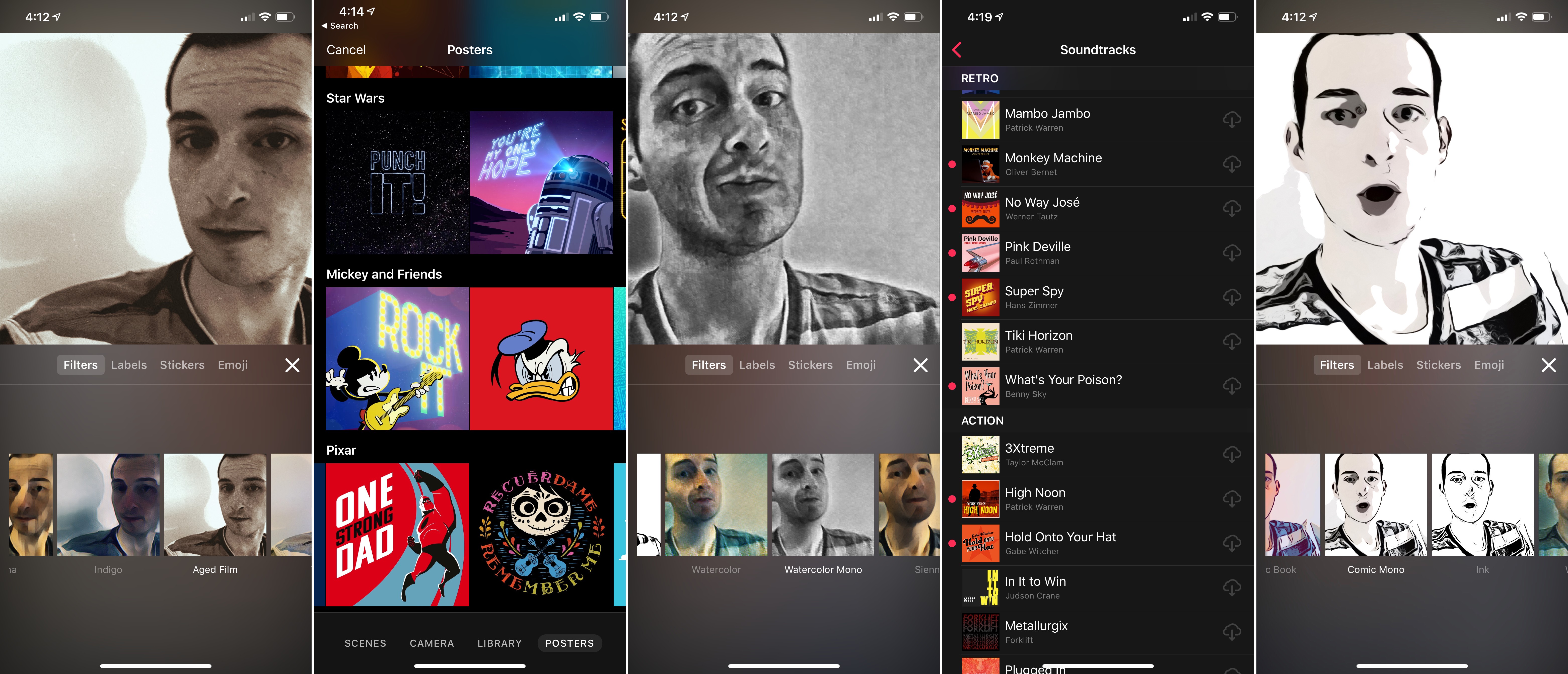
Filters and soundtracks are Clips’ next most substantial upgrades. There are three new filters: Comic Mono, Watercolor Mono, and Aged Film. Of these, the latter is easily my favorite, as the first two are only monochrome versions of existing filters. On the soundtrack side, there are a whopping 17 new tunes to choose from for your videos.

Every major Clips update adds a host of new posters, stickers, and text labels, and today’s is no exception. Continuing Apple’s partnership with Disney, there are poster options from Coco and The Incredibles 2, as well as designs related to sports, science, and more.

Though the app’s development cycle has slowed, Apple continues to plug away making Clips a great tool for short video creation. My biggest wish for the app – non-square video – has still gone unfulfilled, but hopefully one day we’ll get that change. Until then, the Selfie Scenes are a fun demo of the newest iPhones and iPad Pros, and Clips continues to be the most enjoyable video creation tool I’ve ever used. I think Apple’s on to something here, but the square video restriction continues to hold Clips back.


Choosing Your Markdown Editor: A Comparison of Ulysses and Drafts

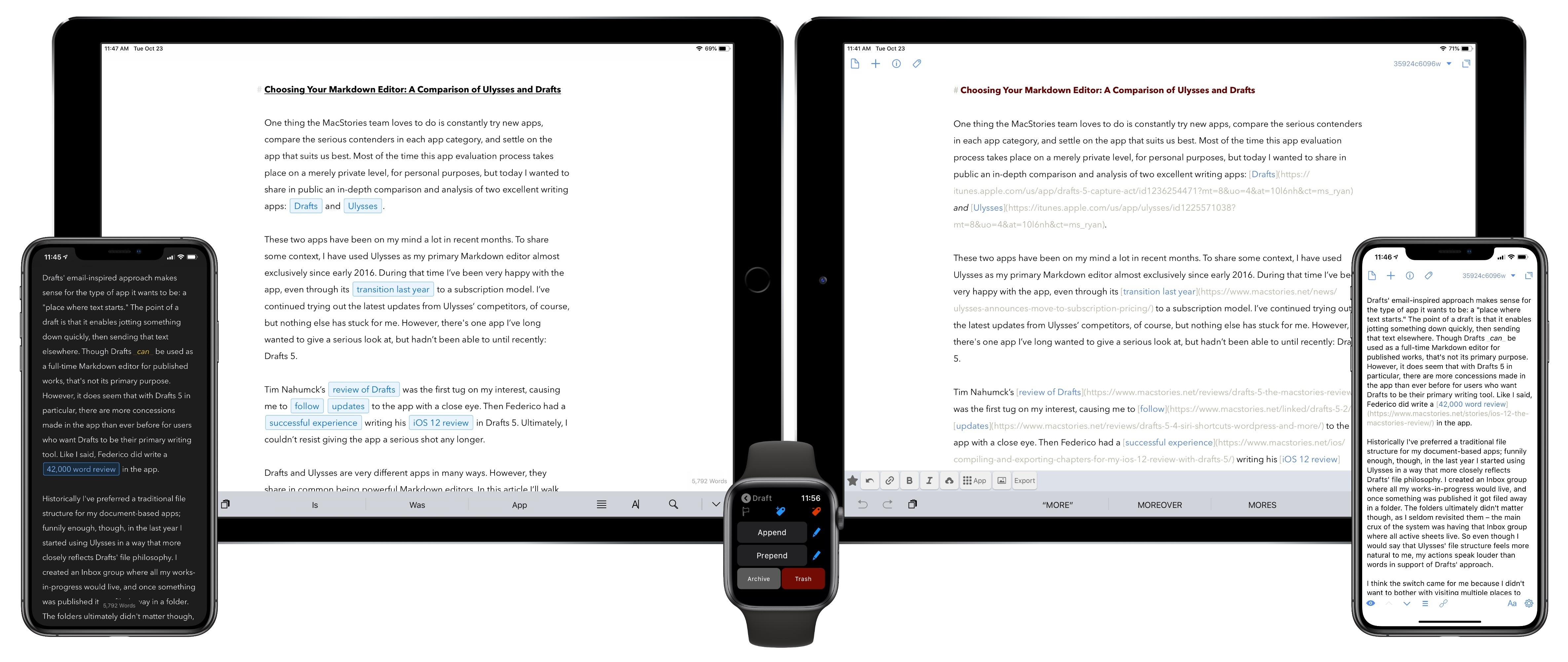
One thing the MacStories team loves to do is constantly try new apps, compare the serious contenders in each app category, and settle on the app that suits us best. Most of the time this app evaluation process takes place on a merely private level, for personal purposes, but today I wanted to share in public an in-depth comparison and analysis of two excellent writing apps: Drafts and Ulysses.

These two apps have been on my mind a lot in recent months. To share some context, I have used Ulysses as my primary Markdown editor almost exclusively since early 2016. During that time I’ve been very happy with the app, even through its transition last year to a subscription model. I’ve continued trying out the latest updates from Ulysses’ competitors, of course, but nothing else has stuck for me. However, there’s one app I’ve long wanted to give a serious look at, but hadn’t been able to until recently: Drafts 5.

Tim Nahumck’s review of Drafts was the first tug on my interest, causing me to follow updates to the app with a close eye. Then Federico had a successful experience writing his iOS 12 review in Drafts 5. Ultimately, I couldn’t resist giving the app a serious shot any longer.

Drafts and Ulysses are very different apps in many ways. However, they share in common being powerful Markdown editors. In this article I’ll walk through their similarities, divergences, and ultimately share which app I’ve decided to write in going forward. The goal is not to say which app is better, as the answer to that question is entirely subjective. Instead, I want to help you decide which app is likely best for you.

Read more