


There’s something downright magical about using an app like Prizmo Go. The app excels at identifying written text from a printed page, extracting it, and bringing that text into the digital realm. I won’t share all the details here of how the app works, because Federico did that expertly in his review earlier this...
Google Drive Now Supports iOS 11’s Files App
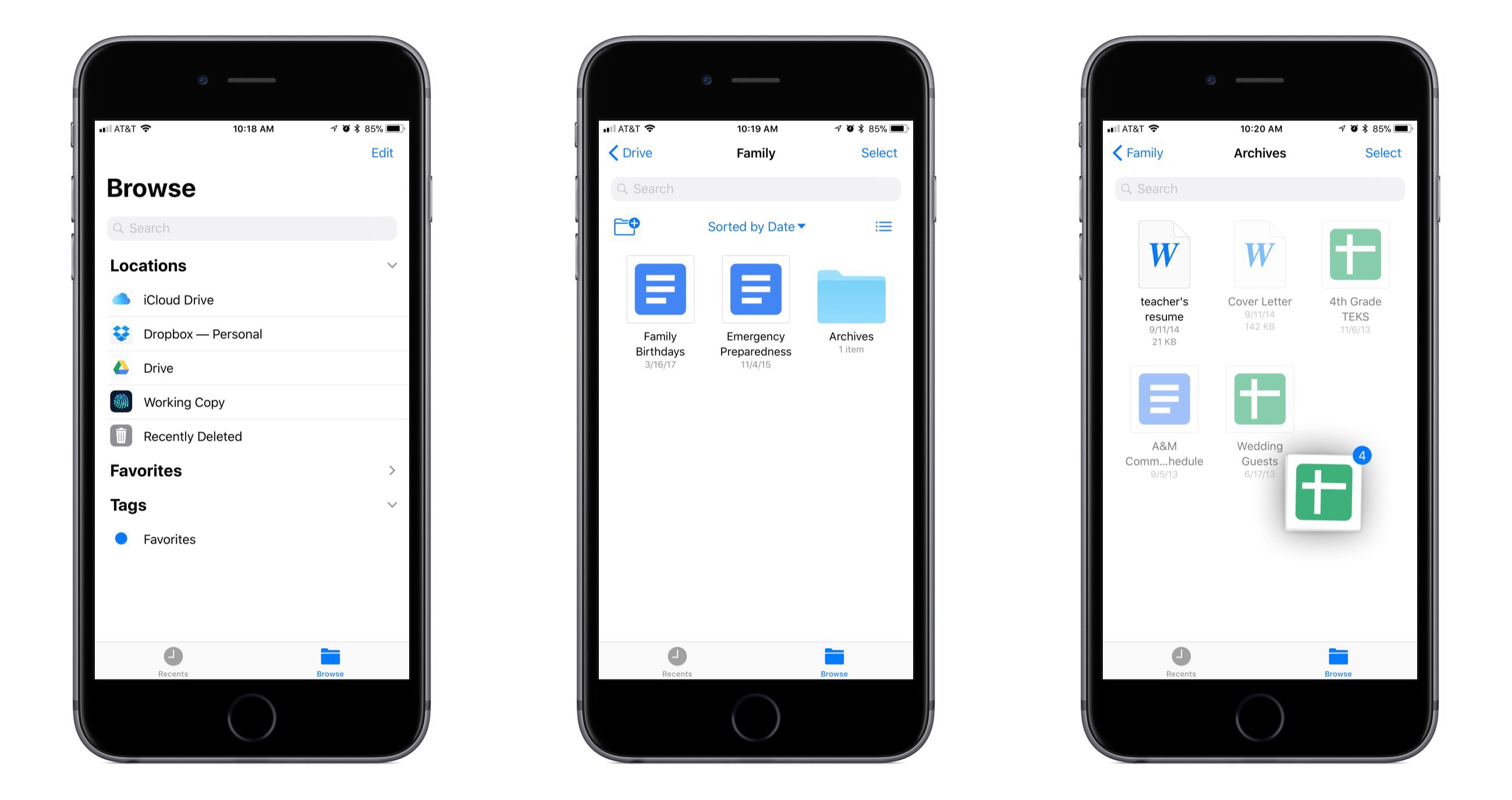
Following the lead of Dropbox last week, Google Drive’s iOS app has now been updated with full support for the new Files app in iOS 11. This means all Google Drive files can be accessed and managed alongside files from other cloud providers like iCloud Drive and Dropbox.
By replacing its legacy file extension with the new Files integration, Google Drive gains access to the full benefits of the Files app. You can now easily copy Google Drive files to or from other cloud services, organize files in a folder saved to the Favorites sidebar, add tags, use drag and drop to move files within the Files app or even into other apps, and much more.
Unfortunately, previews for Google Docs and Google Sheets files are not available within the Files app, so viewing them requires tapping the documents to load them in their respective separate apps. And oddly, every time you open one, the Google Drive app is opened first before you’re taken to the proper Docs or Sheets app – a seemingly unnecessary first step. Another drawback is that unlike the Files integration of Dropbox, Google Drive offers no ability whatsoever to manage file sharing from within Files – that will still require going through the full Google Drive app.
Shortcomings aside, the greatest benefits of Files support are still available with Google Drive: all your files are in one place, and drag and drop transforms the way you get files in and out of Google Drive.
Fantastical Gains Drag and Drop Support on iPad and iPhone
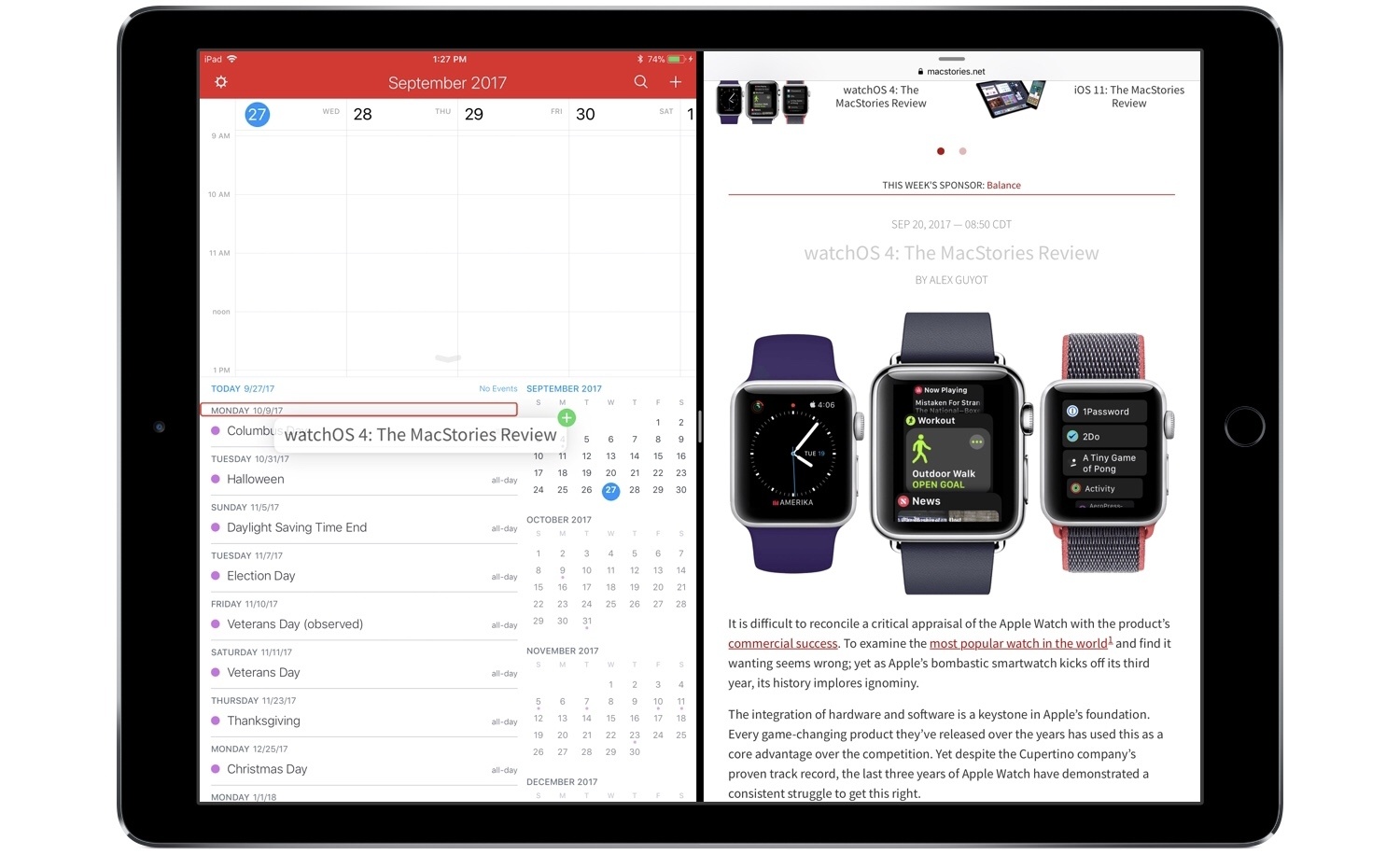
One of the most valuable advantages of digital calendars over physical ones is how much easier they are to manage. For example, the concept of a recurring event is easy for calendar apps to grasp, while adding the same event to a physical calendar can be both a time drain and a literal pain in your dominant hand. After recurring events, I’d guess that rescheduling is the next greatest pain point for physical calendar users. There’s erasing and re-writing involved when dealing with something physical, whereas with calendar apps you simply scroll the little date spinner to adjust a rescheduled event. Or if you’re using Fantastical, then thanks to the addition of drag and drop you can simply pick a task up and drop it on the new date.
On both iPhone and iPad, drag and drop in Fantastical empowers easy event rescheduling, and it also enables you to drag and drop reminders to set new due dates for them. The drag and drop support on iPad is more extensive, of course, allowing you to bring events and reminders out of Fantastical and into the app of your choice. Drag events into a Mail.app compose field and they’ll send as ICS files. Add them to a text editor and they’ll expand to include all attached information, such as location data, notes, and more. Similarly, reminders dropped elsewhere include their additional metadata as well. You can also drop text from other apps into Fantastical to create new events: simply hold the text over the day you want to create an event on, and drop. The text will be pre-filled in a new event creation dialogue, letting you add additional details then and there, or hit the Add button to complete it.
The pace of new apps adding support for drag and drop on iOS has been encouraging. There’s still plenty of work to be done by third-party developers, but we’re moving quickly toward the day when all of the main apps we use on a daily basis will be able to send and receive information in the most natural way possible.
Fantastical is available on the App Store for iPhone and iPad.
iOS and macOS Text Replacement Gaining CloudKit Syncing Soon→
There’s been quite a stir over the last week regarding an area of the Apple cloud ecosystem where syncing has remained unreliable for years. Brian Stucki wrote a detailed post on the matter, which John Gruber linked to with echoing sentiments. Today, however, Gruber followed up on his post with an exciting update:
Good news related to yesterday’s item regarding the fact that text replacement shortcuts have never synced reliably between Macs or iOS devices: an Apple spokesperson emailed me to say they checked with the team, and an update that moves text replacement syncing to CloudKit should be rolling out to iOS 11 and MacOS 10.13 High Sierra users in the “next month or so”.
I use text replacement every day across my iOS devices, and haven’t dealt with syncing issues myself, but it’s great to hear that this long-standing problem should soon be put to rest for everyone else. Recent history shows that once a cloud product moves to CloudKit, syncing issues disappear almost entirely – hopefully that will be the case here as well.
Apple Introduces Revamped Privacy Site Featuring Face ID Details and More→
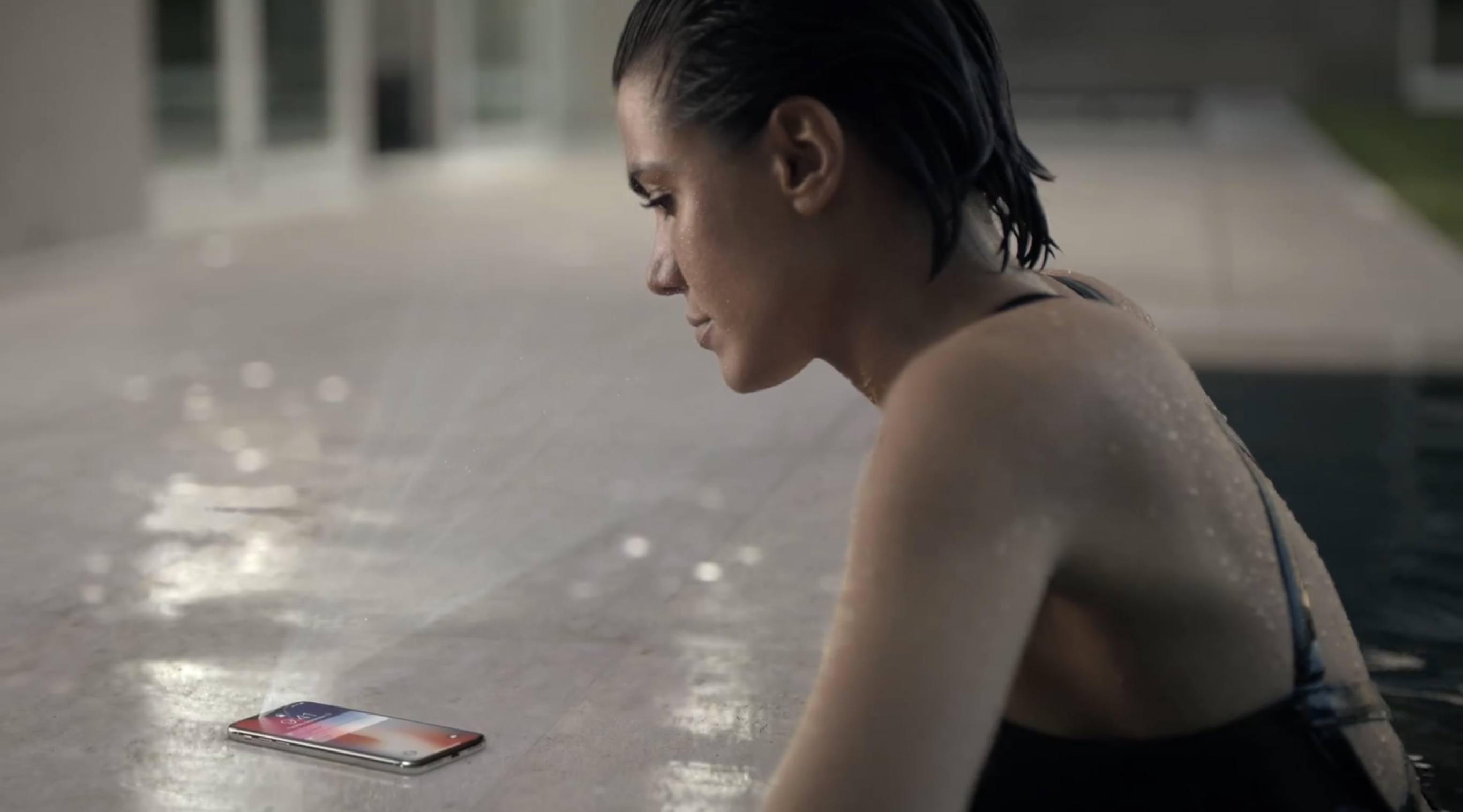
Apple today launched a newly revised privacy page on its website that aims to help customers understand the company’s views on the subject. Besides the landing page, there are four main sections: Our Approach to Privacy, Manage Your Privacy, Transparency Report, and Our Privacy Policy. I found Our Approach to Privacy the most interesting, as it walks through, in plain and easy-to-understand language, how privacy is deeply built into an extensive number of Apple apps and features, from Apple Pay and iMessage, to Analytics, Safari, Siri, Health, and more.
The most timely update to the site is the inclusion of a Face ID security white paper. This 6-page PDF goes into impressive detail on how Face ID works, with an emphasis on privacy and several interesting details to be gleaned. One of the feature tidbits is a comprehensive listing of when your passcode will be needed in place of Face ID. Passcode input will be required under the following circumstances:
• The device has just been turned on or restarted.
• The device hasn’t been unlocked for more than 48 hours.
• The passcode hasn’t been used to unlock the device in the last 156 hours (six and a half days) and Face ID has not unlocked the device in the last 4 hours.
• The device has received a remote lock command.
• After five unsuccessful attempts to match a face.
• After initiating power off/Emergency SOS by pressing and holding either volume button and the side button simultaneously for 2 seconds.
Other sections of the document confirm that any third-party app currently supporting Touch ID will automatically support Face ID without any user or developer changes. Also, Face ID can be used for all the same things as Touch ID, such as purchases from the App Store, iTunes Store, and more.
App Camp for Girls 2017 Compendium App Released→
Following the completion of its summer camps this year, App Camp for Girls has launched a new app featuring work done by 2017 camp participants. This year’s app includes a set of 14 quizzes and choose your own adventure games. The app’s release notes describe how the app came to life:
In one week, [camp] participants brainstorm ideas, design icons and interface, build their quizzes in Xcode, and make their own swag. Each session culminates in a fun pitch session with a panel of investors and entrepreneurs, where the young developers get to show off their work.
If you’re interested in learning more about this organization, Federico and John hosted the co-founders of App Camp for Girls, Jean MacDonald and Grey Osten, on an episode of AppStories earlier this year.
At a $0.99 purchase price, the App Camp Compendium 2017 app is a small, but simple way to show support for the work App Camp for Girls is doing.
Shazam Launches Redesigned, Faster Apple Watch App
iOS 11 apps have been receiving the most attention in recent weeks, and for good reason – drag and drop, ARKit, and more make it an exciting time for the platform. But watchOS is also seeing significant improvement of late. With watchOS 4 and the Apple Watch Series 3, the Watch feels like it’s beginning to truly mature in several key ways. There’s still a long way to go, but developers are now able to build the most capable, refined Watch apps ever seen. Shazam is a great example of that.
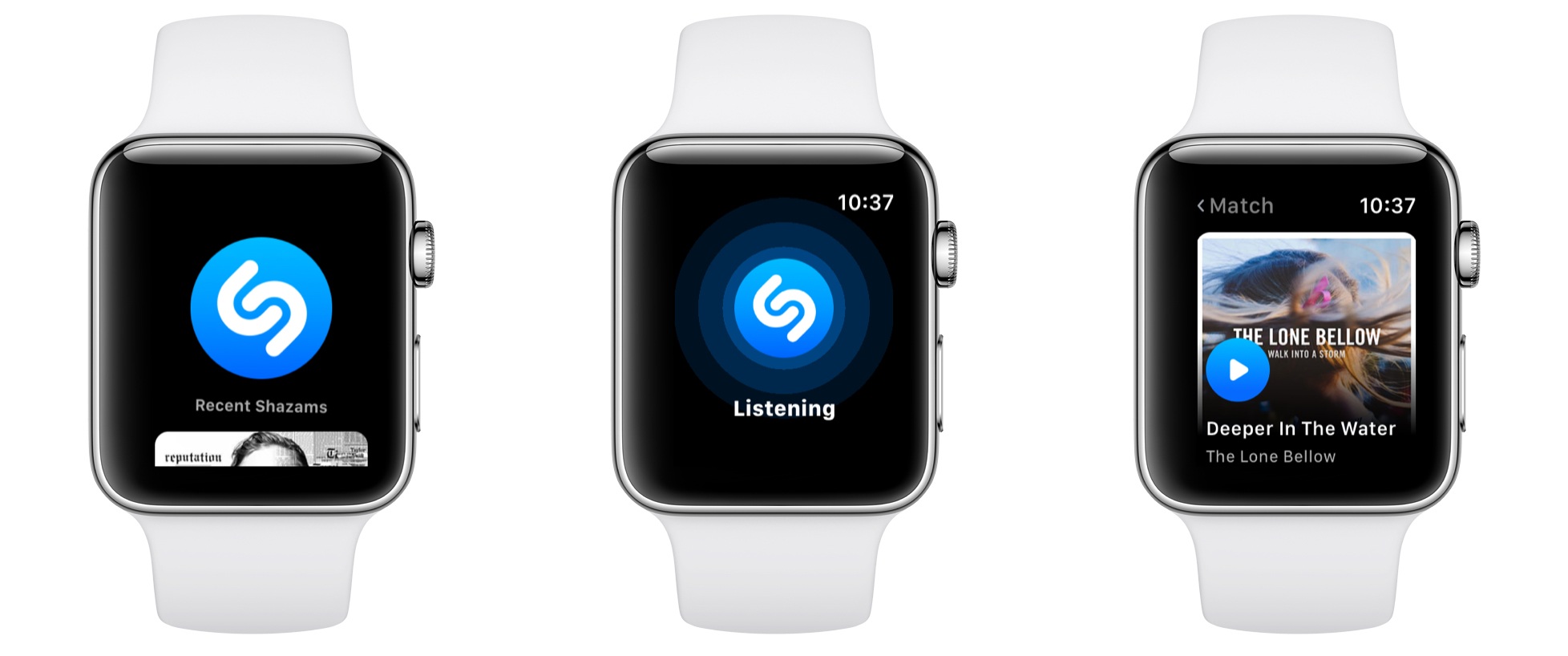
Shazam’s new Watch app is extremely simple, and as I like to say, that’s the way all good Watch apps should be. Launching it presents the familiar blue Shazam button, which upon a tap will begin listening to whatever music is currently playing. After you hit the button, you can turn your wrist away and the app will notify you through a haptic tap when the song’s been identified. In testing on a Series 3 Watch, songs were identified very quickly, taking only 2-3 seconds on every try.
After songs have been identified, they’re stored below the Shazam button in the main app interface. By scrolling with the Digital Crown, you’ll see the last five songs presented in a style similar to watchOS’s revamped Music app: large album covers resembling cards that slide in over each other as you keep scrolling. Tapping an album cover plays a short preview of the song using the Watch’s built-in speaker.
One final thing worth noting is that unlike many other third-party watchOS apps, Shazam is built to take full advantage of the iPhone independence made possible by the new Series 3 LTE Watch. According to an official support document:
Do I need my phone to use Apple Watch Shazam features?
If you have the Watch Series 3 LTE, you can shazam phone-free! If you have an older Apple Watch device you’ll need to have your iPhone connected in order to name that song.
It will likely be a while before we see a significant number of third-party apps updated to support independence from the iPhone, but Shazam is a good start.
Replacing Bing, Google Will Now Power Siri and Spotlight Web Search Results→
Matthew Panzarino, reporting for TechCrunch:
Apple is switching the default provider of its web searches from Siri, Search inside iOS (formerly called Spotlight) and Spotlight on the Mac. So, for instance, if Siri falls back to a web search on iOS when you ask it a question, you’re now going to get Google results instead of Bing.
…
“Switching to Google as the web search provider for Siri, Search within iOS and Spotlight on Mac will allow these services to have a consistent web search experience with the default in Safari,” reads an Apple statement sent this morning.
As pointed out by Zac Hall of 9to5Mac, the timing of this change coincides well with Apple’s upcoming HomePod. Though the details of Google search’s implementation for HomePod are unclear, it’s possible that this switch will enable HomePod to provide the same answers to common web queries that its competing home speaker, Google Home, offers. Even if support doesn’t extend that far, with this change Siri should at least be able to supply the type of reliable search results Google users expect.
OmniFocus for iOS 11 Adds Extensive Drag and Drop and Siri Support
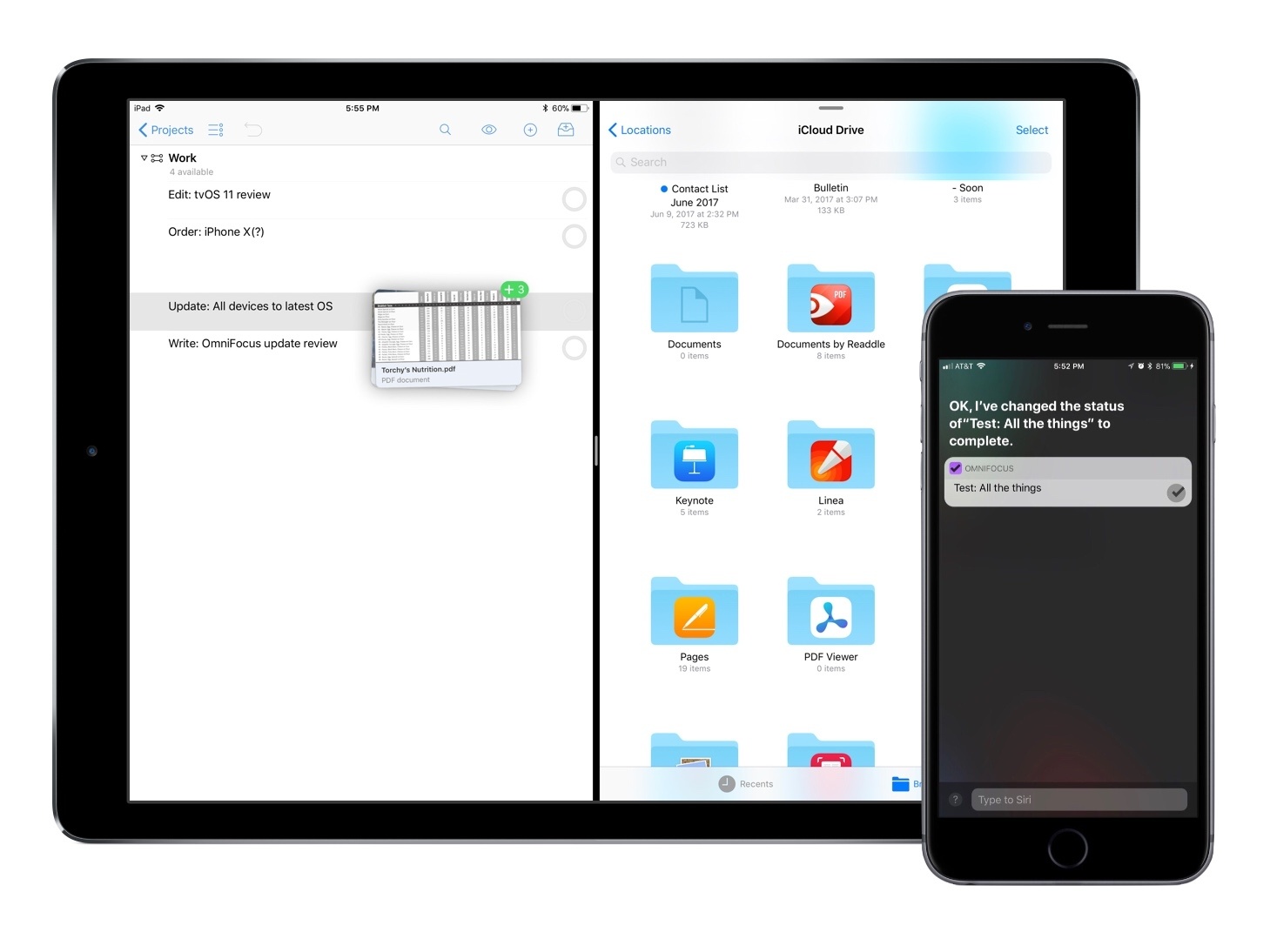
The Omni Group is one of the most reliable development teams when it comes to adopting new technologies available in Apple’s latest operating systems. This year is no exception, with OmniFocus serving as a shining example of the power of iOS 11’s drag and drop and a new SiriKit integration.