Member Requests
...

 Member Requests
 iPad Diaries is a regular series about using the iPad as a primary computer. You can find more installments here and subscribe to the dedicated RSS feed.
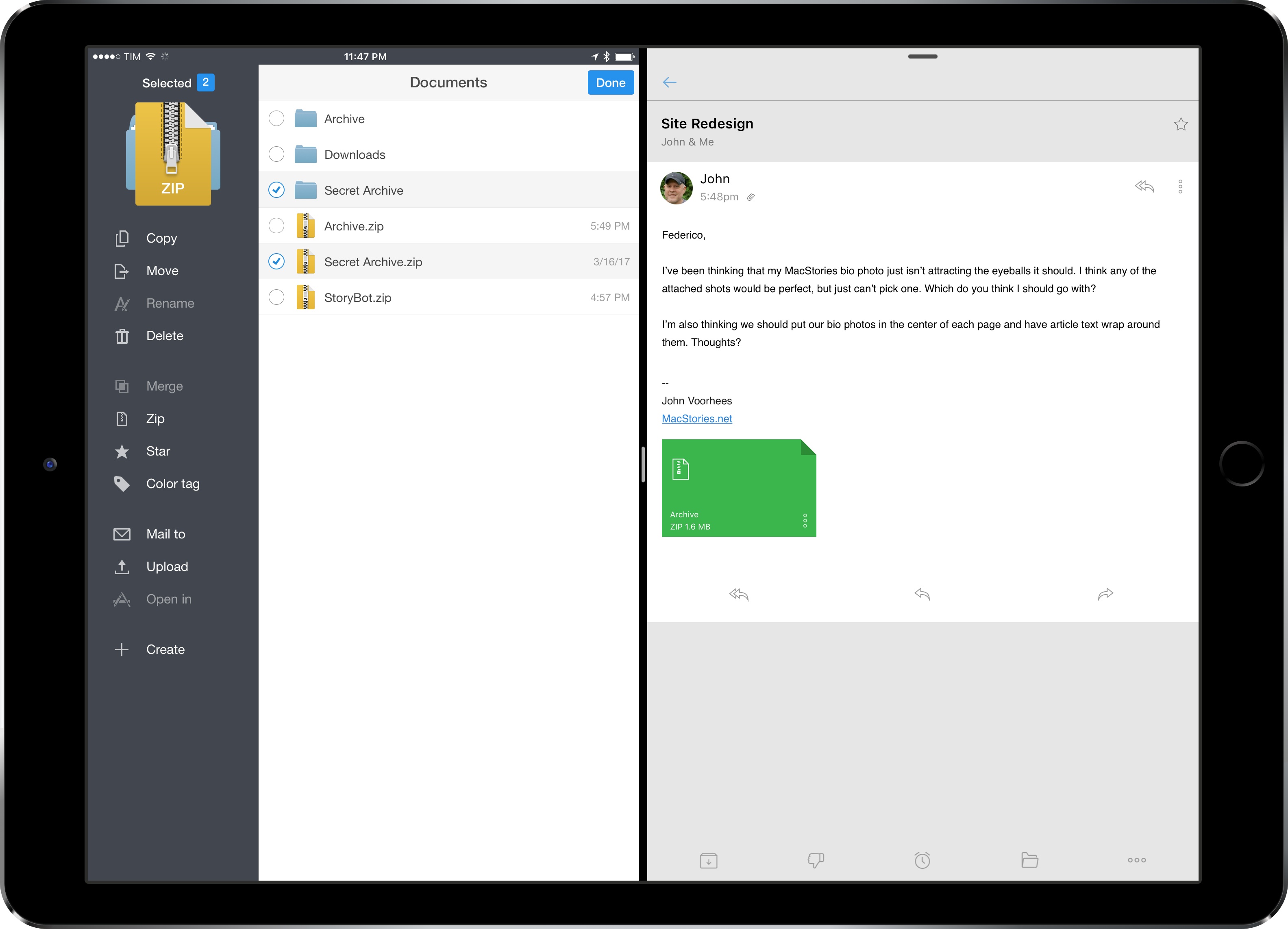
Compressing files into archives and extracting them into a specific location is one of the most common desktop tasks that is still surprisingly tricky to adapt to the iPad.
Unlike macOS, the iPad doesn’t come with a built-in Archive Utility app that takes care of decompressing archives, nor does iOS include a native ‘Compress Files’ system action to create and share archives. I’d wager that anyone who works from an iPad deals with file archives on a regular basis, whether they come from email clients, Dropbox links shared by colleagues, or uploads in a Slack channel.
Archives – and the popular .zip format – are a staple of document-based workflows and file management, but the iPad isn’t well-equipped to handle them. Working with .zip files on iOS is among the most frequent questions I receive from iPad-first users every week; effectively, Apple only offers basic integration with iOS’ Quick Look when it comes to file archives. Fortunately, just like advanced file management, we have some solid third-party options and automation to help us.
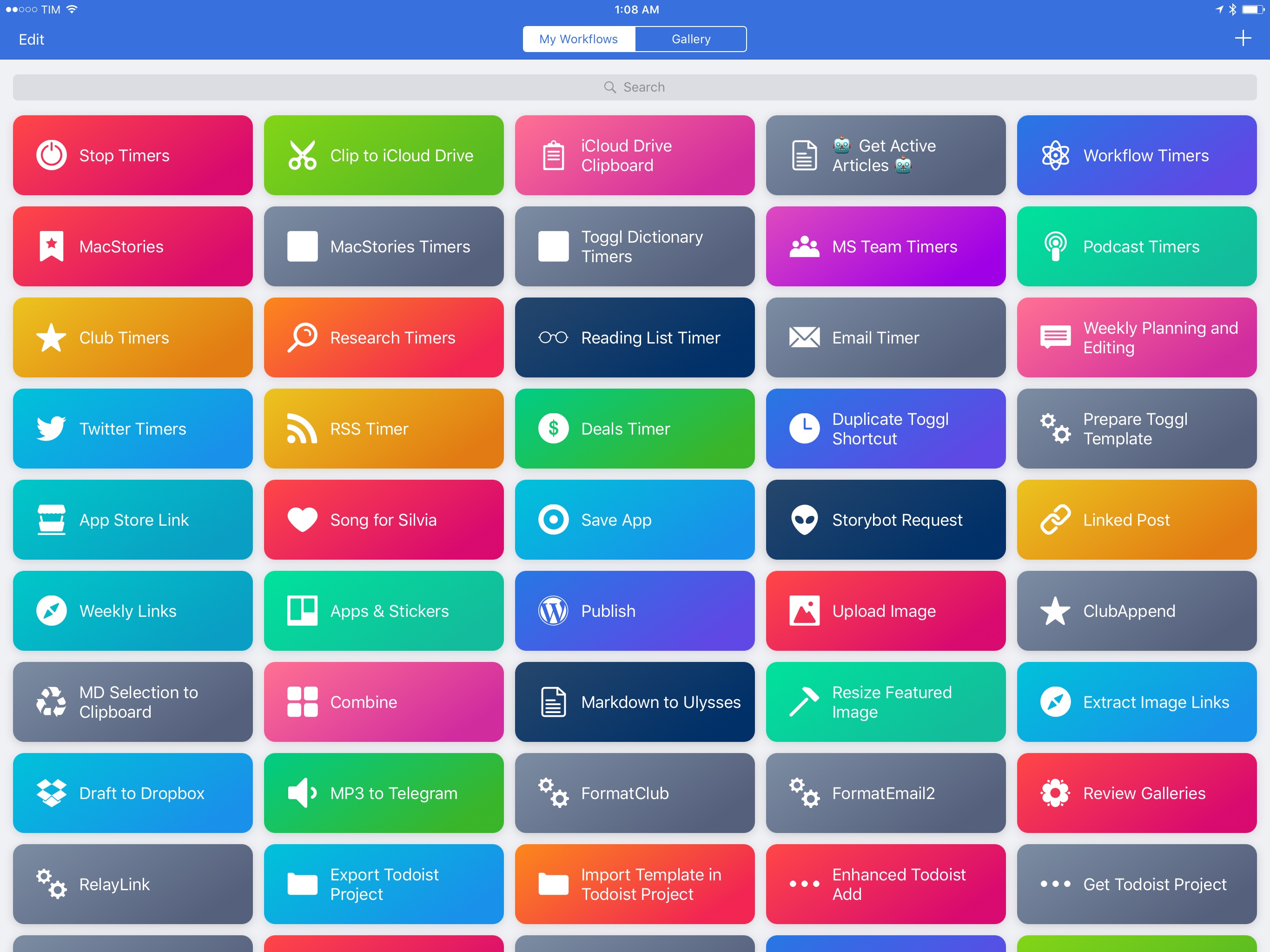
Workflow, the popular automation app for iOS and one of my major areas of focus on MacStories, has been acquired by Apple.
Matthew Panzarino, reporting for TechCrunch:
Apple has finalized a deal to acquire Workflow today — a tool that lets you hook together apps and functions within apps in strings of commands to automate tasks. We’ve been tracking this one for a while but were able to confirm just now that the ink on the deal is drying as we speak.
[…]
Apple confirmed the deal, and has said the following about Workflow:
“The Workflow app was selected for an Apple Design Award in 2015 because of its outstanding use of iOS accessibility features, in particular an outstanding implementation for VoiceOver with clearly labeled items, thoughtful hints, and drag/drop announcements, making the app usable and quickly accessible to those who are blind or low-vision.”
According to Panzarino, Workflow’s Ari Weinstein, Conrad Kramer, Nick Frey, and Ayaka Nonaka are joining Apple; the Workflow app will continue to be available on the App Store, and it’ll become a free download later today.
Workflow doesn’t need an introduction on this website. I’ve been covering the app since its debut in 2014, and have been following every update until the last major version, which brought the fantastic addition of Magic Variables. You can catch up on over two years of Workflow reporting and tutorials here, and access even more advanced workflows in our dedicated section on the Club MacStories newsletter.
At this stage, it’s not clear what Apple’s plans for Workflow in the long term might be. I have a few theories, but this isn’t the time to speculate. I’ll say this, though: Workflow has been the driving force behind my decision to embrace the iPad as my primary computer. Workflow is a shining example of the power of automation combined with user creativity and its underlying mission has always been clear: to allow anyone to improve how iOS can get things done for them in a better, faster, more flexible way. Workflow is the modern bicycle for the mind. There’s nothing else like it.
I want to personally congratulate the Workflow team for building a beautiful product that has enabled thousands of people to be more productive from iOS every day. I hope that Apple will continue to believe in the vision behind Workflow’s automation. If Apple takes Workflow seriously, its automation – now deeply integrated with iOS and private APIs – could fundamentally reinvent iOS for power users, especially on the iPad.
It’s an exciting time for iOS productivity and automation. I can’t wait to see what Apple’s newfound interest in automation is going to produce.
Federico is wandering the wilderness in search of new iPad Pro hardware, so Stephen and Myke break down today’s news before apologizing to everyone.
I couldn’t find new iPad hardware during my trip, but I enjoyed listening to the latest Connected following Apple’s announcements this week. You can listen here.
Sponsored by:
Pixure is Louis D’hauwe’s excellent pixel art studio app for iOS that lets you create retro-styled illustrations. Pixure was already best suited for the iPad’s bigger display, but the latest version 2.2 adds PanelKit – a UI framework created by D’hauwe himself to turn traditional iPad popovers into floating panels.
Popovers are a staple of the iPad’s interface, and I was skeptical when I saw the first details of PanelKit in February. After testing Pixure on my 12.9” iPad Pro, though, I think D’hauwe is onto something – when the app is in full-screen, it’s nice to be able to re-arrange a palette of tools so it doesn’t hide your content. The best part, in my opinion, is that panels can be converted back to sidebars by snapping them to the edge of the display, which is a fantastic use of the iPad Pro’s large screen. There’s an argument to be made about PanelKit bringing the cognitive load of desktop window management to the iPad, but I believe that, for some apps (such as graphic editors like Pixure), floating controls that you can re-arrange around the canvas are necessary.
I’m testing a few iPad apps that try to optimize for the iPad Pro’s screen with additional popovers and sidebars, and none of them feel as flexible or as intuitive as D’hauwe’s app. If you’re an iPad user, you should check out Pixure.
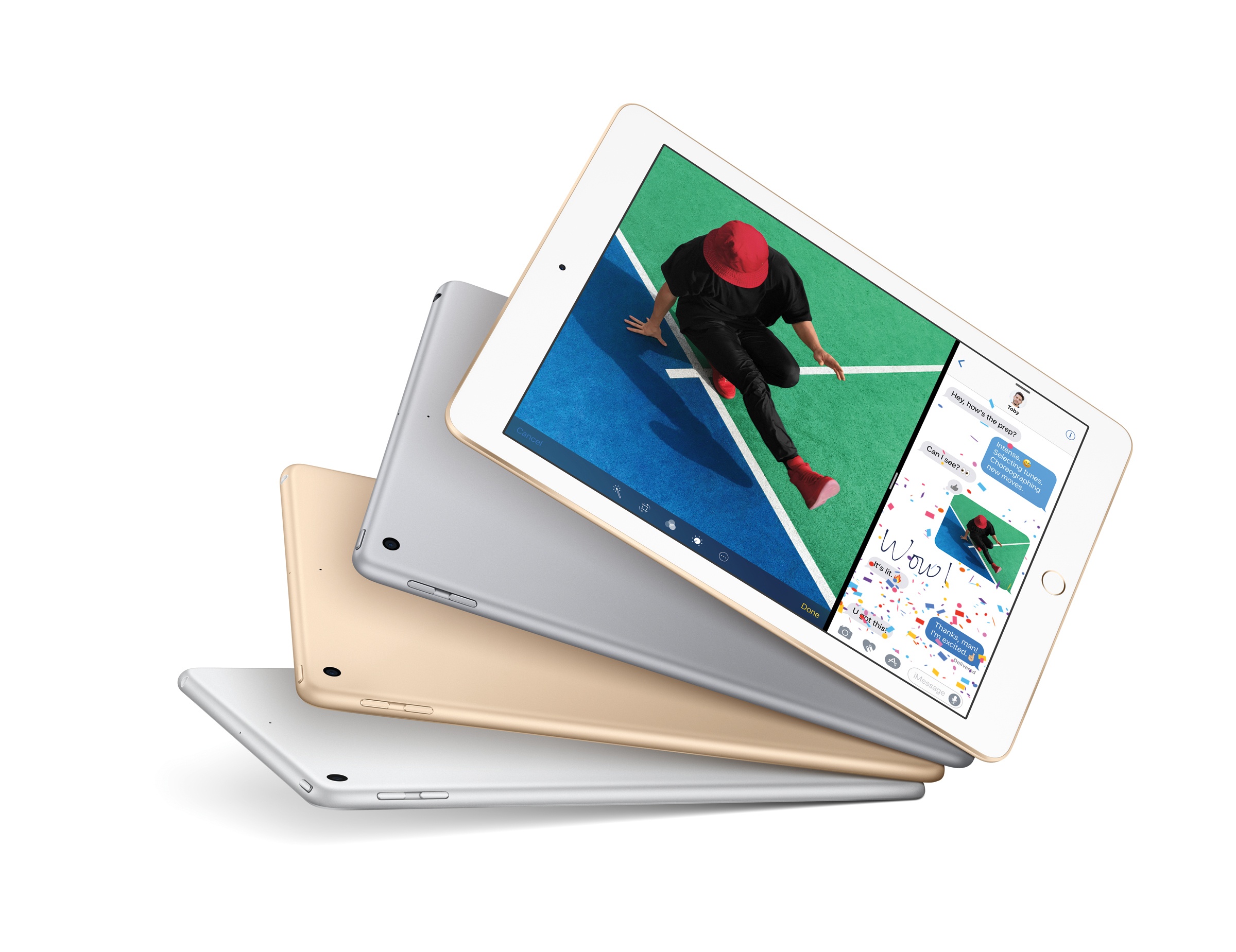
Following a 5-hour downtime of its online store this morning, Apple announced a new base model of the 9.7” iPad.
Starting at $329 for the 32 GB Wi-Fi version and simply called ‘iPad’, the new device appears to be a lower-cost replacement for the iPad Air line as the company’s iPad lineup now includes iPad mini 4, the new ‘iPad’, and the iPad Pro in existing 9.7” and 12.9” configurations. Neither iPad Pro model received any update this morning. The iPad mini 4, on the other hand, now offers more capacity for the same price: the 128 GB Wi-Fi model is now priced at $399, while the 128 GB Wi-Fi + Cellular is available at $529.
John Gruber on what may be coming next in terms of iPad refreshes:
What doesn’t make sense to me is a new 10.5-inch model. The idea makes sense — keeping the physical footprint of the current 9.7-inch models but reducing the bezels and putting in a bigger display. The ideal form factor for iPads and iPhones is just a screen, like the phones in Rian Johnson’s Looper — reducing the size of bezels and moving toward edge-to-edge displays is inevitable. Even the pixel density math works out for a 10.5-inch display.
What doesn’t make sense to me is the timing. I don’t see how an iPad with an exciting new design could debut alongside updated versions of the existing 9.7-inch and 12.9-inch iPads. Who would buy the updated 9.7-inch iPad Pro with the traditional bezels if there’s a 10.5-inch model without bezels? No one.
If Apple is going to position both the second-gen 12.9” and 9.7” iPad Pros as the high-end models, I don’t see where a simultaneous release of a drastically different 10.5” iPad Pro would fit. But if the second-gen iPad Pros (with the current form factors) move to the low end of the lineup, that means the 10.5” iPad Pro could introduce an edge-to-edge design with no Home button before the iPhone gets such treatment (supposedly) later this year.
That idea always seemed odd to me. Traditionally, the iPad doesn’t get major hardware changes before the iPhone. The iPad hardware tends to follow the iPhone. True Tone and the four-speaker system were iPad Pro-first features, but they weren’t fundamental platform changes such as Touch ID or Retina. Both of those came to the iPhone first. (I won’t even count the Smart Connector here.) An edge-to-edge design with no Home button is a major platform shift – particularly if it includes new developer APIs, which would have to launch in the Spring before iOS 11 if the rumor of an imminent iPad Pro 10.5” is to be believed. At this point, I find that somewhat hard to believe.
Instead, I think spec-bumps across the entire iPad lineup would make more sense in the short term. I can see Apple bringing consistency to the product line (True Tone, USB 3 speeds, and fast charging for every iPad Pro model) and adding faster CPUs/more RAM for powerful iPad-only features coming with iOS 11. I’m curious to see if Apple will revive the iPad mini by making a 7.9” iPad Pro and if iPad accessories will receive substantial improvements at all (it’d be nice to get an upgraded Smart Cover or a Pencil with superior battery life).
In a seemingly minor 1.7.2 update released over the weekend, the Workflow team brought a few notable file-based changes to the app.
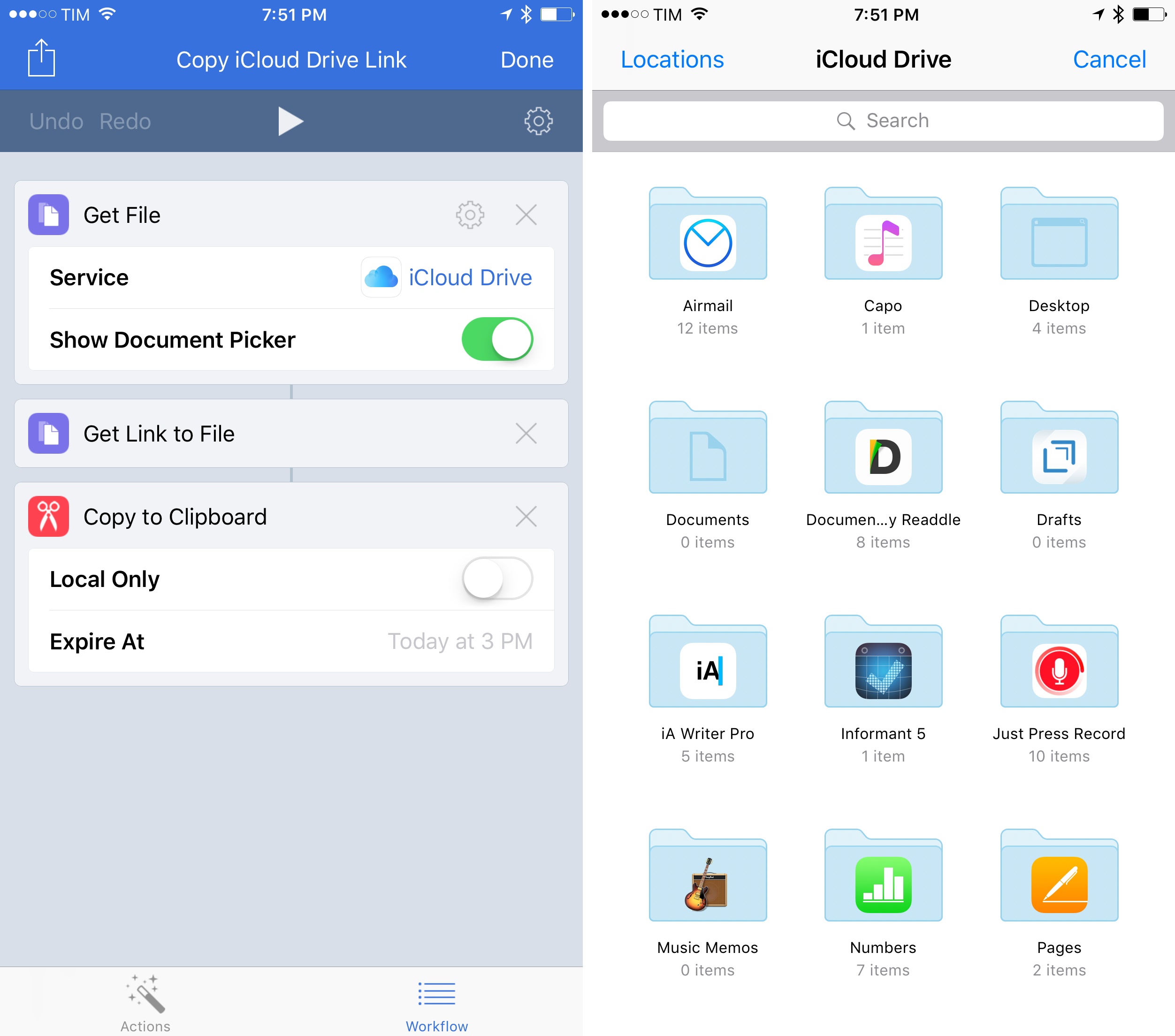
Workflow’s existing support for cloud storage services has been expanded and all file actions have been unified under a single ‘Files’ category. You can now choose files from iCloud Drive, Dropbox, or Box within the same action UI, and there are also updated actions to create folders, delete files, and get links to files. Now you don’t have to switch between different actions for iCloud Drive and Dropbox – there’s only one type of File action, and you simply pick a service.
Interestingly, this means that Workflow can now generate shareable links for iCloud Drive files too; here’s an example of a workflow to choose a file from the iCloud Drive document provider and copy its public link to the clipboard. (Under the hood, Workflow appears to be using the Mail Drop APIs for uploads. These links aren’t pretty, but they work.)
There’s also a noteworthy change for Ulysses users. Workflow now allows you to easily extract details from Ulysses sheets using their ID. After giving Workflow permission to access your Ulysses library (which, unfortunately, still has to be done using a glorified x-callback-url method), you’ll be able to chain Workflow and Ulysses to, say, get the Markdown contents of a document, extract its notes, or copy its title to the clipboard. The new ‘Get Ulysses Sheet-Get Details of Ulysses Sheet’ combo makes Ulysses automation much easier and faster.
If you work with files in Workflow on a daily basis, and especially if you’re an iCloud Drive user, you’ll want to check out the new actions and rethink some of your existing workflows. You can get the latest version of Workflow here.
Astra