John
John
AppStories Episode 417 - Our Holiday Nerd Projects
0:00
24:54
24:54
This week, Federico and John round up the tech and productivity projects they have planned for their annual holiday break.


 Our Holiday Nerd Projects
  Quickly Appending Notes to My Obsidian Daily Note with Drafts
 For the past two years since my girlfriend and I moved into our new apartment, my desk has been in a constant state of flux. Those who have been reading MacStories for a while know why. There were two reasons: I couldn’t figure out how to use my iPad Pro for everything I do, specifically for recording podcasts the way I like, and I couldn’t find an external monitor that would let me both work with the iPad Pro and play videogames when I wasn’t working.
This article – which has been six months in the making – is the story of how I finally did it.
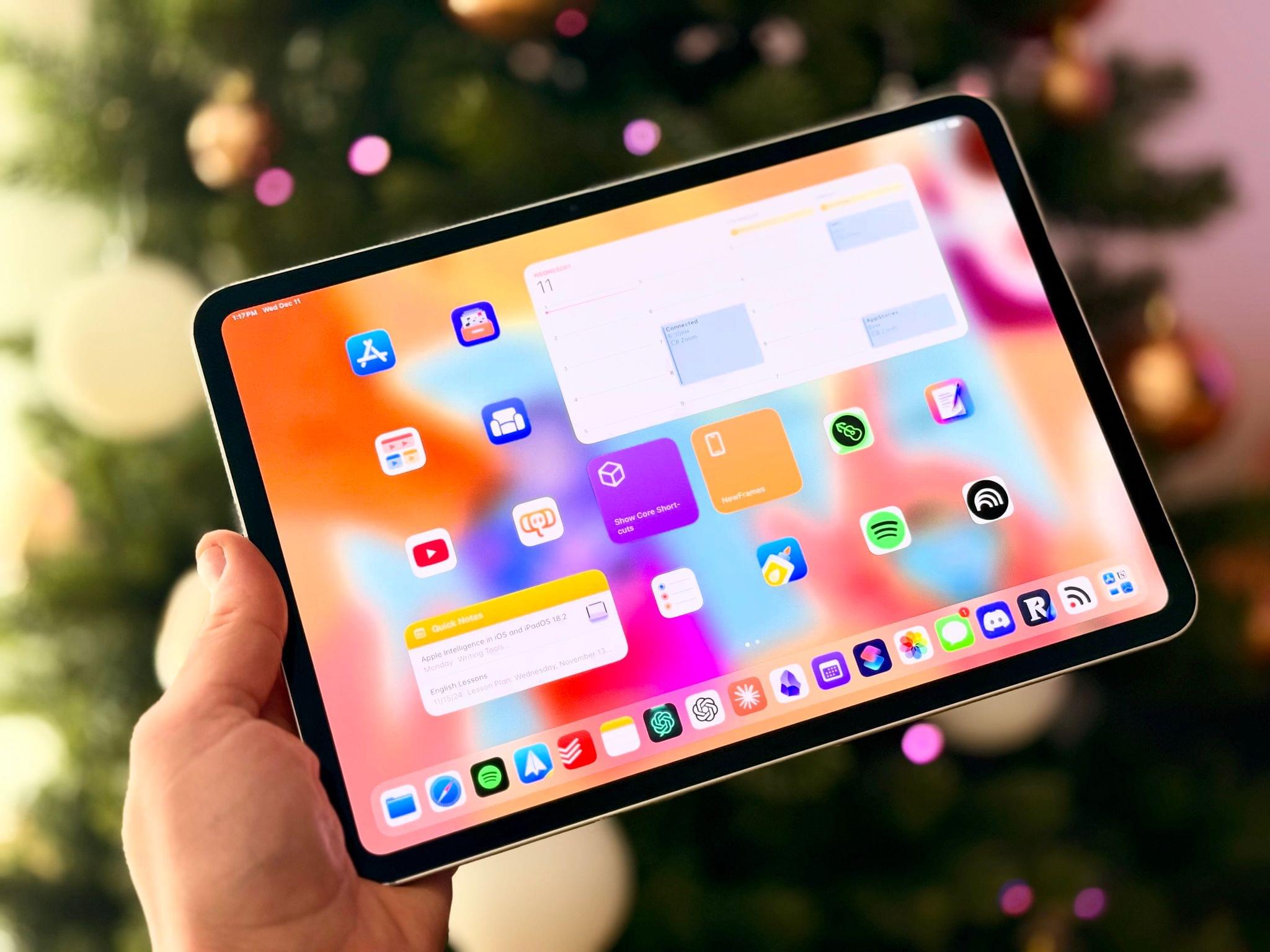
Over the past six months, I completely rethought my setup around the 11” iPad Pro and a monitor that gives me the best of both worlds: a USB-C connection for when I want to work with iPadOS at my desk and multiple HDMI inputs for when I want to play my PS5 Pro or Nintendo Switch. Getting to this point has been a journey, which I have documented in detail on the MacStories Setups page.
This article started as an in-depth examination of my desk, the accessories I use, and the hardware I recommend. As I was writing it, however, I realized that it had turned into something bigger. It’s become the story of how, after more than a decade of working on the iPad, I was able to figure out how to accomplish the last remaining task in my workflow, but also how I fell in love with the 11” iPad Pro all over again thanks to its nano-texture display.
I started using the iPad as my main computer 12 years ago. Today, I am finally able to say that I can use it for everything I do on a daily basis.
Here’s how.
The AppStories Year in Review
ActionMode: A Simpler, More Customizable Shortcut to Program Your Action Button Tim Hardwick, writing for MacRumors, on a strange limitation of the Apple Intelligence rollout earlier this week:
Apple’s new Mail sorting features in iOS 18.2 are notably absent from both iPadOS 18.2 and macOS Sequoia 15.2, raising questions about the company’s rollout strategy for the email management system.
The new feature automatically sorts emails into four distinct categories: Primary, Transactions, Updates, and Promotions, with the aim of helping iPhone users better organize their inboxes. Devices that support Apple Intelligence also surface priority messages as part of the new system.
Users on iPhone who updated to iOS 18.2 have the features. However, iPad and Mac users who updated their devices with the software that Apple released concurrently with iOS 18.2 will have noticed their absence. iPhone users can easily switch between categorized and traditional list views, but iPad and Mac users are limited to the standard chronological inbox layout.
This was so odd during the beta cycle, and it continues to be the single decision I find the most perplexing in Apple’s launch strategy for Apple Intelligence.
I didn’t cover Mail’s new smart categorization feature in my story about Apple Intelligence for one simple reason: it’s not available on the device where I do most of my work, my iPad Pro. I’ve been able to test the functionality on my iPhone, and it’s good enough: iOS occasionally gets a category wrong, but (surprisingly) you can manually categorize a sender and train the system yourself.
(As an aside: can we talk about the fact that a bunch of options, including sender categorization, can only be accessed via Mail’s…Reply button? How did we end up in this situation?)
I would very much prefer to use Apple Mail instead of Spark, which offers smart inbox categorization across platforms but is nowhere as nice-looking as Mail and comes with its own set of quirks. However, as long as smart categories are exclusive to the iPhone version of Mail, Apple’s decision prevents me from incorporating the updated Mail app into my daily workflow.
Apple is releasing iOS and iPadOS 18.2 today, and with those software updates, the company is rolling out the second wave of Apple Intelligence features as part of their previously announced roadmap that will culminate with the arrival of deeper integration between Siri and third-party apps next year.
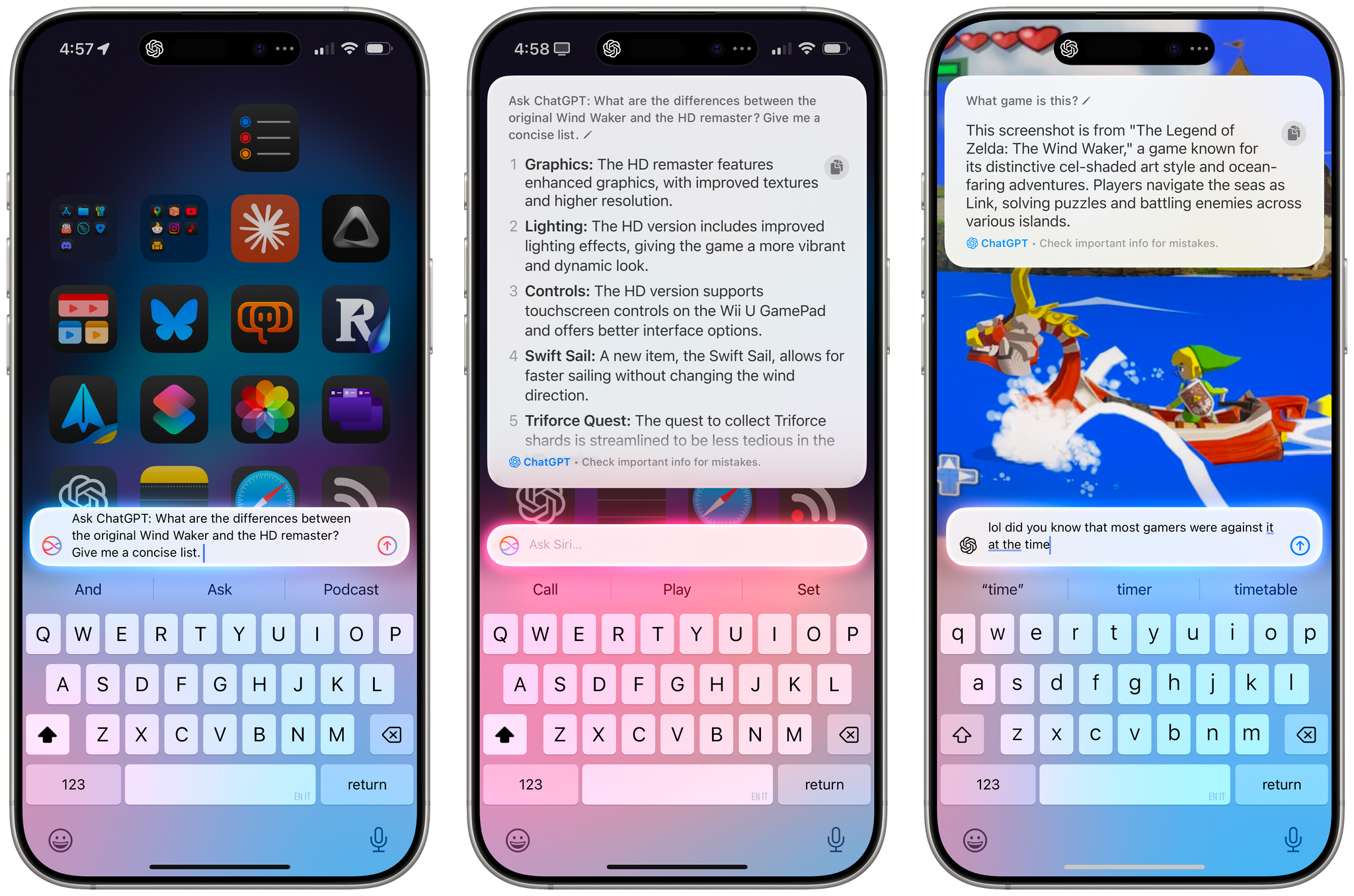
In today’s release, users will find native integration between Siri and ChatGPT, more options in Writing Tools, a smarter Mail app with automatic message categorization, generative image creation in Image Playground, Genmoji, Visual Intelligence, and more. It’s certainly a more ambitious rollout than the somewhat disjointed debut of Apple Intelligence with iOS 18.1, and one that will garner more attention if only by virtue of Siri’s native access to OpenAI’s ChatGPT.
And yet, despite the long list of AI features in these software updates, I find myself mostly underwhelmed – if not downright annoyed – by the majority of the Apple Intelligence changes, but not for the reasons you may expect coming from me.
Some context is necessary here. As I explained in a recent episode of AppStories, I’ve embarked on a bit of a journey lately in terms of understanding the role of AI products and features in modern software. I’ve been doing a lot of research, testing, and reading about the different flavors of AI tools that we see pop up on almost a daily basis now in a rapidly changing landscape. As I discussed on the show, I’ve landed on two takeaways, at least for now:
I see these tools as a natural evolution of automation and, as you can guess, that has inevitably caught my interest. The implications for the Accessibility community in this field are also something we should keep in mind.
To put it more simply, I think empowering LLMs to be “creative” with the goal of displacing artists is a mistake, and also a distraction – a glossy facade largely amounting to a party trick that gets boring fast and misses the bigger picture of how these AI tools may practically help us in the workplace, healthcare, biology, and other industries.
This is how I approached my tests with Apple Intelligence in iOS and iPadOS 18.2. For the past month, I’ve extensively used Claude to assist me with the making of advanced shortcuts, used ChatGPT’s search feature as a Google replacement, indexed the archive of my iOS reviews with NotebookLM, relied on Zapier’s Copilot to more quickly spin up web automations, and used both Sonnet 3.5 and GPT-4o to rethink my Obsidian templating system and note-taking workflow. I’ve used AI tools for real, meaningful work that revolved around me – the creative person – doing the actual work and letting software assist me. And at the same time, I tried to add Apple’s new AI features to the mix.
Perhaps it’s not “fair” to compare Apple’s newfangled efforts to products by companies that have been iterating on their LLMs and related services for the past five years, but when the biggest tech company in the world makes bold claims about their entrance into the AI space, we have to take them at face value.
It’s been an interesting exercise to see how far behind Apple is compared to OpenAI and Anthropic in terms of the sheer capabilities of their respective assistants; at the same time, I believe Apple has some serious advantages in the long term as the platform owner, with untapped potential for integrating AI more deeply within the OS and apps in a way that other AI companies won’t be able to. There are parts of Apple Intelligence in 18.2 that hint at much bigger things to come in the future that I find exciting, as well as features available today that I’ve found useful and, occasionally, even surprising.
With this context in mind, in this story you won’t see any coverage of Image Playground and Image Wand, which I believe are ridiculously primitive and perfect examples of why Apple may think they’re two years behind their competitors. Image Playground in particular produces “illustrations” that you’d be kind to call abominations; they remind me of the worst Midjourney creations from 2022. Instead, I will focus on the more assistive aspects of AI and share my experience with trying to get work done using Apple Intelligence on my iPhone and iPad alongside its integration with ChatGPT, which is the marquee addition of this release.
Let’s dive in.
The 2024 MacStories Selects Awards
This week, Federico and John reveal the winners of the 2024 MacStories Selects Awards, which celebrate the exceptional design, innovation, and creativity of apps across the iPhone, iPad, Mac, and Apple Watch.
Assistive AI Automation Tools