Federico Viticci

10804 posts on MacStories since April 2009

Federico is the founder and Editor-in-Chief of MacStories, where he writes about Apple with a focus on apps, developers, iPad, and iOS productivity. He founded MacStories in April 2009 and has been writing about Apple since. Federico is also the co-host of AppStories, a weekly podcast exploring the world of apps, Unwind, a fun exploration of media and more, and NPC: Next Portable Console, a show about portable gaming and the handheld revolution.

Latest Chrome Release Includes Voice Search Support

Jerry Hildenbrand:

Google Now style voice search has just went live in the latest Chrome stable version for the desktop (Version 27.0.1453.93). As far as we can tell from playing around testing things, the full contextual search isn’t running like we saw in the demo during the Google I/O keynote, but the basic voice search and response is ready to go.

Announced and demoed at I/O last week, Voice Search for the desktop mimics the experience launched on Google’s Search app for iOS last year. Voice Search for the desktop lets you dictate search queries to Google, which will transcribe them in (almost) real-time and take you directly to results, powered by the Knowledge Graph. Like on iOS, certain queries will trigger a voice response by Google itself, whereas others will display cards of information or regular results.

It appears Google is rolling out the feature this morning, as the new voice interface is available in Chrome but leading to frequent “No Internet connection” dialogs; I was able to try Voice Search twice, and it worked as expected.

You can watch a demo of Google’s Voice Search for the desktop from I/O 2013 here; an announcent will likely be posted on the official Google Chrome blog.

Permalink

Apple Rolls Out Online Store Design Changes

Apple rolled out a series of design changes to its online Store overnight, bringing a cleaner, more subdued style for graphical elements and larger, image-centric spots for products and accessories.

The most notable change is the front page of the Store, which now eschews a sidebar to present a full-size view of products with varying sizes. The old design featured evenly-spaced thumbnails for Apple products and third-party accessories with two sidebars with additional navigation options and information; the new one employs larger images, retaining navigation for the main “Shop” sections at the top and in the footer. Interestingly, in the refreshed homepage launched today, the only image showing a Mac is the “Shop Mac” link at the top.

Design tweaks have also been rolled out in several other areas of the Store, such as the Accessories page. The old design relied on a main product list with small thumbnails and a sidebar containing clickable links on the left side; the new one takes a more visual approach with a landing page featuring larger tiles of products, a new sidebar on the right, and a larger grid for accessories in each category.

The Apple Store follows a series of recent design tweaks Apple brought to some of its products and services – notably, the company sent new iTunes promotional emails with a cleaner look and more focus on content yesterday.

For comparison purposes, we have captured screenshots of the old online Store design using the Internet Archive. You can view the full-size images by clicking the links below.

  • Online Store homepage: old/new

  • iPad Accessories page: old/new


Infinitesimal Bits of Time

Adam C. Engst, in his overview of Keyboard Maestro 6:

In fact, many of my macros are utterly simple and obvious — I could type “cheers… -Adam” at the end of every email message I send, or I could press Control-period. Just because I’m saving only a few seconds doesn’t mean that it’s not worthwhile, when added up over tens of thousands of messages. Similarly, much as I love LaunchBar and use it heavily for many things, because I set F1 to open BBEdit via Keyboard Maestro, switching to BBEdit via F1 is a third of the work of LaunchBar’s Command-Space, B, Return. Those infinitesimal bits of time are like the energy drain from glowing lights on otherwise inactive electronics — meaningless in the individual instance, but vast in their overall impact.

According to Keyboard Maestro, I have saved 420 hours since I started using it 635 days ago.

Permalink


Scanner Pro Gets Real-Time Border Detection

Readdle’s Scanner Pro has been my favorite iOS scanner app for over a year now:

…for the professional who runs a small business, or individuals who do scan documents, just not so many every day, I’d seriously suggest considering Scanner Pro on the new iPad. The device’s camera will give you decent images — especially with good lightning and background — and the app works with the services many are already using for document storage and archival.

I have been experimenting with different paperless systems (I still haven’t settled on a specific one), but Scanner Pro was and will remain at the core of my mobile scanning workflow. Every day when I get home, I fire up Readdle’s app on my iPhone/iPad, take the receipts and paper documents I’ve collected during the day, scan them using Scanner Pro, and send them to one of the services built into the app (such as personal favorites Evernote and Dropbox). With today’s 4.5 update, which I have been testing, Scanner Pro gets even faster and more intuitive thanks to real-time border detection.

It used to be that Scanner Pro let you take a photo and adjust borders for cropping a document by manually moving a series of controls around the area you wanted to scan. Scanner Pro did a decent job at guessing where it should place the borders, but they still needed tweaking most of the time. In version 4.5, the Readdle team has completely reworked the algorithm behind border detection to make it smarter and bringing it into the camera view as well.

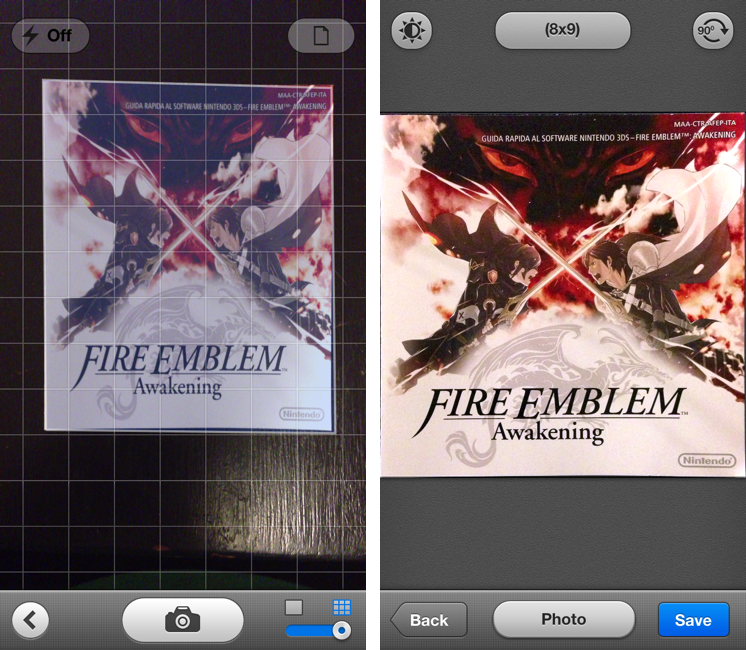
When taking a picture of a document, Scanner Pro 4.5 will overlay borders directly on top of the object, with impressive results. In my tests (a screenshot of which you can see above) Scanner Pro capably recognized borders of paper documents against dark and light backgrounds, in both normal and low-light conditions. Because borders are detected in real time, you can move objects or place other items in the shot and view borders update within a fraction of a second without leaving the camera view. It’s incredibly cool – but, fortunately considering the app’s utilitarian goal, also efficient.

While Scanner Pro tries to automatically detect borders and offer its best take in the Save screen, you can still tap Back to adjust borders manually. This is a welcome option – the app now defaults to the Save screen after a picture has been taken and processed, but you still want to retain manual control in case the new border detection algorithm doesn’t work properly.

It’s not a replacement for full-featured hardware such as Fujitsu’s ScanSnap, but for people who, like me, don’t have exorbitant amounts of paper to digitize every day, Readdle’s Scanner Pro remains a reliable, powerful iOS scanner app with tons of useful options. The new automatic border detection is a simple feature – but a handy one that’s uniquely suited for the iOS camera.

Scanner Pro 4.5 is available on the App Store.


Keyboard Maestro 6.0 Adds Syncing, Browser Actions, Device Triggers, And More

Keyboard Maestro 6

Keyboard Maestro 6

Long-time MacStories readers know how deep-seated Keyboard Maestro is in my OS X workflow. I use it every day, constantly, to automate my Mac to speed up writing, resize images, save PDFs, execute scripts, and more. Version 6.0 is out today and it brings over 100 new features. Unfortunately, I have only been playing with the app for a few hours, so an in-depth review will be published in the coming weeks.

Keyboard Maestro 6.0 retains the same interface and design principles of its predecessor while adding powerful new features that are exclusively built for Mountain Lion. For owners of multiple Macs, the good news is that Keyboard Maestro can now sync macros using Dropbox or any other sync service; in my initial tests, sync worked as advertised.

There are, of course, new triggers and actions to build macros that can automate (almost) any aspect of your Mac. You can now specify triggers for USB devices that are attached/detached to a computer, volumes, and wireless networks that your Mac connects to. This will be useful to build workflows (possibly to run at a specific time of the day) that handle backups or move files from one folder to another (the triggers can also be used as conditions in a macro). When you’re building a macro, you can now take advantage of a Macro Debugger that shows every action with completion status and breakpoints; this will come in handy to better understand why a macro isn’t working and, if so, how to fix it.

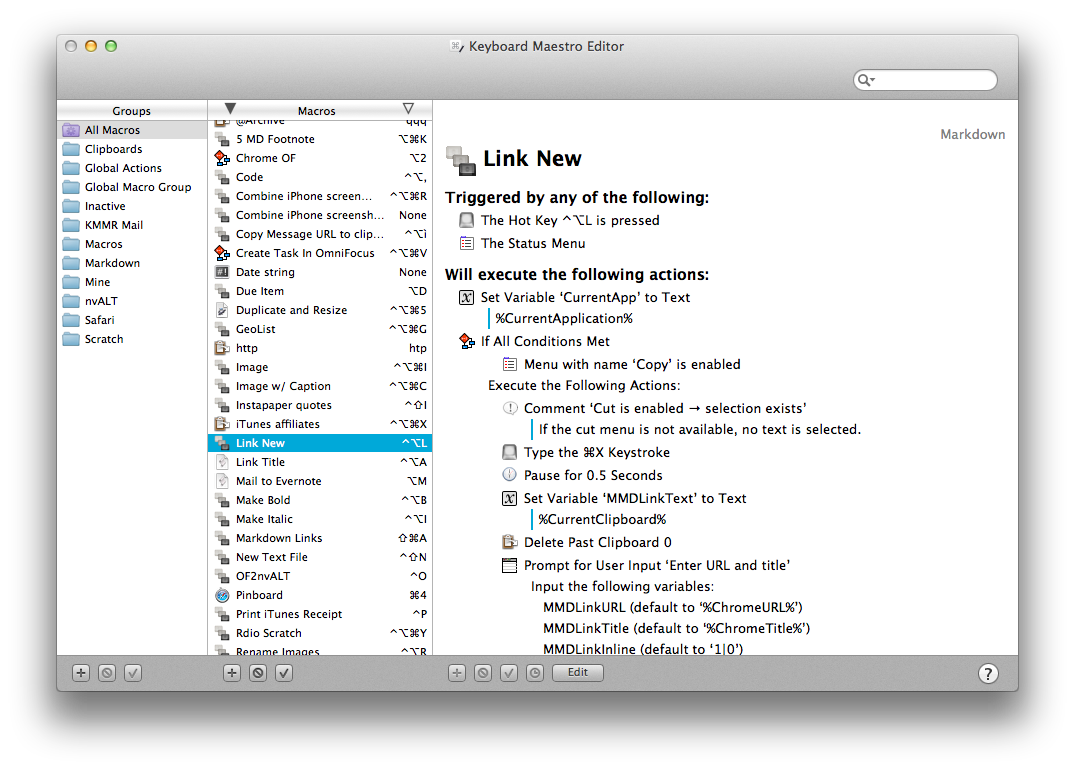
I’m personally excited to play around with the new actions for Safari and Google Chrome. As most of my workflows revolve around doing research in and grabbing text/URLs from a web browser, I have created dozens of macros that leverage AppleScript to store a webpage’s name and URL in variables to include in actions that output Markdown for my articles. With Keyboard Maestro’s new Safari and Chrome actions, you can eschew AppleScript entirely and let actions open and select tabs, get URLs and titles, submit and reset web forms, click links, wait until a browser has finished loading – while obviously accessing the same data as text tokens in your actions. On top of this, you can execute JavaScript in Safari and Chrome – which means activating bookmarklets from Keyboard Maestro with custom keyboard shortcuts is now easier than ever. I have already rewritten my actions for Markdown links to take advantage of the new browser actions; I have eliminated every instance of AppleScript, so there’s less manual saving to variables, the actions look more elegant, and I’m using built-in tokens.

There’s a lot of new stuff that I haven’t had time to properly test. You can now interact with styled text from Keyboard Maestro; you can write your own actions; there’s improved support for showing menus from installed apps (essentially enhanced GUI scripting); you can capture components of a regular expression by searching inside a variable or named clipboard – a power-user functionality that I am extremely curious to try with my regex to capture groups of Markdown inline links.

From what I’ve seen so far, Keyboard Maestro 6.0 doesn’t revolutionize the app but adds welcome (and needed) features such as syncing and browser actions while broadening its automation scope with intriguing new triggers, conditions, and actions. I look forward to seeing how I can update my macros to take advantage of the new functionalities introduced today.

Keyboard Maestro 6.0 is a paid upgrade. The app is available at $36, with an upgrade price of $25 for owners of the older version. A free trial of Keyboard Maestro 6.0 can be downloaded from Stairways Software’s website.


TextExpander Touch 2.0 Brings Fill-In Snippets, Formatted Text To iOS

TextExpander touch 2.0

TextExpander touch 2.0

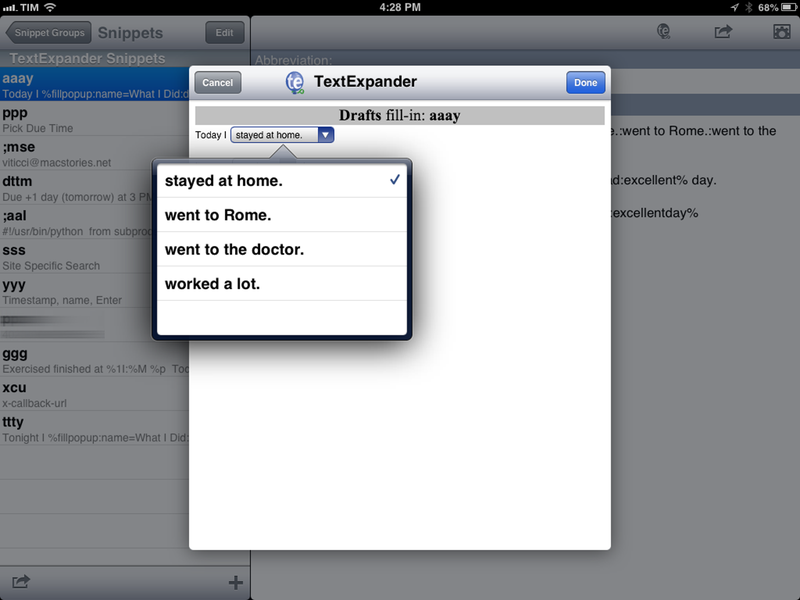
I rely on Smile’s TextExpander to save keystrokes on my Mac on a daily basis, but the iOS counterpart, TextExpander touch, has always felt vastly underpowered due to limitations imposed by Apple on the iPhone and iPad. Today’s major update, TextExpander touch 2.0, aims at rising the app’s grade of efficiency by introducing several new features that have become must-haves for TextExpander on the Mac. I have been able to test the update for the past month, and it’s already become part of my workflow in interesting (and powerful) new ways. Read more


How to Know When Apple Finally Gets iCloud Right

Gus Mueller:

But how are we going to know Apple has finally fixed iCloud syncing for developers and is really serious this time? And I’m not just talking about Core Data syncing, I’m also talking about the APIs developers are given to push document data back and forth. The broken stuff, the things developers laugh at Apple about and have given up on.

Here’s my short and inconclusive list of things that will let us know iCloud might be ready for real world developer use.

Gus has been trying to work with iCloud for VoodooPad since 2011. Some of the features he proposes have been requested by developers for over a year now.

I don’t think that “the Dropbox way” is a panacea for Apple’s syncing woes with third-party apps, but I do believe developers should get new tools, improvements, and fixes for iCloud.

Permalink

CriticMarkup in Marked 1.4

Brett Terpstra:

The initial release of CriticMarkup included a preprocessor for Marked 1.5+, but given the uncertain release date of the next incarnation of Marked, I wanted to make it work with the standard custom processor feature of Marked 1.4. A few adjustments to the existing script and one dependency later it’s good to go.

I use CriticMarkup whenever I need to track changes in a MultiMarkdown document. I launch Marked (from Sublime Text 2) on a daily basis to preview my articles and generate HTML, so it’s good to know the two systems can work together now.

Permalink