John
John
AppStories Episode 319 - The Future of Web Browsers
0:00
41:31
41:31
This week, Federico and John cover the increasing competition among web browsers and the emerging features they find most useful.


 The Future of Web Browsers
  Running Apple Frames from the Command Line and Enabling Passthrough Mode
 I just released a small update to Apple Frames 3.1, which came out earlier this week, with a new output command: &passthrough. With this output command for the Apple Frames API, you’ll be able to generate a framed image (from whatever source you like) and simply pass its result to the next action in a shortcut as a native image variable.
I wrote about this as part of my Extension column in MacStories Weekly today, where I also covered the ability to run Apple Frames from the command line on macOS. Here’s the excerpt about version 3.1.1 of Apple Frames and the new passthrough mode:
As I was researching this column for Weekly, I realized there was an obvious candidate for an output command I did not include in Apple Frames 3.1: a passthrough command to, well, pass framed images along as input for the next action of a shortcut.
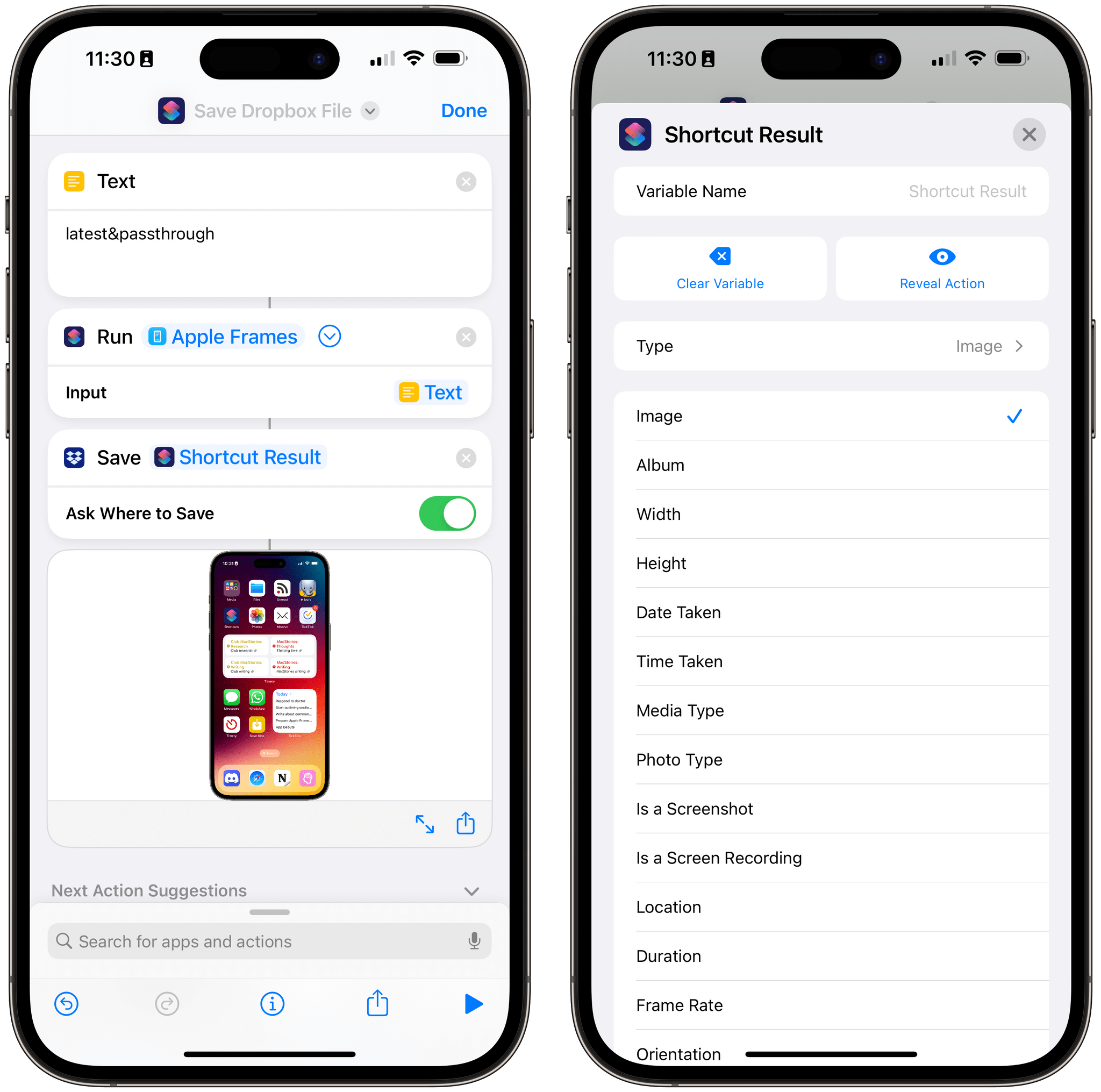
Here’s what I mean: when you run Apple Frames from a helper shortcut using the ‘Run Shortcut’ action, that action produces an output variable called ‘Shortcut Result’. If you’re running Apple Frames as a function, thus turning it into a feature of another workflow, it can be useful to take the framed images it produces and use them as a native variable in other actions of the shortcut. The problem is that the output commands I launched with Apple Frames 3.1 all involved “storing” the framed images somewhere, whether it was Files or the system clipboard.
This is no longer the case with the
&passthroughoutput command I added to Apple Frames 3.1.1, which you can redownload from the MacStories Shortcuts Archive or directly from this link. If you run the Apple Frames API with this command, framed images will be passed along as native output of the shortcut, which you can reuse as a variable elsewhere in a shortcut that’s invoking Apple Frames.
And:
Any shortcut or longer workflow that involves running Apple Frames in the background and retrieving the screenshots it frames can take advantage of this method, allowing you to bypass the need to store images in the clipboard, even if temporarily. Essentially, passthrough mode turns Apple Frames into a native action of the Shortcuts app that returns a standard image variable as its output.
This is the only change in version 3.1.1 of Apple Frames, and I’m excited to see how people will take advantage of it to chain Apple Frames with other shortcuts on their devices. You can download the updated version of Apple Frames below.

Add device frames to screenshots for iPhones (11, 8/SE, and 12-13-14 generations in mini/standard/Plus/Pro Max sizes), iPad Pro (11” and 12.9”, 2018-2022 models), iPad Air (10.9”, 2020-2022 models), iPad mini (2021 model), Apple Watch S4/5/6/7/8/Ultra, iMac (24” model, 2021), MacBook Air (2020-2022 models), and MacBook Pro (2021 models). The shortcut supports portrait and landscape orientations, but does not support Display Zoom; on iPadOS and macOS, the shortcut supports Default and More Space resolutions. If multiple screenshots are passed as input, they will be combined in a single image. The shortcut can be run in the Shortcuts app, as a Home Screen widget, as a Finder Quick Action, or via the share sheet. The shortcut also supports an API for automating input images and framed results.
Update, March 3: Version 3.1.1 of Apple Frames has been released with support for a new passthrough output command. This post has been updated to reflect the changes. You can redownload the updated shortcut at the end of this post.
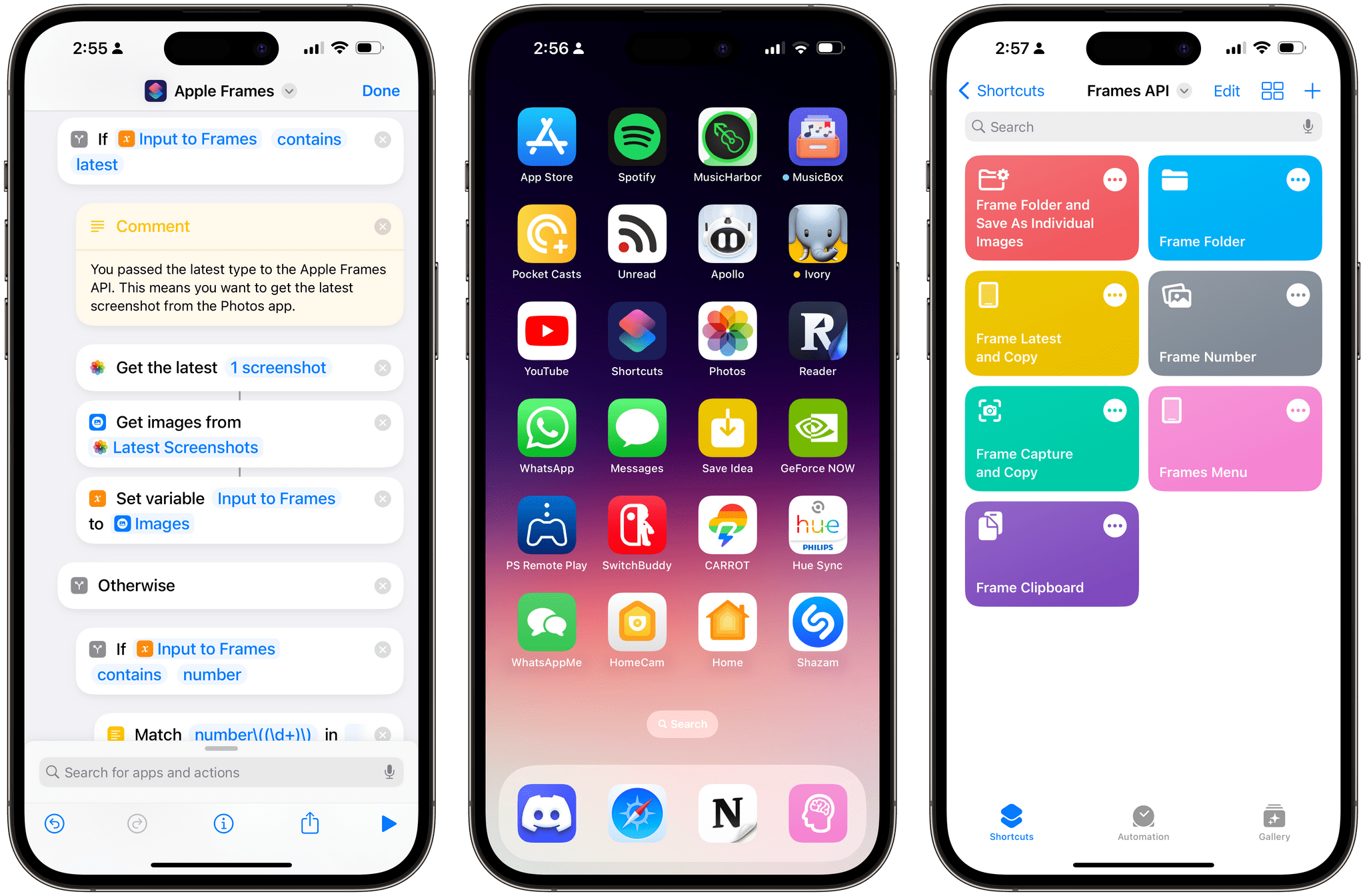
Today, I’m happy to introduce something I’ve been working on for the past couple of months: Apple Frames – my shortcut to put screenshots captured on Apple devices inside physical device frames – is getting a major upgrade to version 3.1 today. In addition to offering support for more devices that I missed in version 3.0 as well as some bug fixes, Apple Frames 3.1 brings a brand new API that lets you automate and extend the Apple Frames shortcut itself.
By making Apple Frames scriptable, I wanted to allow power users – such as designers and developers who rely on this shortcut to frame hundreds of images each week – to save valuable time without compromising the accessible nature of Apple Frames for other people. This is why all of the new advanced features of Apple Frames are optional and hidden until you go look for them specifically. Furthermore, even if you do want to use the Apple Frames API, you’ll see that I designed it in the spirit of Shortcuts: it does not require any code and it’s entirely powered by simple, visual ‘Text’ actions.
I’m incredibly excited about what Apple Frames can do in version 3.1, so let’s dive in.
A Real-Time Messaging Scratchpad
Apple Watch Ultra and the Watch Apps We Use
This week, Federico and John compare notes on the Apple Watch Ultra, including what makes it special and what frustrates them, and share the apps they’re using regularly.
A Lighter Approach to Focus Modes with iPhone and Apple Watch Ultra
Artificial Intelligence and Apps (Part 2)
Adding Tweets from Specific Users as Feeds in Inoreader Using Advanced Twitter Searches