Federico Viticci

10804 posts on MacStories since April 2009

Federico is the founder and Editor-in-Chief of MacStories, where he writes about Apple with a focus on apps, developers, iPad, and iOS productivity. He founded MacStories in April 2009 and has been writing about Apple since. Federico is also the co-host of AppStories, a weekly podcast exploring the world of apps, Unwind, a fun exploration of media and more, and NPC: Next Portable Console, a show about portable gaming and the handheld revolution.

iOS 5: 10 Videos From Around The Web

We have covered all the iOS 5 announcements in the past few days in our roundups and daily coverage, but there are so many new things about the new OS for iPhone and iPad that it would be impossible to list them all in a single article. So we have collected 10 videos from YouTube that show some of the most interesting aspects of iOS 5, such as Notification Center or the new custom vibration alerts for your Address Book contacts.

Check out the video gallery after the break.

Read more


Apple Releases iMac Graphic Firmware Update 2.0

Owners of an iMac might want to fire up Software Update or head over Apple’s Downloads website to get the latest Graphic Firmware Update released a few minutes ago. Less than one megabyte in size, the update should fix an issue that, according to Apple, in “rare cases” may cause an iMac to hang either during startup or when waking from sleep. As usual, Apple recommends to not shut off the computer during a firmware update as that may result in computers failing to start up.

Go download iMac Graphic Firmware Update 2.0 here.


OnLive To Bring Cloud Gaming to iPad This Fall

OnLive, the cloud-based gaming platform that allows you to play a variety of PC and console games from a web browser on your computer or any TV through a cheap set-top box always connected to the Internet, has announced that the official app for iPad and Android tablets will be available this Fall in both the United States and Europe. Teased several times in the past, it appears the final version of the OnLive Player app has been completely rewritten to fully take avantage of cloud gaming features such as voice chat and multiplayer, but more importantly the developers have figured out a way to run PC games on a server, send video to the iPad, and let iPad owners interact with the game using touch input – not just buttons. In fact, it’ll be possible to enjoy OnLive on the iPad with a standard controller, but according to OnLive CEO Steve Perlman some games will be updated to support touch controls on the iPad and the server. This means that whilst you’ll be playing a game that doesn’t actually run on your local machine and doesn’t normally support touch on consoles and PCs, thanks to the iPad app (and developers’ support) it will.

The power of the cloud is definitely the theme this week, displacing what had been assumed to be platforms that could never be displaced,” said Steve Perlman, Founder and CEO of OnLive. “The OnLive Player App for iPad and Android shows how with the power of the cloud, the question is not whether cloud gaming will be able to catch up to consoles, it will be whether consoles will be able to catch up to cloud gaming.

Check out the demo video from OnLive CEO after the break. Currently, OnLive comes with a native Mac app that enables gamers to play the rather large selection of title available through the platform.

[image via]
Read more


iOS 5 To Bring FaceTime on 3G? Better Video Quality?

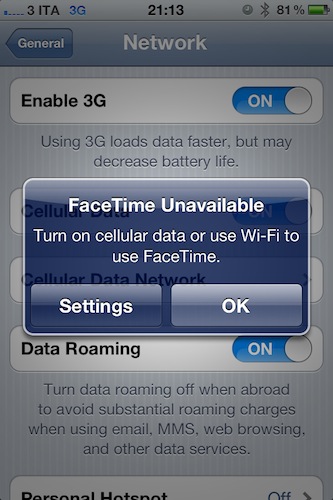
9to5mac has posted a screenshot passed along by a reader, in which iOS 5 shows an alert box asking the user to turn on cellular data or WiFi to use FaceTime. By playing around with the iOS 5 preferences in Settings->General->Network, we’ve found how to replicate the “issue”: turn off Cellular Data in the Network tab, open FaceTime’s prefs inside the Settings app, and you should get the alert box. If it doesn’t come up, try to turn FaceTime off and on again, making sure Cellular Data is still set to off. iOS 5 will tell you that you need data (3G) or WiFi to use FaceTime.

This could be big news for iPhone and iPad owners as FaceTime is currently restricted to WiFi networks, with many obviously speculating that the carriers forced Apple to make FaceTime available only on faster WiFi connections. On the other hand though, it needs to be mentioned that the jailbreak tweaks that enabled FaceTime on 3G on iOS 4.3 proved that, with less than optimal 3G speeds, FaceTime could be pretty terrible without WiFi.

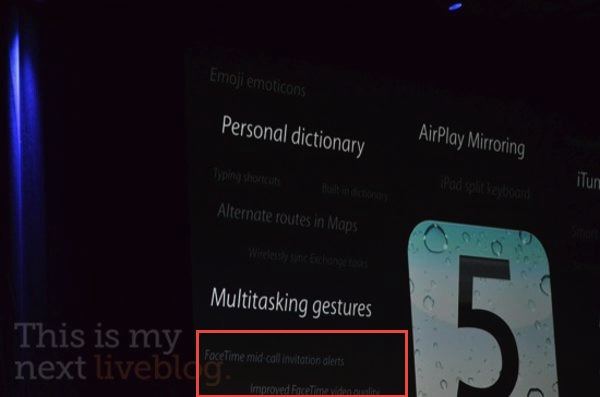
However, there’s one last piece to consider: at the WWDC ‘11 keynote, a slide showed by Scott Forstall on stage briefly hinted at improved video quality coming in FaceTime on iOS 5, alongside mid-call invitation alerts. See the image from This Is My Next’s liveblog:

Whether this means iOS 5 will finally bring the possibility to video call on the go it’s unclear at this point, and there’s a very good chance the alert box above is simply an iOS bug from the first beta. Or, Apple could be really working closely with selected carriers to enable FaceTime on 3G, at no additional costs.


Lion Boots From SD Card, Has New OS X Utilities Screen

Following a report from earlier this week that suggested it could be possible to burn OS X Lion to a DVD and install it from a Mac’s disc drive, a new video surfaced on YouTube shows that, by grabbing the .DMG  file inside the OS X Lion Installer app from the Mac App Store, users could be able to boot OS X Lion off an SD Card and choose from a new set of options after the system restarts. The new Mac OS X Utilities window, which appears at the end of the video, contains options to fire up Disk Utility to repair and erase partitions, possibility to restore from a Time Machine backup (Time Machine has been improved in Lion) and a standard “Reinstall” action to perform a Lion installation. The window also shows a link to “get online support” by browsing Apple’s online documentation.

Nature’s Eye Studios writes in an email to us:

Enabling Lion on an SD card was actually verry easy, easier than I expect it to be…

After downloading Lion from the Apple Developer site, you get a 4 GB DMG file, so the next step was to open up Disk Utility and erase an 8GB SDCX card (XC for the speed) After which I just had click the repair option in Disk Utility. Now select the Lion DMG as source and drag the SD card as destination. After about 10 minutes, the SD card was the Lion ESD installer. Then it was even easier: you just have to start the installation, and follow the on screen instructions.

To erase the hard drive or restore from a Time Machine backup, you have to boot from the installer; to do so, you have to turn off your Mac and turn it back on while holding Option (alt). When it powers up, you can choose from what drive to boot, you have your Macintosh HD and a Lion specific partition of your hard drive and then you have a USB device, which is actually your SD card. Follow the on screen instructions, and you’re able to erase your hard drive, and put everything back from a Time Machine backup.

Assuming the author of the video has followed the same method detailed by TUAW, the process should be fairly easy and useful to keep a portable copy of Lion that doesn’t live in your file system. Apple has announced at the WWDC keynote that Lion will be distributed only on the Mac App Store at $29.99, as opposite to previous speculation that claimed the company would also offer DVDs and portable USB drives for Lion. It’s unlikely Apple will publish documents to explain to users how to keep a physical copy of Lion (which involves opening the Installer package and finding a DMG file in the Contents folder), still it’s interesting to know there will be the possibility to do everything from Disk Utility as Lion’s Installer is nothing but a wrapper. Check out the video below. Read more


iOS 5: 8 Other Features We Love

Since Apple’s official presentation of iOS 5 at the WWDC keynote on Monday and the release of the first beta to developers, lots of things have been said about Apple’s new modus operandi based on watching the community, seeing what developers and jailbreakers are building to improve the OS and answer the needs of hardcore iOS users, and going back to the drawing board to take inspiration from what the ecosystem has created to offer a native solution, designed from Apple, in most cases better than the competition or third-party solutions. If you followed our keynote coverage and WWDC ‘11 roundup, you know what’s new in iOS 5 and what we’re referring to: the new notification system is heavily inspired by jailbreak tweaks like LockInfo and Mobile Notifier (which were inspired by Android’s notifications); the new Reminders app will likely eliminate the need of simple to-do list application from the App Store (but not complex GTD software like OmniFocus); the iMessage solution built by Apple sounds like RIM’s BlackBerry Messenger, it’s exclusive to iOS 5 users and keeps your messages in sync with iCloud.

With hundreds of new features, there’s a lot to discover in iOS 5, and more will come with future betas and the final release this Fall, we’re sure. The way I see it, Apple didn’t “kill” anything as several pundits are claiming: it’s called progress. Whilst the term “killing” implies a voluntary action of willing to do something against someone, with iOS 5 Apple doesn’t want to “kill” Remember the Milk, Dropbox, or Boxcar. Apple sees where the platform is going and skates to where to puck is going to be. I agree with our editor Cody when he says it’s not really about copying, as much as it’s about improving existing solutions to provide a better experience for everyone. Nothing’s really new nowadays, but there’s still room for innovation. It’s a subtle difference.

So with iOS 5, we have lots of innovations, new features, improvements, and all of the above. You’ve probably already read everything about the most important functionalities in our roundup, so here’s what we’re going to do next: rather than assembling a list of every single screenshot of what’s new in iOS 5 beta 1, we’ve collected the 10 best new things (some of which you may not have seen yet) we’ve found in iOS 5 beta. Read more


iPad Games on Apple TV: Firemint Announces Real Racing 2 HD with iOS 5 AirPlay Mirroring

One of Scott Forstall’s big iOS 5 announcements at the WWDC ‘11 keynote on Monday was the possibility for iPad 2 owners to wirelessly mirror the entire device’s screen to an Apple TV on a local network. Thanks to the AirPlay technology previously used for videos and photos and following the concept of mirroring via HD cable introduced with the iPad 2, iOS 5 will allow users to see exactly what they’re seeing on the tablet’s multitouch display on the TV’s bigger screen. An Apple TV will be required for this (meaning the HDMI cable will still be sold for all other televisions and users who don’t want to buy an Apple TV), and since we heard about the feature one obvious possibility came to our minds: games. Think about it: with nothing more than a wireless network and the $99 little black box, you’ll be able to play iPad games on a TV.

Yet Firemint, as usual, wants to deliver more than simple mirroring to the screen and upscaled content. Just like the development studio (to be acquired by EA) was first to the market to support 1080p TV-out with the iPad being used for additional functionalities, Firemint has announced that Real Racing 2 HD will support full AirPlay wireless gaming – with the TV displaying the game without black borders, and the iPad visualizing additional information and graphics. Whilst standard AirPlay mirroring allows users to see content both on the iPad and TV screen, Firemint’s solution will let iPad 2 owners “split” content between the TV and the tablet using AirPlay.

With Apple’s announcement of iOS 5 and AirPlay mirroring at WWDC 2011, Firemint is thrilled to report that, come the new OS, Real Racing 2 HD will be the first title to support full screen wireless gaming over AirPlay!

This isn’t just mirroring – you’ll be able to play Real Racing 2 HD on your big screen without a cable, while your iPad 2 displays racing telemetry in real-time. No black borders, no wires – just iOS racing at its finest.

We think the concept is great and we can’t wait to see how developers will take advantage of the Apple TV and AirPlay to provide alternative views of their apps for when users are at home, checking out content on their TVs. Real Racing 2 HD won’t officially support this new feature until iOS 5 comes out publicly this fall, but in the meantime you can download the app here.


Apple Wants To Build A Spaceship-like Campus In Cupertino

Amidst the software announcements at WWDC that finally confirmed the existence of iOS 5 and iCloud, a new build of Lion and the Apple Design Awards, Apple has been busy releasing new software for its platforms and devices. But this week has turned out to be more than just software for the company, as CEO Steve Jobs explained to the Cupertino City Council earlier this week Apple’s plan to build a new campus in Cupertino: a spaceship-shaped, 4-story building to host 12,000 employees and completely revolutionize the way Apple operates in Cupertino. The proposed project is impressive: not only it really looks like a mothership landed on Cupertino, it’s green and eco-friendly in the way it should be built using curved glass thanks to Apple’s retail experience. Not a single piece of glass in the building would be a straight piece – it’s all curved. Parking would be underneath, the number of trees would increase from the current 3,700 to 6,000 with some “apricot orchards” as well – furthermore, it would be located in the 98-acre campus Apple bought from HP last year.

Overall, it’s an impressive project for Apple – and we suspect it may have something to do with a rumor that claimed Norman Foster was collaborating closely with Apple to build a revolutionary campus based on modern, green technologies and renewable energies. Apple would rely on its natural gas facility and use an electricity grid as backup.

As Steve explained to the Cupertino City Council:

It’s a pretty amazing building. It’s a little like a spaceship landed. It’s got this gorgeous courtyard in the middle… It’s a circle. It’s curved all the way around. If you build things, this is not the cheapest way to build something. There is not a straight piece of glass in this building. It’s all curved. We’ve used our experience making retail buildings all over the world now, and we know how to make the biggest pieces of glass in the world for architectural use. And, we want to make the glass specifically for this building here. We can make it curve all the way around the building… It’s pretty cool.

You can check out Steve Jobs’ detailed proposal of the new mothership after the break. [via MacRumors] Read more


iTunes 10.3.1 Released

Following reports of iTunes 10.3 having some issues with iOS devices in the syncing process, Apple released iTunes 10.3.1 a few hours ago, quite possibly trying to fix the errors reported in the original 10.3 version made available earlier this week. After the WWDC keynote Apple seeded iTunes 10.5 beta to developers to enable sync with devices running iOS 5, but iTunes 10.3 was also released to the public to bring initial iCloud features like basic support for iTunes in the Cloud in the United States, Automatic Downloads, as well as a refreshed UI.

iTunes 10.3.1 is available for Mac and Windows machines, and can be downloaded from Apple’s support site of the Software Update control panel. The official changelog doesn’t include any details on what’s been updated, simply reporting the new features introduced in iTunes 10.3.