
Posts in Linked

Using Tweetbot Searches to Replace RSS

Sean Korzdorfer shares a Tweetbot tip that I didn’t know about: you can construct complex searches with boolean operators and filters and launch them with a URL scheme, both on OS X and iOS. And not just regular searches – you can apply a query to look for specific keywords inside a Tweetbot search.

Basically, Sean is using Tweetbot searches to replace RSS feeds. By saving searches that filter out RTs, mentions, and tweets in foreign languages, he receives a stream of tweets containing links from a specific set of users. Sean has turned his searches into Alfred workflows for Tweetbot on the Mac, and I thought I could do the same on iOS.

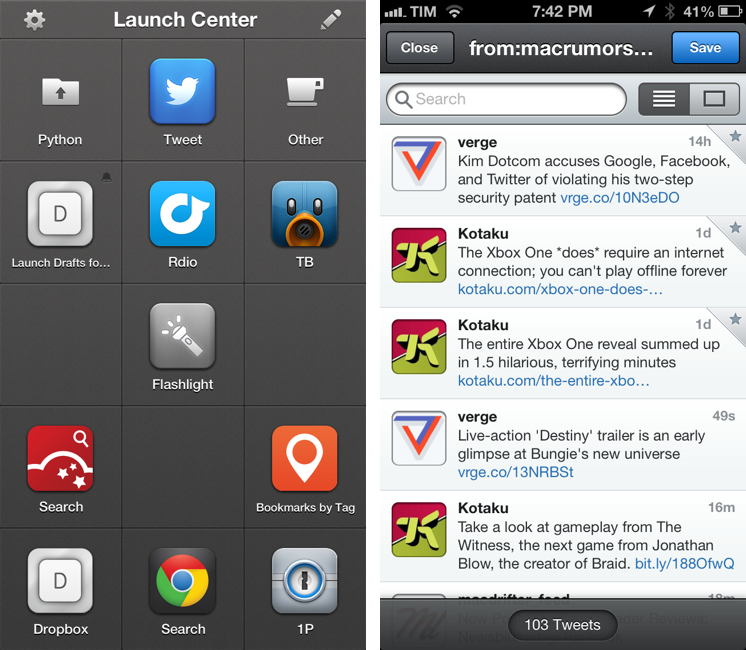
Sure enough, here’s a Launch Center Pro action to launch a Tweetbot search for links (no RTs, no mentions) from users I care about:

tweetbot:///search?query=from%3Amacrumors%20OR%20from%3Averge%20OR%20from%3Adaringfireball%20OR%20from%3Apolygonall%20OR%20from%3Akotaku%20OR%20from%3Amacdrifter_feed%20OR%20from%3Areneritchie%20OR%20from%3Amattalexand%20OR%20from%3Anateboateng%20OR%20from%3Adujkan%20OR%20from%3Amarkgurman%20OR%20from%3Apanzer%20filter%3Alinks%20-filter%3Amentions%20-filter%3Aretweets%20lang%3Aen%20[prompt]

And here it is decoded for reading purposes:

tweetbot:///search?query=from:macrumors OR from:verge OR from:daringfireball OR from:polygonall OR from:kotaku OR from:macdrifter_feed OR from:reneritchie OR from:mattalexand OR from:nateboateng OR from:dujkan OR from:markgurman OR from:panzer filter:links -filter:mentions -filter:retweets lang:en [prompt]

The URL action ends with a [prompt] for Launch Center Pro, but that can also be a [[draft]] for Drafts. You’re not forced to launch the search URL with a keyword – if you don’t enter anything in the prompt, Tweetbot will display all links from the search (which is why you probably don’t want to use Drafts for this, as it can’t launch an action from an empty draft). Also, you can see that the first portion of the URL isn’t percent-encoded, but the one after the query parameter is. For this, Launch Center Pro’s encode/decode actions can come in handy.

I am subscribed to a series of Twitter lists to discover interesting links on a daily basis, but these complex searches have the advantage of filtering out RTs and mentions, providing a cleaner, links-only experience.
Permalink


Mailbox Now Available for the iPad

As I said in my own review, Mailbox helps me get rid of all the unimportant stuff before I even sit down at my computer. I’ve described Mailbox as a complement to the inbox, not a replacement, and that continues to be true. I still log into Gmail when I need to compose a message or search for an invoice, but otherwise I flick through and browse notifications and messages when I’m away from my laptop or PC.

Mailbox on the iPad doesn’t offer any distinct advantage over its iPhone counterpart, the app being the same right down to the compose view. Oddly, Mailbox is locked to the landscape orientation, meaning that your email messages can only be viewed in half the space next to the sidebar. My guess is Orchestra felt that seeing the big picture — the entirety of the inbox — would be better for previewing and triaging email over opening individual messages as you’d have to in the portrait orientation.

Permalink

Twitter for Mac Gets Notification Center Support

Twitter updated its official Mac app today to include support for Notification Center and fixes for Growl (among other improvements). Notifications can be configured in the Settings, and, in my initial tests, they worked fine for mentions and direct messages.

In my Mountain Lion review, I noted that I didn’t like clicking on Twitter notifications because they were taking me to Twitter’s website instead of an app (they still do). It’s good to see Twitter updating their Mac app again.

Permalink

Latest Chrome Release Includes Voice Search Support

Jerry Hildenbrand:

Google Now style voice search has just went live in the latest Chrome stable version for the desktop (Version 27.0.1453.93). As far as we can tell from playing around testing things, the full contextual search isn’t running like we saw in the demo during the Google I/O keynote, but the basic voice search and response is ready to go.

Announced and demoed at I/O last week, Voice Search for the desktop mimics the experience launched on Google’s Search app for iOS last year. Voice Search for the desktop lets you dictate search queries to Google, which will transcribe them in (almost) real-time and take you directly to results, powered by the Knowledge Graph. Like on iOS, certain queries will trigger a voice response by Google itself, whereas others will display cards of information or regular results.

It appears Google is rolling out the feature this morning, as the new voice interface is available in Chrome but leading to frequent “No Internet connection” dialogs; I was able to try Voice Search twice, and it worked as expected.

You can watch a demo of Google’s Voice Search for the desktop from I/O 2013 here; an announcent will likely be posted on the official Google Chrome blog.

Permalink

Infinitesimal Bits of Time

Adam C. Engst, in his overview of Keyboard Maestro 6:

In fact, many of my macros are utterly simple and obvious — I could type “cheers… -Adam” at the end of every email message I send, or I could press Control-period. Just because I’m saving only a few seconds doesn’t mean that it’s not worthwhile, when added up over tens of thousands of messages. Similarly, much as I love LaunchBar and use it heavily for many things, because I set F1 to open BBEdit via Keyboard Maestro, switching to BBEdit via F1 is a third of the work of LaunchBar’s Command-Space, B, Return. Those infinitesimal bits of time are like the energy drain from glowing lights on otherwise inactive electronics — meaningless in the individual instance, but vast in their overall impact.

According to Keyboard Maestro, I have saved 420 hours since I started using it 635 days ago.

Permalink

Behind the Scenes of Paper’s Zoom

FiftyThree gives us a closer look at Zoom, explaining why they chose to use a loupe instead of expanding the entire drawing.

Our team spent many hours with the accessibility zoom, and looked at the best implementations of zoom across a range of apps. One thing that became clear in our testing and observation was that the time spent in zoom while drawing is typically pretty short. You go in and add the eyelashes or write something funny on your character’s t-shirt, and you’re out. In the vast majority of cases, zoom is task specific and tasks are region specific. This discovery supported our idea that zoom is a tool that’s activated on a particular region instead of globally on the canvas.

It seems to me that they also wanted to remain mindful of the idea that there is no infinite canvas and that the pages you’re drawing on have this real finite space. Paper is an app that is carefully restrained, making the point of realizing what the available tools can actually do. Their implementation of Zoom allots just enough freedom to clarify a drawing, but not enough to obsess over the perfect stroke or modify a drawing beyond disbelief. Paper provides an interface that naturally transfers what’s possible with physical tools onto a touchscreen.

Permalink