This Week's Sponsor:

Turbulence Forecast

Know before you go. Get detailed turbulence forecasts for your exact route, now available 5 days in advance.


Posts in Linked

AppStories, Episode 218 – Our iOS 15 Wishes

This week on AppStories, we continue our WWDC wish list series with a deep dive into the iOS 15 features we’d like to see announced at Apple’s annual developer conference.

Sponsored by:

  • Linode – Cloud Hosting & Linux Servers. Get a $100 in free credit.
  • Appfigures – Analytics, Intelligence, and App Store Optimization Tools.
  • DEVONthink – The one place for storing and working with all your documents, snippets, and bookmarks.

Permalink

Shortcuts Needs a Notification Toggle

Chaim Gartenberg, writing for The Verge, on one of Shortcuts’ most annoying limitations in iOS 14 – its obsession for showing notifications for anything it does:

Apple, I assume, mandates notifications because Shortcuts are extremely powerful tools for automating things on your iPhone, and it’s easy to imagine unscrupulous use of them.

But the thing is, the power of Shortcuts is to automate things in the background that I don’t want to have to deal with, whether that’s automatically disabling rotation lock when I open or close an app, open an app with a custom icon, or change the wallpaper when the battery life is low. A big glaring notification every time I do something detracts from that idea. I want my phone to be quietly helpful, not shouting in my face every time it does what I asked it to.

Years ago in my review of iOS and iPadOS 13, I argued in favor of adding an “expert mode” to Shortcuts so power users could turn off confirmation prompts for automations (which Apple removed the following year) and other notifications. Two years later, I think this goes well beyond expert users.

Since the release of iOS 14, millions of people have turned to Shortcuts as a way to customize app icons on their Home Screens. And every time they tap one of those custom icons, they have to see an alert that tells them the action they just performed was, in fact, performed. Imagine if your Mac showed you an alert every time you opened an app saying ‘You opened an app’. That’s pretty much what Shortcuts does whenever you run an automation or a shortcut added to the Home Screen.

Given the popularity of custom icons powered by Shortcuts in iOS 14 and the universal disdain for its notifications, I would be very surprised if there’s no way to turn these off in iOS 15.

Permalink

Spotify Rolling Out Redesigned ‘Your Library’ Page for Mobile Apps

As announced by Spotify earlier today, the company is rolling out a redesigned ‘Your Library’ page in its iOS and Android apps that should make it easier to browse your music collection and podcast episodes with a new grid view, better filters and sorting options, and more. From the Spotify Newsroom:

Your collection of music and podcasts is a representation of you—and it’s something deeply personal. But with 5,000+ hours of content released globally every day on Spotify and hundreds of those saved in Your Library, we know it’s crucial to be able to quickly find what you’re looking for, jump back into your latest discovery, or rediscover a beloved track you saved years ago.

Starting today, we are rolling out a new version of Your Library to all Spotify mobile users. Now, you’ll have a more streamlined way to easily explore your collection and find your saved music and podcasts faster. Your Library’s updated design and added features will enable you to spend less time looking for content and organizing your collection, and more time rediscovering the music and podcasts you’ve loved over the years. And as always, keep adding even more content for a library that grows alongside you into the future.

I’m particularly intrigued by grid view and the new filters to switch between music and podcasts. I’m also curious to see if this new design applies to the iPad app (which continues to pale in comparison to Apple Music’s solid iPad client) or not.

Permalink


‘How Apple Designed AirTags to Be Privacy-First and Stalker-Proof’

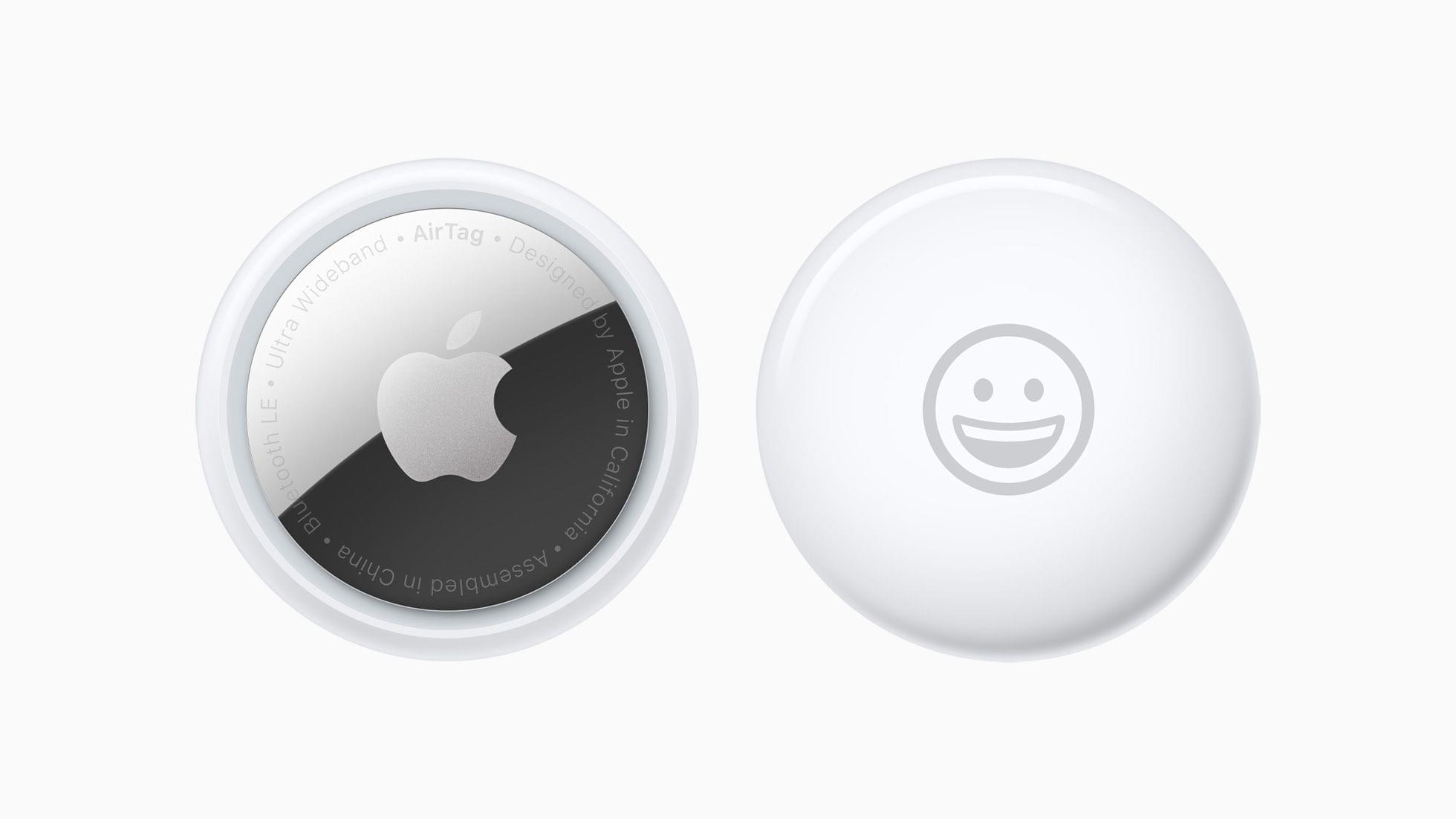
Michael Grothaus at Fast Company interviewed Kaiann Drance, Apple’s vice president of worldwide iPhone product marketing and Ron Huang, a senior director of sensing and connectivity, about AirTags. The focus of the story is the privacy features built into AirTags, and it includes this interesting nugget not covered during Apple’s event on Tuesday:

AirTags also have a unique security feature called Pairing Lock, which protects against people who may find your lost item and snatch the AirTag from it to use as their own. Huang likens Pairing Lock to the iPhone’s Activation Lock. “It means that if you lose your AirTag, somebody can’t just pick up your AirTag, re-pair it with their phone, and continue using it,” he says. “This has been really impactful for the iPhone and we think it will be for AirTag as well.”

I’ve seen a lot of questions raised online about exactly how AirTags work and their privacy features, and this Fast Company story is a great place to start to learn more.

Permalink

‘The iPad Pro Is a Killer Machine but its Software Is Killing Me’

Jason Snell, writing for Macworld about the new iPad Pro’s software limitations compared to its powerful hardware:

With the announcement of USB 4/Thunderbolt support on these new iPad Pro models, I’m thrown back to the past. In 2018, when Apple released the first iPad Pro with a USB-C port on the bottom, it didn’t update the software to read the entire contents of a thumb drive when you plugged it in. The hardware was willing, but the software was weak.

And here we are again. Thunderbolt adds even speedier connectivity, but for what? Faster photo and video imports? Okay, though once again, I’m reminded that Apple’s bread-and-butter pro media apps won’t run on these iPads.

Thunderbolt is great, but it’s difficult to take full advantage of it.

How about external display support? The new iPad Pros can drive even larger external displays, including Apple’s Pro Display XDR. Third-party video apps can take advantage of this to display high-resolution video and even some analytical displays. Which is great, but if you want to display the iPad interface itself, it’ll just be a pillarboxed mirror of what’s on the iPad’s own screen.

The last time a new iPad Pro’s hardware was so obviously more capable than its software demanded, we saw the debut of iPadOS seven months later. The 2021 iPad Pro’s hardware has created new low-hanging fruit for its software; I’d be really surprised if the second half of this story isn’t dropping in six weeks.

Permalink

How to Enjoy the New iMac Hello Screen Saver on Any M1 Mac

The new iMacs announced yesterday will ship with special ‘Hello’ screen saver that pays tribute to the original Macintosh and the color schemes of the new iMac models. On 9to5Mac, Jeff Benjamin has a walkthrough of the new screen saver, its options, and instructions on how to enable it on other Macs.

As Benjamin explains, you don’t need to have the new iMac to run the screen saver, although you need to jump through some hoops. The Hello screen saver is in the macOS 11.3 RC beta that was just released and can be copied and installed on other M1 Macs running the 11.3 beta by following the steps in Benjamin’s video. I haven’t tried to install the screen saver on an Intel-based Mac, but I plan to give it a go once I update my Mac mini to 11.3.

The screen saver includes several settings and three themes. I’ve set up the screen saver on my M1 MacBook Air and selected the ‘All’ theme option to get a mixture of all three themes when my screen saver is enabled. In addition to the themes, you can choose whether the screen saver shows multiple languages and whether it follows your light or dark mode settings.

I’ve enjoyed the Drift screen saver on my Macs lately, but the switch to Hello on my MacBook Air has been nice. The bold, vibrant colors are lovely.

Update: It turns out that the same process for adding the Hello screen saver to an M1 Mac works on an Intel-based Mac running the macOS 11.3 beta too.

Permalink

Microsoft to Begin Beta Testing Xbox Cloud Gaming on the iPhone and iPad

Tomorrow, April 20th, Microsoft Xbox Cloud Gaming, also known as xCloud, is coming to the iPhone and iPad and the PC as a limited, invitation-only beta. The service will allow invited Xbox Game Pass Ultimate subscribers to stream over 100 games using the Edge, Chrome, and Safari browsers.

In an announcement on Xbox Wire, Catherine Gluckstein, Microsoft’s head of xCloud said:

The limited beta is our time to test and learn; we’ll send out more invites on a continuous basis to players in all 22 supported countries, evaluate feedback, continue to improve the experience, and add support for more devices. Our plan is to iterate quickly and open up to all Xbox Game Pass Ultimate members in the coming months so more people have the opportunity to play Xbox in all-new ways.

Xbox Game Streaming was launched on Android last year but was delayed on iOS and iPadOS when Apple told Microsoft it couldn’t stream the games to a dedicated app unless each game was approved by Apple App Review.

Permalink

AppStories, Episode 213 – Music Part 2: Music Discovery, Playback, and Utility Apps

This week on AppStories, we introduce part two of our music miniseries, with a focus on third-party music discovery, playback, and utility apps.

Sponsored by:

  • Privacy – Smarter payments. Get $5 to spend on your first purchase.
  • Pingdom: Start monitoring your website performance and availability today, and get instant alerts when an outage occurs or a site transaction fails. Use offer code APPSTORIES to get 30% off. Offer expires on January 31, 2022, and can be used only once.
  • Pillow – Sleeping better, made simple.

Permalink