This Week's Sponsor:

Turbulence Forecast

Know before you go. Get detailed turbulence forecasts for your exact route, now available 5 days in advance.


Posts in reviews

AutoSleep 6: Effortless Sleep Tracking More Accessible Than Ever

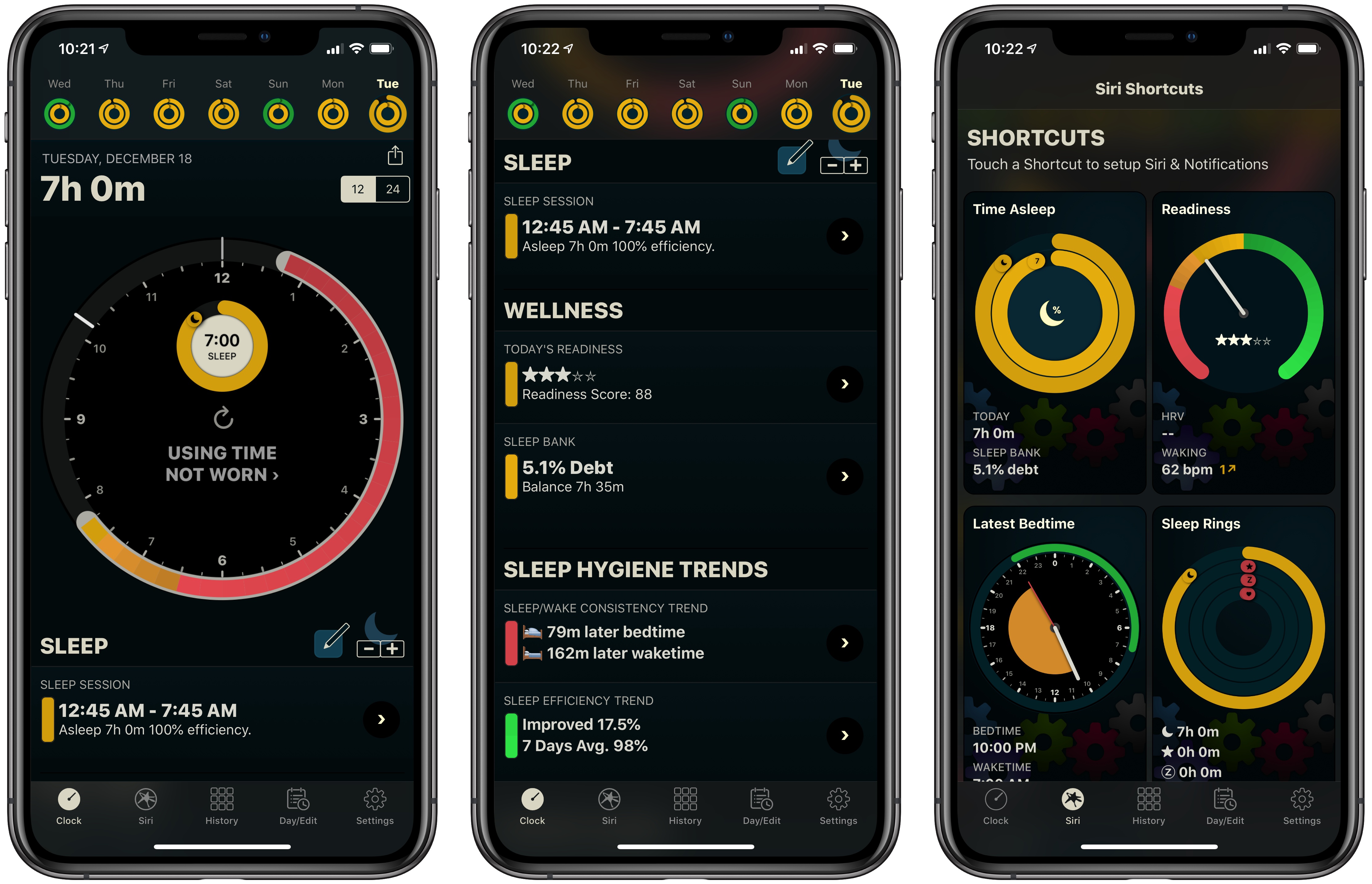
If you’ve followed MacStories for long, you probably already know that AutoSleep is one of our favorite sleep tracking apps on iOS. The app stands out for offering a frictionless, effort-free experience. Where other sleep trackers may require you to start and stop sleep tracking manually, AutoSleep takes the burden of remembering those tedious tasks off your plate. If you wear an Apple Watch to sleep, the app will automatically detect your sleep patterns even without a separate Watch app installed. If you don’t have a Watch, or simply don’t wear it to bed, the app will track your sleep through other methods. Whatever your habits are, AutoSleep has you covered.

Today marks the debut of AutoSleep’s latest major iteration: version 6.0, which introduces new wellness features, refined graphs and color schemes, sleep hygiene trends, Siri shortcuts, an improved Watch app, and more. It’s an extensive update that simplifies some aspects of the app while branching out into fresh, innovative areas of health tracking.

Read more


Launch Center Pro 3.0 Review: Universal Version, New Business Model, NFC Triggers, and More

Launch Center Pro, Contrast’s popular launcher for iPhone and iPad, has been updated to version 3.0. It may be hard to believe, but Launch Center Pro 2.0 came out five years ago (in 2013), before Workflow, when Pythonista, Editorial, and Drafts were the only other apps pushing forward the idea of iOS automation thanks to URL schemes and x-callback-url.

The iOS automation landscape is vastly different five years later. While Apple still hasn’t shipped a native automation framework for inter-app communication and URL schemes are still the only way to let apps exchange data with one another in an automated fashion, the evolution of Workflow into the Shortcuts app now provides users with an easier, more integrated solution to craft complex workflows. Not to mention how, thanks to its widget, ‘Open URL’ action, and ability to add custom launchers to the home screen, Shortcuts alone can supplant much of the functionality the likes of Launch Center Pro and Launcher have become well known for. Apple may not necessarily think about the Shortcuts app as “iOS automation” (they never used this expression in public), but it’s undeniable that Workflow (then) and Shortcuts (now) are a superior, more powerful alternative to perform actions that were previously exclusive to Launch Center Pro.

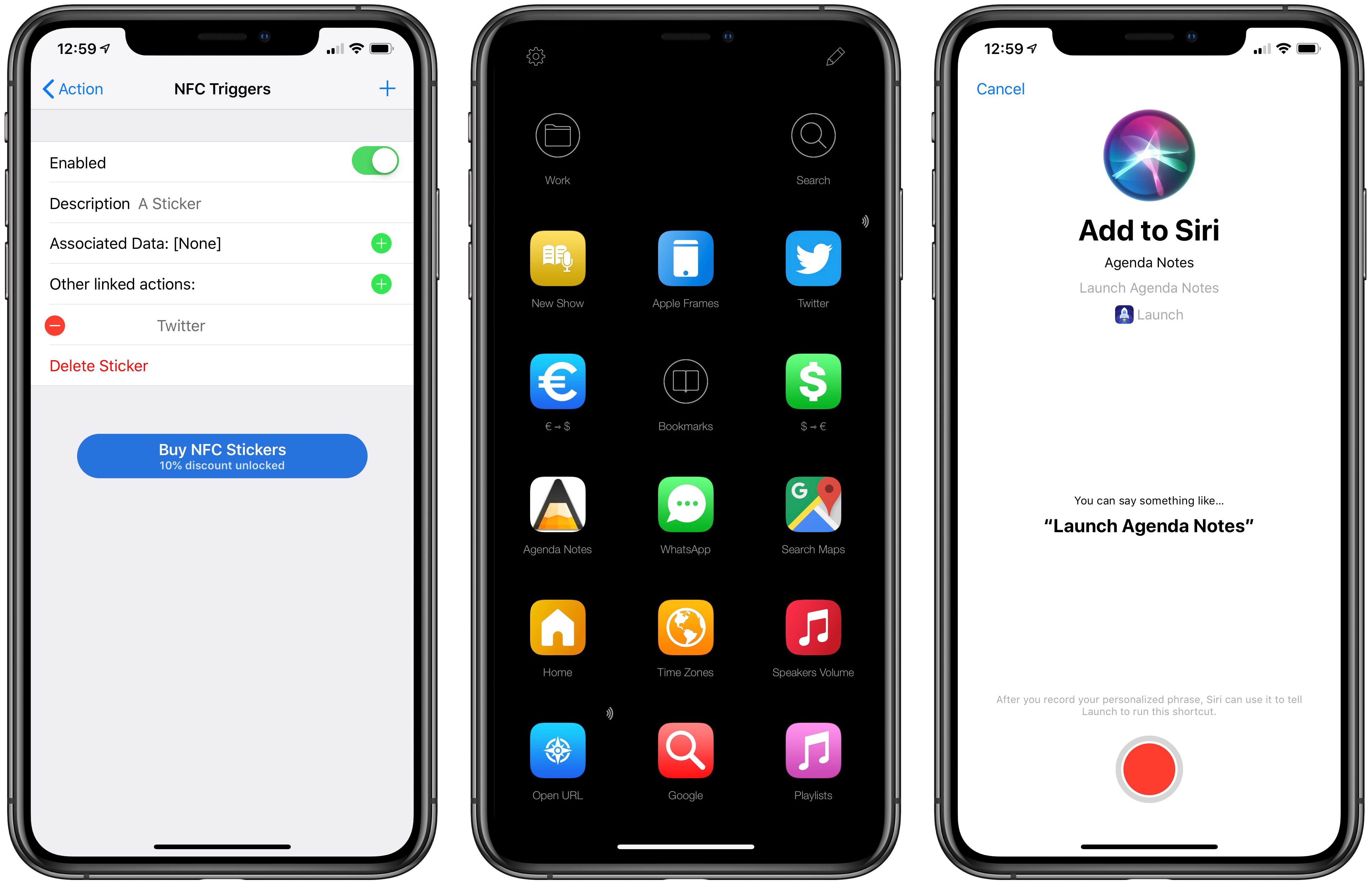
For this reason, I believe it’s best to think of Launch Center Pro in 2018 as a companion to Shortcuts – a more intuitive, perhaps simplified, versatile front-end to launch actions and apps in different ways, using triggers that aren’t supported by Apple and which can complement Shortcuts rather than replace it. And with version 3.0 released today, Contrast is embracing this new role of Launch Center Pro as well, doubling down on what makes it unique compared to Shortcuts, and expanding the app’s launcher capabilities in a handful of interesting ways.

Read more


Darkroom 4.0: The MacStories Review

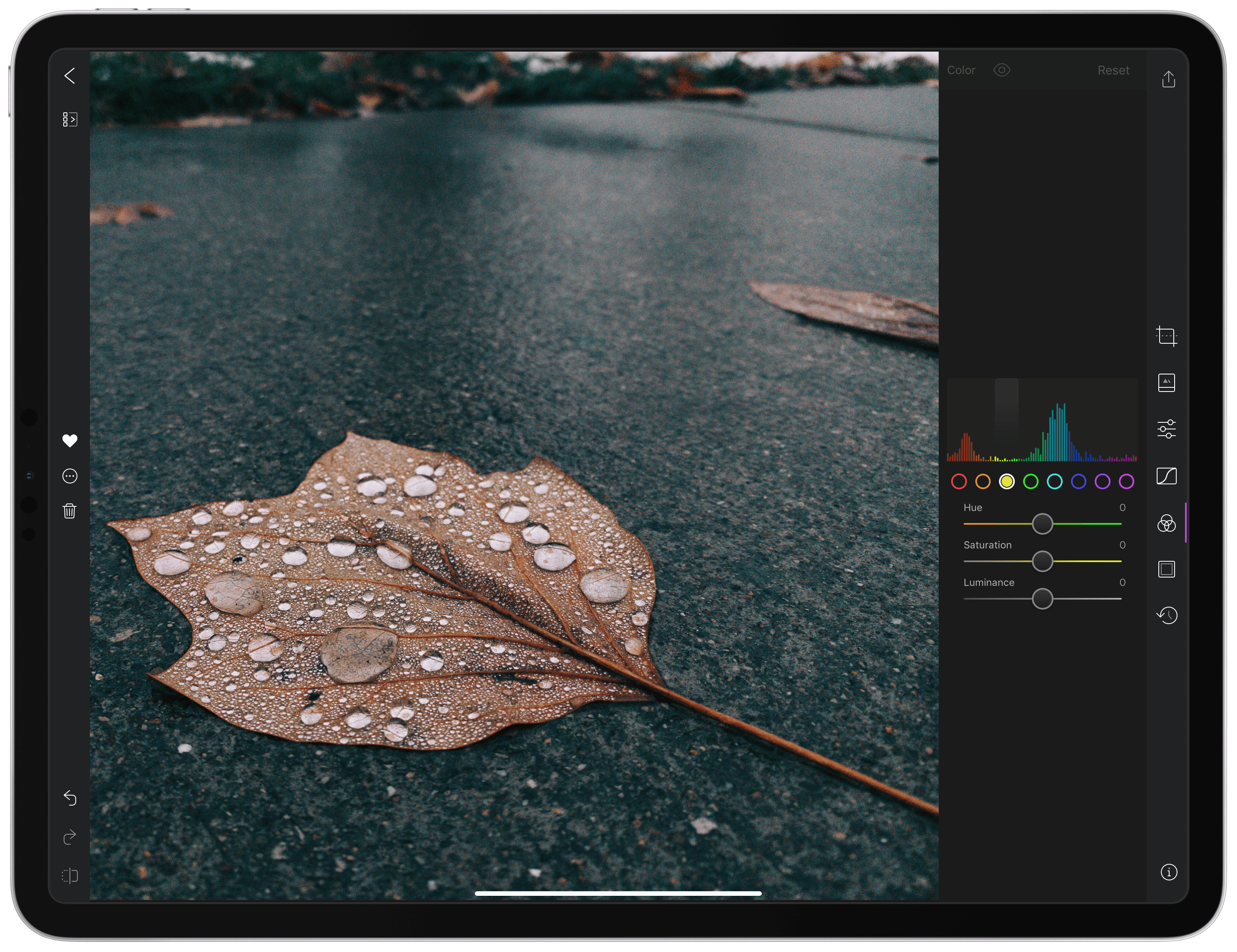
With version 4.0 released today, Darkroom has emerged as a photo editing force to be reckoned with on iOS. The highlight of the release is a brand-new iPad app, which is the version I’ll focus on in this review. I ran into a couple of bugs and would like to see Darkroom push its photo management and a few other tools even further in the future. However, the app’s combination of thoughtful design and platform-aware functionality together enable Darkroom to scale its full suite of tools gracefully from iPhone to iPad, which makes it an excellent choice for mobile photo editing.

Read more


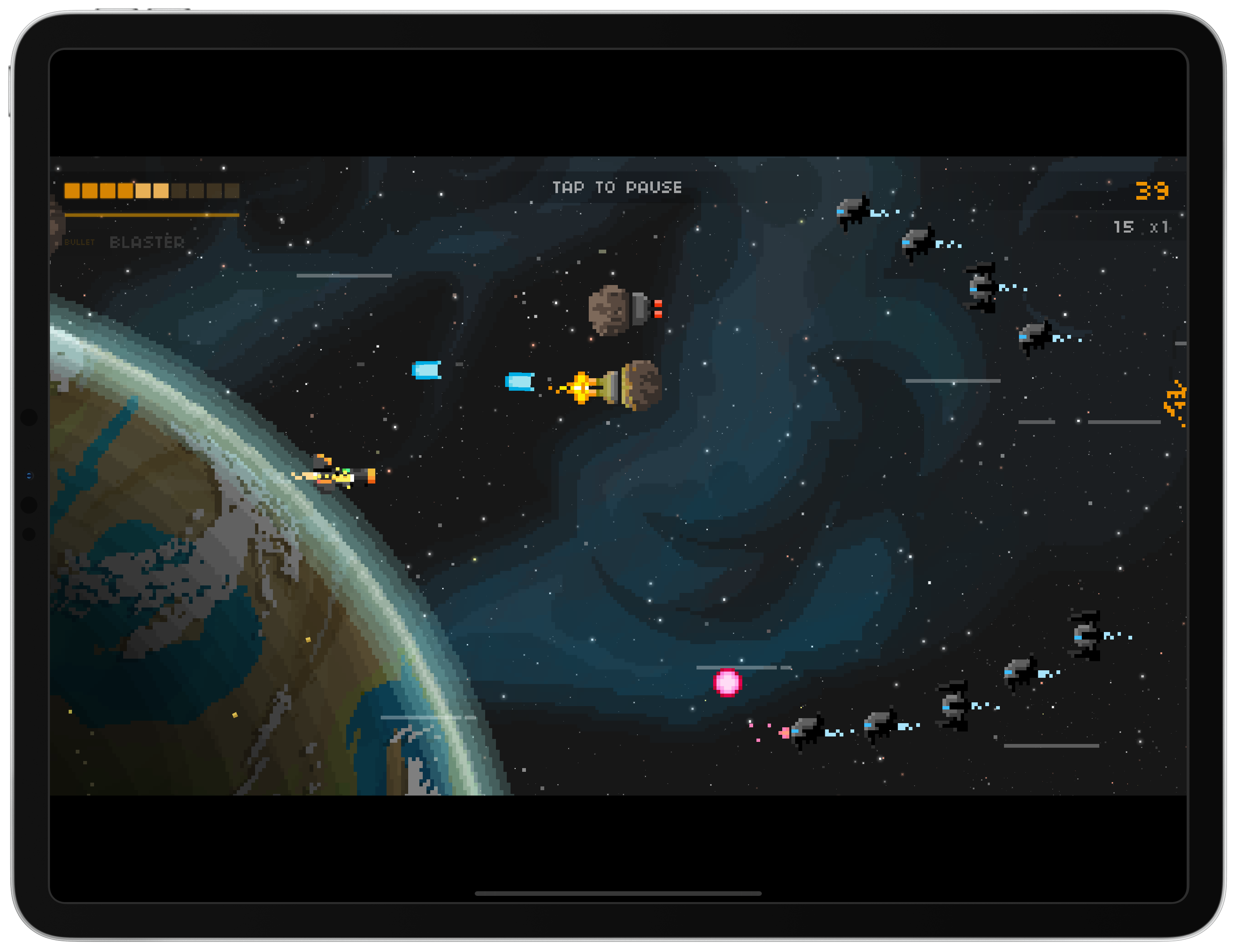
Game Day: Tropico for iPad

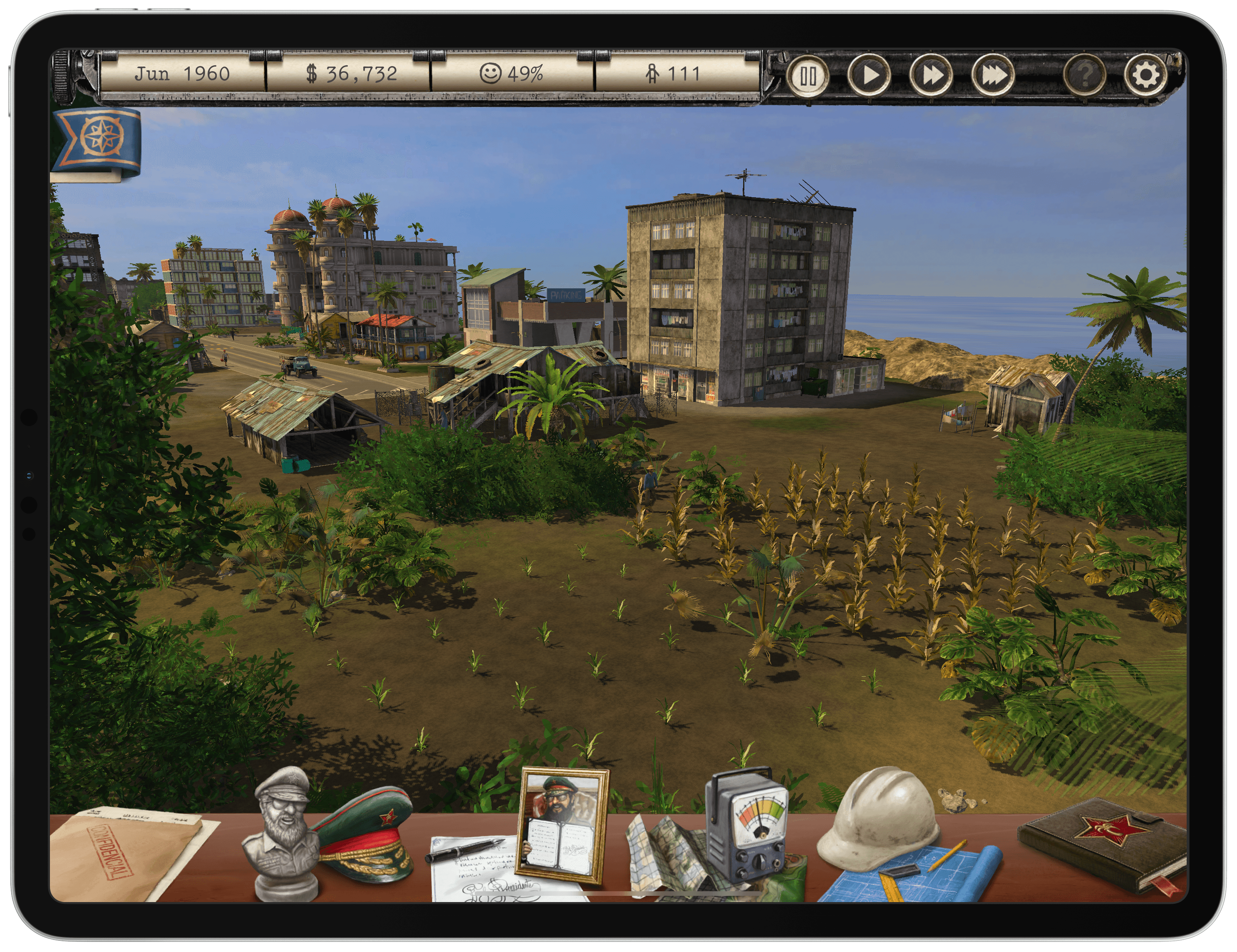
Tropico is a franchise that’s been around since 2001, but today marks its first time on an iOS device courtesy of Feral Interactive. Ruling a banana republic in the Caribbean as El Presidente is a natural fit for the iPad’s touch interface. Whether you’re navigating around your island nation or building out its infrastructure, touch makes the interaction with the game’s environment feel natural and tactile in a way that pointing and clicking with a mouse or trackpad can’t. Add a steady pace of challenges to overcome as a leader, and the results are terrific.

Read more


CARROT Weather Adds New Data Sources, Including Netatmo Weather Stations

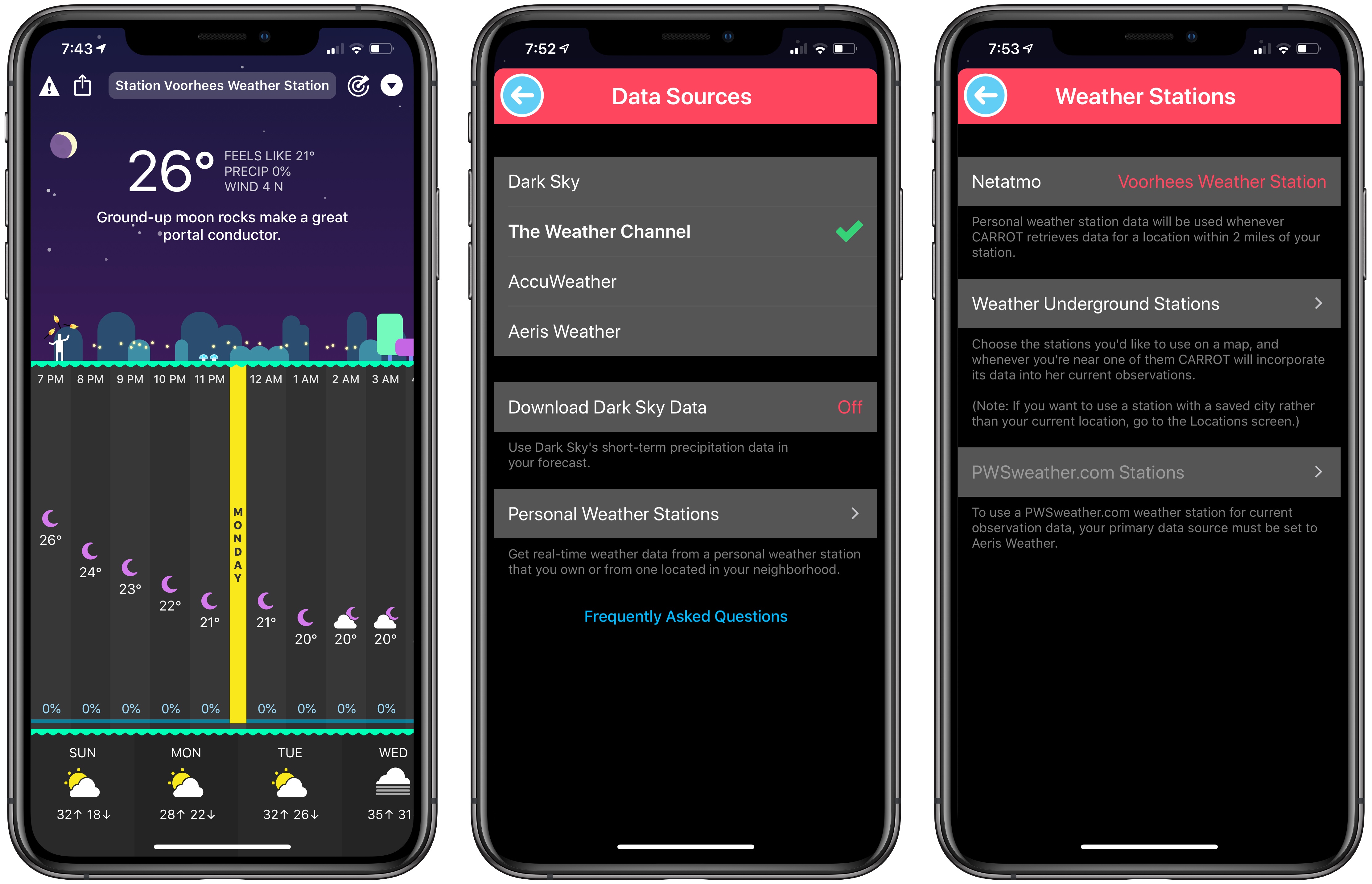
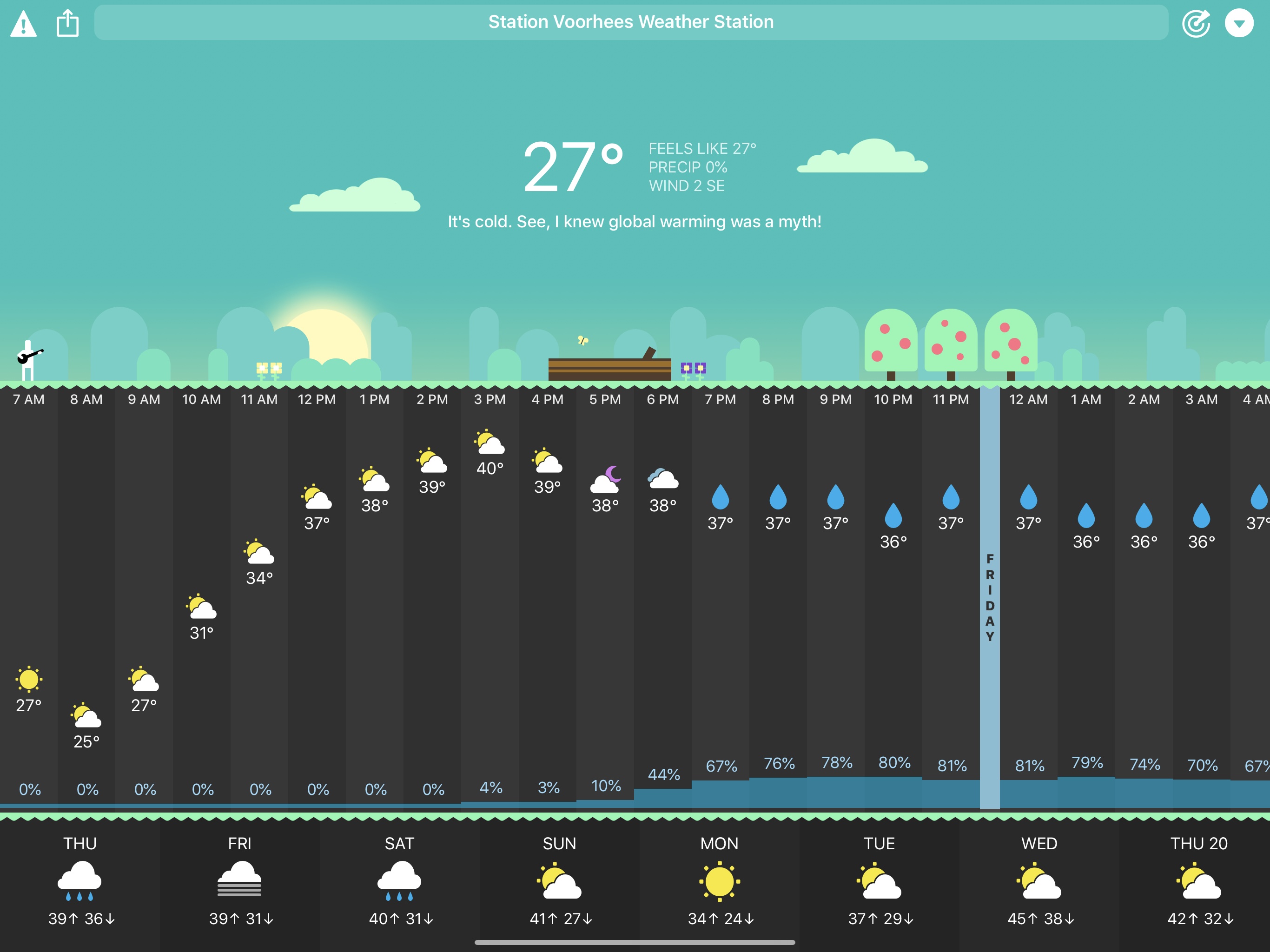
One of the nerdy features of CARROT Weather I love is its support for personal weather stations as a data source. Not long ago, Federico explained on AppStories that the weather station down the street from him had shut down, so he could no longer use it as a source in CARROT. I suggested he get a Netatmo Personal Weather Station and connect it to Weather Underground’s network of stations, but at about the same time Weather Underground ended its support for the Netatmo device, which left us both without a hyper-local weather source. It wasn’t a huge deal, but there’s something fun about knowing that the temperature you’re seeing in CARROT is the precise temperature outside your window and not some weather station that may be miles away from your home.

With today’s update, CARROT has stepped in with direct support for the Netatmo weather station as well as other new data sources. For the Netatmo device, all you need to do is sign in using the same login you use for Netatmo’s dedicated app, and as long as you’re within two miles of your home, CARROT will include the data collected by the Netatmo device.

Dark Sky is the default data source for CARROT, but users have three other options. The first is The Weather Channel, which provides the most extended-range forecast (data covering the next 360 hours and 15 days), is available worldwide, and can access personal weather stations connected to the Weather Underground network. CARROT has also added AccuWeather and AerisWeather as data sources. The AerisWeather option includes PWSweather.com personal weather station data. Users have the option of including Dark Sky’s short-term precipitation in CARROT even if The Weather Channel, AccuWeather, or AerisWeather is their data source.

Personal weather stations connected to the Weather Underground system and PWSweather.com can be selected from a map allowing you to pick one closest to where you live. Other than the personal weather station access through the Weather Channel’s API though, Weather Underground data, which was previously a data source option in CARROT, has been removed because IBM, which owns Weather Underground, has discontinued its API.

CARROT Weather’s update includes a host of other smaller additions too:

  • Air quality index and pollen data are available in the current weather view if you use The Weather Channel or AccuWeather as sources
  • There are six new secret locations to discover
  • The location screen has a new ‘Recent Searches’ section, from which you can add previous searches to your saved locations by tapping the star icon next to them.

I’m glad Brian Mueller has expanded the data source options for CARROT Weather. The best source varies depending on where you are, and with more sources, CARROT should be a better option for more users going forward. I especially like the personal weather station integration. Whether you have a weather sensor yourself or want to piggy-back on another publicly-available station nearby, they’re an excellent way to track hyper-local conditions.

CARROT Weather is available as a free update to existing users on the App Store.


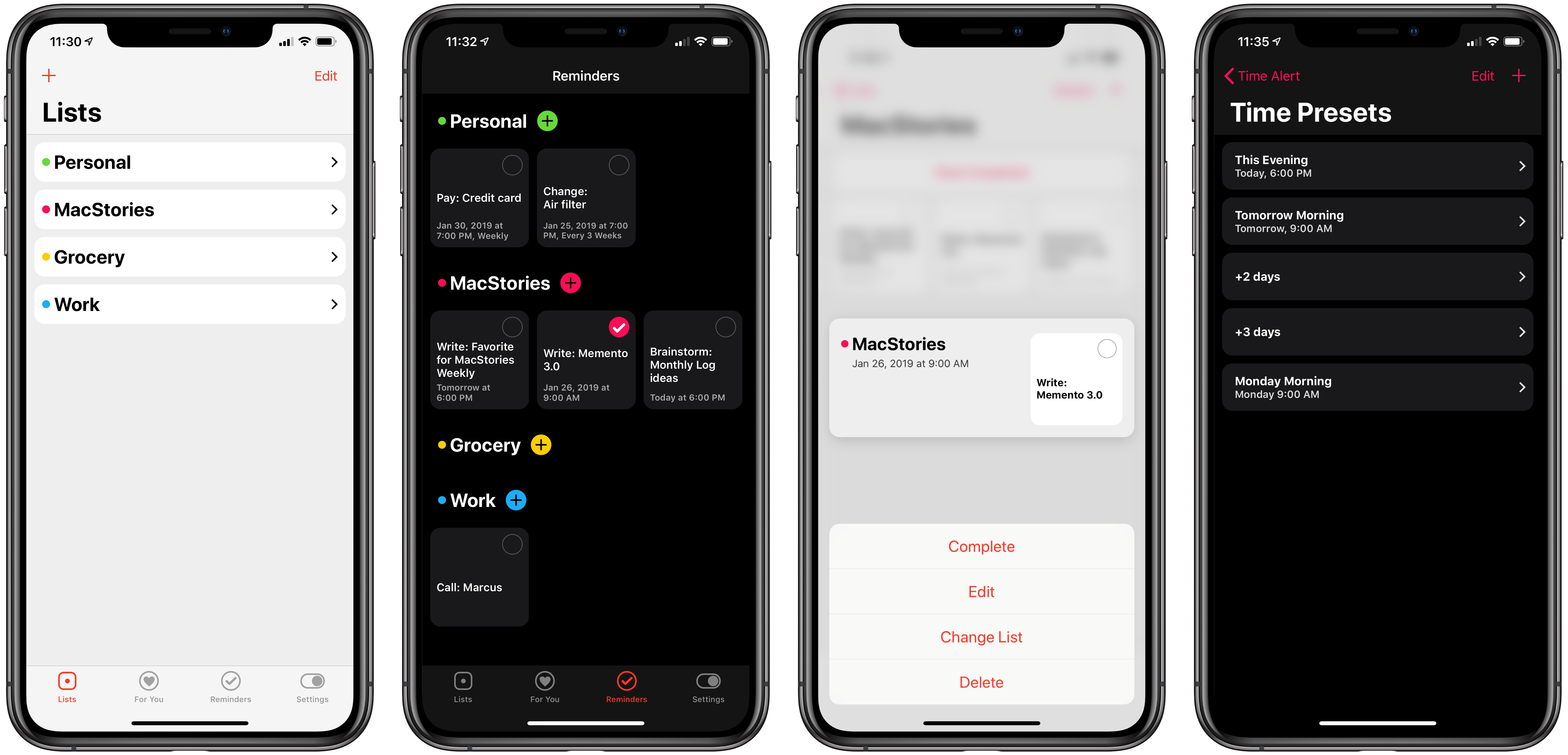
Things 3.8 Brings Dark Modes to the iOS Task Manager

This fall when macOS Mojave introduced a systemwide dark mode feature, Things added support for the new mode in version 3.7. The iPhone and iPad versions of the app, however, were left out. A lack of feature parity across platforms is always unfortunate, but that was especially true this time around because our John Voorhees  highlighted Things as having his single favorite dark mode implementation.

There’s good news though: we didn’t have to wait long for Things’ dark mode to make its way to iOS. Launching today in version 3.8, Things has added two different dark modes on both iPhone and iPad, one of which is suited particularly well to OLED iPhones.

Accessible via a new Appearance screen in Things’ Settings, there are now options for Light, Dark, and Black modes for the task manager. The former is the default appearance of the app we’re all well acquainted with, while the latter two are brand new. Both alternate appearances employ blue as the app’s accent color, with the main difference being the background color. Dark mode uses a nice shade of gray, while Black mode employs an OLED-optimized true black.

Each of Things’ appearance options can be set manually, or there’s an option to have the app switch modes automatically depending on your display’s brightness. Once you activate this toggle, you’ll see an option to choose between Dark and Black options for automatic switching, as well as a brightness threshold at which Things will change its appearance. The app’s use of display brightness to change modes should work well for users who have iOS’ Auto-Brightness feature activated, but I wish there was an automatic switching function for those who, like me, have that turned off.

Things 3.8 doesn’t introduce any other new features, but adding two beautiful dark modes is enough to make this a noteworthy release. Cultured Code has a strong reputation for thoughtful design, and its dark modes are a standout example on iOS.

Things 3.8 is available on iPhone and iPad.


HomeRun 1.1 Enables Creating Custom Watch Complications

HomeRun is a simple Apple Watch utility for controlling HomeKit scenes from your wrist. Where Apple’s Home app for the Watch can be clunky to navigate, especially if you have more than a couple HomeKit devices set up, HomeRun makes controls easily accessible for all your scenes. And today, with version 1.1, HomeRun has introduced custom complication creation, making it possible to have different launcher complications for each of your configured scenes.

Inside the HomeRun app on iPhone, the Complications screen in version 1.1 appears largely the same at first glance, but once you start tapping around you’ll discover that Watch complications are now fully customizable. Visit the detail view for a specific watch face and you’ll be able to update any and all complications for that face with custom colors and icons to accompany your selected scenes. The Series 4 Watch’s Infograph face, for example, presents options to customize both the corner slot and circle slot complications.

Creating custom complications works just like setting up scenes for the main Watch app itself, with the same set of colors and glyphs available in both places. That means the excellent assortment of glyph options for scenes are all accessible as complication icons as well.

When it launched last month, HomeRun enabled adding scenes as complications to your watch face, but you had to use the app’s icon for each complication. Custom complications were a natural next step for the app, and I’m thankful we didn’t have to wait long for them to arrive.

HomeRun 1.1 is available on the App Store.


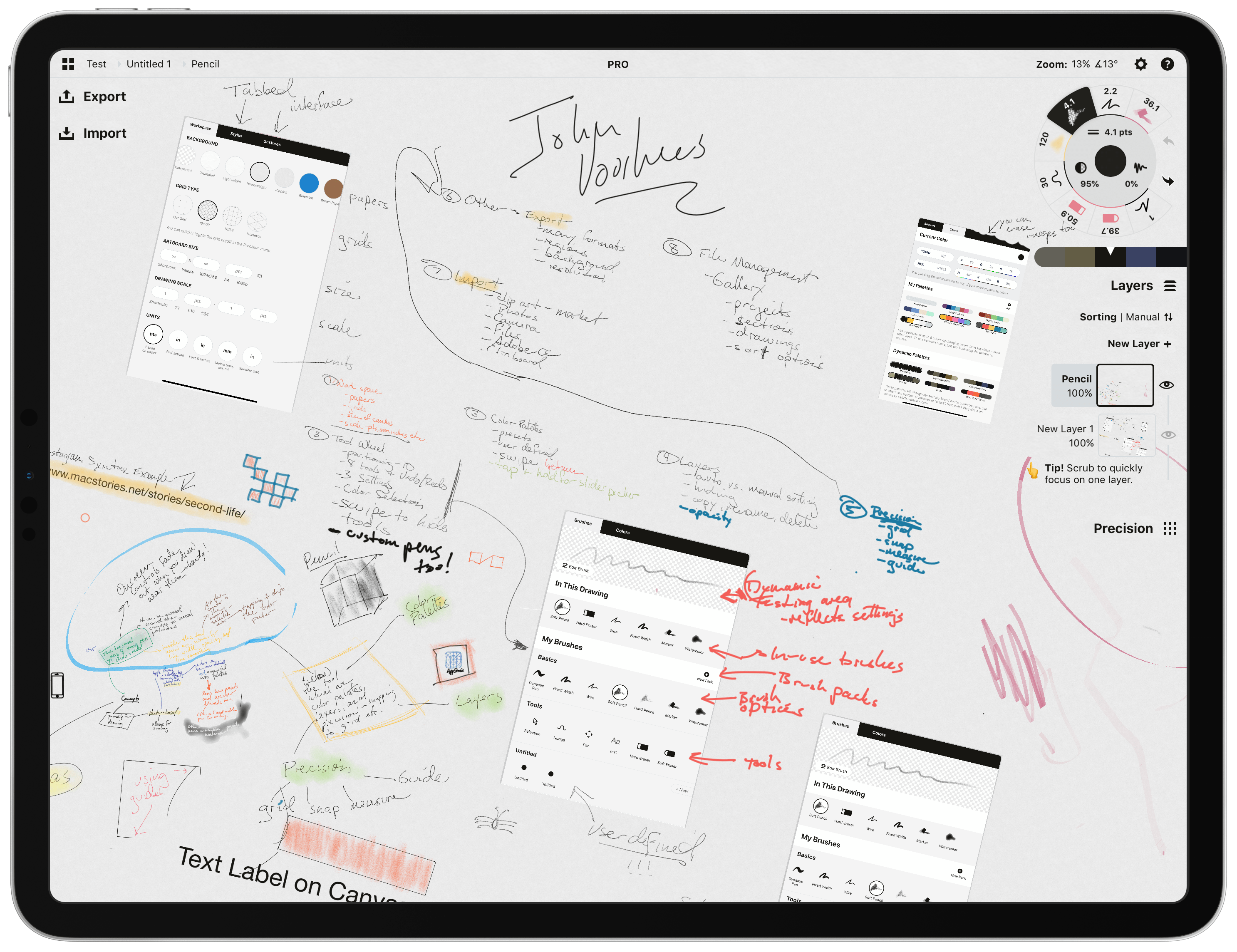
Linea Sketch Adds Fill, Blend, ZipShape, and Versioning Features

I’m not much of an artist, but I like to take notes, doodle, and create freehand mind maps with the Apple Pencil. With a rich set of paper options and templates to choose from and tools that don’t require a manual to understand, Linea Sketch has become one of my go-to brainstorming tools.

With each update, the app has added functionality that makes it more powerful and flexible without increasing complexity. Version 2.5, which is out today, continues that trend with four new core features, support for Apple Pencil gestures, a new background paper, and other refinements.

Read more


Sofa Review: A Simple Tool for Tracking Movies, TV Shows, Books, and Podcasts

We live in a time when media options are growing at a fast pace. It’s a golden age for television, with great shows debuting all the time; the film industry is being transformed by the infusion of new competition from streaming giants like Netflix; podcasts are becoming more mainstream by the day; and despite books not being in a similar growth phase, new titles are still being written constantly. In this crowded media landscape, it’s hard to keep track of all the great content waiting to be enjoyed.

In the past I’ve kept notes in Apple Notes containing lists of TV shows, movies, podcasts, and books to check out. Lately, however, I’ve been using an app called Sofa.

Read more