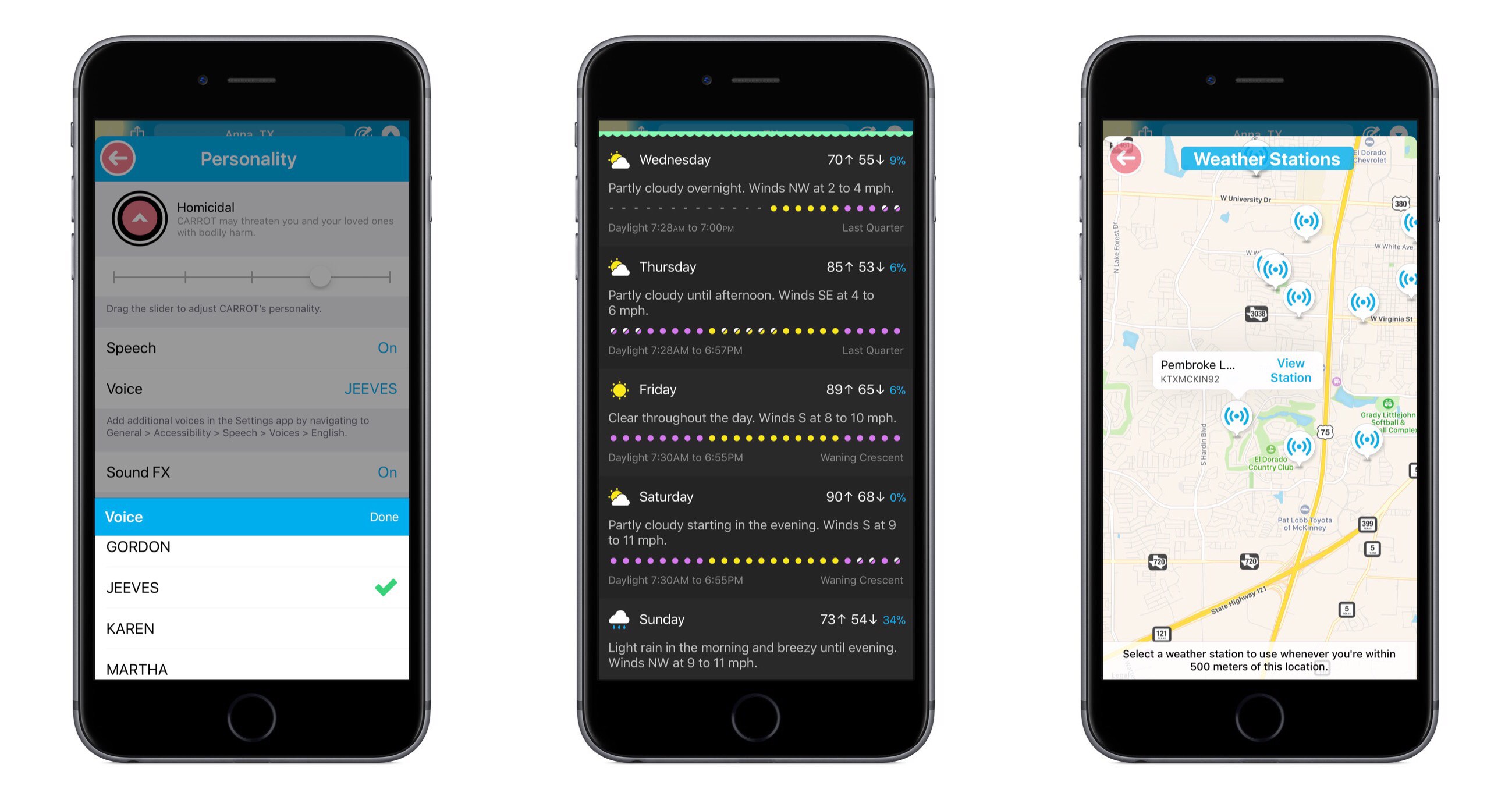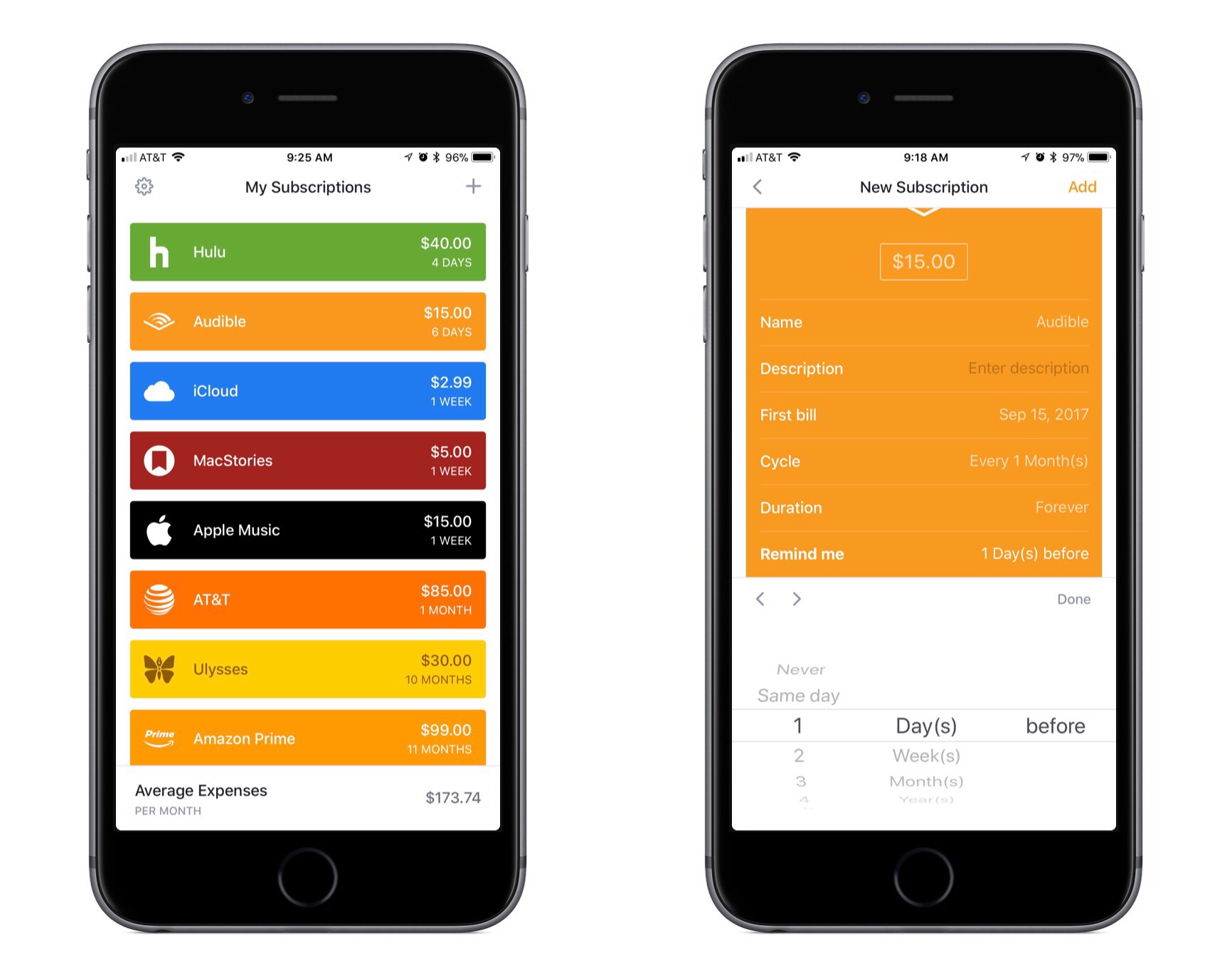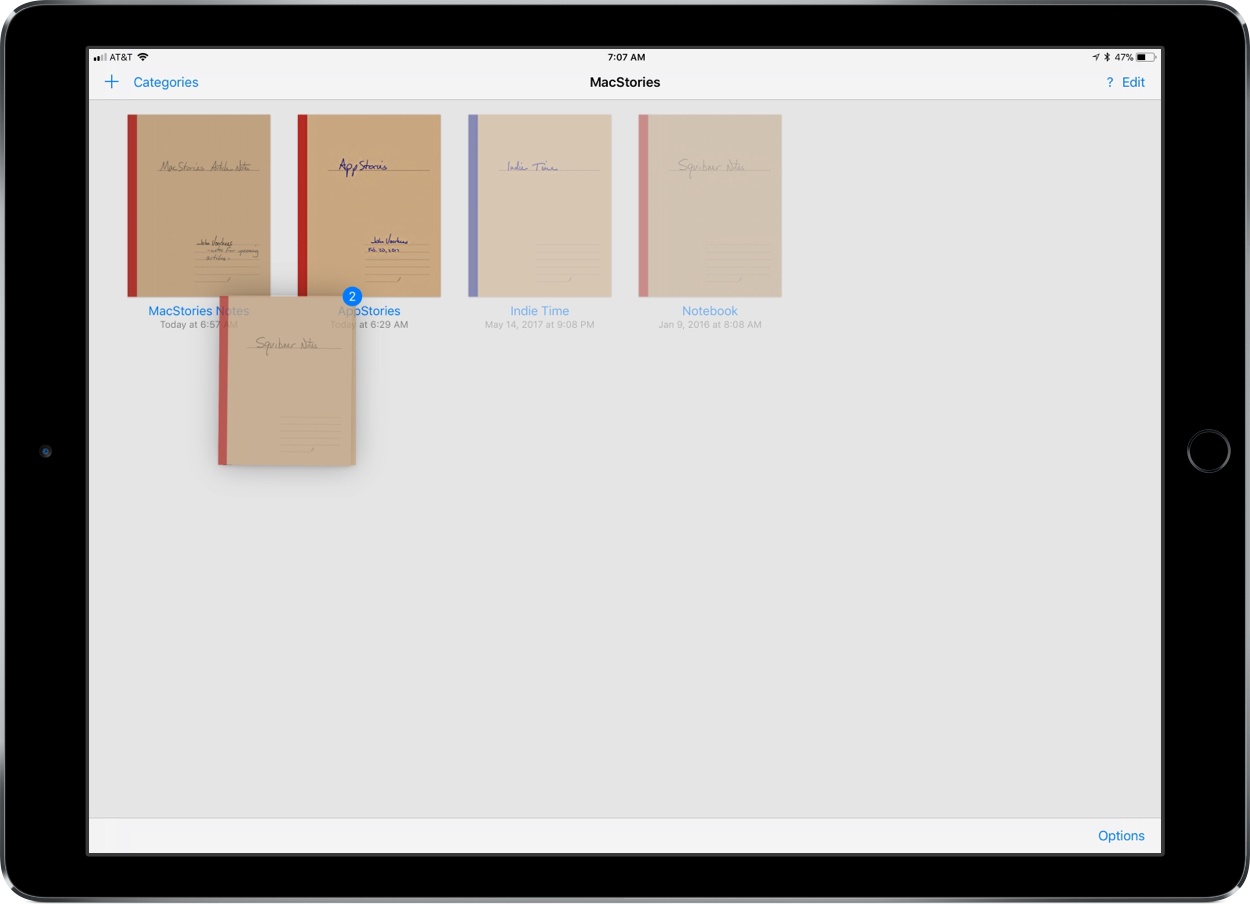
Drag and drop is a natural fit for a note taking app like GoodNotes. The app excels as a way to capture handwritten or typed notes, but one of its greatest strengths is the ability to combine notes with other media, which drag and drop makes easier than ever.
GoodNotes has one of the best ink engines of any note taking app I’ve used. You can choose from a preset selection of ink colors and line widths or customize them to suit your taste. There’s a highlighter tool for marking up your notes or other documents too. The lasso tool lets you select notes and other on-screen elements to move them on the page or, in the case of handwritten notes, convert them to text.
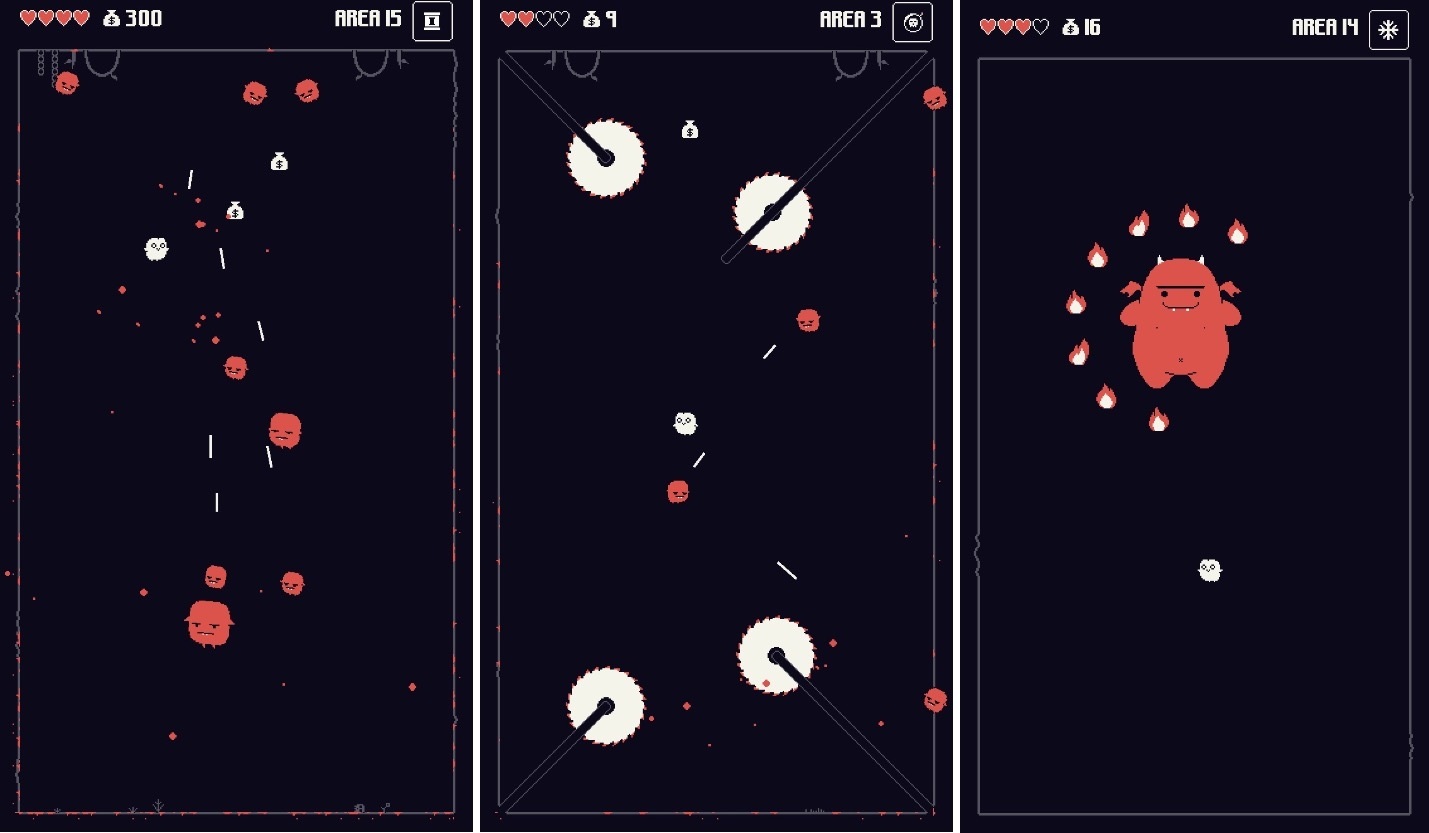
Sometimes the best distraction from a frantic and chaotic day is an even more frantic and chaotic game. Fowlst, which developer CatCup Games, describes as ‘an action game about an owl that is trapped in Hell for some reason’ is perfect for just such an occasion.
Fowlst is an arcade-style action, dodging game. You play as the owl, pursued by demons that shoot lasers at you while you try to avoid buzzsaws, fire, and other obstacles. The game gets crazy fast.
The mechanics remind me of Don’t Grind, one of my favorite arcade-style games released last year. You control your owl by tapping on the left and right-hand sides of the screen, which makes your owl fly in a bouncy kind of way in the direction of your taps. The controls purposefully require a careful coordination of left and right taps to navigate your owl. Power-ups are activated by swiping up on the screen. It’s a simple control scheme that makes Fowlst easy to pick up and start playing, but difficult to master.
Demons are defeated by colliding with them before you run out of hearts from being hit by lasers or other obstacles. Unlike Don’t Grind, you don’t have to keep your owl aloft constantly. You can rest on the bottom of any stage or a perch, but constantly moving helps make it harder for the demons to get you. There are also periodic bosses theoughout the game to mix up the pace of the action.
When you defeat a demon, it’s replaced with a floating sack of money and occasionally a heart or power-up that disappears after a few seconds. To collect items, you need to steer your owl into them while simultaneously dealing with other demons and obstacles. The cash you collect can be spent to upgrade your owl with health and weapons.
The game ends when you run out of hearts. Fowlst then tallies the money you collected, the number of levels cleared and shows how you did compared to your high score, which has the effect of making the game wonderfully-compulsive to play. Fowlst keeps things interesting by randomizing the levels you are presented each time you play through. It’s a carefully struck balance that keeps the gameplay familiar enough to avoid frustration but also avoids becoming monotonous.
Fowlst combines its arcade action with pixelated art, a complementary chiptune soundtrack, and lots of ‘pew-pew’ laser sound effects. The result is an addictive arcade game that has almost no learning curve and is easy to pick up and play for short periods of time but is difficult to master and hard to put down. It’s a perfect combination for a mobile game, making Fowlst a title I’m going to be returning to often.
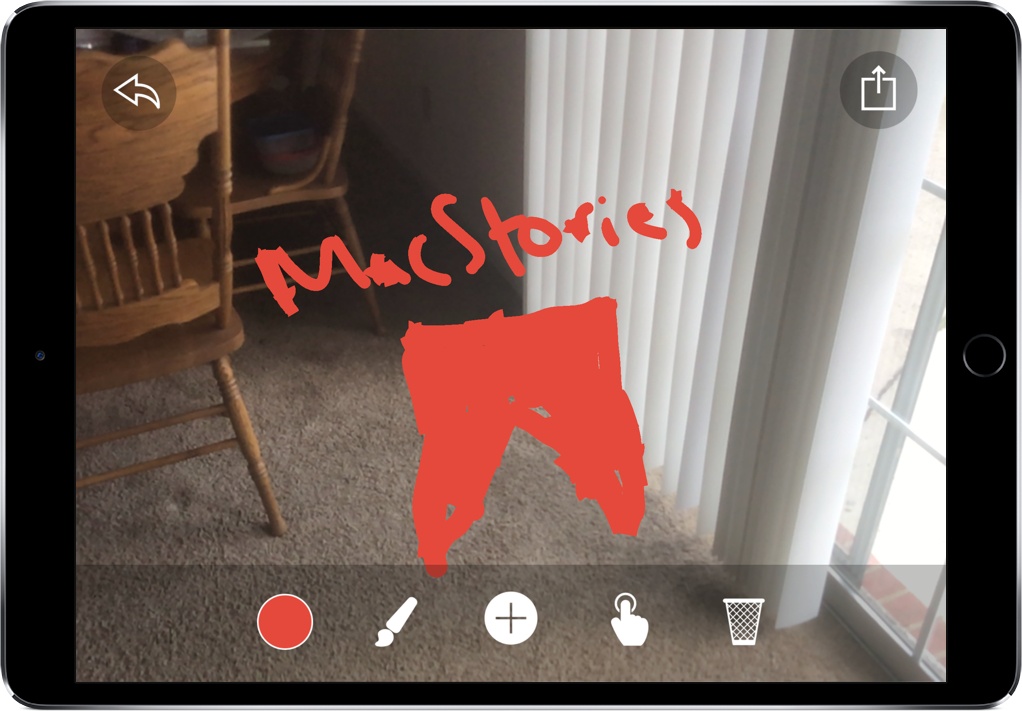
One of my all-time favorite tech demos is Tilt Brush, a VR painting experience where you can create art in 3D on the HTC Vive. Immediately, you begin seeing the potential of VR artistry, allowing artists to utilize tools not available in the real world. By creating free-floating structures with unique brushes, Tilt Brush was my first exposure to what the future of digital art could look like.
Paint Space AR is Tilt Brush for the AR world, enabling you to create interesting pieces of art right where you are. With AR, though, Paint Space has a unique advantage: instead of having to create something in a simulated space, you’re able to paint on objects right in front of you.
Before I moved to Ulysses for most of my writing, I used 1Writer. At first, it was how I accessed my large collection of NVAlt notes when I wasn’t at my Mac because its search is exceptionally fast. Over time though, it became my primary text editor because it syncs with iCloud and Dropbox, works with Markdown files, has excellent export options, is highly customizable, and supports URL schemes and JavaScript actions. I don’t use 1Writer as often these days, but it remains one of my favorite text editors, so I was glad to see it has been updated to take advantage of new iOS 11 features.
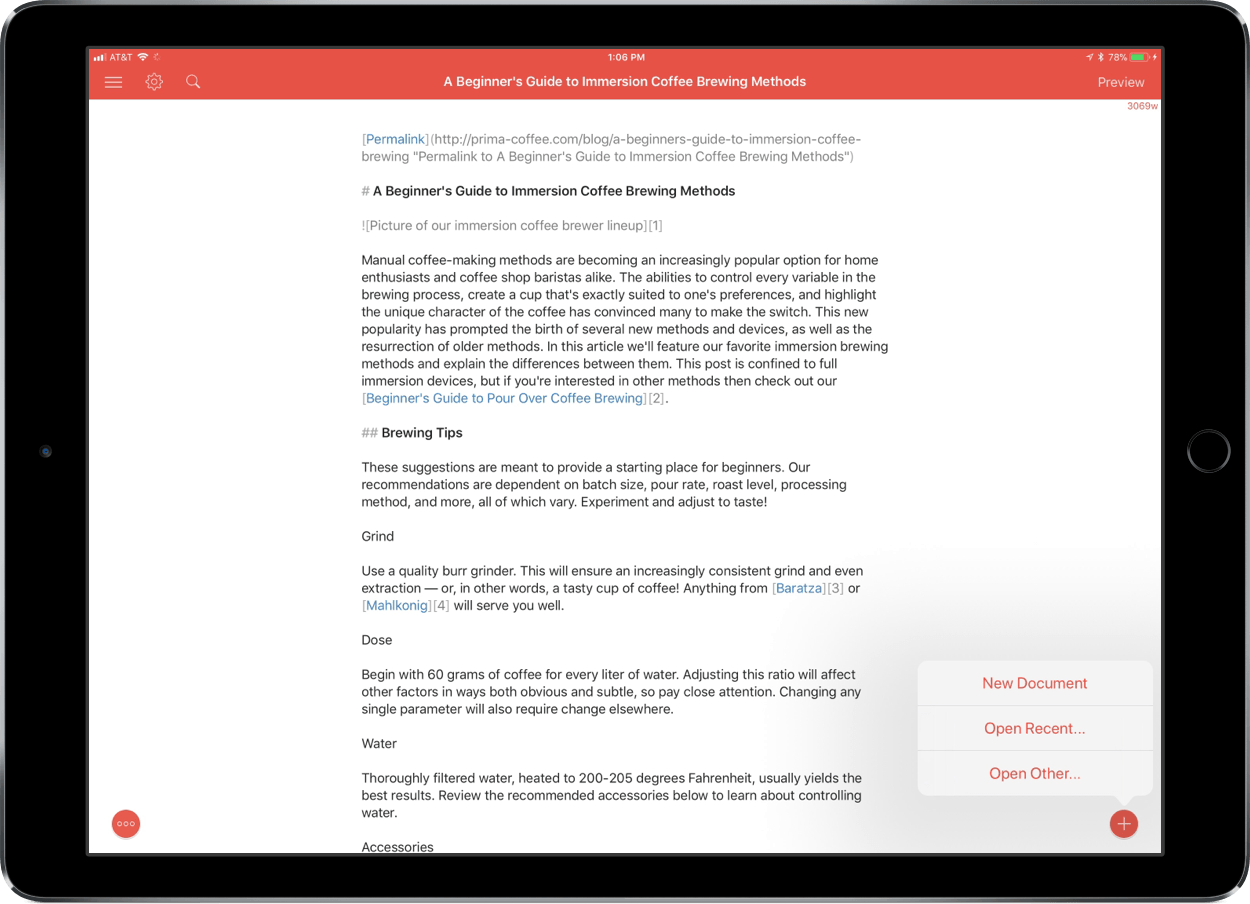
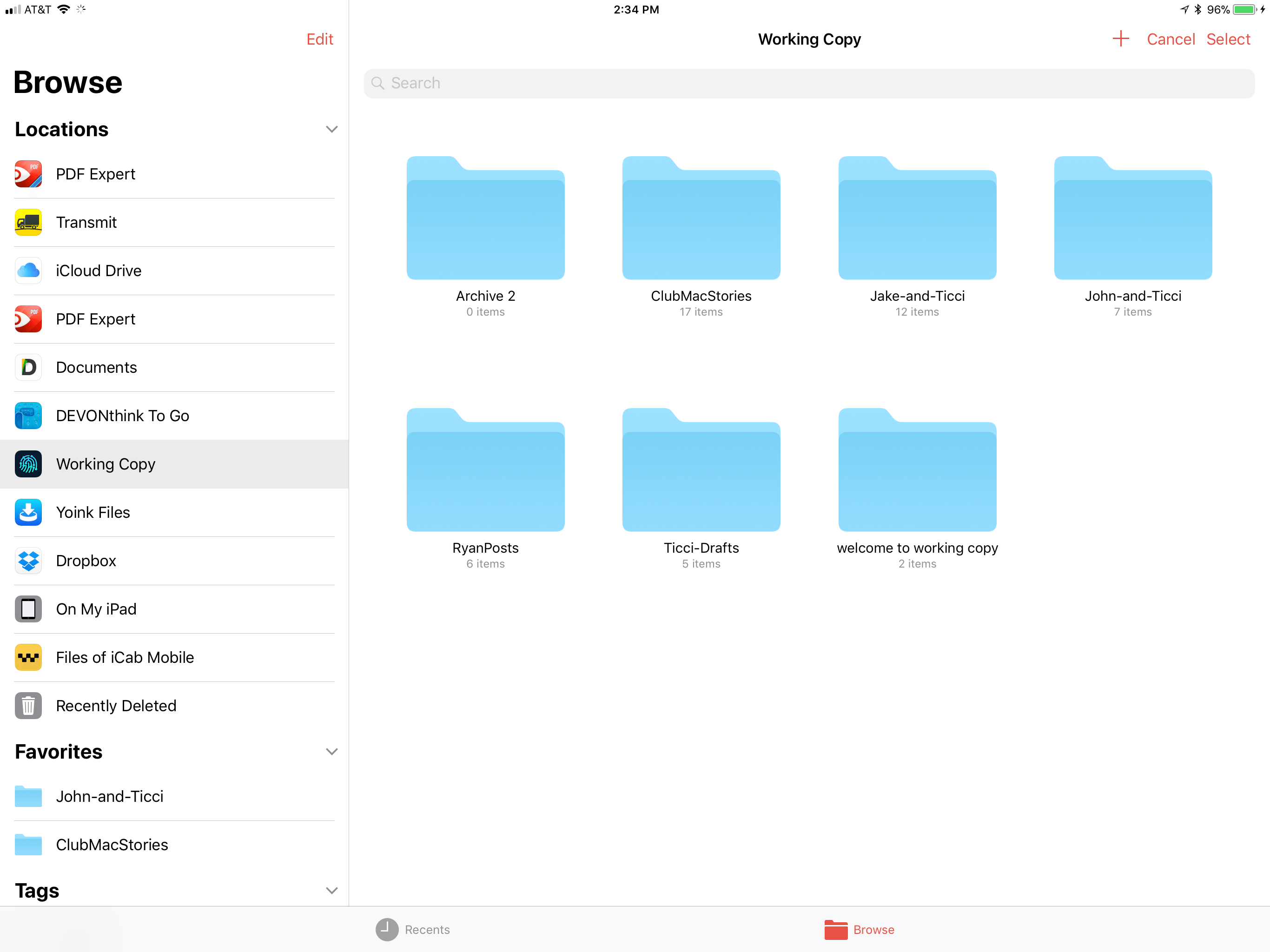
The latest version of 1Writer supports Open in Place via iOS 11’s new document browser. Tap the omnipresent plus button in the lower right-hand corner of 1Writer and choose ‘Open Other…’ to launch iOS 11’s document browser. 1Writer has tinted the navigation elements of the document browser, which helps remind users that they are still in 1Writer, which is a nice touch that not all apps bother to support. With Open in Place, 1Writer can edit the Markdown or plain-text files of any file provider. For example, that allows me to grab a draft from one of our MacStories GitHub repos via the Working Copy file provider to make edits to the original document without creating a local 1Writer copy of the file.
1Writer supports Open in Place.
1Writer also supports two-way drag and drop. I can drag any document from 1Writer’s document browser and drop it into another compatible app that accepts text like iA Writer, Byword, or Notes. I was also able to attach a 1Writer file to a message using Apple Mail.
Dragging into 1Writer works too. 1Writer can handle text and URLs, so it disregards images included in something like a note from the Notes app, but will set up Markdown syntax for an image if you drag in just a photo. If you drag into an existing 1Writer document, the text and links are appended to the end of the document.
1Writer has also added support for smart punctuation, which, for example, replaces straight quotes with the curly variety, and is iPhone X-ready.
1Writer is one of the most versatile text editors available. The addition of Open in Place means the app can be used with a wider variety of apps than ever before and drag and drop eliminates the number of steps needed to get text into and out of 1Writer. If you’re looking for a text editor that is at the forefront of iOS 11 technologies, 1Writer is an excellent choice.
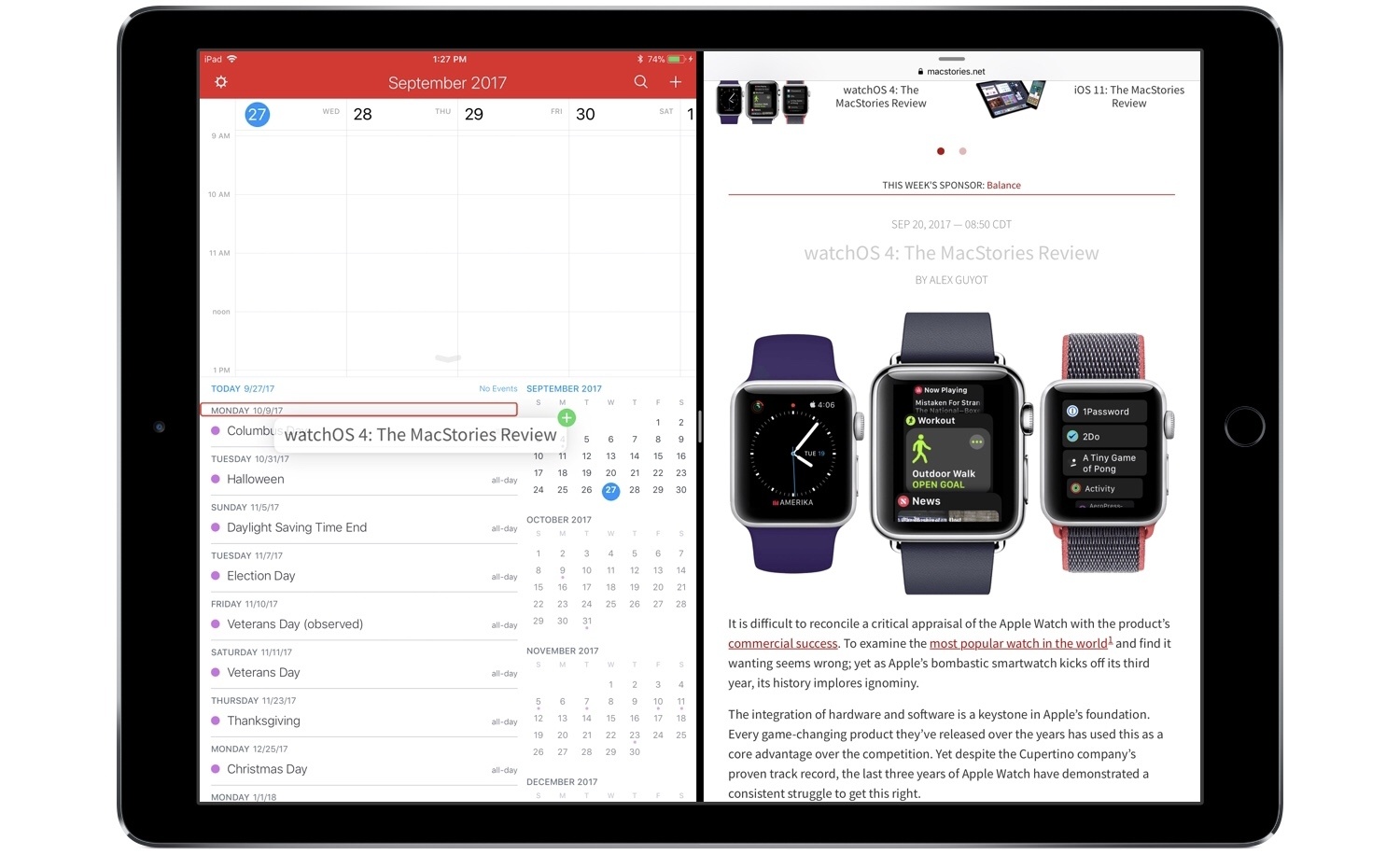
One of the most valuable advantages of digital calendars over physical ones is how much easier they are to manage. For example, the concept of a recurring event is easy for calendar apps to grasp, while adding the same event to a physical calendar can be both a time drain and a literal pain in your dominant hand. After recurring events, I’d guess that rescheduling is the next greatest pain point for physical calendar users. There’s erasing and re-writing involved when dealing with something physical, whereas with calendar apps you simply scroll the little date spinner to adjust a rescheduled event. Or if you’re using Fantastical, then thanks to the addition of drag and drop you can simply pick a task up and drop it on the new date.
On both iPhone and iPad, drag and drop in Fantastical empowers easy event rescheduling, and it also enables you to drag and drop reminders to set new due dates for them. The drag and drop support on iPad is more extensive, of course, allowing you to bring events and reminders out of Fantastical and into the app of your choice. Drag events into a Mail.app compose field and they’ll send as ICS files. Add them to a text editor and they’ll expand to include all attached information, such as location data, notes, and more. Similarly, reminders dropped elsewhere include their additional metadata as well. You can also drop text from other apps into Fantastical to create new events: simply hold the text over the day you want to create an event on, and drop. The text will be pre-filled in a new event creation dialogue, letting you add additional details then and there, or hit the Add button to complete it.
The pace of new apps adding support for drag and drop on iOS has been encouraging. There’s still plenty of work to be done by third-party developers, but we’re moving quickly toward the day when all of the main apps we use on a daily basis will be able to send and receive information in the most natural way possible.
Fantastical is available on the App Store for iPhone and iPad.
It’s been a good year for the Splitter Critters team. Released to excellent reviews and much fanfare, the game gained traction before ultimately being awarded an Apple Design Award at this year’s WWDC. And with the release of iOS 11, Splitter Critters is adding another reason to love it: augmented reality levels.
Your phone buzzes. It’s a message from a friend asking to reschedule your dinner in an hour for another day. You’ve already put on something nice, so it’s a little inconvenient – but it’s also going to be tedious to make the adjustment on your calendar.
Timepage’s recent update can’t change you back into comfortable clothes, but it can make rescheduling events much easier. As with most iOS 11 app updates, this comes through drag and drop and thankfully works on both iPhone and iPad.
Since Mac OS X 10.5 Leopard was released in 2007, Apple has periodically paused to release updates to what is now known as macOS that are more a refinement of their predecessors than major upgrades. Apple signals each refinement release by picking a name that relates to the one immediately before it. In 2009, that meant Leopard was followed by Snow Leopard; in 2012, Mountain Lion followed Lion. It’s been a while, and Apple has moved from big cats to California landmarks and adopted the macOS moniker, but the company is back with another operating system update that predominantly focuses on under-the-hood features by following last year’s macOS 10.12 Sierra with macOS 10.13 High Sierra.
For a foundational release, High Sierra goes about as low as you can go by introducing an entirely new filesystem for the first time in almost twenty years. Apple File System, also known as APFS, is a modern filesystem developed by Apple to accommodate the needs of each of its platforms in ways that HFS+ couldn’t manage. If there’s a theme to each of the core technologies introduced with High Sierra, it’s laying the groundwork for the future across Apple’s product line. New video compression technology, Metal 2, and VR are all part of a new bedrock being laid to prepare for the future.
That’s not to say that there are no goodies in High Sierra though. Photos has received several new features, and although not individually as significant, changes to Mail, Notes, Safari, Siri, Spotlight, and other apps all add up to a solid collection of refinements that make the Mac more efficient than before. Even so, High Sierra won’t be remembered for revolutionary user-facing features. Instead, along with new iMac Pros and Mac Pros on the horizon, it shows that Apple still cares about the Mac, but is also taking a broader view, building the infrastructure for the next chapter in computing across all of its present and future products.
The Omni Group is one of the most reliable development teams when it comes to adopting new technologies available in Apple’s latest operating systems. This year is no exception, with OmniFocus serving as a shining example of the power of iOS 11’s drag and drop and a new SiriKit integration.