

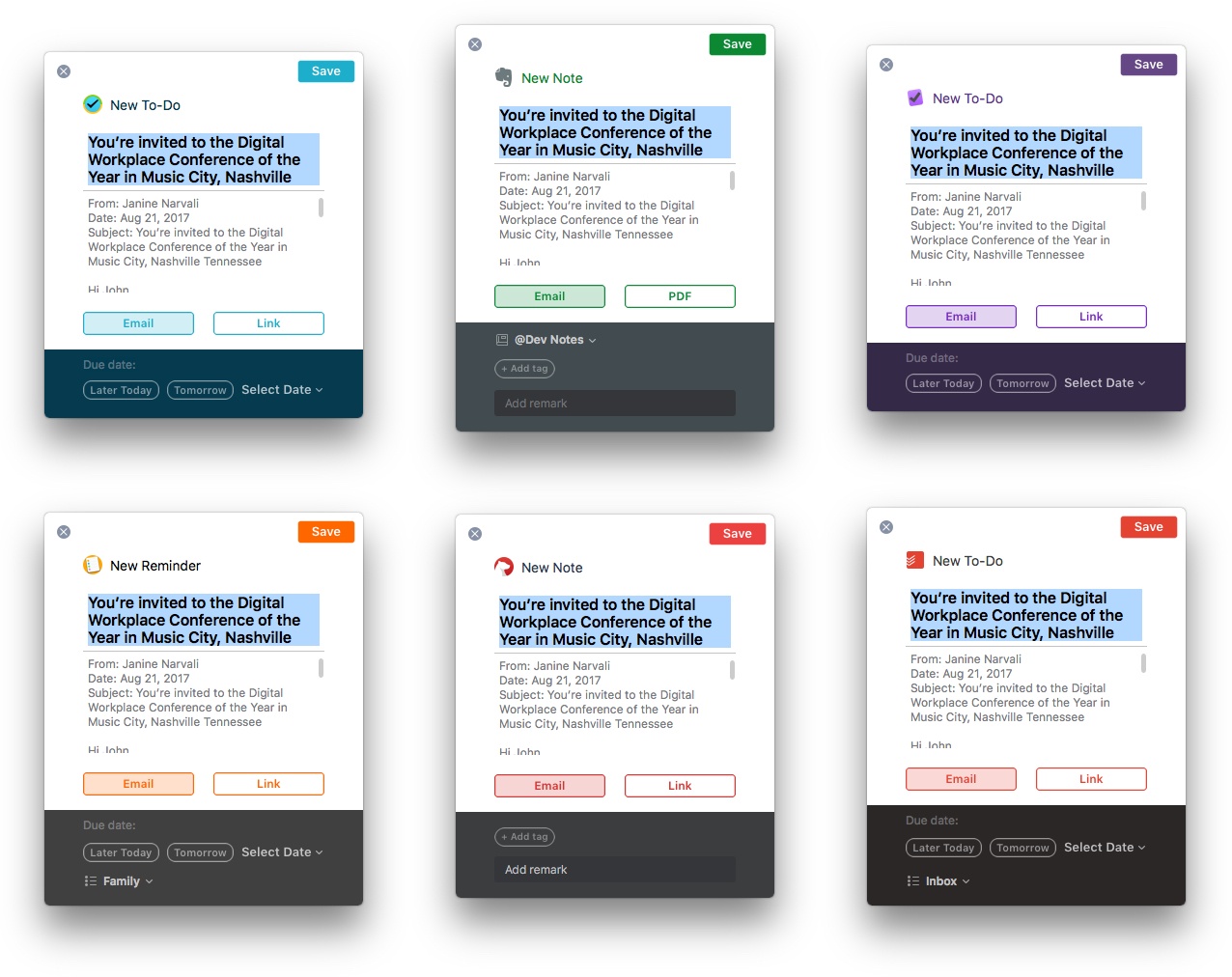
Spark has been on a roll. Just a few weeks ago, Readdle significantly improved search in its popular macOS email client. Today, Spark 1.4 for macOS takes another step further into professional app territory with the addition of several useful integrations with third-party apps, while Spark 1.9 for iOS adds deep PDF Expert support and other functionality.
Posts in reviews
Readdle Extends Spark Functionality With App Integrations
Game Day: Pigeon Wings
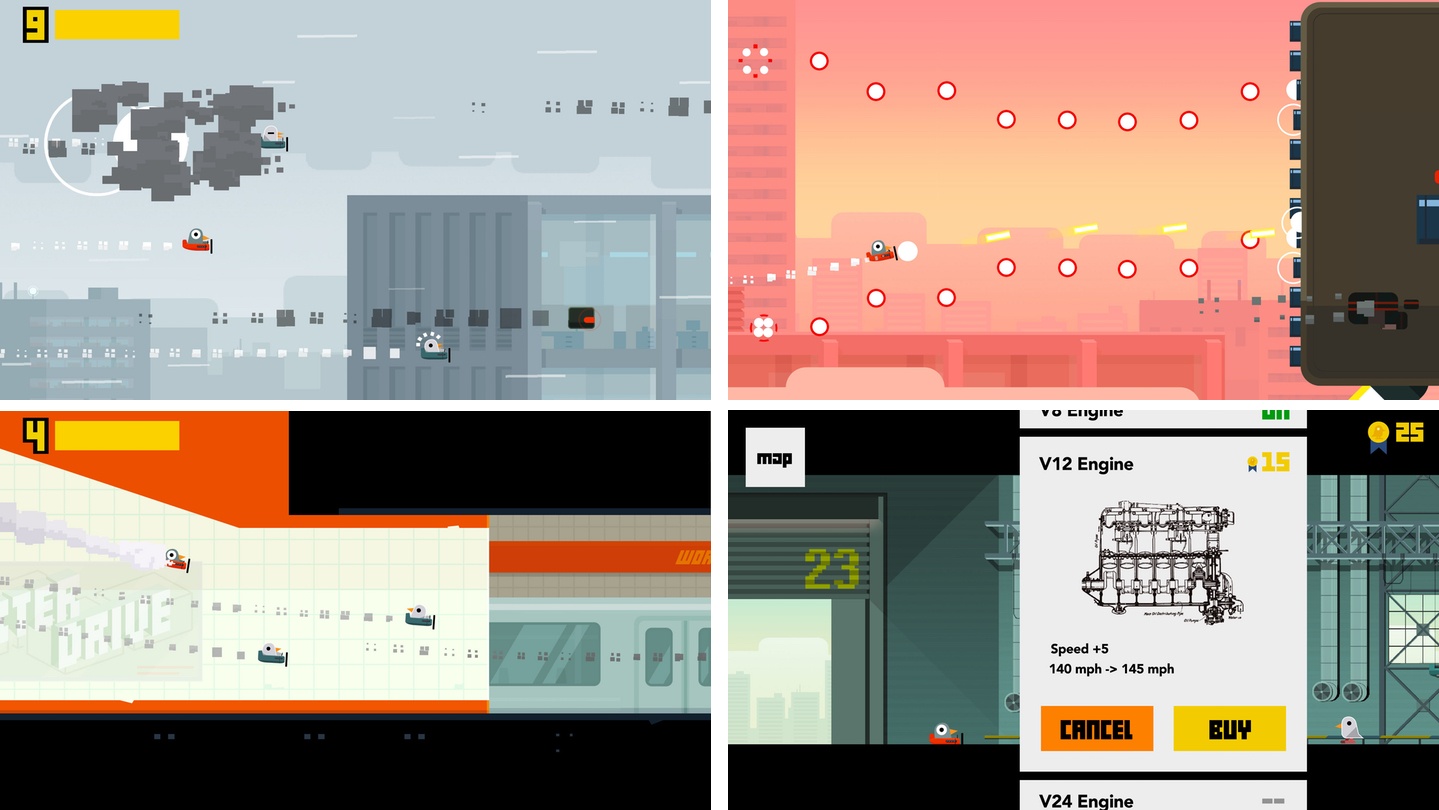
Pigeon Wings is a hyper-fast, racing game with shoot ‘em up elements and a lot of personality. You play as Pigeon, a pigeon-pilot tasked with saving Megalopolis from the evil Duke Dexter. The backstory immediately sets a light-hearted, humorous tone for the game that doesn’t get bogged down in long cut scenes explaining what’s happening. What sets Pigeon Wings apart though, is its tilt control steering system. The controls work flawlessly becoming second nature so quickly that they fade into the background making it easy to get lost in the game’s short races.
Transmit 5 Review
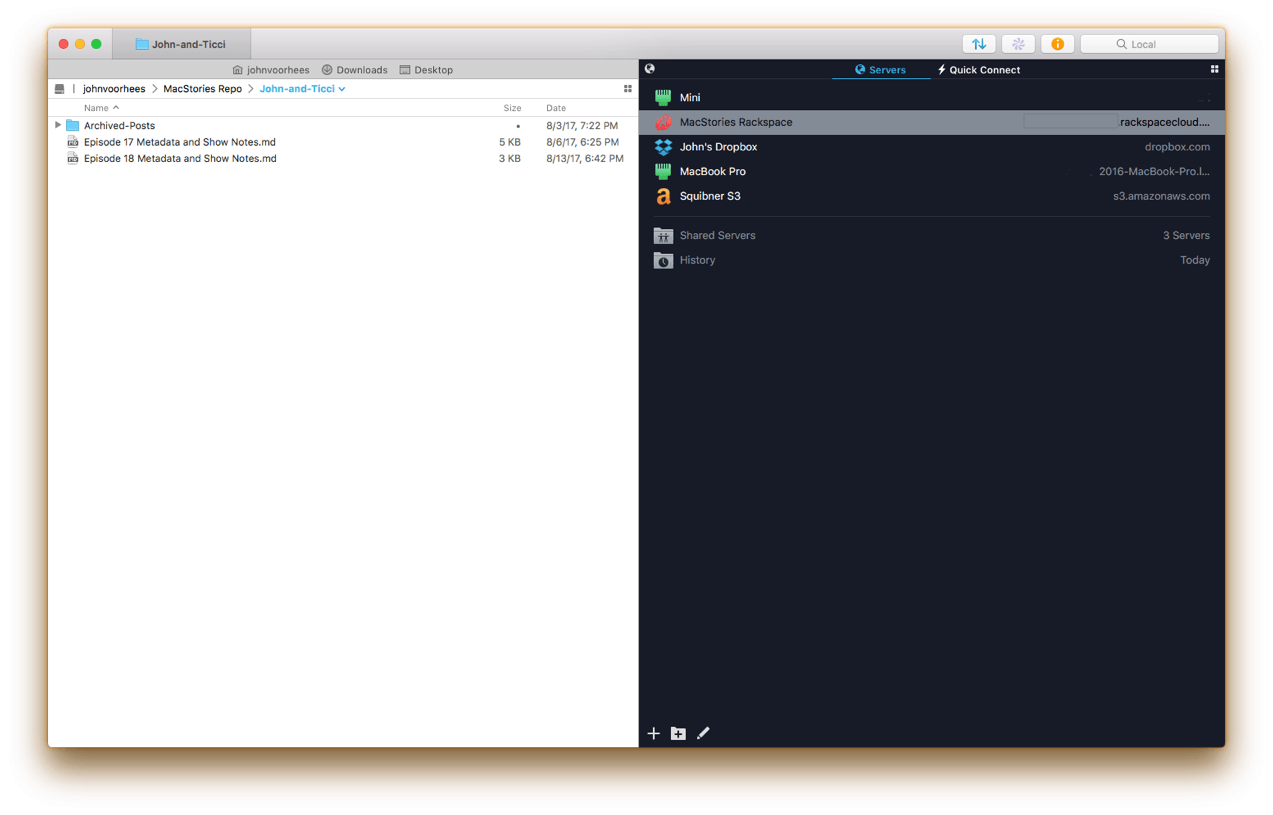
If you’ve used a Mac for a while, you’ve likely come across Panic’s file transfer app Transmit. Not long ago, I would have probably still described it as an FTP app even though it’s handled things like Amazon S3 file transfers for a while. However, with the recent release of version 5, Transmit for macOS has become much more than an FTP client adding support for ten cloud services. Moreover, Panic has taken the opportunity to rewrite its file transfer engine so that it’s faster, tweak virtually every feature, and update and streamline the app’s design. The result is an all-new Transmit that is both familiar and more capable than ever before.
Neo Angle Review: No Turning Back
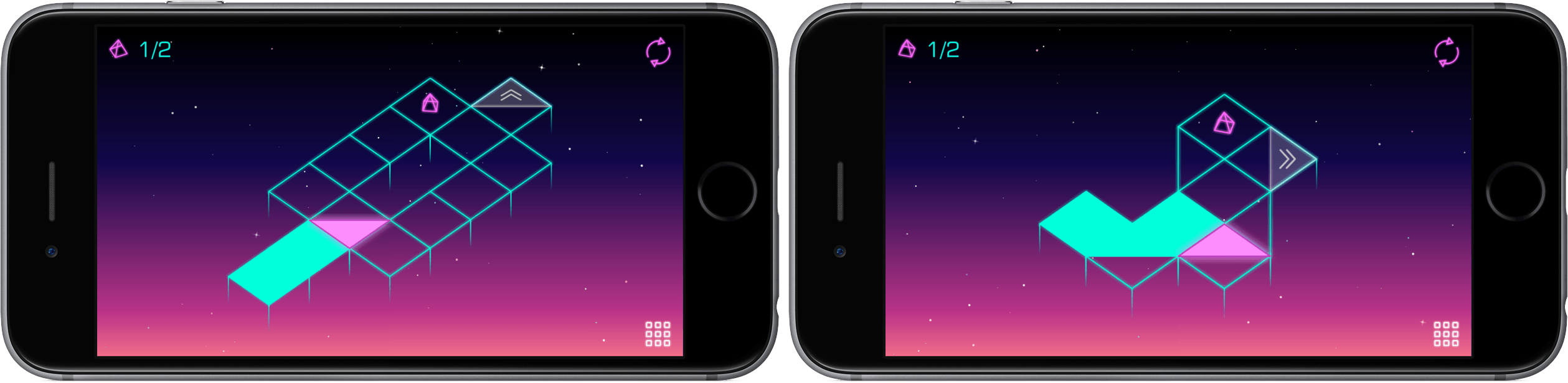
You might be tempted to feel confident after the first few levels of Neo Angle, the follow-up game from Blyss developer Dropout Games. After all, you just have to move your triangle to a certain spot on the grid, occasionally picking up small fuel cells along the way. Early on, the most challenging part may be refraining from bobbing your head to the music.
Unobstruct Clears a Path to a Better Web Reading Experience
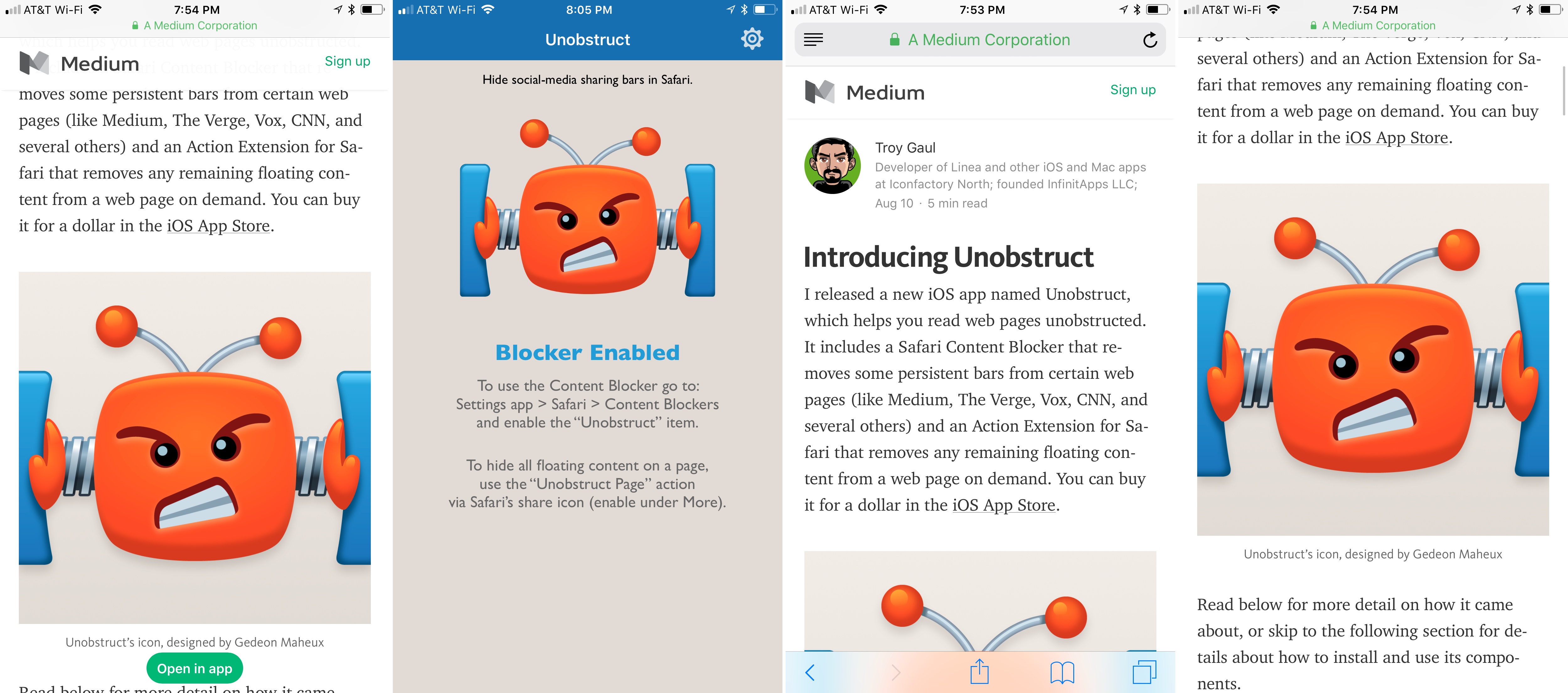
Too many websites wreck the reading experience by floating interface elements on top of articles. One of the worst offenders has been Medium, which John Gruber called out on Daring Fireball recently. Medium has made some improvements since then but didn’t eliminate floaters, and there are many other sites with social media buttons, branded navigation bars, and other material that hovers over webpages even as you scroll down the page. The practice makes it especially hard to read on the smaller screens of mobile devices.
Inspired by the Daring Fireball article and a JavaScript bookmarklet to which Gruber later linked, Troy Gaul, a developer at The Iconfactory, created Unobstruct, a Safari content blocker for iOS that eliminates floating bars, buttons, and other UI elements. The simple app, which Gaul fittingly announced in a post on Medium, removes any HTML that is set to sit on top of a site’s content and not scroll.
Unobstruct doesn’t hide persistent navigation bars by default because doing so would make it impossible to get around some sites. Instead, you can use the app’s action extension from the share sheet to hide the bar. Later, if you need the navigation bar, you can simply reload the page to get it back.
I love Unobstruct’s colorful and feisty robot icon. It adds a bit of fun and whimsy to an otherwise utilitarian app. For insight into the icon’s design, be sure to check out Ged Maheux’s blog post, in which he details how he started the design by making rough sketches in The Iconfactory’s drawing app Linea, then moved to Adobe Illustrator after Gaul had picked his favorite.
Unobstruct doesn’t block as broad a variety of webpage elements as some content blockers, but its singular focus on floaters pays off. In my testing, the app worked flawlessly to remove floating buttons automatically, as did the extension for eliminating navigation bars. Branding and sharing are important to websites, but they shouldn’t get in the way of the core experience – reading. The trend of obscuring content with floaters is a shame, but I’m glad I have Unobstruct to make browsing those sites a little nicer each day.
Unobstruct is available on the App Store.
Game Day: kubrain
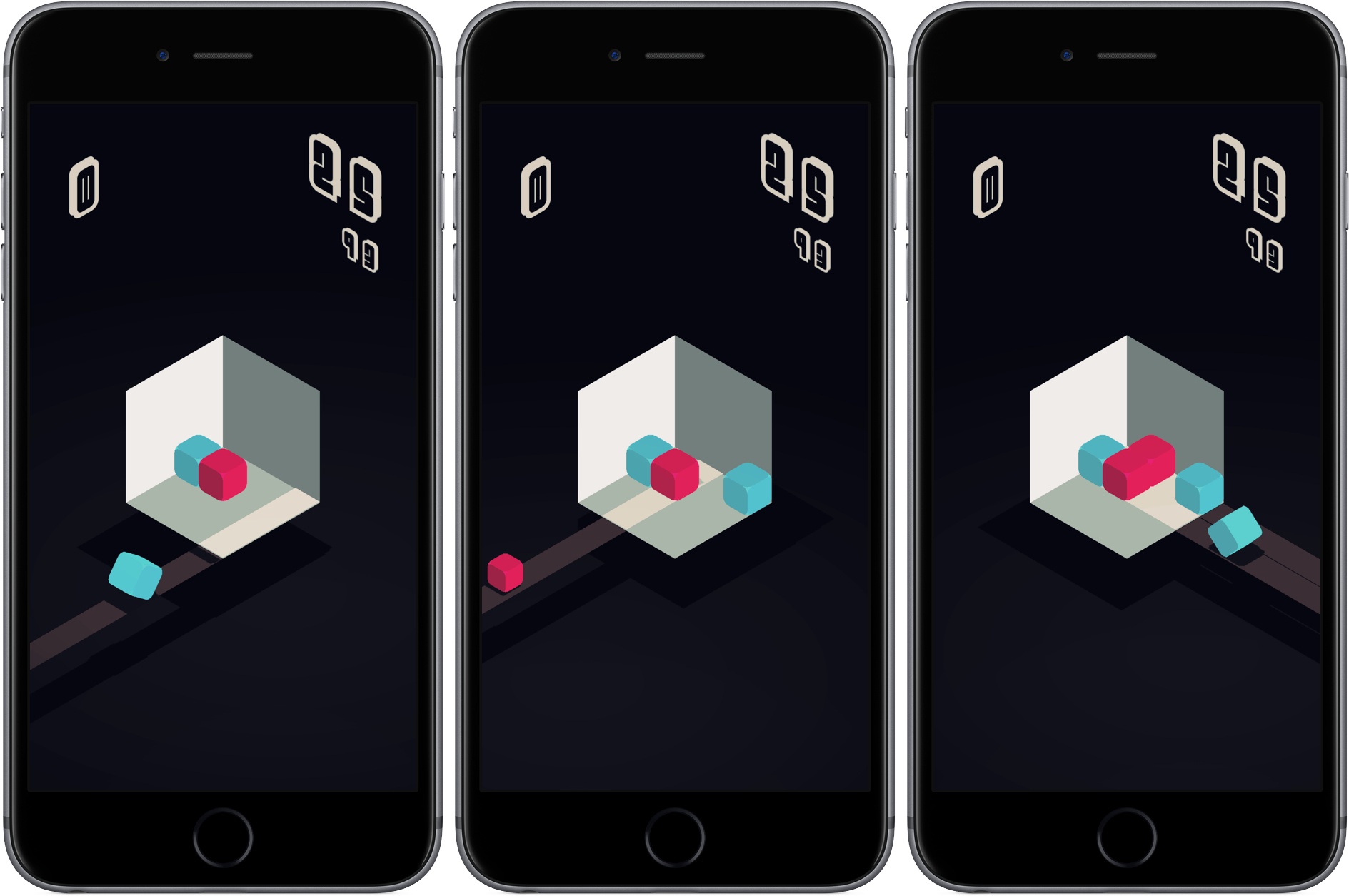
Gamebra.in’s new puzzle game, kubrain, proves that there is still room for creativity and innovation in the color matching puzzle genre popularized ages ago by Tetris. Like many other games in the category, kubrain requires players to match colored blocks as they descend onto a playing field, but there’s a mind-bending twist. The playing field is a 3D cube that players can rotate to make room for incoming blocks. The result radically changes the way you approach the game compared to other matching games creating a challenging and novel gaming experience that is fun to play and difficult to master.
Streets Adds User-Generated Panoramas and Extends Its URL Scheme

When I first reviewed Streets by FutureTap over a year ago, I was impressed with the beautiful Google Street View panoramas that it allows users to browse. Whether you want to armchair travel around the globe or just see what a coffee shop looks like before you leave home to meet a friend, Streets makes it effortless to navigate between map and panorama views. In addition to browsing Streets’ gallery of famous locales, it keeps a list of recent searches, favorites, and allows you to search addresses and your contacts for places.
With the update today, Streets expands its photographic content with user-generated panoramas. When you zoom into the map view, you will see little blue dots, some of which represent panoramas from users. When you switch to the panorama view, those images are now part of what you’ll see. Pull down on the drawer that extends from the top of the panorama view and, among other things, you’ll see information about the photographer that took the shot. If you also have FutureTap’s app Where To? installed, some panoramas allow you to open that app for more details about the location you are viewing.
Also, Streets has extended its URL scheme to allow the app to put images on the clipboard. When Apple acquired the Workflow app last spring, the app lost the ability to use Google’s Street View imagery as part of workflows. Streets’ URL scheme extension is a clever work-around that allows Workflow users who have Streets installed to get Street View images once again.
Whether I’m planning a trip or meeting a friend for lunch, Streets has become my go-to method of checking out a location in advance. The simple navigation makes it a great choice when you’re mobile and using your iPhone or sitting back and enjoying Streets’ panoramas on an iPad. With its latest update, Streets has upped its imagery game and added an excellent solution users with Street View workflows.
Streets is available on the App Store.
Swarm Shifts Focus to Become a Personal Travel Timeline

Swarm received an update this week that takes the app in a new direction. The latest version of the app deemphasizes location sharing with friends, mayorships, and sticker and coin collecting. Those elements are still there, mostly tucked away behind the ‘Friends’ tab, but the focus has shifted. Now, the app centers around the creation of a personal timeline as a sort of journal of places you’ve visited.
Game Day: Linelight
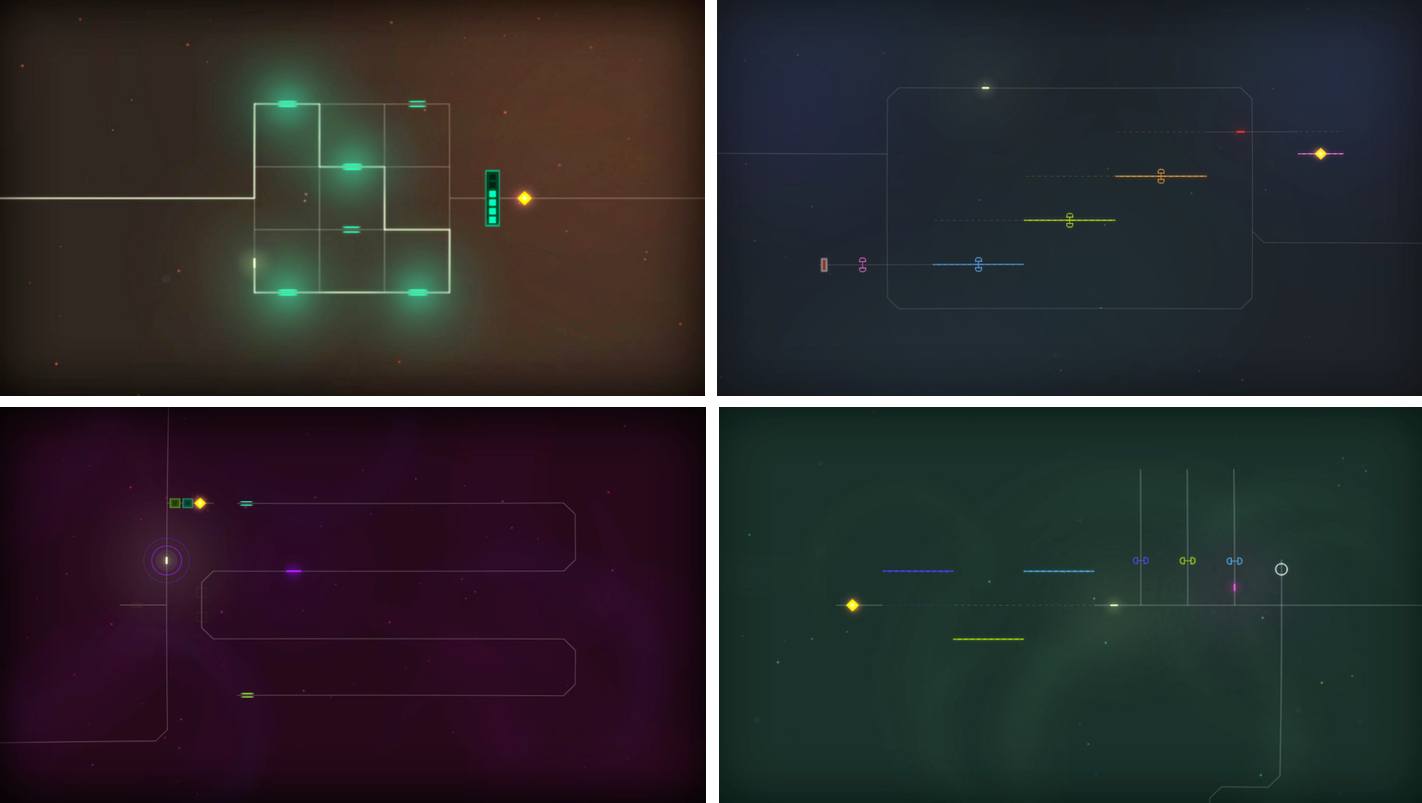
Linelight, an award-winning minimalist puzzle game by My Dog Zorro, debuted on iOS this week. The game was released for Windows and macOS earlier this year and is available on Sony’s PS4, but this is the first time the game has made its way onto a mobile, touch-based platform. Many games bill themselves as ‘minimalist,’ but few are as elegantly simple as Linelight. The result is a game that is easy to play and understand, highlighting the game’s perplexing and fun puzzles over its mechanics.
You play as a dash of light traversing a line. You guide your dash along the line that splits and branches in different directions by dragging your finger across the screen of your iOS device. To stop and consider how to solve a puzzle, just pick up your finger and your dash stays put. Linelight works so well as a touch-based game, it’s hard to believe that it was designed for keyboards and controllers first.
As you advance your dash along the line, you encounter puzzle after puzzle. In total, there are over 200 puzzles split across six separate spacey worlds. As with any good puzzle game, Linelight introduces new challenges gradually. There are sections of lines that shift depending on whether your dash passes over a switch, keys to be picked up and delivered to designated spots, red dash enemies that you need to avoid because colliding with one means starting that puzzle over, and much more.
There is no up or down in Linelight, so it doesn’t matter if you play in portrait or landscape, which is a nice departure from the many games that require you to play in one orientation or the other. Add a soothing piano-based soundtrack to its tricky puzzles and Linelight is one of the most relaxing and absorbing games I’ve played this year. If you’re a fan of puzzle games, Linelight is a must-play.
Linelight is available on the App Store.