This Week's Sponsor:

Turbulence Forecast

Know before you go. Get detailed turbulence forecasts for your exact route, now available 5 days in advance.


Posts in reviews

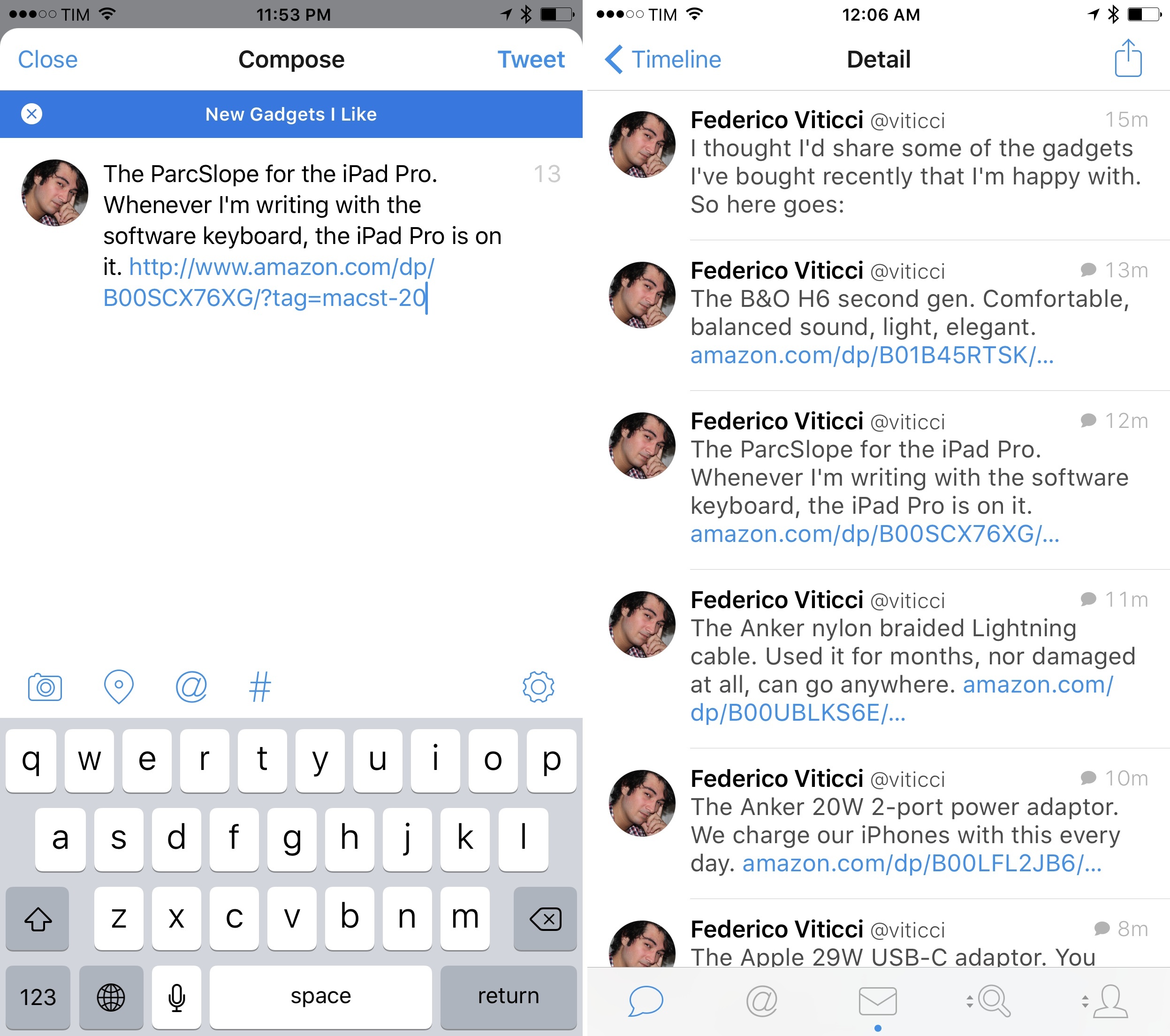
Tweetbot 4.3 Introduces ‘Topics’ for Easier Tweetstorm Creation

A topic in the new Tweetbot 4.3.

A topic in the new Tweetbot 4.3.

Picture this: it’s WWDC keynote day and you’re following the event. You want to live tweet as the event unfolds. What do you do?

The answer is that, so far, Twitter the company has mostly failed to provide users with ways to rapidly tweet commentary and have tweets intelligently grouped together once an event is over. Sure, you could append the same hashtag to every tweet, “tagging it” for context, but that wouldn’t fix the underlying problem of a bunch of messages related to the same event and yet treated as atomic units with no relationship between them.

Thus Twitter the community came up with the idea of the tweetstorm, a clever workaround based on how Twitter threads work. If you want to post multiple tweets in a row and establish a thread between them from start to finish, reply to your own tweet, removing your username at the beginning of the message, and you’ll “fake” a series of topical tweets which Twitter sees as part of a conversation…with yourself. It’s not the most elegant solution, and it doesn’t work well for rapid fire live tweeting, but it sort of works and a lot of people use it by now.

Tweetbot, the excellent Twitter client developed by Tapbots which relaunched with version 4.0 in October, is introducing an update today that fully embraces the concept of tweetstorms with a feature called “topics”.

Topics simplify the process of chaining tweets together with an intuitive interface that makes it look like Twitter rolled out support for topics. Under the hood, Tapbots is still leveraging the aforementioned @reply workaround, but they’ve been clever enough to completely abstract that from the UI, building what is, quite possibly, one of the most ingenious Tweetbot features to date.
Read more


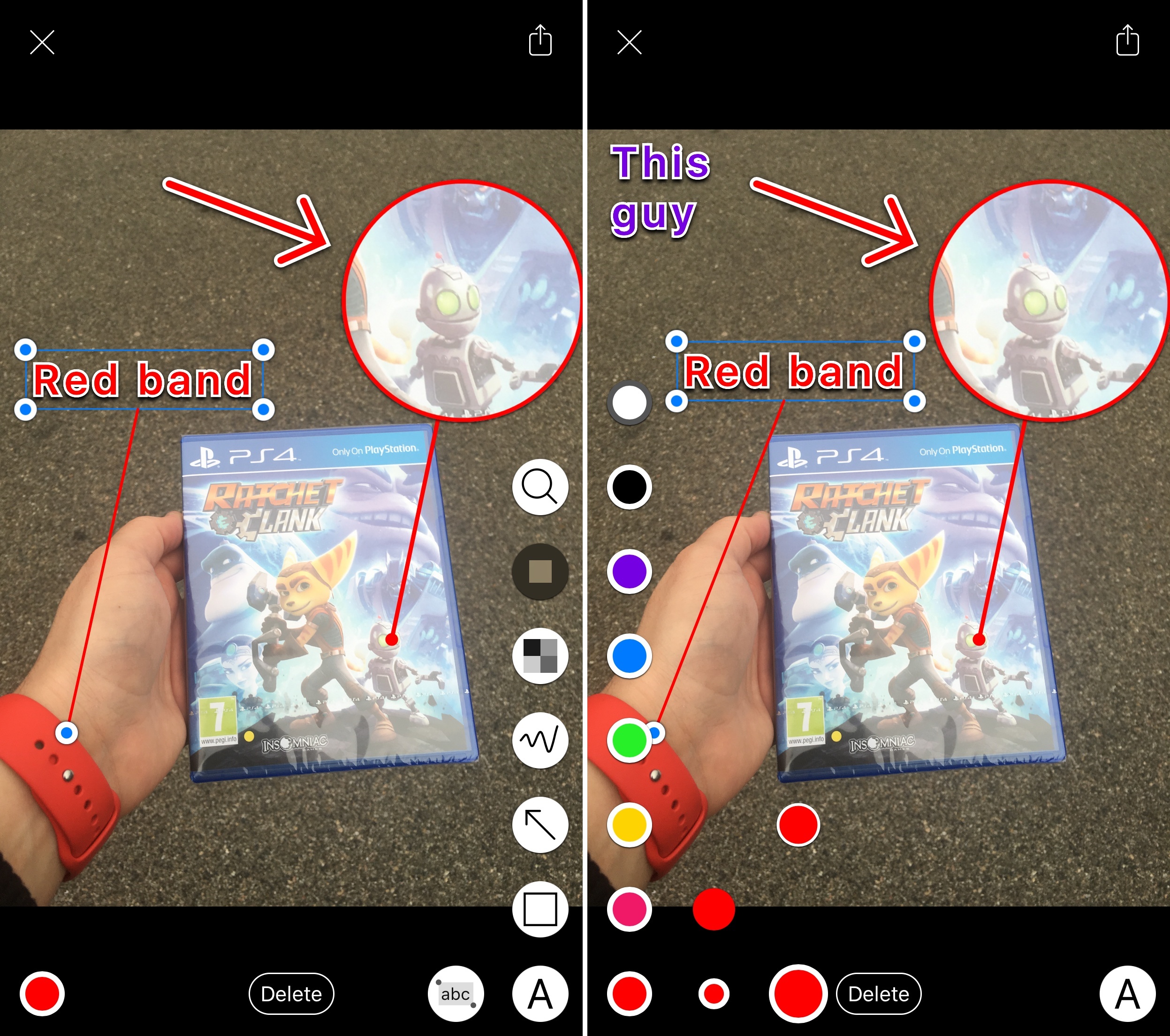
Annotable Is the Most Versatile Image Annotation Tool for iOS Yet

Over the years of writing at MacStories, I’ve covered a fair share of image annotation apps. As reviewing apps is part of what I do for a living, I end up taking a lot of screenshots of software on a daily basis, and, often, those screenshots need to be annotated.

I’ve tried them all – Skitch (let’s pour one out), Pinpoint (née Bugshot), PointOut, image annotations in Workflow, and others. A problem persisted: I couldn’t find an image annotation tool that would pack the simplicity of Pinpoint and Skitch and the variety of tools I’d expect from a Mac app. Every app ended up missing one or two functionalities I needed, which resulted – and if you work on iOS, you’ve likely been in this situation, too – in having to keep a folder of multiple annotation apps, each serving a different purpose.

This changes today with Annotable, a new app for the iPhone and iPad created by developer Ling Wang. Annotable builds on the foundation of Skitch – with a layout heavily reminiscent of Evernote’s product – and adds annotation features seen in Pinpoint, PointOut, and various Mac apps to provide a powerful annotation environment with support for screenshots and photos.

Read more


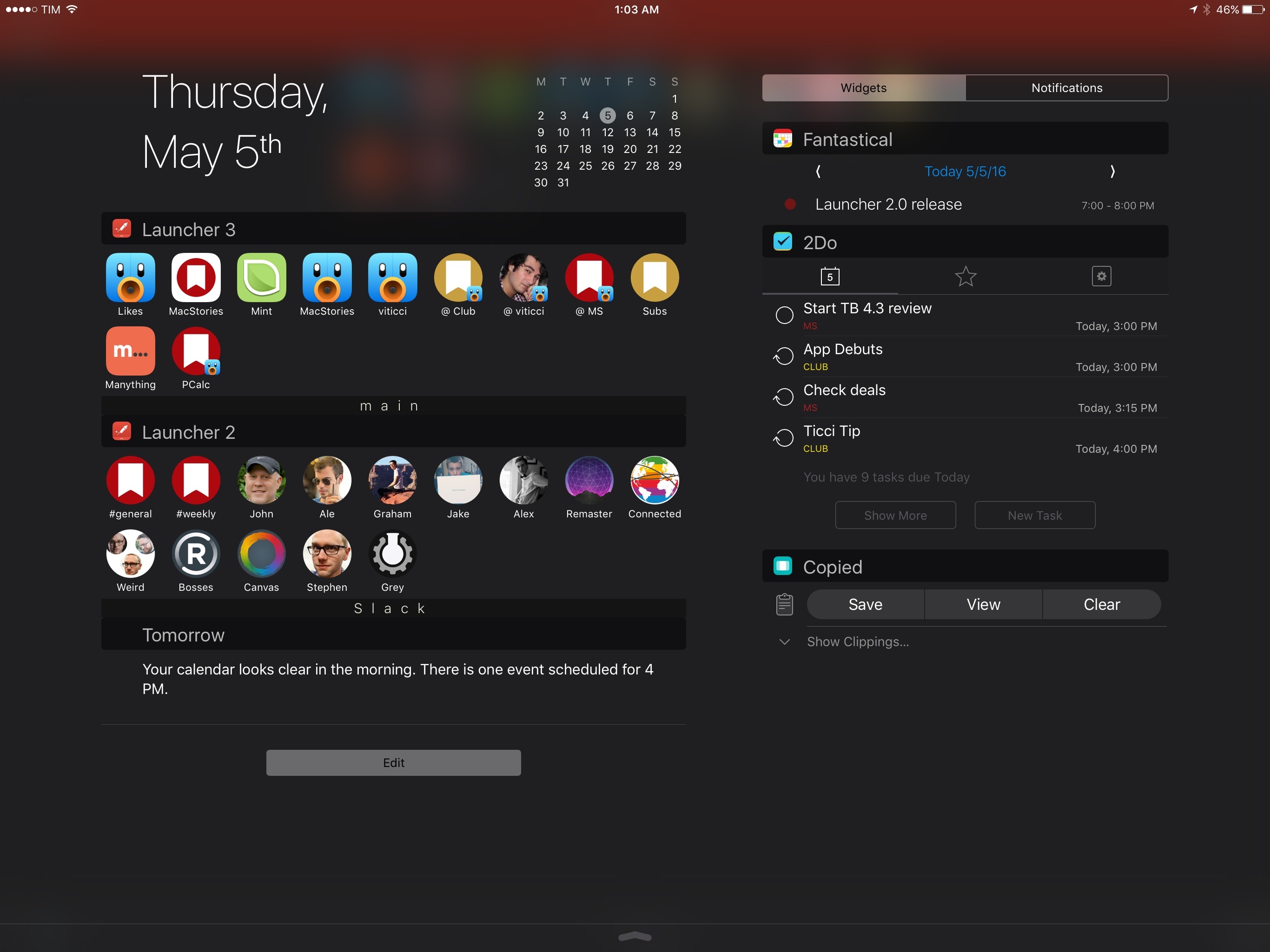
With Launcher 2.0, I’m Rethinking My Notification Center Widgets

When iOS 8 came out, I thought I’d stop using URL schemes altogether. Until two years ago1, my attempts at working on iOS had focused on overcoming the lack of inter-app communication with URL scheme automation, as our old coverage here at MacStories can attest. iOS 8 showed a new way to get things done on the iPhone and iPad thanks to extensions, eschewing the limited functionality (and security concerns) of URL schemes for a native, integrated foundation.

Two years later, I’ve largely reappraised my usage of URL schemes, but, unlike I first imagined, they haven’t disappeared completely from my iOS computing life. iOS automation has taken on a different form since 2014: thanks to its action extension, Workflow has brought deeply integrated automation to every app, while Pythonista remains the most powerful environment for those who prefer to dabble with Python scripting and advanced tasks (also while taking advantage of an action extension to be activated from apps).

Today, URL schemes are being used by developers and users who want to go beyond the limitations of system extensions: apps like Drafts and Workflow use URL schemes to invoke specific apps directly (which extensions can’t do – see Airmail and its custom app actions) and to link more complex chains of automated actions. URL schemes are also the best way to set up templates and import workflows for dedicated functionalities – a good example being The Omni Group with their latest automation options for template generation in OmniFocus.

While Apple’s goal with iOS 8 might have been to “kill” URL schemes by turning them into a niche technology mostly supplanted by extensions, that niche has continued to quietly thrive. iOS automation is drastically better (and more secure) today because of extensions, but, for many, URL schemes still are the backbone of app shortcuts and complex workflows. Where extensions can’t go, there’s a good chance a URL scheme will do the trick.

It’s in this modern iOS automation landscape that Launcher, first released in 2014, is graduating to version 2.0 with a focus on what it does best: standalone app shortcuts. Launcher 2.0 offers more control than its predecessor over widget customization and activation, with new features and settings that have pushed me to reconsider how I use Notification Center widgets on both my iPhone and iPad Pro.

Read more


OutlineEdit Packs Power Into a Simple Outliner

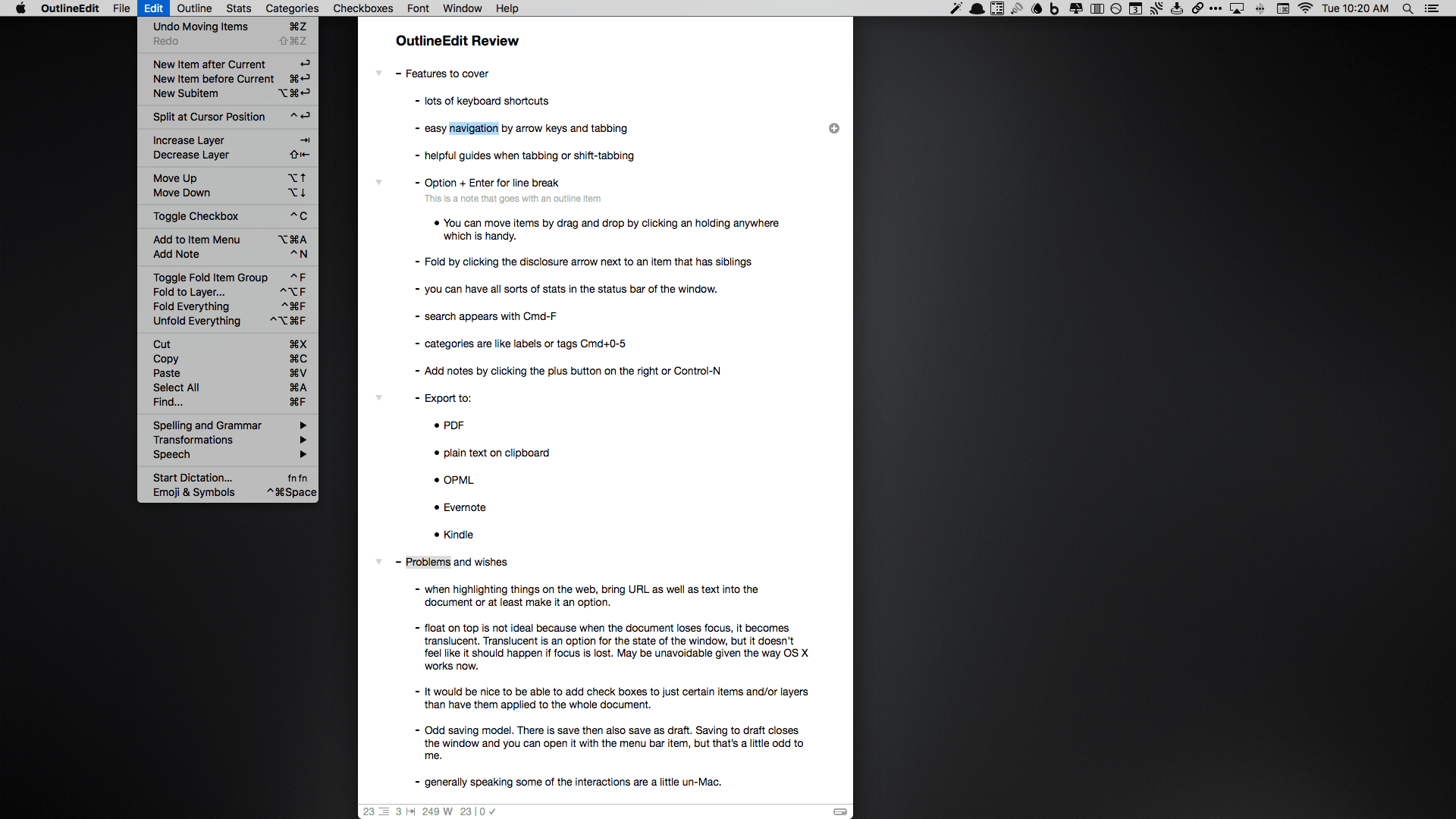
I think in outlines. I suppose that’s because it’s what I was trained to do. You see, when I was in law school, we would make elaborate outlines of the subjects we studied to prepare for exams. So over time, I developed a knack for breaking down topics into their component ideas and imposing a hierarchy on them. Nowadays, I still make outlines, but they are usually simple ones that I create while taking notes or brainstorming ideas. I discovered OutlineEdit from Robin Schnaidt recently, and it immediately stuck with me. The speed with which I can get ideas out of my head, into an outline, and then move them around has made it a go-to tool when I’m working on my Mac.

Read more


Hazel 4 Adds Rule Previewing, Sync, and More

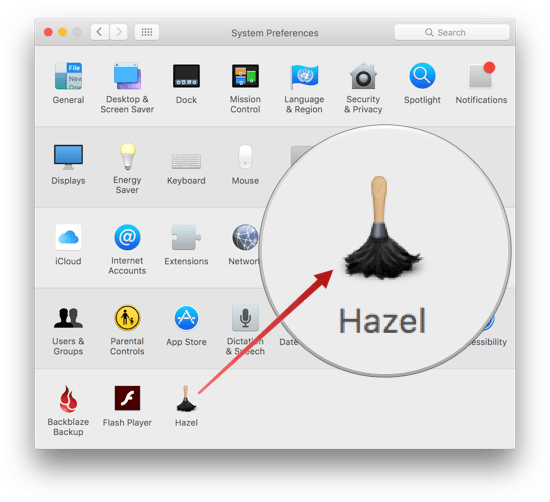
Hazel is one of the first utilities that I install when I get a new Mac. Judging from the Noodlesoft forums, there are many people who use Hazel far more heavily than I do, but it is no less important to my Mac setup. By automating what would otherwise be repetitive file management tasks, Hazel helps keep me focused on more important tasks. Today, Hazel 4 was released with new features and refinements that bring new power and convenience to an already exceptional app.

Read more


Better File Juggling with Yoink

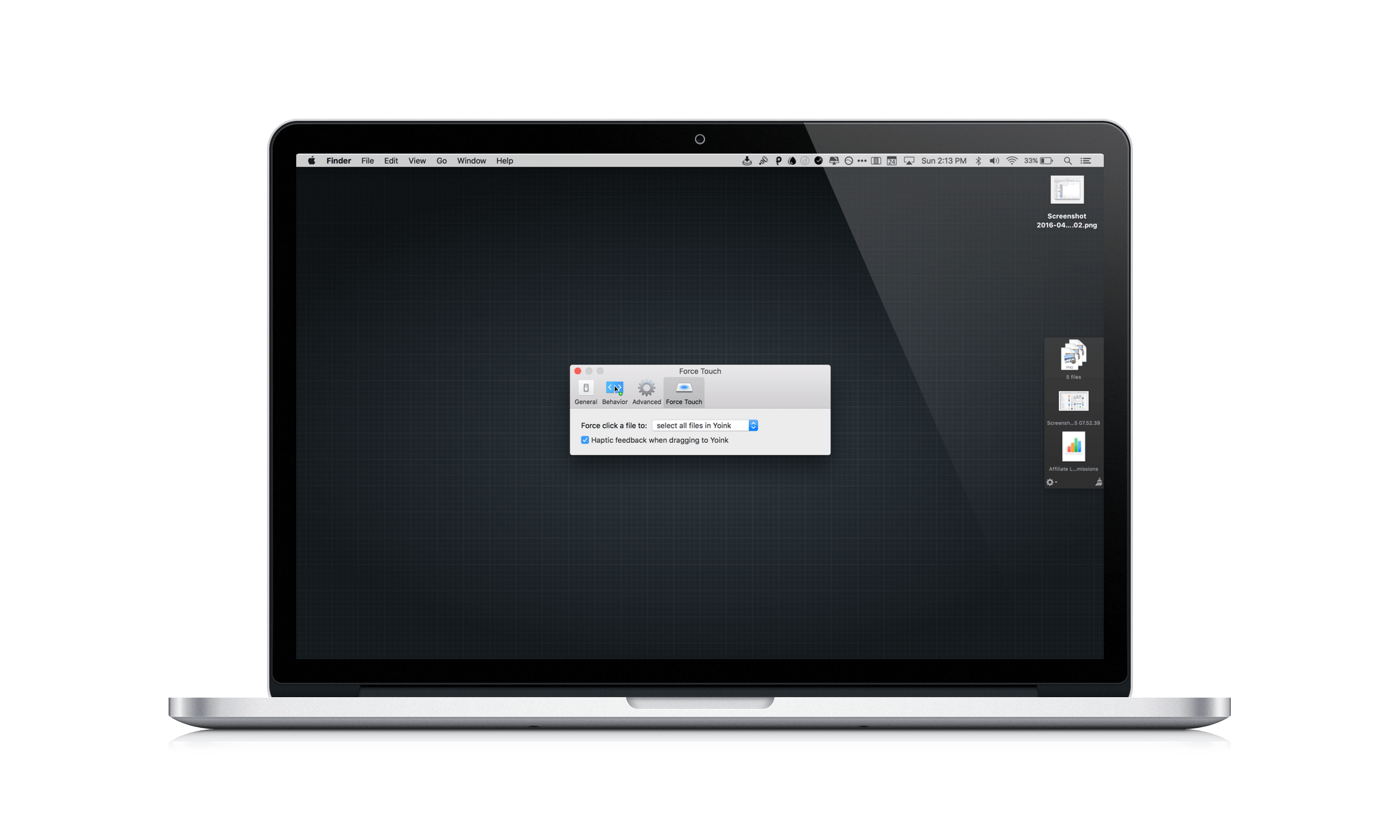
When I put together an article for MacStories on my Mac, Yoink by Eternal Storms Software is what brings order to the messy process of creating screenshots. You see, I like to use Spaces on my MacBook Pro to separate my writing environment from other apps I’m using to produce screenshots. But between Spaces, apps, and the Finder, things get cluttered fast. By being available wherever I am on my Mac, Yoink gives me an easily accessible spot to park images as I create them, so that when I’m finished, I can incorporate them into an article all at once, which saves me time.

Read more


Design and Find New Colors with Colordot

I audibly gasped when I spotted Colordot on Product Hunt, but not because it is a revolutionary app that should be shouted about from the mountain tops. Rather, I had the reaction because I saw an app with a concept I had never seen before and a tool that was unique.

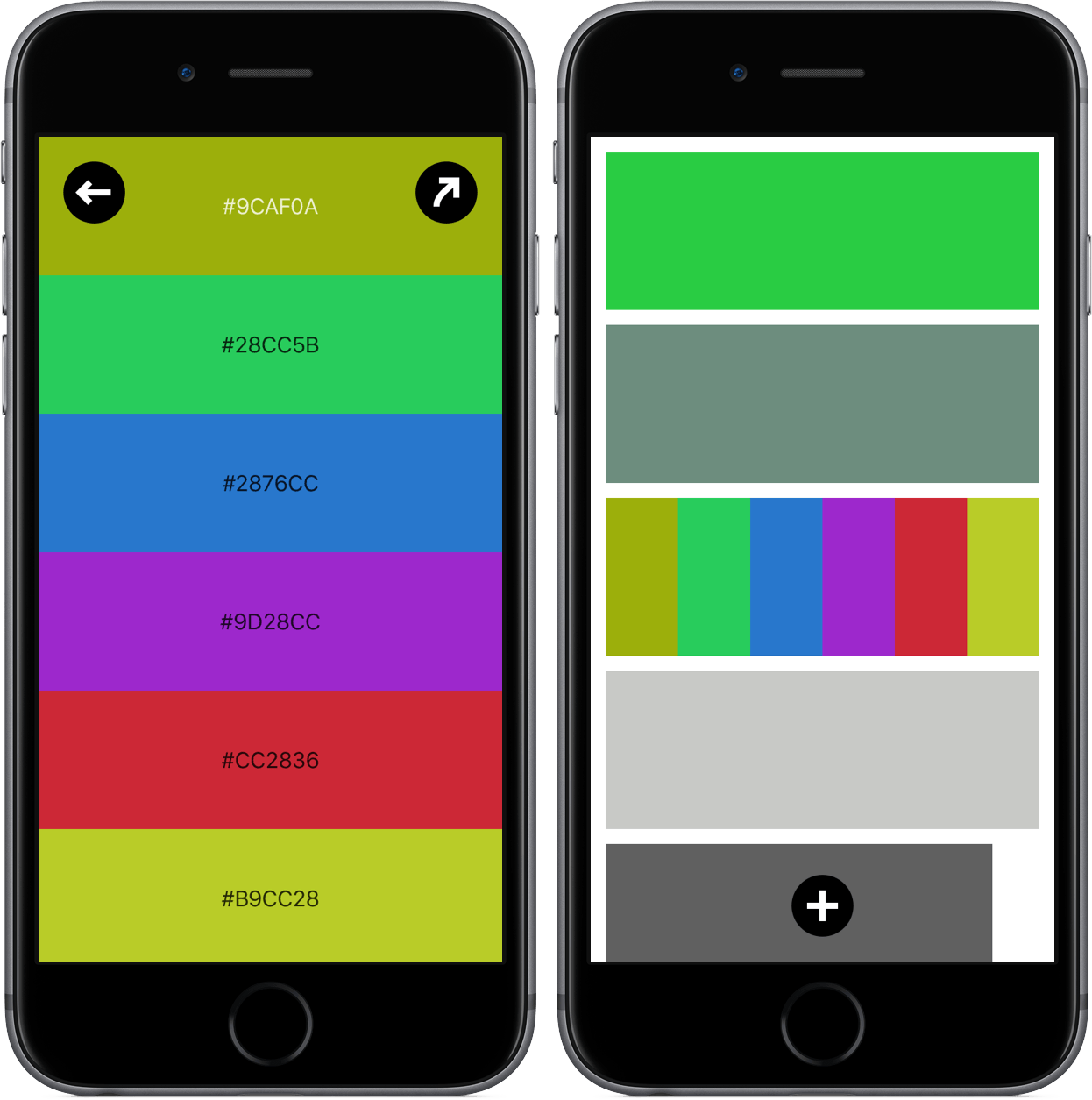
Developer Hailpixel describes Colordot as an app for “anyone who loves color” – which is justified by the fact that the app’s only purpose is to fiddle around with color. Essentially, Colordot is a color selection tool for the rest of us; through some simple gestures, you’ll create one or more colors, get its hex triplet, and assign it to a palette.

Read more


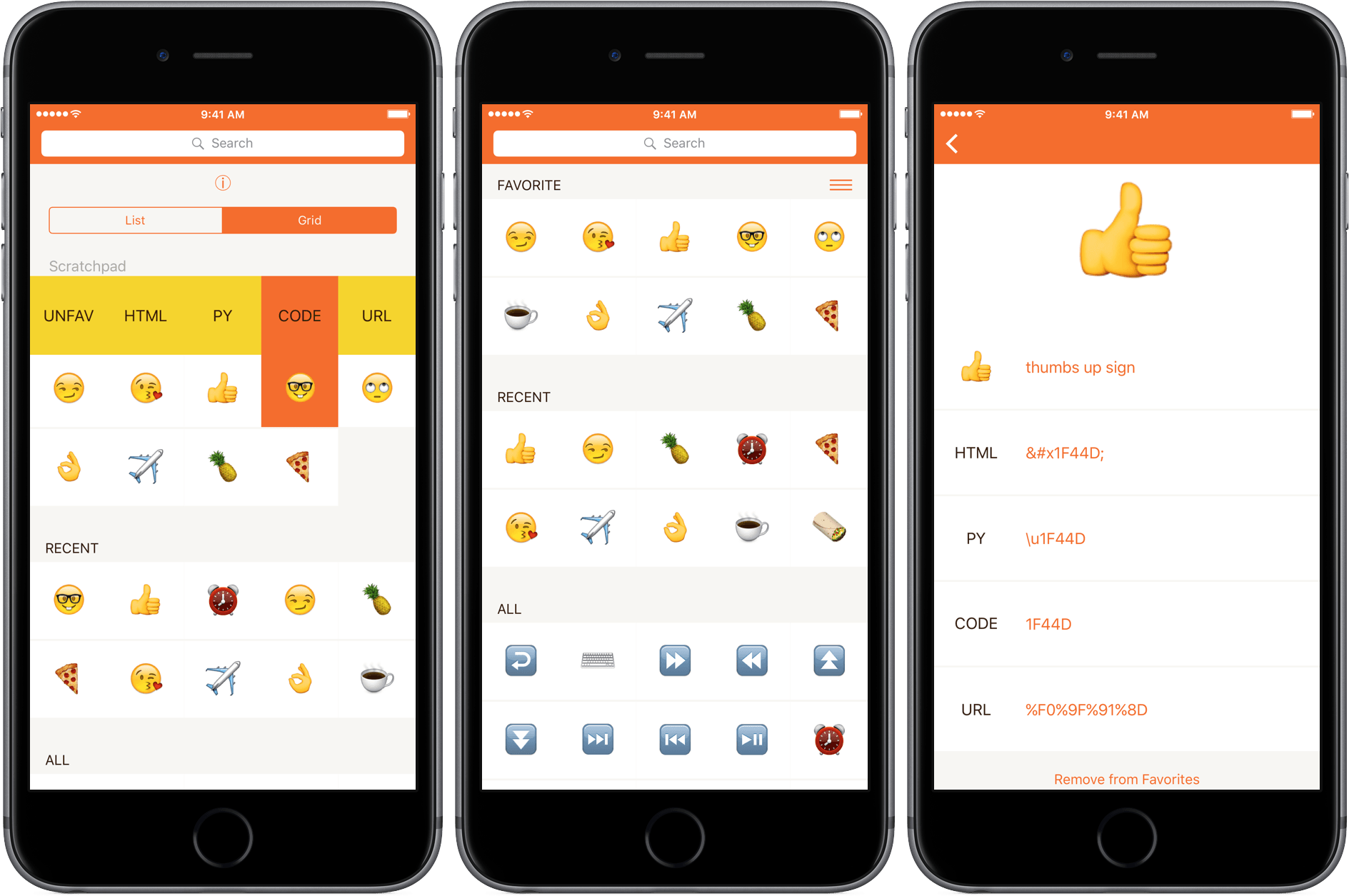
Emojinn Emoji Finder and Keyboard

Emoji can be hard to find from the iOS system keyboard. Although they have official names, emoji aren’t accessible by those names from Apple’s keyboard. Instead, if an emoji isn’t in your frequently used, you are left with the task of remembering or guessing which category it falls into to find it. The trouble is, the groupings aren’t that intuitive. Here’s a test: Which category is sunglasses in? Objects or People?1Emojinn is a useful little utility that makes it easier to find the emoji you want without memorizing where they are.

Read more


Capture Your Own GIFs with Gifstory

Gifstory makes capturing your own GIFs easy by imposing constraints. One of the difficulties with GIFs is that there are lots of variables that impact how big they are and how good they look. I like GIF Brewery on the Mac, but it is easy to get caught up in tweaking those variables endlessly, trying to get a GIF that looks perfect. Gifstory, which is iPhone-only, eliminates the fiddling by imposing limits that work. Point your camera at something, press and hold the capture button, and you can capture a 320 × 426 or 320 x 320 GIF up to sixty frames long.

Read more