This Week's Sponsor:

Turbulence Forecast

Know before you go. Get detailed turbulence forecasts for your exact route, now available 5 days in advance.


Posts in stories

The 2022 MacStories OS Preview Series: Everything New Coming to Apple Mail

Email isn’t going anywhere anytime soon despite its flaws. Tools like Slack have replaced the lion’s share of internal communications at many companies, and a long list of messaging apps have chipped away at conversations among individuals. Still, email has proven resilient.

One of email’s many problems is how hard it can be to manage the volume of messages so many of us receive. Over the years, developers have come up with innovative tools layered on top of the core email protocols to improve the experience. However, few of them are with us anymore. Remember Sparrow? How about Mailbox or Acompli? Notice a trend? There are still some bright spots, like Mimestream on the Mac and Spark, but with so few survivors, having a strong choice from Apple has never been more important.

That’s why the situation with Apple’s Mail app has been so distressing in recent years. Mail sat, barely touched on any platform for what seemed like forever. However, this fall, across iOS, iPadOS, and macOS, Apple is finally bringing many of the features pioneered by others to its own Mail app. You won’t find every cutting-edge modern email feature in Mail. Message collaboration and back channel chat about email messages among team members, which Spark and other apps offer, is a good example of a feature Apple has left to others. However, I expect most individuals and teams that aren’t looking to use email as though it were Slack will like what they see in Mail, so let’s dig into the details.

Read more


Shortcuts in iOS 16: The Potential of App Shortcuts for Everyone

App Shortcuts in iOS 16.

App Shortcuts in iOS 16.

A note from Federico: This year, I’ve decided to try some new things for my annual iOS 16 review. Some you’ll see on Monday. One of them is previewing small excerpts from the review in the OS Preview series on MacStories and MacStories Weekly for Club MacStories. Today, I’m posting a preview of a section of the Shortcuts chapter here, and a section of the Everything Else chapter in MacStories Weekly. I hope you enjoy these. I’ll see you for the full story – and more reveals – on Monday.


In iOS 16, the Shortcuts app hasn’t undergone a major redesign or technical rewrite; instead, Apple’s efforts have focused on adding more actions for system apps, extending the developer API, bringing more stability, and making Shortcuts more approachable for new users.

The last point is both important and likely the reason why some Shortcuts power users will be disappointed by this year’s update. There isn’t a lot for them in this new version of the app: as we’ll see in my iPadOS review, there’s no integration with Files quick actions, no support for Stage Manager actions, and no system-wide hotkeys still. If you’re an advanced Shortcuts user and were wishing for more system-level enhancements in addition to stability this year: I hear you, but we’ll talk about this later on.

What we do have in iOS 16 is a fascinating new feature to get newcomers started with the Shortcuts app, a grab bag of useful new actions for Apple apps, and some solid developer-related enhancements that will make third-party actions much better than before. Let’s take a look.

Read more


Hands On: iCloud Shared Photo Library and Family Checklist

iCloud Shared Photo Library

Over the years, I’ve shared family photos with my wife Jennifer in three ways: iMessage, AirDrop, and Shared Albums. However, of those, iMessage won hands down, not because it’s the best way to share photos, but because Messages is an app we already use every day to communicate. Plus, sharing photos with Messages is easy whether you’re already in the app and using the Photos iMessage app or in the Photos app itself and using the share sheet. From conversations with friends and family, I know I’m not alone in my scattershot approach to sharing photos with my family.

It’s into that chaotic, ad hoc mess and all of its variations that users have improvised over the years that Apple is stepping in with iCloud Shared Photo Library, its marquee new Photos feature for iOS and iPadOS 16 and macOS Ventura. And you know what? It just works.

The feature lets anyone with an iCloud photo library share part or all of their photo library with up to five other people. Once activated, a new library is created that sits alongside your existing one and counts against the iCloud storage of the person who created it.

One critical limitation of iCloud Shared Photo Library is that you can only be a member of one shared library, a restriction that is designed to limit the library to your immediate household. That means I could share photos with my wife and kids because there are fewer than six of us, but I couldn’t set up another library with my siblings or parents for our extended families. Nor could I invite one of my extended family members to use the extra slot I’ve got in my family library unless they were willing to forego being part of any shared library their own family created.

Unwinding a shared library.

Unwinding a shared library.

So, what do you do if you’re in a shared library and want to join a different one? There’s a button in the Photos section of Settings to leave a library, so you can do so with one tap, saving all of the photos in the shared library to your personal library or keeping just those you originally contributed to the shared pool. Deleting libraries is possible too, but only by the person who created them, who is given the choice of keeping all images or just the ones they contributed when they do so.

Read more


Everything New Coming to the Home App in iOS 16 and macOS Ventura

I’ve spent a lot of time in the Home app since moving to North Carolina. I moved right after WWDC, so I’ve disassembled, reassembled, and reconfigured my home automation setup, all in the midst of testing the latest iOS, iPadOS, macOS, and watchOS betas. What I’ve learned is that the Home app’s new design is much better for navigating a large collection of smart devices than before, but the app’s changes don’t go far enough. The app’s automation options are still too rudimentary, which limits what you can accomplish with them. Still, the update is an important one worth exploring because it promises to relieve a lot of the past frustration with the Home app.

One question that’s fair to ask about Home’s redesign is: Why now? The app’s big, chunky square tiles have been a feature of the app since the start and criticized just as long. The issues that I suspect have spurred the change are two-fold. First, the square tiles of the app’s previous design were too uniform, making it hard to distinguish one device from another. Second, they wasted space. That was less of a concern on a Mac or bigger iPad, but no matter which iPhone you used, Home could never display more than a handful of devices. Both issues have been problematic for a while, but with the Matter standard poised to bring more devices into the Home app, the issues were bound to get even worse without a redesign.

Say goodbye to Home's sea of square tiles.

Say goodbye to Home’s sea of square tiles.

Since Home was first released, Apple has tweaked the iconography available in Home and added a row of status buttons along the top of the app, but the big space-wasting tiles endured. That led me to control my HomeKit devices with Siri most of the time. That’s not a bad way to control devices, but it’s not as reliable as tapping a button. Plus, the app is just more convenient than Siri in many situations, like when I’m already using my iPhone for something else or when it’s early in the morning, and my family is still asleep. That’s why I was so glad to see Apple rethink how Home uses valuable screen space and the way devices are organized.

Read more


The 2022 MacStories OS Preview Series: Maps and CarPlay

I recently moved from Illinois to North Carolina, and I don’t know the area at all. As a result, I’ve been using Maps and CarPlay a lot since I got here. The new features coming this fall to each aren’t as extensive as they’ve been in past years, but there are several small changes that represent the kind of incremental, ‘quality of life’ improvements that I expect users will appreciate.

Maps

Because so much of Apple Maps relies on methodically mapping the world bit by bit, many users are stuck waiting for Maps’ underlying data to catch up with the app’s features. The more detailed maps and 3D models of landmarks introduced last year are good examples. Both came with asterisks because they were only available in certain cities or countries at launch.

This year is a little different. Apple announced new countries and cities where you’ll find the company’s more detailed maps, 3D landmarks, and other changes, but this year, multi-stop routes and tweaks to Maps’ routing UI will be available to everyone at the same time. It’s a nice mix of brand-new features and incremental improvements that includes something for everyone.

Read more


Generating Markdown Links to Mail Messages with Shortcuts and AppleScript

One of the system app updates we covered on AppStories this week that I’m most excited about is Mail. The app will finally introduce several advanced features this fall, including:

  • Undo send, allowing you to recall a message for 10 seconds after sending a message
  • Message scheduling with suggested and fully-customizable future delivery times and dates
  • Follow Up, which surfaces requests you’ve made in messages for which you haven’t received a response
  • Remind Me, a snooze-like feature for scheduling messages to reappear in your inbox later
  • Missing recipient and attachment alerts
  • Improved search

For the first time in quite a while, that list makes Mail a much more attractive alternative to third-party apps. Mail won’t match every feature offered by third parties, but my needs for advanced email client features are fairly modest, which I expect puts me squarely in the demographic that Apple is targeting.

Mimestream offers Gmail's excellent search and other features in a native Mac package.

Mimestream offers Gmail’s excellent search and other features in a native Mac package.

Until recently, my email use was split between Mimestream, which is only available on the Mac, and Spark on iOS and iPadOS. The split wasn’t ideal, but because I handle most of my email on my Mac, I tolerated it.

For the past several weeks, I’ve been using Mail exclusively on all of my devices, which has been a refreshing change of pace. Still, it’s not perfect. Of the features I use most in third-party mail clients, the single biggest shortcoming of Mail is its clunky implementation of deep linking.

I drop links to email messages in my notes and tasks all the time as a way to quickly access important contextual information. Mimestream offers Gmail URLs, and Spark can create its own app-specific and web URLs right within those apps’ UIs.

I like the way drag and drop on the iPhone and iPad links a message to its subject, but having to use drag and drop is clunky.

I like the way drag and drop on the iPhone and iPad links a message to its subject, but having to use drag and drop is clunky.

In contrast, on iOS and iPadOS, you can only link to a Mail message by dragging it out of Mail into another app’s text field. I’ll take it, but I’d prefer if I could quickly generate a link from the share sheet or with Shortcuts instead. The situation on the Mac isn’t much better, requiring users to resort to AppleScript to construct a URL that links back to a Mail message.

With weeks of Ventura testing ahead of me, I decided to see what I could do to improve the situation. The result isn’t perfect: I still have no choice on iOS and iPadOS but to drag and drop messages. However, I’ve improved the experience on the Mac using a combination of AppleScript and a shortcut that I trigger using Raycast to link the subject of a Mail message to its URL. For added context, my shortcut adds the sender’s name too.

Read more


Ventura Adds Shortcuts to Its Share Menu

When Shortcuts debuted on the Mac in Monterey, Apple added more ways to run an automation than anyone expected, but there was one big omission. Shortcuts wasn’t included in Monterey’s share menu. That was a big disappointment for anyone (like me) who has built a lot of shortcuts that rely on the share sheet on iOS and iPadOS. That’s why I’m happy to report that this fall, when Ventura is released, Shortcuts users will, at last, be able to trigger their shortcuts from the Mac’s Share menu.

Enabling Shortcuts's share extension in System Settings.

Enabling Shortcuts’s share extension in System Settings.

Shortcuts was toggled off by default in Systems settings on my Mac, so you may not see it if you go directly to the Share menu. To enable it, open System Settings and go to the Extensions section of the Privacy & Security section, where you’ll find it under Sharing. Once toggled on, you’ll be able to select it like any other Share menu item, which will display a list of shortcuts that accept the input that the app you’re using offers.

Running a Shortcut from the share menu in Safari.

Running a Shortcut from the share menu in Safari.

My testing is ongoing, but despite some bugs, the new Shortcuts share item works well across a variety of system and third-party apps. For example, Safari can pass the active webpage, its URL, and a PDF to Shortcuts, where I’ve used the input with actions like Get Current Web Page from Safari, Get Details of Safari Web Page, and Get Contents of Web Page.

Safari’s inputs also work with File actions like Save File, which can be used to create nicely-formatted PDFs of webpages. However, due to what appears to be a bug in Shortcuts, PDFs can only be saved if the URL is also passed as input to the Save File action, resulting in the creation of a PDF and two HTML files of the webpage contents. Another limit of Safari’s Share menu support is that it currently doesn’t work with text selections.

A PDF of a MacStories article created using Shortcuts via the Share menu.

A PDF of a MacStories article created using Shortcuts via the Share menu.

Safari is where I expect to use Shortcuts’ Share menu the most, but it works with other apps too. So far, I’ve used Shortcuts from the Share menu to:

  • Convert a PNG image to JPEG
  • Open a file from Finder
  • Add a PDF to Keep It for Mac
  • Send a PNG from Pixelmator Pro to Keep It for Mac
  • Add Mac App Store URLs to the Trello board we use to organize our Club MacStories newsletters

There are other ways to accomplish any of these things without a share extension, but the Share menu lets you trigger your shortcuts from the context in which you’re working, which I prefer.

The addition of Share menu support is promising, but it still needs work. In addition to the Safari limitations and bugs I mentioned above, it’s worth noting that if a shortcut fails from the Share menu, the app becomes unresponsive and needs to be quit and restarted before it will work again. Also, Shortcuts’ picker window opens behind the app you’re using, so if your app window is in the center of the screen, Shortcuts’ picker might be hidden. Interaction with the app from which you trigger a shortcut is blocked while your shortcut is running too.

The Share menu, which has undergone a redesign in Ventura, removes a couple of features that would be useful with Shortcuts that I hope are added back. First, it’s no longer possible to reorder share extensions in System Settings. I’d like to move Shortcuts to the top of my list, but I can’t. Second, because the Share menu is now an independent floating pallette instead of a submenu of File → Share, individual share extensions can no longer be assigned a keyboard shortcut in System Settings.

Notwithstanding some rough edges, though, it’s good to see Shortcuts come to the Share menu. I’ve found ways around its omission from Monterey, but none have ever seemed as natural as clicking the share button in an app’s toolbar. Hopefully, by the time it’s released in the fall, Shortcuts’ share extension will do everything on the Mac that it can do on the iPhone and iPad.


watchOS 9: The MacStories Preview

After watching this year’s WWDC keynote in June, my initial impression of the watchOS 9 announcement was that Apple had prepared one of the largest Apple Watch updates in years. While writing my watchOS 9 overview later that day though, it felt like the scope of the changes were less than I originally thought. I needed some hands-on time with the update to know for sure.

I’ve had bad luck installing early watchOS betas in the past, so I’ve been waiting for the public beta to arrive before loading it onto my daily-driver Apple Watch. That said, I installed the developer beta right away onto an extra Apple Watch Series 4 that I’ve kept around, and have been using it as much as possible throughout the past month. I’ve ascertained a good feel for this year’s update, and can confirm that we’re looking at another mild-mannered year for the Apple Watch.

I don’t mean this as an insult at all. Rather, it’s another year of the relentless incremental refinement that Apple has long been known for, but which the company has practically turned into a science for watchOS. The formula looks something like this:

  • A handful of improvements to the Workout app
  • One or two new features targeted at health
  • A handful of new watch faces
  • One or two brand-new first-party apps
  • One or two redesigned first-party apps
  • A system-level feature or improvement

This year’s changes to the Workout app may be more significant than usual, but otherwise watchOS 9 fits this formula quite snugly. While it may not make for the most glamorous year-over-year updates, the strategy has cemented the Apple Watch as the most popular smartwatch in the world — by far. It’s no surprise that Apple sees no need to alter it.

While the formula may have stayed the same, there are still plenty of specifics to dig into. Let’s start with Workout, the app whose changes single-handedly led me to believe that we were getting a bigger-than-usual watchOS update this year.

Read more


macOS Ventura: The MacStories Preview

With the release of the macOS Ventura public beta today, macOS takes another step down the path to syncing up its platforms that began four years ago. Where once the Mac hung out doing its own thing with scant regard for where iOS, and later, iPadOS was heading, today the Mac feels like part of a coherent family of products more than ever. Fewer of the differences among Apple’s product lines are the result of historical accidents than ever before. Instead, they’re intentional differences that speak to the ways the devices are used, not how they were developed. As a result, it’s never been easier for someone to move between devices up and down the company’s computing lineup. The same is true for developers looking to bring their apps to all of Apple’s platforms.

This year, the process of harmonizing the Mac with Apple’s other devices continues with Stage Manager, a new window management system available on macOS and iPadOS that offers users a similar windowing experience on both systems for the first time. On the Mac, Stage Manager is very different from the Mac’s traditional windowing systems, but it’s also very easy to get the hang of, which bodes well for new users coming from the iPad. And, of course, the feature is entirely optional, so anyone with whom it doesn’t click can ignore Stage Manager completely. However, as you’ll read below, I think everyone should give Stage Manager a chance because I’ve been surprised at how much I enjoy using it.

Another thread from Monterey that is even more pronounced in the Ventura beta is Apple’s renewed emphasis on collaboration and sharing. Last year, SharePlay enabled new experiences that connected people with family and friends no matter what Apple device they use. This year, macOS Ventura expands macOS’ collaboration across devices with Continuity Camera, collaboration features in system apps that are also available to third-party apps, the integration of Messages into collaboration functionality and SharePlay, and more. These are features that are available across macOS, iOS, and iPadOS and are serving as a new thread that strengthens the ties between the iPhone, iPad, and Mac.

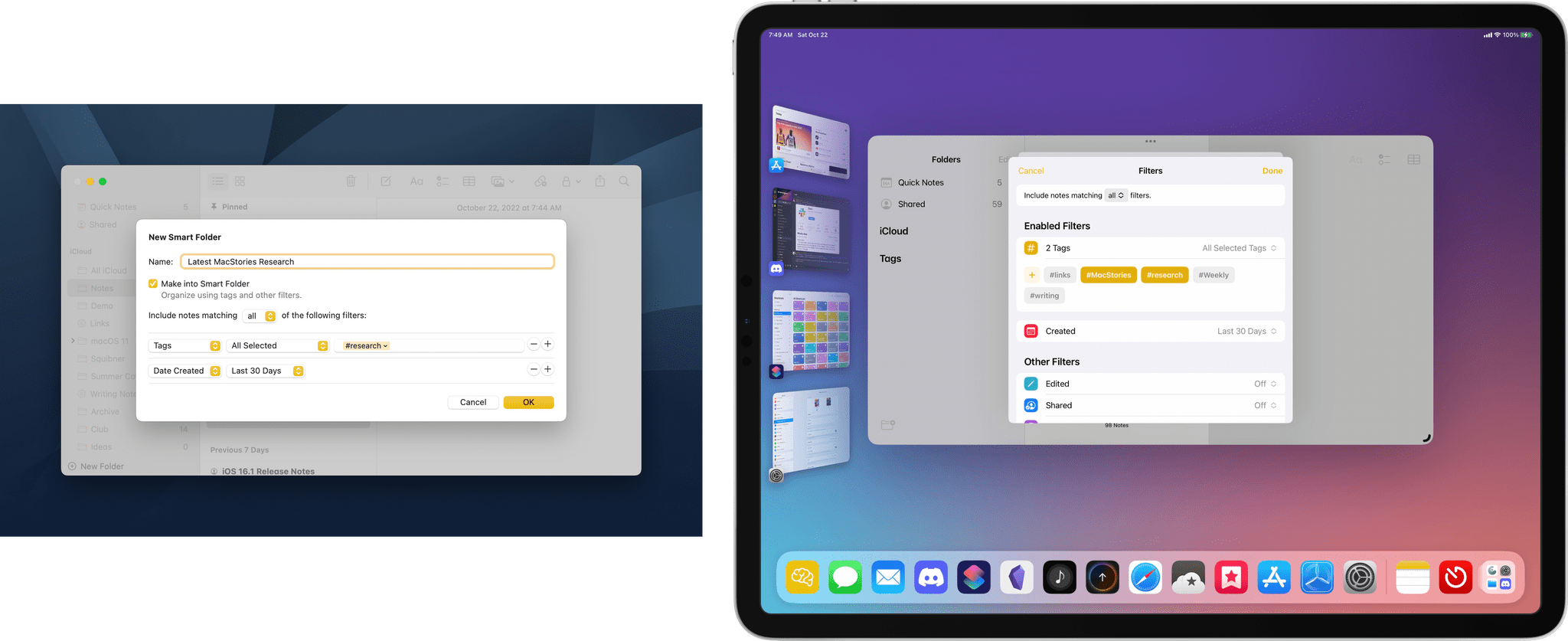
Notes' Smart Folders are far more powerful in macOS Ventura.

Notes’ Smart Folders are far more powerful in macOS Ventura.

Finally, no macOS update would be complete without updates to system apps. One of the dividends Apple is enjoying from the unification of the technologies on which its apps are built is they have been able to advance system apps across all platforms simultaneously. We saw that most strikingly last year with Monterey, but the trend will continue with Ventura, which includes significant updates to Mail, Messages, Notes, Photos, Home, and more. This year’s crop of updates shows that last year wasn’t a one-off push to synchronize system apps. I think it’s now reasonable to expect simultaneous annual app updates across all platforms going forward.

I’ll have more to say about what Ventura means to the Mac and where Ventura succeeds and fails in my annual macOS review this fall. However, because the public beta of Ventura is available for anyone to download for the first time today, and I know many readers are eager to give it a try, I want to provide a preview of what you can expect to find if you install it along with my first impressions of using it for the past few weeks.

Read more