


As December comes to a close, now is the perfect time to reflect on how the year was spent, both with deep existential questions but also lighter, fun matters – such as surveying your TV and movie consumption over the year. Until recently I didn’t have a system I was satisfied with for tracking my viewing history, but now I’ve settled on Sofa.
Posts in stories
Using Sofa to Track TV Shows and Movies Watched in 2019
How I Modded the Silicone Tips of AirPods Pro with a Memory Foam Layer
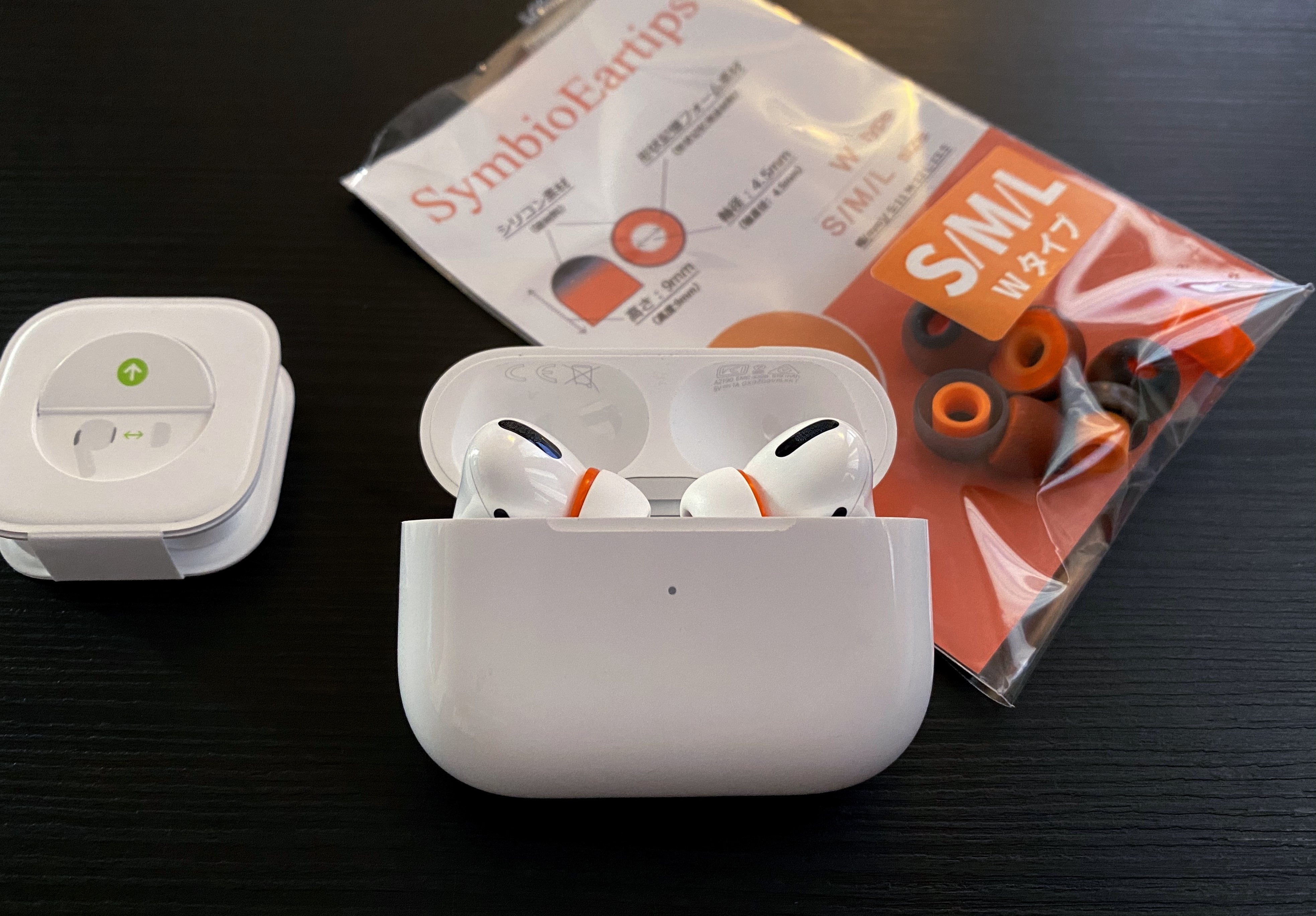
I love my AirPods Pro and, ever since I bought them last October, I’ve been taking advantage of their noise cancellation technology to use them in more contexts than the original AirPods.1 They sound better than any other wireless earbuds I’ve tested (obviously, they sound much worse than my Sony IER-Z1R, but that’s to be expected) and they cancel almost as much noise as my Sony WH-1000XM3, which is pretty remarkable for such tiny earbuds. AirPods Pro retain all the magic of the non-Pro line, but they bring the additional freedom granted by noise cancellation and transparency mode. There’s one thing I don’t particularly like about them, though: the default silicone tips.
Unlike others (e.g. my girlfriend), I can use in-ear silicone tips without getting a headache after 20 minutes. It’s not my favorite method of listening to music, however, because I know that memory foam tips are a better fit for my ears since they can better adapt to the shape of my ear canal and, as a result, provide better isolation and a more bass-y response. Over the years, I’ve developed an appreciation for Comply’s popular foam tips (right now, I’m testing their Audio Pro and Comfort tips with my IER-Z1R) and was hoping they’d release AirPods Pro-compatible tip replacements made of memory foam.
Much to my disappointment, the only foam tips designed for AirPods Pro I’ve found so far are these no-brand tips from Amazon US that I can’t purchase from Italy (and which do not inspire a lot of confidence). I’m assuming that since AirPods Pro require tips to have a special clip attachment that secures them onto the earbuds themselves, it’s taking a while for third-party manufacturers to come up with a compatible design. I really wanted to figure out a way to use foam tips with my AirPods Pro though, so I kept looking for ideas or recommendations on how to make it happen.
The solution I’ve adopted isn’t ideal since I still haven’t found complete foam replacements made specifically for AirPods Pro, but, at least for me, what I’m using today is better than using Apple’s default silicone tips. As I shared on Twitter a few days ago, I’ve modded the AirPods Pro’s silicone tips with an extra memory foam layer, which helps the tips fit better in my ears, resulting in a warmer sound and overall more comfortable feel. The best part: I didn’t have to cut the memory foam layer myself – I simply took the foam layer from a pair of Symbio W eartips and fitted it inside the AirPods Pro’s tips. The final result looks like this:
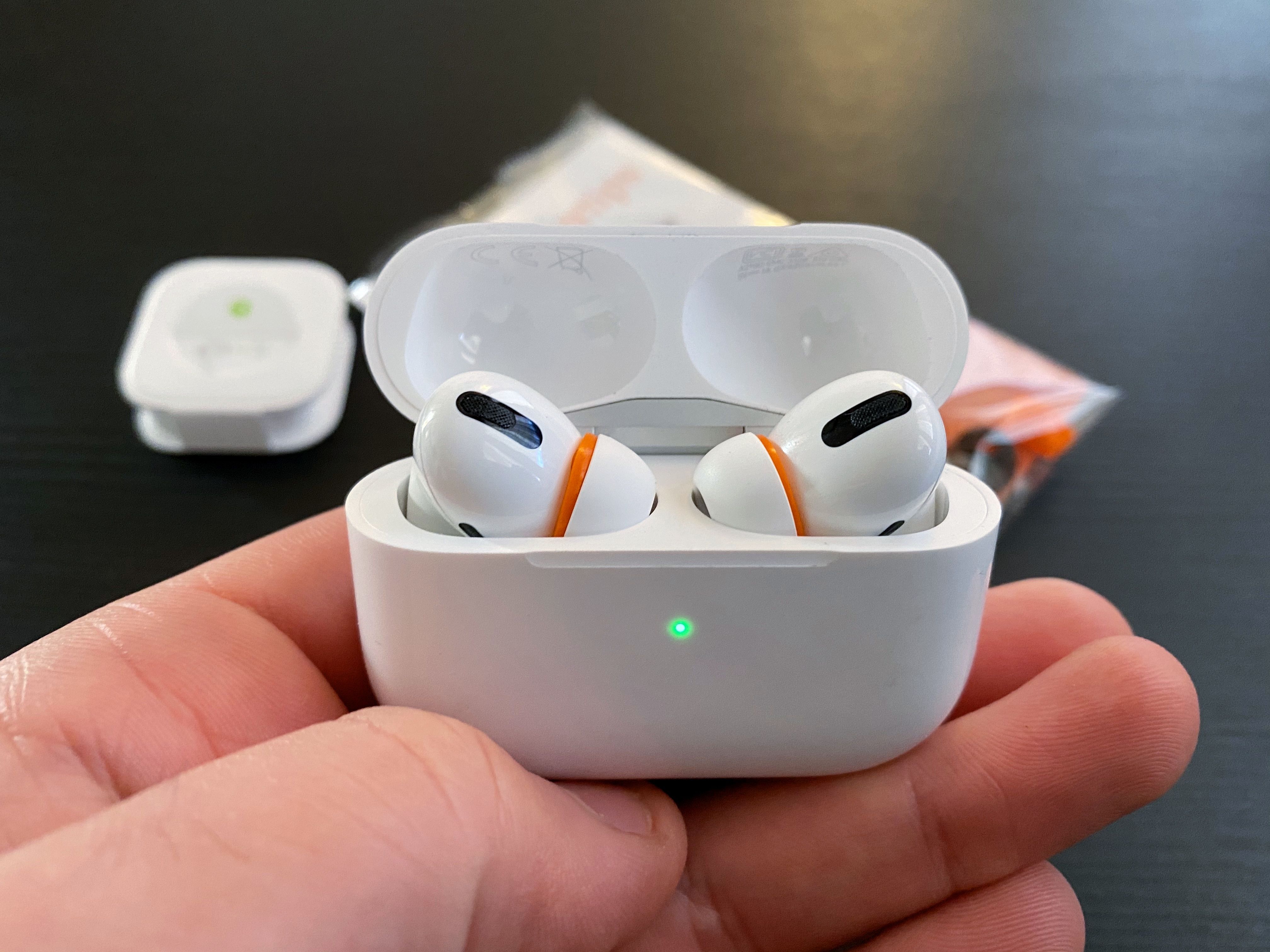
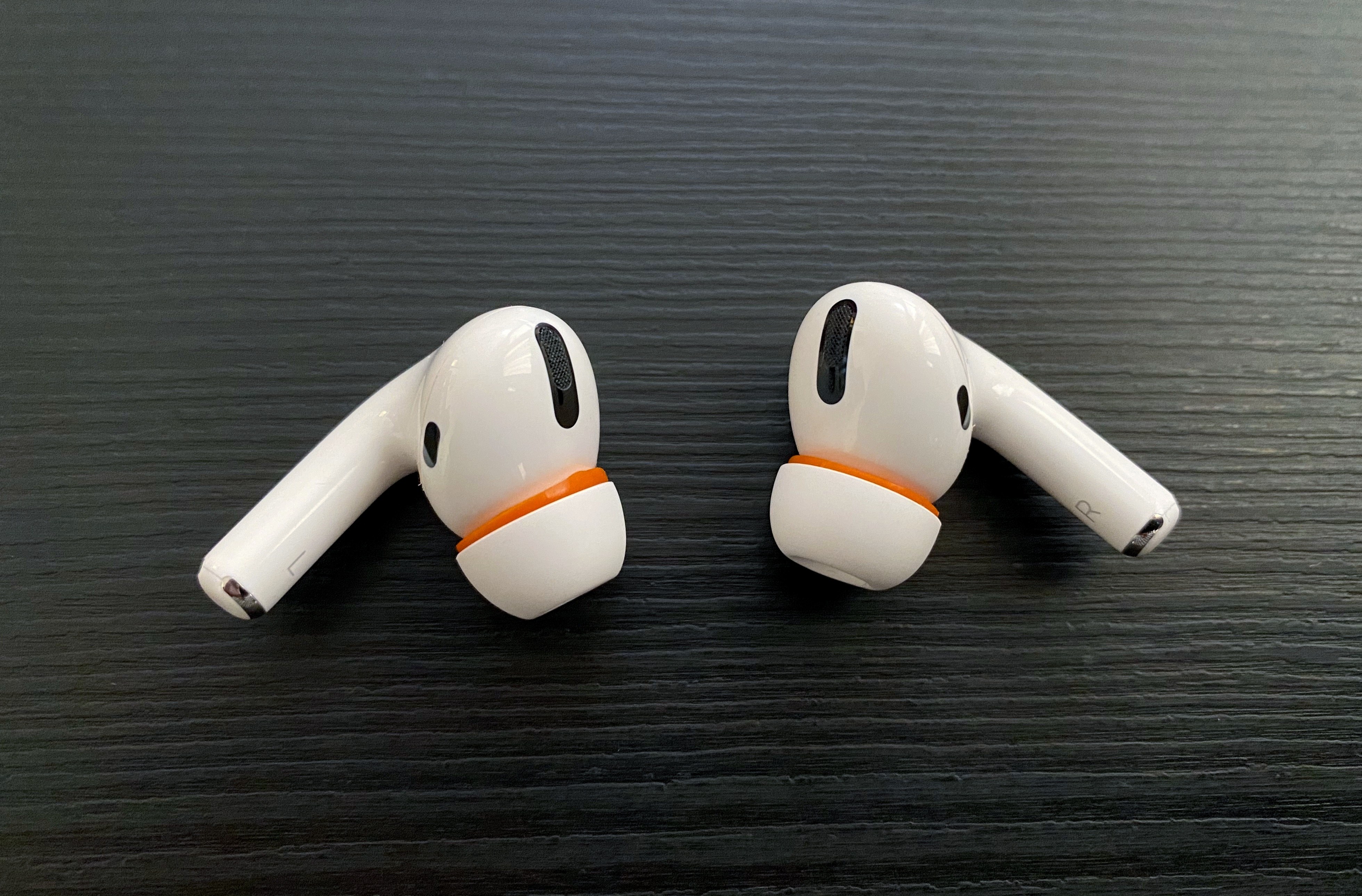
Allow me to offer some context around how I discovered this method and how you can perform this mod yourself with relative ease. I was looking around for discussions related to AirPods Pro and memory foam tips a few weeks back, and I came across this discussion thread on the MacRumors forums where a few users reached the following consensus: until third-party manufacturers come up with a compatible clip that attaches to AirPods Pro and lets you use alternative tips, for now the best DIY mod involves taking a memory foam insert and sliding Apple’s silicone tips inside it so that the foam layer ends up sitting between the central plastic “stem” of the tip and its outer layer. This is what I mean:
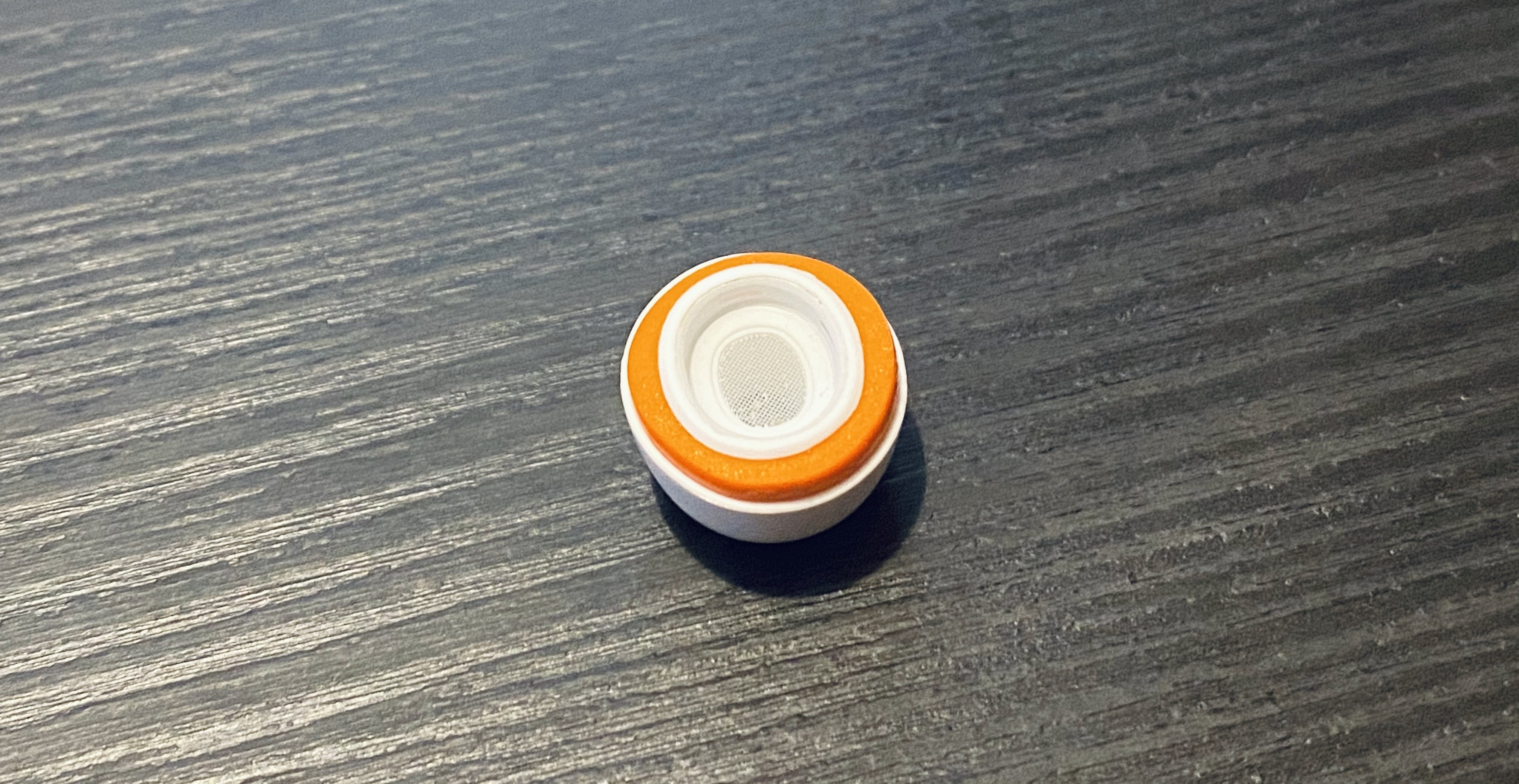
Based on the aforementioned MacRumors thread, I purchased a set of Symbio W eartips from Amazon Japan2 (Symbio also has an official website with worldwide shipping, but I haven’t tried it myself). Symbio’s in-ear tips are well suited for this kind of mod for a couple reasons. First, they’re hybrid tips that feature a silicone membrane with an inner memory foam layer; if you pull out the silicone part, you can access the memory foam “ring” contained inside it and remove it so you can use it elsewhere. And second, the Symbio W’s foam layer is thin and short enough that it can fit in the gap between the plastic stem and silicone layer in Apple’s tips, while matching their height in all three sizes as well (just like AirPods Pro, the Symbio W eartips come in small, medium, and large sizes). This means that, unlike other mods, applying the Symbio W’s foam parts to AirPods Pro’s silicone tips will let the AirPods Pro case close just fine.
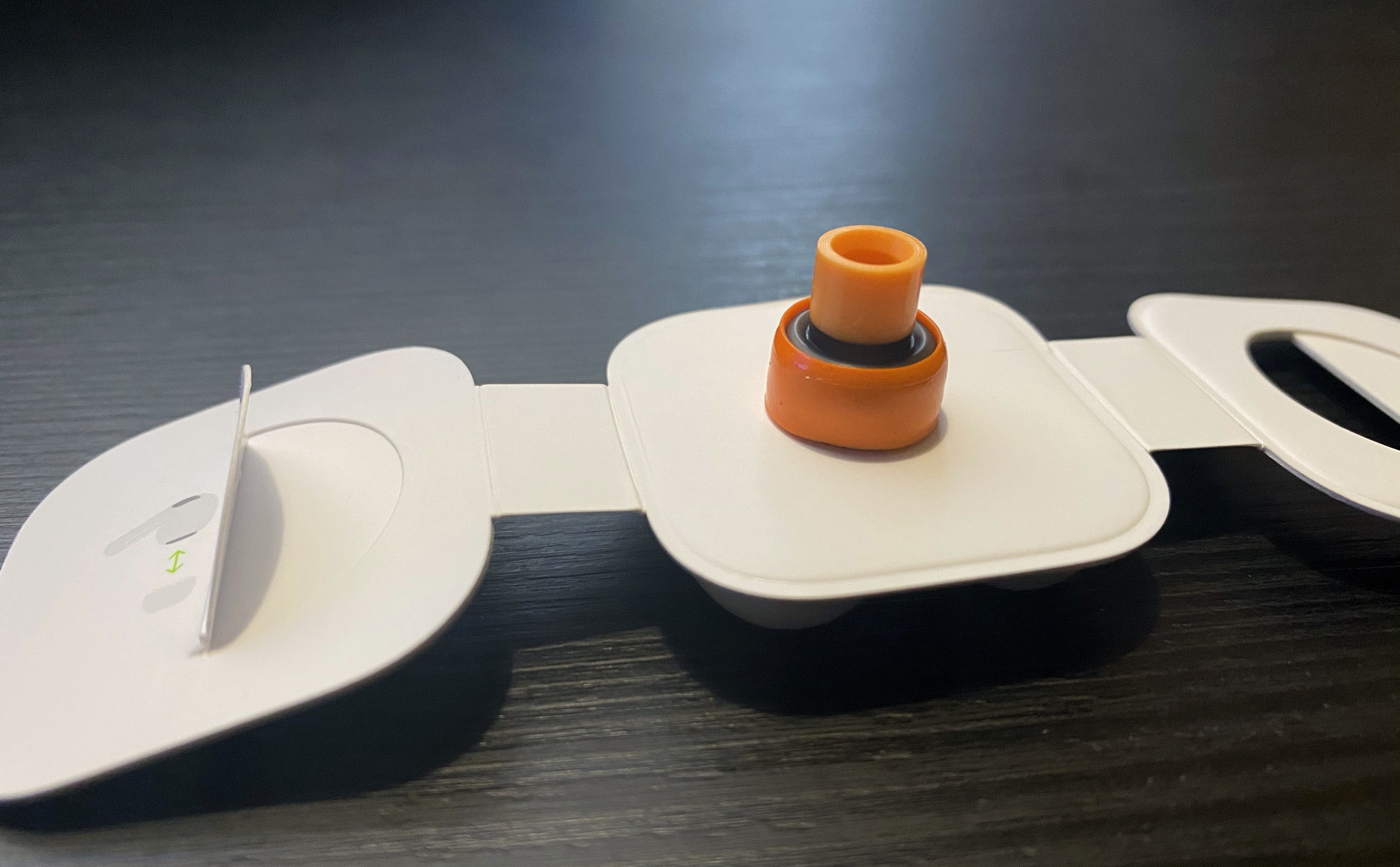
Now, if you want to replicate this setup yourself, here’s how you can do it in less than a minute for each AirPod. Grab one of the Symbio eartips (if you’re using the medium tips for your AirPods Pro, use the medium Symbio tip too) and pull out the silicone exterior so that the memory foam portion is clearly visible:
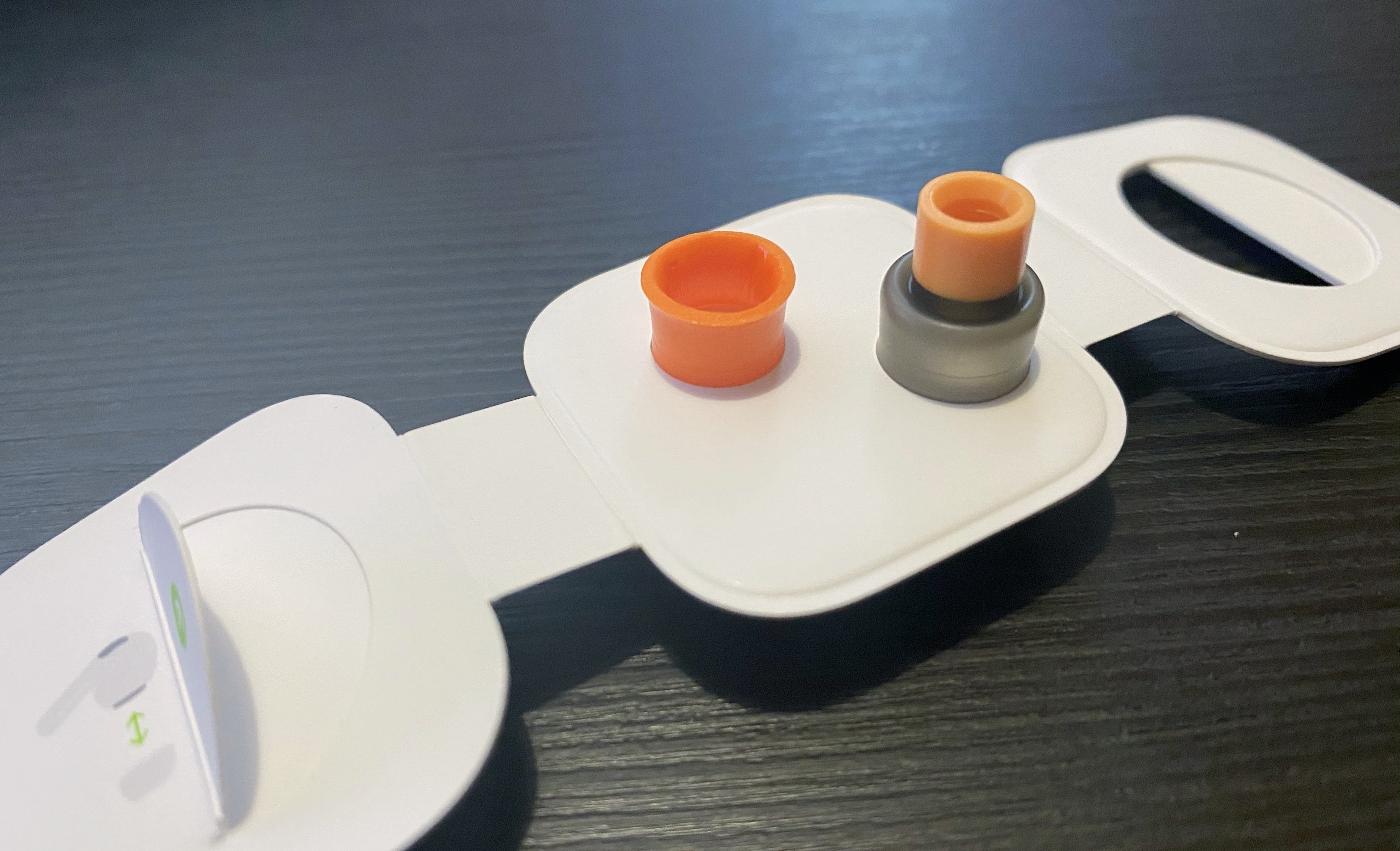
Next, gently remove the memory foam ring from the eartip:
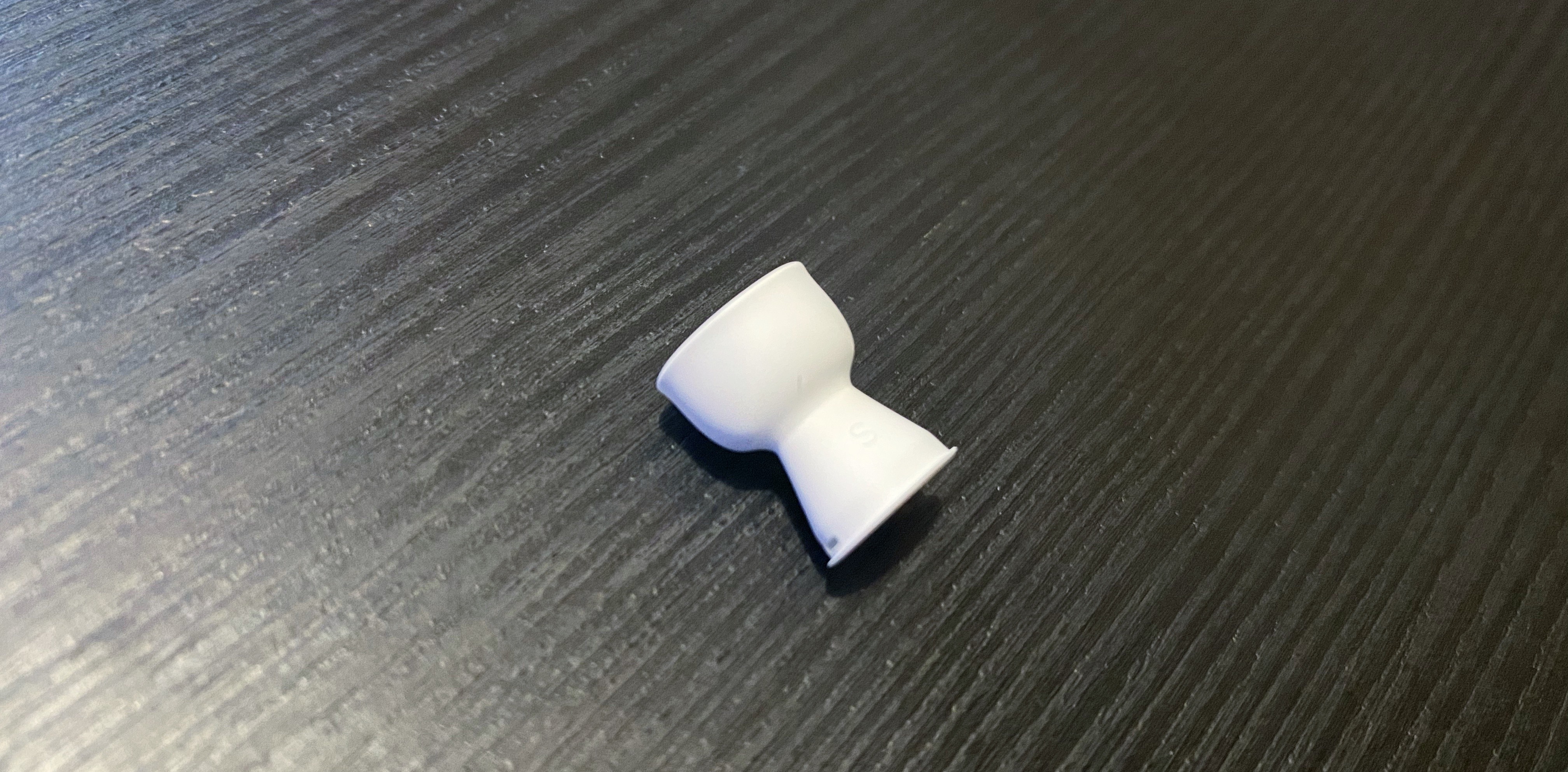
Grab the tip of your AirPods Pro and pull out the soft silicone part – again, don’t apply too much pressure because you don’t want to break it – so that it looks like this:
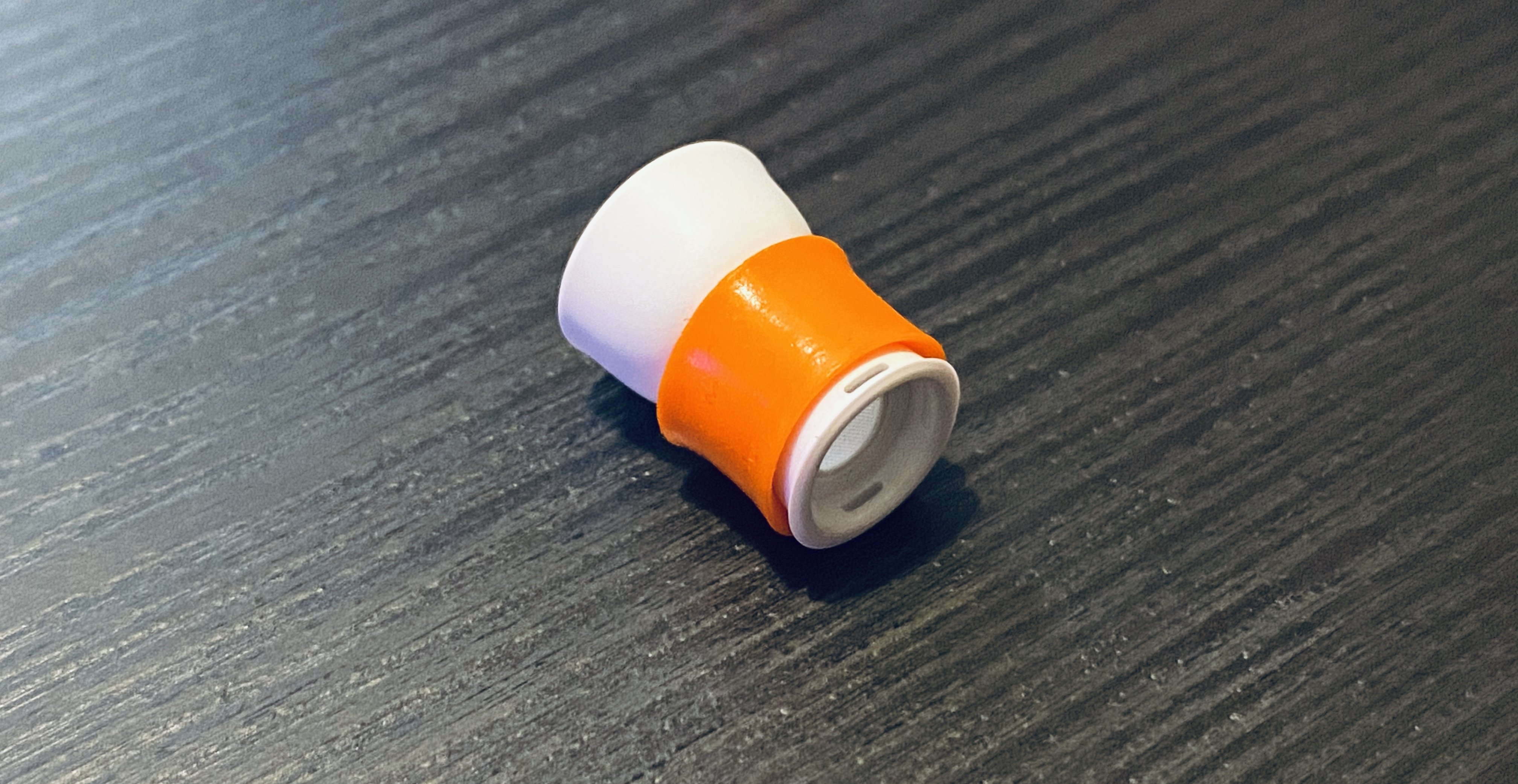
Slide the plastic base of the AirPods’ tip into the foam ring, then carefully adjust it so that it doesn’t cover the vents (which help relieve pressure in your inner ear), as pictured below:
Lastly, pull down the outer silicone layer of the AirPods’ tip so it covers the newly inserted foam part, adjust the foam again so it doesn’t cover the vents, and voila:
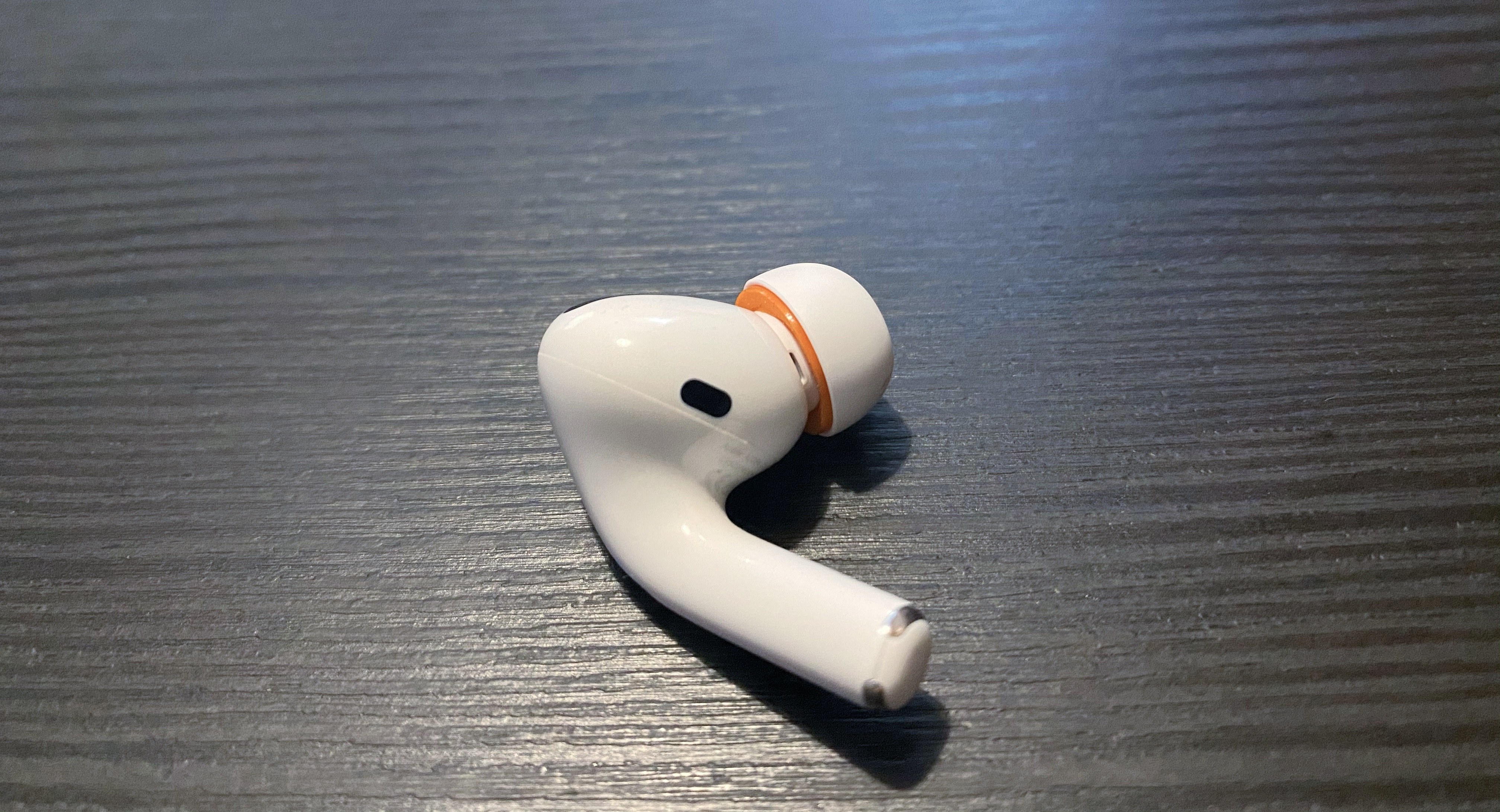
Now, obviously this is a DIY modification and it’s by no means an absolutely perfect match for Apple’s design – but it’s a close approximation that has helped me enjoy some of the benefits of memory foam tips despite the fact that I still have to use Apple’s official tips.
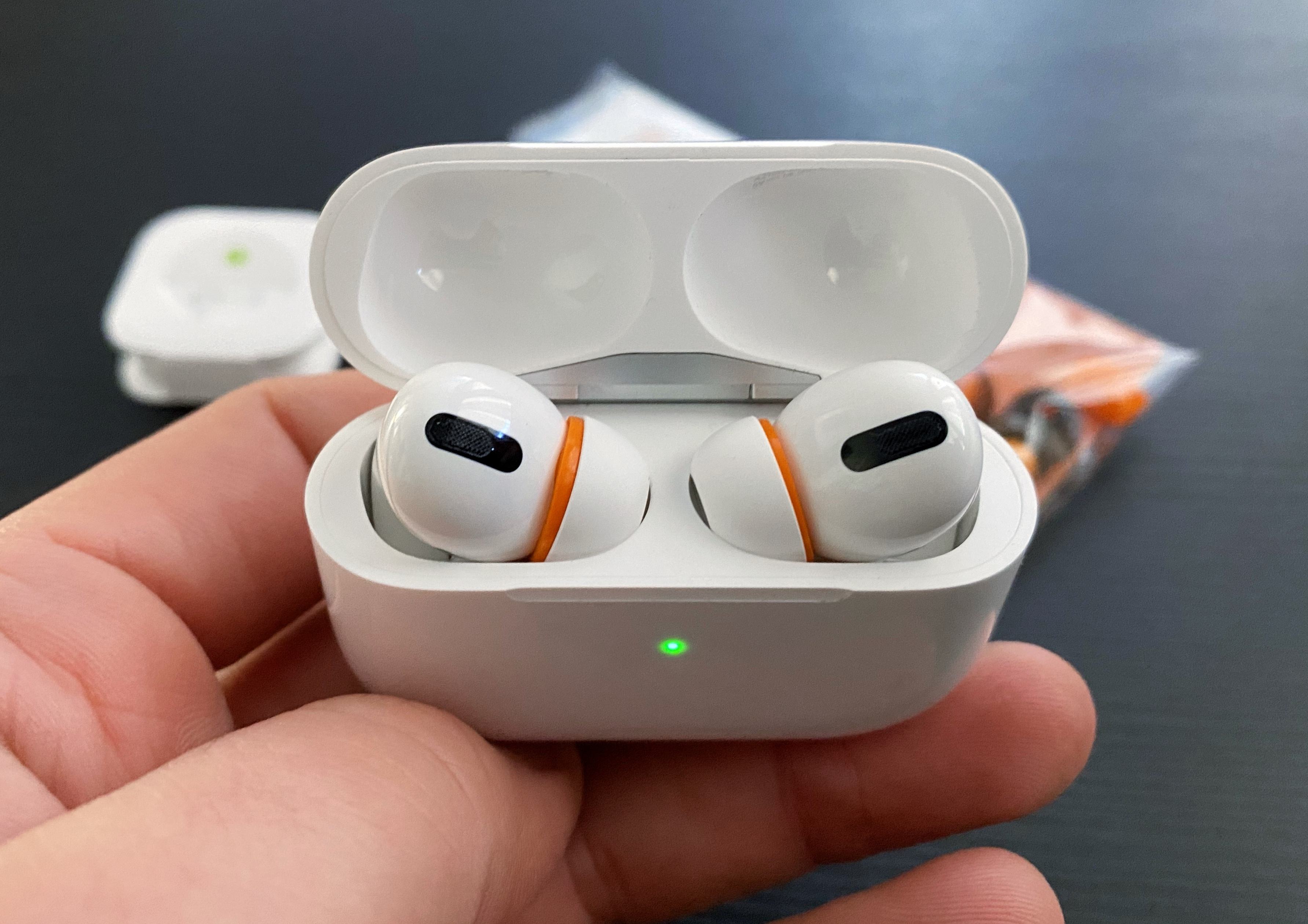
I’ve been rocking this setup for the past week, and not only do I find my AirPods Pro more comfortable to wear for prolonged listening sessions because the tips fit better in my ears and don’t wobble as much as before, but sound isolation is also better (as confirmed by Apple’s fit test in Settings). Thanks to the extra foam layer, the modded tips “fill” my ears, creating a better seal and ensuring the AirPods stay in place. As a result of the superior fit, I’ve also noticed a slightly warmer sound with a bit more bass than before, which I believe is a pleasant addition. Best of all, my right AirPod always stays in place now (which wasn’t the case before the mod) and the additional foam layer hasn’t been an issue for the case, which still closes perfectly.
I recognize that after spending $249 on AirPods Pro, I shouldn’t have to invest roughly $18 (plus shipping) on a mod that only sort-of lets me use foam tips with them. Apple should provide users with more choice in terms of the materials used in the default tips: ideally, for $249 the company should offer a selection of silicone and memory foam tips in the box. But I also like my AirPods Pro a lot, and I use them for several hours every day, and I wanted to make them fit my ears better today. I’m pretty happy with this temporary mod; until a better solution comes along3, Symbio’s W eartips have proven to be good companions to Apple’s silicone tips, and I recommend them.
- Train trips, riding the subway in Rome, or writing without hearing surrounding noises. ↩
- A tip I picked up from Cabel Sasser years ago: you can register for an Amazon Japan account even if you don’t live in Japan, use the website in English, and take advantage of fast worldwide shipping. I’ve spent more money on Japanese videogame and manga imports than I’m willing to admit. ↩
- For real, Comply: please make memory foam replacement tips for AirPods Pro that match the size and plastic attachment of Apple’s default ones. Thank you. ↩
MacStories Selects 2019: Recognizing the Best Apps of the Year
John: The process of picking the MacStories Selects awards is simple. During the past year as we used and reviewed hundreds of apps, Federico, Ryan, and I kept a shared note in Apple Notes with a list of the apps that struck us as potential candidates for one of our 2019 awards. Not long ago, each of us revisited that list and refined it. Then, we convened in the MacStories Slack and hashed out the winners and runners up.
Today, we are pleased to announce the winners of the second annual MacStories Selects awards. As we explained when we introduced the inaugural Selects awards, we expected that we would expand and evolve them in 2019, which is precisely what we’ve done.
This year, the Selects Awards feature four new awards:
- Best New Feature
- Best Watch App
- Best Mac App
- Readers’ Choice Award
Best New Feature recognizes a new app feature that stands out for its impact. We also added an award for the Best New Watch app; in a year that saw Watch apps gain independence from the iPhone, this is an award that felt like an obvious and natural addition to Selects. With Apple’s renewed focus on Mac hardware and apps, we also wanted to recognize the 2019 Mac app that we feel represents the best that macOS has to offer.
Finally, for 2019 we are debuting a Readers’ Choice award selected by members of Club MacStories. All of our readers care about the apps they use, or they wouldn’t be reading MacStories in the first place. However, Club members’ interest and dedication to discovering and using the very best apps available rises to an entirely different level, so we felt it would be fitting to tap into their refined tastes with this special award.
When we looked back on our 2018 Selects picks, we couldn’t help but feel that something was missing. The awards were well-received by readers and developers alike, but they lacked a sense of permanence and concreteness found in other awards ceremonies. So, we’re very pleased and excited to announce that this year, we have commissioned custom, hand-made awards that we will be sending to each Selects award recipient later this week. From New Zealand to Texas and many points in between, each of the eight MacStories Selects awards will be in the hands of winners soon.

Congratulations from the entire MacStories team to the winners and runners up this year. Every one of these apps represents the best the App Stores have to offer. Thanks too to the developers of all the apps we use and love; your hard work doesn’t go unseen. 2019 has been a fantastic year for apps, and we can’t wait to see what you come up with in 2020. Also, thanks to the Club MacStories members who participated in the Readers’ Choice award voting. The Club is an important part of MacStories, so it was great to find a way to involve its members.
With that, let’s get on with the 2019 MacStories Selects awards.
Apple’s Cycle Tracking: A Personal Review
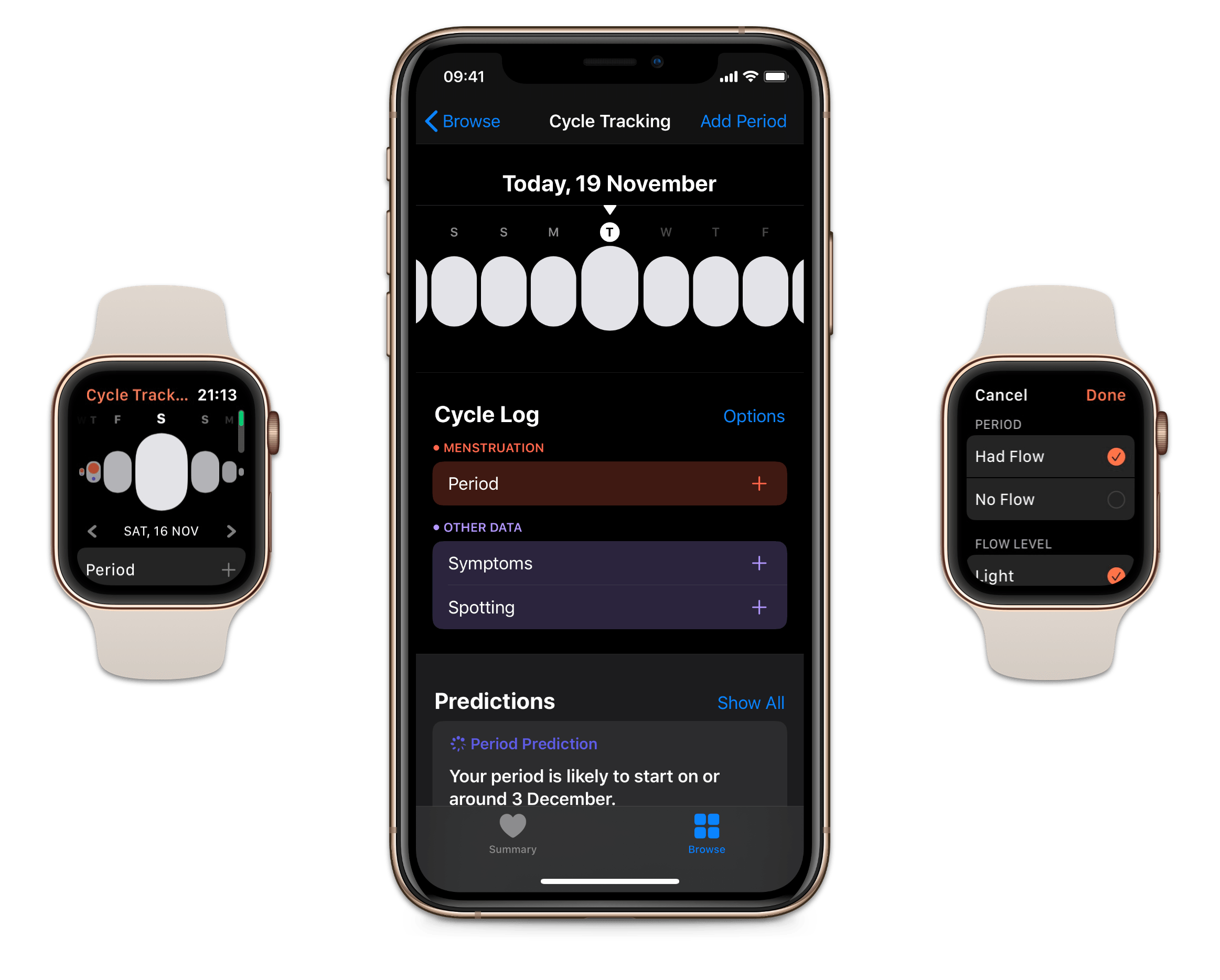
Menstruation is often forgotten or overlooked – ironic considering that 50% of the population experiences it. This applied to health tracking on Apple Watch and iPhone too, which for the first year offered nothing related to menstruation, but this year Apple Watch received a dedicated Cycle Tracking app, and symptom tracking in the Health app which includes fertility tracking as well. The previous absence of this feature was notable, primarily because other competing health trackers like Fitbit offered it a long time ago.
Everyone who menstruates has different needs when it comes to tracking cycles – if you should track birth control, sexual activity, fertility, and more. What I like most about Apple’s implementation of this feature is that you can turn off elements which aren’t useful for you; I’m sure many others will do the same as me and turn off the vast majority of the options. I personally get the impression that a lot of the features are targeting people trying to conceive, and honestly, that’s not me. That said, I’ve spent a few months evaluating this setup, and comparing it to previous systems I’ve tried, and now I’m ready to talk about it.
My Modern iPad Home Screen: Apps, Widgets, Files, Folders, and Shortcuts
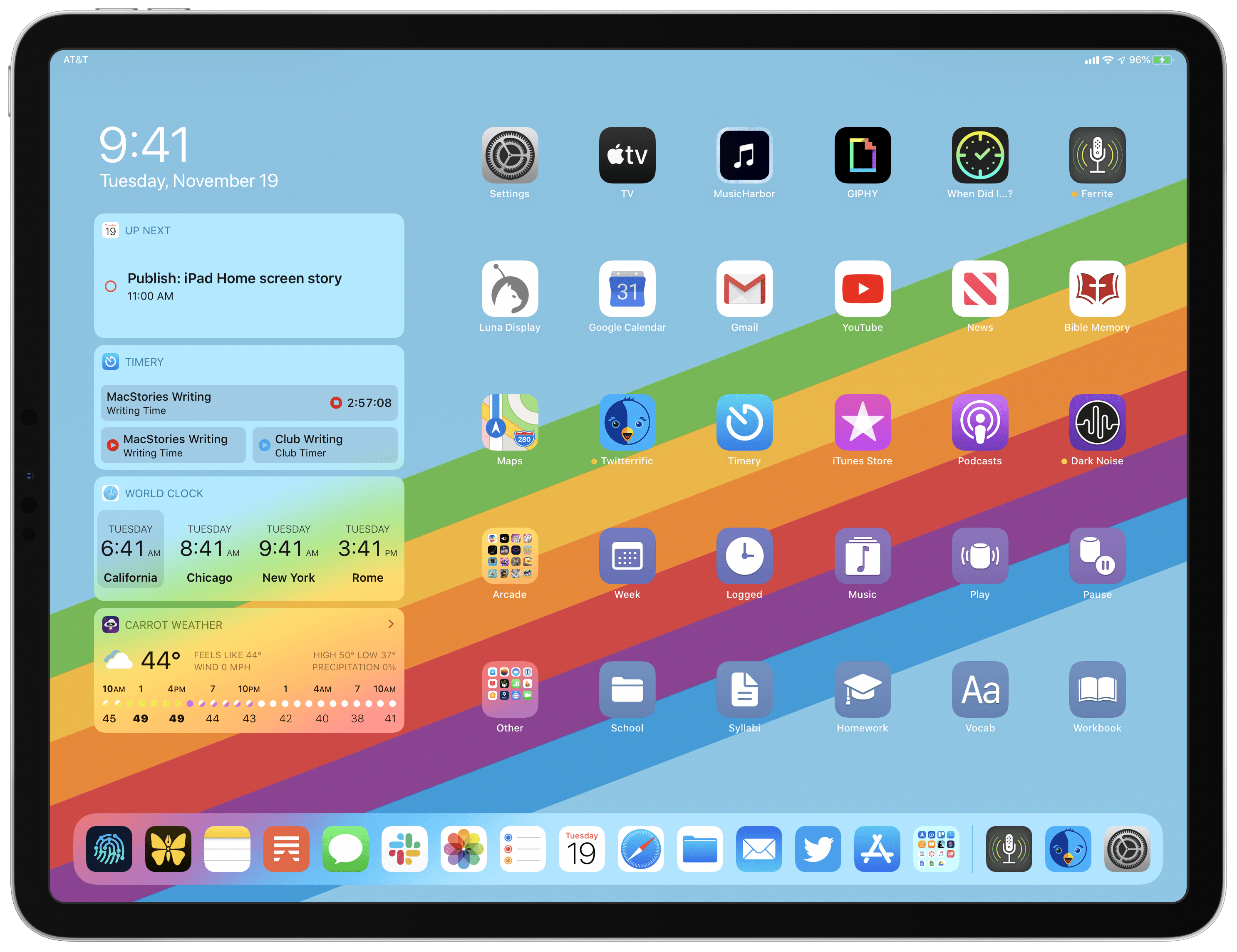
For several years after its launch, one of the best and worst things about the iPad was that it was basically just a blown-up iPhone. This meant the device was extremely easy to use and intuitive, but it also meant lots of “computer-like” tasks were difficult to perform on an iPad. When the iPad Pro debuted in late 2015, that began to change. Features like Split View, Slide Over, Picture in Picture, and drag and drop made the iPad a more capable computer than ever. However, despite those advancements, it took until this fall before one of the iPad’s core iPhone inspirations was altered: the Home screen.
Before iPadOS, the iPad’s Home screen was just a larger version of an iPhone Home screen, with no unique advantages to it. That finally changed mere months ago, when iPadOS 13 brought two primary improvements to the Home screen: it could hold 30 icons rather than 20, and it could include pinned widgets.
These two changes alone weren’t radical departures from the Home screen’s iPhone origins, but combined with other discoveries, they unlocked significant new possibilities.
On a recent episode of Adapt, I challenged Federico to try re-creating a Mac-like desktop environment on the iPad’s Home screen, complete with file and folder launchers. What he came up with is exactly what I’d hoped for. This newfound ability, alongside iPadOS 13’s enhancements to how shortcuts work when added to the Home screen, and the debut of MacStories Shortcuts Icons, meant it was time for me to seriously consider a new approach to my Home screen.
What I’ve come up with includes apps, app folders, files, file folders, shortcuts, and of course, widgets. It’s a diverse setup, and it all lives on a single page of icons. Let me explain.
Adobe Releases Photoshop for iPad and Aero, an iOS AR Creation Tool, Plus Offers a Peek at 2020’s Illustrator for iPad
Adobe MAX begins today in Los Angeles and runs through November 6th. As in past years, the three-day conference is an opportunity for Adobe to announce new products and updates to existing ones.
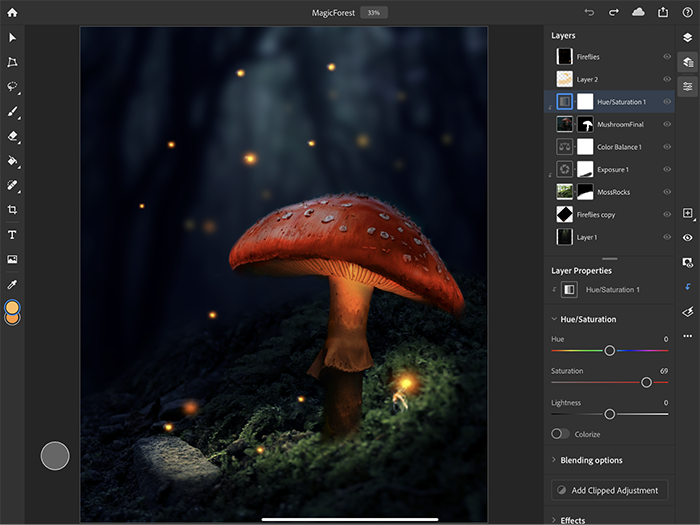
Last year, Adobe previewed Photoshop for iPad and Aero, an iOS AR creation tool. Today, those apps are finally out of beta and are available to everyone in the App Store. In fact, both Photoshop and Aero showed up on the App Store the evening before the start of MAX, providing me with a little hands-on time with them in advance of their official release.
Adobe has also previewed an iPad version of Illustrator, another of its core Creative Suite apps, which the company says will be available sometime in 2020.
Adobe’s announcements are packed with updates to a wide range of its products, but there’s a clear focus this year on mobile apps. In addition to Photoshop, Aero, and Illustrator, the company also announced updates to Lightroom for iOS and iPadOS and its Rush video creation app.
However, the centerpiece of Adobe’s mobile announcements is Photoshop, the company’s iconic professional design app relied upon by creative professionals worldwide. Ever since word of Photoshop for iPad was leaked to Bloomberg’s Mark Gurman in July 2018, the idea of ‘full’ or ‘real’ Photoshop on the iPad has captured imaginations. That initial leak, combined with Adobe’s early marketing efforts, led to outsized expectations for the first version of the app.
Instead of the full-featured, desktop-replacement app that some people were expecting, Adobe says that it has built a foundation with its new cloud-based PSD files and Photoshop’s desktop engine, upon which it will evolve with the guidance of users. Based on what I’ve heard from Adobe and seen from my limited use of the app, I believe the company truly is committed to building a more fully-featured version of Photoshop for the iPad; however, it doesn’t appear that users will be able to abandon their desktops anytime soon.
Twitter iPad Apps Upgraded with Multiwindow Support, Keyboard Navigation
This fall has been a significant season for the iPad. While new hardware has been limited to an updated entry-level iPad, the software changes have more than made up for the dearth of hardware updates. September brought iPadOS, the new branch of iOS that packs advancements like multiwindowing, an upgraded Home screen, and more. Mere weeks after iPadOS launched, macOS Catalina enabled a host of iPad apps to be brought to the Mac, which in some cases meant those iPad apps became more Mac-like as a result.
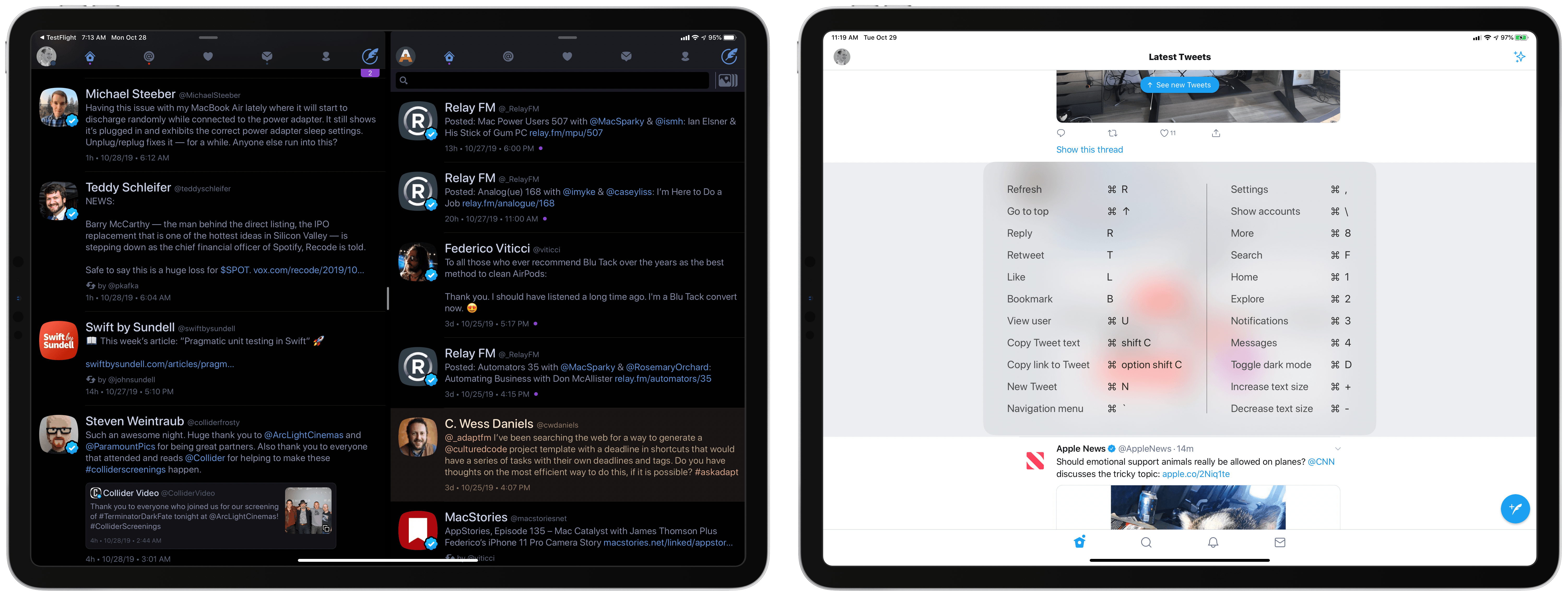
Thanks to these recent software changes, a couple of key Twitter apps for iPad have been updated to offer key new functionality. Twitterrific has become the first Twitter client to add multiwindow support, enabling creating separate windows for different accounts or different views within the same account. The first-party Twitter app, meanwhile, has recently added extensive support for external keyboards, likely as a side benefit of the app making its way to the Mac. In both cases, the Twitter experience on iPad has been meaningfully improved in ways that power users will appreciate.
Eternal City, Modern Photography: The iPhone 11 Pro in Rome

The Colosseum at night. Shot on iPhone 11 Pro using the wide lens, with night mode enabled. Unedited. Zoom in for details.
In many ways, the iPhone 11 Pro’s camera system feels like the culmination of over a decade’s worth of judicious, relentless improvements. Not only is the device’s camera the best and smartest Apple has ever shipped, but it also affords the most photographic freedom, allowing non-professional photographers like me to produce amazing shots with minimal effort.
macOS Catalina: The MacStories Review
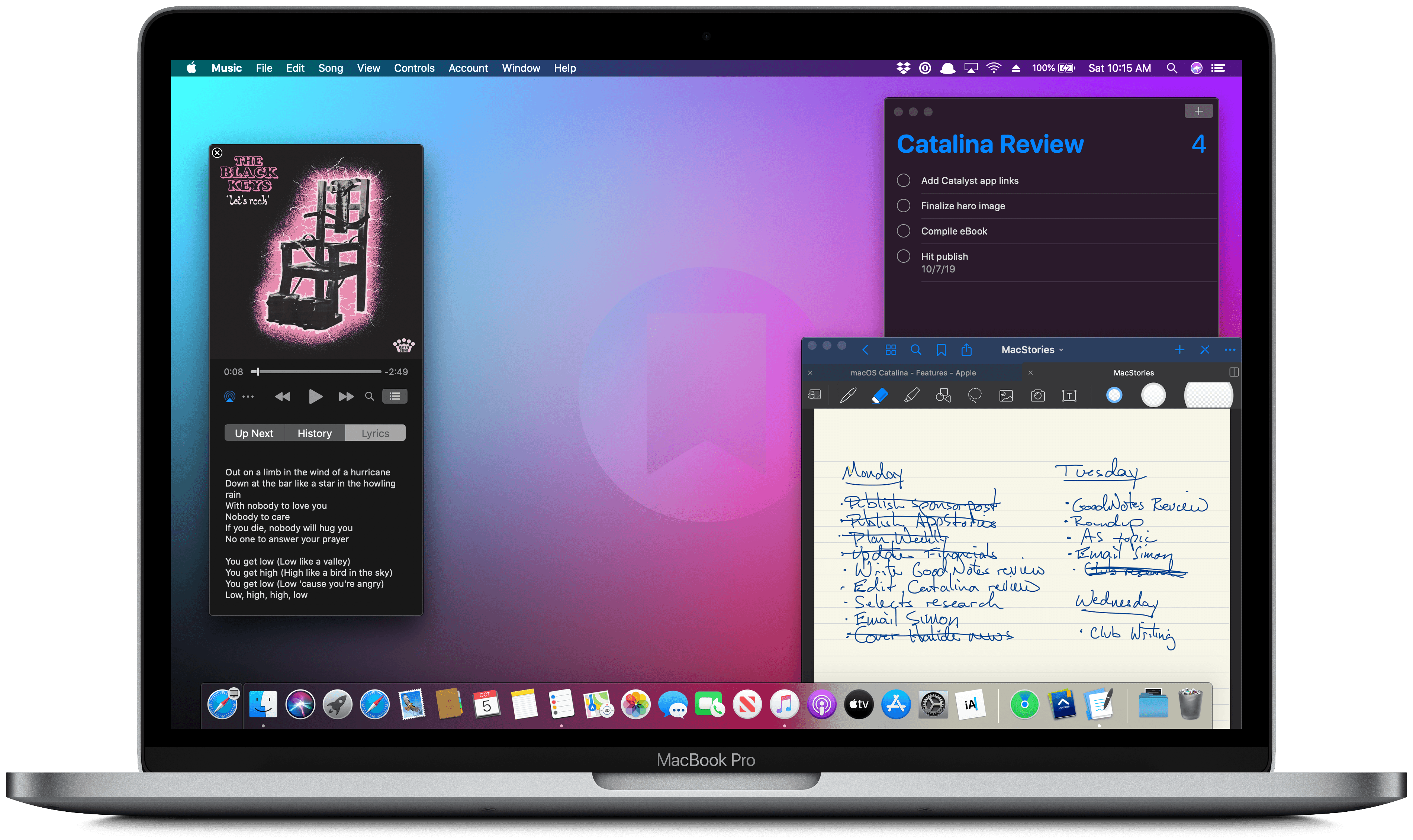
Ironically, Apple chose to name this year’s update to macOS after an island. Since the iPhone and iOS took off, macOS has sometimes felt like an island isolated from the rest of the company’s OSes, but the goal articulated by the company at WWDC this year was quite the opposite. Apple clearly telegraphed that change is coming to the Mac and it’s designed to bridge the user experiences between each of its platforms.
To developers, that message came in the form of Catalyst and SwiftUI. Catalyst, which was previewed as an unnamed ‘Sneak Peek’ in 2018, is meant to make it easier for iPadOS developers to bring their apps to the Mac. SwiftUI has a similar longer-term goal of unifying and streamlining how developers build the interfaces for their apps across a range of devices, for everything from the Apple Watch to the Mac.
The efforts to draw macOS in closer with Apple’s other operating systems run deeper than just developer tools though. macOS may have been the foundation on which iOS was built, but in the years that followed iOS’s introduction, the two OSes grew apart. Identically-named apps were developed on different schedules, which meant they rarely included the same features. Also, system-level functionality like System Preferences, which serves the same purpose as iOS’s Settings app, was unfamiliar, making Mac adoption unnecessarily hard for newcomers. Catalina is an attempt to address those kinds of inconsistent user experiences.
With Catalina, Apple has taken clear, though not always successful, steps to bridge the divide between the Mac and iOS. App functionality has been realigned, System Preferences has been rearranged, and new features have been added to make it easier to move from one platform to the other.
As with other transitional periods in the Mac’s history, this one isn’t going to be easy. However, because the change is driven by a fundamental change in computing, it’s also necessary. We live in a new climate where computing is now dominated by mobile devices. For many people, a smartphone is all the computing power they need day-to-day. That doesn’t mean there’s no longer a place for the Mac, but it’s clearly what’s driving the changes in Catalina.
Apple could have chosen to ignore the shift of the ground beneath its feet and merely maintained macOS, making the kind of small incremental changes we’ve become accustomed to in recent years. However, not adapting is as deliberate a choice as change is, and it carries just as much or more uncertainty for the Mac as a platform because it risks irrelevance.
The Mac isn’t in crisis, but it isn’t healthy either. Waiting until the Mac is on life support isn’t viable. Instead, Apple has opted to reimagine the Mac in the context of today’s computing landscape before its survival is threatened. The solution is to tie macOS more closely to iOS and iPadOS, making it an integrated point on the continuum of Apple’s devices that respects the hardware differences of the platform but isn’t different simply for the sake of difference.
Transitions are inherently messy, and so is Catalina in places. It’s a work in process that represents the first steps down a new path, not the destination itself. The destination isn’t clear yet, but Catalina’s purpose is: it’s a bridge, not an island.