Raycast makes your Mac better because it’s fast, ergonomic, and reliable. Best of all, though, Raycast comes with powerful tools your Mac should have but didn’t. Plus, it’s extensible, with a rich catalog of extensions built by developers around the world that solve every productivity need you can imagine.
With Raycast, everything is at your fingertips. The app’s searchable clipboard means always having what you need a few keystrokes away. With emoji and gif search tools, Raycast makes it easy to express yourself. Plus, there are tools to perform quick calculations, currency and unit conversions, and a lot more.
And with broad developer support, there are extensions available to:
Track your flights
Take notes
Save tasks
Search for your files
Run scripts
Kick off shortcuts
Translate text
and even manage your windows
With Raycast, all of this and more can be accomplished quickly and easily without switching contexts, reducing distractions and speeding up every interaction with your Mac.
Raycast is also the best way to interact with AI. It’s an always-on window into ChatGPT that helps you code, write email messages, automate repetitive tasks, and more.
Raycast is free to download and use, but with annual plans that start at what works out to just $8/month, you can go pro with its AI features, theming, and setup sync across multiple Macs.
Visit Raycast’s website today to learn more, download Raycast for free, and see how its Pro accounts can take your Raycast experience to the next level.
Our thanks to Raycast for sponsoring MacStories this week.
This week on MacStories Unwind, Federico and John take the wraps off the official MacStories Unwind 2024 Apple Music Playlist, tease upcoming projects, and recommend a recent Apple TV+ show and a cozy videogame.
This episode is sponsored by:
Kolide – It ensures that if a device isn’t secure it can’t access your apps. It’s Device Trust for Okta. Watch the demo now.
This week on Magic Rays of Light, Sigmund and Devon share the updates and enhancements they hope to see come to Apple TV at WWDC next month and recap Apple Original series Franklin.
I’ve been playing around with Kino, a video camera app by Lux, on and off for the past day. That’s not long enough to do a full review, so instead, I got up this morning and headed out for a walk with Kino in tow to see what the default experience is like. The short answer is it’s excellent. Kino is designed to work well out of the box for a novice like me but offers manual controls for someone who needs less hand-holding. It’s similar to Lux’s approach to Halide, the company’s pro camera app, and my early experience with Kino has been just as good as it’s been with Halide.
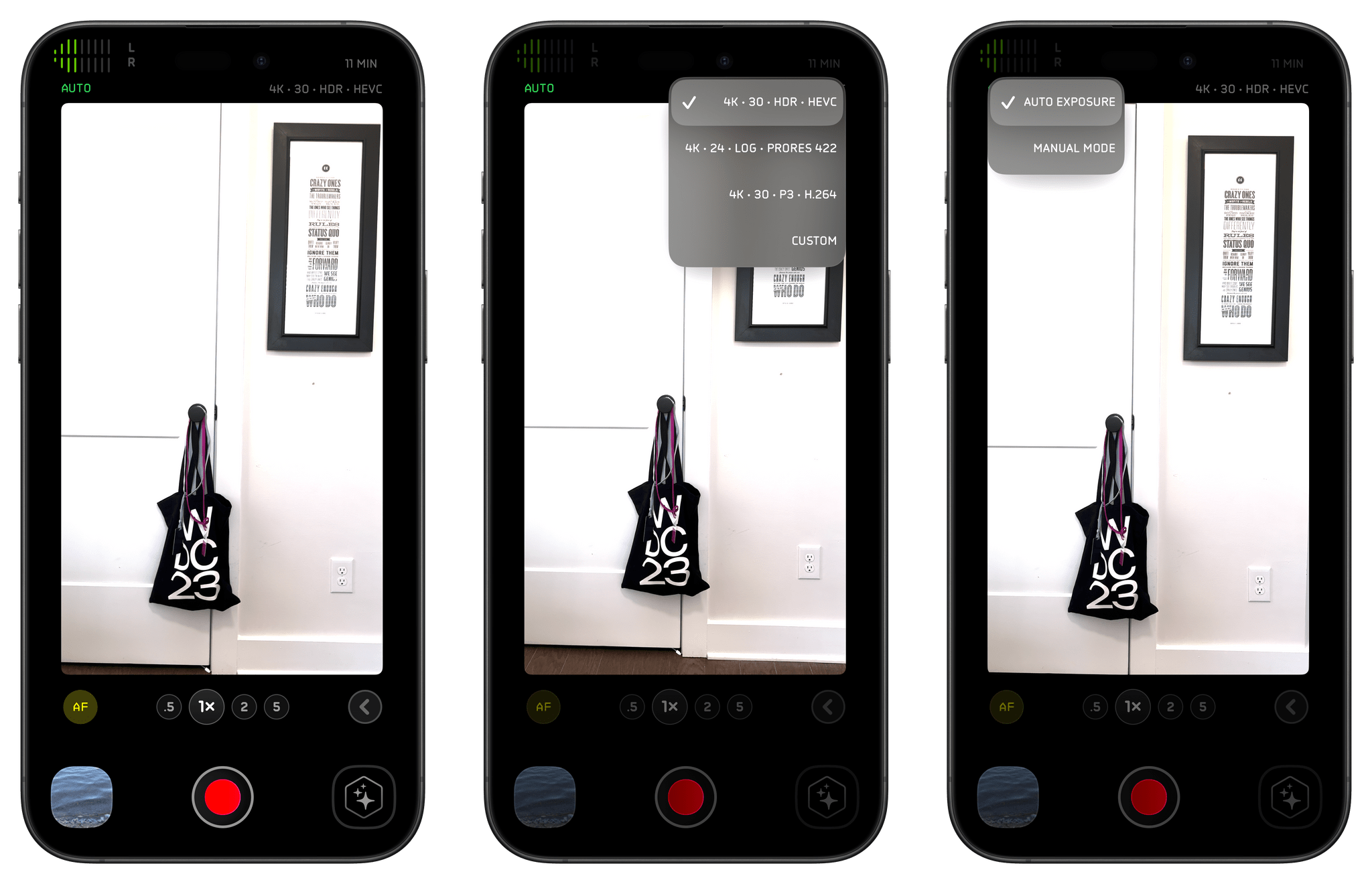
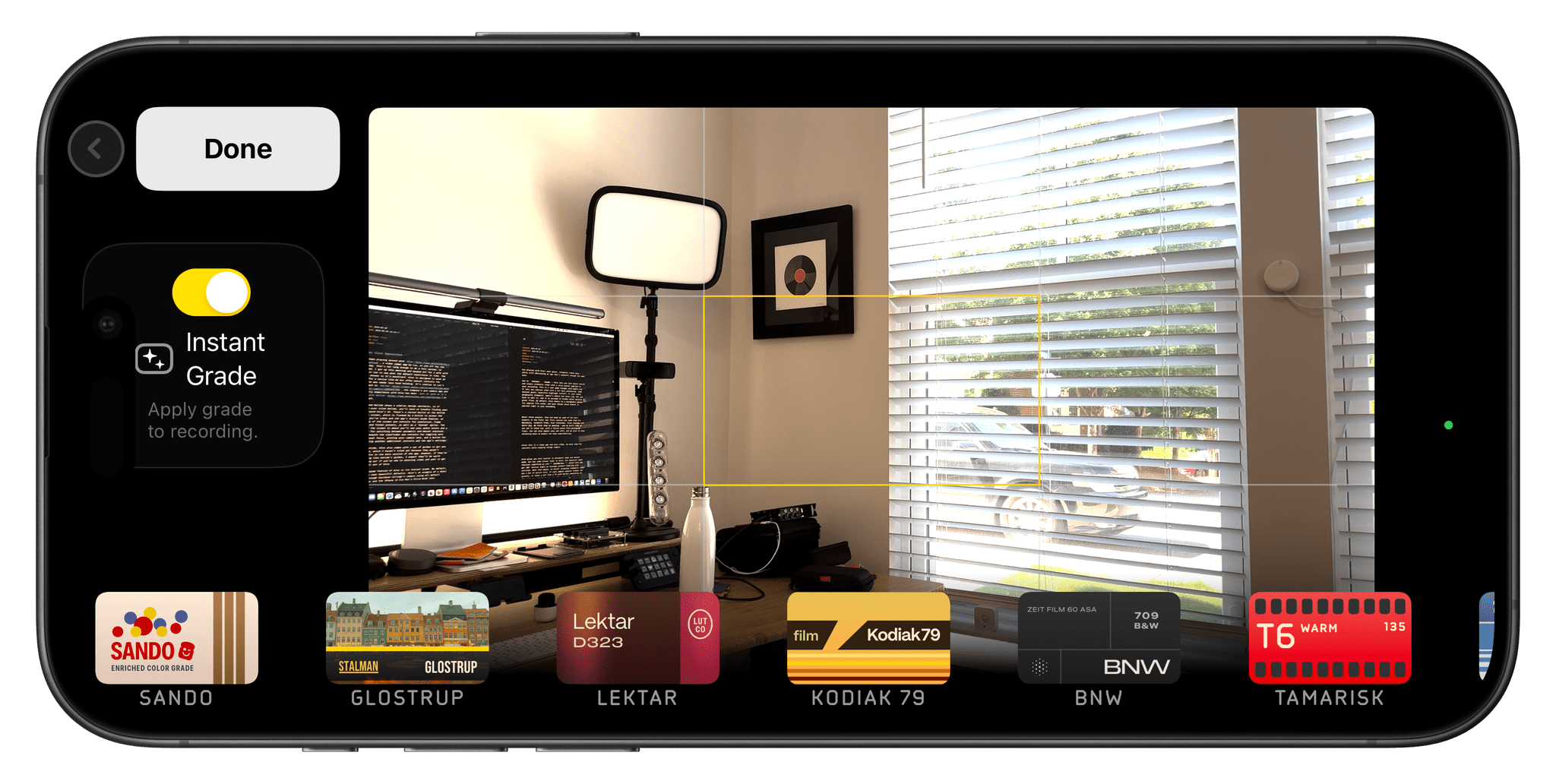
Kino and Halide share a similar design aesthetic, so if you’ve ever tried Halide, you’ll have no trouble finding your way around Kino’s UI. There’s a record button at the bottom of the screen flanked by a button to access the video you’ve taken, which can be stored in your photo library or in the Files app, and a button for the app’s Instant Grade feature. At the top of the screen are controls for resolution, frame rate, and format presets, as well as a ‘Custom’ option. The top of the screen is where you’ll also see your audio levels and a button for switching between automatic and manual exposure. Just beneath the viewfinder are controls for toggling auto and manual focus, picking your camera lens, and a button for accessing additional controls and the app’s settings.
Like Halide, Kino also comes with a set of guides to get you started, which I haven’t tried yet because they weren’t available in the beta version of the app. However, if they’re anything like Halide’s guides, I expect they’ll be worth checking out if you’re new to shooting video and want to get the most out of Kino.
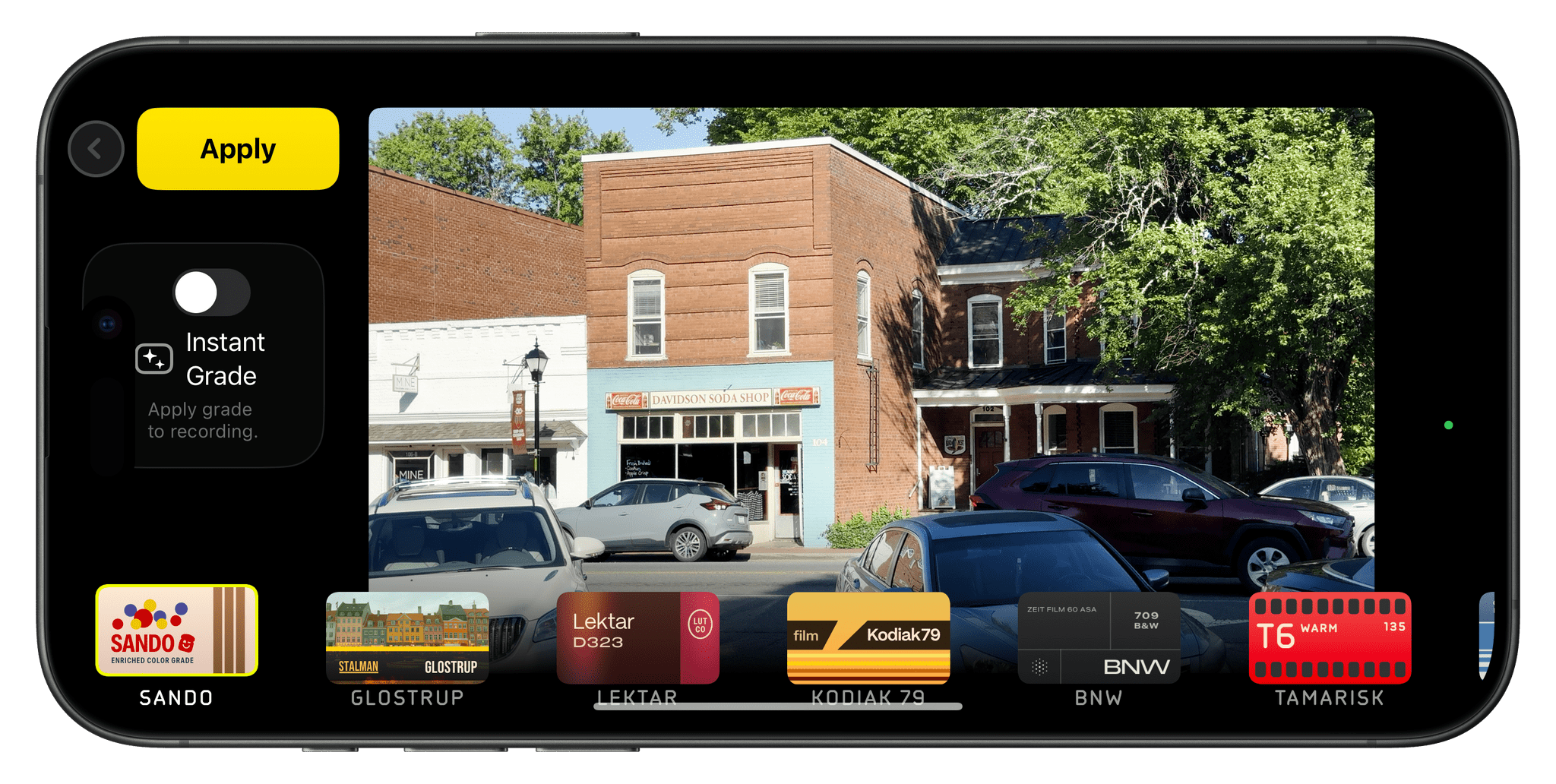
Some of Kino’s built-in color presets.
The app shoots beautiful video by default. Here’s an example of a short walk through Davidson College’s campus using all default settings, the iPhone 15 Pro Max’s Ultra Wide lens, and no post-processing.
The marquee feature of Kino is its Instant Grade. The app also comes with a collection of built-in color presets that you can preview in the viewfinder, making it easy to find one that fits your needs. The collection that comes with Kino has been created by video experts, including Stu Maschwitz, Sandwich Video, Evan Schneider, Tyler Stalman, and Kevin Ong. But you’re not limited to the presets that come with Kino. You can also import any LUT using the app’s integration with the Files app.
I visited a nearby lake and shot some video with Kino’s default settings enabled, and then tried each of its color presets:
The app also implements something Lux calls AutoMotion, which applies an exposure logic that gives video a cinematic feel. It’s another feature that just works out of the box for novices who don’t want to dig deeper. However, you always have the option to vary from the defaults, adjusting settings manually.
My first-run experience with Kino was great. I didn’t explore the app before heading out the door this morning, yet I had no trouble figuring out the basics and shooting video that looks good with no processing whatsoever. With more practice and some post-processing, I’m sure the results would look even better, but I love how well my video turned out with minimal effort. I’m planning to spend more time with Kino over the summer and look forward to checking out Lux’s guides to improve my video skills.
This week on Ruminate, I go to Applebee’s and a new game store, we both check out the new Legend of Zelda Lego, Robb launched a new project, then we head into AI corner.
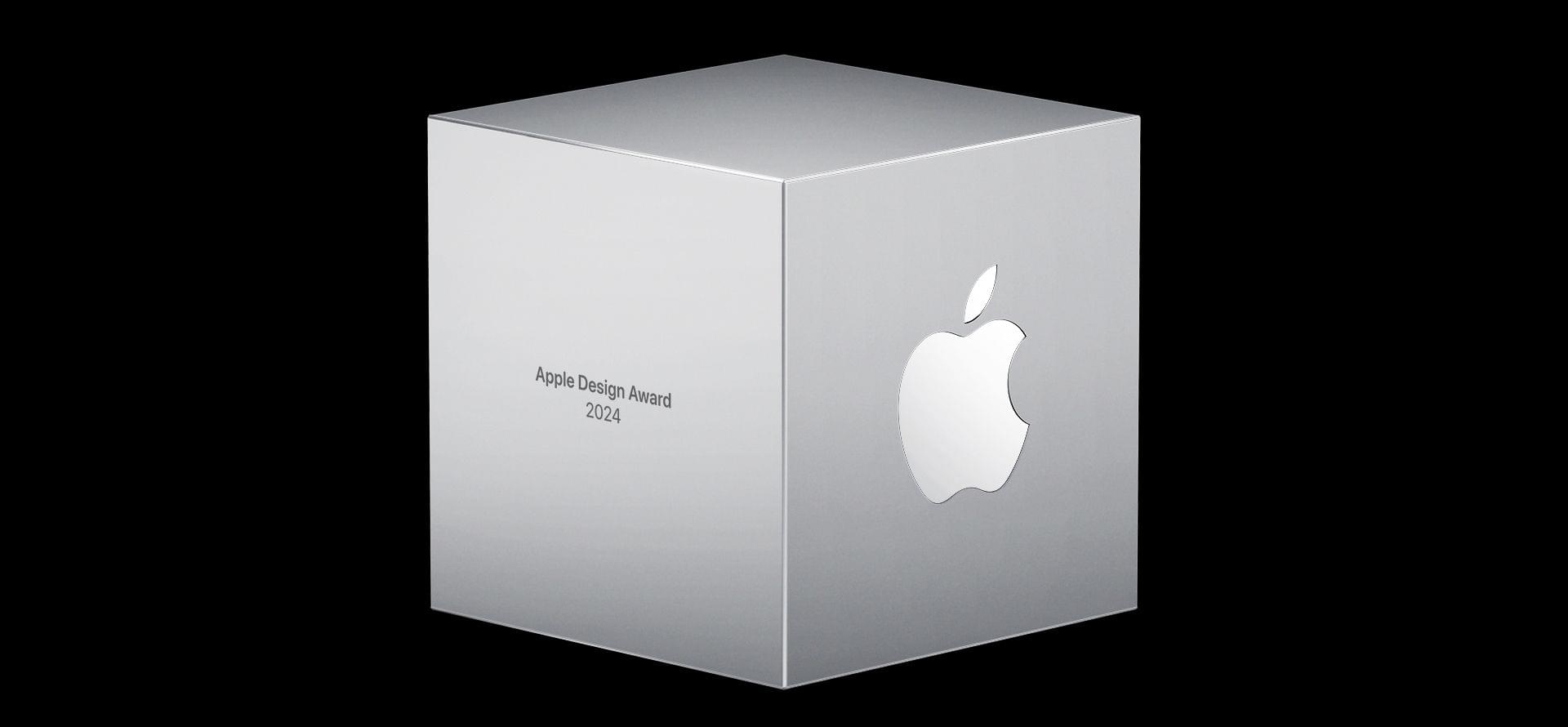
As WWDC approaches, Apple has announced the finalists in the running for its annual Apple Design Awards. The awards ceremony revealing the winners will be held during WWDC.
This year, there are seven categories, and each category has six finalists. That’s one more than last year, with Spatial Computing joining the categories for the first time. The 2024 ADA finalists are:
The selections include a broad range of games and apps, including some apps from smaller developers like Devin Davies, the maker of the wonderful recipe app Crouton, the team behind Gentler Streaks, one of my favorite fitness apps, and SmartGym by Mateus Abras, as well as titles from bigger publishers.
I’m glad that Apple announces the finalists in advance. Winning an ADA is a big achievement for any developer, but it’s also nice to know who the finalists are because it’s quite an honor among the many apps that could have been chosen too. Plus as a fan of apps, Apple’s list of finalists always reminds me of an app or two that I haven’t tried yet.
Today, Apple announced that WWDC 2024 will run from June 10th through the 14th. As has been the case for the past several years, the event will be predominantly online, with over 100 sessions for developers, opportunities for developers to consult with Apple’s engineers, and more.
WWDC will begin on June 10th at 10 AM Pacific time, with the annual keynote and the Platforms State of the Union to follow at 1:00 PM Pacific. Throughout WWDC, Apple will also offer online labs and consultation sessions with the company’s engineers and designers, who will be available to provide guidance on developers’ apps and games.
The over 100 sessions Apple is producing will be available in the Developer app, apple.com, and YouTube. Apple says developers will also have access to curated guides:
…to walk them through the conference’s biggest announcements, from new documentation to sessions and more.
In addition to the learning experiences available at WWDC, Apple has invited 50 Distinguished Winners of the Swift Student Challenge who will visit Apple Park for the event. As always, Apple will also celebrate the Apple Design Award winners.
I love attending WWDC. Getting to see the developers we cover at MacStories is a treat, and Apple’s announcements will be the fuel that takes the MacStories team into the fall and beyond. If you see me around, be sure to stop me and say ‘hi.’