This Week's Sponsor:

Turbulence Forecast

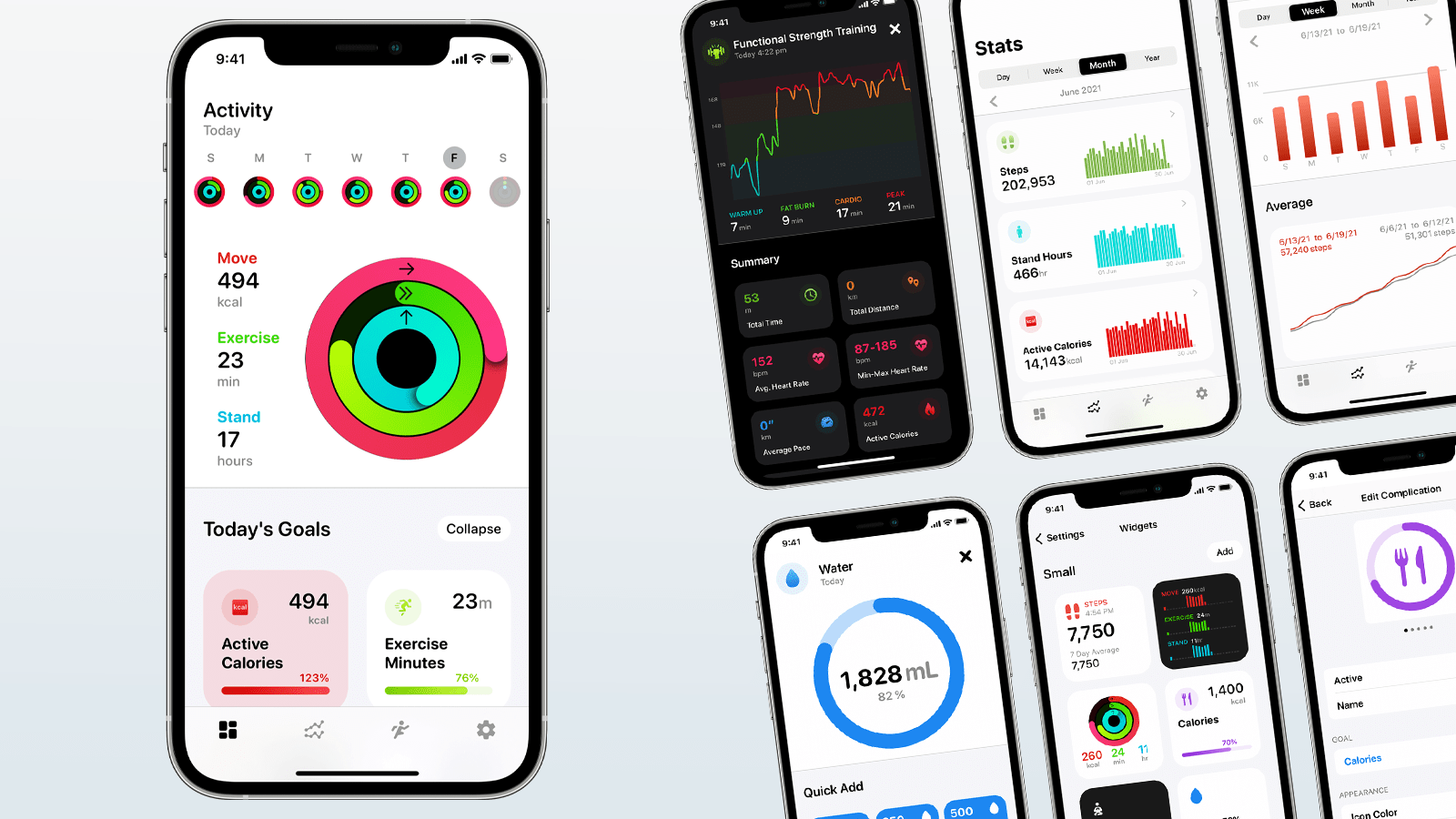
Know before you go. Get detailed turbulence forecasts for your exact route, now available 5 days in advance.


Exporting Links from Safari Reading List via Shortcuts for Mac

Reading List Exporter.

Reading List Exporter.

A few weeks ago in the second lesson of the Automation Academy for Club MacStories+ and Club Premier members, I wrote about how I’ve been using Reminders as a read-later app in addition to traditional task management. The full details are in the story, but to sum up: using a combination of shortcuts based on Apple’s native actions, I can use Reminders to choose between long and short stories whenever I’m in the mood to read something. I love this setup, and I’ve been using it for nearly three months now.

Earlier this week, however, I realized I still hadn’t re-imported old articles from Safari Reading List – my previous read-later tool – into Reminders. That immediately posed an interesting challenge. Sure, I could manually re-save each article from Safari Reading List to Reminders, but that sounded like a chore. Other read-later apps such as Reeder and GoodLinks have long offered Shortcuts actions to fetch links from their databases and process them in Shortcuts however you see fit; Reading List, like other Apple apps, doesn’t support any actions to get the URLs you previously saved. And that’s when I had an idea.

Now that it’s available on macOS, Shortcuts can get access to application support files that are kept private and hidden from users on iOS and iPadOS. More specifically, I remembered that Safari for Mac has long stored its bookmarks and Reading List items in a file called Bookmarks.plist, which folks have been able to read via AppleScript for years. Under the hood, a .plist file is nothing but a fancy dictionary, and we know that Shortcuts has excellent support for parsing dictionaries and extracting data from them.

The plan was simple, and I knew what to do.

Read more


Apple Publishes Annual Holiday Ad: Saving Simon

Every year, Apple publishes a heartwarming holiday ad that shows off its products in some way. This year, Saving Simon, directed by Jason Reitman, shows off the iPhone 13 Pro, which was used to film the three-minute spot.

Saving Simon tells the story of a small snowman that a girl saves from destruction in her yard by storing it in her family’s freezer. In the months that follow, the girl checks in on Simon, who lives in the freezer alongside the family’s frozen food.

When the winter comes again, the girl takes Simon back outside to the family’s front yard. I won’t spoil the ending, but it ends with the family coming together to help the girl and her snowman friend.


This Holiday Season, Give the Gift of Club MacStories, and If You’re a Club Member, Get Something Back For Yourself Too

More Club Gift Options Than Ever Before

The holiday season is upon us, and as you shop for gifts for friends and family, we wanted to remind everyone that Club MacStories memberships can be given as gifts all year long. Every tier of the Club extends what we publish at MacStories, which makes it the perfect gift for someone who wants more of the kind of in-depth app, automation, and other coverage you find on the site every day.

This year saw the introduction of Club MacStories+ and Club Premier, which join the original Club MacStories as gift options for this holiday season.

Pick a Plan

As always,Club MacStories delivers weekly and monthly newsletters by email and now, on the web, packed with our favorite apps, themed collections, tips, Shortcuts automations, and more. Club members also receive MacStories Unplugged, our monthly Club-only podcast, plus periodic giveaways, discounts, and downloadable exclusives like our annual iOS and iPadOS and macOS reviews.

Club MacStories+ offers bonus content, a brand new, powerful web app to read Club articles on the web with advanced search and RSS features, exclusive discounts, and a new Discord community.

Club Premier is the ultimate plan that includes all of Club MacStories, Club MacStories+, and the new extended, ad-free AppStories+ podcast in a single package. It is the best value and the easiest way to get access to everything we do. It is, effectively, the MacStories all-access pass.

To learn more about each tier, visit plus.club.

Gift an Annual Plan Through November 30th, and Extend Your Own Membership

This year we’re doing something new too. Gift accounts are available all year long. However, through November 30th, if you’re already a Club member at any tier and purchase an annual membership for someone as a gift, we’ll extend your membership one month.

The process is simple:

  • Purchase an annual Club membership for someone
  • Send us an email at club@macstories.net to let us know you gifted a membership and include the email address you use to log into the Club

That’s it. We’ll confirm your gift purchase based on your Club email address and extend your membership one month as a thank you from the MacStories team for helping spread the word about Club MacStories.

So, if you have a MacStories reader on your holiday shopping list this season, consider a Club MacStories membership that they can enjoy all year long.

Gift Memberships Are Available at All Tiers

Annual gift memberships can be purchased using the links below:

Annual Club Premier Gift Membership: $120
Annual Club MacStories+ Gift Membership: $100
Annual Club MacStories Gift Membership: $50

We also offer monthly gift memberships too, although they aren’t eligible for the special offer above, which can be purchased here:

Monthly Club Premier Gift Membership: $12
Monthly Club MacStories+ Gift Membership: $10
Monthly Club MacStories Gift Membership: $5


Finally, thanks to all our loyal Club members who have joined since the Club’s debut in 2015. You’re an essential part of what we do here at MacStories, and we hope you’ve enjoyed the Club as much as we enjoy creating its special content for you all year long.

Happy Holidays!

– The MacStories Team


AppStories, Episode 250 – Shortcuts for Mac Deep Dive

This week on AppStories, we explain how Shortcuts for Mac differs from other automation tools, cover some of the roadblocks we’ve hit, and discuss how we’re adapting existing shortcuts to the Mac and building all-new ones.


On AppStories+, we cover the third-party apps we are using with Shortcuts for Mac and Federico explains his Mac shortcut that works like Split View on iPadOS.

We deliver AppStories+ to subscribers with bonus content, ad-free, and at a high bitrate early every week.

To learn more about the benefits included with an AppStories+ subscription, visit our Plans page, or read the AppStories+ FAQ.

Permalink

The Curious Case of Apple’s Missing App Integrations for Shortcuts

Shortcuts for Mac.

Shortcuts for Mac.

In researching topics for the Automation Academy over the past few months, I’ve been digging into all the details of Apple’s built-in actions and comparing them against older versions of the Shortcuts app as well as third-party options offered by developers. In doing this, I’ve realized something that has been bothering me for a while: there is a clear inconsistency between modern features in Apple apps and their associated Shortcuts actions. The gap between functionalities in apps and matching Shortcuts actions has expanded over the years, and I think it’s time Apple takes a serious look at its app actions to reverse this trend.

Read more


Pixelmator Pro Updated with Background Removal, Subject Selection, and Select and Mask Tools

Mac image editor Pixelmator Pro continues its streak of releasing machine learning-based tools that feel like magic, with a release that the Pixelmator team calls Abracadabra appropriately enough. The release of version 2.3 features tools to remove the background of an image, select just the subject of a photo, and a new Select and Mask feature for making fine-tuned selections.

I started with these images.

I started with these images.

When I first saw a demo of what Pixelmator 2.3 could do, I was a little skeptical that the features would work as well with my photos as the ones picked to show off the new tools. However, Pixelmator Pro’s new suite of related features is the real deal. With virtually no work on my part, I grabbed a photo of Federico and me from my trip to Rome, selected us, and after making a few refinements to the selection to pick up more of Federico’s hair (mine was perfect), I cut out the background, and replaced it with a photo I took in Dublin days before. After compositing the photos on separate layers, I color-matched the layers using ML Match Colors, so they’d fit together better.

The final composed image.

The final composed image.

The results aren’t perfect – the lighting and perspective are a little off – but those are issues with the photos I chose, not the tools I used. The photo of Federico and me was taken after the sun had set and was artificially lit, while the Dublin Canal was shot on a sunny morning, yet the composite image works incredibly well. What’s remarkable is what I was able to accomplish in just a few minutes. I also removed the background from one of the photos I took recently for my Stream Deck story, which worked perfectly with no additional work needed, which has interesting implications for product photography.

Remove Background takes advantage of Apple’s Core ML framework and works in just a few seconds. Select Subject works similarly but selects the subject of an image instead of erasing the background behind the subject. If you look closely at the masked selection below, you can see how well Pixelmator Pro did picking up the edges to get selection details like hair without any additional work by me. However, if an image needs a little selection touch-up, the Refine Edge Brush and Smart Refine feature make that sort of work easy too.

Pixelmator Pro’s new tools are available elsewhere in macOS, too, as Finder Quick Actions, Shortcuts actions, and AppleScript commands. I covered Pixelmator Pro’s Shortcuts actions earlier this fall, and they are some of the best available among Mac-only apps, so it’s fantastic to see those automation options continue to expand.

Pixelmator Pro has long been one of my must-have Mac apps. I don’t spend a lot of time editing images, but when I do, I appreciate that Pixelmator Pro makes the process easy and produces excellent results regardless of your experience with image editors.


David Smith Tests the Apple Watch Series 7’s Battery Life in the Scottish Highlands

David Smith recently spent three days hiking in the Scottish Highlands. He took his Apple Watch Series 7 along to see how its battery life fared on long hikes.

Smith, who recently wrote about the battery sipping Coros Apex Pro, a dedicated ‘adventure watch,’ put the Series 7 in Theater and Airplane modes to conserve battery life and hit the trail. The Apple Watch performed better than expected:

The result was surprisingly solid. For a day where I tracked a 16mi hike over the course of 5½ hours, the watch only used around 27% of its battery. This was using the built-in workout app with route recording active. So it uses around 1.7%/mile. On my second day I put it in ‘Power Saving Workout’ mode, which doesn’t record heart rate data as quickly. This used 23% for a 14mi hike, or around 1.6%/mi…which was actually less of a difference that I’d have guessed. So I just left it in regular workout mode from then on.

For comparison the Coros watch I was wearing on my other wrist did the entire 3 days/45miles of the trip using only 20% of its battery (around 0.4%/mile) so still dramatically better.

As Smith concludes, Apple’s investment in improving the brightness of the Series 7’s always-on display has had the nice side effect of making multiple-hour workouts possible without immediately needing to recharge the watch. Also, even if you don’t have an all-day hike planned, Theater and Airplane modes are good to keep in mind when you want to extend the battery life of your Apple Watch.

Permalink

UpNote: The Best Note-Taking App Across Platforms [Sponsor]

UpNote is an elegant and powerful note-taking app that works across every major platform, making it the perfect solution for your note-taking needs. Designed to make it easy to take notes anywhere and stay focused, UpNote combines a beautiful interface with a fast, fluid workflow for a refined and reliable note-taking experience. The app is also continuously updated to support the latest technologies on all platforms with new and innovative features.

The app works on iOS, Android, the Mac, and Windows, making it an excellent solution for anyone who needs access to their notes across multiple platforms thanks to the app’s fast, reliable sync. UpNote works online and off, too, so you’re always able to capture your thoughts. With colorful themes and many font choices, you can make UpNote your very own, organizing notes into notebooks, which can be nested, adding hashtags to notes, and pinning and bookmarking notes for quick access. It’s a structure that’s supplemented by powerful search and sorting to make navigating even the largest collections of notes a breeze.

UpNote has all of your note-taking needs covered. The app offers a web clipper extension so you can quickly save links and content as you browse and research on the web. There’s a focus mode that eliminates distractions, so you can capture your thoughts quickly and efficiently, too. There’s even a great solution for longer notes: a table of contents feature that makes navigating long notes a breeze. The app can also be locked, which makes it perfect for journaling.

Switching to UpNote is easy, with powerful import functionality that can handle Evernote, Markdown, and other formats. UpNote’s text editor is fully featured, too, with support for rich-text, bi-directional linking, to-do lists, images, attachments, tables, and code blocks. Of course, the app supports Markdown syntax as well. And, when you need to use your notes elsewhere, you can export them as Markdown text, HTML, or PDFs. Combined with its cross-platform support and its stunning design, UpNote is a powerhouse note-taking app like none other.

Now is the perfect time to try UpNote. The app includes subscription and lifetime upgrade options, and for a limited time, MacStories readers can purchase UpNote’s lifetime premium upgrade for 30% off. This is an amazing deal, so don’t delay. Go check out UpNote now and take advantage of this offer.

Our thanks to UpNote for sponsoring MacStories this week.


Shortcuts for Mac Deep Dive

AppStories+ Deeper into the world of apps

AppStories Episode 250 - Shortcuts for Mac Deep Dive

0:00
48:09

AppStories+ Deeper into the world of apps

This week, Federico and John explain how Shortcuts for Mac differs from other automation tools, cover some of the roadblocks they’ve hit, and discuss how they’re adapting existing shortcuts to the Mac and building all-new ones.

This episode is sponsored by:

  • Pillow – Sleeping better, made simple.
  • DEVONthink by DEVONtechnologies – The one place for storing and working with all your documents, snippets, and bookmarks
  • Ulysses – The Ultimate Writing App for Mac, iPad and iPhone Special Offer)

Shortcuts for Mac Deep Dive


We deliver AppStories+ to subscribers with bonus content, ad-free, and at a high bitrate early every week.

To learn more about the benefits included with an AppStories+ subscription, visit our Plans page, or read the AppStories+ FAQ.


Follow us on Twitter

Follow us on Instagram