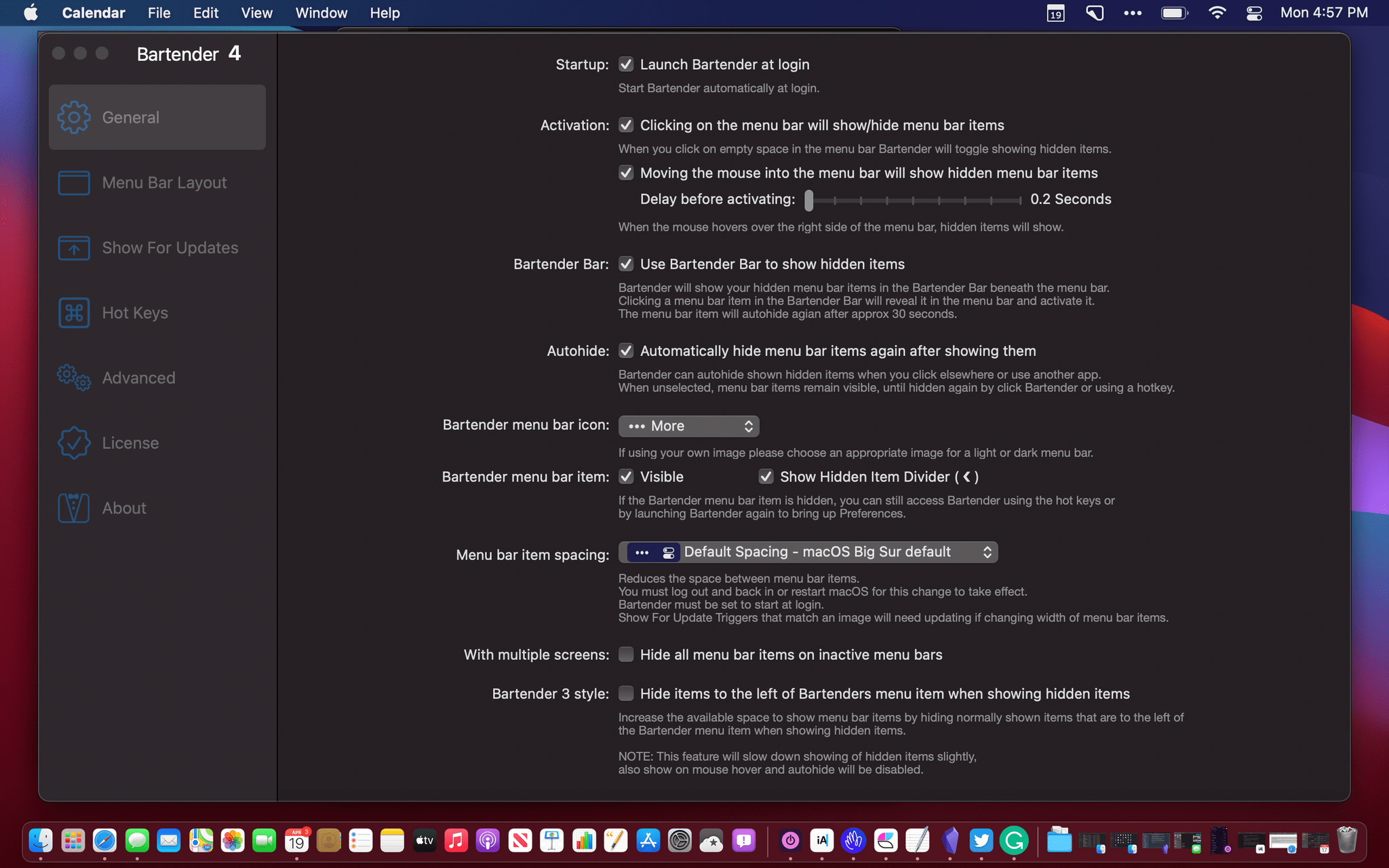
Last month, after a long beta period I’ve participated in for the past few months, the official Obsidian app for iPhone and iPad launched on the App Store. I’ve covered Obsidian and my approach to writing my annual iOS review in it on both AppStories and Connected; because I’m busy with that massive project and an upcoming major relaunch of the Club (hint hint), I don’t have time right now to work on a proper standalone, in-depth review of Obsidian for MacStories. So, given my time constraints, I thought it’d be fun to do a multi-part series for Club members on how I’ve set up and have been using Obsidian as my Markdown text editor and note-taking app of choice.
My Obsidian Setup, Part 1: Sync, Core Plugins, Workspaces, and Other Settings
UpNote: The Best Cross-Platform Note-Taking App [Sponsor]
UpNote is an elegant and powerful note-taking app that works across every major platform, making it the perfect solution for your note-taking needs. Designed to make it easy to take notes anywhere and stay focused, UpNote combines a beautiful interface with a fluid workflow for a refined note-taking experience.
The app works on iOS, Android, the Mac, and Windows, making it an excellent solution for anyone who needs access to their notes across multiple platforms thanks to the app’s fast, reliable sync. UpNote works online and off, too, so you’re always able to capture your thoughts. With colorful themes and a long list of font choices, you can make UpNote your very own, organizing notes into notebooks and pinning and bookmarking notes for quick access.
UpNote has all of your note-taking needs covered. The app offers a web clipper extension so you can quickly save links and content as you browse and research on the web. There’s a focus mode that eliminates distractions, so you can capture your thoughts quickly and efficiently, too. There’s even a great solution for longer notes: a table of contents feature that makes navigating long notes a breeze. The app can also be locked, which makes it perfect for journaling.
Switching to UpNote is easy, with powerful import functionality that can handle Evernote, Markdown, and other formats. UpNote’s text editor is fully featured, too, with support for rich-text, bi-directional linking, to-do lists, images, attachments, tables, and code blocks. Of course, the app supports Markdown syntax as well. And, when you need to use your notes elsewhere, you can export them as Markdown text, HTML, or PDFs.
Now is the perfect time to try UpNote. The app includes subscription and lifetime upgrade options, and for a limited time, MacStories readers can purchase UpNote’s lifetime premium upgrade for 30% off. This is an amazing deal, so don’t delay. Go check out UpNote now and take advantage of this offer.
Our thanks to UpNote for sponsoring MacStories this week.

MacStories Unwind: A Tech Confession, Quick Note, Keyboards, TV, and a Podcast
Sponsored by: FitnessView – All-in-One Health & Fitness Dashboard
This week on MacStories Unwind:
MacStories
- Apple Announces Child Safety Features Coming This Fall
- Fast Capture with Quick Note for iPad and Mac: The MacStories Overview
- Apple Releases New Mac Keyboards and Pointing Devices
Club MacStories
- MacStories Weekly
- Part 3 of Federico’s Obsidian Setup Series covering his Dashboard note and the plugins and shortcuts he uses to manage it
- An interview with Shahid Ahmad about the Playdate
- John on when it’s best to not automate something
AppStories
Unwind
- Alex’s Pick:
- John’s Pick:
MacStories Weekly: Issue 284
This week, in addition to the usual links, app debuts, and recap of MacStories' articles and podcasts:
Apple Announces Child Safety Features Coming This Fall
Today, Apple announced three new child safety features for its operating systems that will launch when its operating systems are updated in the fall. The implementation details of the features are technically complex, which makes reading the full documentation worthwhile if you are concerned about how they are accomplished.
The first feature is a tool for parents that will be built into Messages. According to Apple:
The Messages app will use on-device machine learning to warn about sensitive content, while keeping private communications unreadable by Apple.
The opt-in tool will “warn children and their parents when receiving or sending sexually explicit photos.”
The second feature applies to photos stored online in users’ iCloud Photos library. Apple says:
iOS and iPadOS will use new applications of cryptography to help limit the spread of CSAM online, while designing for user privacy. CSAM detection will help Apple provide valuable information to law enforcement on collections of CSAM in iCloud Photos.
The screening of iCloud Photos images happens on-device using cryptographic hashes of known CSAM content and has to pass a human review process after passing certain thresholds before an account is disabled, and a report is made to the National Center for Missing and Exploited Children. The feature will be US-only at first.
Finally, Apple announced that:
[it] is also expanding guidance in Siri and Search by providing additional resources to help children and parents stay safe online and get help with unsafe situations. For example, users who ask Siri how they can report CSAM or child exploitation will be pointed to resources for where and how to file a report.
Siri and Search will also intervene when CSAM-related search requests are made.
To understand better how these features are being implemented by Apple, it’s worth visiting its new child safety webpage. At the bottom of the page are links to additional resources that explain the technology underlying the features.
Fast Capture with Quick Note for iPad and Mac: The MacStories Overview
When I’m researching, speed is essential. Whether I’m planning a family trip or preparing to write a story like this one, the first step is research, which starts with collecting information. This stage is almost always a speed run for me, no matter the context. That’s because the goal is collecting. Reading, thinking, organizing, and planning come later.
There is an endless number of apps and automations for collecting information, but I’ve always found that the best options are the lightest weight. You don’t need to fire up a word processor to collect links, images, and text, for example. By the same token, though, a plain text editor doesn’t always fit the bill either, reducing links to raw URLs and often not handling images at all. Moreover, the notes you take are completely divorced from their source, losing important context about why you saved something.
This fall, when iPadOS 15 and macOS Monterey are released, Notes will gain a new feature called Quick Note that’s designed to handle this exact scenario. Quick Note can be summoned immediately in a wide variety of ways on both platforms, and your notes are stored where they can be easily found again. Best of all, notes can be linked to their source material in apps that support NSUserActivity, a virtual Swiss Army Knife API that enables a long list of functionality across Apple’s devices.
Notes needs work to make it easier to get the information you gather with Quick Note out of the app, but already, there is a long list of apps that support the feature thanks to the wide use of NSUserActivity among developers. Some years, Apple introduces interesting new features that I hope will take off, but there’s a lag because they’re based on new technologies that developers don’t or can’t support right away due to compatibility issues with older OS versions. Quick Note isn’t like that. Even during the beta period, it works with apps I use that haven’t done anything to support it. As a result, I expect we’ll see many developers support Quick Note this fall.
Although Quick Note already works well on the iPad and Mac, there’s still more Apple can do to make it more useful. Chief among the feature’s drawbacks is that its capture functionality is nowhere to be found on the iPhone, which is disappointing. There are also many built-in system apps that would benefit from the sort of tight integration with Quick Note that Safari has implemented but don’t yet.
Let’s take a closer look.
AppStories, Episode 234 – Beta OS Impressions Continued→
This week on AppStories, we dig into the latest public OS betas and share our thoughts on changes to Safari on the iPhone, iPad, and Mac, Books on the Mac, Quick Note, Focus, and Live Text.
Sponsored by:
- Instabug – Ship Quality Apps with Real-Time Contextual Insights
- Boom 3D – Take your Mac sound to the next level with Boom 3D. Get 70% off.
- Memberful – Monetize your passion with membership.
Apple Releases New Mac Keyboards and Pointing Devices
Apple has updated its online store with new accessories that first debuted with the M1 iMac. The updated accessories were spotted by Rene Ritchie, who tweeted about them:
https://twitter.com/reneritchie/status/1422531729894613017?s=21
Among the items listed, which each come with a woven USB-C to Lightning cable and come in white and silver only, are:
- Magic Keyboard ($99). The Magic Keyboard features rounded corners and some changes to its keys, including a dedicated Globe/Fn key and Spotlight, Dictation, and Do Not Disturb functionality mapped to the F4 - F6 keys.
- Magic Keyboard with Touch ID ($149). Along with the design and key changes of the Magic Keyboard, this model includes Touch ID, which works with M1 Macs only.
- Magic Keyboard with Touch ID and Numeric Keypad ($179)
- Magic Trackpad ($129). The corners of the new Magic Trackpad are more rounded than before, but it’s functionally the same as prior models.
- Magic Mouse ($79). The Magic Mouse is listed as new, too, although apart from the woven USB-C to Lightning cable in the box, there don’t appear to be any other differences between this model and the prior model.
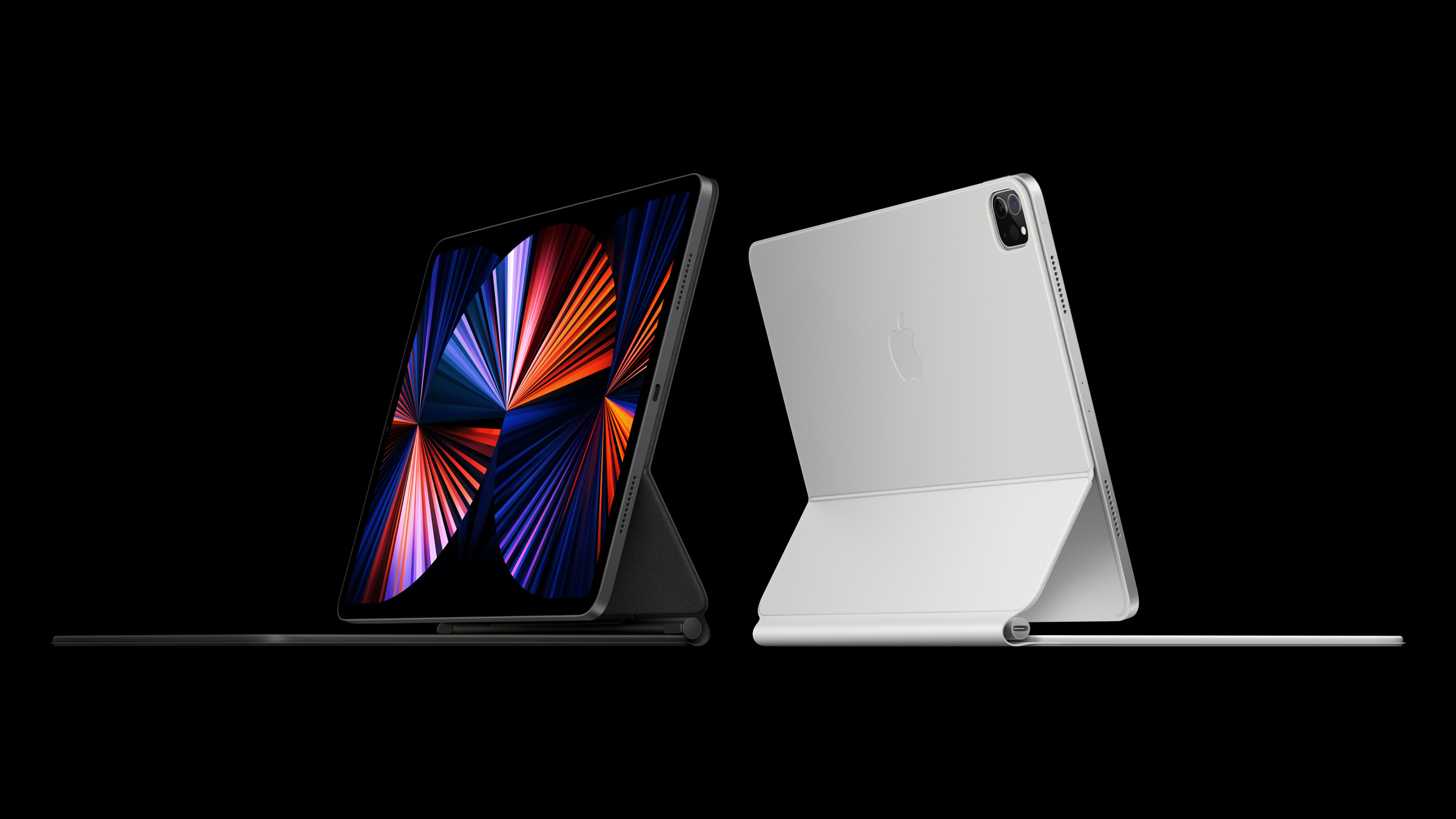
I’ve been using the Magic Keyboard with Touch ID, Magic Trackpad, and Magic Mouse for a couple of months with an M1 iMac. Based on my experience, the trackpad and mouse haven’t changed enough to warrant purchasing one unless you need one anyway. However, if you’ve got an M1 Mac mini or M1 laptop that you run in clamshell mode, the Magic Keyboard with Touch ID is a nice addition to any setup. Having Touch ID always available is fantastic, and I’ve grown used to using the Do Not Disturb button along with the Globe + Q keyboard shortcut for Quick Note, the new Notes feature coming to macOS Monterey this fall, which is the same when using an iPad running the iPadOS 15 beta with a Magic Keyboard attached.
Beta OS Impressions Continued
AppStories Episode 234 - Beta OS Impressions Continued
37:01
This week, Federico and John dig into the latest public beta and share their thoughts on changes to Safari on the iPhone, iPad, and Mac, Books on the Mac, Quick Note, Focus, and Live Text.
:::if {.appstories}
On AppStories+, John sees a movie, Federico experiments with the latest Obsidian plugins, and John explains how he’s using the Loupedeck Live with Obsidian.
:::
:::not {.appstories}
This episode is sponsored by:
- Instabug – Ship Quality Apps with Real-Time Contextual Insights
- Boom 3D – Take your Mac sound to the next level with Boom 3D. Get 70% off.
- Memberful – Monetize your passion with membership.
:::
Links and Show Notes
- MacStories Unwind
- Previously Published OS Impressions