This fall has been a significant season for the iPad. While new hardware has been limited to an updated entry-level iPad, the software changes have more than made up for the dearth of hardware updates. September brought iPadOS, the new branch of iOS that packs advancements like multiwindowing, an upgraded Home screen, and more. Mere weeks after iPadOS launched, macOS Catalina enabled a host of iPad apps to be brought to the Mac, which in some cases meant those iPad apps became more Mac-like as a result.
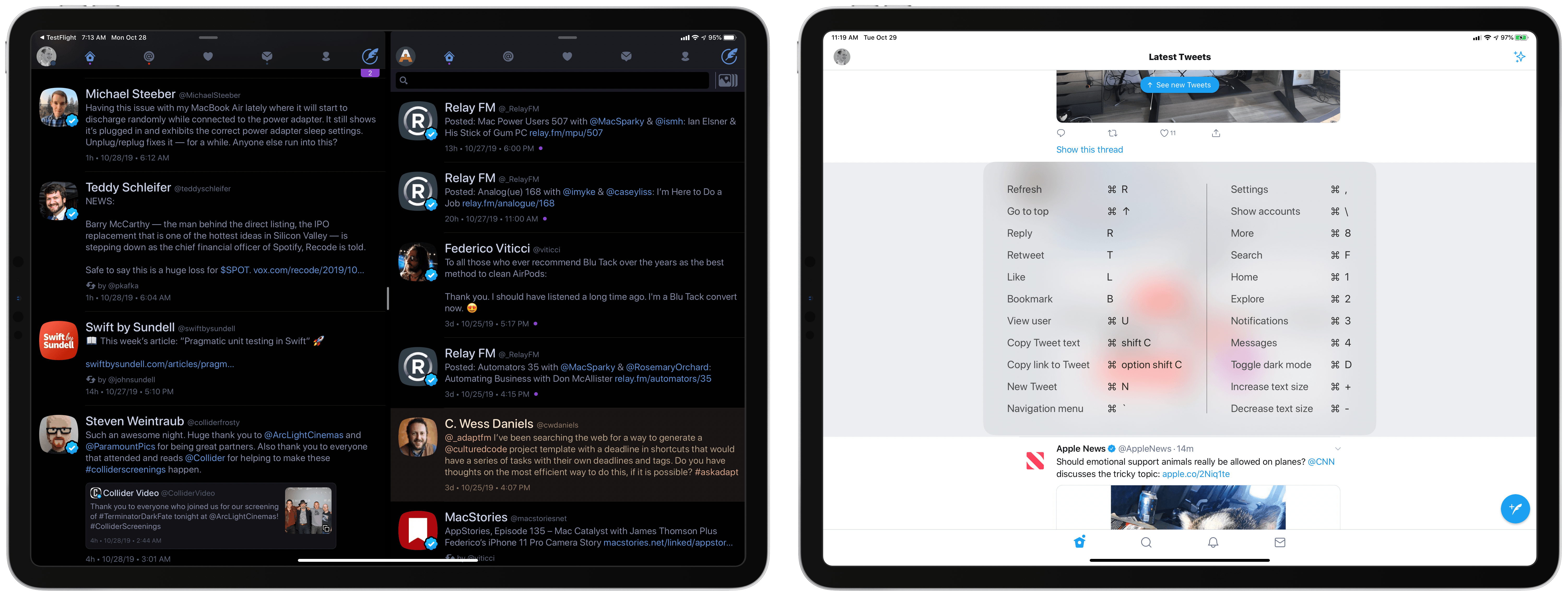
Thanks to these recent software changes, a couple of key Twitter apps for iPad have been updated to offer key new functionality. Twitterrific has become the first Twitter client to add multiwindow support, enabling creating separate windows for different accounts or different views within the same account. The first-party Twitter app, meanwhile, has recently added extensive support for external keyboards, likely as a side benefit of the app making its way to the Mac. In both cases, the Twitter experience on iPad has been meaningfully improved in ways that power users will appreciate.
On this week’s episode of AppStories, we talk about GameClub, the classic iOS game service that launched last week, and some of the shortcuts we’ve been working on lately.
Sponsored by:
Linode – High performance SSD Linux servers for all of your infrastructure needs. Get a $20 credit.
Kolide – User focused security for teams that Slack. Try it free for 30 days.
UpHabit – The app that makes connecting with people you care about part of your routine. Try it for free or take advantage of 60% off for new subscribers.
Following the announcement of AirPods Pro earlier today, Apple also released iOS, iPadOS, audioOS, and tvOS 13.2. Among various features (which we’ve detailed in a separate story here), one of the key improvements in this suite of software updates is extended flexibility of the HomePod’s music playback abilities.
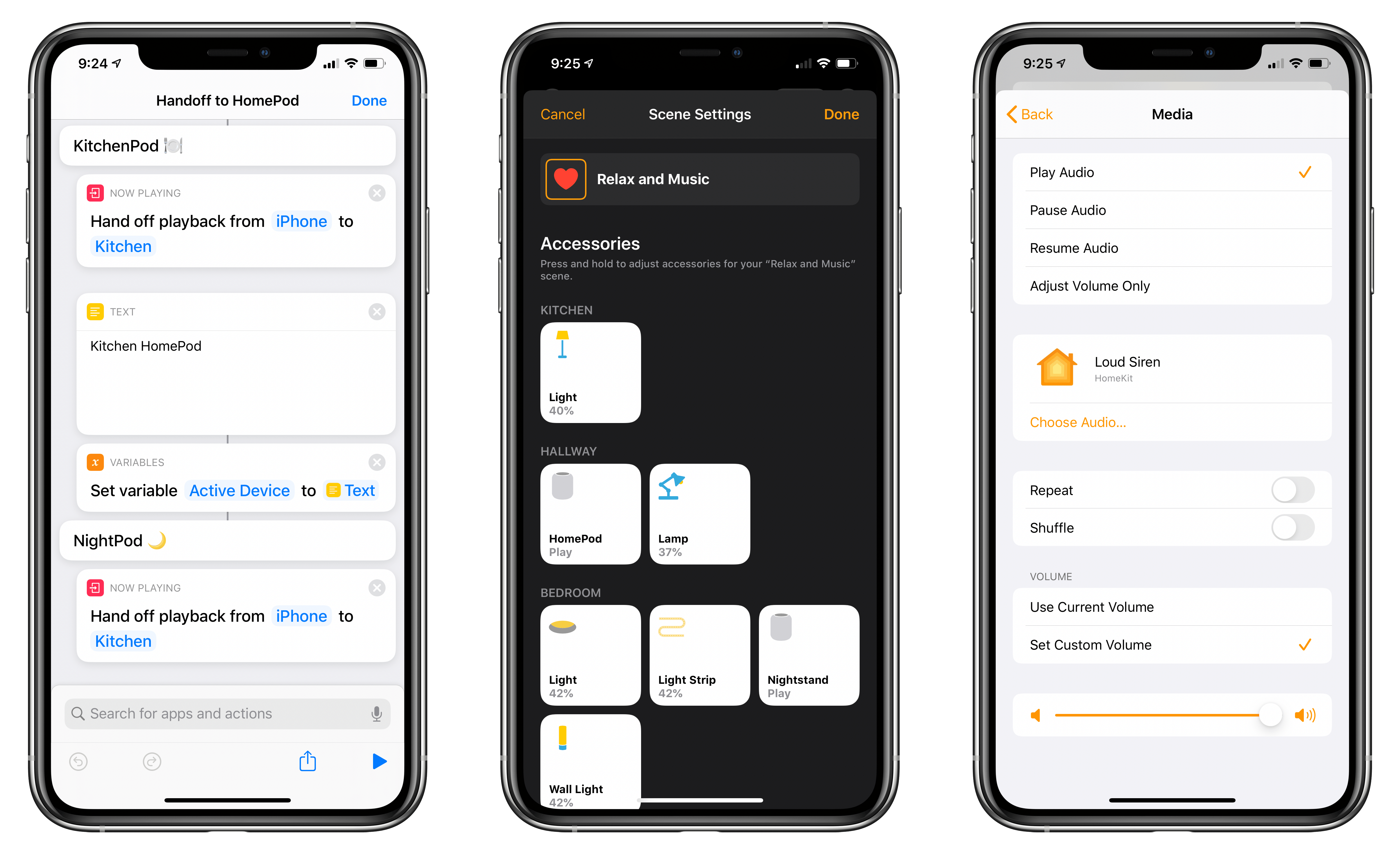
In fact, by updating to the latest version of Apple’s software, you’ll gain a variety of new audio-related functionalities for HomePod, ranging from the ability to wave an iPhone atop the speaker to hand off audio to brand new integrations with the Shortcuts app as well as HomeKit scenes and automations. In this post, I’m going to go over all the different ways you can control audio playback on Apple’s Siri-integrated speaker, explain new shortcuts that can be built with these features, and share some first impressions based on my initial tests with today’s changes. We’re going to cover HomePod’s other new functionalities such as multi-user support and ambient sounds later this week. Let’s dive in.
Apple has released iOS and iPadOS 13.2, which is necessary to operate the AirPods Pro that will be in stores on Wednesday, October 30th, and adds several new features to iPhones, iPads, and the HomePod.
One of the most-anticipated features is Deep Fusion, which harnesses the power of the A13 Bionic Neural Engine to generate photos that combine elements of several exposures to bring out additional detail and textures in low light settings. The feature works with the iPhone 11, 11 Pro, and 11 Pro Max, comparing multiple shots pixel-by-pixel to assemble a composite image that is better than any single image captured by the technology. To see examples of Deep Fusion in action, check out Federico’s recent photo tour of Rome. The Camera app has also gained the ability to change the video resolution from the app’s UI for the first time on the iPhone 11, 11 Pro, and 11 Pro Max.
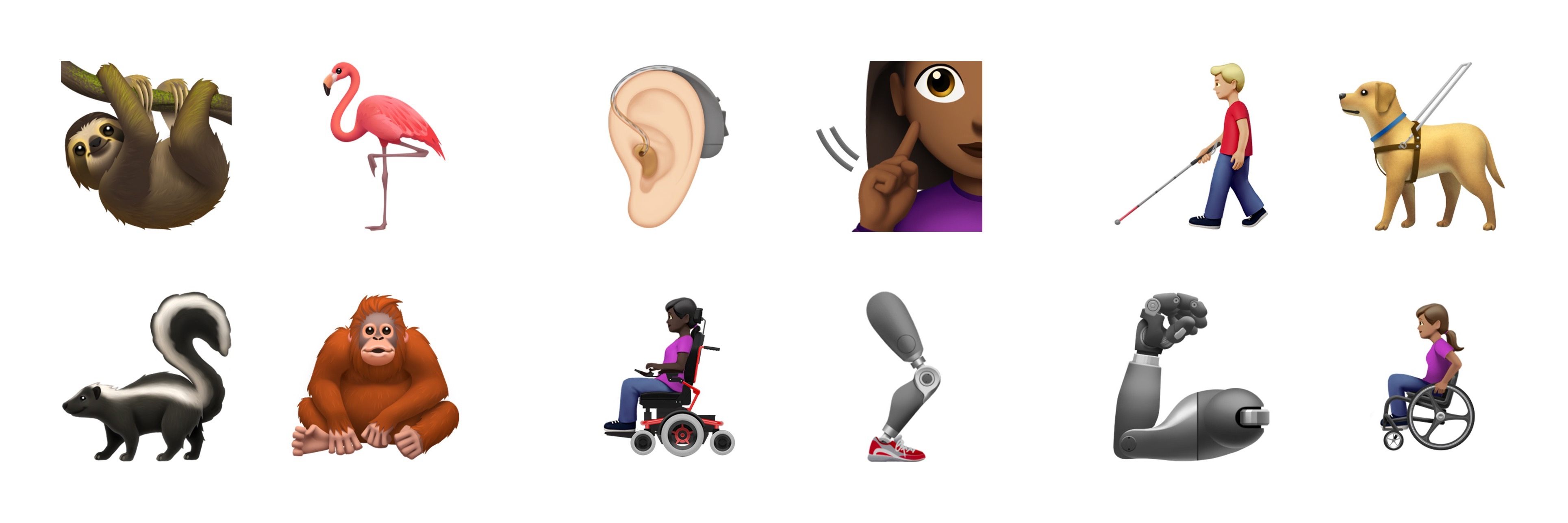
As has become something of a tradition each fall, Apple has paired today’s update with new emoji. Revealed in the iOS and iPadOS 13.2 beta, there are over 70 new emoji including people in wheelchairs, skin tone support for people holding hands, a sloth, a waffle, a yawning face, a skunk, garlic, a yo-yo, and a flamingo.
In addition to support for the new AirPods Pro, iOS and iPadOS 13.2 include the Announce Messages feature which enables Siri to announce new messages via a user’s AirPods as they arrive. HomeKit gains support for Secure Video and HomeKit routers too. Secure Video is designed for secure storage of video taken by home security cameras and includes support for detection of people, animals, and vehicles. Apps can also be deleted from an iPhone or iPad’s Home screen via a quick action for the first time.
Apple’s Shortcuts app received a few updates as part of iOS and iPadOS 13.2 too. The app now works with the Apple Watch, which will provide users with greater flexibility to run their shortcuts. Also, there is a new Feed URL property for podcasts and a Handoff playback action, which I can’t wait to try. Undo allows for reverting parameter changes too.
Apple has also added new Siri privacy settings that allow users to decide whether to allow Apple to store Siri and dictation audio. Siri and dictation histories can be deleted from Settings too.
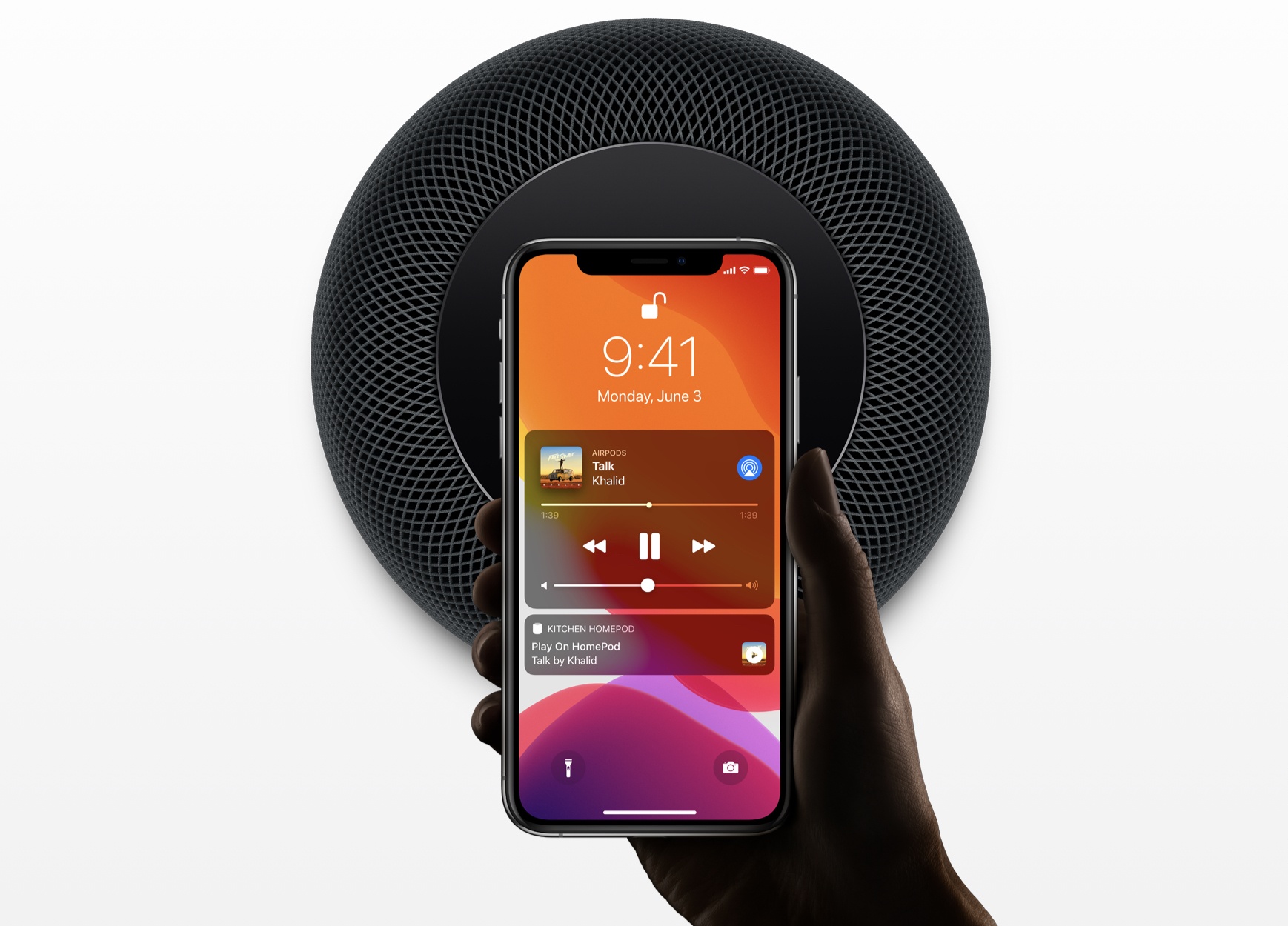
Originally announced at WWDC, Apple has updated the HomePod with several new features. With multi-voice support, the HomePod can recognize the voices of different members of a household, allowing them to each receive an individualized experience. Another big HomePod feature is Handoff support for music, podcasts, and phone calls, which allows you to tap your iPhone on your HomePod to continue the audio on it instead of your phone. HomeKit scenes add support for music, and the HomePod can now play Ambient Sounds, which include things like the sound of a rain storm. Finally, users can set sleep timers for music or Ambient Sounds with their HomePods too.
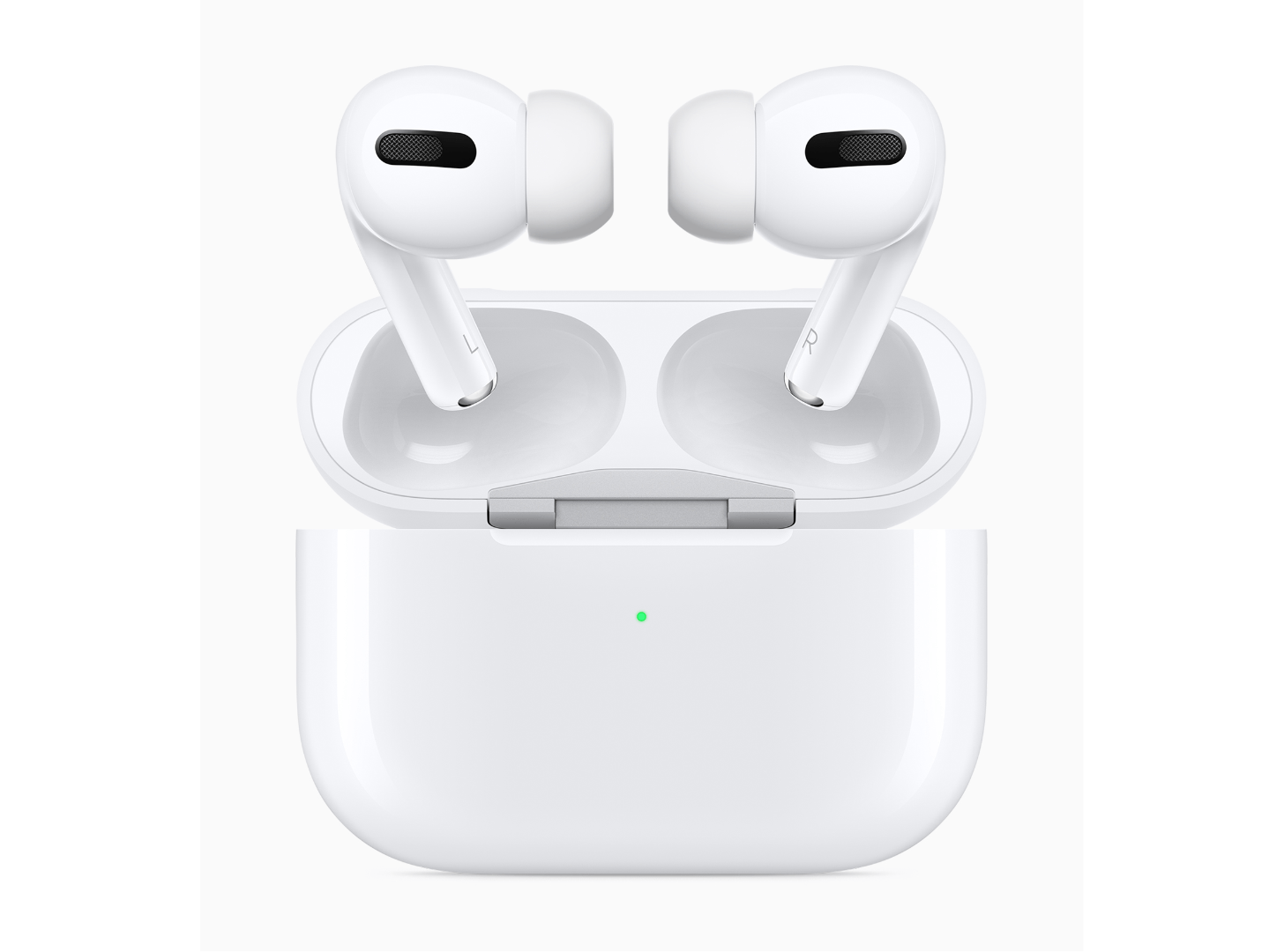
Today Apple announced a new, premium model of AirPods which is now available for purchase: AirPods Pro. Rather than replacing the existing second-generation AirPods, Apple is launching AirPods Pro as a separate option for users who want the premium features included in the new Pro model: active noise cancelling, water and sweat resistance, Transparency, and Adaptive EQ. AirPods Pro can be ordered now for $249, and will be in stores on October 30th, just in time for the holiday shopping season.
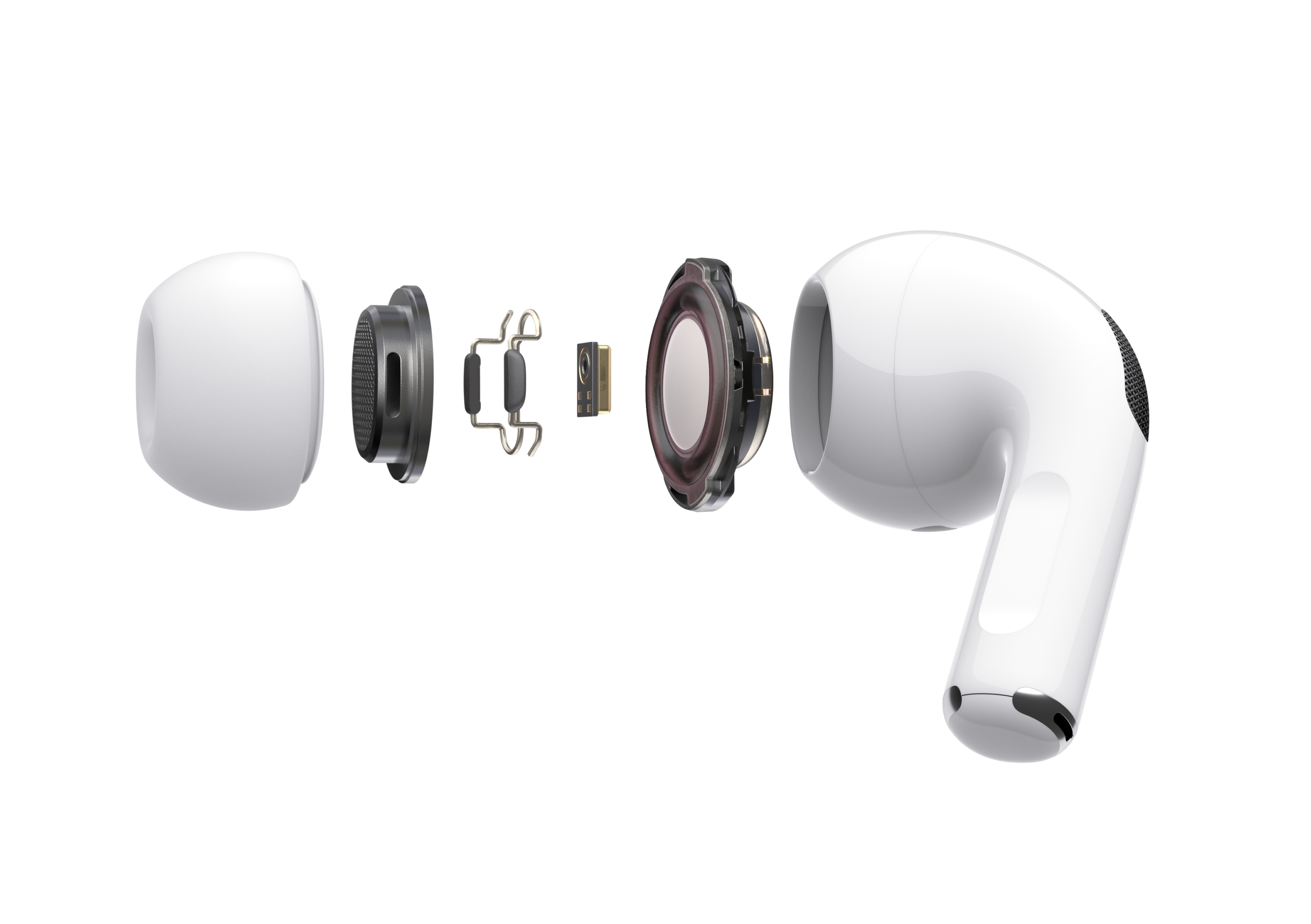
The new AirPods Pro use two microphones, one that faces outward and one that faces toward the ear for active noise cancellation, adapting the signal 200 times per second. Transparency mode uses the microphones to allow users to listen to music while also hearing their surroundings.
… advanced algorithms work together with the microphones in each AirPod to measure the sound level in the ear and compare it to what is coming from the speaker driver. In just seconds, the algorithm detects whether the ear tip is the right size and has a good fit, or should be adjusted to create a better seal.
automatically tunes the low- and mid-frequencies of the music to the shape of an individual’s ear — resulting in a rich, immersive listening experience. A custom high dynamic range amplifier produces pure, incredibly clear sound while also extending battery life, and powers a custom high-excursion, low-distortion speaker driver designed to optimize audio quality and remove background noise. The driver provides consistent, rich bass down to 20Hz and detailed mid- and high-frequency audio.
Switching between Active Noise Cancellation and Transparency modes is simple and can be done directly on AirPods Pro using a new, innovative force sensor on the stem. The force sensor also makes it easy to play, pause or skip tracks, and answer or hang up phone calls. Users can also press on the volume slider in Control Center on iPhone and iPad to control settings, or on Apple Watch by tapping on the AirPlay icon while music is playing.
According to Apple, the AirPods Pro case provides total battery lasting 24 hours playing music and 18 hours talking on an iPhone, while a single charge of the AirPods Pro provides 5 hours of music listening with noise cancellation off and 4.5 with it turned on. Like the second-generation AirPods, the Pro model also features the H1 chip and can be charged wirelessly with a Qi charger. The AirPods Pro come with a USB-C to Lightning cable and require iOS 13.2.
Earlier this year Apple debuted the first follow-up to the original 2016 AirPods model, changing very little about the device: the second-generation AirPods offered always-on Hey Siri support, an optional wireless charging case, and some connectivity improvements. By contrast, AirPods Pro represent a true evolution for the AirPods line.
It makes sense, however, that the new model doesn’t replace its predecessor, but merely accompanies it in an expanded lineup. Most AirPods customers likely don’t want or need noise cancelling functionality, so the standout feature of AirPods Pro is targeted toward a smaller niche of customers. Following Apple’s pattern with its other products, there’s now a mass-market, lower-cost version of AirPods and a Pro model that offers something extra, but at a higher price tag.
One area Apple could have differentiated AirPods Pro even further is by providing new color options, but white remains the only available finish. As nice as a darker shade would be, from a marketing standpoint it’s hard to argue against maintaining the status quo with AirPods’ iconic white finish. When your product can be effortlessly recognized in public, you don’t change that.
Apple’s streaming video service, Apple TV+, launches this Friday, November 1st. Ahead of its launch, today the first reviews dropped for the service’s tentpole originals: The Morning Show, See, For All Mankind, and Dickinson. Overall the critical takes are extremely mixed: though I haven’t seen any reviews that are outright negative, and there are a few which are very positive, the majority of reviews seem to lie somewhere in-between those two extremes.
For All Mankind appears the best-received Apple series, with Dickinson perhaps the second most-praised; however, that may be due to the added pressure placed on The Morning Show and See as Apple’s top two draws. Though many reviewers found things to praise about each show, such as Jennifer Aniston’s strong performance in The Morning Show, and the incredible visuals of See, the majority of their critical emphasis was on the ways these series fail to live up to high expectations.
One common note struck by reviewers is that with most Apple TV+ shows, only three episodes per series were provided for review, which made it difficult to adequately evaluate each first season. Perhaps tellingly, For All Mankind had the most episodes screened for critics, and it’s the most-praised show.
Below is a roundup of excerpts from various reviews that help provide a good overview of what to expect from Apple’s first original series.
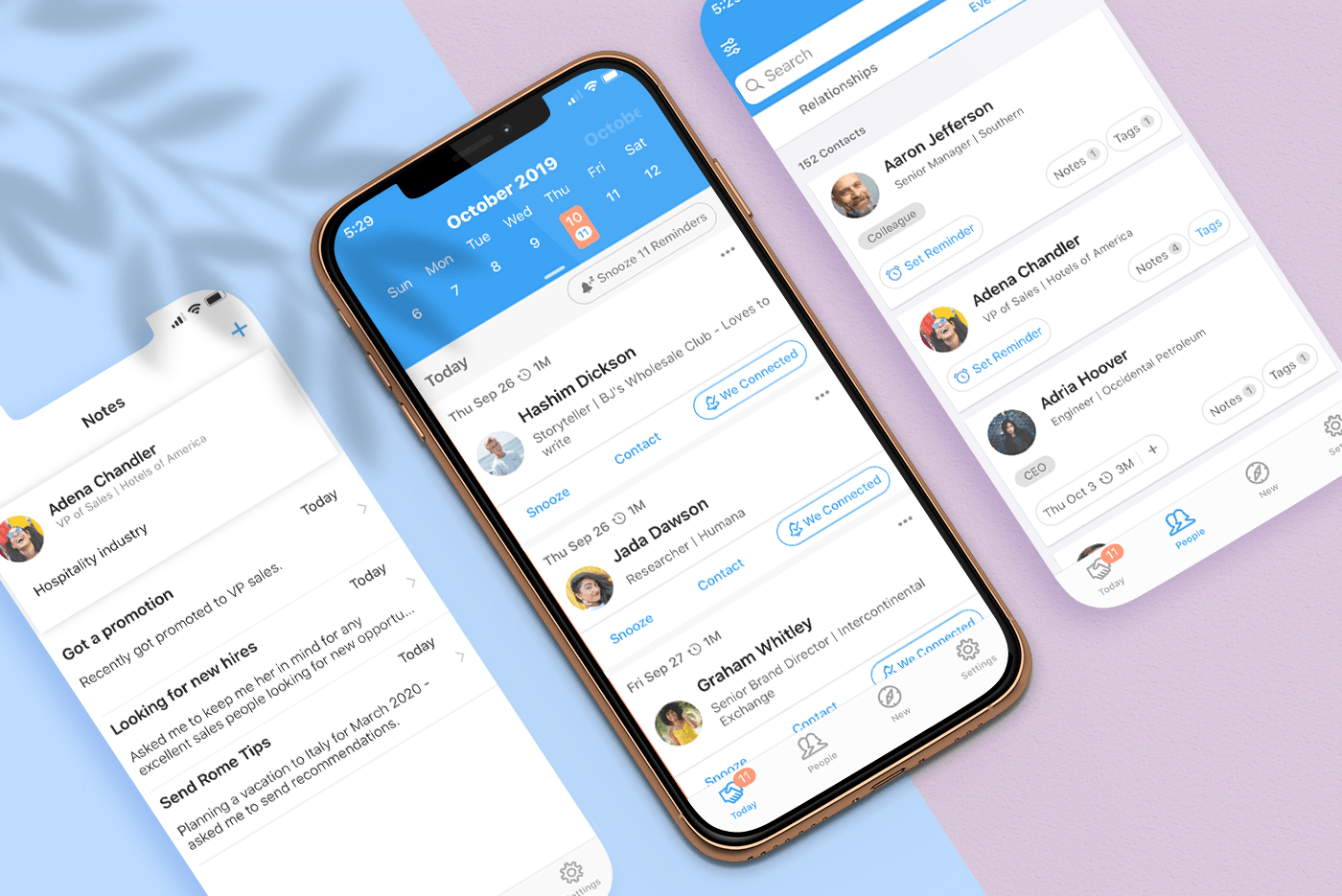
UpHabit makes building and maintaining strong relationships with the people who matter to you the most part of your daily routine.
We all lead busy, active lives. Pulled in several directions at once and with an ever-growing list of personal and business contacts, it’s easy to fall out of touch with people. UpHabit solves the problem with a powerful set of tools that brings order to the chaos, making sure that no one slips through the cracks.
With UpHabit, you can take control of creating stronger personal or business relationships with features like:
The ability to set reminders to keep in touch with people
Reminder snoozing, so getting in touch with contacts doesn’t fall through the cracks when you’re busy
A place to take notes so you can pick up where you left off the next time you talk to someone
Tagging to help organize your contacts
It’s incredibly easy to get started and begin enjoying the benefits of stronger relationships immediately with UpHabit.
UpHabit is continually updated with new features drawn from feedback from its growing community of users with message templates, two-way contact syncing, and more coming soon.
Of course, privacy is of paramount importance to UpHabit too. The app doesn’t have ads, and your contacts data isn’t shared with third parties.
Make connecting with your most important contacts part of your daily routine. Download UpHabit now to try it for free, and for a limited time, you can get 60% off when you sign up for any of UpHabit’s subscription plans.
Our thanks to UpHabit for sponsoring MacStories this week.
On Friday, Apple Music’s Beats 1 debuted a new Zane Lowe show called New Music Daily featuring the best new music across several genres along with interviews and commentary designed to complement Apple Music’s playlist of the same name.
As described by Apple, New Music Daily is all about what is hot now:
Music moves fast. To keep up with hungry fans and tireless creators, Apple Music launched New Music Daily, our playlist for the latest and greatest must-hear songs from pop, hip-hop, Latin, and beyond. This show, broadcasting live on Apple Music every Friday, is the playlist brought to life: Hosted by Zane Lowe, it features interviews with today’s most important artists, sharp commentary, and, of course, all the new songs you need to hear right now.
The show streams live on Apple Music every Friday at Noon New York time and can be replayed later.
The inaugural episode of New Music Daily, which runs just over one hour, spotlights a wide range of music and interviews including appearances by Selena Gomez, Coldplay’s Chris Martin, and an excerpt from a longer interview with Taylor Swift that will be released next week. New Music Daily’s Apple Music page also includes excerpts of upcoming video interviews with Taylor Swift and Kanye West.
In an interview with People.com, Lowe, who is Apple Music’s global creative director, expanded on his vision for how the playlist and new show will work together:
Our New Music Daily playlist was built in the image of the artist and the fan. Music is constant and it’s in the hands of the artists now. Artists don’t want to wait anymore, and we wanted a really big playlist that reflected that sentiment and could do it quickly. I’ll be in the studio with artists and I ask when they’re putting something out and they’ll say, “I don’t know, in an hour?” We’ve been clearing that space for artists for years, and with New Music Daily as a live show we’ll continue to event-ize music, bringing an audience around shared listening moments, and reflecting the way artists want to release music on their own terms.
One of the consequences of streaming music services is that the release of an album is often not the way people hear the latest music from their favorite artists anymore. Instead, musicians release a steady stream of singles and EPs, only occasionally collecting them as full-length albums. It’s the kind of continuous change that demands a different approach to how new material is surfaced.
Having listened to the first episode of New Music Daily, it strikes me as a formula that will work. The playlist currently includes 85 songs, which is a lot. What Lowe’s new show does is provide context through his interviews and commentary that serve as an entry point into the larger playlist. By sending listeners to the playlist for the latest tracks from pop culture phenomenons like Swift and Gomez, New Music Daily can help spread awareness of lesser-known, emerging artists that included too.
You can check out the first episode of New Music Daily that aired Friday here.
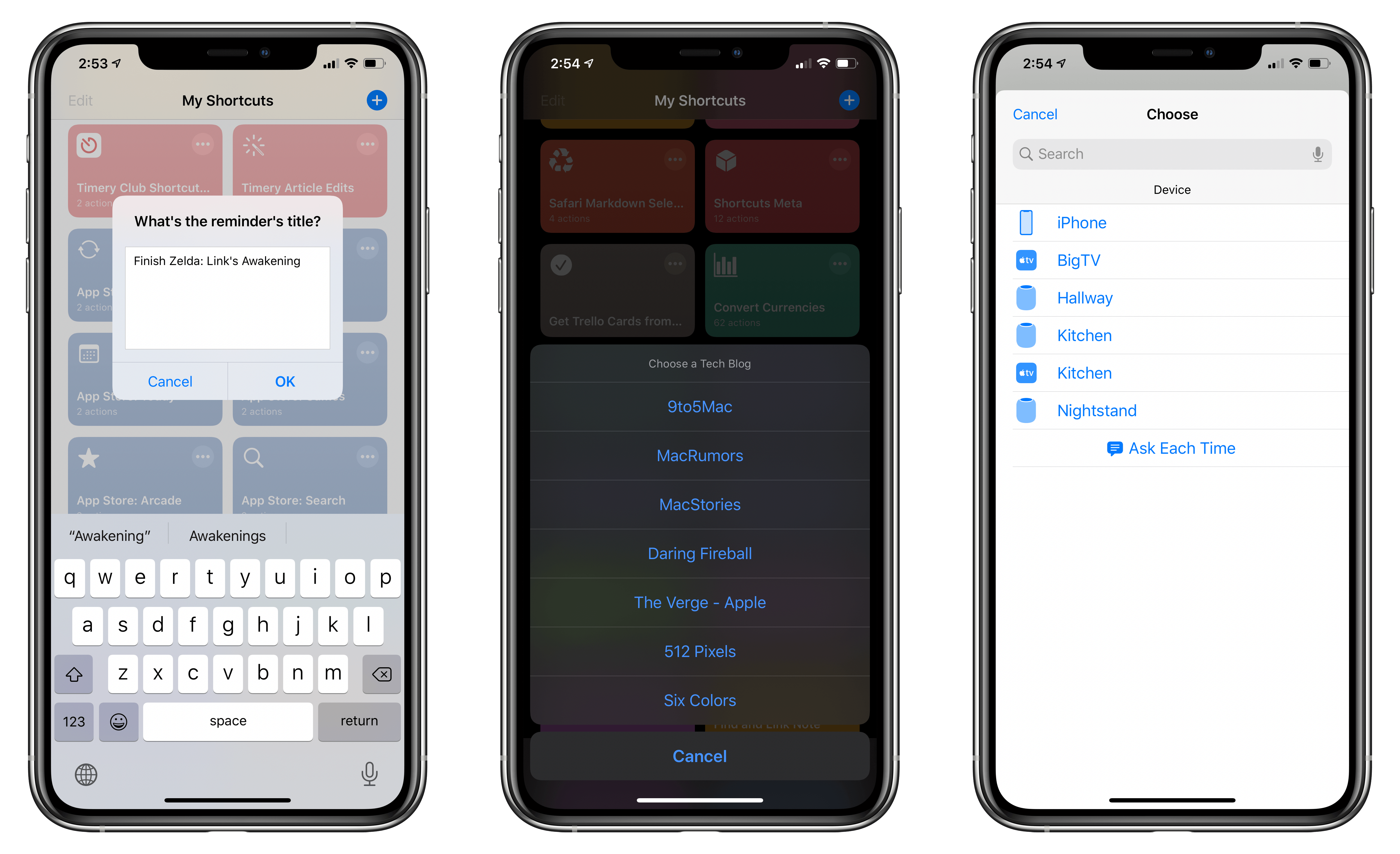
In this week’s installment of the Shortcuts Corner, I share a custom Reminders-specific shortcut I’ve built to customize and enhance my daily experience with Apple’s task manager. Furthermore, I share a simple shortcut to quickly resume audio playback of any HomePod around the house and detail a new version of an old shortcut, which I’ve updated for iOS 13, made more flexible, and integrated with the rest of the system. Let’s dig in.