This Week's Sponsor:

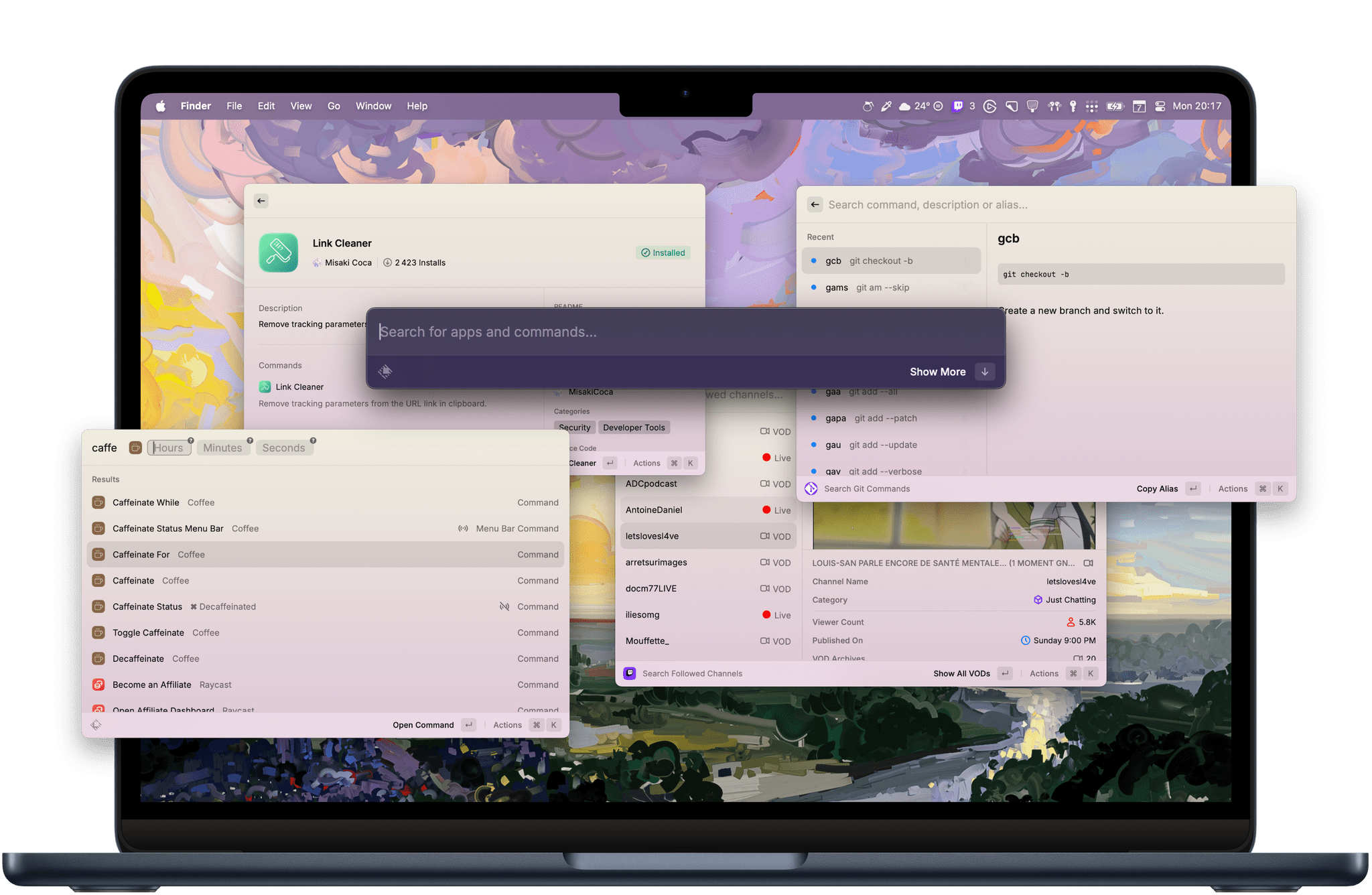
Turbulence Forecast

Know before you go. Get detailed turbulence forecasts for your exact route, now available 5 days in advance.


The Latest from AppStories and Ruminate

Enjoy the latest episodes from MacStories’ family of podcasts:

AppStories

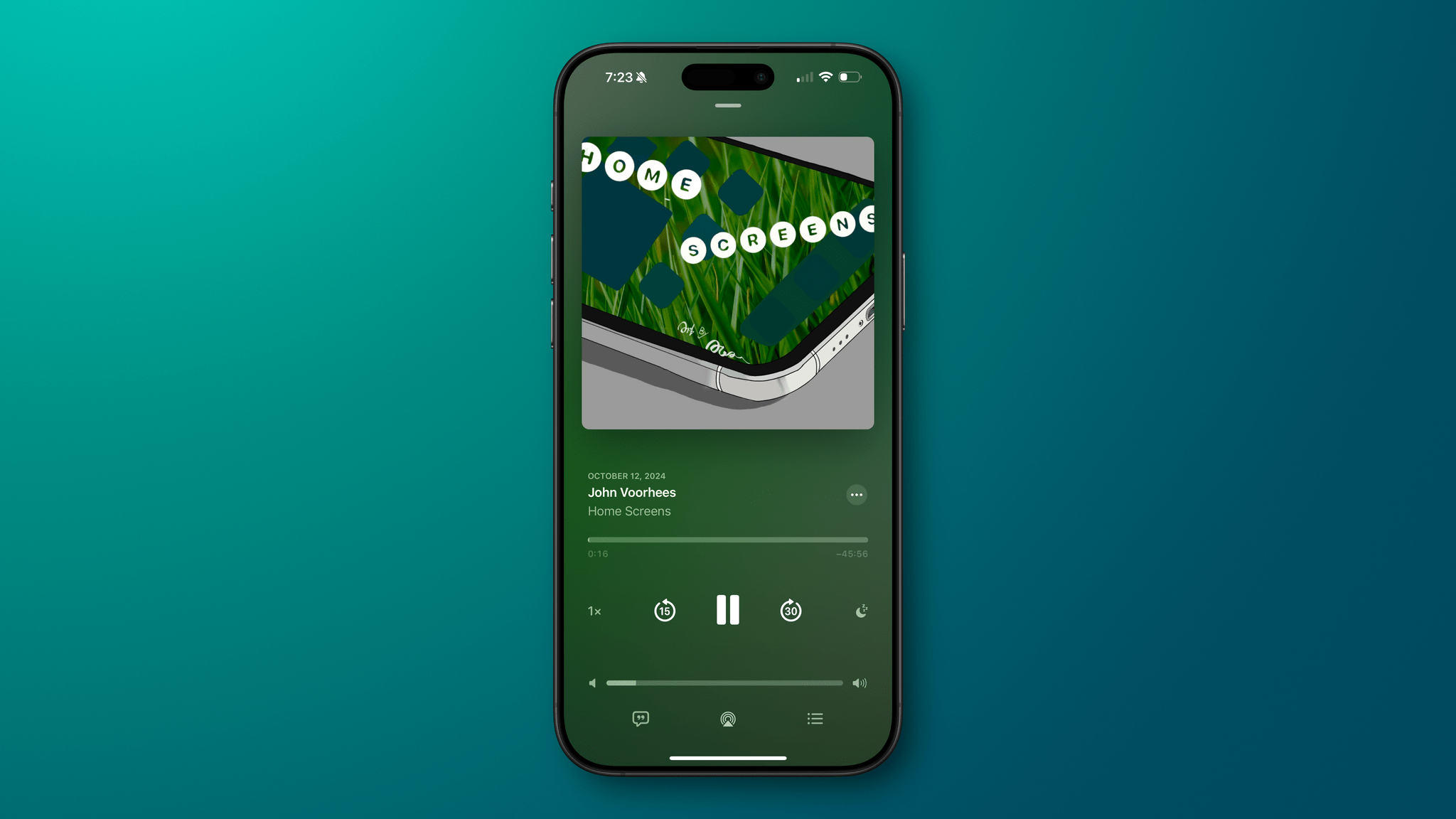
This week, Federico and John share their favorite app updates that take advantage of what’s new in iOS 18.

On AppStories+, John expands on his first look at the Logitech MX Creative Console, and Federico and John discuss Orion, the prototype AR glasses that Meta showed off last week.

This episode is sponsored by:

  • Karo – The first of its kind task manager focused on delegating tasks via messaging apps. The first 50 listeners can get 50% off a 1-year subscription here.
  • Celtreos – The shoot-em-up game with tiny ships, big weapons, waves of foes, power-ups and obstacles.

Ruminate

A final update on the St Jude campaign, an overflowing snack corner, and Hurricane Helene.

Read more


Croissant: A Beautifully-Designed App for Cross-Posting to Multiple Social Media Accounts

Social media has splintered across multiple services since the decline of Twitter. I’ve always managed a lot of social media accounts between my own and ones for MacStories, but today the situation is worse than ever. There have always been services like Buffer that make it easier to juggle multiple accounts and services, but they are more expensive than most indie developers, artists, websites, and other creators can afford and offer more features than most need.

That’s where Croissant comes in. It’s a new iPhone app from Ben McCarthy and Aaron Vegh that simplifies cross-posting to Mastodon, Bluesky, and Threads at an indie-friendly price. The app doesn’t try to replicate the many features you’ll find in services like Buffer. Instead, it’s focused on making it easier for indie creators or anyone with multiple social accounts to post on multiple platforms at once.

Croissant's tint color, app icon, and posting button icon are all customizable.

Croissant’s tint color, app icon, and posting button icon are all customizable.

I’ve been testing Croissant over the past week, connecting it to two Bluesky accounts, two Threads accounts, and five Mastodon accounts, and I’ve been loving it. First off, the design is top-tier, as you’d expect from one of Ben’s apps. The UI’s focus is on drafting your posts, and it’s accented with a deep yellow/orange hue that I love. However, the app offers seven other color options to choose from. There are also a total of seven app icon options and three icons to pick from for the button that publishes a post.

Managing accounts in Croissant.

Managing accounts in Croissant.

If you have a lot of accounts you want to use with Croissant, you’ll need to start by signing into each, which requires a little patience. However, once you’re set up and ready to go, the rest is smooth sailing. You’ll see icons for each of the accounts you’ve signed into at the top of the app’s compose view. Tap on the row of icons to manage your accounts, removing any you no longer use and adding any new ones. The gear icon in the top-left corner of the view reveals tint, post icon, and app icon settings, and the box icon at the top-right is used to access draft posts that you can save using the app’s Menu button at the bottom of the compose field.

That same Menu button also allows you to delete a post, add to an existing thread, add a content warning, and pick from various audience options. Plus, there are buttons to tag someone, add hashtags, and attach photos or videos to a post. Croissant displays a character counter at the top of each draft post, too.

I appreciate the 'Do you really want to post this everywhere?' step.

I appreciate the ‘Do you really want to post this everywhere?’ step.

My favorite part of Croissant is the interaction that takes place when you’re ready to launch your latest hot take into the social media wilderness. Before you post, a list of every account you’ve connected to Croissant slides up from the bottom of the screen. By default, all of your accounts are selected. Tap the big Post button at the bottom of the list, and you’ll launch your words of wisdom into the world across every service you’ve configured. Before you post, you can also de-select any of the accounts listed. That’s great because, although I could fairly be accused of being a chronic cross-poster, even I rarely post everywhere all at once, so I appreciate the chance to fine-tune where my posts will be published.

I like the simplicity of Croissant a lot, but there are a couple of things I’d love to see added in future updates. The first is Shortcuts support. An action that allows me to pick the accounts to send a post from, coupled with Shortcuts’ ability to pull items from RSS feeds, would make publicizing new MacStories articles and podcast episodes a lot easier. Second, a scheduling feature would go a long way toward completely eliminating the need for services like Buffer for a lot of people. Of course, an iPad and Mac version of Croissant would be great too, but I’ve found using the iPhone app on my iPad and on my Mac with iPhone Mirroring to fill that need well so far – except that on the iPad it means logging into all of my accounts a second time, which is a little tedious.

Sometimes the hottest takes cool after a few days in the drafts box.

Sometimes the hottest takes cool after a few days in the drafts box.

There’s an added side benefit to using Croissant that I didn’t realize at first but Brendon pointed out to me. Croissant lets you post without the distraction or stress of getting sucked into your timelines. I’ve often had times where I felt like I needed a break from social media but felt compelled to jump back in to make sure we were promoting everything happening at MacStories. With Croissant, you can have it both ways, letting the world know what you’re up to without needing to scroll your timeline.


Croissant, which is available on the App Store for free but requires a subscription for some features, is a clear win for anyone who works online and wants to promote what they make or who maintains active accounts across several services. Neither group is a good fit for expensive social media management services, but for $2.99/month, $19.99/year, or a one-time payment of $59.99, Croissant is a no-brainer.


Forever ✱ Notes: A Simple, Flexible, and Free Approach to Organizing Your Apple Notes

The best workflows are the hardest to design because they require restraint. It’s easy to throw complexity at a problem to create the illusion of a grand solution, when it’s often the simplest solutions that reflect the most thoughtful approach to a problem. That was my immediate reaction to Forever ✱ Notes, a systematic approach to note-taking that uses Apple Notes as its foundation.

Forever ✱ Notes’ author, Matthias Hilse, describes the system as follows:

Forever ✱ Notes is a simple, lightweight digital note-taking and knowledge management method for Apple Notes. It’s robust, versatile, and scalable to grow with you.

If you’ve followed the worlds of personal knowledge management, bullet journaling, daily notes, and the complex Notion templates people have created to manage their lives, Forever ✱ Notes will ring a bell. It borrows elements from many systems that came before it but eschews their complexity. Instead, Forever ✱ Notes proposes sensible, pragmatic ways to organize your projects, areas of your life, and journaling using Apple Notes’ built-in tools, like tagging and note linking.

I’ve been building a similar system on and off all year in Obsidian, which isn’t finished, and having spent time looking at many other solutions, Forever ✱ Notes stands out for its simplicity and flexibility. I’ll be spending more time with Forever ✱ Notes over the next few weeks to see how I can incorporate some of its ideas into my own notes. Who knows? Perhaps it’s time to move more of what I do out of Obsidian and into Notes.

Permalink


Becca Farsace on Why the iPod Nano’s Camera Is Her Favorite Camcorder

Becca Farsace’s latest video is all about her favorite camcorder: the iPod Nano:

It’s a terrific video about a different time when simple devices like the Flip Video were everywhere, taking low-quality video. What made the Flip and, later, the Nano’s video camera great wasn’t the quality of what you could shoot with them. Instead, it was the convenience. With the tap of a button, you were up and recording instantly. As Farsace explains, there are a lot of limitations to the iPod Nano’s video camera, but in hindsight, it also holds a certain charm.

The video reminds me of the days before I had an iPhone and used a first-gen iPod Touch to take photos. The camera was lousy by today’s standards, but despite its limitations, I was able to take pictures that I enjoy to this day. I appreciate how easy it is to get a usable photo with my iPhone 16 Pro Max today, but I also sort of miss the effort required with the iPod Touch. I don’t miss the inefficiency of the Touch, but the constraints made me a better photographer by forcing me to pay more attention to lighting, framing, and other things. That’s why I’m not surprised at all that Halide’s Process Zero was an immediate hit.

Permalink

Bitmo Lab Updates BANG!CASE to Accommodate the Camera Control and Releases GAMEBABY to Turn Your iPhone into a Retro Console [Sponsor]

MacStories readers love to automate their iPhones, which is what makes the BANG!CASE the perfect choice whether you’re using an iPhone 14, 15, or 16 Pro or Pro Max. The BANG!CASE’s retro-futuristic design combines cool aesthetics with its integrated motherboard and independent power supply, which deliver unrivaled power via the BANG!Button and support for the iPhone 16’s Camera Control.

The customizable BANG!Button lets you program thousands of actions with a single press, double-press, or press-and-hold. It’s like having three buttons in one for everything from taking photos to recording voice memos to launching apps, all while protecting your iPhone in a stylish case that includes support for MagSafe wireless charging.

Meanwhile, the GAMEBABY case delivers fun retro vibes reminiscent of 90s game consoles. The case includes a detachable lower half with touch capacitive buttons. By flipping the removable bottom half of the case and covering the front of your iPhone, your phone is transformed into a retro gaming handheld compatible with apps like Delta.

The BANG!CASE is available to order now from Bitmo Lab for $49.99, and, while supplies last, a limited supply of the GAMEBABY case is available for an introductory price of just $24.99. Learn more on Bitmo Lab’s YouTube channel and order the two most innovative iPhone cases available today.

Our thanks to Bitmo Lab for sponsoring MacStories this week.


iOS 18 App Updates We Love

AppStories+ Deeper into the world of apps

AppStories Episode 405 - iOS 18 App Updates We Love

0:00
36:19

AppStories+ Deeper into the world of apps

This week, Federico and John share their favorite app updates that take advantage of what’s new in iOS 18.

This episode is sponsored by:

  • Karo – The first of its kind task manager focused on delegating tasks via messaging apps. The first 50 listeners can get 50% off a 1-year subscription here.
  • Celtreos – The shoot-em-up game with tiny ships, big weapons, waves of foes, power-ups and obstacles.

AppStories+ Subscriber Pre-Show

Visit AppStories.com to learn more about the extended, high bitrate audio version of AppStories that is delivered early each week and subscribe.

iOS 18 App Updates We Love

We deliver AppStories+ to subscribers with bonus content, ad-free, and at a high bitrate early every week.

To learn more about the benefits included with an AppStories+ subscription, visit our Plans page, or read the AppStories+ FAQ.


Follow us on Mastodon

Follow us on Threads

Follow us on Instagram


Using Apple Journal to Track Home Screen Setups

I love this idea by Lee Peterson: using Apple’s Journal app (which got some terrific updates in iOS 18) to track your Home Screen updates over time.

Every so often, I see screenshots from people on Threads or Mastodon showing their Home Screens from over a decade ago. I routinely delete screenshots from my Photos library, and it bums me out that I never kept a consistent, personal archive of my ever-changing Home Screens over the years. Lee’s technique, which combines Journal with the excellent Shareshot app, is a great idea that I’m going to steal. Here’s my current Home Screen on iOS 18:

My iOS 18 Home Screen.

My iOS 18 Home Screen.

As you can see, I’m trying large icons in dark mode and there are some new entries in my list of must-have apps. The Home Screen is similar, but a bit more complex, on iPadOS, where I’m still fine-tuning everything to my needs.

I plan to write about my Home Screens and Control Center setup in next week’s issue of MacStories Weekly. In the meantime, I’m going to follow Lee’s approach and begin archiving screenshots in Journal.

Permalink

MacStories Weekly: Issue 435

This week, in addition to the usual links, app debuts, and recap of MacStories' articles and podcasts:

  • Setting Up Reminders Profiles for the Logitech MX Creative Console, by John
  • Scanning Wi-Fi with a Discontinued App, by Federico
  • All the iPhones, Window Tiling, and New Features for Old HomePods, by Jonathan
  • Home Screen: Jonathan, by Jonathan
Read more