This Week's Sponsor:

LookAway

It helps you take regular breaks from your Mac to rest your eyes, without breaking your flow.


Posts tagged with "iOS 27"

Our Favorite Indie Apps for iOS 27, Vol. 2

It’s time to get back to our favorite indie apps that take advantage of Apple’s latest OS features. Today, we’re highlighting: Bear, Gentler Streak, The Outsiders, DoMarks, and Cheatsheet Notes.

Bear

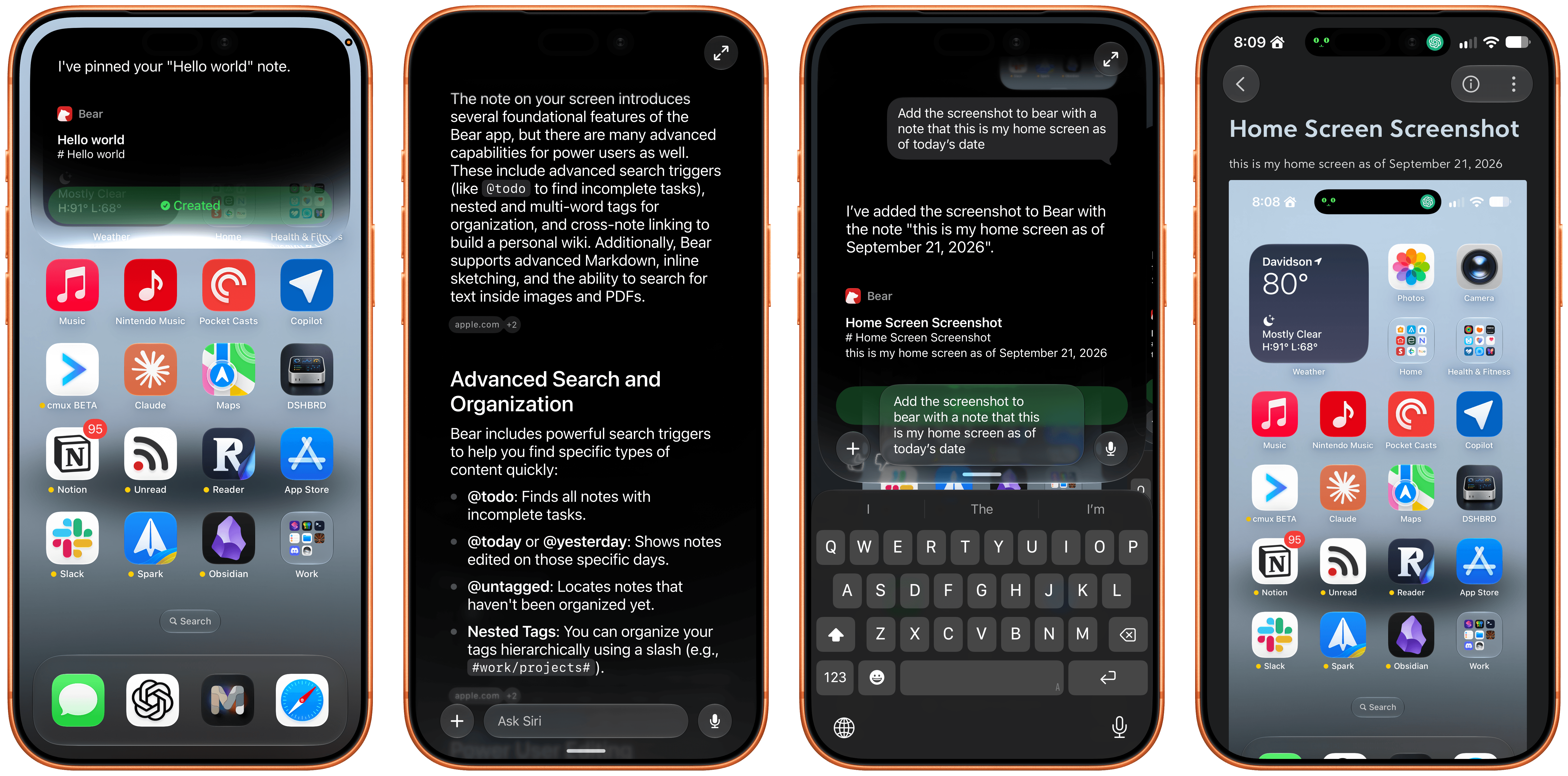
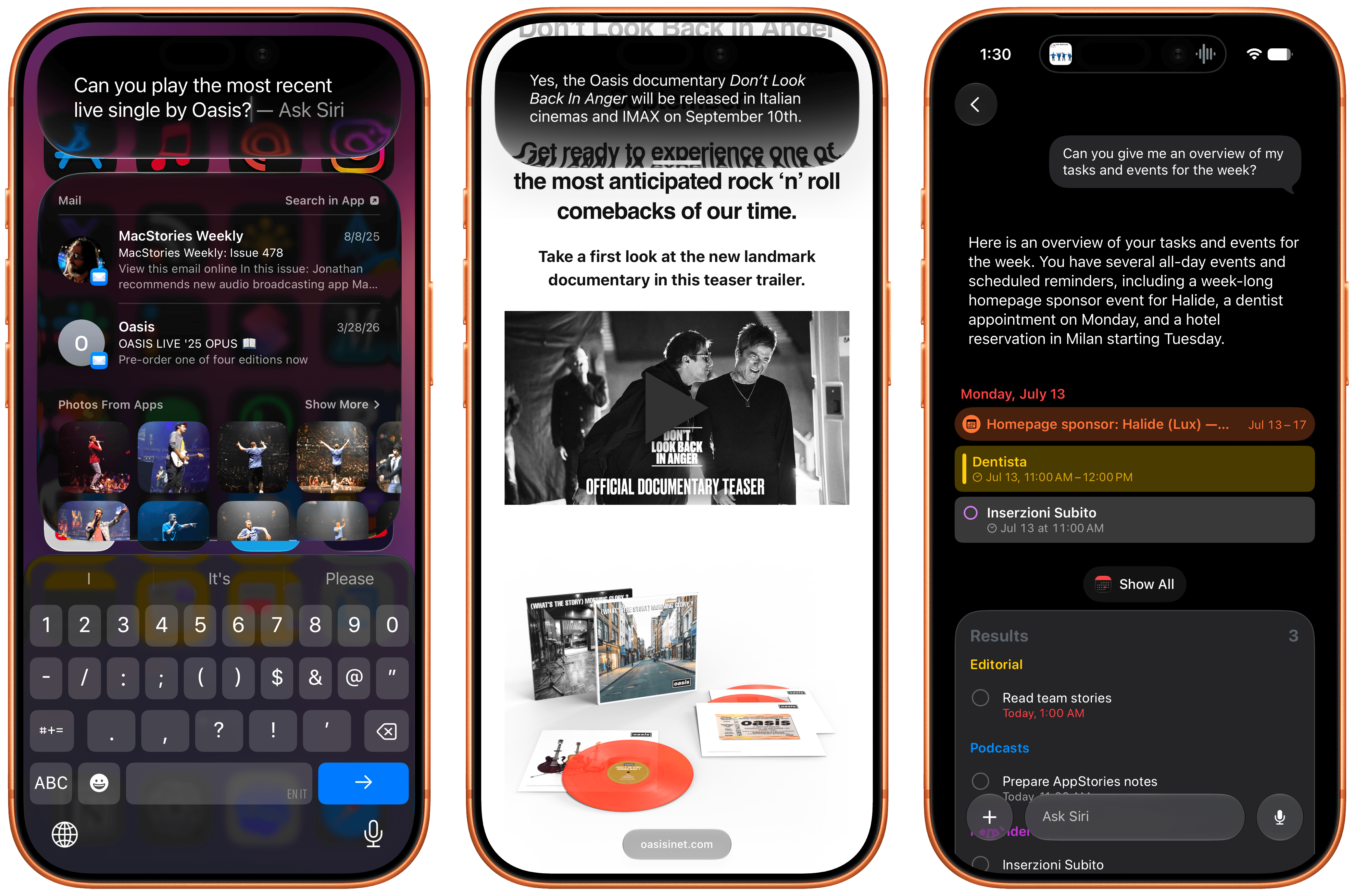
Bear, the note-taking app for iPhone, iPad, Mac, and Apple Watch, just released version 2.10 with several Siri AI features, including actions to:

  • Create a new note
  • Append text to an existing note
  • Append files to a note
  • Pin notes

The app also includes onscreen awareness so Siri knows the content of the note you’re looking at without you telling it.

Bear’s new actions make it a compelling way to dictate notes on the go. Simply invoke Siri and start talking. With the ability to start a new note or append to existing notes, you can get quite a lot done with only your voice. One of my favorite uses is annotating screenshots. I take a screenshot, invoke Siri, and in one go, I can ask it to add a new note with my last photo (the screenshot), give it a title, and add a quick note about it. It’s far easier than walking through those steps manually.
Gentler Streak

Gentler Streak

Gentler Streak

Our iPhones and the Apple Watch can collect and process a lot of health and fitness data for us. My favorite way of making sense of it all is Gentler Streak, which works on the iPhone, iPad, and Apple Watch, making sense of all that data.

One of Gentler Streak’s greatest strengths is its delightful illustrations and clear, meaningful presentation of fitness data. I love browsing my workouts and other fitness data in Gentler Streak, but with the latest release, I’ve come to appreciate the snippets it offers thanks to App Intents, too.
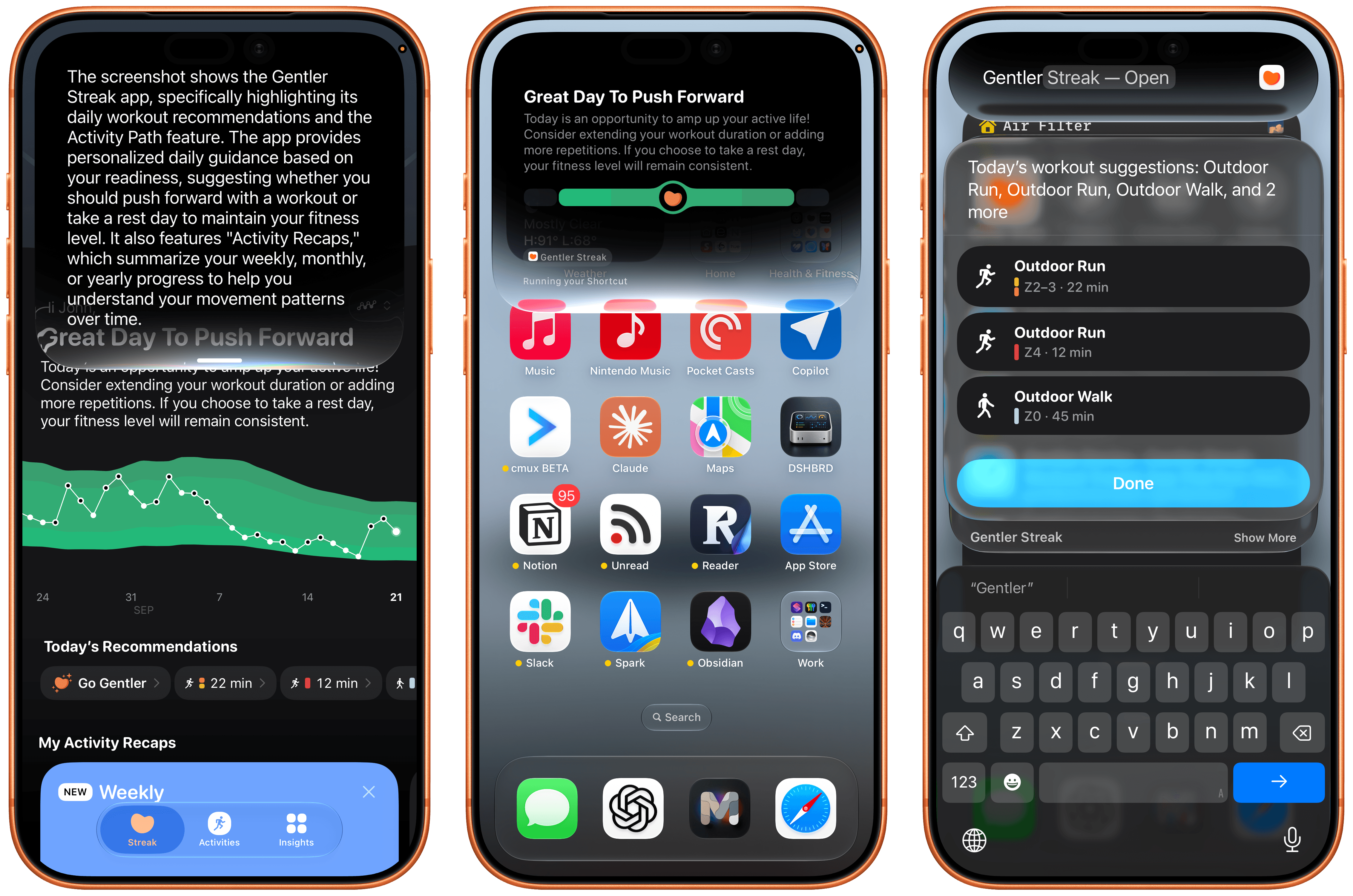
The update lets you access bite-sized snippets of data without opening Gentler Streak, accessing data like today’s workout, your activity status, and suggested activities all from Spotlight or Siri. It’s handy when you’re in a hurry and just want a quick update on something like how well you slept last night. The app also supports onscreen awareness, allowing Siri to explain features of Gentler Streak to you or interpret onscreen data.
The Outsiders

The Outsiders

The Outsiders

The Outsiders, from the same team as Gentler Streak, is a great complement to it, trading Gentler Streak’s relaxed approach to workouts for a more intense, performance-driven perspective. I’m a big fan of the iPhone app’s colorful design, which, like Gentler Streak, lets you access data like your training readiness, latest workout, body metrics, and sleep data simply by asking for the data “in The Outsiders.” Onscreen awareness allows Siri to explain metrics to you, too.
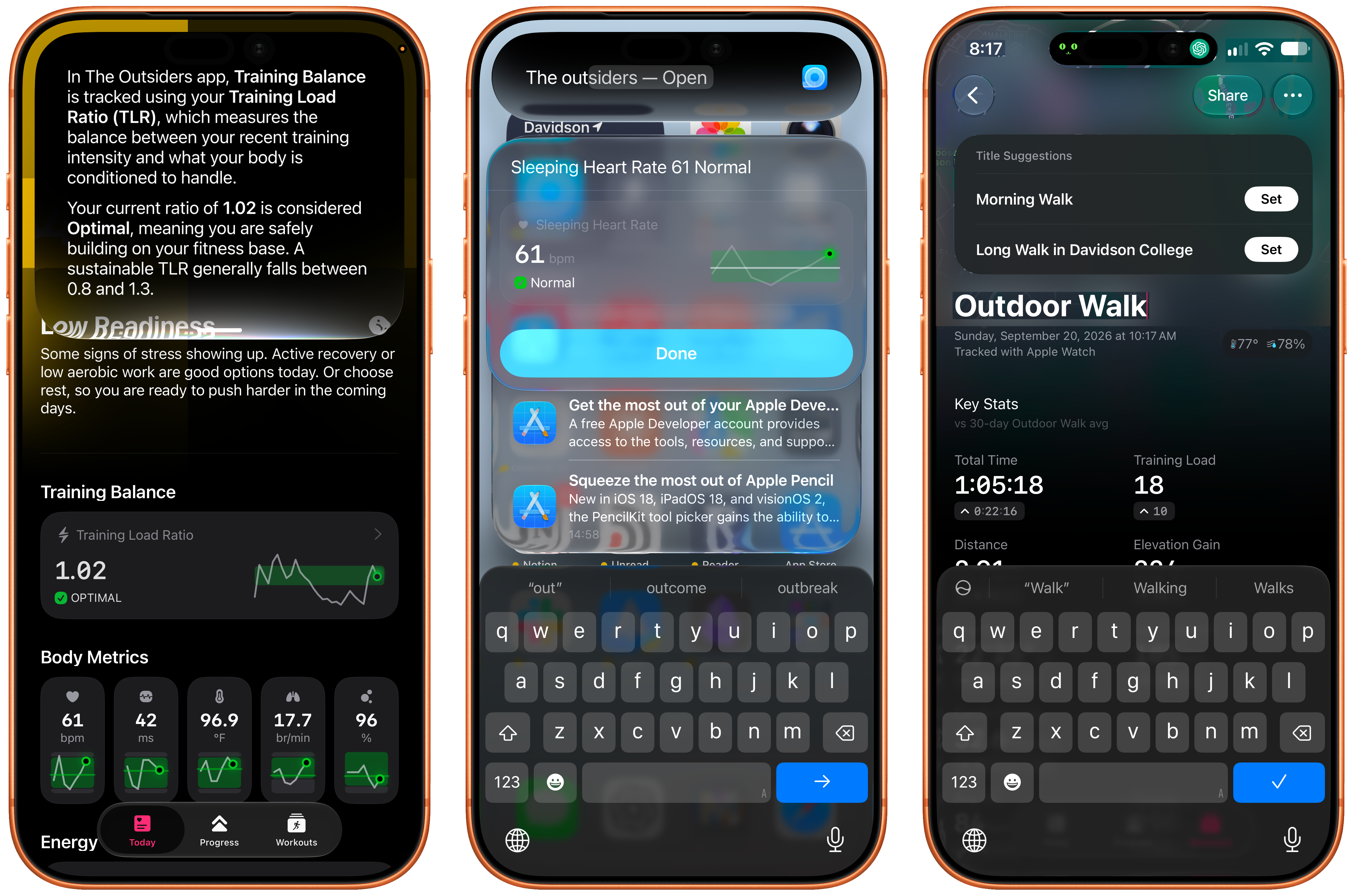
If you choose to edit a workout’s title, Apple Intelligence kicks in with a suggestion changing something generic like “Evening Workout” into “Evening Commute Through Davidson College,” which sounds much nicer and adds a little hint about where you were and what you did for that workout.
Cheatsheet Notes

I love how Cheatsheet Notes has evolved over the years from a very basic scratchpad to a beautifully designed and focused note-taking app that adopts all of Apple’s latest technologies. The recent update, which is available for the iPhone, iPad, Apple Watch, and Mac (sold separately) is no exception, incorporating all sorts of Siri AI features, as well as new widgets.
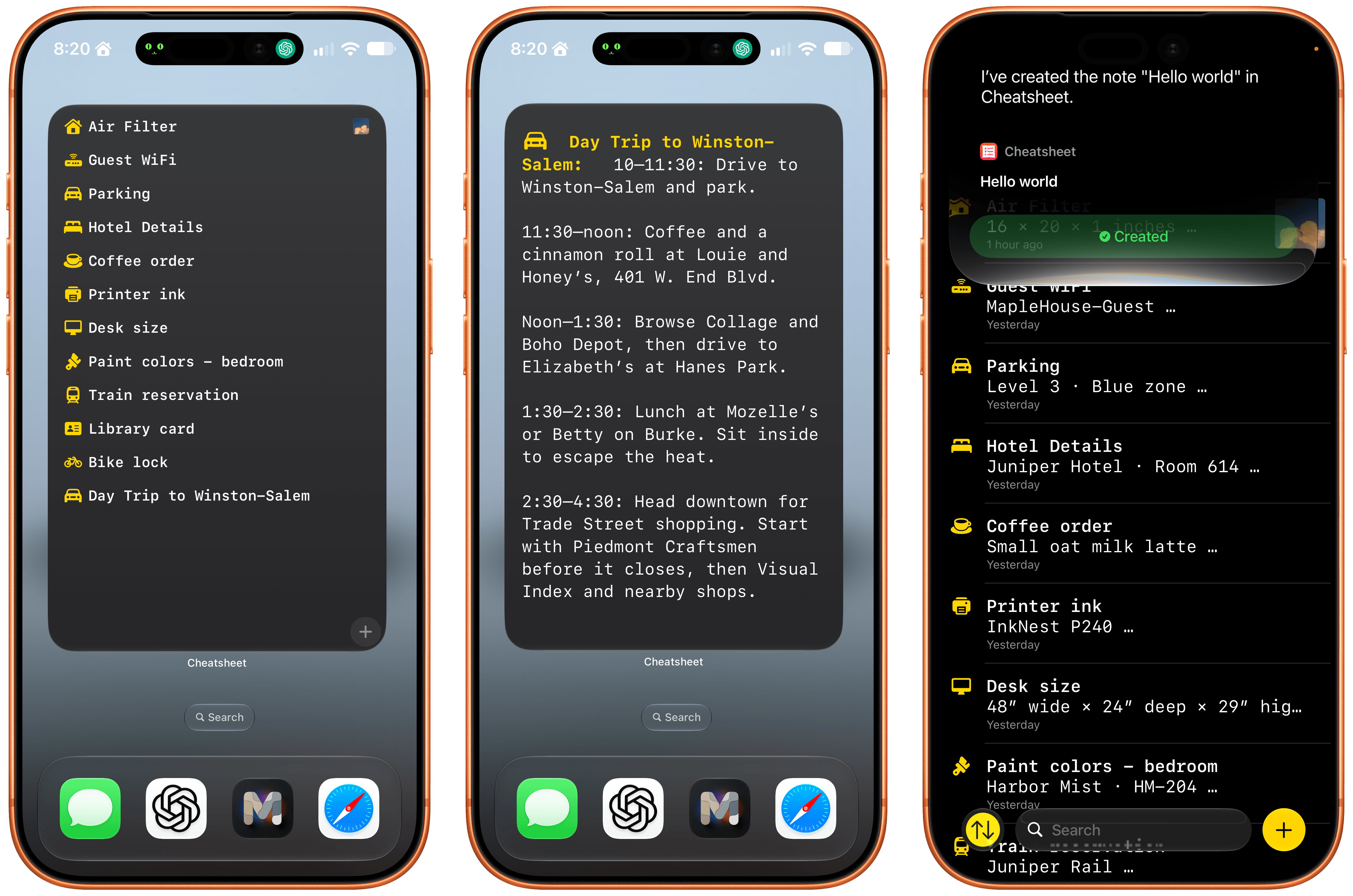
Thanks to Siri AI’s onscreen awareness, you can ask Siri questions about information visible in your notes. You can also append text and images to notes with Siri’s help. The append functionality is especially useful because Cheatsheet is intended for quick notes about things you want to remember, like a parking spot at the airport. Take a quick photo of your parking spot, ask Siri to add it to your Airport Parking note and that’s it.

Cheatsheet has also added extra-large widgets that can display a list of notes, a set of notes tied to action buttons, a shuffling of notes from any folder, or a single note. Of course, the app also supports an extensive list of Shortcuts actions, too.

If you’re looking for a great place to store the sort of information you might otherwise scribble on scraps of paper, check out Cheatsheet Notes. It’s an excellent app and scraps of paper is no way to live.

DoMarks

With the release of Apple’s OS updates, DoMarks reached version 4.0. The app is based on the simple idea that people save links to do something with them later. DoMarks makes that easy by helping you assign an action category to each URL you save whether it’s to buy, read, watch, or do something else with the URL. The app fills a role that’s similar to a read-later app and can be used for reading, but the beauty of it is that what you do with the links you save for later is only limited by your own imagination.
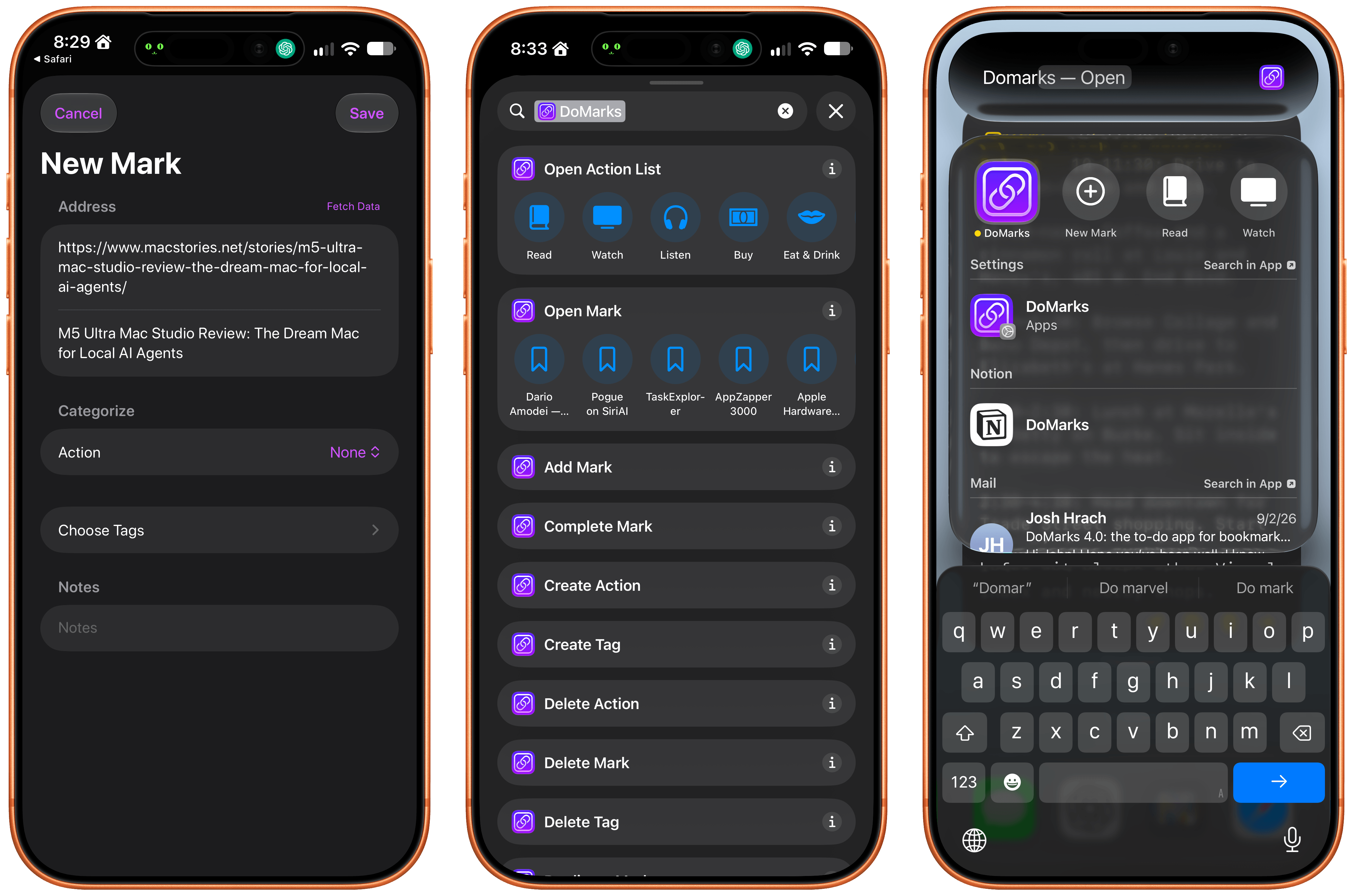
With DoMarks’ Siri AI integration, you can save a webpage from Safari simply by asking Siri to save it to DoMarks. You can also ask Siri to open a link by its name or delete it. DoMarks supports onscreen awareness, allowing you to ask questions about a bookmark, too.

Other actions available via Siri, include keyword searches and opening a bookmark. However my favorite action is “Surprise Me in DoMarks,” which will open one of your saved bookmarks at random in Safari. It’s a great way to rediscover interesting spots on the web that I came across long ago, but didn’t have the time to look at. The app has also added a long list of Shortcuts actions that makes powerful automations possible too.

I’m a link hoarder (shocking, I know), and I’ve always found it hard to know what to do with links for things I want to check out later that aren’t reading material. DoMarks is the perfect way to handle those sorts of links, and now, it’s easier than ever to build your collection of bookmarks with Siri’s help.

Our Favorite Indie Apps for iOS 27, Vol. 1

With our annual OS reviews out of the way, Federico and I will be covering our favorite indie apps that take advantage of Apple’s latest OS features. We have hundreds to draw from and instead of one big sweeping roundup, we’re going to do a bunch of smaller ones as we work our way through our lists.

To start with, we have six excellent apps that make use of Siri AI, Apple Intelligence, extra-large widgets, and more. There’s a lot of innovation packed into this group, so let’s dive into the details, and check back soon for more roundups.

Things

Cultured Code’s beautiful task manager is no stranger to supporting major Apple OS releases: while the company is keeping quiet on their plans for a possible Things 4 (Things 3 was released in May 2017), for the past nine years Things has regularly received support for new versions of iOS, iPadOS, and macOS on day one. The app’s iOS 27 update is no exception, and it makes for a great demo of some of the new features of Siri AI as well as XL widgets for iPhone. It also serves as an example of the limitations of Siri AI – and not because of Cultured Code.

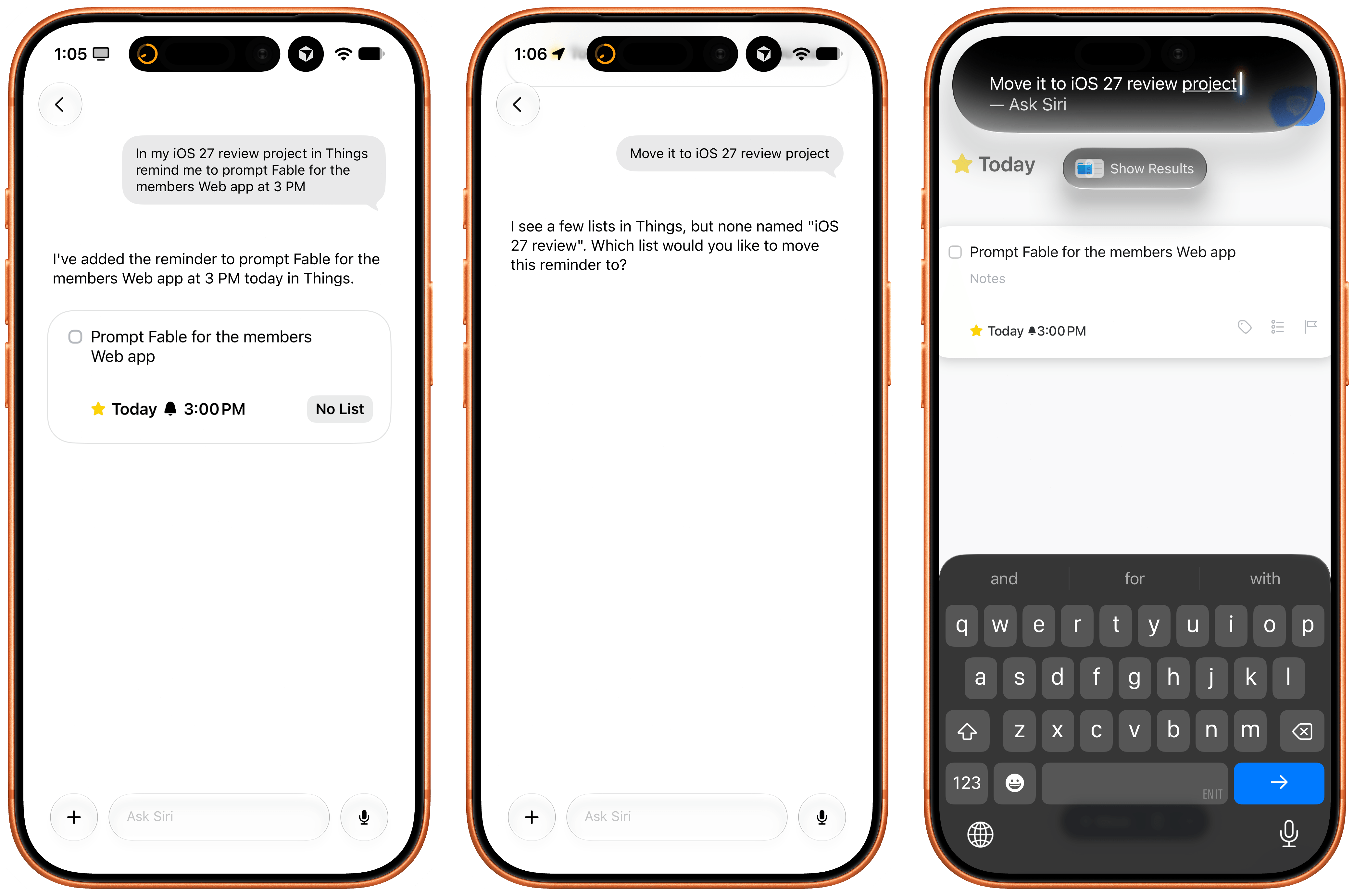
The updated Things app integrates with Siri AI and Spotlight, allowing you to retrieve and open tasks from anywhere on iOS and iPadOS, as well as manage tasks with the assistant using its several input methods. In my tests, Cultured Code’s integration worked well, but Apple’s slow on-device indexing was the problem. Soon after installing the app, I was able to ask Siri to create a reminder, and it prompted me to pick a destination app again because I’d installed a few more task managers since I last confirmed my previous choice. After picking Things, I was able to create a task, which landed in the inbox, and then follow-up with Siri AI by saying “make it due at 3 PM”, and it worked.

The issues I ran into, which are outside of Cultured Code’s control, are due to how long it takes iOS 27 and Siri AI to build an index of the app’s capabilities and data structure. For instance, I created an ‘iOS 27 Review’ list in Things, but, after three hours, Siri AI still can’t find it. As I noted in my review, I believe this is going to be a major challenge for most third-party apps in the short term as users download them, expect them to work with Siri, but the indexing isn’t going quickly enough.

Regardless of Apple’s technical problems, Things’ integration with Siri AI shows the path forward for third-party task managers on iOS. I also recommend reading the developers’ guide on how to prompt Siri AI for the app.

Locally AI

I covered the differences between Apple’s two flavors of local Foundation models (AFM 3 Core and 3 Core Advanced) in yesterday’s review, but there’s no better way to actually take the model for a spin than Locally AI.

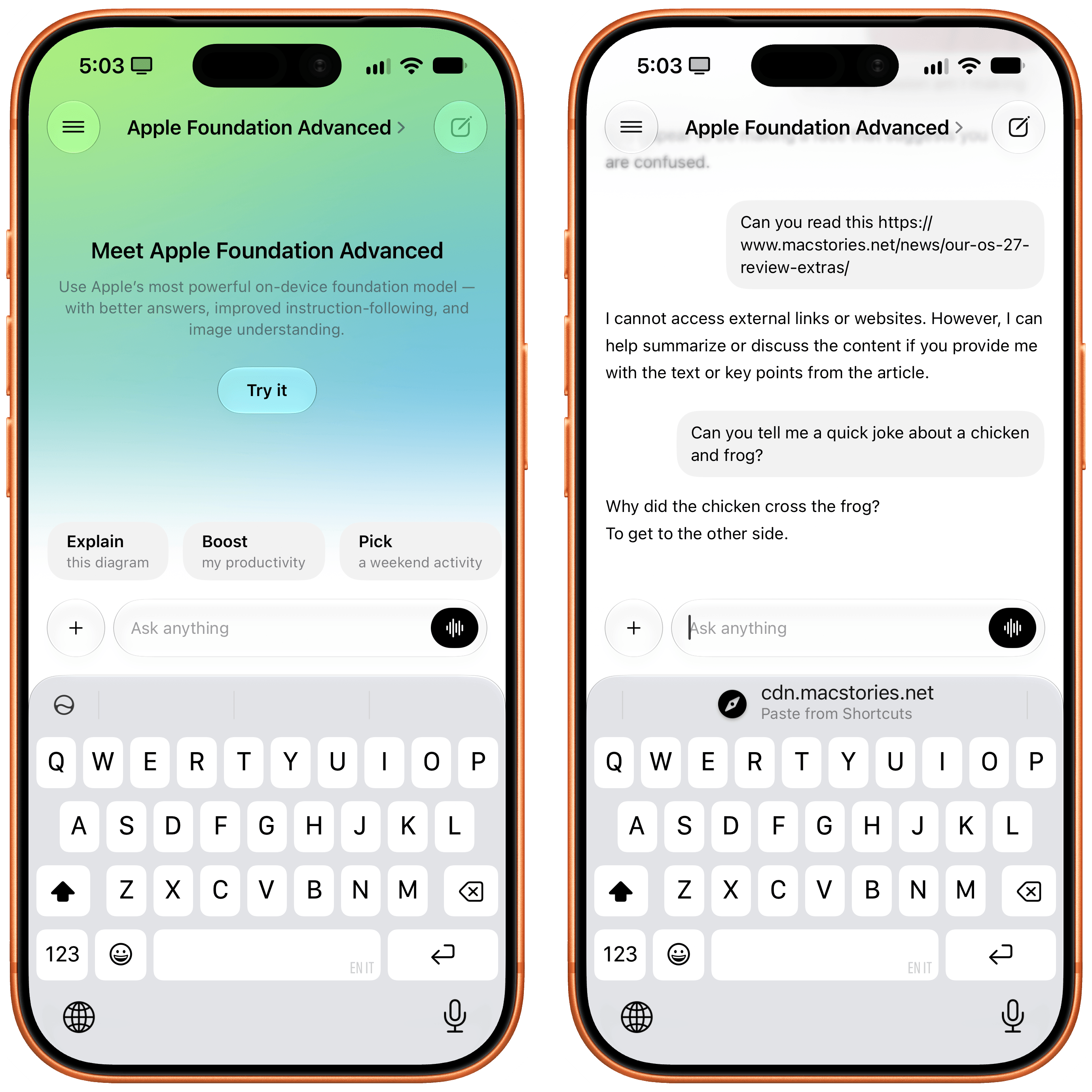
The app, which is now part of the LM Studio family of products and can connect to a remote Mac using LM Link, now offers an ‘Apple Foundation Advanced’ model that, assuming you have a compatible device, lets you prompt Apple’s new on-device model.

A good way to prompt this model is to give it an image: for the first time, a local Foundation model comes with vision capabilities, and I’ve found Core Advanced to be surprisingly strong at describing things like iPhone screenshots, selfies with different facial expressions, and more. Obviously, it comes with limits: Locally AI’s harness doesn’t expose tools to the model, which means it can’t fetch web content and, say, summarize articles for you in the app. Its knowledge and creativity are also quite limited, as you can see from the non-joke it created in the screenshot above.

Still, despite the limitations of the model itself, Locally AI is an excellent utility for running local models on iPhone and iPad, and if you’re curious to see what Apple’s bigger models feels like outside of Siri AI with your own prompts, I recommend checking it out.

Dark Noise

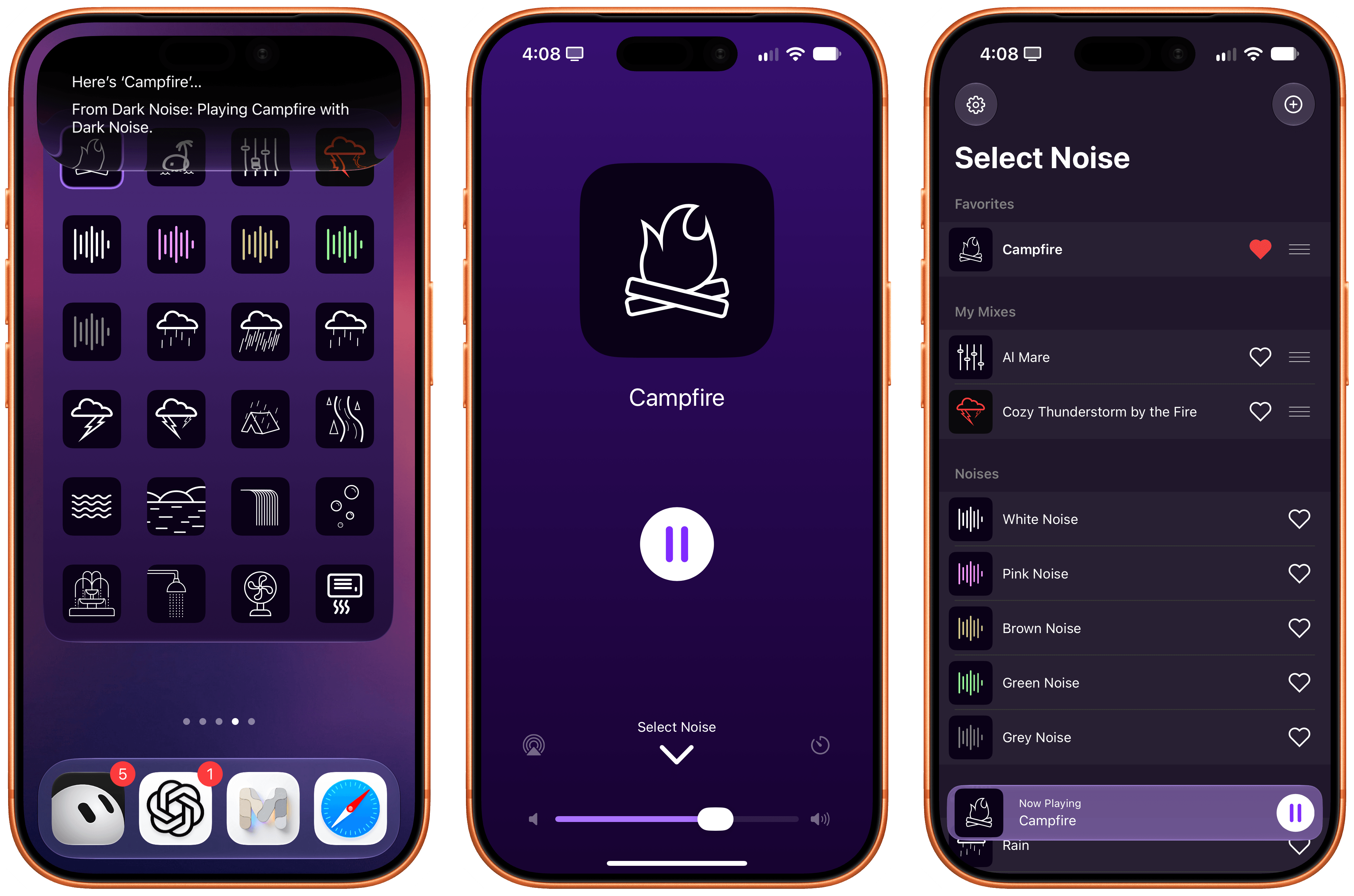
Charlie Chapman’s Dark Noise has long been my favorite utility to play white noise and other sound effects to relax or focus, and the app has received a substantial update for iOS 27 worth checking out.

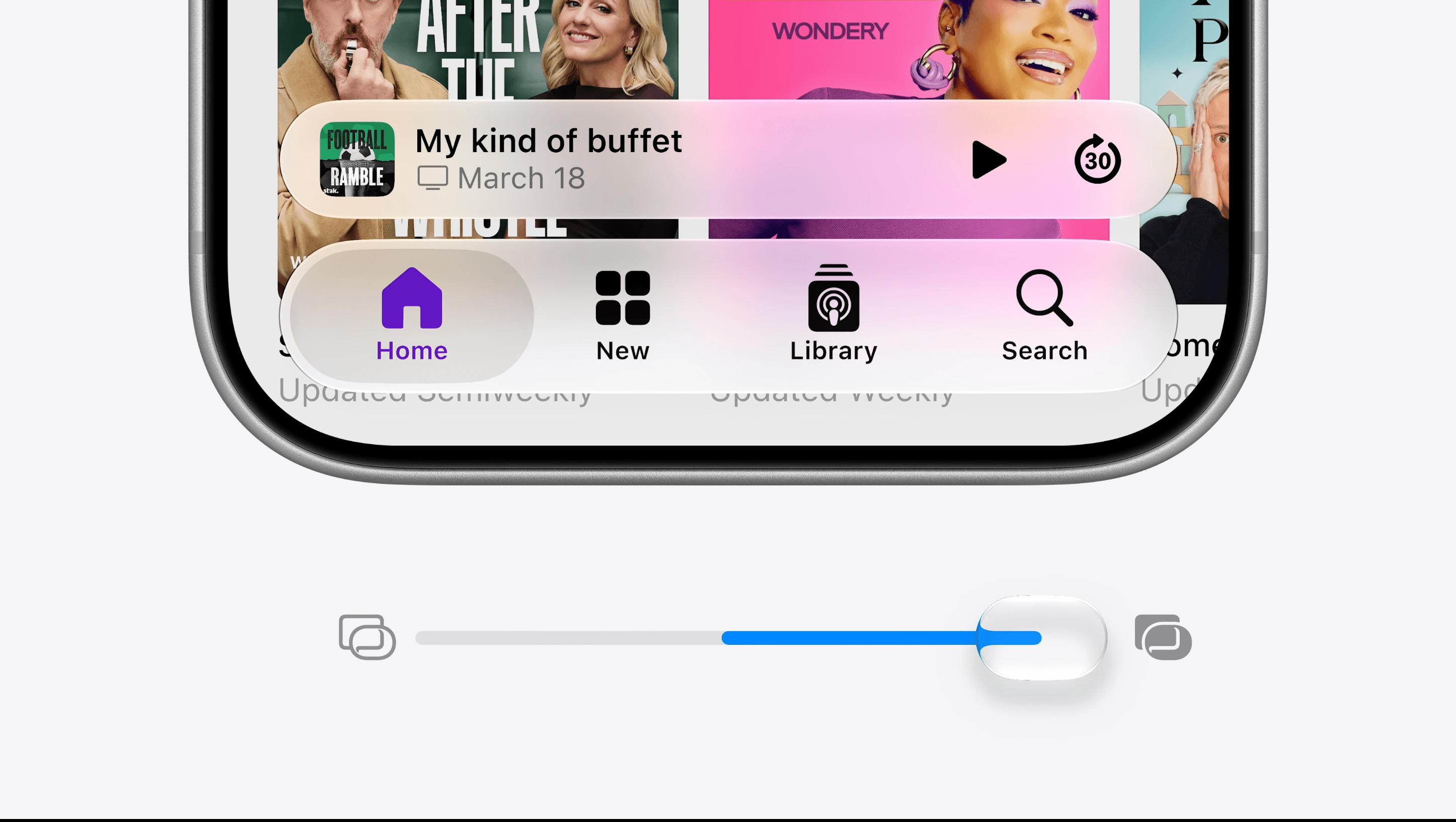
First, there’s a good-looking new Liquid Glass player that fluidly morphs on-screen from a mini-player docked at the bottom of the app into a full-screen view that lets you control playback, volume, and set a sleep timer. On the Home Screen, there’s a (customizable) XL portrait widget for iPhone that lets you configure any combination of up to 24 distinct sounds and mixes that you can play with a single tap without opening the app.

As you can imagine, the app also integrates with Siri AI now. Using Apple’s assistant, you can ask to play specific sounds from the app (make sure to add “…from Dark Noise” to your request) and you can also leverage on-screen awareness inside the app itself. While looking at your list of favorites and mixes, for instance, you can say something like “play the second mix”, and since Chapman has properly annotated the app’s views, Siri AI and Dark Noise will know what you mean.

If you, like me, struggle to get work done with music in the background but also do not appreciate complete silence, I recommend installing Dark Noise and creating a few mixes of your own.

AskPlay

I first covered Francisco Cantu’s AskPlay when it debuted on the Mac earlier this year in the App Radar for Club members, where I wrote:

Created by indie developer Francisco Cantu (a name that should be familiar to longtime MacStories readers!), AskPlay is one of the best new Mac apps I’ve tried in a long time, and we will properly review it on MacStories in the near future. The idea is simple: AskPlay gives you natural language control over Apple Music to play or queue songs. The app, which lives in the menu bar but can also be invoked with a system-wide hotkey, brings up a Spotlight-like floating search box where you can type or say things like, “Queue some ‘90s hip-hop,” or, “Play something like Oasis,” and have an AI carry out the request.

The app can build mixes for a mood or era, start stations, manage the queue (you can ask to move songs up or down), control playback, and add songs to your library or playlists, and it also answers questions such as, “Who sings this?” You can either type your requests or set a voice hotkey that summons the app already listening, pausing your music while you speak. AskPlay is a bring-your-own-key app, so you’ll need an API key from OpenAI, Anthropic, or OpenRouter in addition to an Apple Music subscription (and a subscription to the app itself).

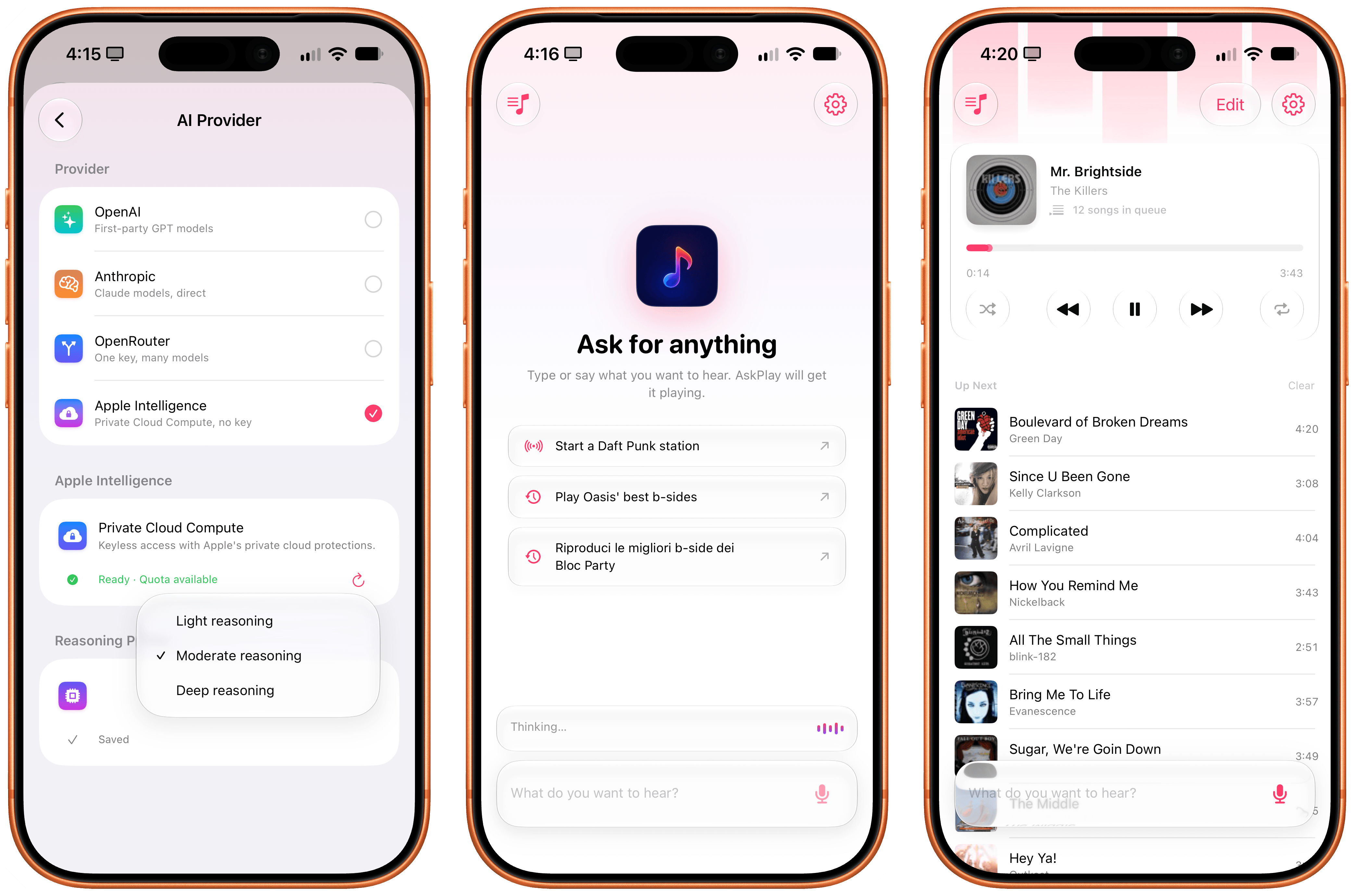
AskPlay is now on iPhone too, and thanks to iOS 27, it’s become one of my favorite showcases of Apple’s Cloud Pro Foundation model running in Private Cloud Compute. Unlike the original version, AskPlay now lets you hand off prompt processing to a reasoning model in the cloud at no cost thanks to Apple’s PCC framework for third-party developers. And not only that, but AskPlay is also the first app I’ve seen that lets you choose between the three reasoning modes supported on PCC: light, moderate, and deep.

In my experience, I’ve had the best results with the PCC model set to “moderate” reasoning. What this means in practice is that with AskPlay for iOS 27, we now have a way to generate Apple Music-based mixes using natural language with a quality that I find superior to Apple Music’s own playlist generation feature.

AskPlay remains one of the best app debuts of the year, and if you want to demo the capabilities of Private Cloud Compute for third-party apps, you should start here.

LookUp 13

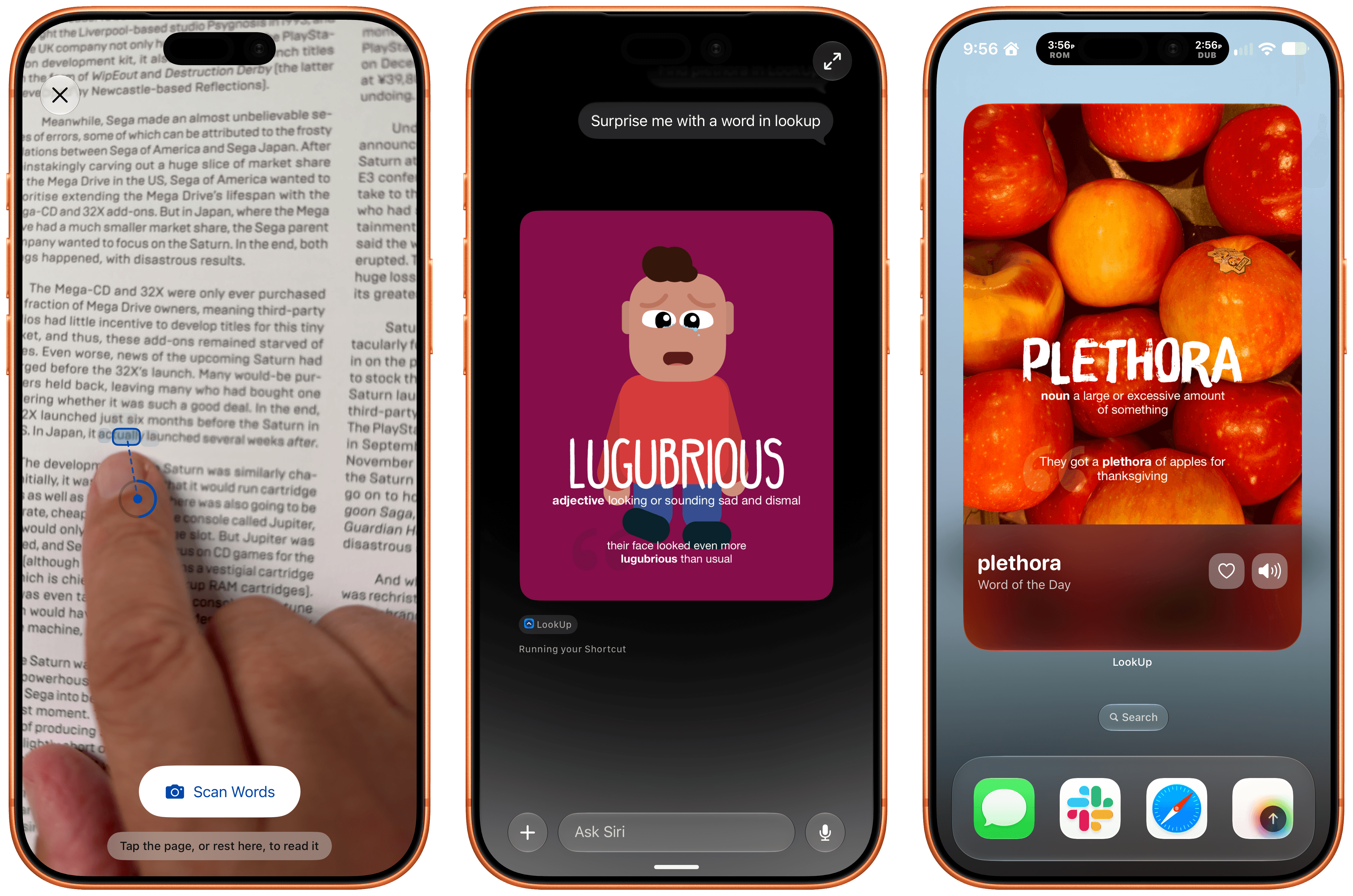
LookUp 13 from Vidit Bhargava has been released with a wide variety of features that make use of iOS and iPadOS 27. The app, which is available on the iPhone, iPad, Mac, Apple Watch, and Vision Pro, makes great use of Siri AI, allowing you to quickly ask Siri things like “Search the word plethora in LookUp,” which opens the app right to that word. Siri can also be used to find LookUp’s word of the day or a random word.

LookUp 13.

LookUp 13.

Beyond Siri, Vidit has added support for Apple Intelligence in the notes that can be tied to a word and combined Apple’s Foundation Models with the Vision framework and hand-pose tracking to let you scan a printed page for a word. Point at a word and the app’s scan mode uses your device’s camera to see which word you’re pointing at. It took a little practice to figure out the right distance from the camera to the page, but once I got that down, it felt like magic. The same feature can pick out other nearby words that might be difficult for the reader, too.

LookUp 13 also offers a Reading Mode that looks up words you speak as you read. The feature uses a Live Activity that listens to you speak, and returns a definition. Initially I ran into some trouble with Reading Mode, but when I tried again later, it worked every time. Also included in the latest release are interactive flash cards that ask for word definitions that are graded by Private Cloud Compute and new extra-large widgets for the word of the day and a shuffled word of the day.

LookUp is an excellent app. I love how Vidit continues to push the boundaries of Apple’s technologies every year, and while I hit a few rough spots in testing, which struck me as issues with Siri AI, not LookUp, I’m impressed by how much depth LookUp’s new Apple Intelligence features add to the app.

Play

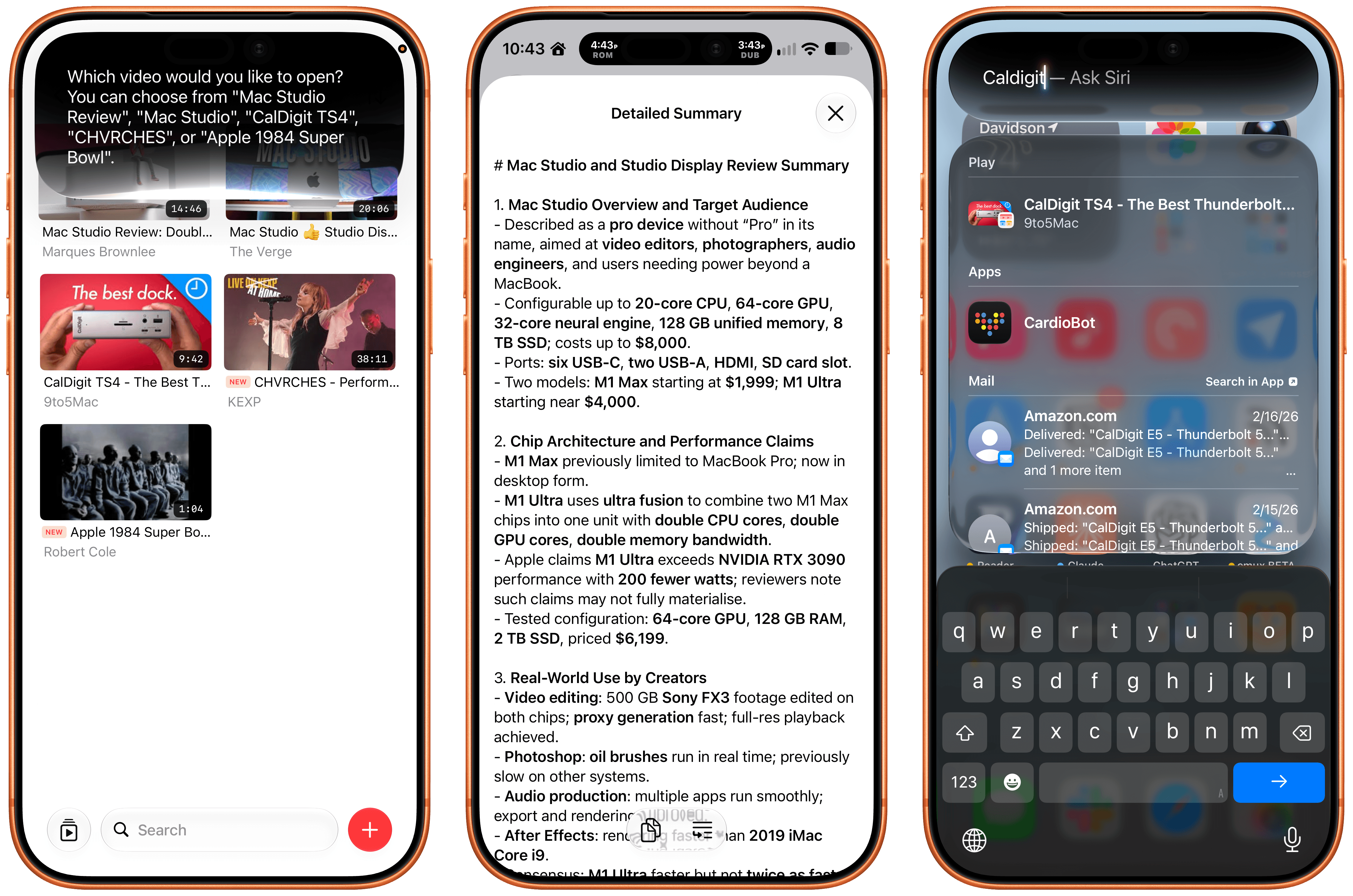
The latest update to Play, the watch-it-later app from Marcos Tanaka that works on the iPhone, iPad, Mac, Vision Pro, and Apple TV, includes a bunch of great touches. There’s a new Channels Inbox for navigating saved videos by source. Play has also added Siri AI support allowing you to search for and open videos. Onscreen content is made available to Siri, so you can do things like ask it to remind you to finish a video later, and it knows what you mean. In my testing, all three features work well.

Also, on an individual video’s detail view, you can use Apple Intelligence to create a summary of a video. There are options ranging from a concise summary to a simple explanation. I ran into a roadblock when I tried to create a summary of a fifteen-year-old YouTube video, but more recent videos all worked well. Apple Intelligence can also suggest tags and icons for videos and lets you ask questions, with the answers drawn from the video’s transcript.

Beyond Siri AI and Apple Intelligence, Play adds an extra large widget, a refreshed Liquid Glass design that I love, and Spotlight search. It’s a fantastic update to my favorite way to save videos for later.


Our OS 27 Review Extras: eBooks, Shortcuts, and the Making of the iOS and iPadOS 27 Review

Today we published not one, but three reviews covering four OSes:

The reviews cover design, new app features and more, which kicks off a big week here at MacStories that includes extra special perks for Club MacStories members. Here’s what we have planned.

For Club MacStories members, we’ve got some exciting perks to help you get more out of the reviews:

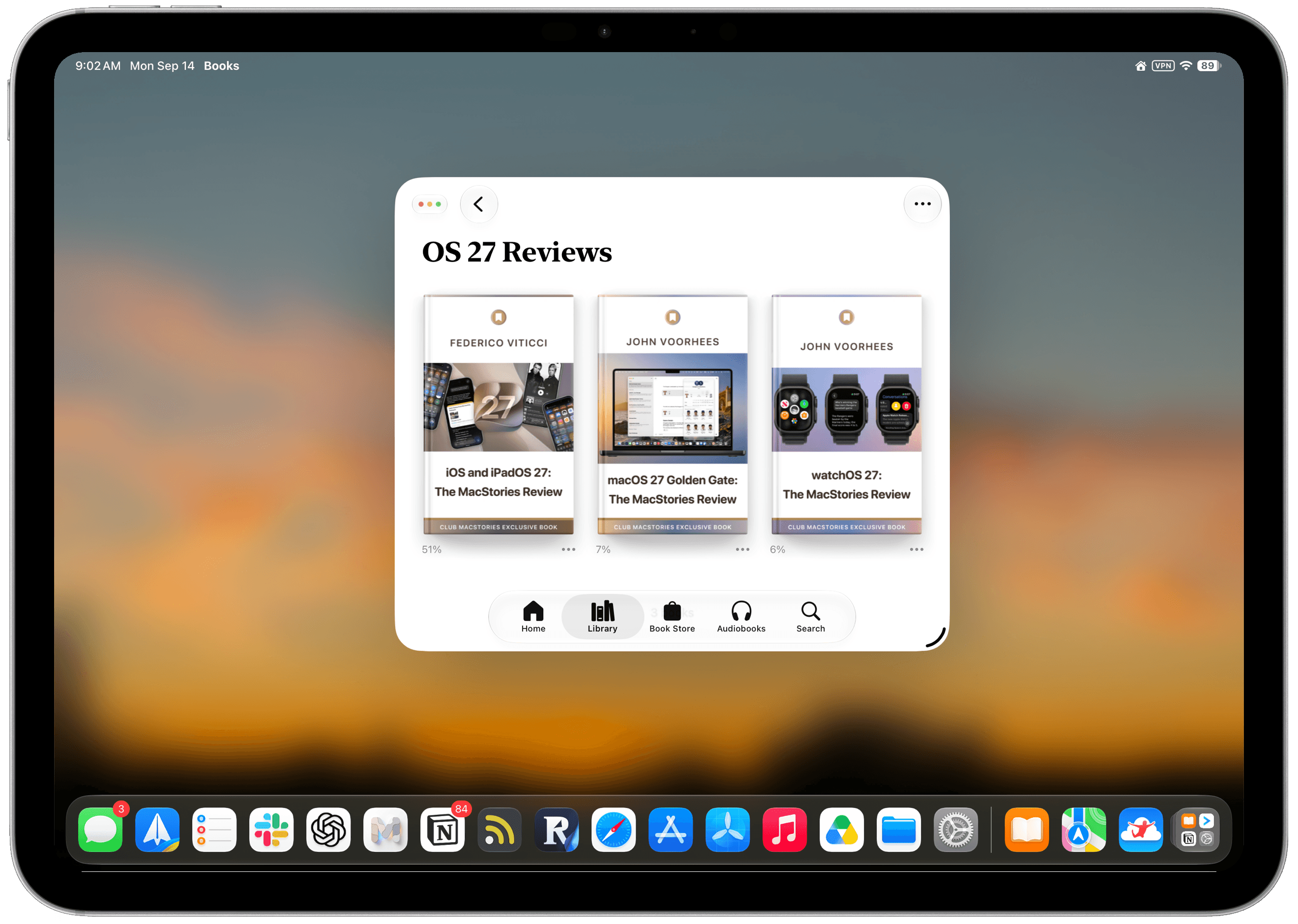
  • An eBook edition of Federico’s iOS and iPadOS 27: The MacStories Review that you can download and read on your favorite device or app
  • 20 additional ready-made shortcuts for iOS 27
  • An eBook edition of John’s macOS 27 Golden Gate review
  • An eBook edition of John’s watchOS 27 review.

If you’re not already a member, you can join Club MacStories for $5/month or $50/year using the buttons below:

Read more


iOS and iPadOS 27: The MacStories Review

After years of relentless building, it’s good to see Apple sweat the details again.

In the 11 years I’ve been writing annual iOS and iPadOS reviews every summer, I don’t think I’ve ever struggled to find an “angle” for my story as much as I did this year. The reason was twofold: I wasn’t particularly enamored with Siri AI and Apple’s belated chatbot efforts; and, as I realized during the summer, it can be challenging to write about an OS update that is largely focused on performance improvements and refinements.

“Everyone wants a so-called Snow Leopard year until it actually happens,” I thought to myself on several occasions over the past few months. Think about it: on paper, we all love a good ol’ basket of bug fixes that just make our phones better without changing much about the overall design and experience of iOS. It’s a commendable effort, and there’s no denying that iOS 27 is the snappiest (insert meme here), most stable version of iOS I’ve ever tested – and it has been since the first developer beta. In practice, though, it turns out that considering a major iOS update merely through the lens of improvements and fixes can be…a little boring.

So I’ve been sitting on this review for a while. I let it simmer. Then, a month ago, as I was sunbathing with my girlfriend Silvia down south in beautiful Vieste, Puglia, it hit me: iOS 27 is a geographically ambiguous update. Stay with me here. Depending on where you are in the world, this update can either be a little boring or pretty exciting.

Read more


Apple’s Surprise and Shine Event: All the Small Things

Source: Apple.

Source: Apple.

An Apple event can only cover so much. Some of the most useful details turn up in the product pages, technical specifications, footnotes, and summary slides after the presentation ends. We’ve collected our favorite smaller changes from yesterday’s Surprise and Shine event below:

iPhone Duo

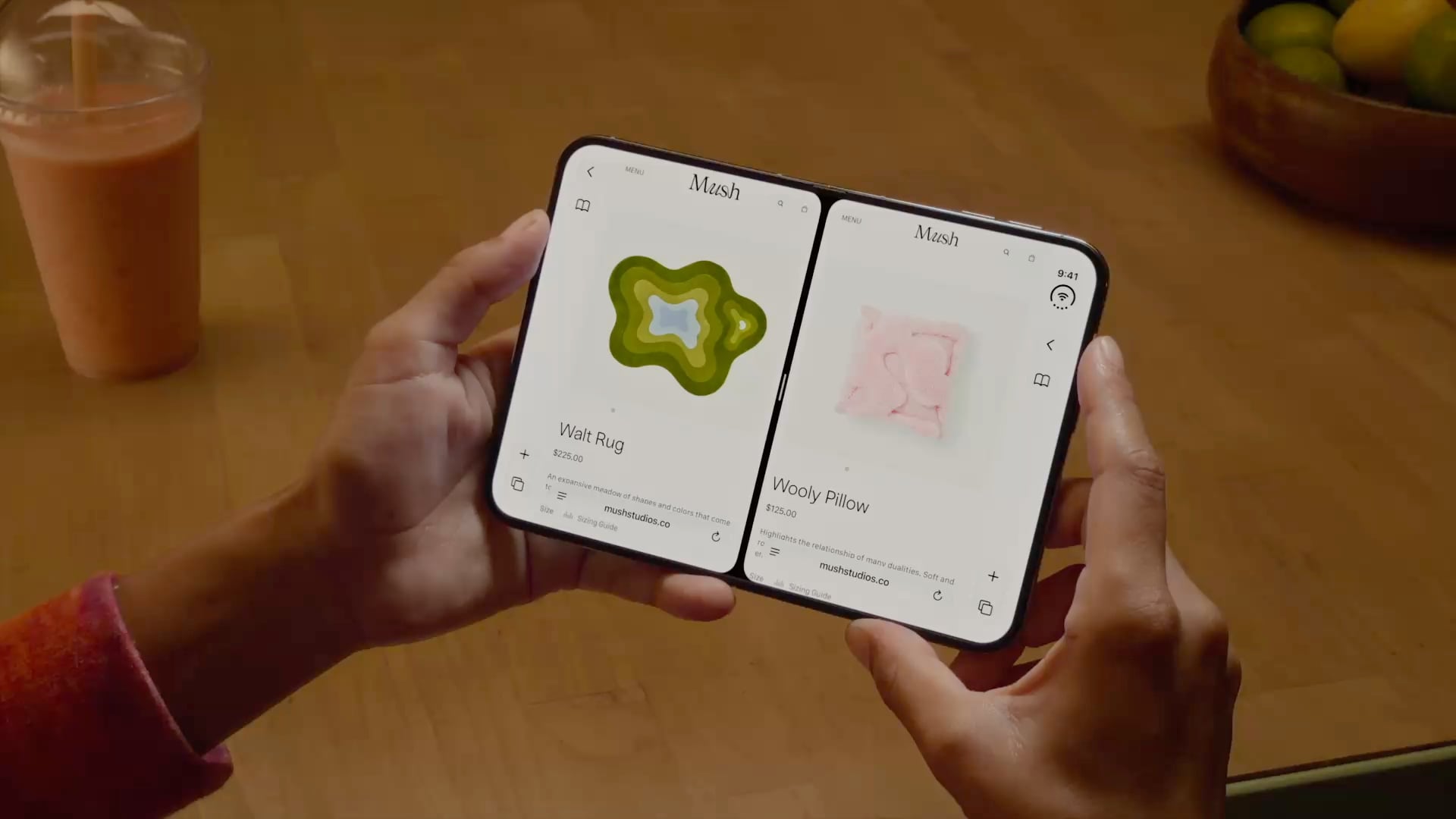
  • In the hands-on area after Apple’s event, Ben Bajarin reported that the Duo’s hinge crease is barely noticeable, except at specific angles.
  • David Imel was impressed by the matte finish on the Duo.
  • iJustine has an excellent video showing off multitasking using both the outer and inner screen of the Duo.
  • Apple has released a six-video playlist on YouTube and in the Apple Developer app called “Get ready for iPhone Duo” to help get designers up to speed with the phone’s new format. The Human Interface Guidelines have been updated too.
  • The vertical strip along the side of the Duo uses App Control icons for what would be tab bars and nav bars on other devices.
  • For developers, Apple has released five tech talk videos in the Apple Developer app, including “Raise the bar with iPhone Duo.” Additional materials, workshops, and the Xcode 27.1 beta are coming later this month.
  • Continuous Angle API lets developers receive ongoing updates about the Duo’s hinge angle to power interactive effects.
  • Developers who don’t update for the iPhone Duo may have their apps letterboxed.

iPhone 18 Pro and Pro Max

Apple Watch Series 12 and Ultra 4

  • Apple published a study that compares its new Apple Watch Series 12 to other wearables, and the results are impressive.
  • Your Readiness score changes during the day, adjusting based on workouts and changes in your daytime vitals.
  • Audio Intelligence requires more than just a new Apple Watch. Features like Live Rewind and Siri Recap won’t work with the iPhone 16e or iPhone 15 Pro models even though those iPhones support Apple Intelligence.
  • Unsaved Siri Recaps are automatically deleted after seven days, and unless saved, Live Rewind transcripts disappear around 30 seconds after your Watch’s screen dims. Siri Recaps can be edited and exported to other apps like Notes.

You can follow all of our September 2026 Apple event coverage through our September 2026 Apple Event hub or subscribe to the dedicated September 2026 Apple event RSS feed.


Lock Launcher Introduces “No Redirect” Launchers, XL Widgets for iOS 27

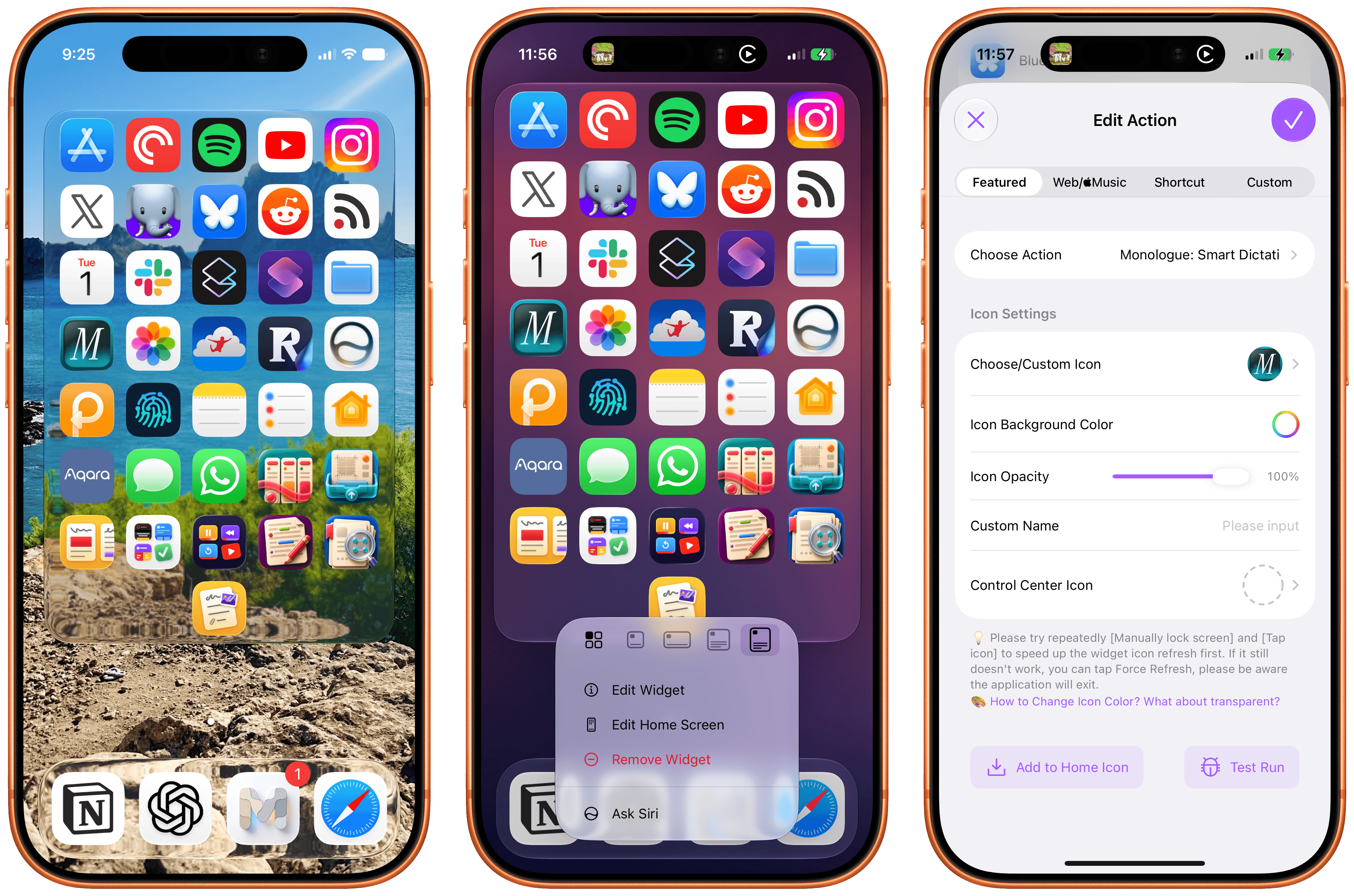
My Home Screen setup with Liquid Glass widgets powered by Lock Launcher.

My Home Screen setup with Liquid Glass widgets powered by Lock Launcher.

I don’t think I ever mentioned it on MacStories (although I probably did at some point on AppStories or Unwind), but my favorite “launcher” app for iOS is a utility called Lock Launcher, which I’ve been using on and off for the last couple of years. Lock Launcher started as an app for adding URL schemes to the Lock Screen a few years back, and it gradually evolved into a comprehensive “widget studio” app to design launcher widgets of all kinds for the Home Screen, Lock Screen, Dynamic Island, Live Activities, and more.

Anyway, I’m covering the app on the site today because it was updated with two features that I didn’t think were possible or allowed on the App Store, and I want to highlight them for our readers. I’m not really sure how the developers were able to add these features to the app; you may want to download it from the App Store quickly, just in case.

For starters, Lock Launcher now lets you create launcher shortcuts that open apps directly and immediately, rather than redirecting you to the Lock Launcher app first.

For years now, launcher apps on the iPhone have had to employ this workaround: you’d tap on a shortcut that opened, say, Ivory, but you would see the launcher app flash onscreen briefly before redirecting you to the actual destination app you selected. Somehow, Lock Launcher is now circumventing this limitation with a ‘Direct Open’ mode that I haven’t seen in other launcher apps for iOS. That sequence of widget, host app, and destination app was, ultimately, the reason why I always stopped using third-party launcher apps, and I love that it’s been removed by Lock Launcher.

Launching apps without redirects via Lock Launcher.Replay

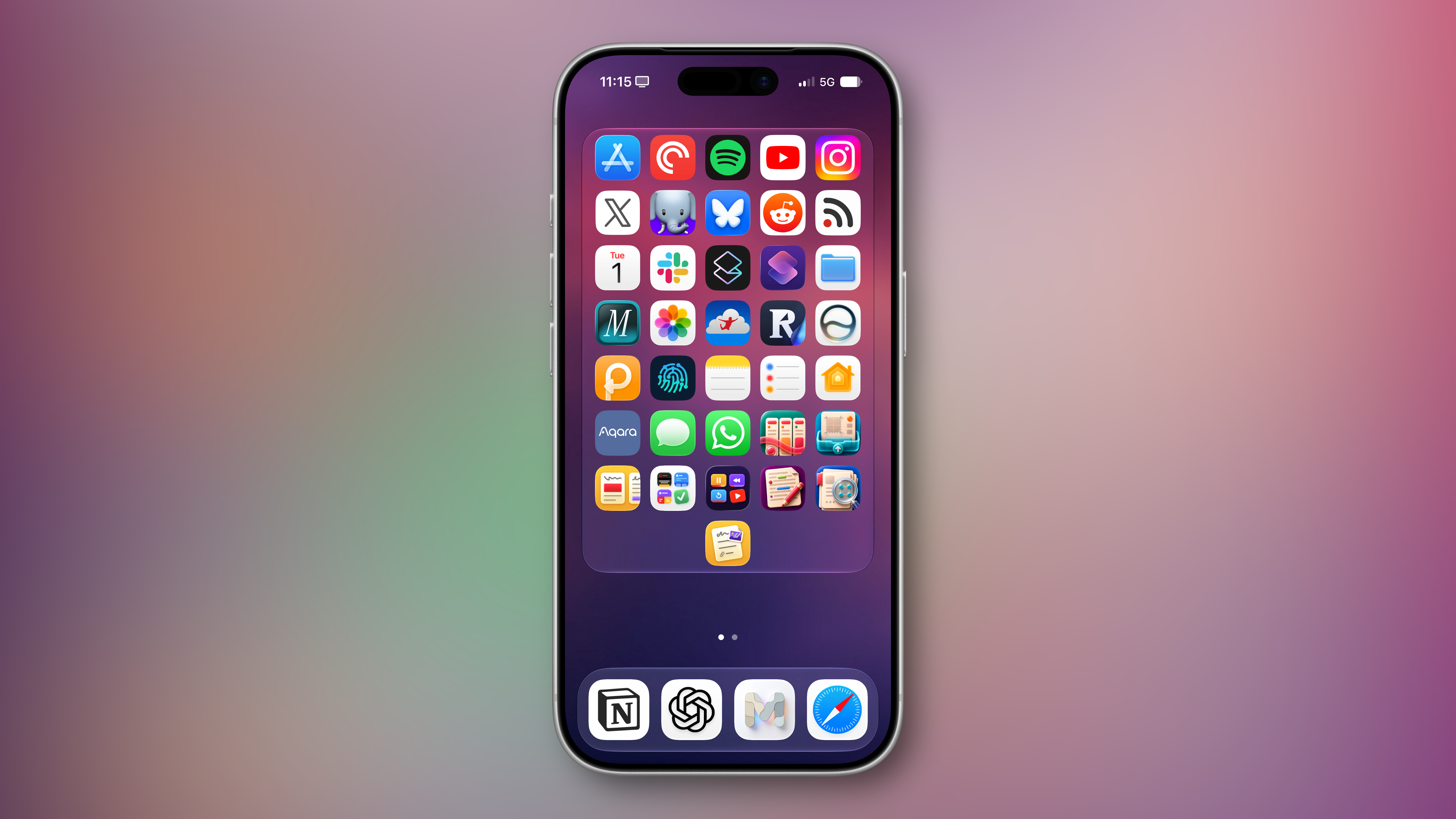
At long last, I’ve been able to create a dense Home Screen with 40 icons (36 in the widget plus 4 in the dock), and they all launch directly when tapped.

My new Home Screen powered by Lock Launcher.

My new Home Screen powered by Lock Launcher.

The screenshot above brings me to the second feature added in the version of Lock Launcher currently available on the App Store: XL widgets on iPhone in iOS 27.

Now, as far as I know, if an app wants to adopt an API exclusive to a future version of iOS, it typically needs to be built against that version’s SDK using the corresponding Xcode beta. However, the App Store isn’t currently accepting apps built with the iOS 27 SDK. And yet, the Lock Launcher developers must have figured out a way to support the new systemExtraLargePortrait widget size and make it work on devices running iOS 27 even though the app was built with the iOS 26 SDK. My best guess: they’re using a workaround that involves visionOS 26 APIs, since the Vision Pro received support for that family of widgets last year. (I’d love to know more about this.)

These two features, combined with the ability to apply the Liquid Glass material to widgets for beautiful refractions of the system wallpaper, make Lock Launcher the most powerful and customizable launcher utility on iOS to date. I hope writing about it doesn’t get the developers in trouble.

Lock Launcher is available for free on the App Store, with advanced features available through an optional Pro in-app purchase.


Siri AI and Apple’s Trickle-Up Strategy

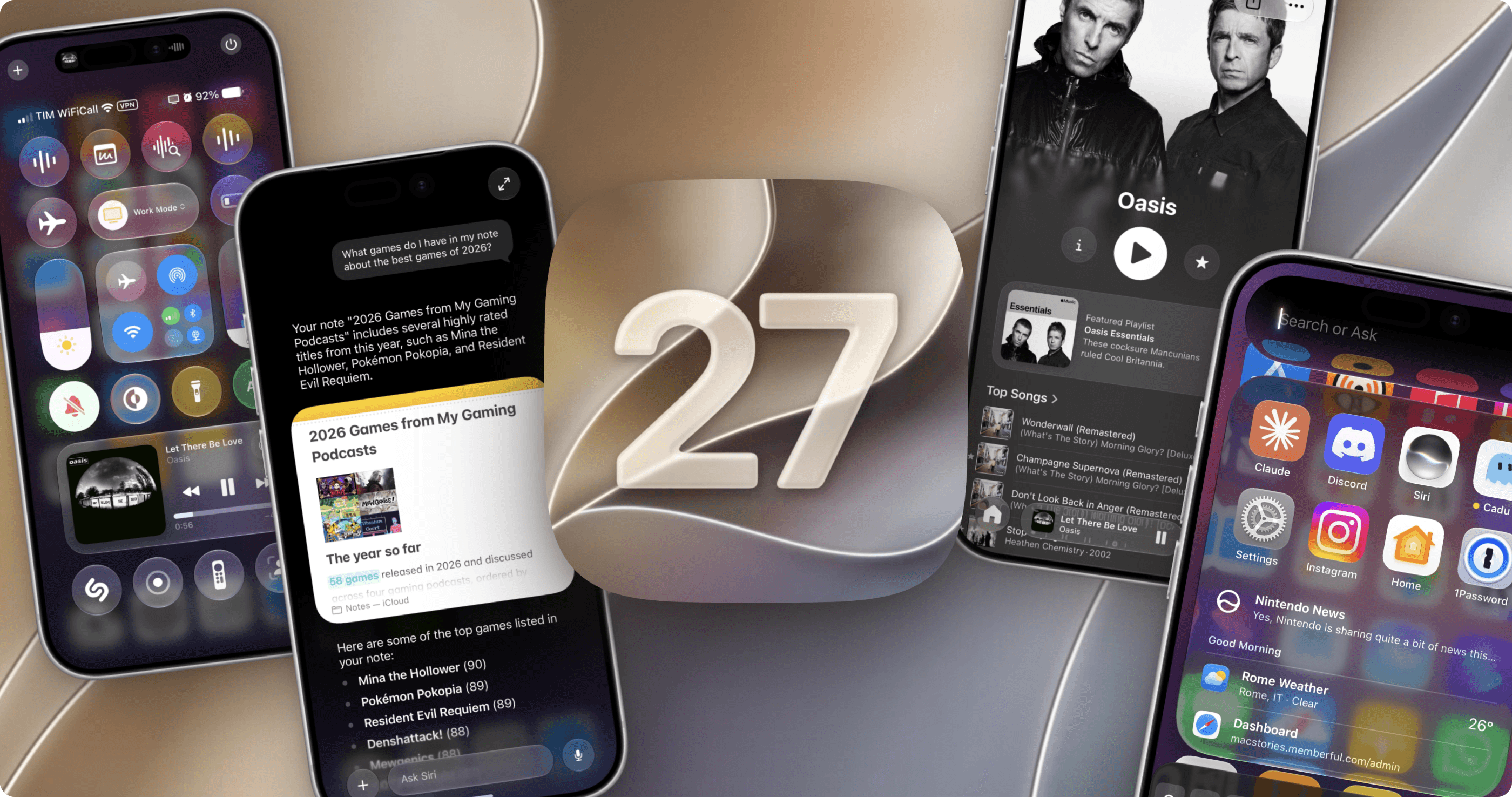
The new Siri AI in iOS 27.

The new Siri AI in iOS 27.

In the month that I’ve been using iOS 27 (launching in public beta today) and the new Siri AI, I’ve come to a few conclusions: Siri AI is a much better Siri and will (probably) be a massive success; the newfound chatbot capabilities of Siri will pose a serious threat to OpenAI and the vast majority of free ChatGPT users they have; and the new Siri is (again, probably) not for me at the moment. At the very least, it can’t be right now given its lack of support for third-party apps and technical issues I’ve encountered during beta testing.

It took me a while to accept the fact that Siri AI can’t be the kind of AI assistant I’d spend hours working with every day. But after testing iOS 27’s new Siri experience every day (and breaking it often in the process), I think that’s okay – and, arguably, what Apple is shooting for at the moment.

The new Siri AI is not designed for people who have grown accustomed to working with frontier models and agents such as Claude Code and Codex. The first version of Siri AI can’t be considered an “agent”, nor can it be compared to products from Anthropic, OpenAI, or Google that are targeting power users living at the bleeding edge of AI. If you go into Siri AI thinking that it’s Apple’s answer to ChatGPT Work or Claude Cowork for long-running tasks or deep research queries, you’re going to be disappointed – like I initially was.

Instead, Siri AI carries all the typical traits of a new Apple product: it’s a user-friendly experience designed for the masses, without any of the complexities that define a power-user tool, for better or worse. This is how Apple rolls: they don’t start from a high power-user ceiling and let products trickle down to consumers; they always start from the consumer level and refine, iterate, and extend until products trickle up to power users. This perspective isn’t meant to excuse the (many) current flaws of Siri AI. (More on them below.) It’s just the necessary lens for understanding how Apple is addressing their AI shortcomings in a way that doesn’t betray the company’s soul and design ethos.

There will be plenty more to say about iOS 27, the improved Shortcuts app, Liquid Glass tweaks, and other system enhancements later this year. After all, I have a review to write. Today’s column is merely an opportunity for me to reason through the obstacles I’ve faced with Siri AI and the way I’ve had to re-learn how to think about Siri.

Read more


Apple Improves Screen Time for Parents, but There’s Room to Grow→

One of Apple’s tentpole features at WWDC was a ground-up makeover to Screen Time that’s designed to give parents more granular and reliable control over their kids’ device use. I got a demo of the changes while I was at Apple Park, and they’re extensive. That’s good because Screen Time has been broken in a variety of ways for a while and isn’t very flexible.

My first impressions of the changes have been positive, but it’s worth noting that I don’t use Screen Time myself and my kids are grown. Screen Time wasn’t even available when it would have been useful to my family.

However, I do remember well the days when my kids were little, and so I sympathize with Patrick Klepek who wants more. Klepek gives Apple credit for improvements in Screen Time’s UI, but wants more:

But to crystalize my requests to Apple for the future:
- A dedicated Screen Time app
- The ability to invoke Siri or other shortcut-like features to lock devices
- Granular control over extending screen time to accommodate specific requests

I’d add another request that one of the journalists made during our demo that made a lot of sense. Like me, he has three kids and wondered if he could set up a baseline set of Screen Time rules and then copy them to his other kids, making age-appropriate tweaks for each kid. Apple said that isn’t currently possible, but it’s the sort of practical, reality-based suggestion that the company should prioritize. Being a parent means a lot of things, but it shouldn’t mean being an IT manager too. For tools like Screen Time to be adopted, they need to be easy, flexible, and powerful. That’s a tough combination, but I hope it’s been made a priority internally at Apple that will result in ongoing improvements to Screen Time during this OS cycle and beyond.

Permalink

iOS and iPadOS 27: The MacStories Overview

Source: Apple.

Source: Apple.

During today’s WWDC keynote, Apple unveiled updates across its family of OSes. The keynote itself was very different in structure from previous years, with a lot of the focus on Siri and Apple Intelligence, which, for the most part, are fully cross-platform. (For more on those announcements, check out Devon’s coverage.)

Nevertheless, there were plenty of new features announced for iOS and iPadOS, along with a slew of child safety tools. Let’s take a look.

Read more