This Week's Sponsor:

Turbulence Forecast

Know before you go. Get detailed turbulence forecasts for your exact route, now available 5 days in advance.


Posts tagged with "iOS"

Apple Clarifies Ability to ‘Set Default’ Audio Apps in iOS 14.5

Earlier today, Apple provided TechCrunch with a fascinating clarification regarding the ability in iOS and iPadOS 14.5 to pick “default” audio apps for music, podcast, and audiobook playback.

From Sarah Perez’s article:

Apple has clarified that the iOS 14.5 beta is not actually allowing users to select a new default music service, as has been reported. Following the beta’s release back in February, a number of beta testers noticed that Siri would now ask what music service they would like to use when they asked Siri to play music. But Apple doesn’t consider this feature the equivalent to “setting a default” — an option it more recently began to allow for email and browser apps.

Instead, the feature is Siri intelligence-based, meaning it can improve and even change over time as Siri learns to better understand your listening habits.

For example, if you tell Siri to play a song, album or artist, it may ask you which service you want to use to listen to this sort of content. However, your response to Siri is not making that particular service your “default,” Apple says. In fact, Siri may ask you again at some point — a request that could confuse users if they thought their preferences had already been set.

On the surface, it appears as if Apple’s argument boils down to semantics. Because iOS 14.5 will not offer a proper page in Settings to configure “default” audio apps (like you can for browsers and email clients, as I argued on yesterday’s episode of Connected), then it’s not correct to say you’ll be able to change the default music app on your iPhone or iPad. We could debate why Apple is not building a page in Settings for this but still allowing Siri to integrate with third-party streaming services and apps (competitive advantages vs. antitrust concerns?), but that’s besides the point. What I find more interesting is that Apple explains this feature is actually doing more than just sticking to a default option:

The audio choice feature, of course, doesn’t prevent users from requesting a particular service by name, even if it’s not their usual preference.

For instance, you can still say something like “play smooth jazz radio on Pandora” to launch that app instead. However, if you continued to request Pandora by name for music requests — even though you had initially specified Apple Music or Spotify or some other service when Siri had first prompted you — then the next time you asked Siri to play music without specifically a service, the assistant may ask you again to choose a service.

From this perspective, given the dynamic nature of this functionality, I understand why Apple may be uncomfortable comparing it to the ability to switch default browser and email apps. At the same time, I want to mention how I’ve been using iOS 14.5 for the past month, and after an initial configuration, Siri continued to default to Spotify and never prompted me to pick another one again. I’m giving Apple’s explanation the benefit of the doubt, but I’m curious to see how this feature will work in the final release of iOS 14.5.

Permalink

Apple Frames, Now with Support for the 2020 iPad Air

Silvia's iPad Air Home Screen. Wallpaper via [Club MacStories](https://staging.macstories.net/club/).

Silvia’s iPad Air Home Screen. Wallpaper via Club MacStories.

In the last update to Apple Frames – my shortcut to put screenshots captured on iPhone, iPad, and Apple Watch inside physical device frames – from December, I added support for the iPhone 12 mini and iPhone 12 Pro Max. Since the introduction of revamped widgets in iOS 14, Apple Frames is the only shortcut I’ve configured as a small, standalone Shortcuts widget on the first page of my Home Screen: I use it dozens of times every single day, and I can’t even begin to imagine the amount of time its image-based automation has saved me over the years.

Read more


Maps Adds Accident, Hazard, and Speed Check Reporting Using the iPhone, CarPlay, and Siri to the iOS 14.5 Beta

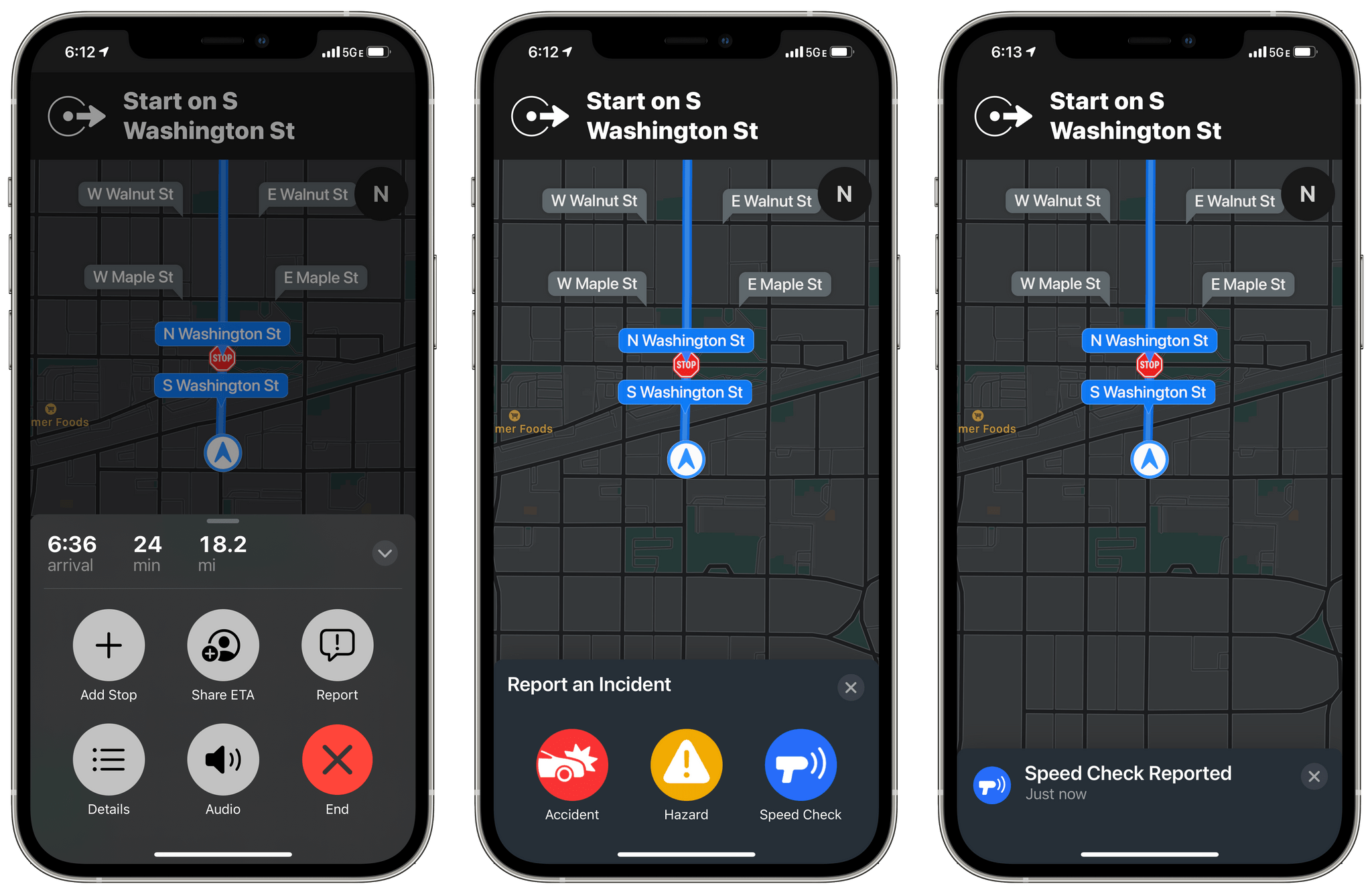
Apple has rolled out another new feature to iOS 14.5 beta testers in the US: accident, hazard, and speed check reporting in Maps.

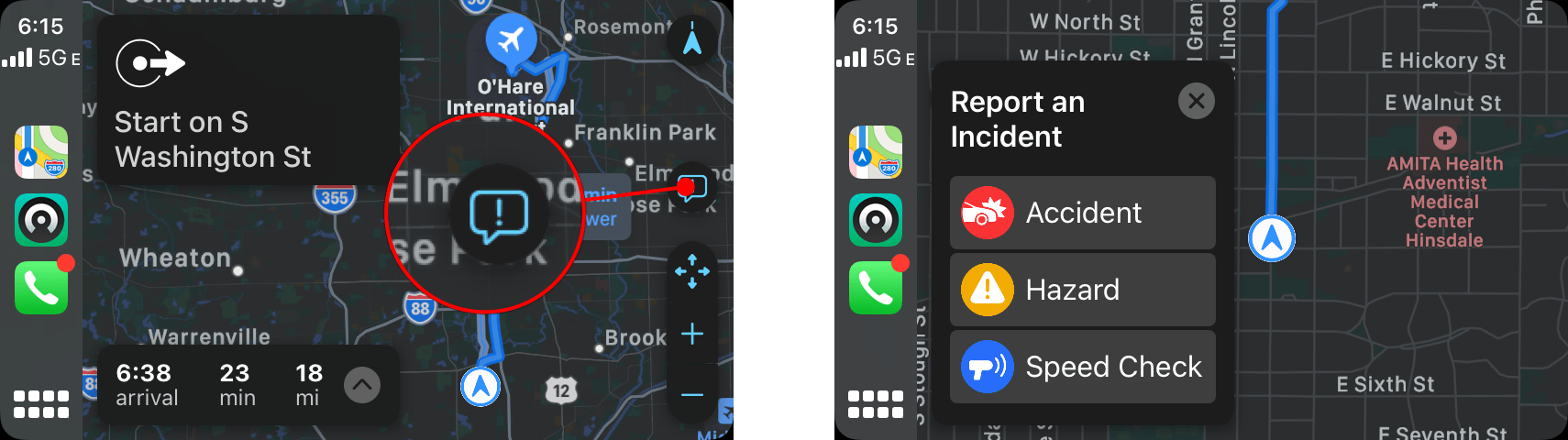
The new feature, which appeared today, is available once you begin navigating to a destination using Maps on your iPhone or via CarPlay. After you tap the ‘Go’ button, you can tap or swipe up from the bottom of the Maps app on your iPhone or tap the new ‘Report’ button on the right side of the CarPlay UI to reveal options to report traffic accidents, road hazards, or speed checks. All three alerts can be reported and cleared using Siri too.

Submitting a report using CarPlay

Submitting a report using CarPlay

I did some preliminary testing of the feature using Maps with my iPhone, CarPlay, and Siri, and it worked well without any issues. My one quibble is with the placement of the Report button in CarPlay. It’s quite small and on the far side of the screen from the driver. You can use Siri to send a report instead, but I expected the Report button to be revealed when I tapped on the strip along the bottom of CarPlay’s Maps view that lists information like the estimated arrival time at your destination.

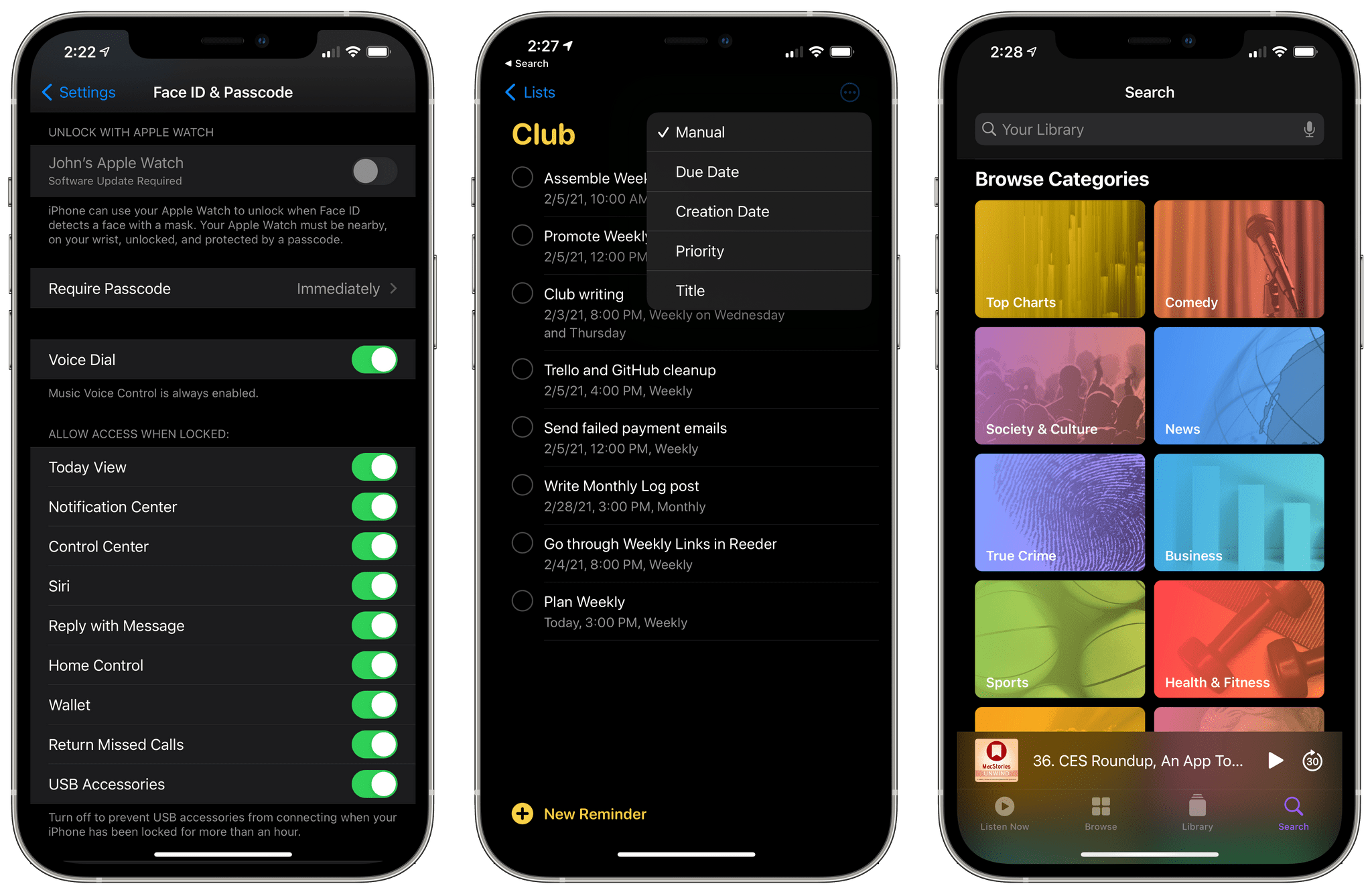
It will probably be a while before enough people are using iOS 14.5 for accident, hazard, and speed check alerts to begin popping up as I drive somewhere. However, there are enough other big features coming in 14.5, like the Face ID plus Apple Watch iPhone unlocking when you’re wearing a face mask, that I expect we’ll begin to see notifications pop up in Maps once iOS 14.5 is officially released.


Apple Releases Betas with Face ID Plus Apple Watch iPhone Unlocking, App Tracking Transparency, and Other New Features

Betas of iOS, iPadOS, tvOS, and watchOS are out today with some interesting features. Last week on World Privacy Day, Apple announced that App Tracking Transparency is coming in the spring, so it’s no surprise that iOS and iPadOS 14.5 include the feature. However, there are several other features coming in the next round of OS releases, as summarized by Rene Ritchie in this tweet:

https://twitter.com/reneritchie/status/1356309325820665857?s=20

Read more


Apple Releases OS Updates with Better Music Hand Off for HomePod mini, Improvements to QR Code Scanning and Bluetooth Settings, the Unity Watch Face, and More

Today, Apple released iOS and iPadOS 14.4, HomePod 14.4, watchOS 7.3, which introduce a limited collection of new features along with the usual bug fixes.

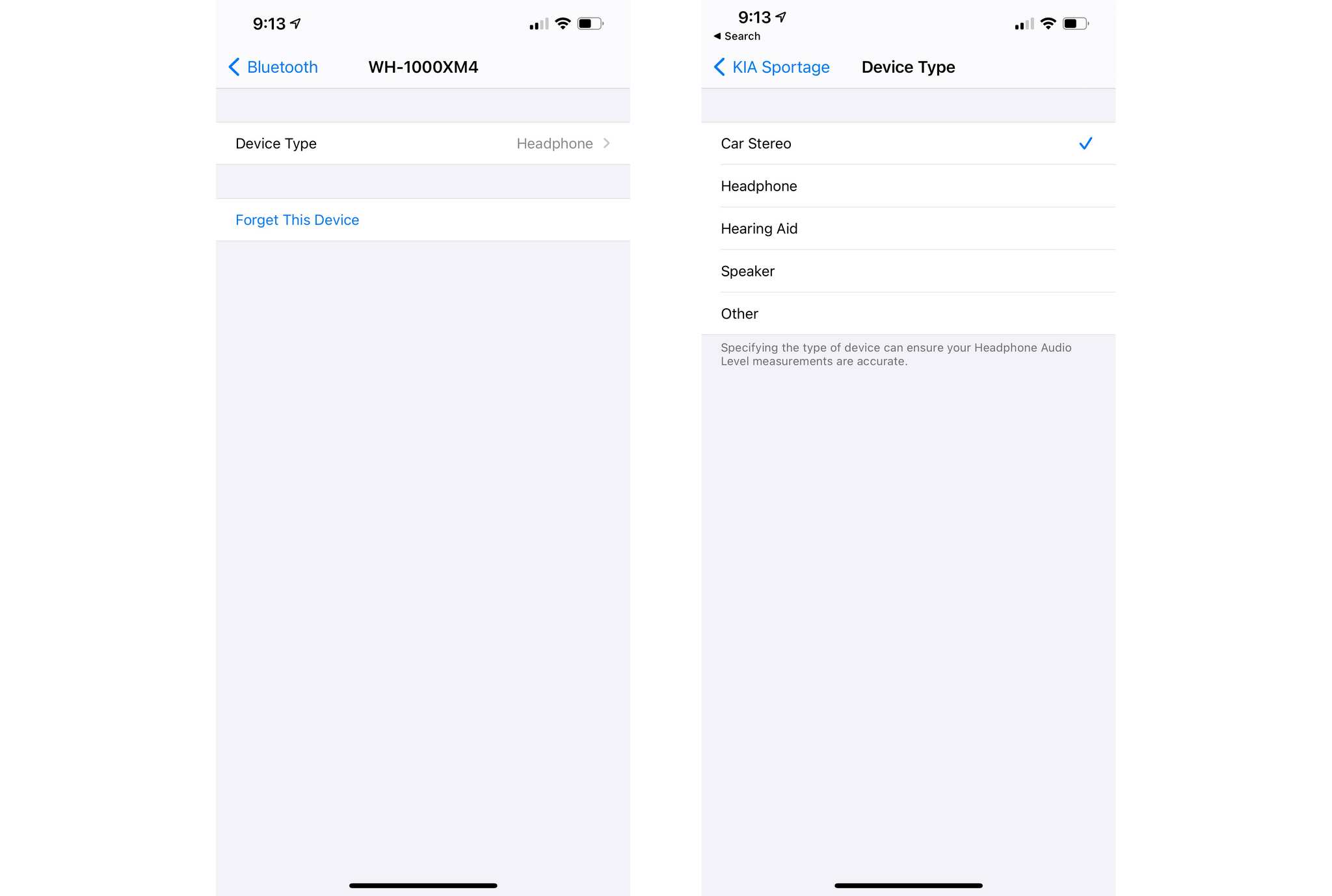
On the iPhone and iPad, the Camera app can now scan smaller QR codes, which is handy for those tiny codes that are often used on product labels. The Bluetooth section of Settings has been updated with an option to identify the type of device connected to your iPhone, so it knows when headphones are connected for the purpose of sending audio notifications.

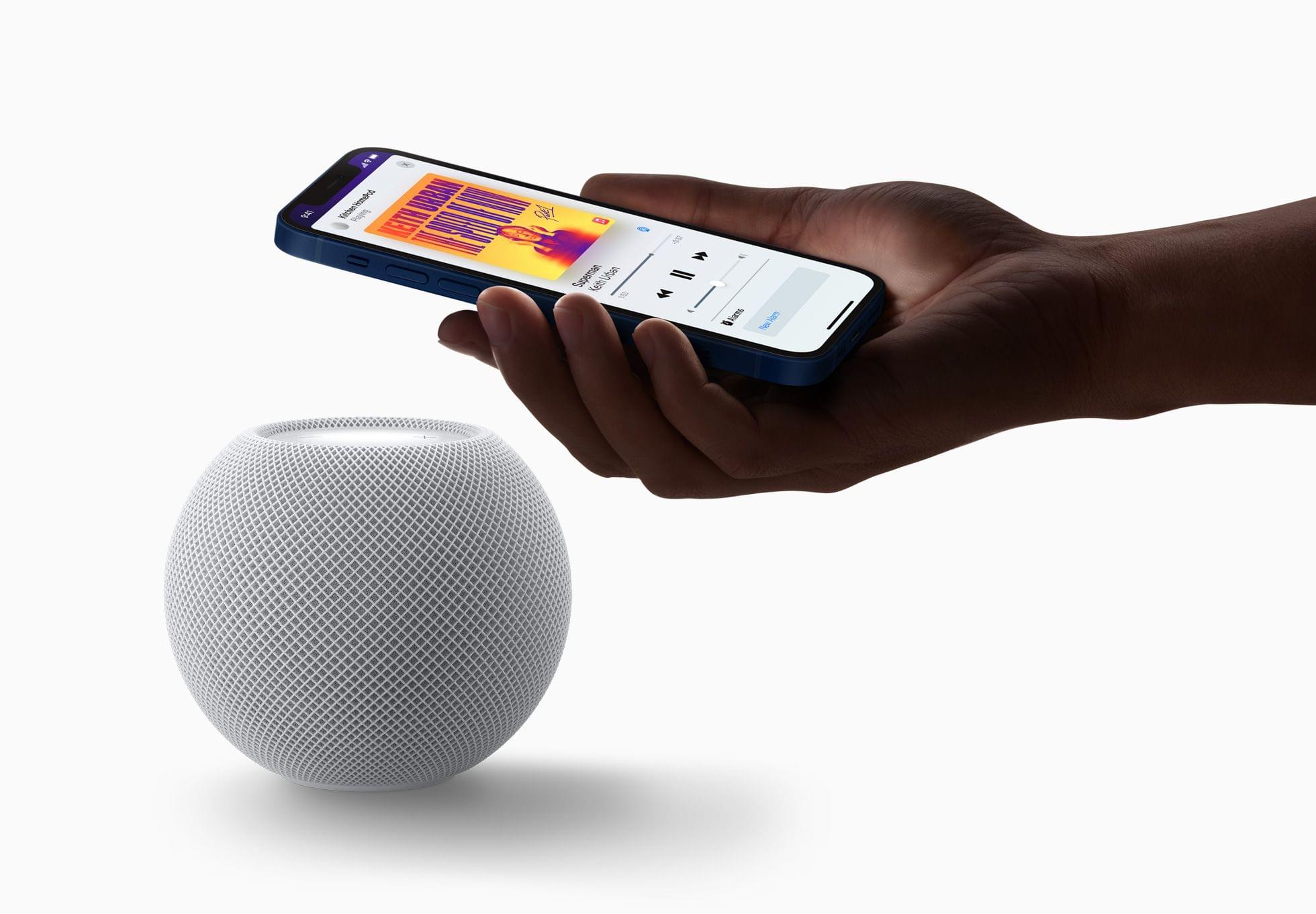
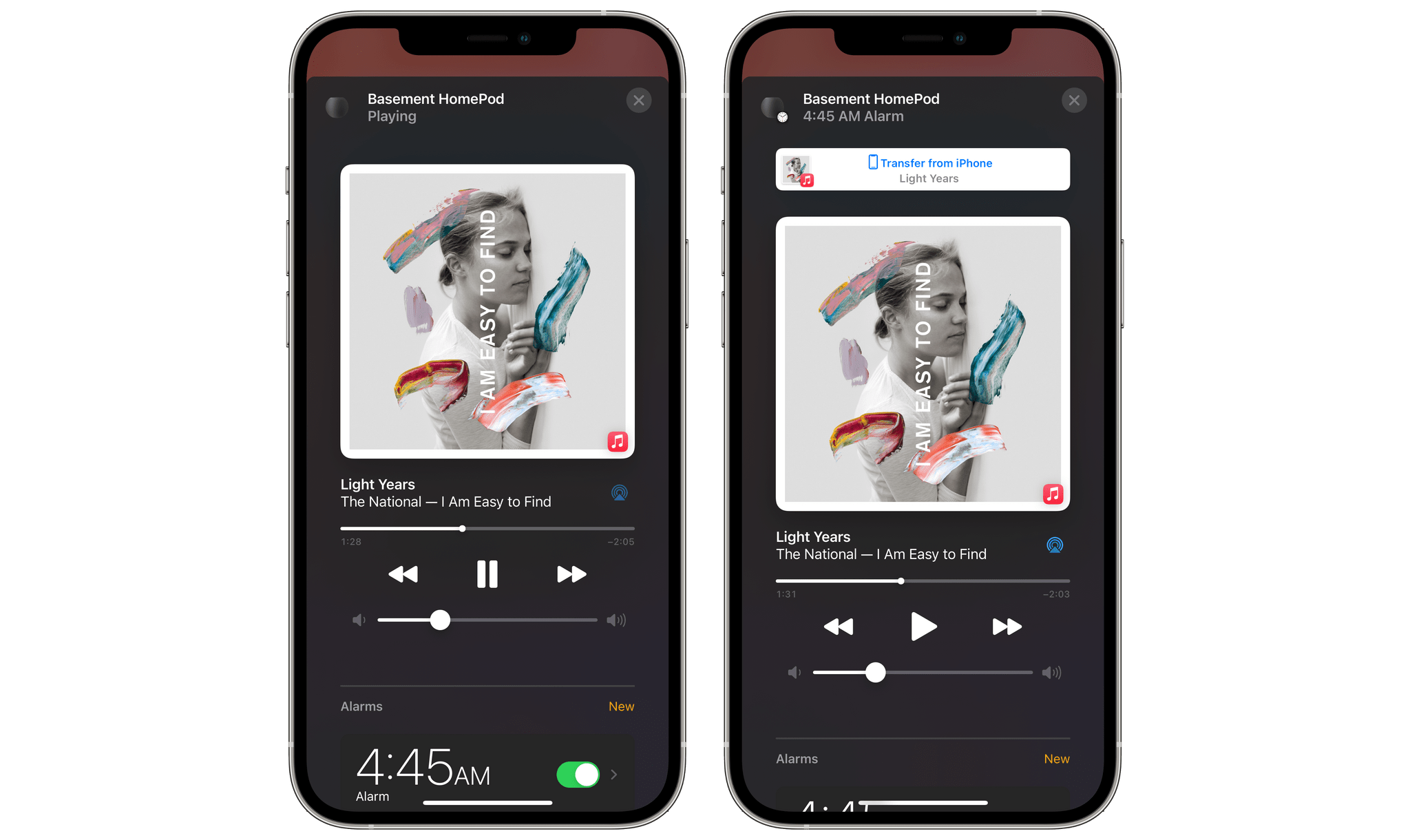
HomePod 14.4 adds a few new features that work in concert with the iPhone’s U1 chip. There is new visual, audible, and haptic feedback when music is handed off from an iPhone to a HomePod mini. The update also provides personalized listening suggestions when an iPhone is placed near a HomePod mini that isn’t currently playing audio. Media playback controls also appear automatically when an iPhone is nearby without having to unlock it first.

I have done some very preliminary testing of the new HomePod mini features and like them a lot. The haptic feedback is a quick slightly sustained vibration that lets you know that the music is being transferred. The animation that slides into view from the top of the screen includes a terrific little animation too. Bring your iPhone close to your HomePod mini again, and a button appears offering to transfer playback back to the iPhone. It’s a good example of how small changes together can make a big difference in the quality of the user experience.

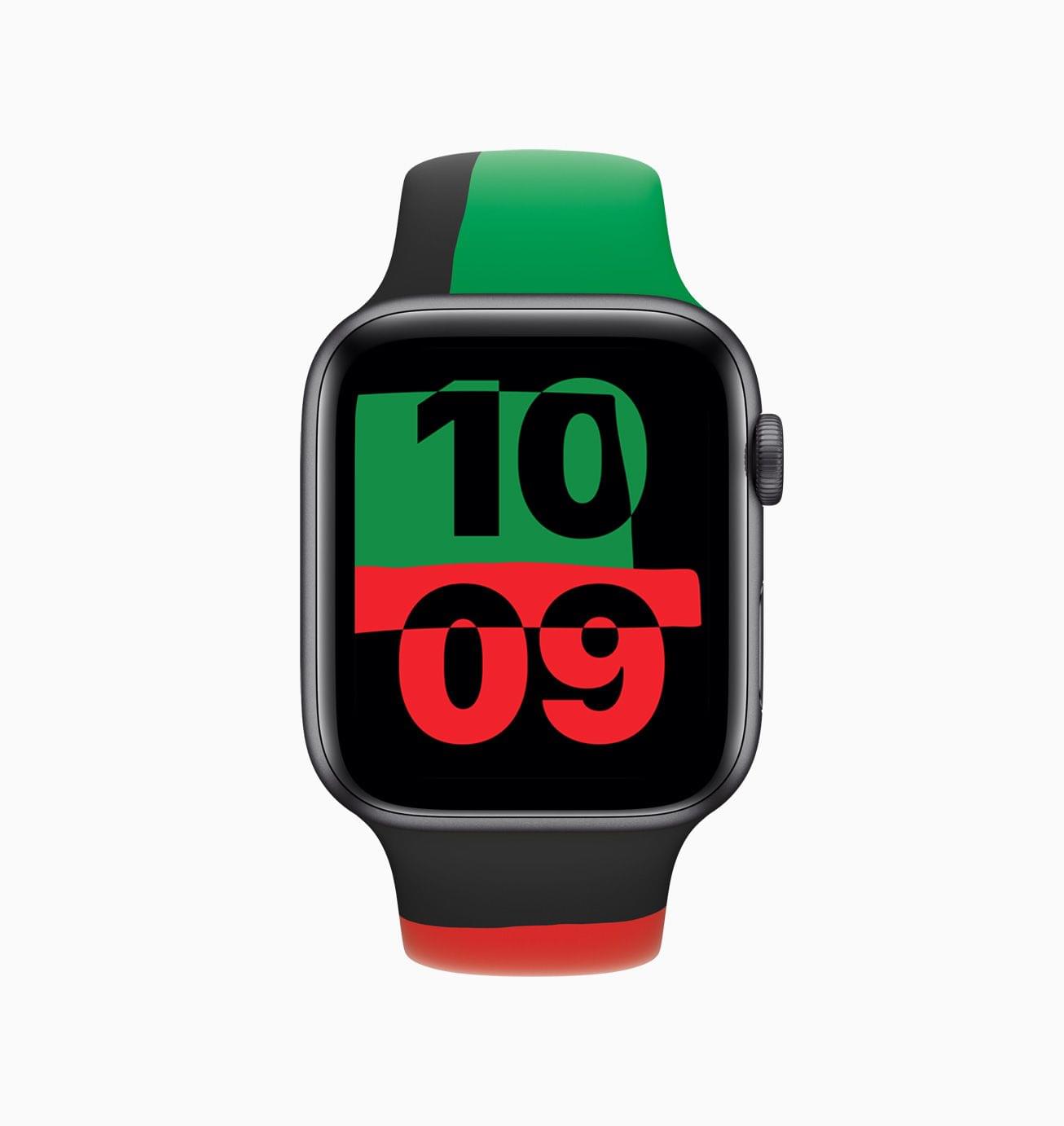
The Apple Watch Unity watch face is part of watchOS 7.3.

The Apple Watch Unity watch face is part of watchOS 7.3.

As we reported earlier today, watchOS 7.3 includes the new Unity watch face. The colors of the face are inspired by the Pan-African flag and its shapes change throughout the day as you move. The ECG app has been added in Japan, Mayotte, the Philippines, and Thailand for Apple Watch Series 4 and later. Irregular heart rhythm notifications are now available in those same countries, plus Taiwan too. Apple’s release notes also mention the new Time to Walk feature in the Workout app, but that actually shipped yesterday with a server-side update.


Doodle Jump 2 Review: A Modern Take on a Classic

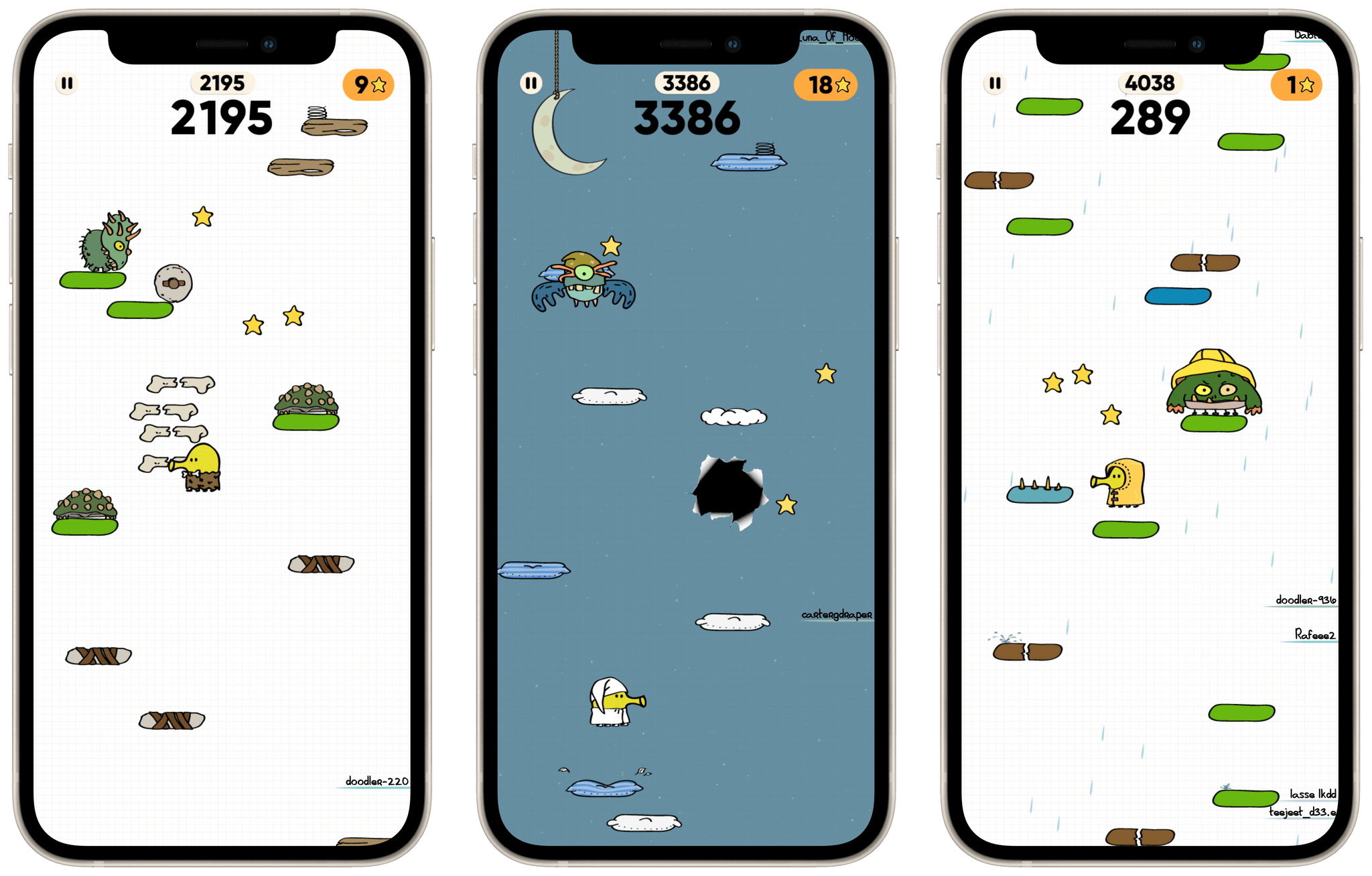
As I wrote in a recent issue of MacStories Weekly, the original Doodle Jump is one of my all-time favorite iOS games. This classic features an adorable doodle (officially dubbed “The Doodler”) bouncing its way up what appears to be a sheet of notebook paper. The beautifully simple controls consist of tilting your device to maneuver The Doodler and tapping your screen to fire projectiles at the monsters and UFOs that are trying to put an end to your adventure. The game is, at its core, an infinite runner. The higher you jump, the higher you score, and that’s Doodle Jump.

Doodle Jump’s initial release was in 2009 — an astounding 12 years ago this April. With so much time having passed since the original, I never really expected to see a sequel. This felt especially true to me since the original Doodle Jump absolutely still holds up after all this time. As it turns out though, Lima Sky — the development studio behind the game — wasn’t done with ideas for the Doodle Jump world. Last month, Doodle Jump 2 was released, and fans of the old game will not be disappointed.

Doodle Jump 2 is instantly familiar to anyone who has played the original. The controls haven’t changed at all, nor has the core idea of The Doodler bouncing its way to ever-increasing heights. However, the game’s art and animations have been completely revamped, with tremendous results.

Read more


Puppr Review: Teach Your Dog New Tricks

I came across Puppr during its recent feature as Apple’s App of the Day and decided to give it a try. The app is a simple and fun instructional tool for teaching your dog new behaviors and tricks. Since I’ve been staying with my parents for the last couple of months, I decided to take it for a spin doing some training with the family dog.

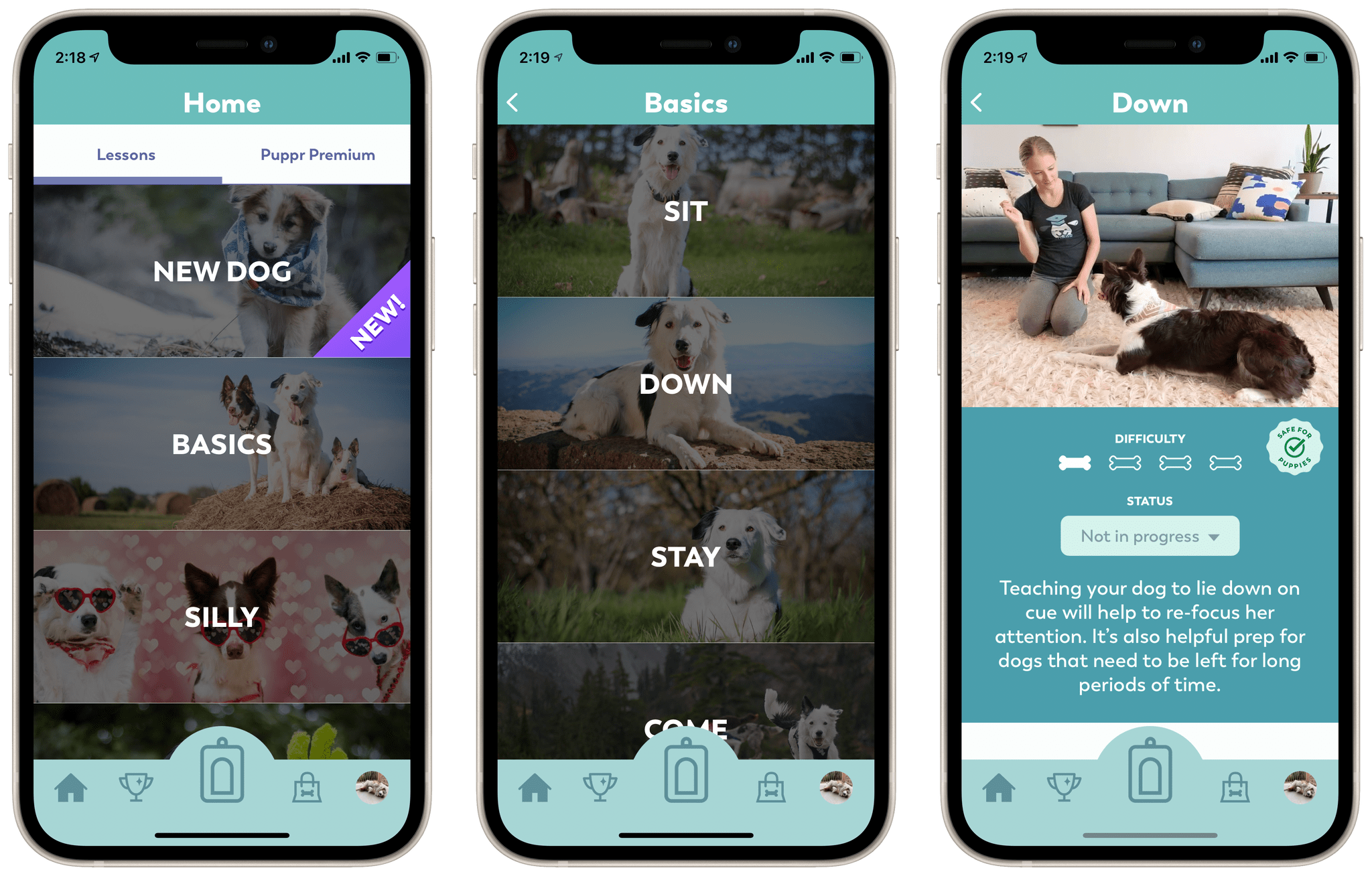
Puppr’s Home view consists of a scrolling list of categories for dog lessons. You can start simple with the ‘New Dog’ or ‘Basics’ categories, but it quickly ramps up from there. Each category consists of a series of behaviors or tricks, and tapping one opens its details view. Within this view you can see a brief video of the trick in action with a real dog. There’s also a difficultly rating, a description, and a badge for whether it’s safe to teach this trick to puppies. Each trick includes a status dropdown which you can use to note that you’re in progress of teaching it to your dog, or that your dog has mastered it.

Read more


WallCreator 2.0 Adds Ability to Set Wallpapers, Save and Restore Favorites, Plus Automation Support

WallCreator 2.0.

WallCreator 2.0.

In September, I shared WallCreator, a shortcut to generate wallpapers for iPhone and iPad using gradients or solid colors. The first version of WallCreator allowed you to generate randomized wallpapers with just a couple taps from either the Shortcuts app or Home Screen widget. Because it was built entirely with native HTML and CSS actions, the shortcut had no external dependencies and didn’t require any third-party apps or connections to web servers. Here’s what I wrote:

Here’s the gist of what WallCreator can do: with just a few taps, you can either generate a wallpaper with a solid color or gradient. You can choose to enter your own colors (using their English names or Hex codes) or, even better, let WallCreator generate random solid colors or gradients for you.

You don’t need to worry about anything else: WallCreator will create the right version of a wallpaper for different iPhone and iPad models automatically, without having to specify any option; at the end of the shortcut, you can preview the newly-generated wallpaper and, if you like it, save it as an image to the Photos app. Otherwise, you can tell WallCreator you want to generate another image and start over.

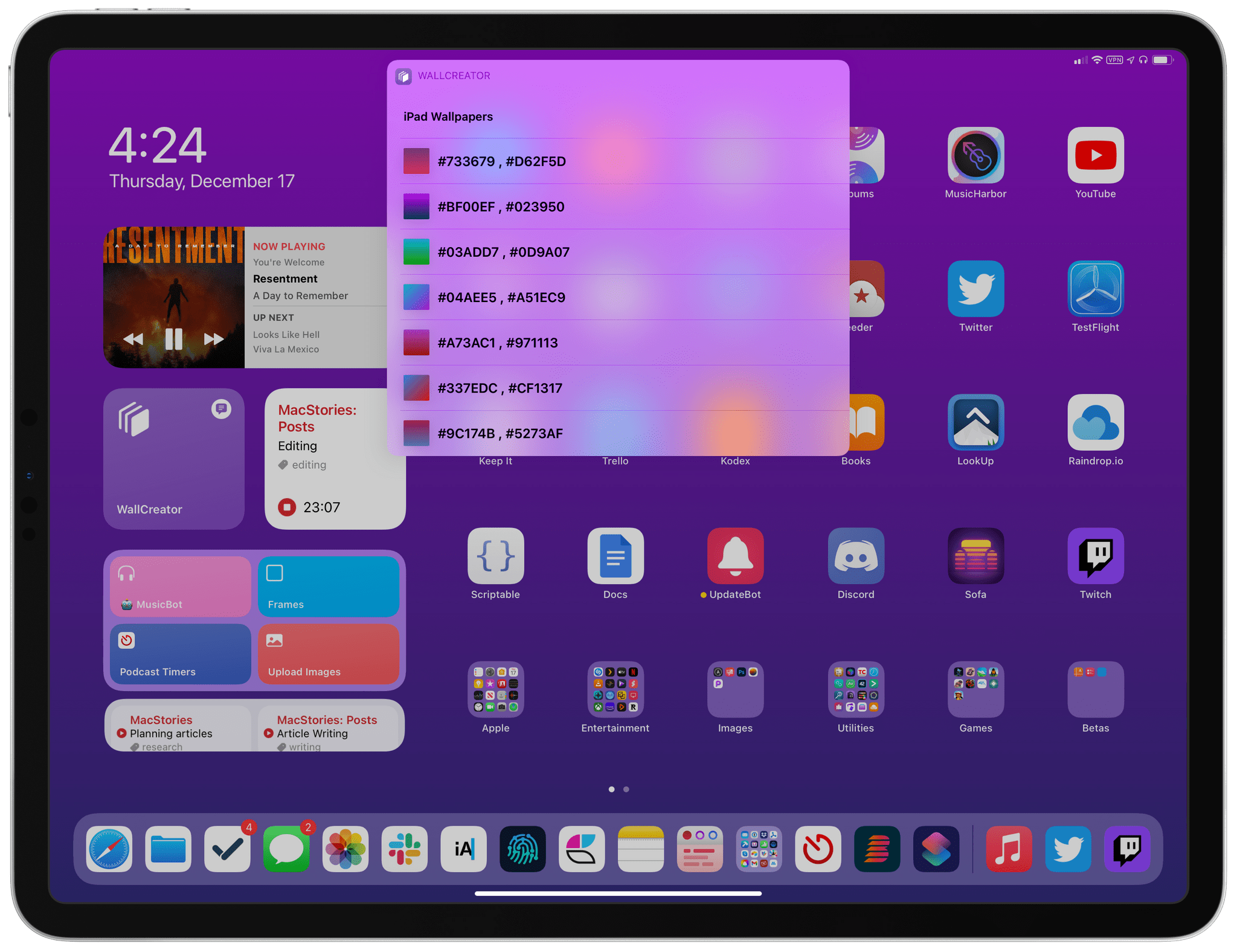
Today, I’m pleased to announce the release of WallCreator 2.0, which has been updated for iOS and iPadOS 14.3 and Shortcuts’ new ‘Set Wallpaper’ action. Among other additions (which I’m going to detail below), WallCreator can now both save and install wallpapers on your device for you. Furthermore, thanks to the comeback of the ‘Set Wallpaper’ action, I’ve been able to create a WallCreator “spin-off” that runs as a headless automation and can change either your Home Screen or Lock Screen wallpaper (or both) on your behalf, with no manual interactions required. This is a pretty big update to WallCreator, so let’s dive in.

Read more


Headland Review: Fight Your Way Through a World of Imagination

Headland is a new game for iOS and Android by the award winning game studio Northplay. The game revolves around a young boy exploring a world of his own imagination; fighting enemies and hunting down the missing shards of his robot friend’s “imagination core.” I played through Headland over the last few days and found it to be a well-made and overall quite enjoyable experience.

I really like that Headland plays in portrait orientation. Most games like it run in landscape, which is fine, but it’s nice to have a change. On my iPhone Mini I can actually play Headland entirely one-handed, which makes the game feel more light and casual even though its gameplay is engaging. Playing two-handed on my iPad Pro was still fun though since I could support the device with a single hand and play with the other.

The key to this is the game’s excellent controls, which are intuitive and only require a single finger at any given time. To move your character, you place your finger anywhere on the screen and then rotate it. This is essentially a joystick movement control, but it works so much better because the joystick will appear underneath your finger wherever you place it. My struggle with most touch-joystick games is that I end up placing my finger off-center from the stationary joystick and then I move in an unwanted direction. This never happens in Headland.

Read more