

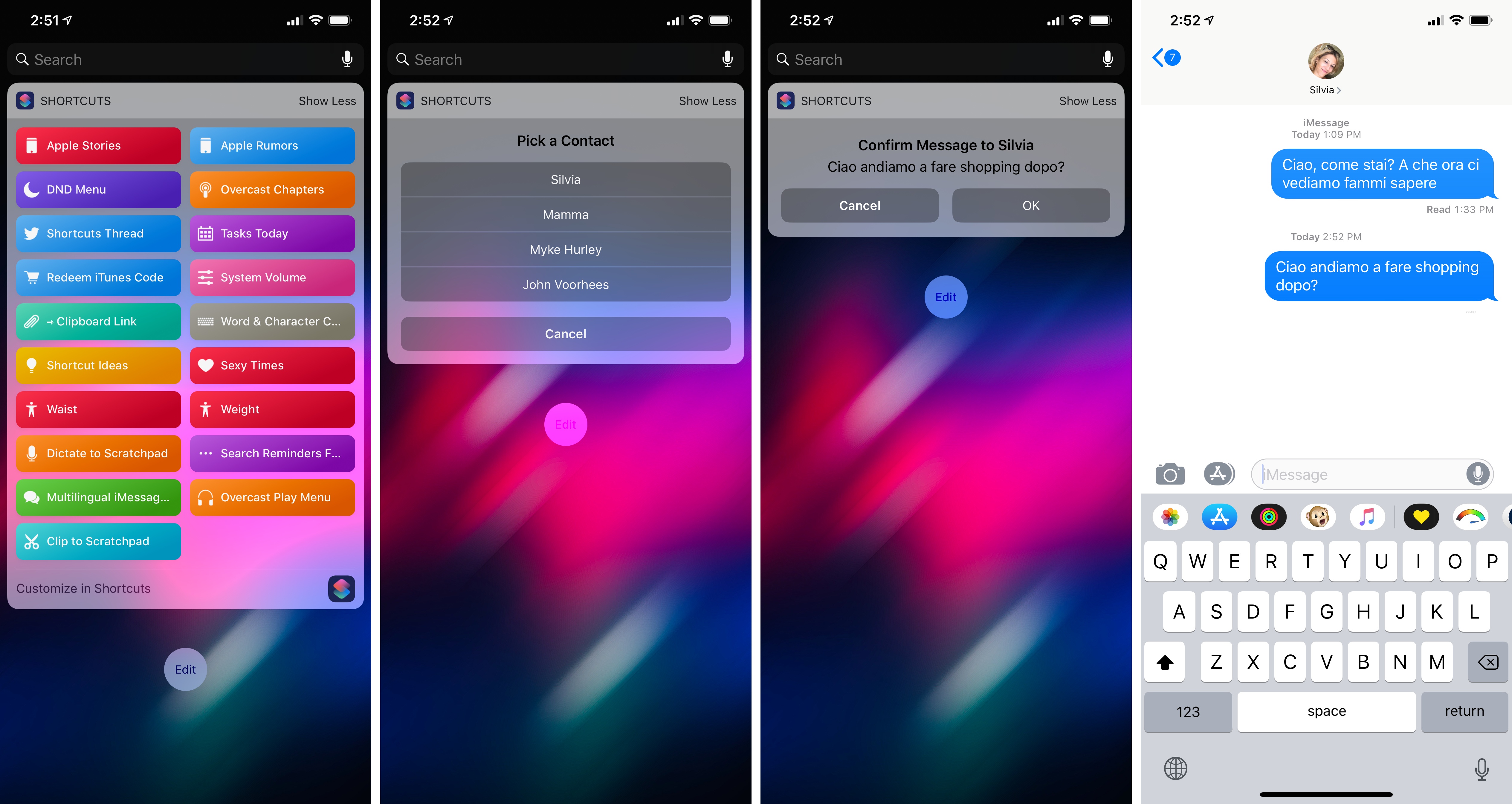
I’ve spent the past two weeks updating my iPhone’s home screen setup for the XS Max and, as I shared in the latest episode of AppStories, part of the process involved gaining easier access to some of the shortcuts I use on a regular basis. While I’m not a fan of the shortcuts-only home screen approach described by CGP Grey in episode 75 of the Cortex podcast (at some point, I believe you just end up swapping app folders for shortcuts), I do like the idea of adding a couple of frequently used custom shortcuts to the home screen. And as I detailed on AppStories, I also like to use “shortcut launchers” – effectively, shortcuts to launch other shortcuts.
Posts tagged with "iOS"
Creating Shortcuts with Invisible Names for the iOS Home Screen and Widget
Apple Frames: A Shortcut for Framing Screenshots from Every Apple Device
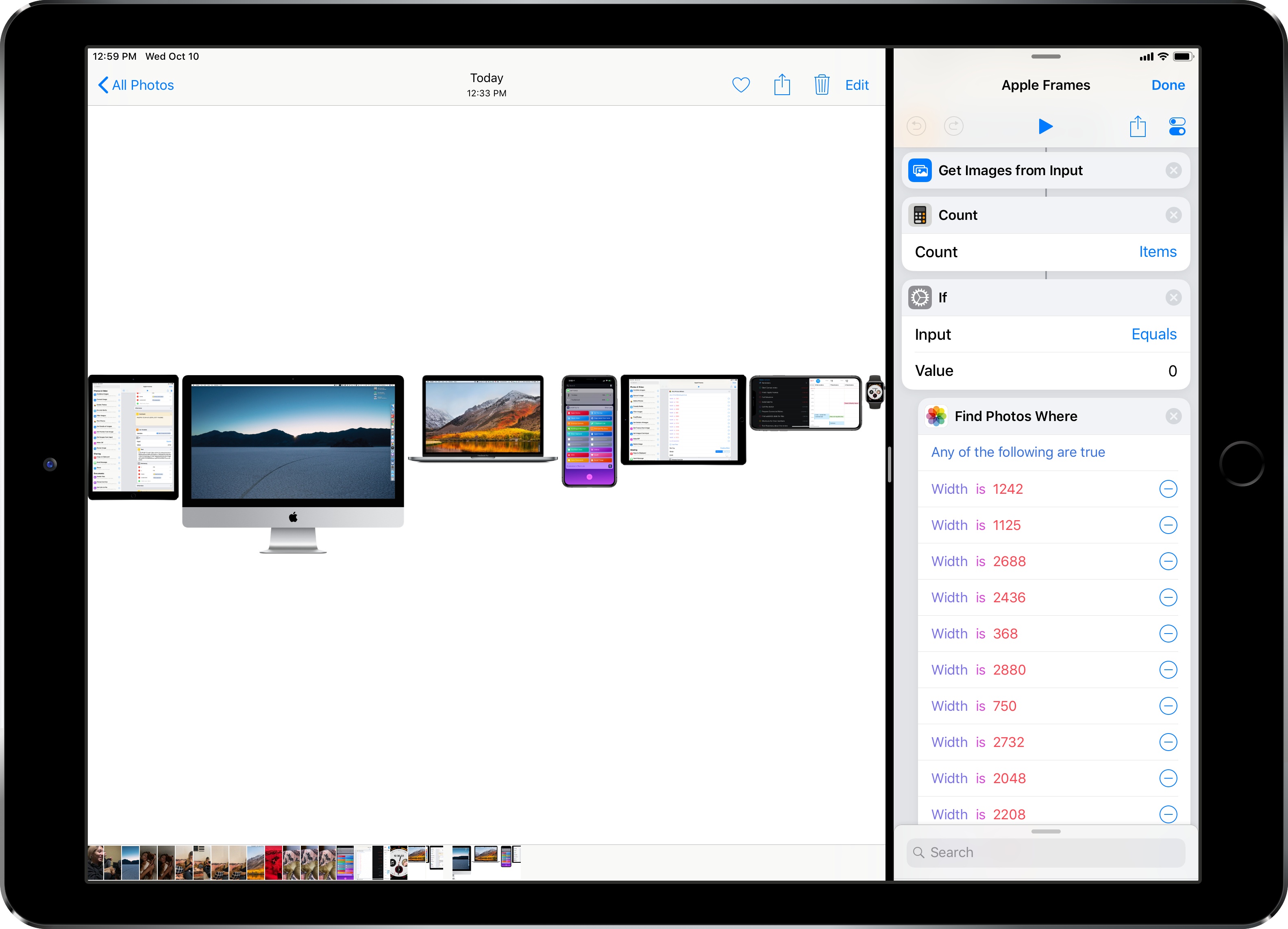
When I published my iPhone XS Frames shortcut two weeks ago, I noted that my goal was to eventually support screenshots and device templates from other Apple devices, starting with the Apple Watch and MacBook Pro. After two weeks spent rebuilding the shortcut and asking Silvia to prepare several more templates, I’m happy to re-introduce my shortcut as the new and improved Apple Frames – a comprehensive custom shortcut to frame screenshots taken on every Apple device. Well, at least most of the current ones that the company is still selling.
Review: Yoink Adds Support for Latest Mojave and iOS 12 Features
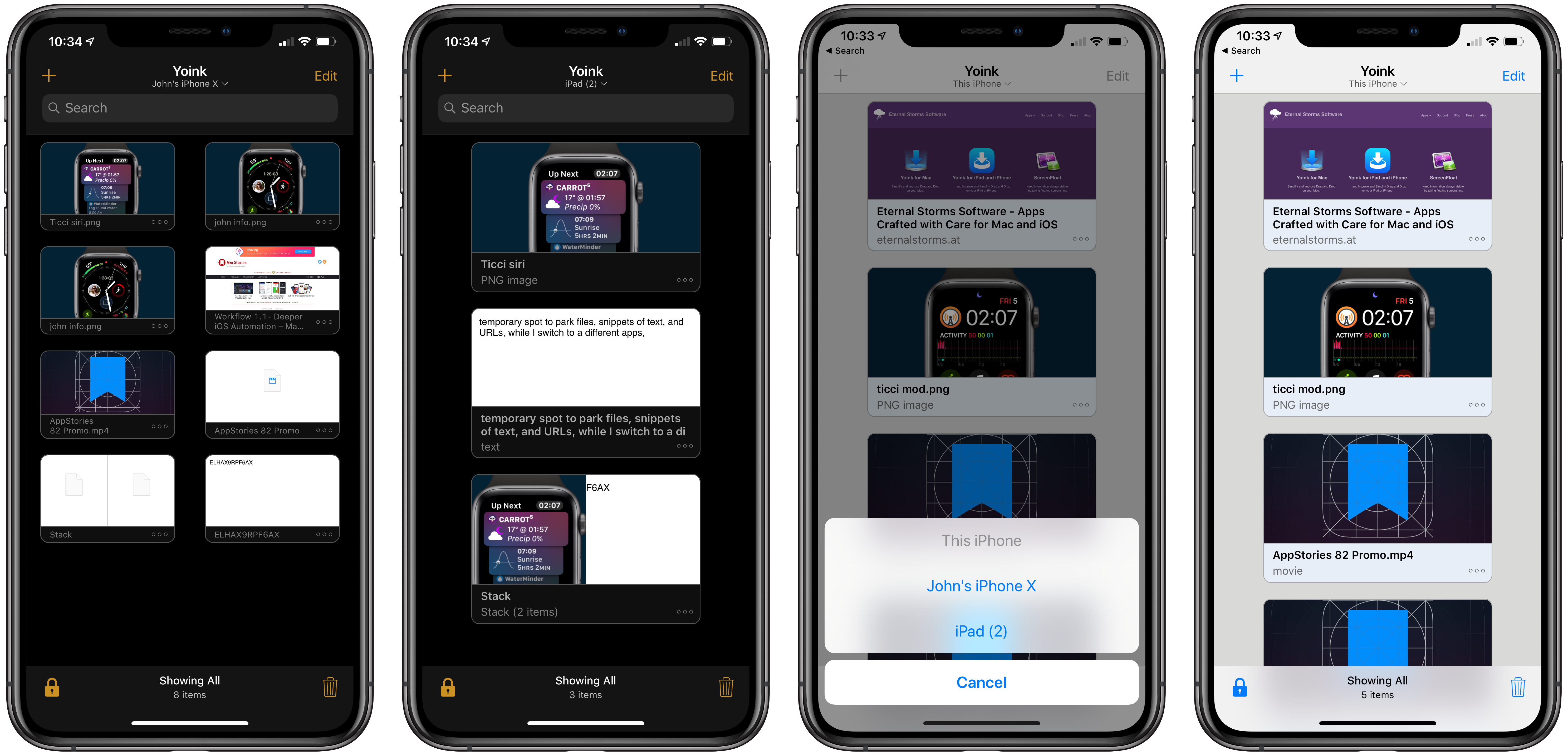
Yoink is the app I use on my Mac every day as a temporary spot to park files, snippets of text, images, and URLs. By itself, Yoink for Mac has been a fantastic time-saver. The latest updates to Yoink for iOS and the Mac, however, have been transformative. There’s more that can be done to support the cross-platform use of Yoink, but Handoff support, which makes it simple to move data between my Mac and iOS devices, and several other new features have already added a new dimension to the way I use the app and embedded it deeper into my day-to-day workflow than ever before.
Visualizing Photos Taken ‘On This Day’ in Previous Years with Shortcuts
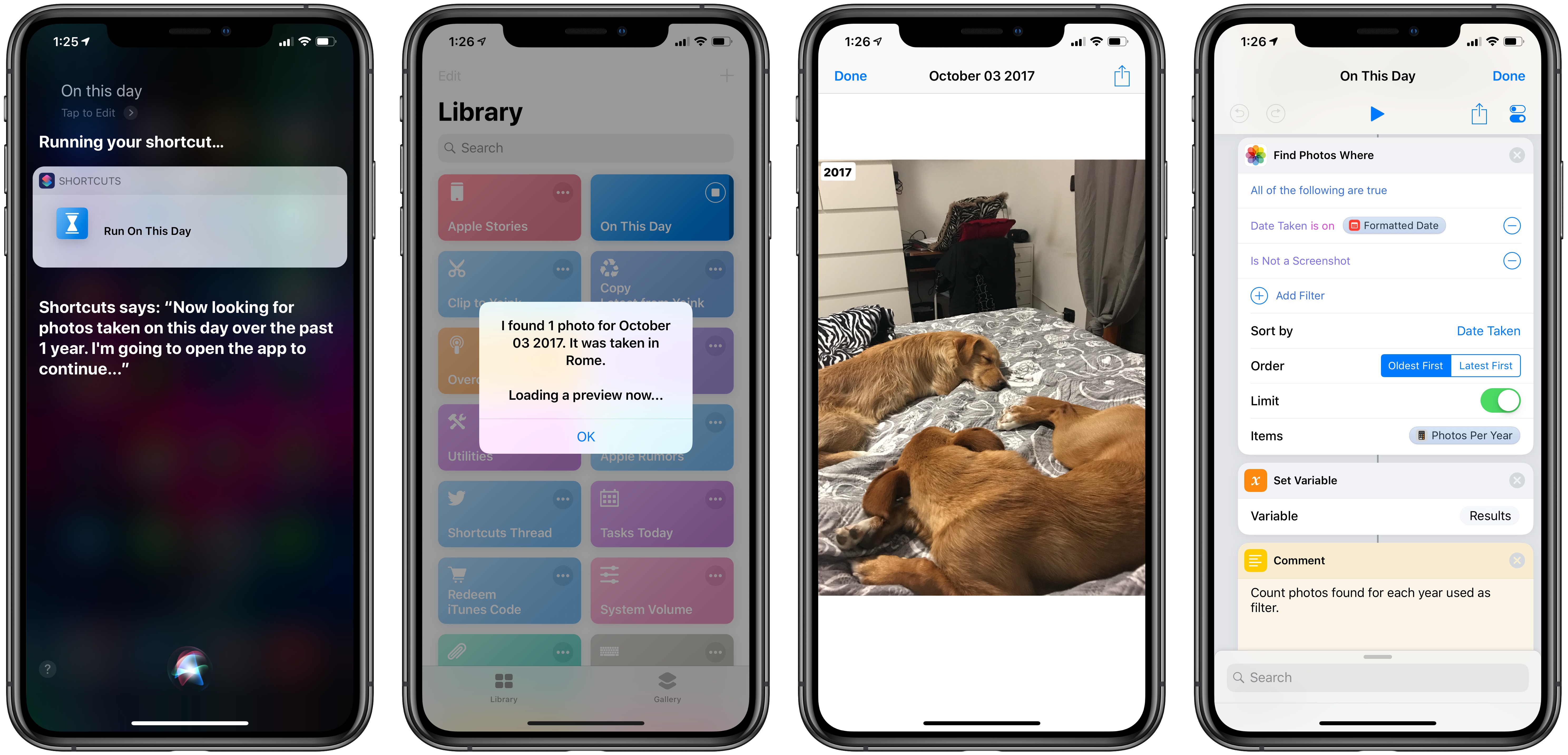
I’m in the process of creating a complete archive of every workflow I ever created for the Workflow app and updating each one for Shortcuts. As I was browsing through my old Workflow articles, I came across an interesting workflow I created in early 2015 called Photo Flashbacks. The main idea was simple enough: given Workflow’s ability to read the contents of the photo library, the workflow would filter a photo taken on the same day in previous years and preview it with Quick Look. That seemed like a fun project that I could pick up again and improve for the Shortcuts app.
Adding Device Frames to iPhone XS and XS Max Screenshots with Shortcuts
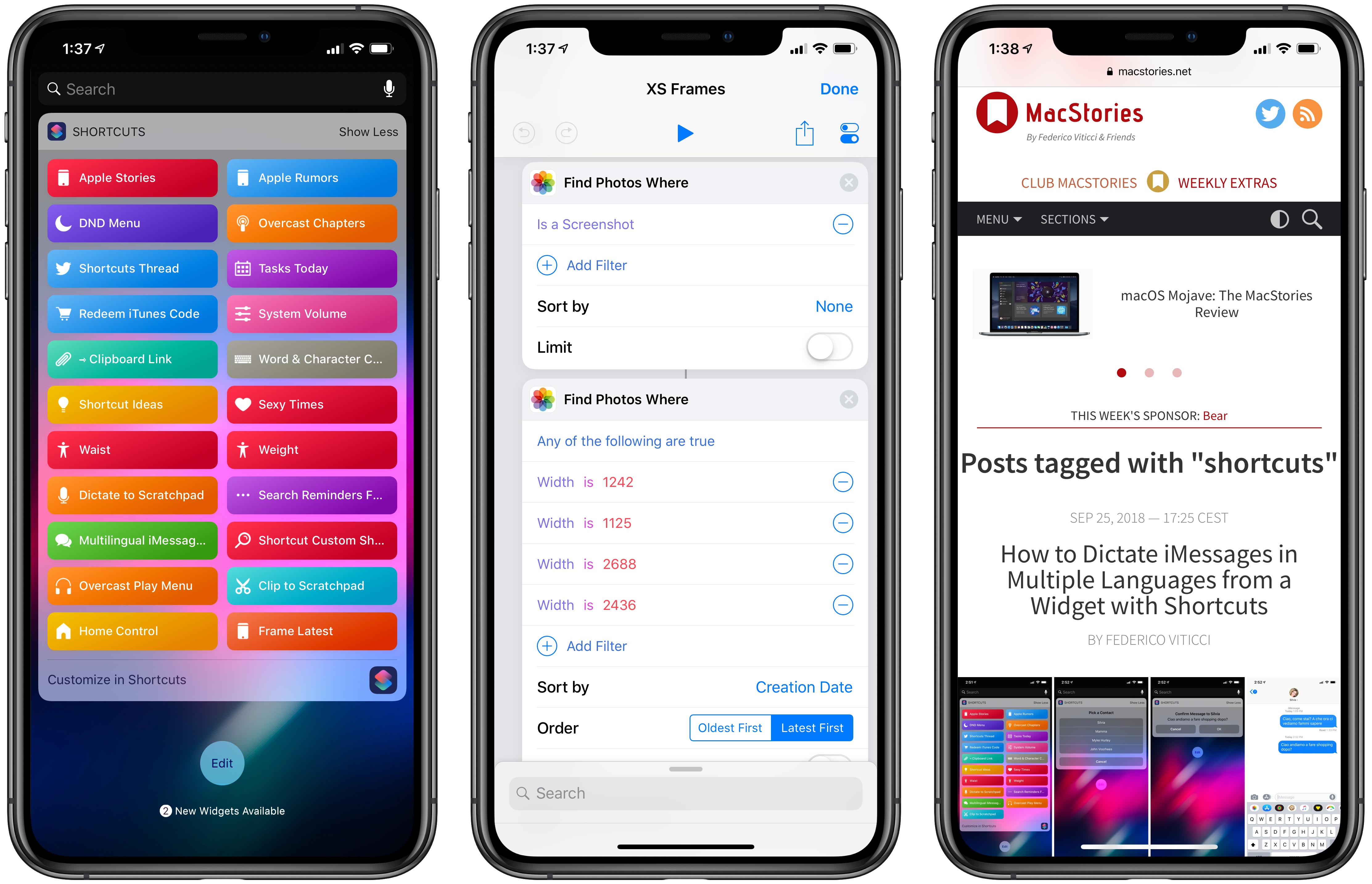
Update 10/10: A newer version of this shortcut, which can apply frames to screenshots taken on multiple Apple devices, is available here.
MacStories readers may be familiar with the way I like to present iPhone screenshots in app reviews and other stories – particularly for “hero” images, such as the one above, I want my screenshots to be contained in device frames that resemble official marketing images from Apple. They’re prettier, and they do a better job at communicating what an app looks like on an actual device. I could create these images manually using apps like Affinity Photo and Pixelmator on iOS, but the process would be slow, boring, and time-consuming. Instead, for years now I’ve been using Workflow and its ‘Overlay Image’ action to get this done in an automated fashion.
With Shortcuts and the new iPhone XS and XS Max, it was time for an update to my old workflow. While I could have kept using the same iPhone X assets for the XS given their physical resemblance, I upgraded to a XS Max this year, which meant that my screenshots wouldn’t have fit the old device frames natively anyway. Fortunately, Apple uploaded official marketing assets for the XS and XS Max a couple of days ago, so with the help of my girlfriend (who’s better at Photoshop than I am) I was able to update my workflow for the new devices and add a few extra options in the process as well.
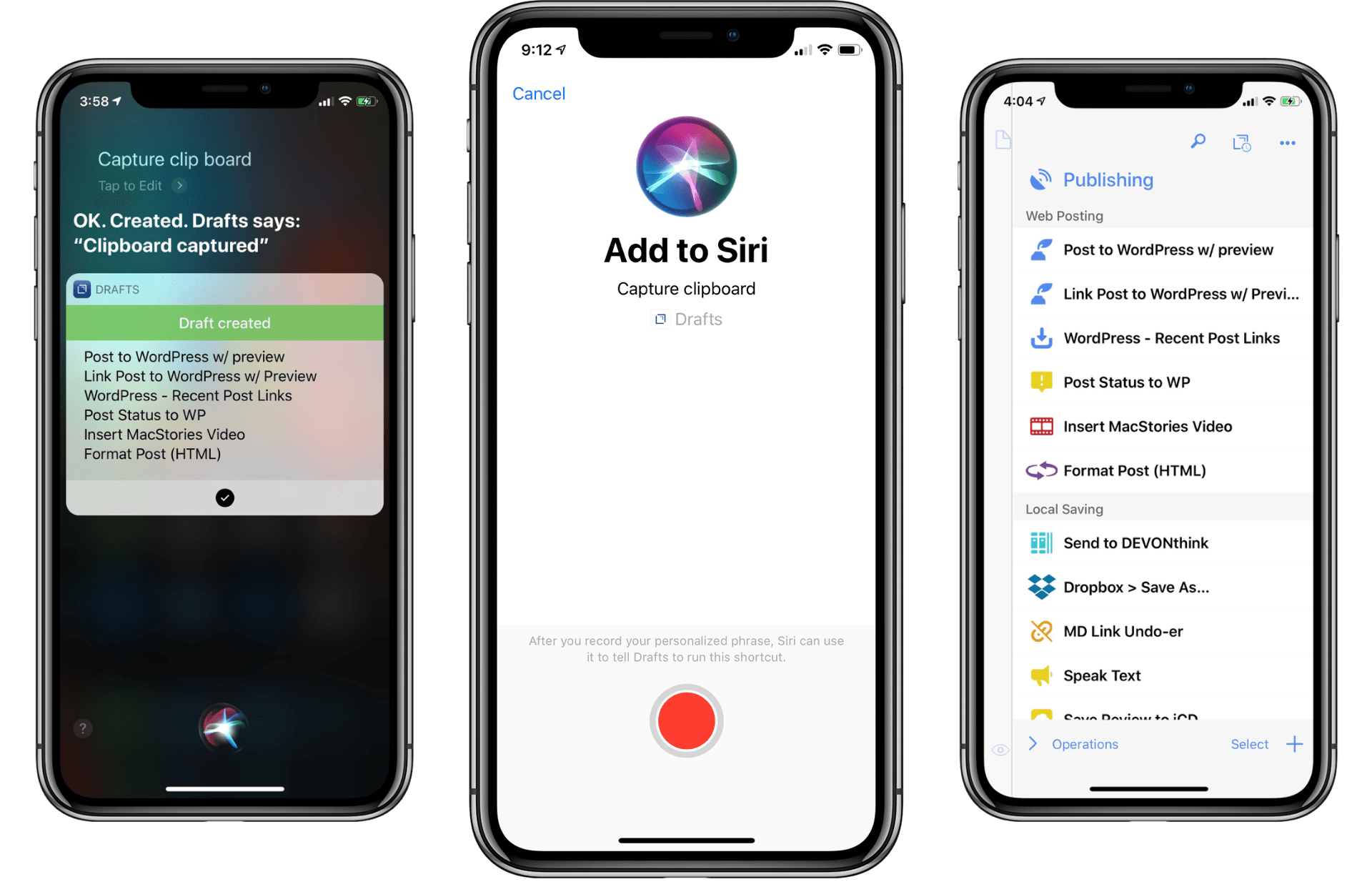
Drafts 5.4: Siri Shortcuts, WordPress, and More
How to Trigger IFTTT Applets with iOS 12’s New Shortcuts App and Siri
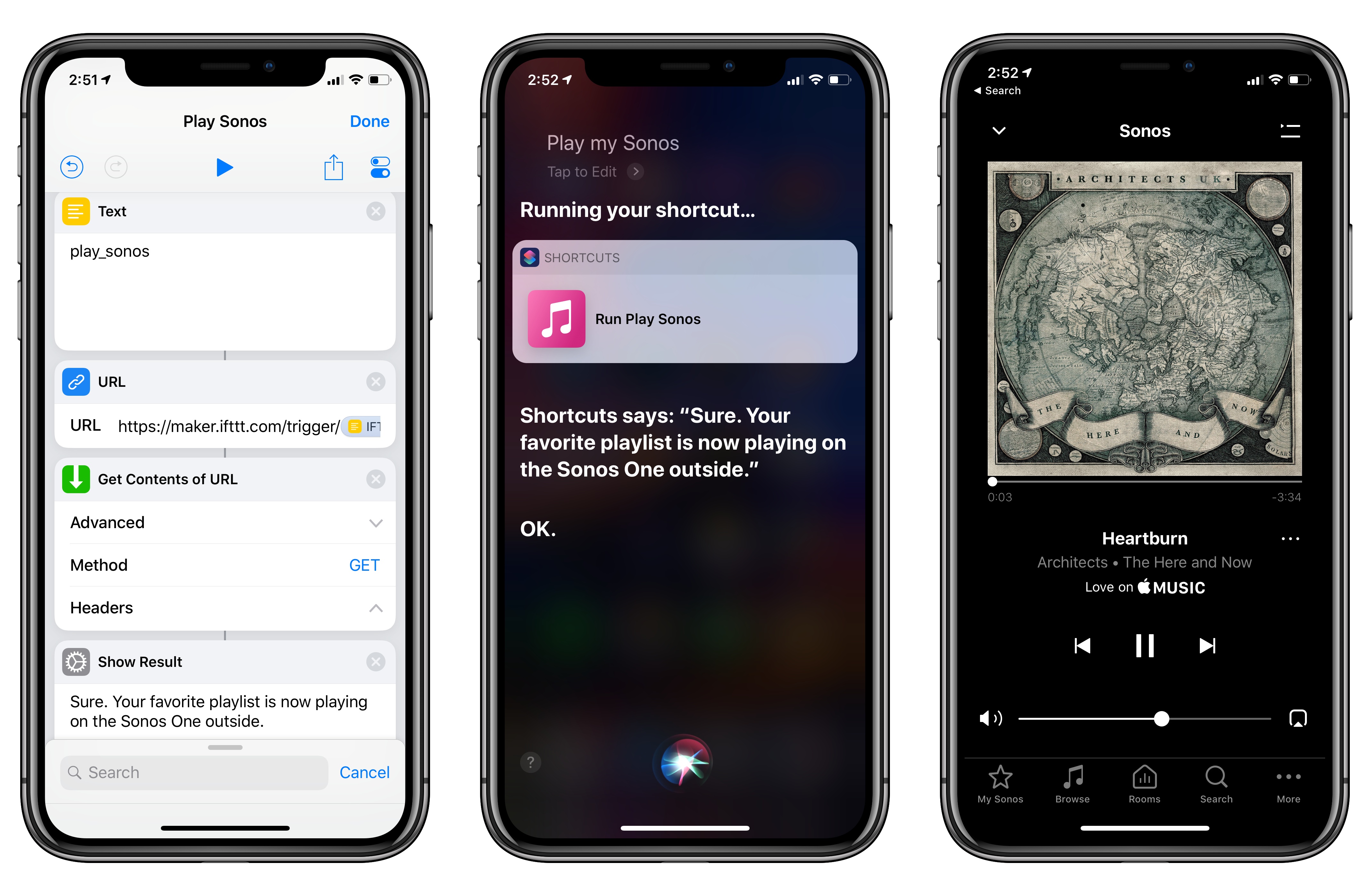
Among the actions that didn’t make the transition from Workflow to the new Shortcuts app for iOS 12, built-in support for triggering IFTTT applets (formerly known as “recipes”) is perhaps the most annoying one. With just a few taps, Workflow’s old ‘Trigger IFTTT Applet’ action allowed you to assemble workflows that combined the power of iOS integrations with IFTTT’s hundreds of supported services. The IFTTT action acted as a bridge between Workflow and services that didn’t offer native support for the app, such as Google Sheets, Spotify, and several smart home devices.
Fortunately, there’s still a way to integrate the just-released Shortcuts app with IFTTT. The method I’m going to describe below involves a bit more manual setup because it’s not as nicely integrated with Shortcuts as the old action might have been. In return however, you’ll unlock the ability to enable IFTTT triggers using Siri on your iOS devices, Apple Watch, and HomePod – something that was never possible with Workflow’s original IFTTT support. Let’s take a look.
Overcast 5: Redesigned Now Playing Screen, Search, Siri Media Shortcuts, and More
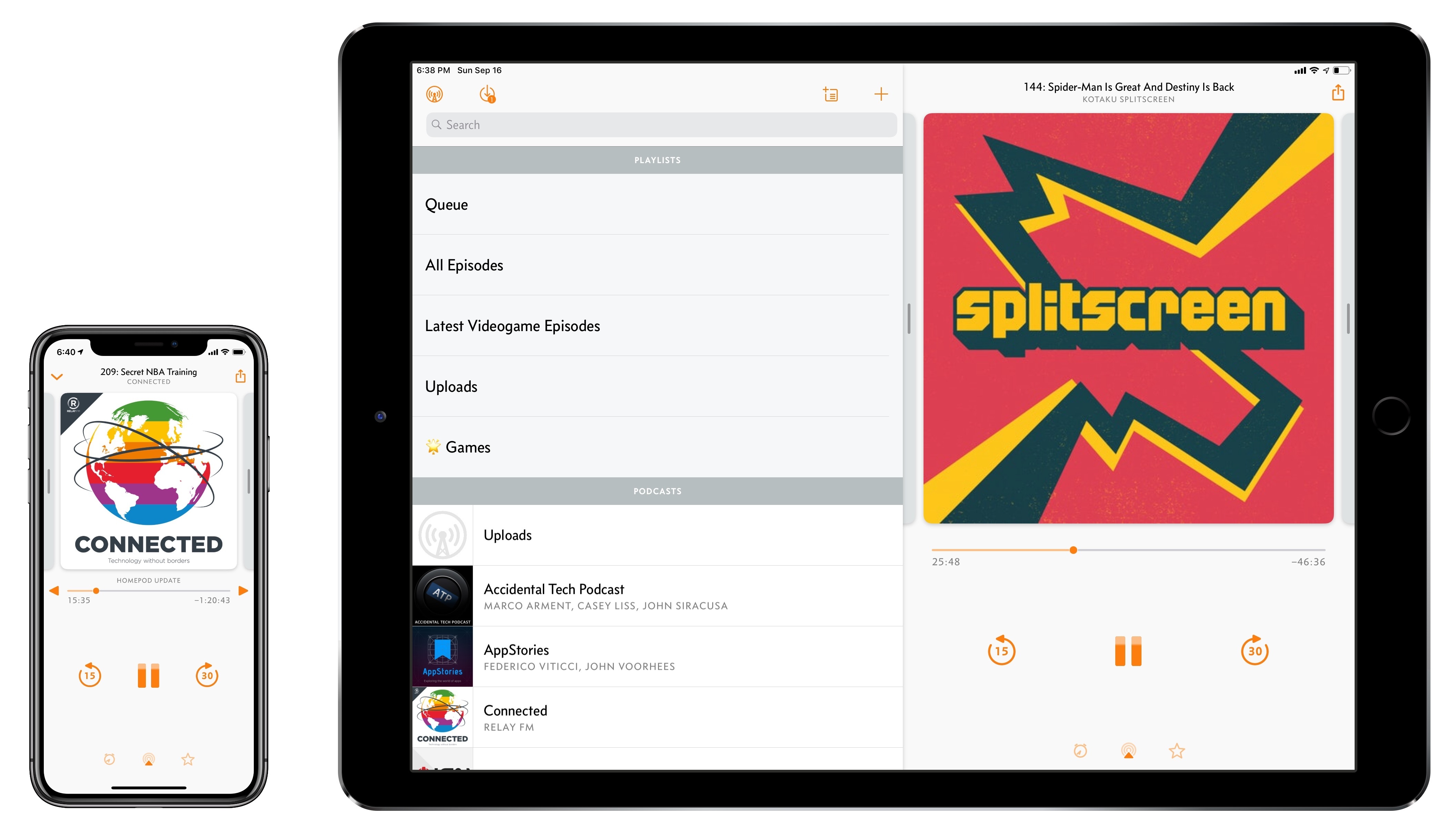
Overcast, Marco Arment’s popular podcast client for iPhone and iPad, received a major update today to version 5. While I’ve long praised Apple’s work on their built-in Podcasts app for iOS – particularly since getting three HomePods and leveraging Podcasts’ support for AirPlay 2 – I also recognize the appeal of Overcast’s advanced features and powerful audio effects. Sprinkled throughout Overcast’s release history are design details and enhancements big and small that make it a sophisticated, versatile client for podcast aficionados who don’t want to settle for a stock app. From this standpoint, despite welcome improvements to Podcasts in iOS 12, changes in Overcast 5 make it an even more attractive option that has caused me second-guess my decision to embrace Apple’s native app.