

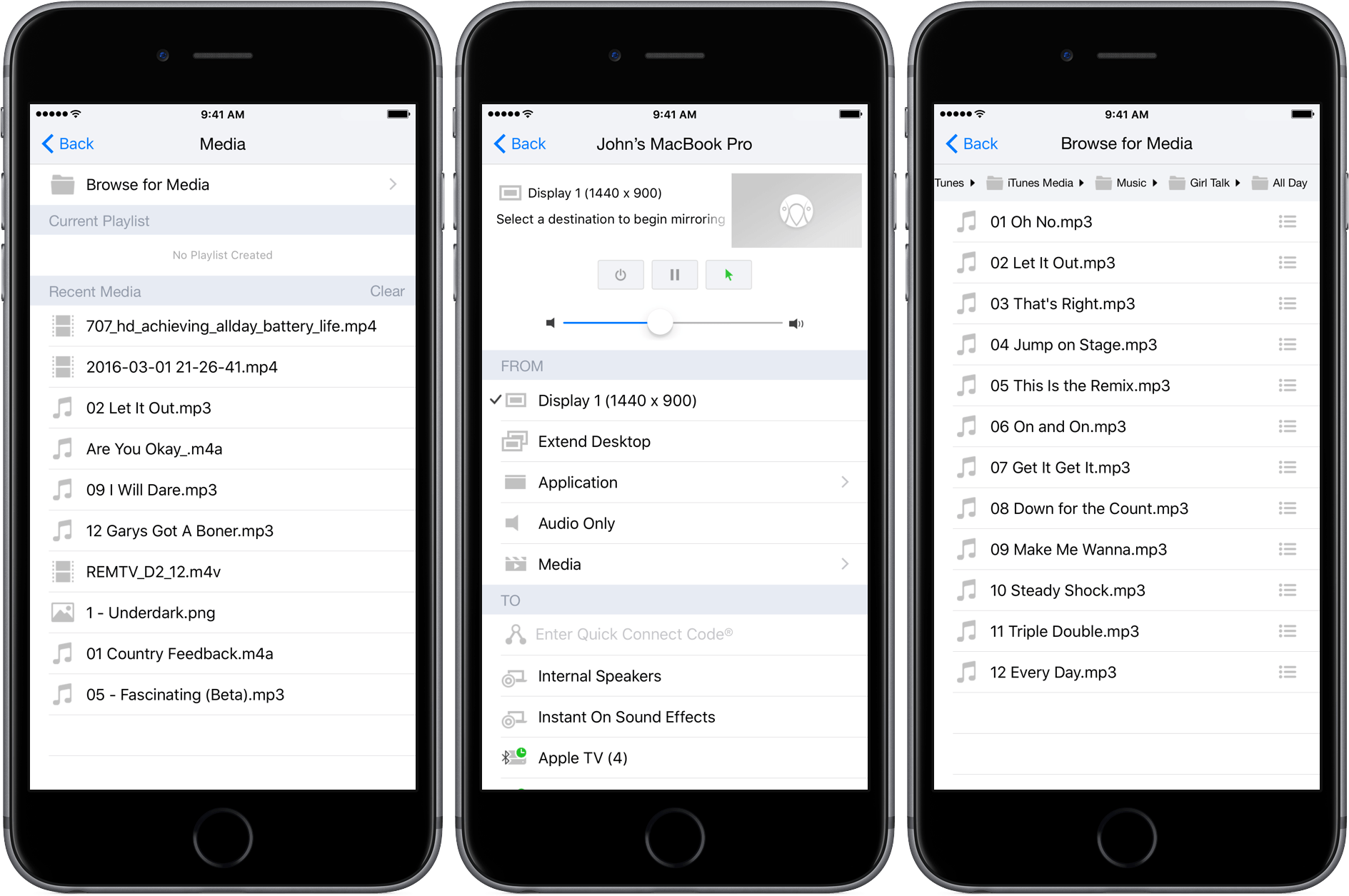
Shortly after reviewing AirFoil for Mac, which acts as a hub for routing audio to multiple devices and has an iOS remote control app, I heard that Squirrels was planning something similar for its AirParrot product. AirParrot 2 for Mac acts as a hub for sharing your Mac’s screen, apps, and media to devices like the Apple TV. With an update to AirParrot and the release of AirParrot Remote for iOS, you can now control the streaming of your Mac’s screen, apps, and media remotely from your iPhone or iPad.
Posts tagged with "iOS"
Turn Your Mac Into a Media Server With AirParrot 2 and AirParrot Remote
Wikipedia’s New Focus on Discovery
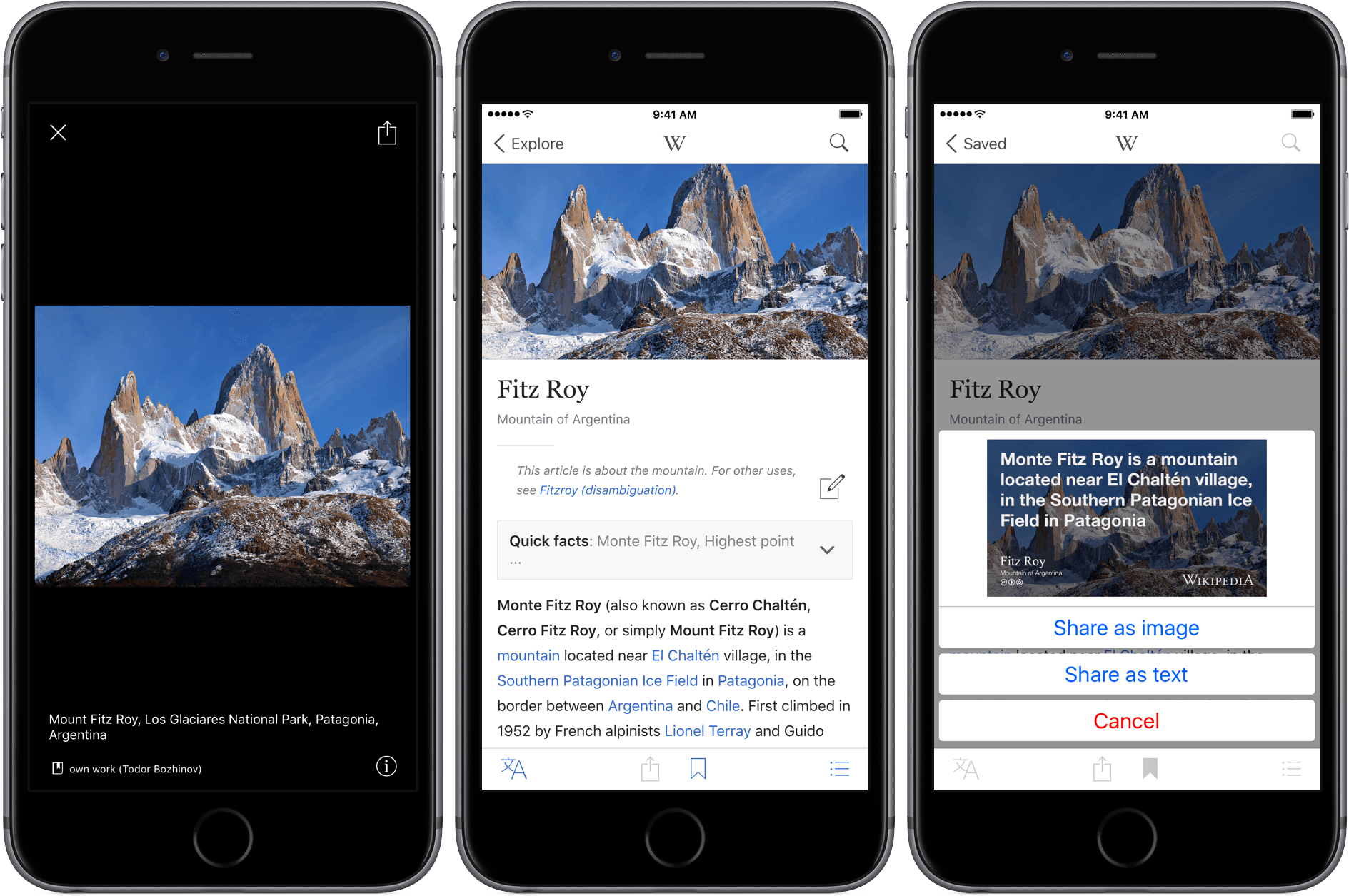
For a long time, Articles by Sophiestication Software was my favorite Wikipedia app on iOS. But Articles is showing its age because it hasn’t been updated since September 2013 when developer Sophia Teutschler took a job on the UIKit Frameworks team at Apple.
Wikipedia has had its own official app for years, but for much of that time it wasn’t very good. Apps like Articles filled the gap, presenting a cleaner, better-designed experience. After years of using Articles, I lost track of Wikipedia’s iOS app, but was pleasantly surprised when I downloaded the just-released version 5, which has evolved into a great all-around Wikipedia utility.
Workflow 1.4.4 Brings More Image Automation, HTML to Markdown Conversion
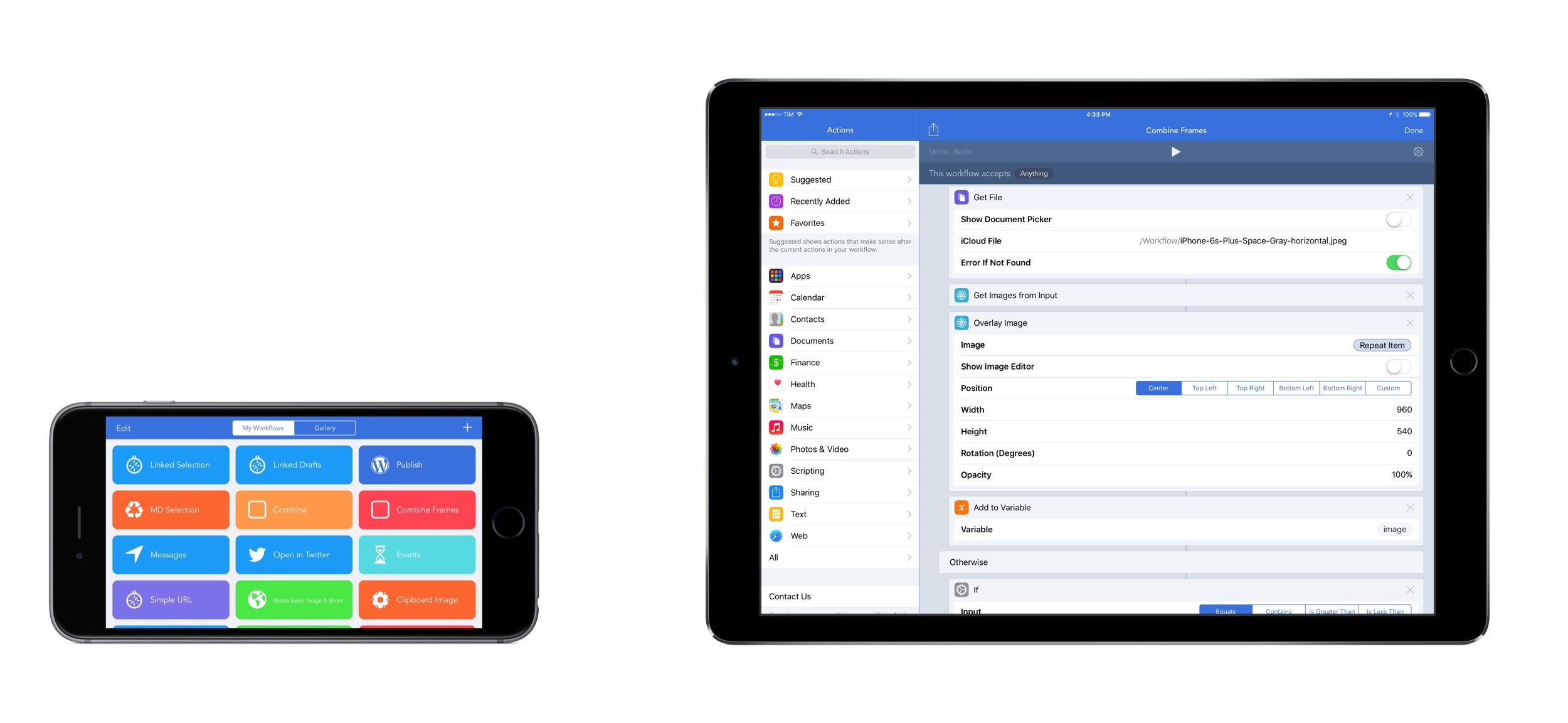
As much as I like to use Workflow for every task I don’t want to perform manually, until last week there were still some things I couldn’t automate with the app. Those tasks were utterly specific: converting HTML and rich text back to Markdown (with my beloved html2text in Python), or assembling iOS screenshots with pretty device frames (with LongScreen). With the release of Workflow 1.4.4 today, I can finally integrate these two key tasks into Workflow’s automation, and I’m in love with the results.
Drafts 4.6 Has Nice Refinements and a Few Treats for Power Users
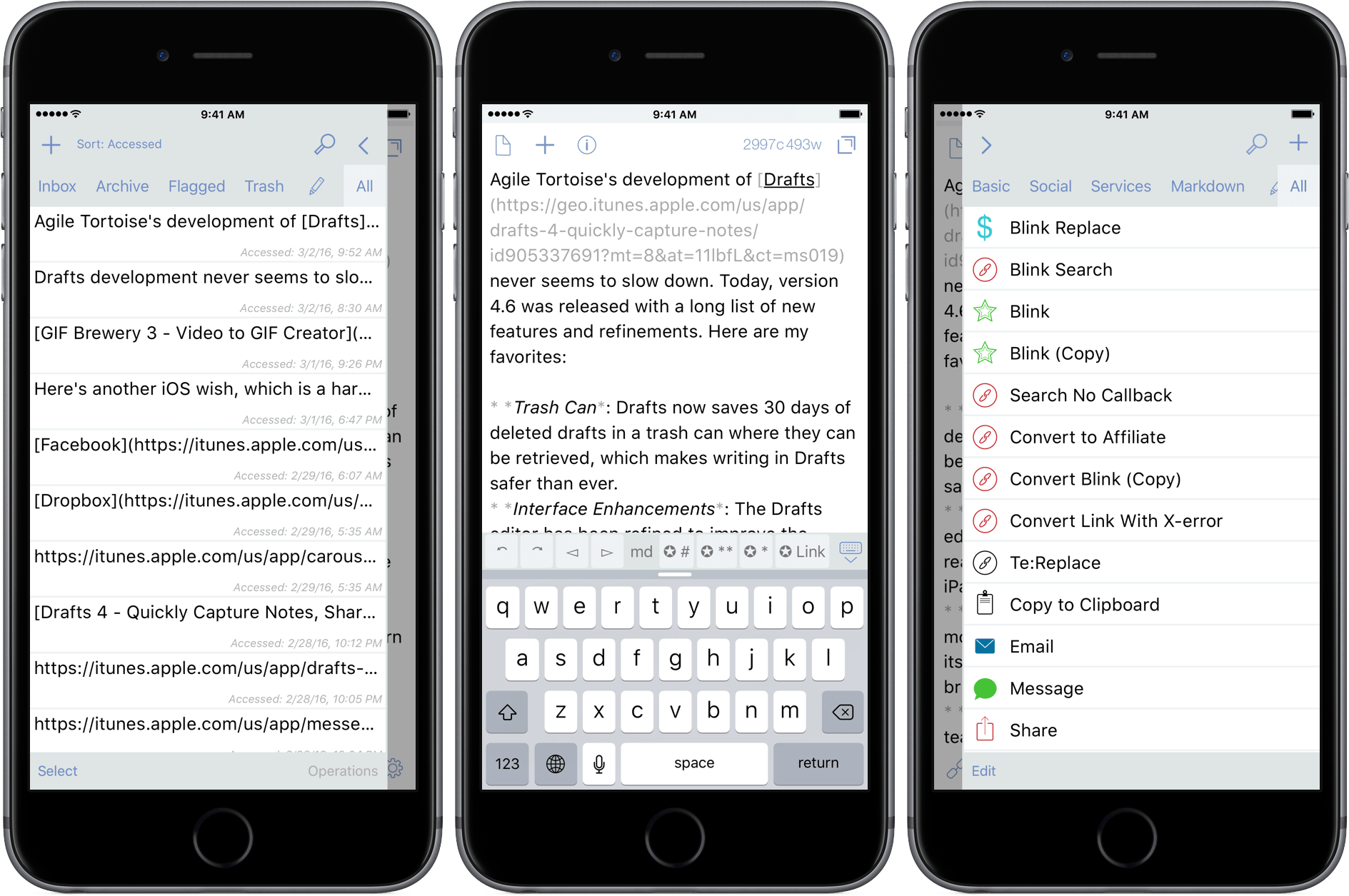
Agile Tortoise’s development of Drafts never seems to slow down. Today, version 4.6 was released with a long list of new features and refinements. Here are my favorites:
- Trash Can: Drafts now saves 30 days of deleted drafts in a trash can from which they can be restored, which makes writing in Drafts safer than ever.
- Interface Enhancements: The Drafts editor has been refined to improve the readability of your drafts, especially on the iPad.
- Automatic Dark Mode: Drafts can now monitor the ambient light in a room, and turn its dark mode on and off according to a brightness threshold that you select.
- Box Support: Last year the MacStories team started using Box as part of our document collaboration workflow, which makes Box support especially welcome. Much like Drafts’ Dropbox and Google Drive support, you can now create files in Box, and append and prepend to existing Box files.
- Today Widget: Drafts 4.6 debuts a redesigned Today Widget with a streamlined look.
- Icons: Drafts has added many action icons, which I like because it makes it even easier to identify my Drafts actions.
There are also some treats in Drafts 4.6 for power users too:
- Open in Drafts: Instead of opening Safari, you can set a URL action to open URLs in Safari View Controller, which keeps you inside Drafts. The Agile Tortoise blog includes a couple good examples of this that search Google and DuckDuckGo.
- ‘replaceRange’ URL Scheme Action: When used with an x-success callback parameter in a URL scheme action, ‘replaceRange’ can replace selected text in a draft with the results of a URL scheme call to another app. This is powerful stuff, and means you can do things like send selected text to Agile Tortoise’s dictionary app, Terminology, to look up a synonym, select it, and return it to Drafts, replacing the originally selected text. A similar action works with my app, Blink, where the selected text kicks off a search. After you select an item from the results, Blink sends an affiliate link back to Drafts, replacing the selected text with the link. I have more detail, and a demonstration of the Blink action on squibner.com. Both of these actions work on any iOS device, but the first time I saw them in action with both apps running in Split View on an iPad Pro, I was blown away. Writers will love these actions.
- Include Action: You can now incorporate one action into another by reference, which makes building actions more modular.
With version 4.6, Drafts continues its steady pace of innovation by continuing to redefine what a text editor can be, which is why it has been one of my go-to text editors for many years now.
Drafts 4.6 is a free update for existing customers, and $9.99 for new users.
Sam Beckett’s Advanced Control Center Concept→
Control Center was introduced with iOS 7 in 2013, since then, it has benefited from minor visual tweaks and the recent inclusion of a Night Shift toggle with iOS 9.3. In future updates, it would be great to see Control Center gain more hardware and system toggles, along with the ability for users to customise which toggles they require and where they are positioned. An enhanced Control Center could also add support for 3D Touch for additional options and introduce a new system-wide dark mode.
I don’t typically publish iOS concepts on MacStories, but Sam Beckett’s latest video is so close to my idea for a customizable Control Center (see last year), I just couldn’t resist. Tasteful, well researched, and with some great ideas for integrating 3D Touch, too.
Improving the iOS Keyboard Switching Experience for Multilingual Users
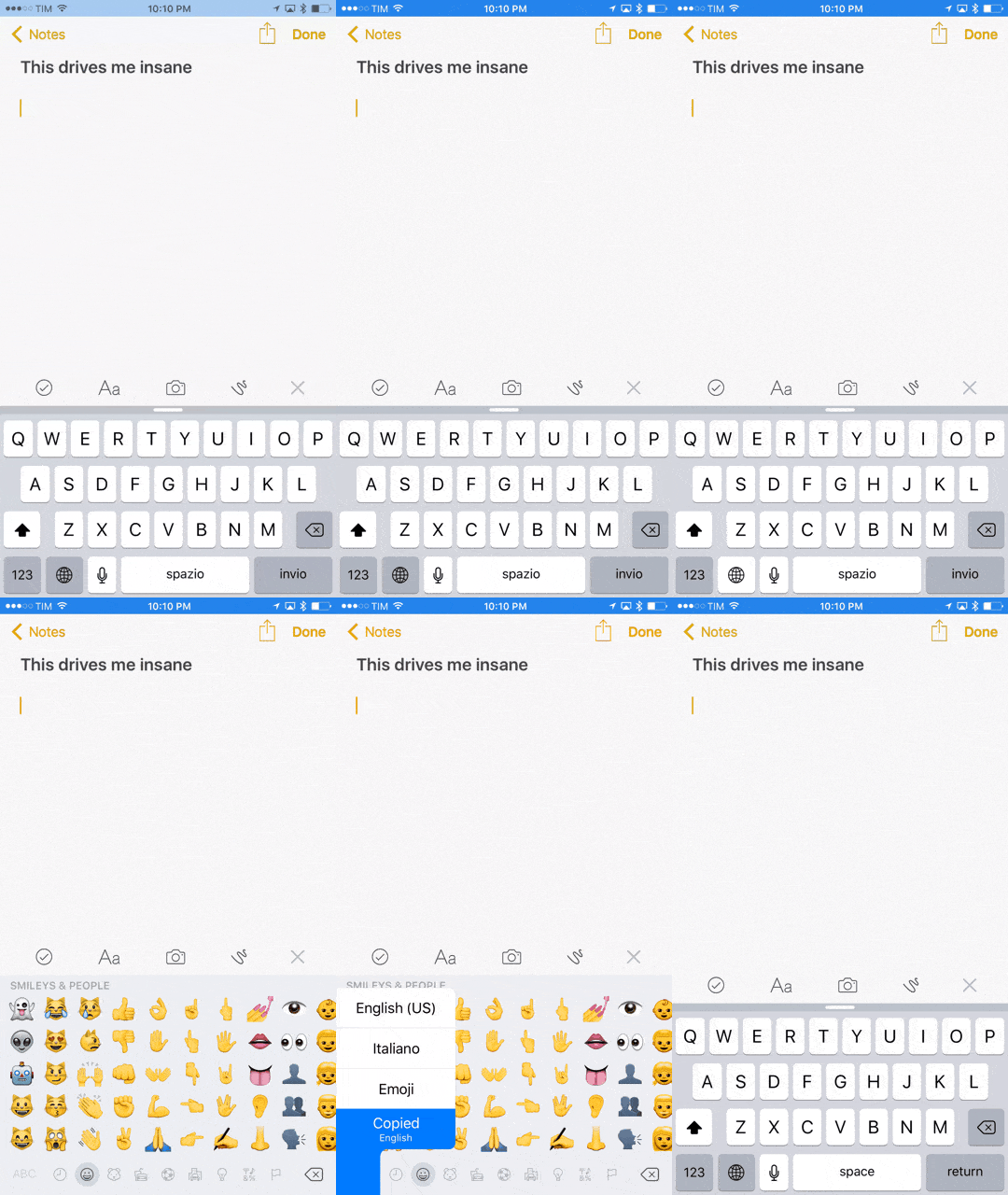
Wang Ling has an interesting proposal to improve the iOS keyboard experience for international users who frequently switch between keyboards:
If you are a monolingual user you are unlikely to feel the need of a separate group of occasionally-used keyboard. Most of you enable at most two keyboards, your language keyboard and Emoji keyboard. Switching between two keyboards is never an issue because it never incurs unnecessary inconvenience. You always switch to your target keyboard directly and immediately.
However, if you are a multilingual user like me or many other Chinese (I guess also many other English-as-second-language users) users, things are very different. We use both Chinese and English keyboards. We type mixture of Chinese and English very often so we need to switch between the two frequently. If Chinese and English are the only keyboard we use there will be no issues, as explained above. But Emoji is fun and we also want to use it, occasionally.
Replace “Chinese” with “Italian”, and that’s me. Every day, I’m constantly switching between the Italian and US English keyboards on my iOS devices and the experience is slow and annoying. Once you throw in a couple of additional keyboards in the mix (I use Emoji and Copied) the only sensible way to switch keyboards is tapping & holding the globe button then sliding over to the keyboard you want to use again – which takes about 1 second in my experience. That doesn’t sound like a lot, but the annoyance adds up; plus, imagine doing that for years. Assuming I switch between English and Italian keyboards 50 times a day (and I’m lowballing here), I can say I lose about 5 hours/year to this keyboard switching dance on iOS.
This won’t seem like a big deal to monolingual users, but trust me – it’s one of the most tedious aspects of working and communicating with others on iOS.
I see two possible solutions: either Apple implements something close to Ling’s idea with separate shortcuts for frequent and occasional keyboards, or, even better, they build a smarter, unified keyboard that automatically recognizes multiple languages at a time (though that obviously wouldn’t work for Chinese and other non-QWERTY keyboards).
Chrome for iOS Switches to Modern Web View API→
Big news from Google’s Chrome for iOS team today: the app has moved from the legacy UIWebView API to WKWebView, promising notable speed improvements and 70% less crashing.
Here’s Andrew Cunningham, writing for Ars Technica:
Chrome’s stability on iOS should also see a big improvement. The UIWebView process in older versions needed to run within the Chrome process, so if a complex or badly behaving page made UIWebView crash, it would bring the whole Chrome browser down. With WKWebView, Google can move the process for individual pages outside of the app, better approximating the process isolation that Chrome uses on other platforms. Now when a page crashes, you’ll see the standard “Aw, Snap” Chrome error page. Google estimates that Chrome 48 will crash 70 percent less than older versions.
Apparently, Google worked with Apple to fix some of the bugs that prevented them from using WKWebView in Chrome before iOS 9. Developers have long been positive about the benefits of WKWebView (see my story on iOS web views from last year) and it’s good to see Google moving to a faster, more stable engine.
I’m curious to know if Google’s dedicated search app has been or will be upgraded to WKWebView as well. I don’t use Chrome (I like the unique perks of Safari, like Safari View Controller and the ability to access webpage selections with action extensions), but I prefer the Google app for traditional Google searches – it has a native interface for the search box with handy suggestions and links to past queries. Not to mention Google Now, which I’ve grown to like to track shipments, get weather reports, and receive time to leave notifications.
An important note for VoiceOver users: today’s update seems to break support for this key accessibility feature in the app.
Improving the iOS Emoji Keyboard→
Steven Aquino, writing at The App Factor:
What I’d like to see Apple do is not necessarily make the emojis themselves bigger — the keyboard only fits a finite space, after all — but rather change how they’re presented to the user.
Here’s my suggestion: Apple should take the magnification animation it already employs on the text keyboard and apply it to the emojis. Every time I press on, say, a smiley face, the face would “pop up” in the same manner a letter does when you press its corresponding key. Taking this a step further, it would also be helpful if you could use the magnification loupe (for moving the insertion point) to scrub through emoji. The only caveat here is that Apple would need to make the loupe larger, which is something I wrote about in my aforementioned article. As it is now, the current magnification level wouldn’t do much good to compensate for the small size of the emoji.
Looking at the emoji keyboard from an accessibility perspective, Steven’s suggestions make a lot of sense. Existing features such as Dynamic Type and Character Preview could also be used for emoji, but I like Steven’s loupe idea better.
New Apps for 2016
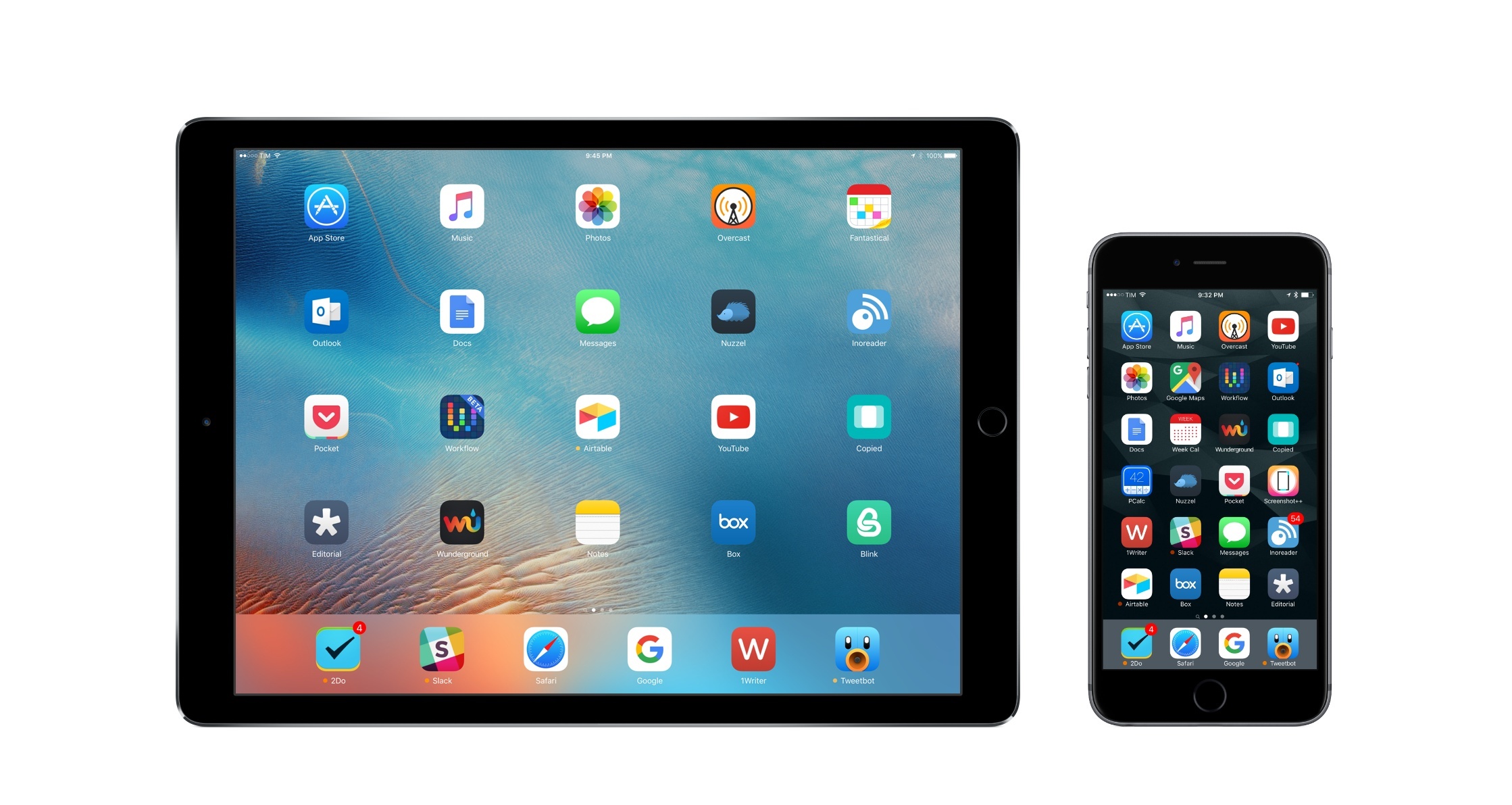
Every year around this time, after compiling a list of my must-have apps and thinking about the goals I want to achieve in the next 12 months, I like to get started on the upcoming season of writing by reassessing some of the ways I get work done. Change never stops: rather than getting stuck in my own ways and refusing to embrace it, I feed my curiosity by entertaining the possibility of better tools for my trade.
Plus, it’s always fun to spend a couple of weeks trying a bunch of apps and new services, seeing what works and should be explored further.
While this has become a new-year tradition, I’ve only written about it once – four years ago, when I was just getting started on the “iPad as a computer” idea. With 2016 and the transition to primary computer finally complete, I thought it’d be appropriate to publish a similar article again – if anything, for future reference.1
The apps below aren’t my new must-haves. They are alternatives or additions to my current must-haves that I’m considering out of intellectual curiosity for now. I’m not ready to fully endorse them, but I like some aspects of them. Most of them aren’t new, but they’ve received redesigns or feature updates that piqued my interest again.