This Week's Sponsor:

Turbulence Forecast

Know before you go. Get detailed turbulence forecasts for your exact route, now available 5 days in advance.


Posts tagged with "iPad"

“The iPad’s Software Problem Is Permanent”

I love my iPad Pro, but, as you know, lately I’ve been wondering about what comes after iPadOS 26. We have much better multitasking now, and key workflow limitations such as file management, audio recording, and long-running background tasks have been addressed by Apple this year. But now that the user-facing system’s foundation has been “fixed”, what about the app ecosystem?

Over at Snazzy Labs, Quinn Nelson has been wondering the same, and I highly recommend watching his video:

Quinn makes a series of strong, cogent arguments with factual evidence that show how, despite multitasking and other iPadOS 26 improvements, using apps on an iPad Pro often falls short of what can be achieved with the same apps on a Mac. There is so much I could quote from this video, but I think his final thought sums it up best:

There are still days that I reach for my $750 MacBook Air because my $2,000 iPad Pro can’t do what I need it to. Seldom is the reverse true.

I’m so happy that Apple seems to be taking iPadOS more seriously than ever this year. But now I can’t help but wonder if the iPad’s problems run deeper than windowing when it comes to getting serious work done on it.

Permalink

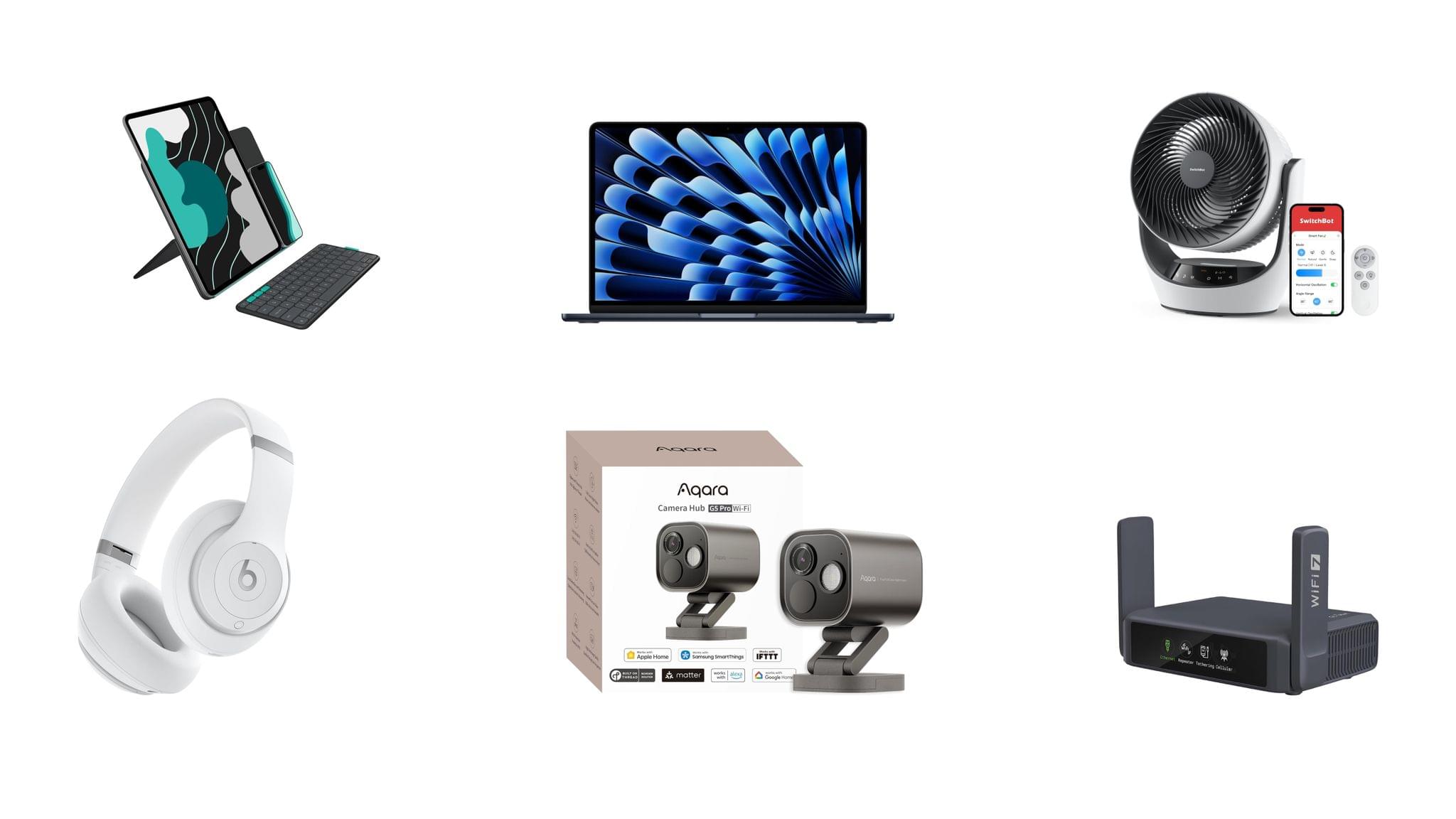
Our Top Amazon Early Black Friday Picks

If you haven’t noticed, it’s not Friday, and Thanksgiving is still a week away. Yet here we are, talking about Black Friday deals. That’s because every year, Amazon pushes the start of its deals a little earlier.

This is far from the first article you’ll come across about Black Friday deals, and it won’t be the last. But what’s different about our approach to Black Friday is that we’re pickier than most sites.

When I sat down to consider Amazon’s Black Friday deals, I looked at a long list of factors, including:

  • whether we’ve reviewed and recommended a product on MacStories,
  • the percentage of the discount,
  • the absolute dollar amount of the discount (which we can’t list due to Amazon rules),
  • whether each deal beats past deals,
  • and a bunch of other factors.

What we’ve come up with is a list of a couple dozen excellent deals that will save you loads of money on everything from great holiday gifts to nerd staples like storage, networking gear, and upgrades to your computing setup.

Every time I write one of these roundups, I inevitably run across even more great deals after the story has been published. So in addition to this story, we’ll be posting deals on the MacStories Deals Mastodon and Bluesky accounts.

Club MacStories Plus and Premier members will be sharing their Black Friday deal finds on Discord too. If you’re not a member, you can sign up here. The Discord server is just one of the many perks of joining the Club.

Finally, please note that the Amazon links in this article are affiliate links. If you follow one of our links and buy something, we make a small commission.

Storage

Some of Amazon's best deals are on storage.

Some of Amazon’s best deals are on storage.

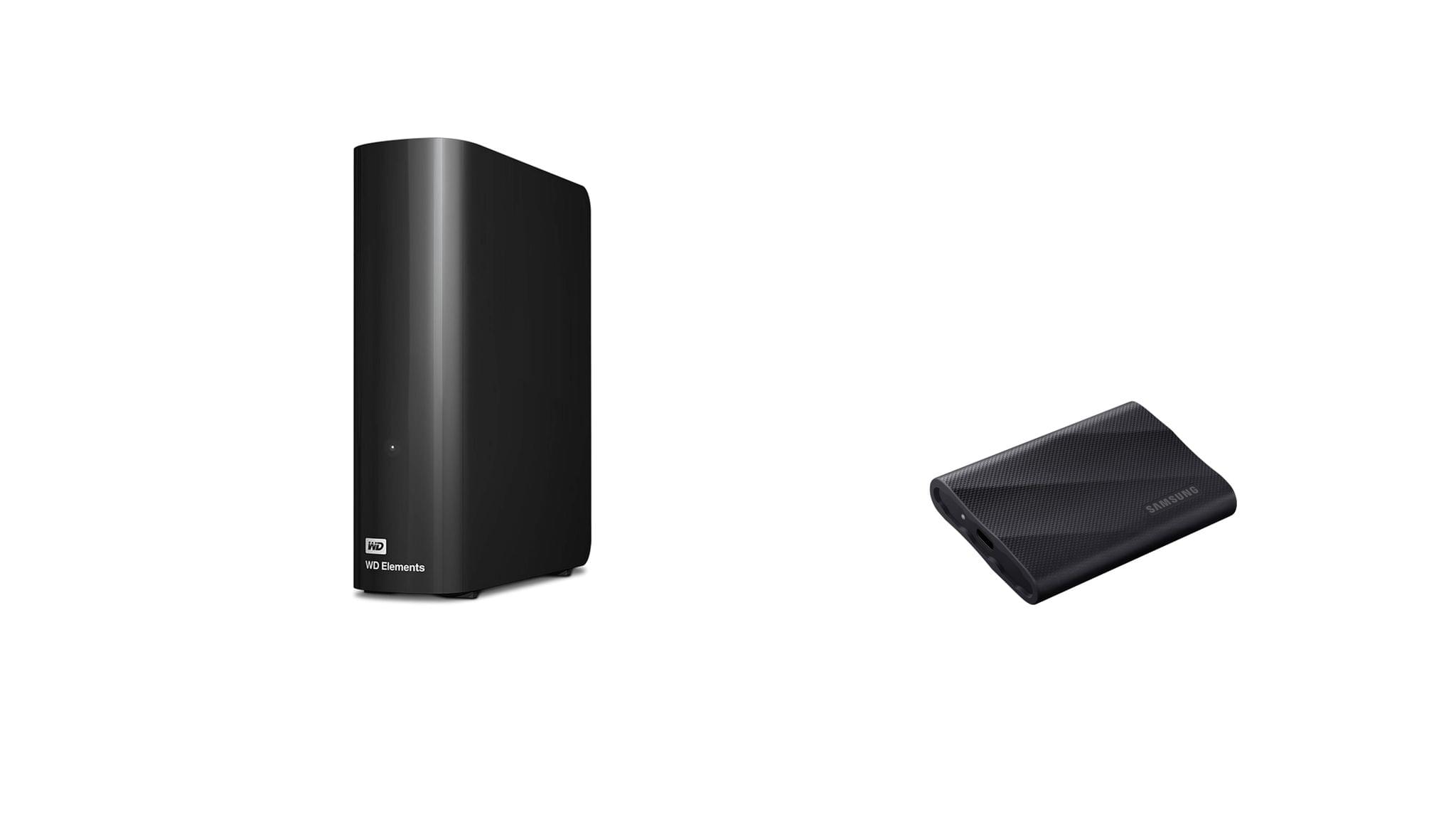
Storage is a staple of Black Friday, with excellent deals on hard drives and SSDs of all shapes and sizes. This year is no different. Whether your Mac’s drive is filling up and you need to offload some large files or you’re looking for a backup solution, now is the time to pull the trigger and get more storage.

I mention Samsung portable SSDs a lot on MacStories and the MacStories Deals accounts because I’ve used them for years and they’re reliable. Samsung’s fastest model – the T9 – is my favorite because it uses USB-C 3.2 Gen 2x2, making it equally good for quick backups and working on large files externally.

Currently, both the 4TB Samsung T9 SSD and the 2TB model are on sale on Amazon, with the biggest discount on the 4TB model. You can save a little more with SanDisk’s 2TB external drive, but it runs at half the speed of the Samsung T9, so I recommend the T9. However, if you want to go really big with an SSD, SanDisk has Samsung beat with an 8TB model that, while expensive and half the speed of a Samsung T9, will be far faster than a mechanical hard drive for backing up a Mac with lots of internal storage. Samsung sadly does not offer an 8TB T9 drive.

SSDs are great, but even on sale, they’re more expensive than mechanical hard drives. If you don’t need the fastest speeds and can tuck your hard drive away somewhere the heat and noise won’t bother you, Amazon has a great deal on a 14TB Western Digital Elements hard drive. I’ve used Elements drives a lot over the past several years for archiving big projects and Time Machine backups, and I’ve been very happy with their performance. If you need a big drive, now is the time to pick one of these up; they’ve never been cheaper.

Smart Home

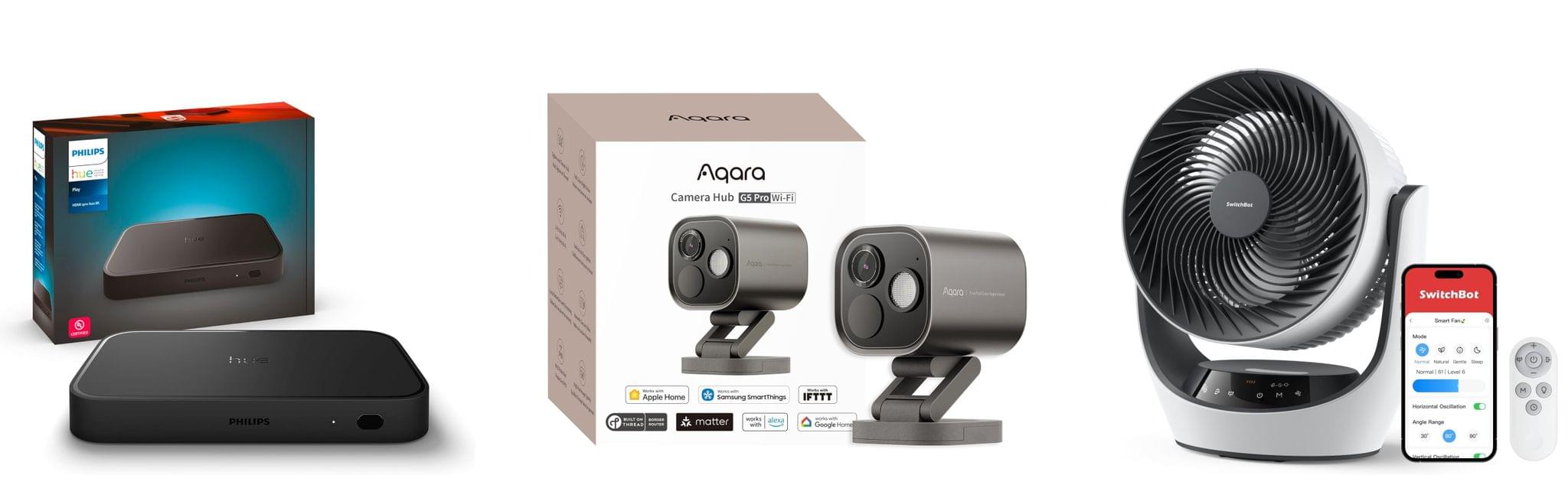
For starters, the Aqara 4MP Camera Hub G5 Pro is deeply discounted for Black Friday. I reviewed this outdoor HomeKit-compatible camera earlier this year and love it. From the feedback I’ve heard, MacStories readers seem to love the camera, too.

I also reviewed the Philips Hue Play HDMI Sync Box 8K this summer. Paired with Philips Hue lights, it’s remarkably capable, syncing the colors of your lights to whatever is on your TV. While it’s not a smart home essential, it is a lot of fun, and if you need a little push to pull the trigger on this sort of gadget, this discount is a great excuse.

On the more practical end of the spectrum, Philips Hue is also offering a great deal on its Go Smart Portable Table Lamp, which works plugged in or via its built-in battery. I’ve had my eye on this lamp for a while because it’s very portable and would add nice accent lighting when I’m working on my balcony in the evening or anywhere else with less-than-ideal lighting.

Finally, as I mentioned on the Setups video that Federico and I recently released, I love my new SwitchBot Smart Desk Fan. It oscillates left and right as well as up and down, and it has nine speed settings. Best of all, I can control it from the buttons on the front of the device, using the included remote control, or with Shortcuts because it works with HomeKit.

Read more


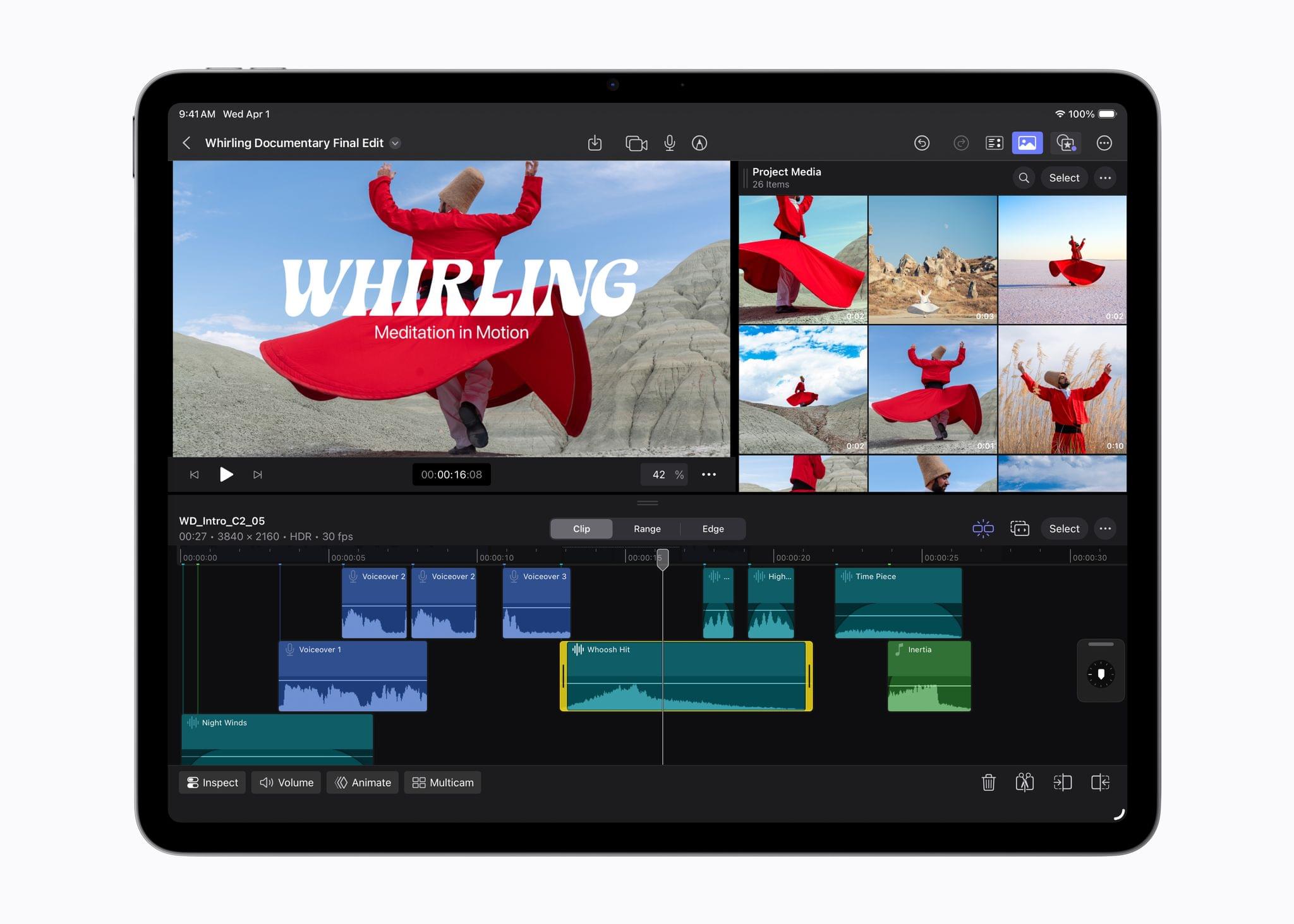
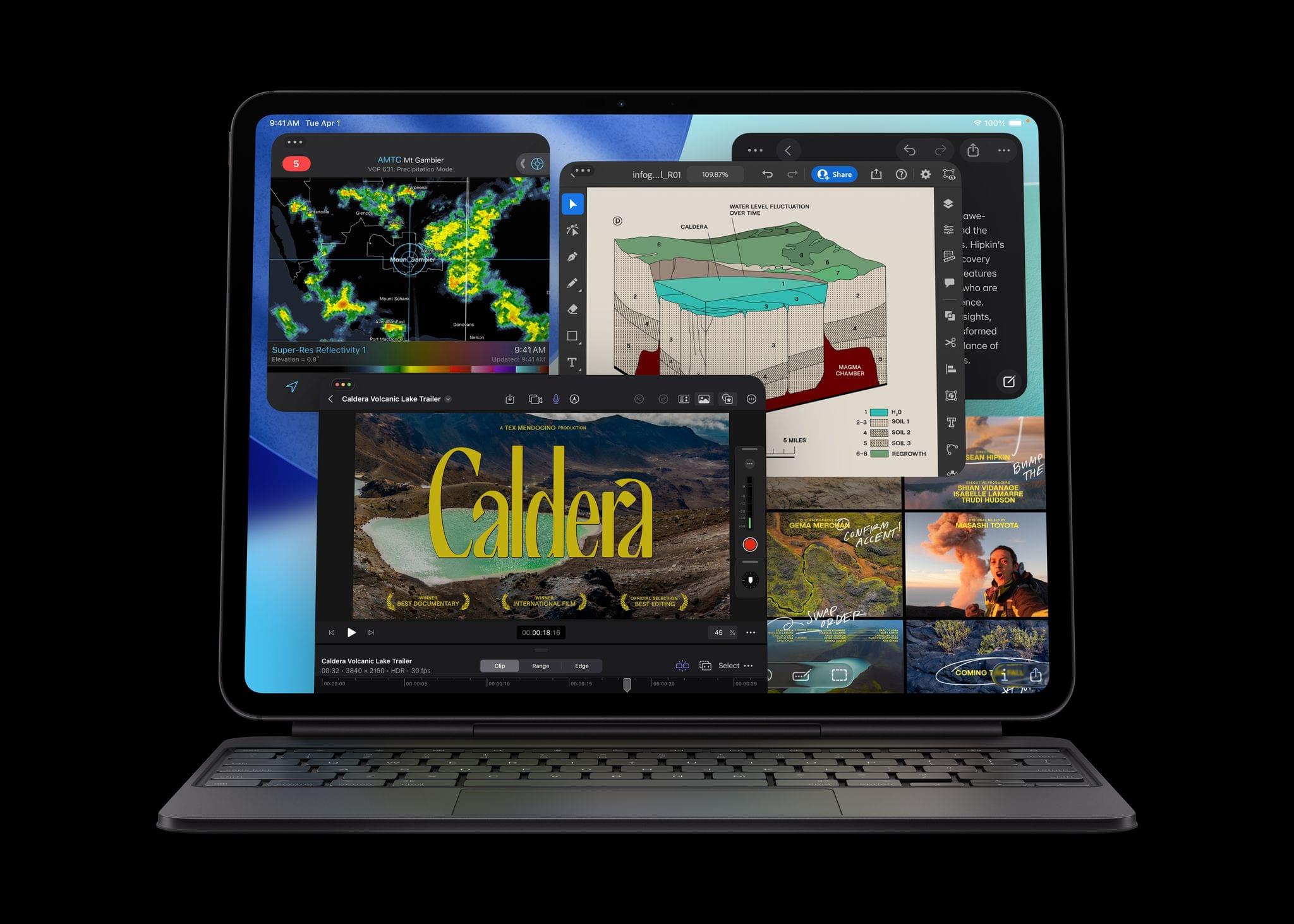
Apple Announces New M5 iPad Pros

Source: Apple.

Source: Apple.

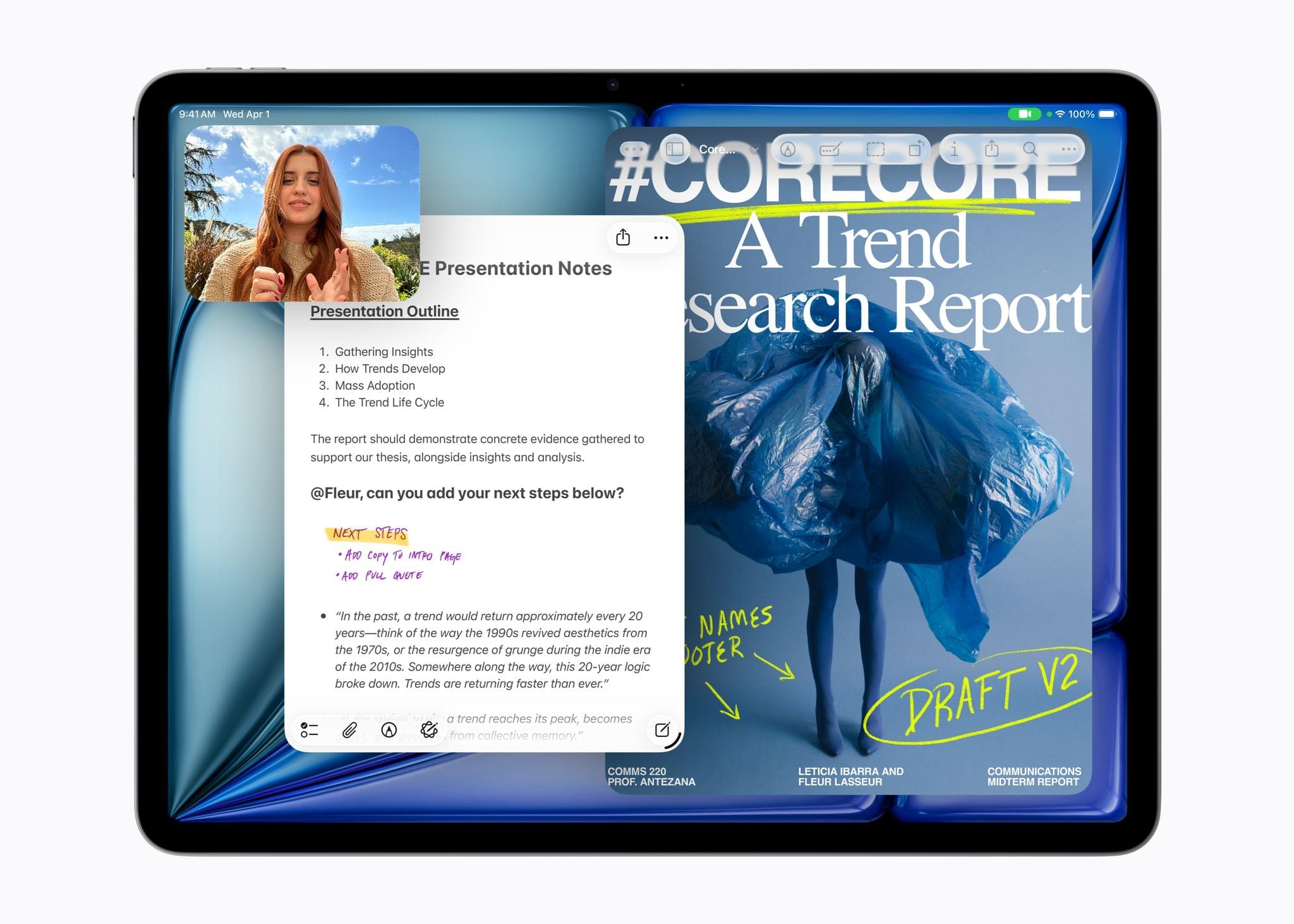
The MacBook Pro wasn’t the only Apple computer to receive an M5 update today. Both the 11” and 13” iPad Pros were updated with the company’s latest chip, too.

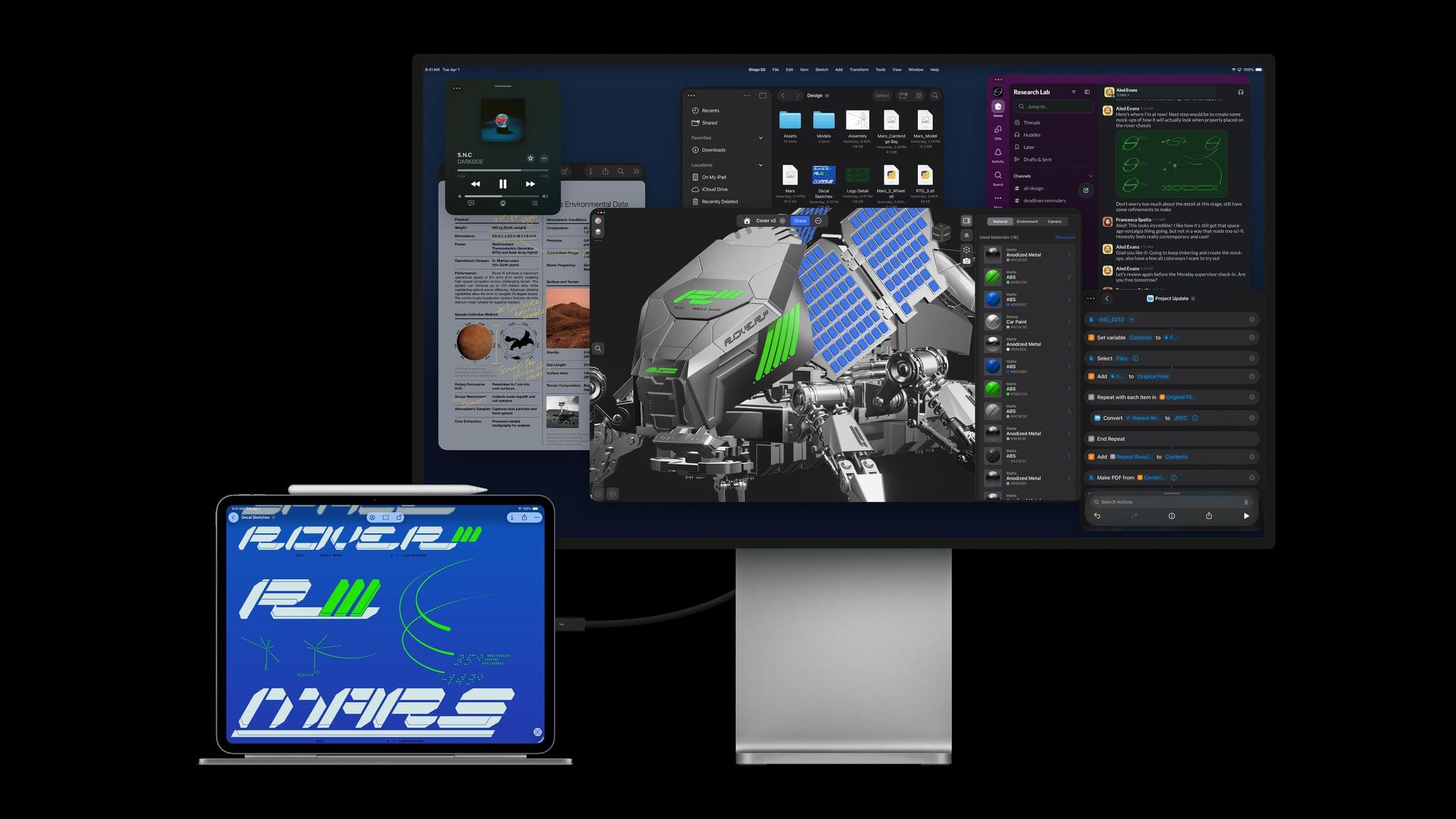
As you’d expect, the performance boosts to the iPad Pro line closely resemble the enhancements to the 14” MacBook Pro, with up to 3.5× performance gains on AI workflows compared to the M4 iPad Pro and 5.6× the performance of an M1 iPad Pro, which is slightly less than the bump from an M1 Mac to the M5 MacBook Pro. The base RAM configuration has been increased to 12GB, too, and the M5 chip enables the iPad Pro to run external displays up to 120Hz with Adaptive Sync.

The new iPad Pros also feature Apple’s N1 networking chip, which supports Wi-Fi 7, Bluetooth 6, and Thread and was first seen in this year’s iPhone updates. For users who buy a cellular-capable iPad Pro, that feature is now powered by Apple’s C1X modem, which the company says is up to 50% faster and more power efficient.

Source: Apple.

Source: Apple.

Like with the MacBook Pro introduced today, the M5 is the star of this update. The chip features a 10-core GPU architecture that has dedicated Neural Accelerators for each GPU core. The 16-core Neural Engine, unified memory bandwidth, storage, and charging are faster too.

According to Apple that equates to substantial real-world performance enhancements:

  • Up to 6.7x faster 3D rendering with ray tracing in Octane X when compared to iPad Pro with M1, and up to 1.5x faster than iPad Pro with M4.
  • Up to 6x faster video transcode performance in Final Cut Pro for iPad when compared to iPad Pro with M1, and up to 1.2x faster than iPad Pro with M4.
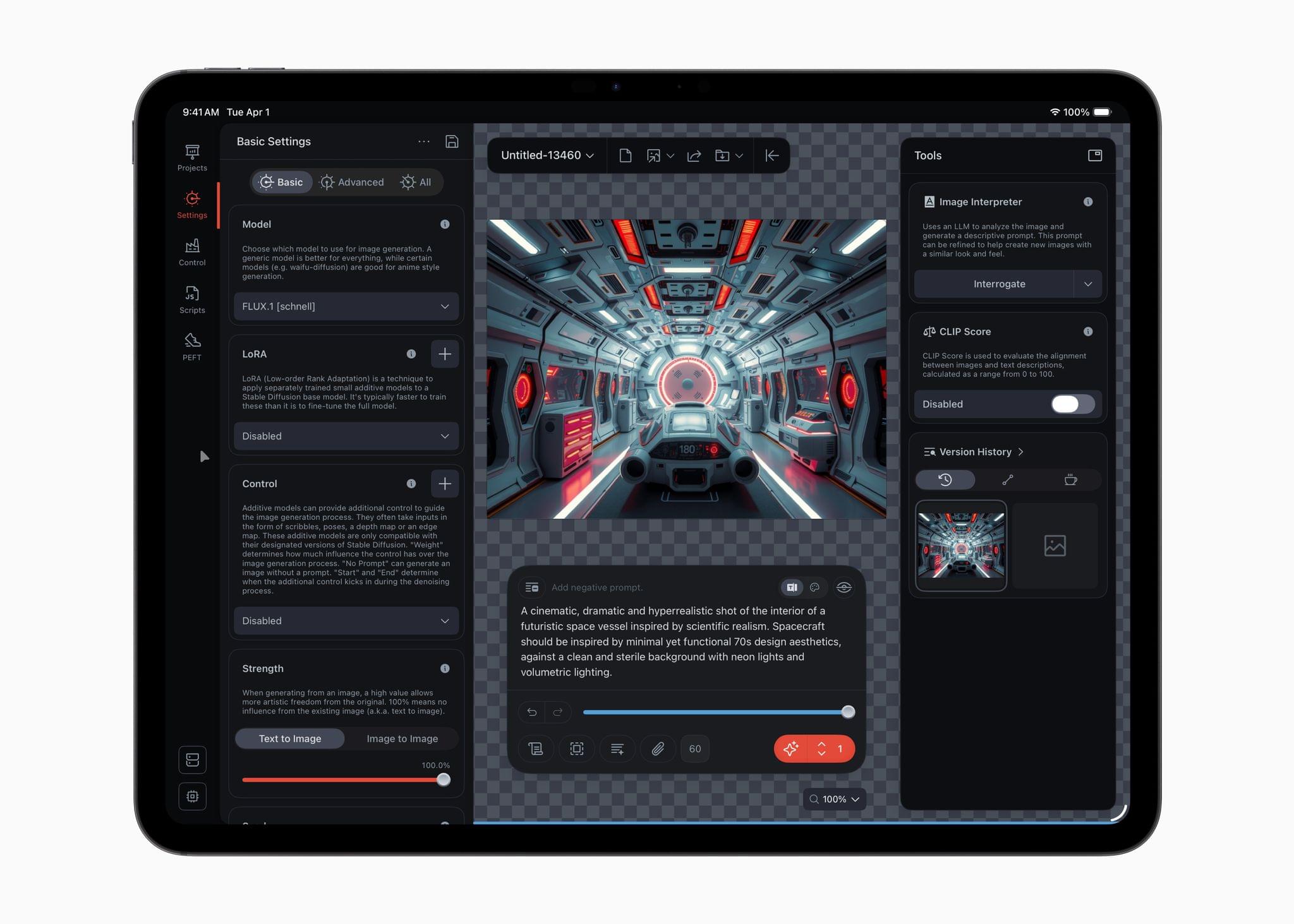
  • Up to 4x faster AI image generation performance in Draw Things for iPad when compared to iPad Pro with M1, and up to 2x faster than iPad Pro with M4.
  • Up to 3.7x faster AI video upscaling performance in DaVinci Resolve for iPad when compared to iPad Pro with M1, and up to 2.3x faster than iPad Pro with M4.

(See the press release for footnotes regarding testing details).

Source: Apple.

Source: Apple.

The iPad Pro line’s new M5 chip should be a meaningful performance boost for users coming from older models, though less so for M4 iPad Pro users. Regardless, it’s good to see Wi-Fi 7 continue to spread across Apple’s hardware lineup. Between multi-windowing and the M5, users will undoubtedly be pushing the iPad Pro further than ever, which often means large files that will benefit from a faster chipset, Wi-Fi, and internal storage.

The new 11” and 13” iPad Pros come in Space Black and Silver and start at $999 for the 11” Wi-Fi model and $1,299 for the 13” Wi-Fi model, with cellular models costing $200 more. Education customers can save $100 on each model, too. Pre-orders can be placed today, with deliveries and in-store availability beginning October 22.


First Look: Logitech’s MX Master 4 Adds Haptics, Actions Ring, and a USB-C Bolt Receiver

Source: Logitech.

Source: Logitech.

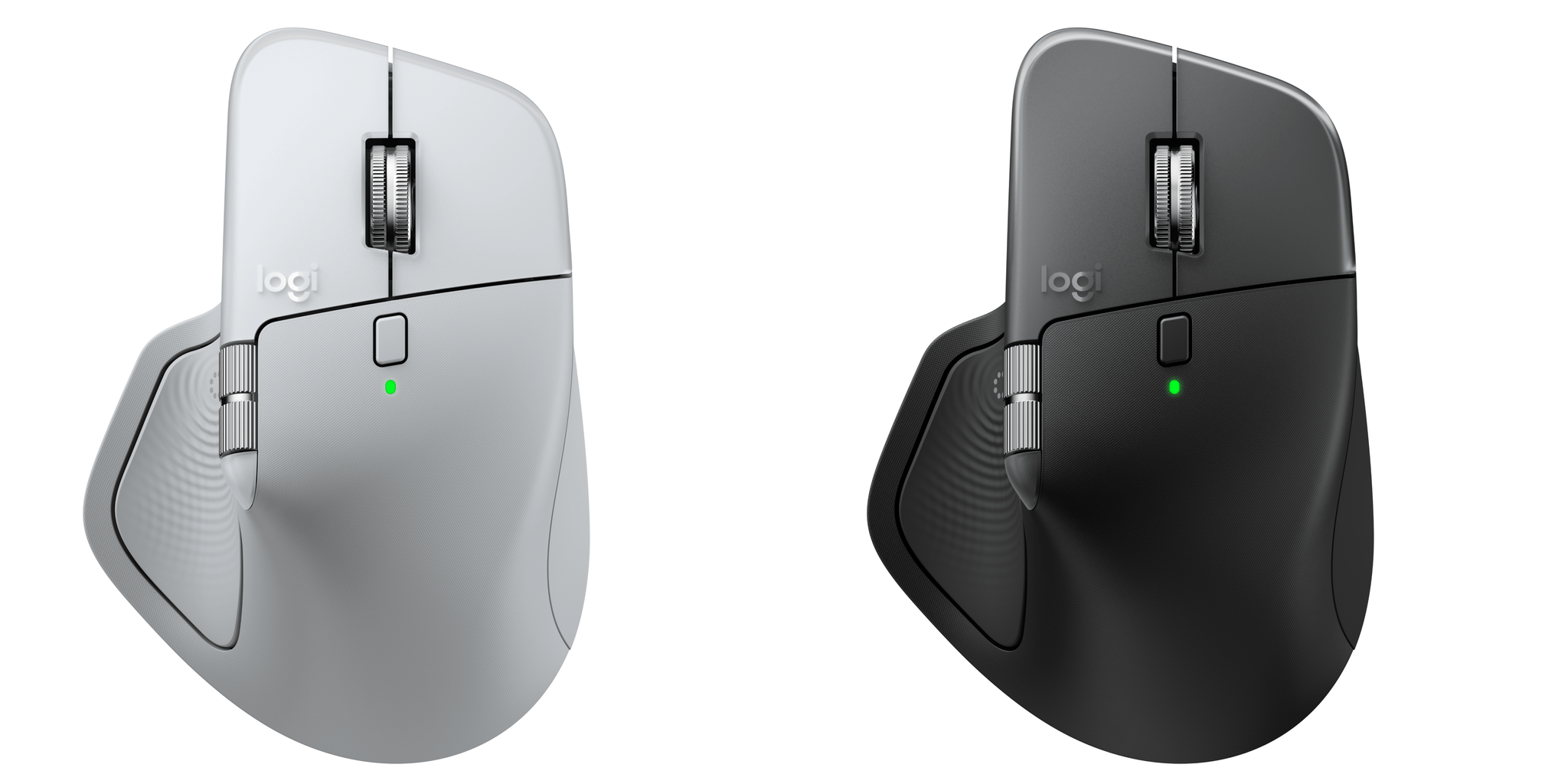
Today, Logitech introduced an updated version of its MX Master series mouse dubbed the MX Master 4. It’s a good upgrade, but the changes are largely incremental; while I like it a lot, the MX Master 4 won’t be for everyone. Logitech sent me the MX Master 4 to try, and I’ve been using it for the past couple of weeks, so I thought I would share what the experience has been like so far.

Read more


Instagram Launches an iPad App

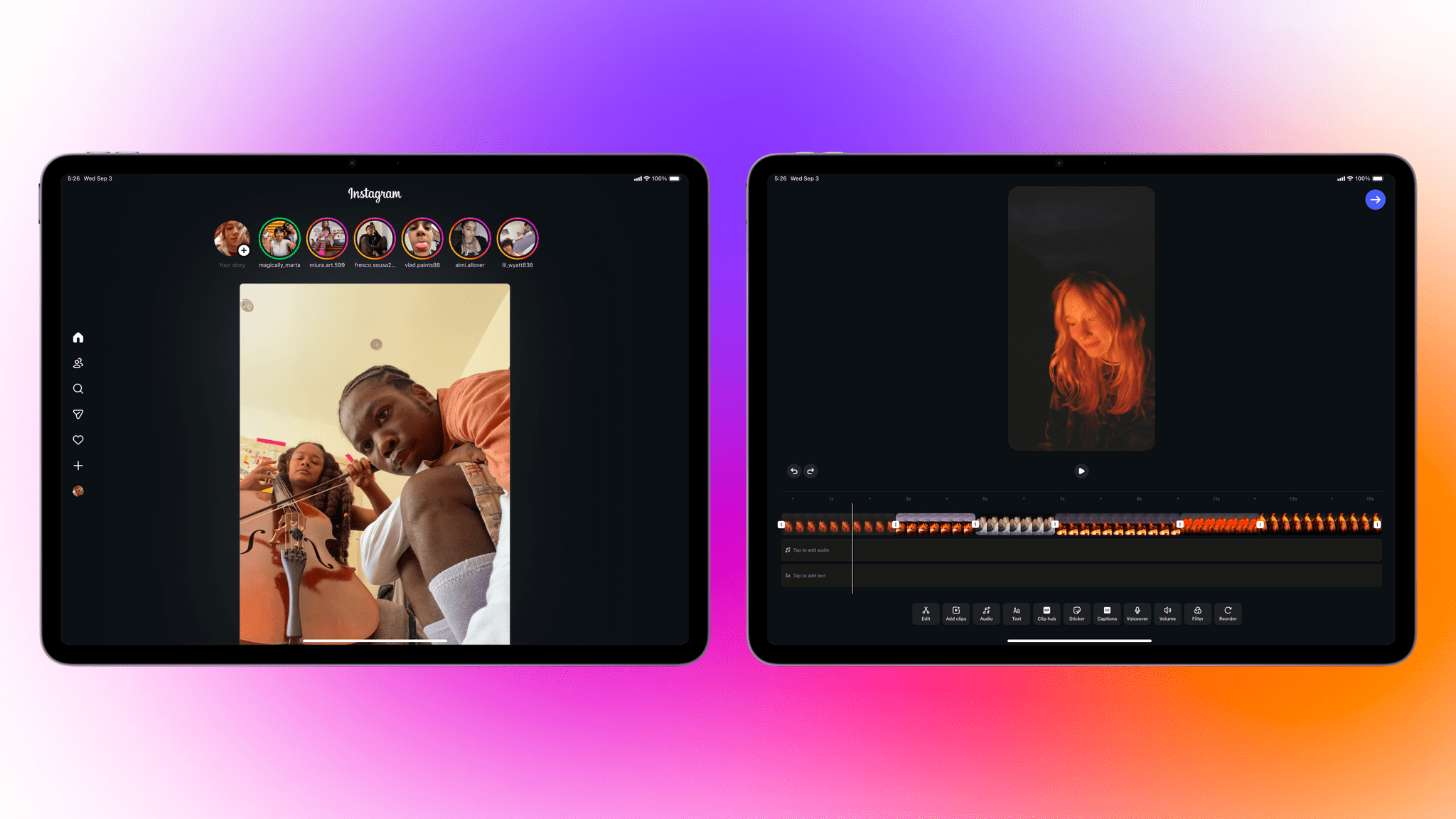
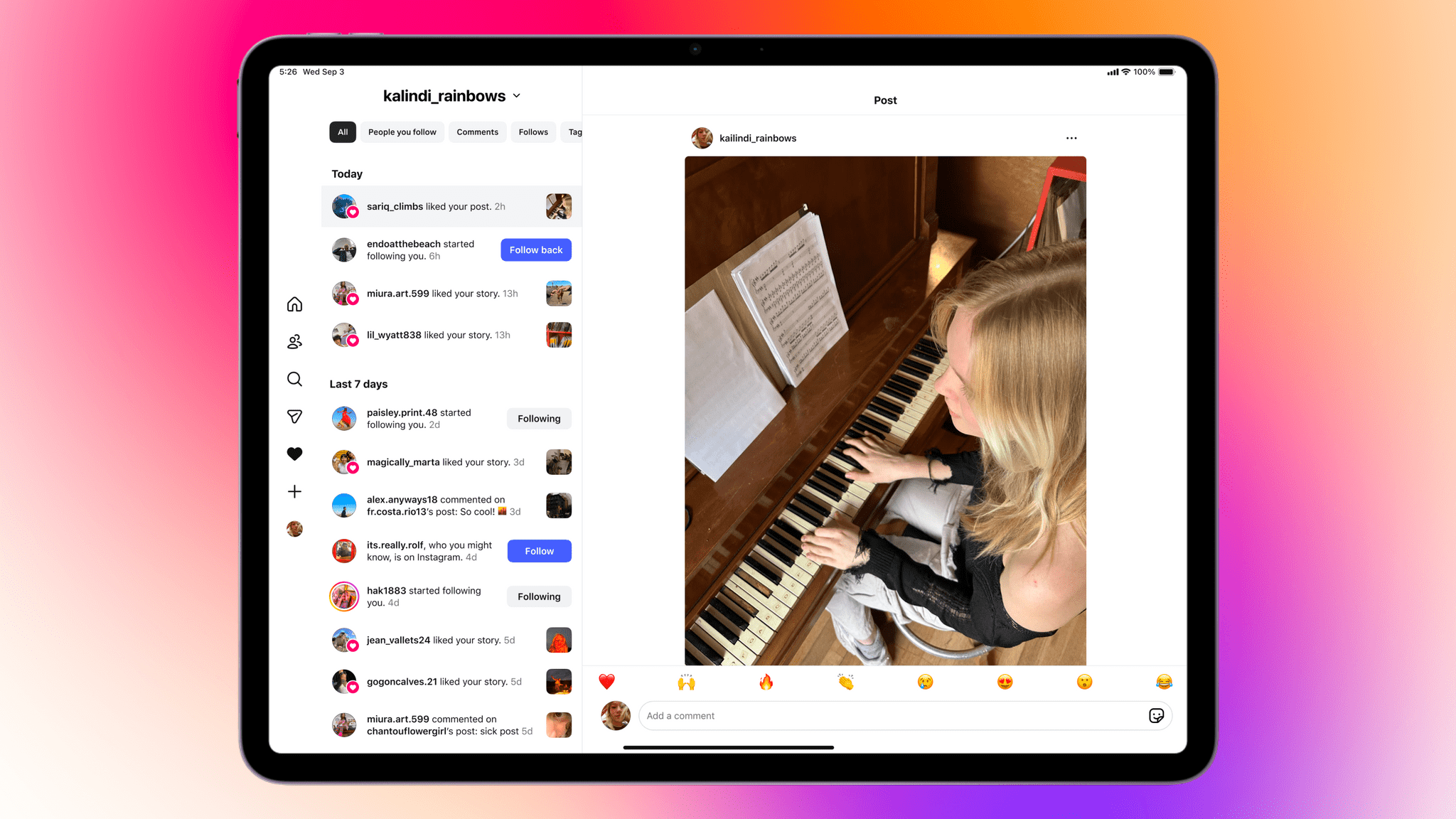
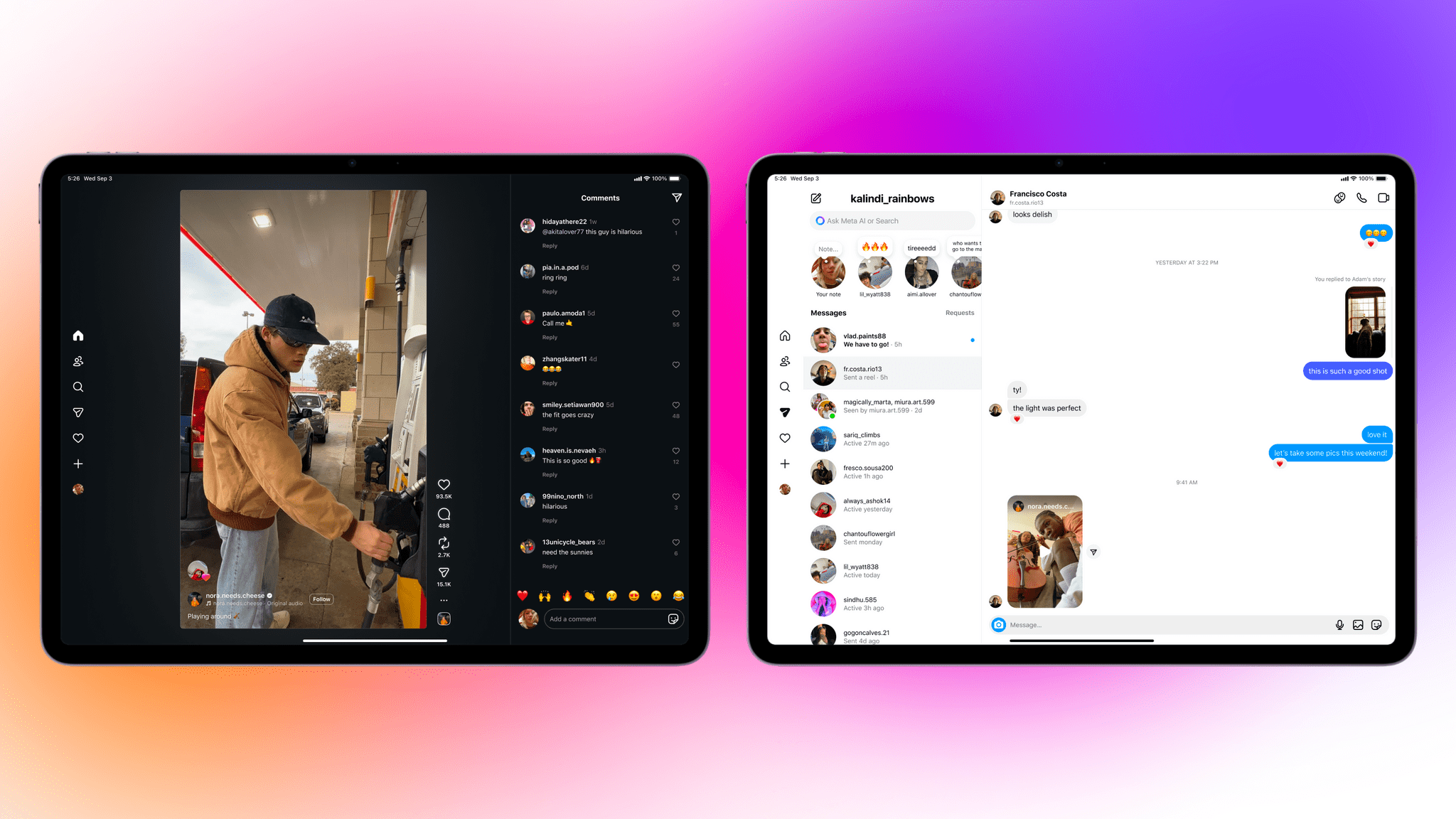
Yes, you read that right. Instagram has finally released an iPad version, and you know what, it looks good, too.

Announced on Instagram’s blog today, the new iPad app supports iPadOS 15.1 and later and includes the features you’d expect like Reels and Stories, plus a new “Following” tab that includes sections for posts and Reels from Friends who follow you back, a “Latest” section that’s sorted chronologically, and an “All” section. Instagram’s messaging is supported and the extra screen real estate allows you to view your inbox and threads simultaneously. It even supports keyboards, trackpads, and the Apple Pencil.

I gave up any expectation that Instagram would ever be released on the iPad years ago. I never really understood the notion that it wouldn’t work on a bigger screen, especially since what Instagram does has expanded a lot in recent years. I’m not a big Instagram user, but I’m glad to see it on the iPad finally. Not only does it work full screen, but with windowing coming in iPadOS 26, you’ll be able to enjoy the more iPhone-like look if you prefer too.

I’m not seeing the app on the App Store yet, but it’s rolling out now and should be available to everyone shortly as a free download here.


Tot 2.0: A Thoughtful Extension of an Already Elegant Note-Taking App

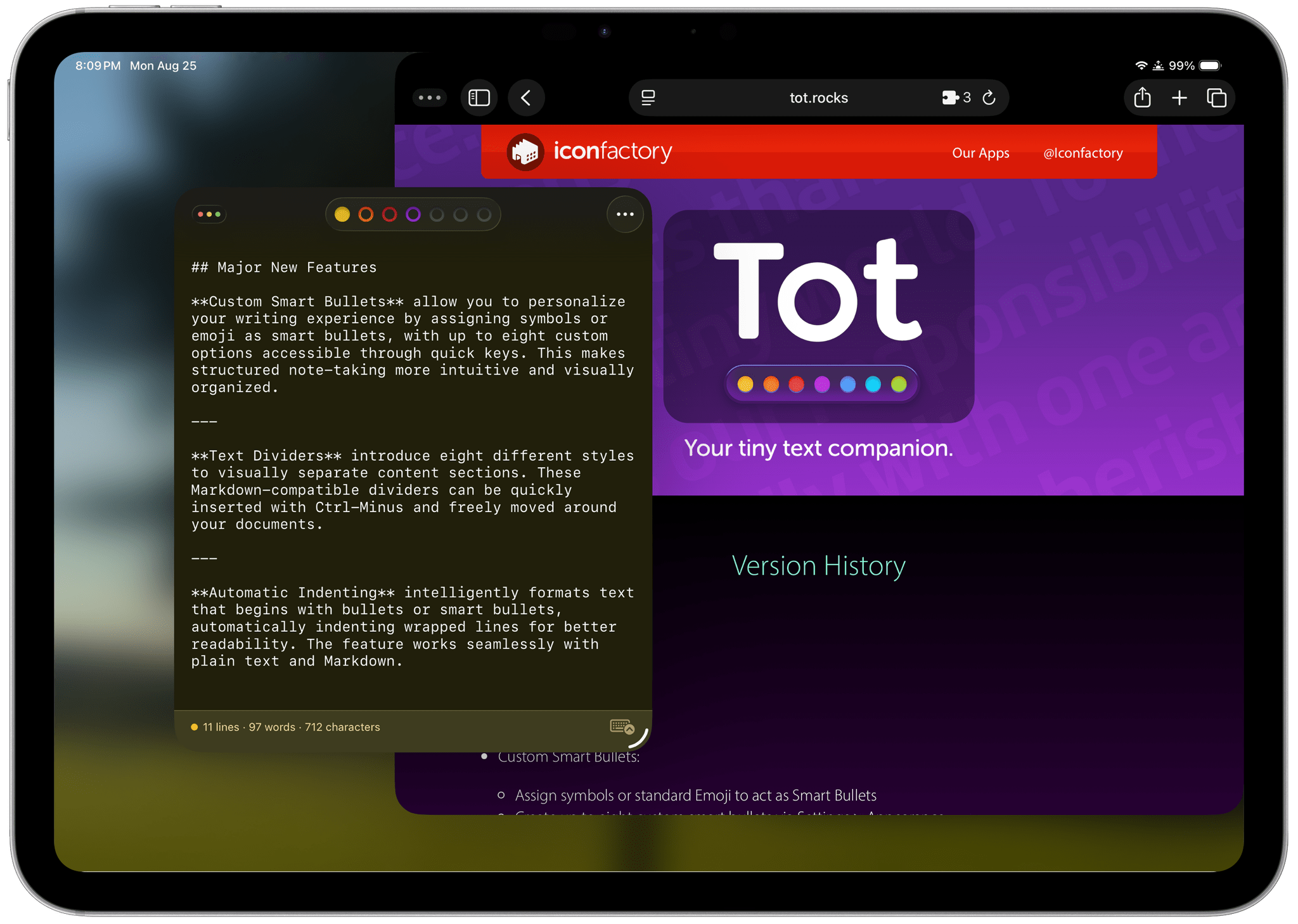
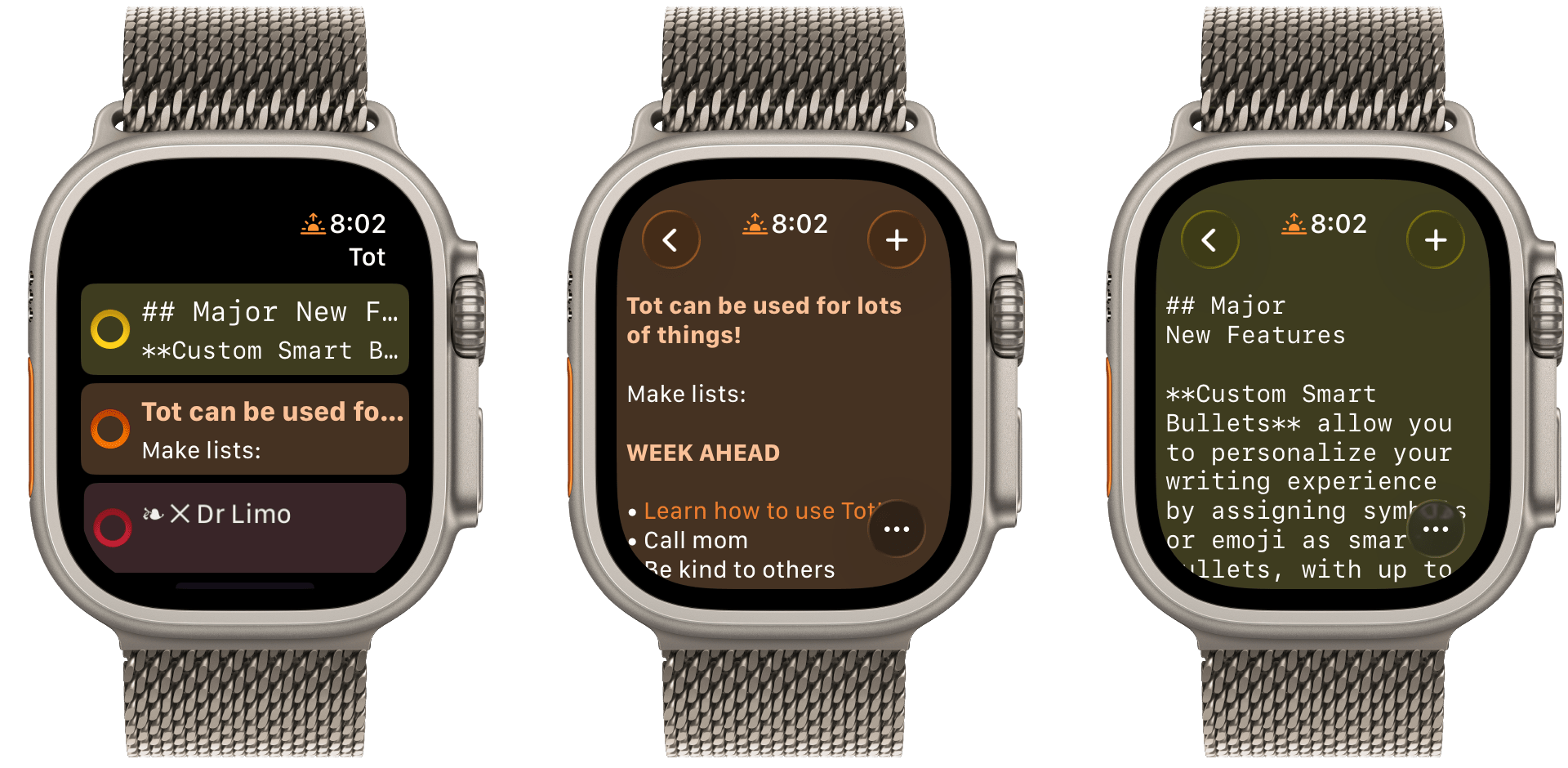
Late yesterday, The Iconfactory released 2.0 updates to Tot for macOS, Tot Pocket for iOS and iPadOS, and Tot Mini for watchOS. The apps, which The Iconfactory describes as tiny text companions, include a handful of big new features that span all three versions, along with other updates and fixes that are unique to each platform.

What hasn’t changed is Tot’s incredible design and reliable performance across all platforms. The app showcases some of The Iconfactory’s best app design work, which Federico described in his review of version 1.0:

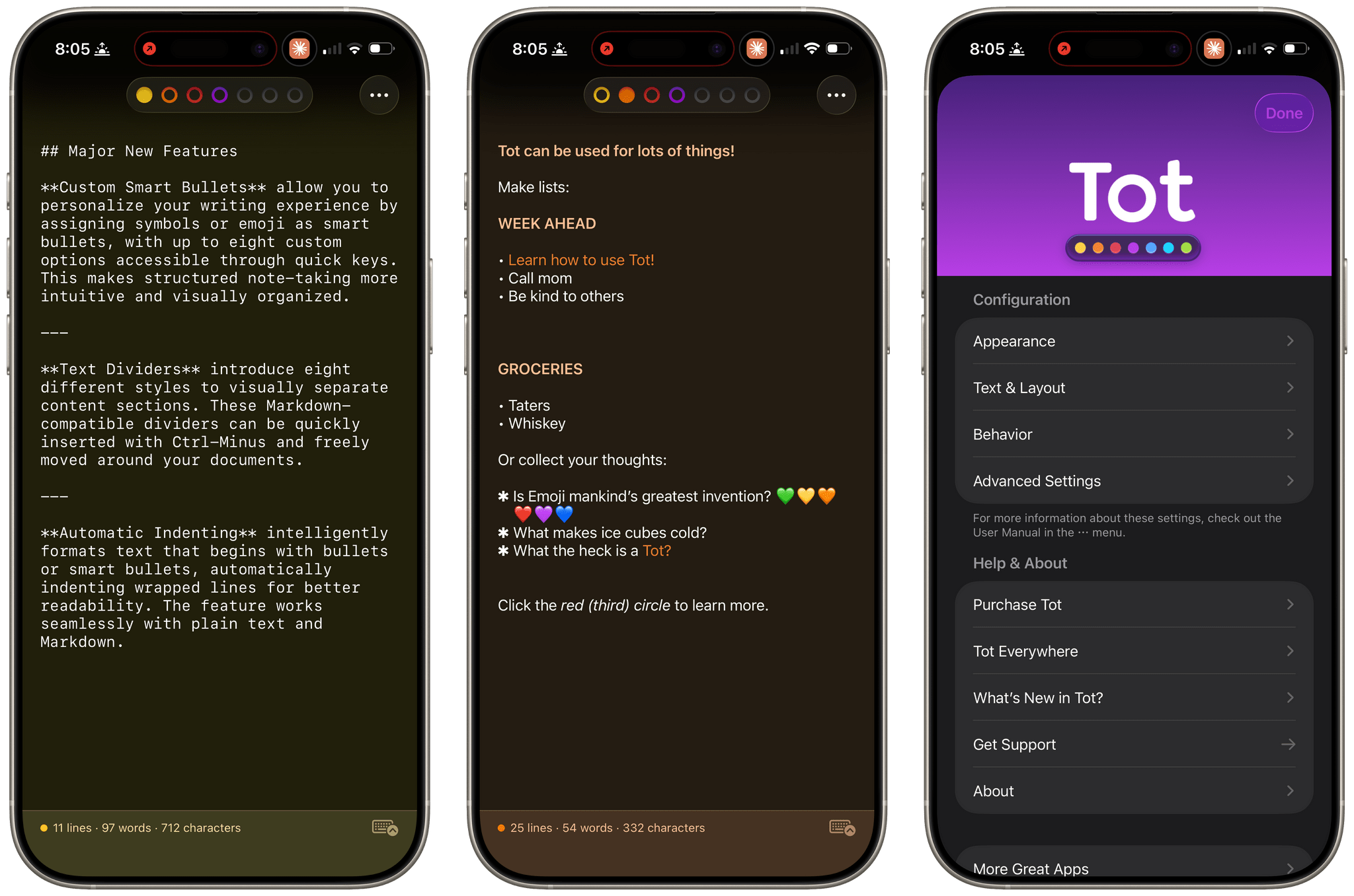
Tot’s colored dots serve the dual purpose of being spatial navigation tool and context indicators. You can navigate across documents in the app with a quick swipe, and in doing so on modern iPhones you’ll feel a delightful haptic tap; alternatively, you can tap the dots to switch documents. As I mentioned above, each dot carries a color, which becomes the background color of the selected document (vibrancy is also used to let the color shine through the software keyboard – a nice touch). The palette chosen by The Iconfactory for Tot’s seven documents is some of the finest selection of colors I’ve seen in a modern iOS app: it looks great in light mode, and it looks amazing in dark mode thanks to its combination of high contrast and translucency.

The combination of that elegant design with reliable sync across multiple OSes and thoughtful Shortcuts integration has understandably made the Tot family of apps integral to a lot of MacStories readers’ workflows. However, if you haven’t tried any of the Tot apps before, it’s worth checking out Federico’s review of version 1.0 for the fundamentals because they haven’t changed, and I’ll be focusing on what’s new.

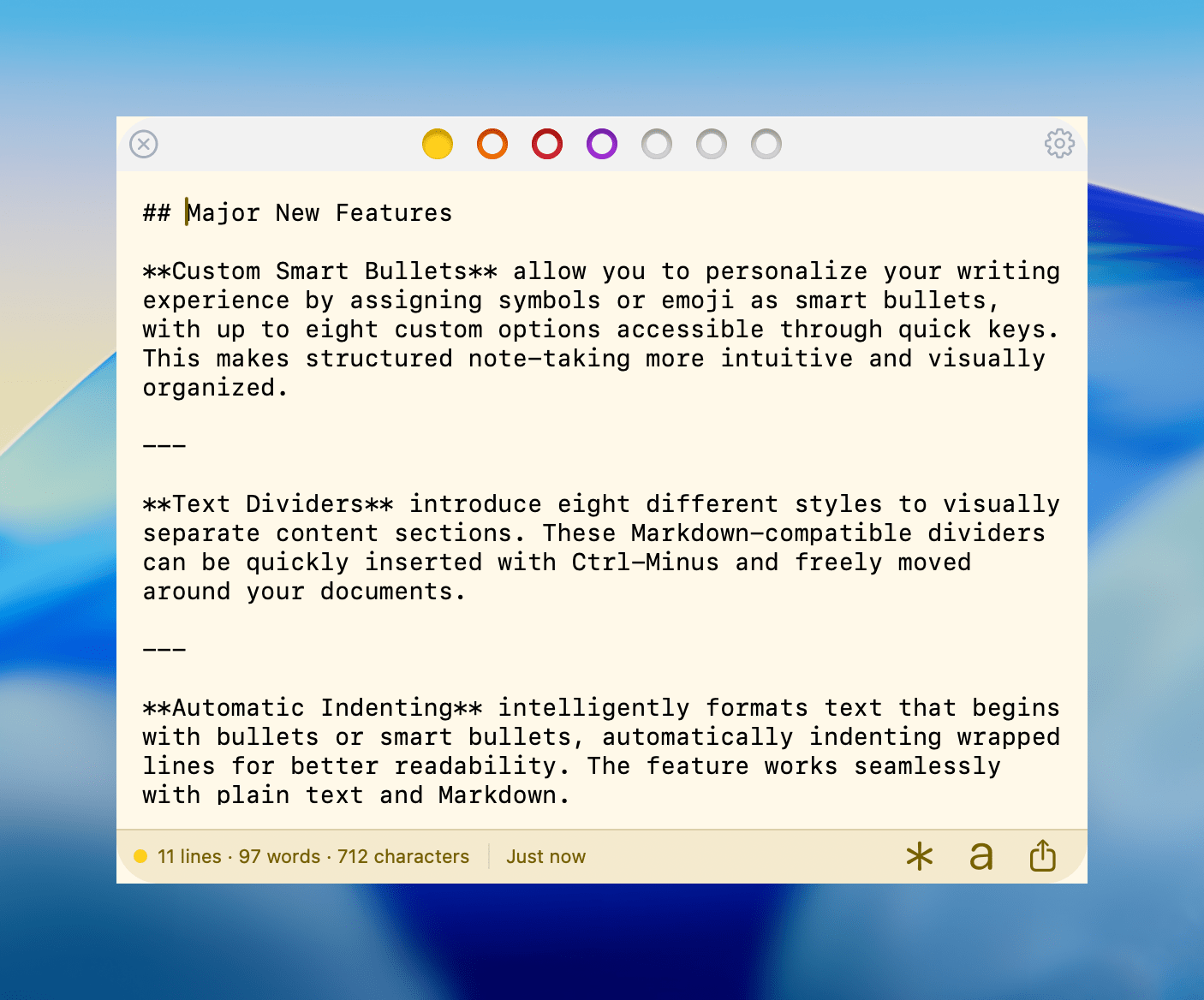
My favorite 2.0 feature is that Tot now supports automatic indenting. If you indent a line using the Tab key, the next line will begin at the same indentation level when you hit Return. That makes creating hierarchical lists a lot faster than before. My only quibble with the feature is that if you’re making a bulleted list, to indent a line, you can’t indent using just the Tab key if the cursor appears anywhere in your line of text. However, you can use ⌘ + ] and ⌘ + ] to do the same thing. Regardless of how indenting is invoked, it’s an excellent addition to Tot that I was glad to see included in the update.

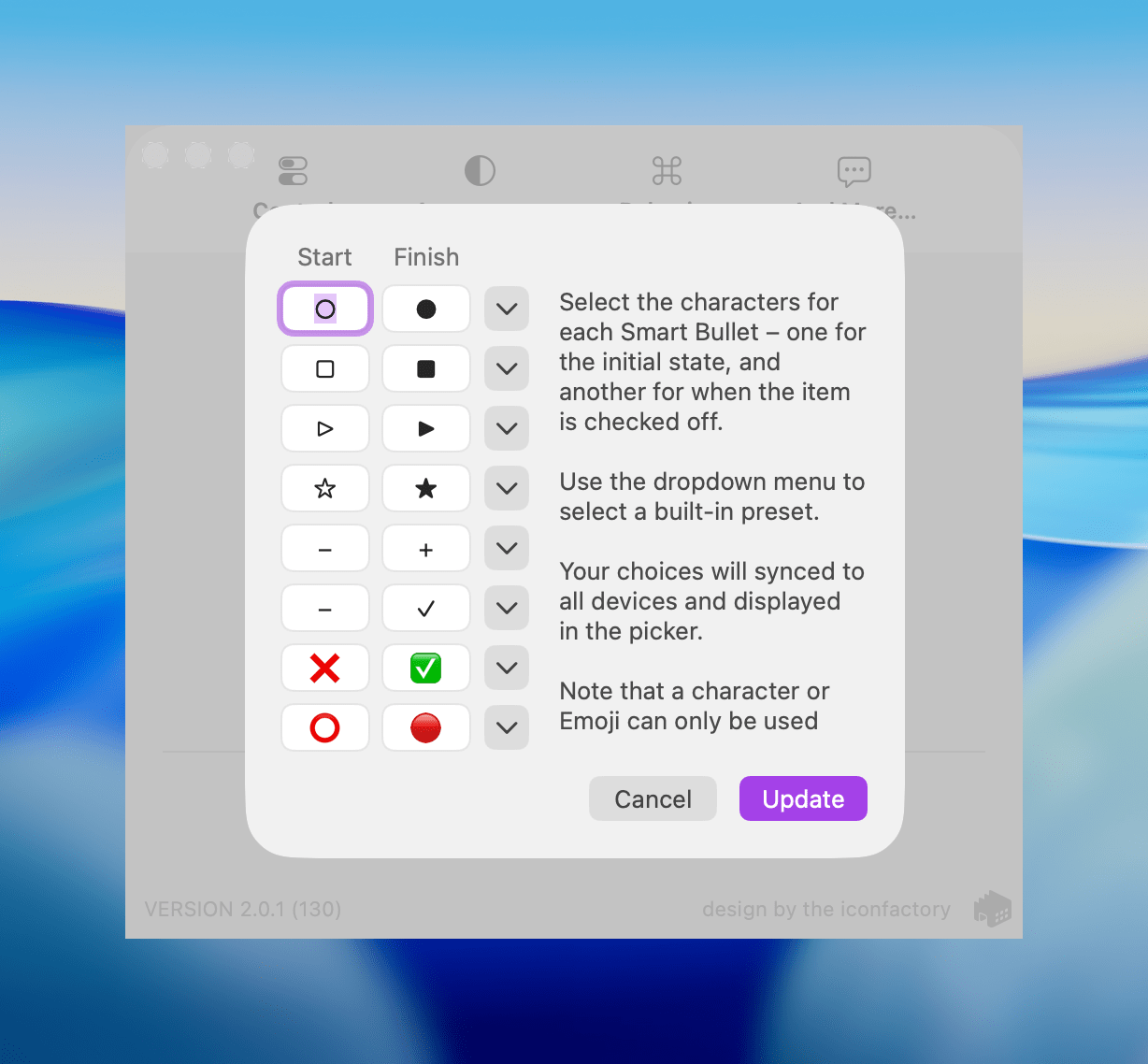
Tot allows you to define pairs of smart bullets.

Tot allows you to define pairs of smart bullets.

Speaking of bullets, Tot 2.0 also supports customizable smart bullets. From the app’s settings, you can choose from different pairs of symbols and emoji, like empty and filled circles or empty and filled stars. To toggle between the symbols in each pair, all you need to do is click or tap on them. If the eight default pairs aren’t to your taste, there are a bunch of alternatives you can use instead, such as the snowflake and flame emoji. It’s a clever twist on standard checkboxes and radio buttons that I’ve enjoyed because it adds some character and color to the app.

Tot adds eight new text dividers, too. From the classic three dashes used in Markdown to asterisks and more, there’s a nice variety of options. Plus, you can easily insert a divider with the keyboard shortcut Control + Minus.

The Iconfactory has made other platform-specific changes, too:

  • Settings have been redesigned in the Mac version and include new options, such as floating the Tot window over other windows.
  • The iOS and iPadOS versions include a menu button that offers access to the app’s settings along with a couple of bulk operations like saving, sharing, and exporting notes.
  • The watch app’s design has been refreshed with simplified controls and colorful backgrounds.

It’s great to see the Tot apps reach version 2.0. The three tentpole features – automatic indenting, custom smart bullets, and text dividers – are all meaningful improvements that don’t compromise the apps’ simplicity. Those features, along with several quality of life improvements and other bug fixes that you can read about in Tot’s version history, add up to an excellent update that should serve users well for a long time.

Tot is available on the Mac App Store, and Tot Pocket is available on the iOS and iPadOS App Store. Each costs $19.99, though existing users can update to Tot Pocket at no extra cost. Tot Mini, the Apple Watch app, is available as a separate $1.99 purchase.


Thoughts on iPadOS 26: Hello, It’s Good to Be Back

iPadOS 26.

iPadOS 26.

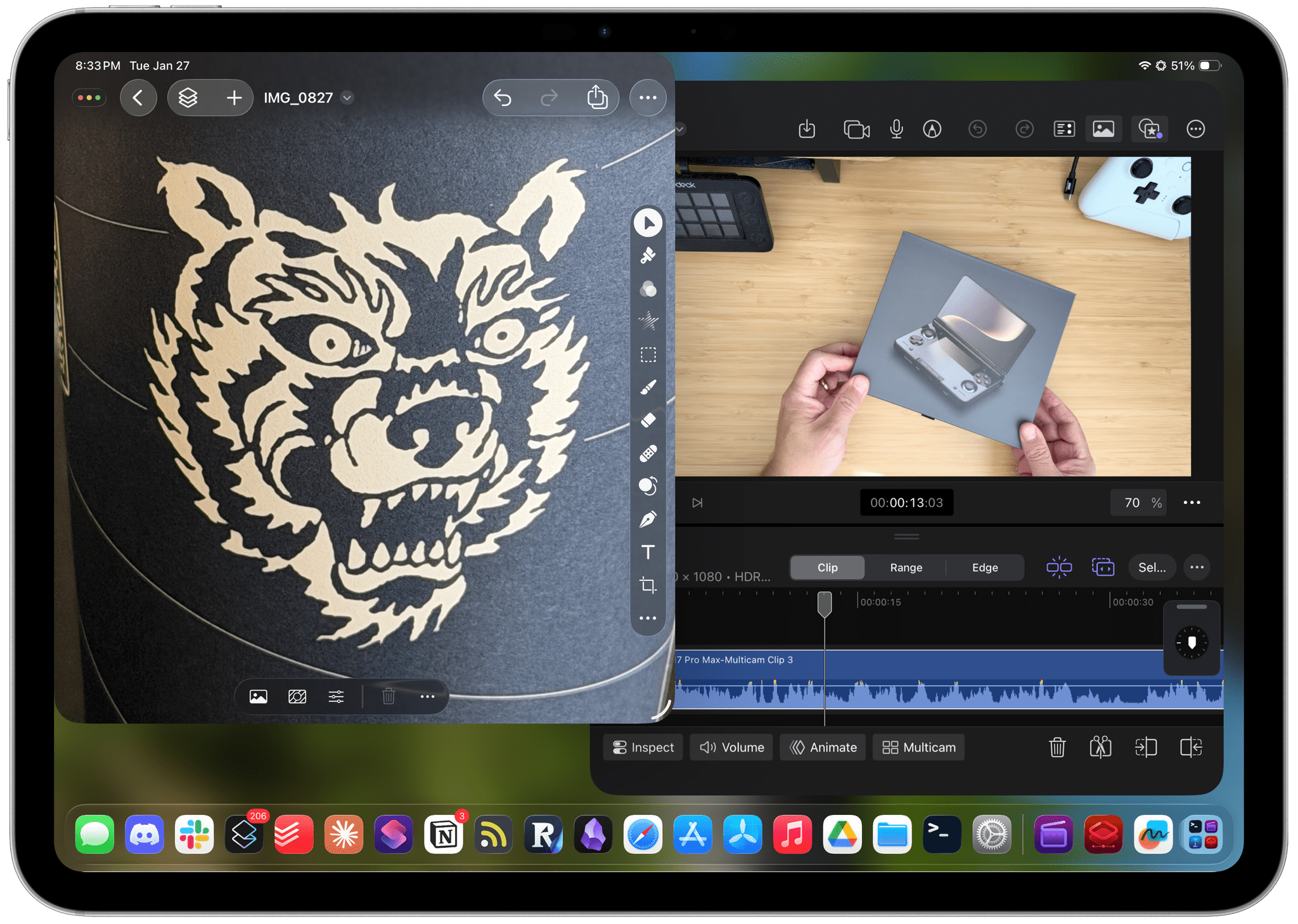
Apple released the first public betas of iOS and iPadOS 26 last week, and I’m going to cut to the chase with this story: although I’m still wrapping my head around Liquid Glass and trying to understand where this new design language will land, iPadOS 26 has fundamentally revolutionized my workflow in just a little over a month. While talking to Craig Federighi at WWDC, I did get the sense that Apple was approaching the iPad platform from a different – perhaps more humble – perspective, with a newfound willingness to listen to power users and find a better balance between the simplicity of the iPad and its flexibility. Actually using iPadOS 26, however, has far exceeded my expectations – which pushed me to completely rethink my desk setup (again) and the apps I use around the iPad Pro and iPadOS 26.

Conversely, I’ve been struggling to understand iOS 26 and the role of Liquid Glass. I’ve documented my issues with Apple’s new design with a variety of examples recently, but the truth is that at this point in the beta cycle, I don’t know what to write about Liquid Glass yet. For this reason, despite my many attempts to write this story over the past few weeks, I’ve decided to take a different approach.

Today, I only feel comfortable sharing my opinion about iPadOS 26, and I’ve chosen to delay my analysis of iOS 26 until later this year. I’ve found it incredibly challenging to form an opinion on Liquid Glass and iOS 26 when everything is still so in flux and being adjusted on a beta-by-beta basis. I feel like sharing what I think about Liquid Glass right now would be a fruitless exercise, or shortsighted perhaps, one way or another. Instead, since I find iPadOS 26 to be more of a known entity at the moment, I’ve decided to focus on that and how this software update is changing the way I work. The time will come for me to write about Liquid Glass and Apple’s vision for the future of its software design. Today, though, I’m all about the iPad.

It’s been an interesting month since WWDC. This year more than ever, I have a feeling that Apple isn’t done tweaking its OSes and much will continue to change between now and September. But for now, as always, let’s dive in.

Read more


Folio: A Promising Read-Later App with a Strong Foundation

I’ve been using read-it-later apps since before I had an iPhone. For those of us who were Wi-Fi-only iPod touch users before owning iPhones, apps like Instapaper were great for reading on the go.

Like in those early days, the read-later universe is once again hyper-competitive, with a lot of relatively new entrants such as Matter and Readwise Reader. That’s led to other apps shutting down. ElevenLabs bought and closed Omnivore, and most recently, Pocket, which debuted ages ago as Read It Later and was eventually acquired by Mozilla, shuttered.

In the wake of Pocket’s demise, Nick Chapman, who used to work on Pocket, and the team at Less is Better debuted Folio, a new read-later app for the iPhone, the iPad, Android, and the web that they say is designed to capture the essence of Pocket. I used Pocket on and off over the years but always considered it a step behind alternatives, so my expectations for Folio weren’t high.

Still, I was curious to see what Folio had to offer, especially because it must have been put together very quickly in order to be launched as Pocket shut down. Despite my initial reservations and some gaps in the app’s functionality, the Folio team has laid a great foundation with an excellent reading experience that’s worth keeping an eye on.

Read more


My Latest Mac Automation Tool is a Tiny Game Controller

Source: 8BitDo.

Source: 8BitDo.

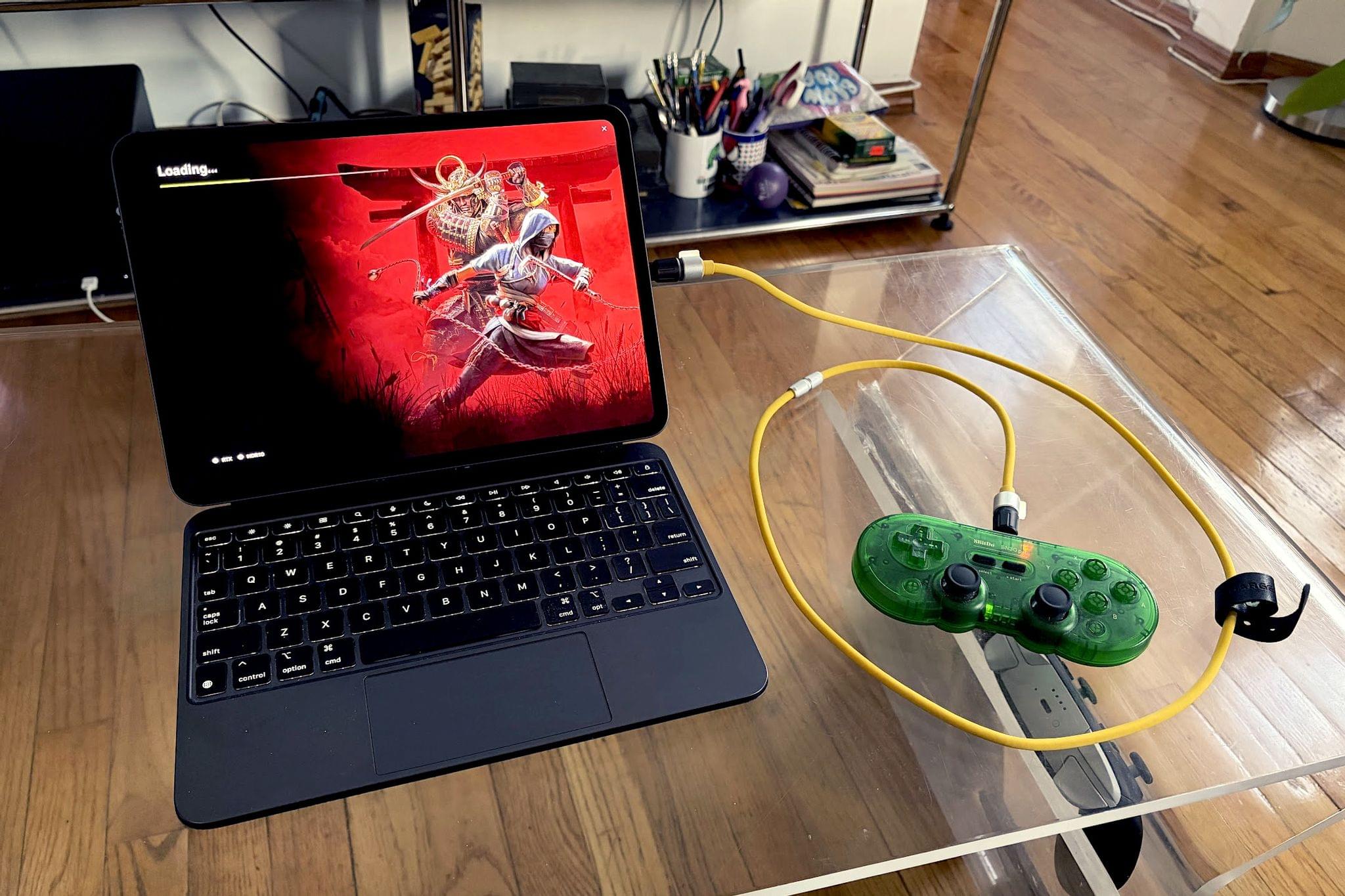
I never expected my game controller obsession to pay automation dividends, but it did last week in the form of the tiny 16-button 8BitDo Micro. For the past week, I’ve used the Micro to dictate on my Mac, interact with AI chatbots, and record and edit podcasts. While the setup won’t replace a Stream Deck or Logitech Creative Console for every use case, it excels in areas where those devices don’t because it fits comfortably in the palm of your hand and costs a fraction of those other devices.

My experiments started when I read a story on Endless Mode by Nicole Carpenter, who explained how medical students turned to two tiny 8BitDo game controllers to help with their studies. The students were using an open-source flashcard app called Anki and ran into an issue while spending long hours with their flashcards:

The only problem is that using Anki from a computer isn’t too ergonomic. You’re hunched over a laptop, and your hands start cramping from hitting all the different buttons on your keyboard. If you’re studying thousands of cards a day, it becomes a real problem—and no one needs to make studying even more intense than it already is.

To relieve the strain on their hands, the med students turned to 8BitDo’s tiny Micro and Zero 2 controllers, using them as remote controls for the Anki app. The story didn’t explain how 8BitDo’s controllers worked with Anki, but as I read it, I thought to myself, “Surely this isn’t something that was built into the app,” which immediately drew me deeper into the world of 8BitDo controllers as study aides.

8BitDo markets the Micro's other uses, but for some reason, it hasn't spread much beyond the world of medical school students. Source: 8BitDo.

8BitDo markets the Micro’s other uses, but for some reason, it hasn’t spread much beyond the world of medical school students. Source: 8BitDo.

As I suspected, the 8BitDo Micro works just as well with any app that supports keyboard shortcuts as it does with Anki. What’s curious, though, is that even though medical students have been using the Micro and Zero 2 with Anki for several years and 8BitDo’s website includes a marketing image of someone using the Micro with Clip Studio Paint on an iPad, word of the Micro’s automation capabilities hasn’t spread much. That’s something I’d like to help change.

Read more