


Tropico is a franchise that’s been around since 2001, but today marks its first time on an iOS device courtesy of Feral Interactive. Ruling a banana republic in the Caribbean as El Presidente is a natural fit for the iPad’s touch interface. Whether you’re navigating around your island nation or building out its infrastructure, touch makes the interaction with the game’s environment feel natural and tactile in a way that pointing and clicking with a mouse or trackpad can’t. Add a steady pace of challenges to overcome as a leader, and the results are terrific.
Posts tagged with "iPad"
Game Day: Tropico for iPad
Linea Sketch Adds Fill, Blend, ZipShape, and Versioning Features
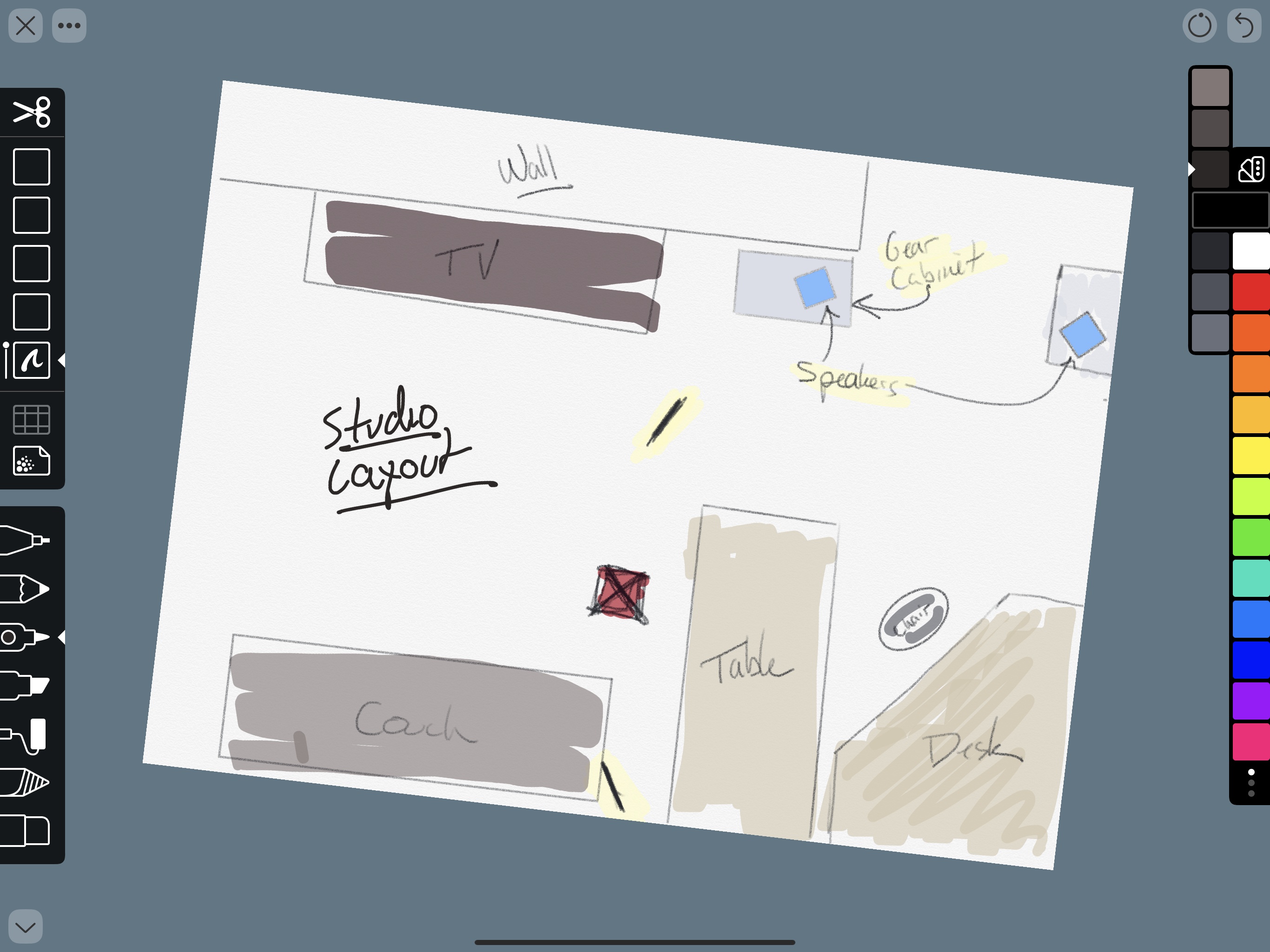
I’m not much of an artist, but I like to take notes, doodle, and create freehand mind maps with the Apple Pencil. With a rich set of paper options and templates to choose from and tools that don’t require a manual to understand, Linea Sketch has become one of my go-to brainstorming tools.
With each update, the app has added functionality that makes it more powerful and flexible without increasing complexity. Version 2.5, which is out today, continues that trend with four new core features, support for Apple Pencil gestures, a new background paper, and other refinements.
Made on iPad→
Michael Steeber, writing for 9to5Mac:
The new iPad Pro has ignited conversations about the future of computing and new possibilities for creative work. Paired with a second-generation Apple Pencil, the hardware unlocks potential that has driven many professionals to re-evaluate how iPads best fit in their lives. My own experience with the new iPad Pro has been a journey of discovery. To expand my horizons and help others get more out of their devices, I asked the creative professional community to share their own iPad workflows.
From digital illustration to managing a business, the vast range of ways people are working on iPads proves there’s no one right way or wrong way to use them. Some have embraced iOS as their platform of choice for every task. Some use a Mac and an iPad in concert to create powerful workflows that highlight the capabilities of each device. Others are developing entirely new ways of working that simply couldn’t exist before.
Fantastic idea by Steeber, and a collection of great examples of all kinds of people using the iPad for all kinds of professional work. Another reminder that we – as tech press – can only cover a fraction of the tasks an iPad is able to accomplish.
What Happened to 5K Displays?→
Adam Engst, writing for TidBITS:
Although the 27-inch iMac with 5K Retina display and iMac Pro both have 5K displays built in, Apple doesn’t currently make a standalone 5K display, or, in fact, an external display of any sort. When Apple dropped its 27-inch Thunderbolt Display (see “Apple Discontinues Thunderbolt Display with No Replacement in Sight,” 27 June 2016), the company worked with LG on a replacement: the $1299 LG UltraFine 5K Display.
So you could buy an LG UltraFine 5K Display, but you might not want to. That’s because the availability of that monitor seems to be in decline, with AppleInsider reporting that Apple Stores say it hasn’t been restocked in a while and that it’s not available for in-store pickup when ordered online. With luck, its availability is dropping because LG is replacing it with a new model, but LG could just be running down stock before discontinuing it.
The Wikipedia page for 5K resolution lists a small number of other 5K displays, including screens from Dell, Philips, and HP, but as far as I can tell, none are currently for sale, apart from a handful of ultra-wide monitors with unusual aspect ratios like 64:27 and 32:9. Also on that list is the Iiyama ProLite XB2779QQS, but its page on Amazon says it ships directly from Japan and has absolutely no ratings or reviews, which is suspicious.
Good overview of the current state of 5K displays for Macs, which seemingly haven’t taken off because the industry has settled on 4K for now and 8K for the next generation.
Toward the end of his post, Engst assumes that the Apple-branded display coming next year with the Mac Pro will likely rely on Thunderbolt 3. My hope, however, is that Apple can figure out a way to offer a 4K or 5K display that works via Thunderbolt 3 and USB-C with support for ProMotion refresh rates at 120Hz. The 2018 iPad Pros can only connect to USB-C displays (not Thunderbolt 3), which is why I ended up buying a 4K UltraFine display that works with both macOS and iOS via a single USB-C cable. I want to believe that Apple’s external display comeback will support both pro Macs and pro iPads; as the owner of a new Mac mini and iPad Pro used with the same LG display, an integrated Apple solution would be the dream setup.
Apple’s New iPad Pro Ad→
Fun new iPad Pro commercial by Apple. The ad follows the company’s recent marketing strategy to establish the iPad Pro as “a computer unlike any computer”. That may be a difficult message to get across, but Apple used a mix of features that highlight the unique nature of the iPad well: power, apps, portability, multitouch, and Apple Pencil.
Of these five categories, it is pretty obvious which is the one that Apple should focus on more going forward.
Penny Arcade’s Mike Krahulik on Drawing on the New iPad Pro→
Mike Krahulik, writing on the Penny Arcade blog:
The previous Apple Pencil had a little lightning adapter where its eraser would be. This was covered by a tiny plastic cap about the size of a child’s tooth. In order to charge the pencil you removed this cap and plugged the pencil into the lightning port on the bottom of your iPad. This was dumb for a lot of reasons.
For one thing, it meant you could not charge your iPad while the pencil was charging. You also had to try not to lose this tiny little pencil cap. It also was an incredibly fragile connection that always felt like it was about to break. It also looked incredibly stupid. But now! The new Apple Pencil attaches to the side of your iPad thanks to the magic of magnets! This is also how it syncs and charges. I will be honest with you and admit that after using my old iPad for eight solid months every single day, I had no idea how to check the battery level of the pencil. I never knew it was low until it was time to charge the damn thing. Now when you snap your pencil onto the side of the iPad, a little bubble shows you the battery life. Brilliant! The Pencil itself also feels better in my hand and has a touch sensor on it. You can now double tap the pencil with your finger and this functionality can be customized.
The machine feels lightning fast now as well. I can’t believe some of the multitasking I’ve been able to pull off. I sent this pic to Kiko the other night because I was drawing in Clip Studio while I had a show running in a floating window off to the side.
Great reminder that professional work on iPads doesn’t necessarily mean typing or coding. I also discovered Clip Studio through his post, which looks like a powerful, desktop-class manga drawing app that’s already been updated for the 2018 iPad Pros. Make sure to check out Krahulik’s work on Instagram too.
iPad Diaries: Typing on the iPad Pro with the Smart Keyboard Folio
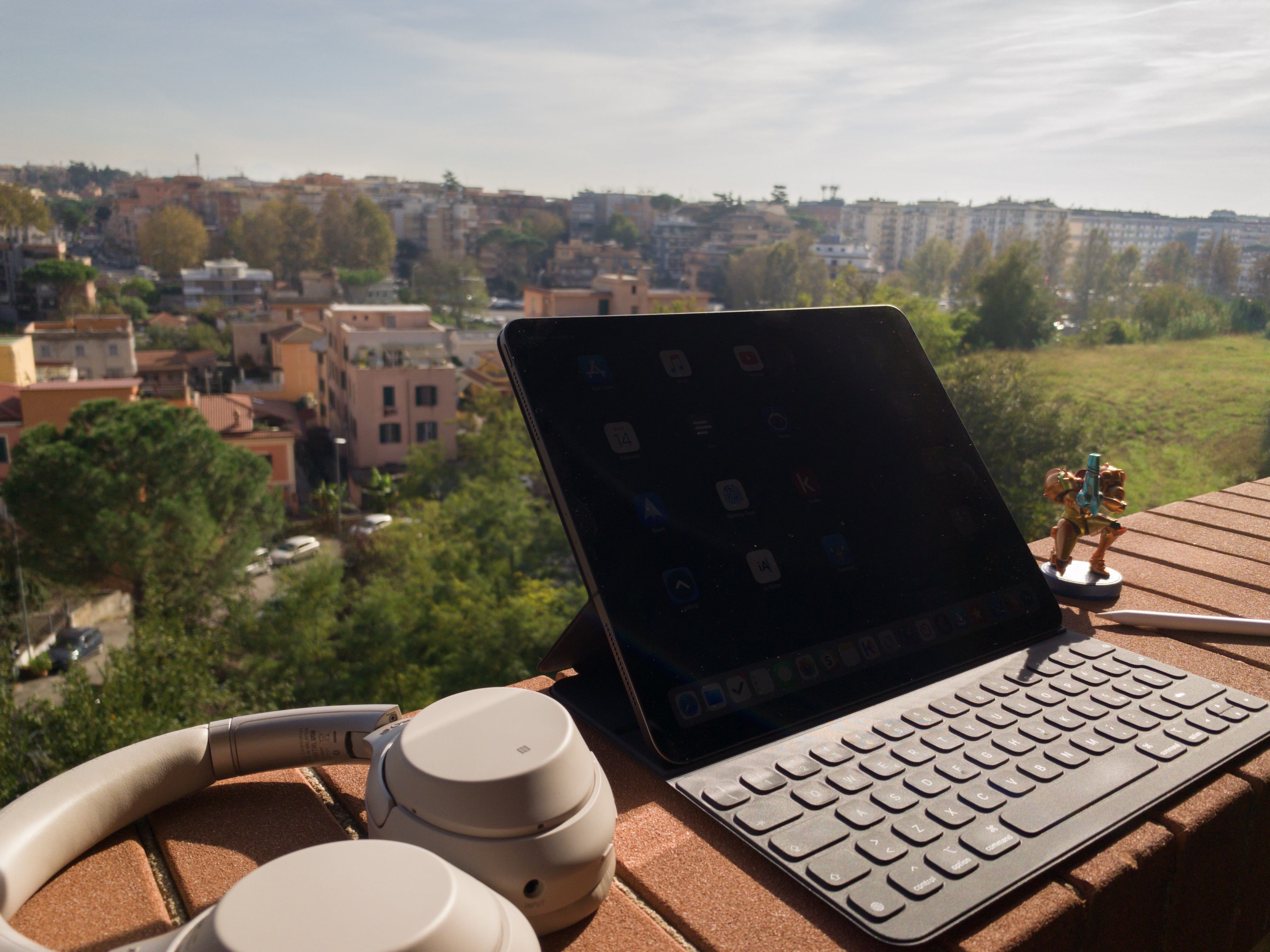
iPad Diaries is a regular series about using the iPad as a primary computer. You can find more installments here and subscribe to the dedicated RSS feed.
I have a love/hate relationship with Apple’s Smart Keyboard for the iPad Pro.
On one hand, I’ve always been a fan of its small footprint and ability to almost become part of the device itself from both a hardware and software perspective. The Smart Keyboard snaps itself into place and attaches magnetically to the iPad Pro; it doesn’t require you to even think about charging it as the Smart Connector takes care of it; thanks to the trivial magic of magnets, the keyboard and cover stay attached to the iPad as you carry it in a bag, but can be easily disconnected at a moment’s notice should you need just the iPad’s screen. The software experience is equally intuitive and exquisitely Ive-esque: the Smart Keyboard requires no pairing because it eschews Bluetooth altogether, and it integrates with all the keyboard shortcuts supported by iOS and apps. In the latest iPad Pro, the Smart Keyboard is even Face ID-aware: you can double-tap the space bar to authenticate from the lock screen instead of extending your arm toward the screen to swipe up – a welcome enhancement for those who work with their iPad Pro constantly connected to a keyboard.
There’s plenty to appreciate about Apple’s Smart Keyboard – an accessory designed on the premise of integration between hardware and software, following the same core principles at the foundation of AirPods, Apple Pencil, and (even though some liked to make fun of their peculiar design) Smart Battery Cases. But since its debut in 2015, I’ve been saving a series of small complaints and bigger annoyances with the Smart Keyboard that I’d like to revisit now that Apple has shipped its evolution for the new iPad Pro – the Smart Keyboard Folio.
Front-End Web Development on an iPad Pro in 2018→
Fascinating deep dive by Craig Morey on whether it’s possible for a front-end web developer to get their work on an iPad Pro in 2018.
It’s a highly technical read, and ultimately Morey doesn’t believe an iPad Pro is ready for this task yet, but it’s worth pointing out that many of the issues outlined by Morey are applicable to anyone who uses an iPad as their primary computer today. For instance, the problem with Files APIs, introduced in iOS 11 and still not widely adopted by third-party document-based apps:
I’ve already posted about the messy landscape of options for moving and accessing files in iOS. The only way apps should be doing it currently is with iOS 11 style file APIs, but many apps have either legacy file solutions, bespoke (ie, confusingly different — and differently-abled) file pickers or would rather pull you into their own cloud platform.
[…]
Apple need to evangelise the right way to do this before basic file management turns off the potential users before they get to the inspiring parts of iPad usage. But to really make it work, app developers need assistance to update older apps to the latest APIs. Many app devs spent huge amounts of time building custom solutions before any good options existed, only to see little in terms of revenue to encourage them to rewrite their app as new APIs came along. The iPad Pro marketplace needs to be turning a corner in terms of viability to bring these apps back into the modern iOS world.
Make sure to watch the videos in Morey’s piece – I love how he detailed every single step of the workflows he tried to build on his iPad Pro.
Broadway Ditches Age-Old Processes To Run Shows with iPads→
On last week’s episode of Connected, I mentioned having heard from a couple of MacStories readers who work at different Broadway production companies, who told me they’re increasingly switching their workflows to be portable and iPad-only. Here’s Samantha Murphy Kelly, writing for CNN (via David L. Jones):
Several shows, including Kinky Boots and Pretty Woman: The Musical, are shifting to a paperless system that packs the script, lyrics, videos, and costume and prop notes, into one spot for the director, crew and cast members.
The productions are leaning on an app from startup ProductionPro, which is already used at companies such as Walt Disney Studios to help produce film and TV shows.
During a recent rehearsal of Pretty Woman: The Musical attended by a handful of reporters, production stage manager Thomas Recktenwald ran lines with three cast members subbing in for an evening performance. Swiping through the ProductionPro app on an iPad Pro, Recktenwald showed off recent changes made to the script. It had notes scribbled into the margins via an Apple Pencil, and he tapped his way through videos that highlight blocking, broken down scene by scene.
Also interesting: ProductionPro can be tried for free, but unlocking the complete feature set (which includes collaboration and bigger file sizes) requires a $19.99/month subscription.