

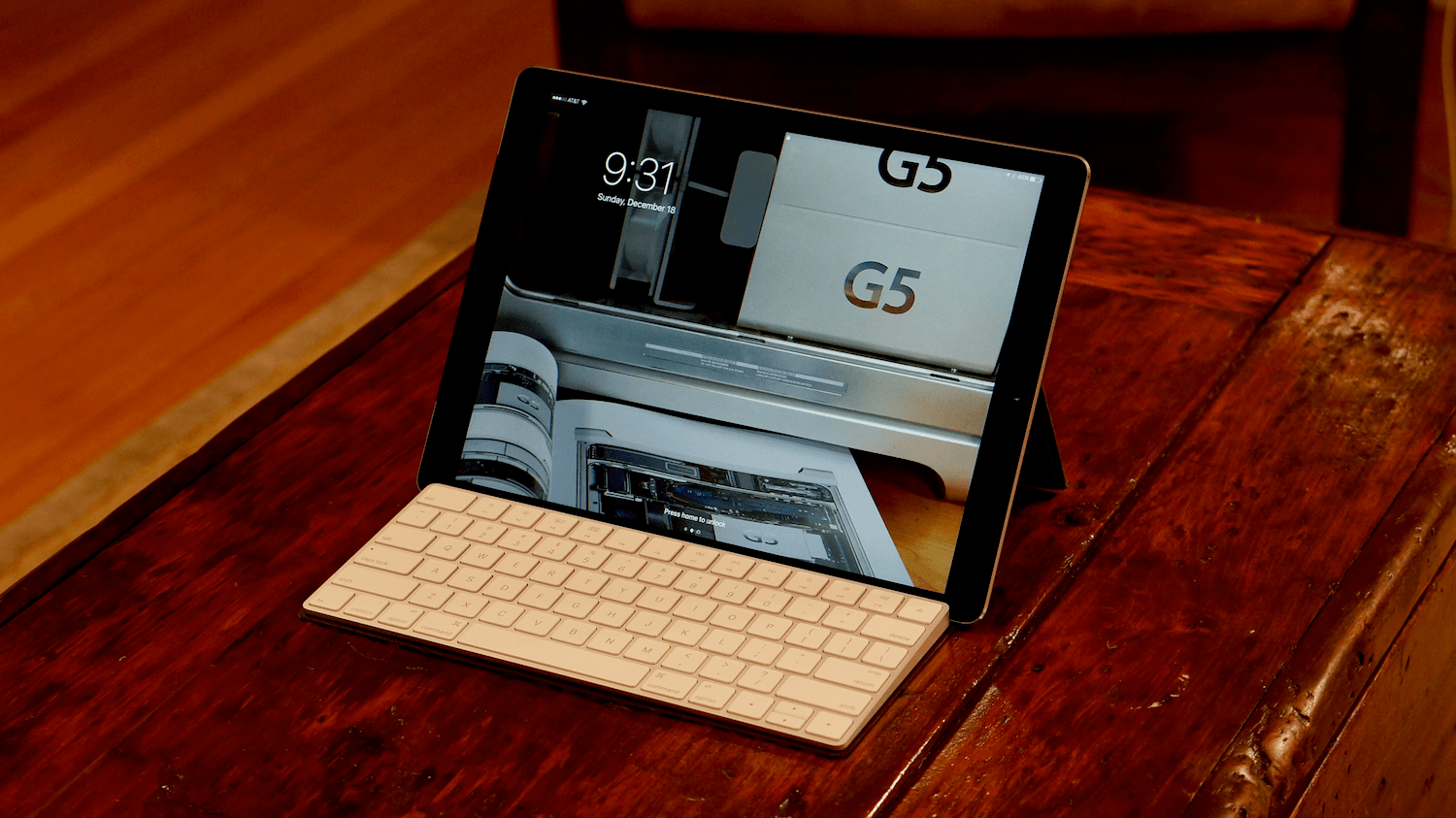
I’ve been carrying Studio Neat’s new Canopy, a combination keyboard case and iPad stand, for about a week. It’s the first time Apple’s Smart Keyboard has been off my iPad Pro since I got it, but I haven’t missed it at all. There are still certain situations where I prefer the Smart Keyboard, but I love having the option to work on my iPad with Apple’s Magic Keyboard when it suits my needs. So, while I won’t be switching to a Magic Keyboard/Canopy combination full-time, it’s a choice I’m glad to have and one I will use frequently.
Posts tagged with "iPad"
Canopy Keyboard Cover and iPad Stand Review
A Computer for Everything: One Year of iPad Pro

I wasn’t sure I needed a 12.9-inch iPad when Apple announced the iPad Pro in September 2015. And yet, over a year later, the iPad Pro is, by far, the best computer I’ve ever owned. I’ve never felt so satisfied with any other Apple device before – but the transition wasn’t easy.
After years spent adapting what I learned from the Mac to bring it to iOS, what I found on the other side was a more focused, efficient way of working and communicating with people. The iPad Pro accelerated my move to an iOS-only setup; today, I genuinely don’t know how to perform certain tasks on a Mac anymore.
I use my iPad Pro for everything. It’s my writing machine and favorite research tool, but I also rely on it to organize my finances, play games, read books and watch movies, program in Python and Workflow, and manage two successful businesses. While I’ve been advocating for such multi-purpose use of the iPad platform for a while, the iPad Pro elevated the threshold of possibilities, reaching an inflection point that has pushed others to switch to an iPad as their primary computer as well.
Much of the iPad’s strength lies in iOS and its app ecosystem. If Apple were to stop making iPads, I’d still prefer to work on a device that runs iOS rather than macOS. iOS is where app innovation happens on a regular basis with developers one-upping each other in terms of what software can achieve; I also prefer the structure and interactions of iOS itself. The iPad Pro is the purest representation of iOS: it’s a computer that can transform into anything you need it to be.
Even if this discussion was settled a long time ago, it bears repeating: millions of people today like working on iOS more than they do on macOS, and the iPad Pro is the best machine to run iOS. There is no sarcastic subtext about the Mac here, which is still a fantastic environment that many Apple users love and need for their line of work. The Mac and the iPad can coexist in a market where customers believe one is superior to the other. I prefer working on the iPad; others like their Macs more. And that’s fine because, ultimately, the Apple ecosystem as a whole grows stronger and we all reap the benefits.
Over the past year of daily iPad Pro usage, I’ve made it my personal goal to optimize my iPad workflows as much as possible. This is one of the best aspects of the iOS platform: competition between developers is fierce and you can always choose between different apps to get work done – apps that are improved on a regular basis and are constantly updated for the latest iOS technologies. With enough curiosity and patience, iOS rewards you with the discovery of new ways to work and save time.
Since my last iPad story in February, I’ve taken a hard look at my entire iPad setup and rethought the parts that weren’t working. I tried new apps, created new automations, and optimized every weak spot I could find. I improved how I collaborate with my teammates and produce weekly content for Club MacStories members. Thanks to the time I invested in understanding and fine-tuning my iPad Pro, I was able to embark on more projects, double MacStories’ growth, and manage a larger team.
As a result, my iPad Pro today is noticeably more capable than it was a year ago – all without the need for a hardware refresh.
Here’s what I’ve done.
Workflows of a Casual Apple Pencil User

One year ago, Apple launched a new product to accompany its first ever iPad Pro: the Apple Pencil. Presented not as a replacement for touch input, but as a tool geared toward specific tasks, the Pencil immediately endeared itself to creatives who sketch or illustrate. In the weeks following the announcement, I remember scouring Twitter and Instagram for any first impressions I could find from people who had tried this new device. Some of the best came from Apple’s visits to Disney and Pixar, where many of my favorite movie makers seemed thrilled about the Pencil. It looked like the perfect tool for artistic tasks.
Apple’s pride in creating the Pencil has been clear since they first announced it. In its already jam-packed September 2015 keynote, the company dedicated significant time and attention to the product, including a video introduction from Jony Ive and three live demos that put the Pencil to use. In this past March’s keynote, when Apple announced the 9.7” iPad Pro, Phil Schiller called the Pencil “the greatest accessory Apple has ever made.” High praise from a proud parent.
My initial take on the Pencil was that it seemed like a great device, but it wasn’t for me. I don’t sketch, I’m not a fan of handwriting notes, and using the Pencil for system navigation never appealed to me. But I bought one to give it a try. Apple’s return policy made sure no money would be wasted if the Pencil became merely a pretty paperweight in my life. Within a few hours of use I discovered that while the Pencil isn’t a daily-used tool for me, it is a device that, for specific tasks, I would never want to be without.
Infuse 5
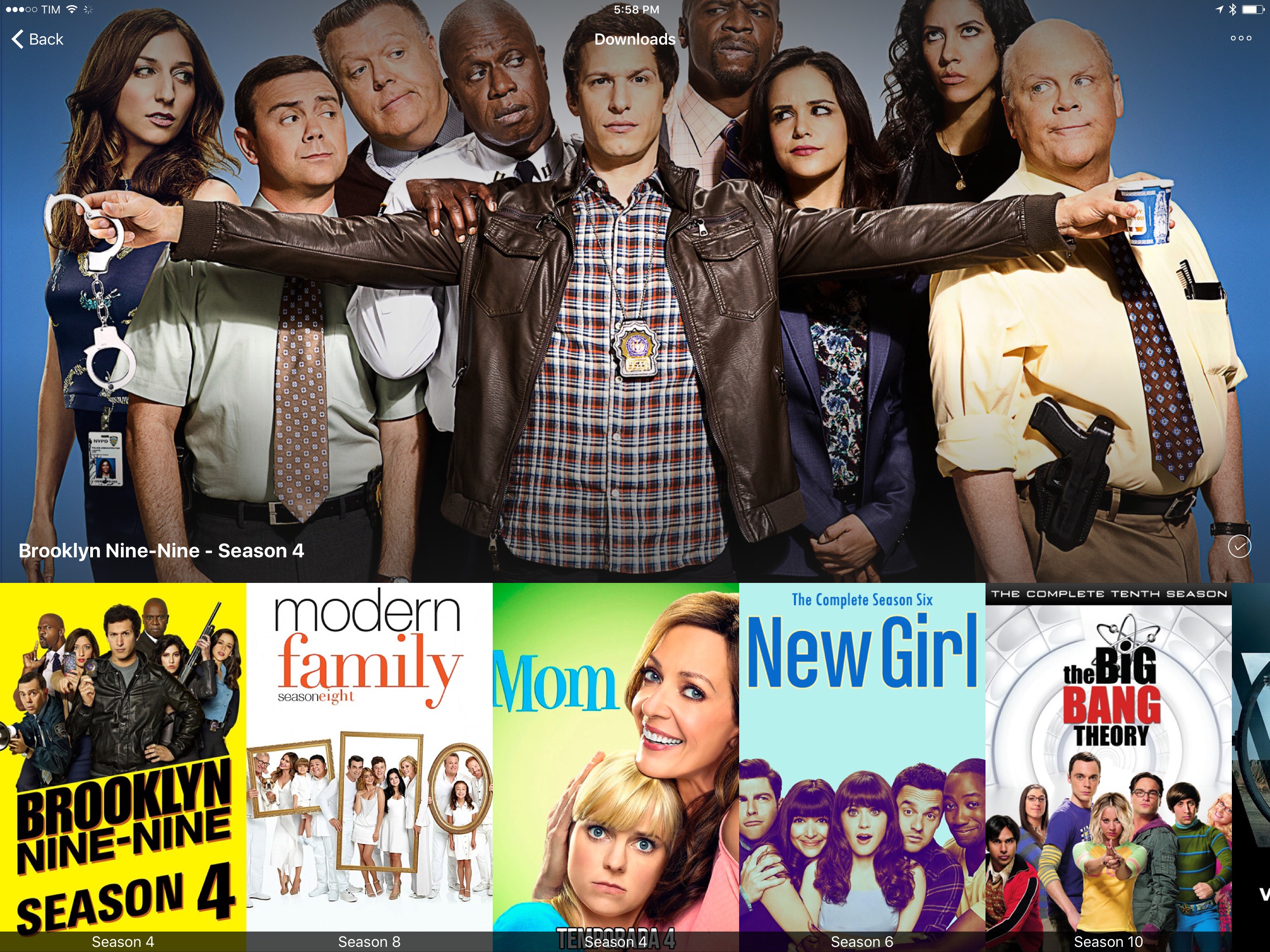
I watch a lot of TV shows and YouTube videos on my iPad Pro. Thanks to the 12.9-inch iPad’s large screen and four-speaker system, watching directly on the device is a pleasure (I tend to prop up the iPad with the Razer keyboard I reviewed here) but I’ve also been streaming to Google Chromecast and Apple TV depending on what I want to watch (Chromecast is great for YouTube).
Every time I want to watch something, I use Infuse. I’ve been an Infuse Pro customer for years now and I like the app because it can stream videos from my Synology NAS and it can play anything I throw at it without issues. Yesterday, Infuse graduated to version 5, which is a separate app with a new subscription model at $6.99/year. I don’t mind paying $0.58/month for an app I use several times each day, and the new version brings some welcome additions that will save me a lot of time going forward.
Infuse 5 supports Split View and Picture-in-Picture, two features that were strangely missing since the launch of iOS 9. Infuse also uses iCloud now to keep shares, favorites, metadata, and other settings in sync between devices; I don’t use Infuse on my iPhone, but it’s good to know I won’t have to set it up from scratch. In terms of other native iOS features Infuse 5 supports, there is integration with the document picker to download files from external apps and optimizations for video playback on iOS 10.
More importantly for me, Infuse 5 can automatically download subtitles from Open Subtitles and stream videos from a connected Dropbox, Google Drive, or OneDrive account. The first option is welcome for those times when I have some friends over who want to watch a movie in English audio and subtitles, which I usually keep disabled. Now I don’t have to go looking around the web for the right version of subtitles as Infuse seems to be doing a decent job at picking up the correct .srt file from the popular subtitle service. Cloud streaming means I have an easy way to beam work-related videos from my Dropbox to my Apple TV or Chromecast while retaining the benefits of Infuse’s UI.
Infuse is the only video app I keep on my iPad Pro. Unlike other video apps, Infuse combines an elegant interface and intuitive controls with powerful functionalities and integrations, which is what I need when I’m done working and want to relax at the end of a long day. Infuse 5 is available on the App Store; a paid upfront Pro version is also available at $12.99 if you don’t want to subscribe annually.
My New iPad Pro Keyboard: The Razer Mechanical Keyboard Case
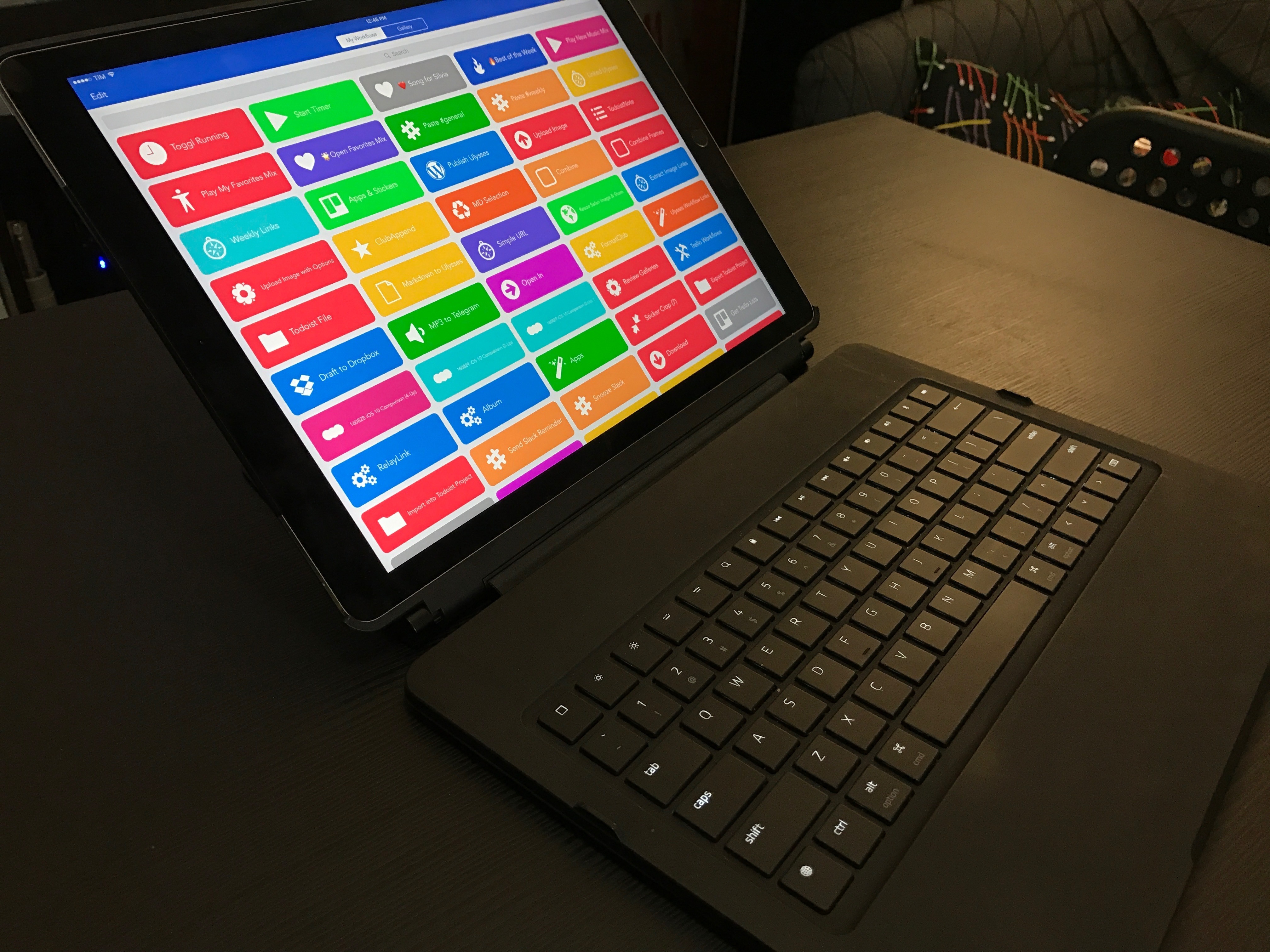
Since getting a 12.9-inch iPad Pro last year, I’ve had a fairly troubled relationship with external iPad keyboards. I didn’t like the original Logitech CREATE keyboard case, so, surprised by the lack of notable Smart Connector-based accessories, I ended up using an Apple Magic Keyboard for the majority of 2016.
Nebo’s Handwriting Recognition Elevates Your Notes
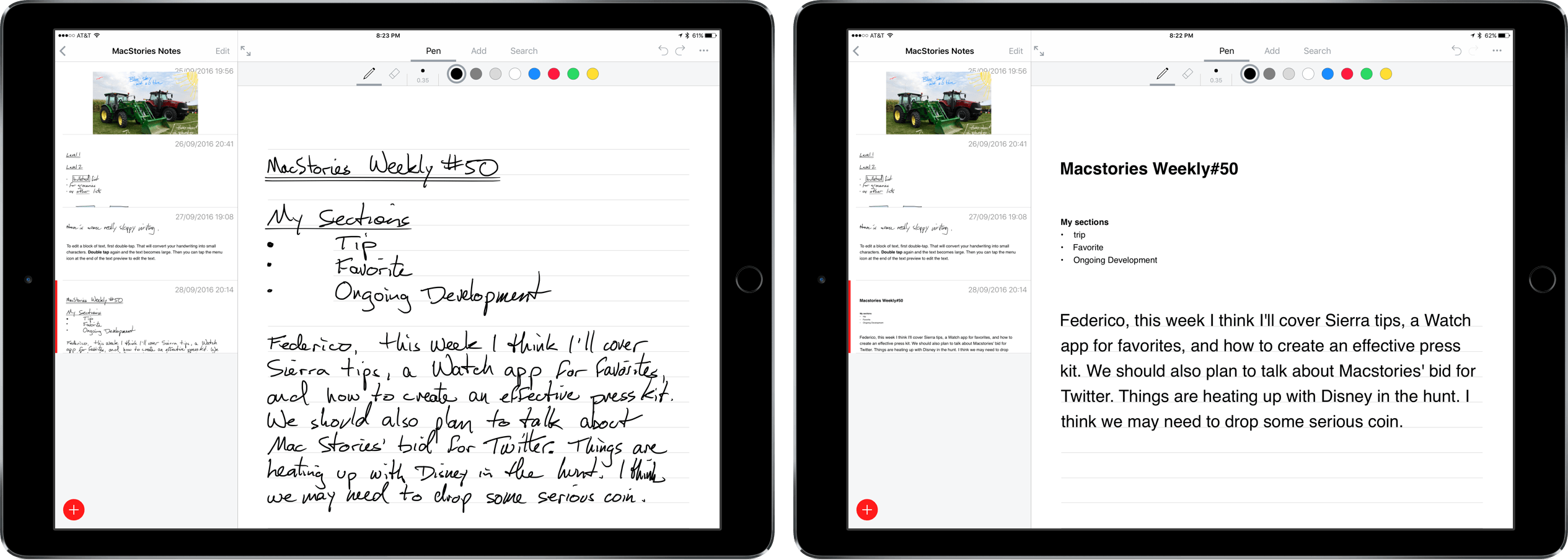
Nebo is a digital notetaking app that was created by MyScript to showcase its handwriting recognition technology known as Ink. The app is iPad-only because it requires an Apple Pencil for input. Nebo can also convert hand-drawn diagrams and mathematical equations and embed photos and sketches within notes. I’ve been using Nebo to research this review and the accuracy of its handwriting recognition is remarkable. Nebo is a solid notetaking tool. It lacks a few features that would make it more competitive with notetaking apps that have been around longer, but the handwriting recognition is so good, that Nebo has become my default notetaking app.
Swift Coding Comes to iPad: Playgrounds, Schools, and Learning to Code
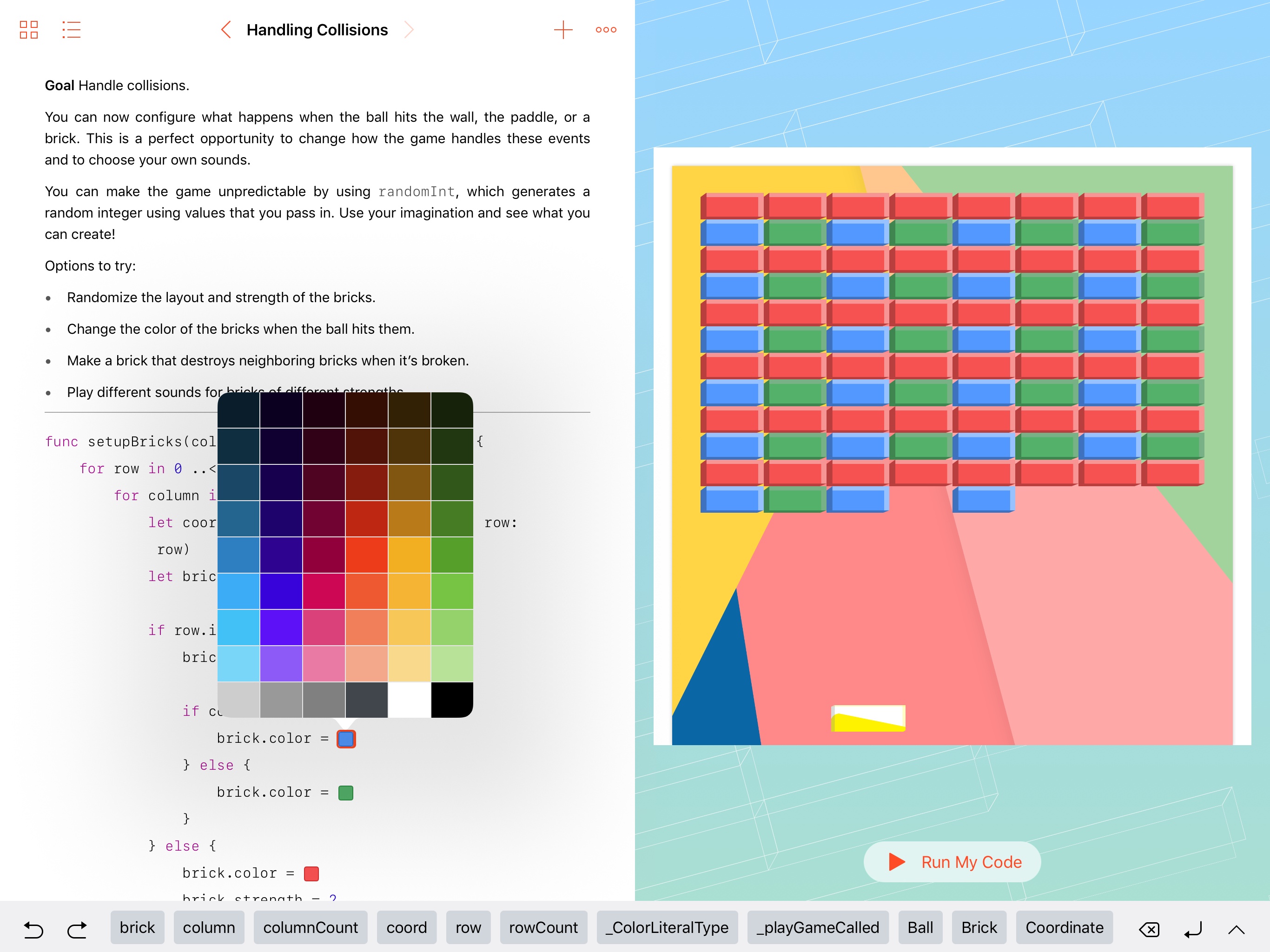
Right at the end of the WWDC 2016 keynote, Apple announced Swift Playgrounds. This is a new app from Apple that is designed to allow children to learn to program on an iPad. This is a first from Apple and a major advance for iOS as a platform.
I was fortunate to be awarded an educator scholarship to WWDC 2016 and was privileged to be in the audience at the announcement. While attending the conference, I was able to speak with many of the engineers and educators working on Swift Playgrounds and gain an insight into what the software is capable of and the reasons why it was built.
Nock Kickstarts The Lanier Briefcase
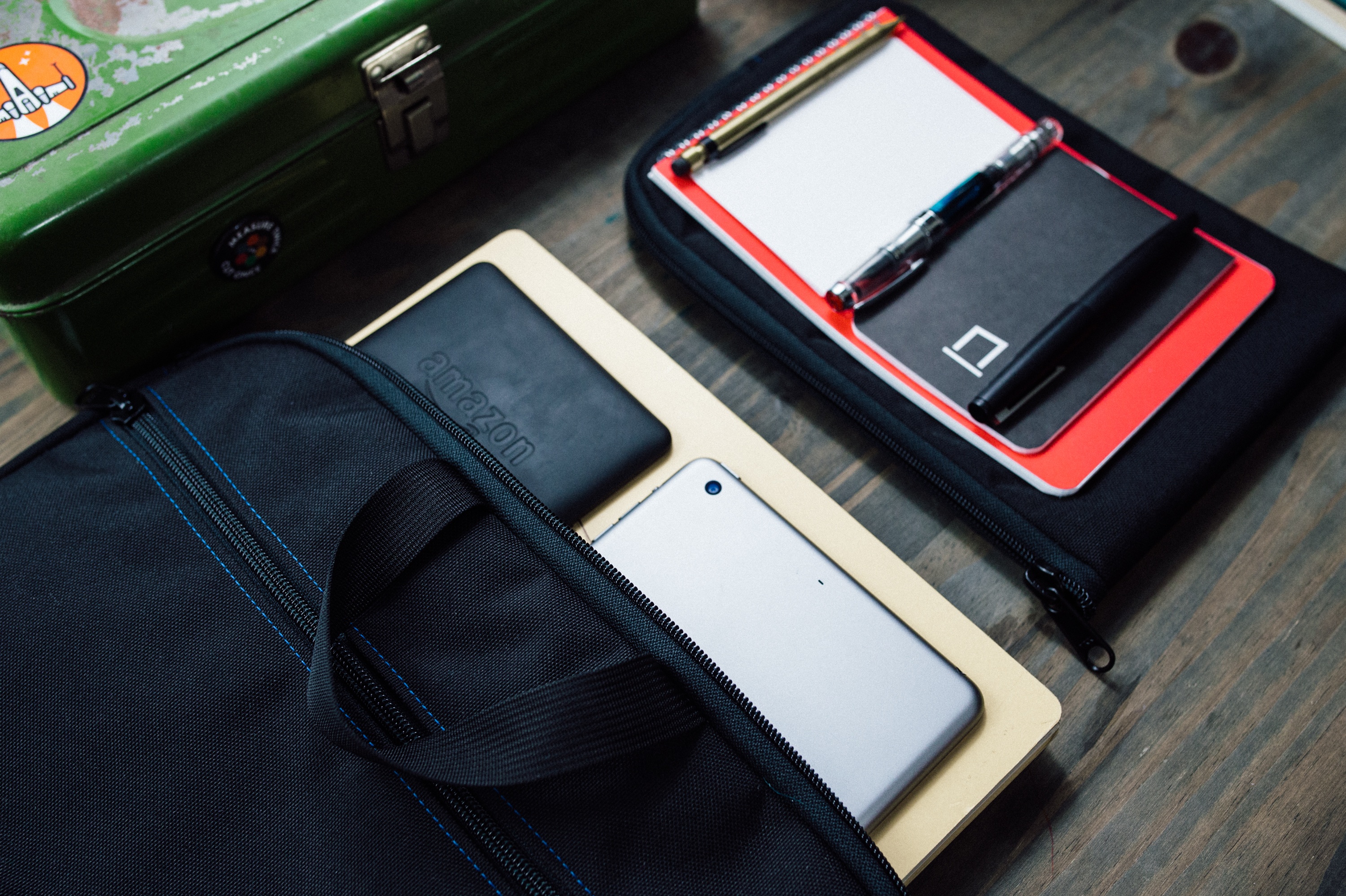
Nock Co. founded by Brad Dowdy and Jeff Bruckwicki, has been making cases for pens and notebooks and paper products for three years. Today, Nock launched a Kickstarter campaign to expand its line of cases to include a slimline briefcase called The Lanier. Brad was kind enough to send me a prototype of The Lanier a couple of weeks ago, so I thought I would share my impressions of it with MacStories readers.
Continuous – C# and F# IDE for iPad→
Frank A. Krueger (maker of Calca, a longtime favorite of mine) has launched Continuous, a new programming app for iOS.
He writes:
Continuous gives you the power of a traditional desktop .NET IDE - full C# 6 and F# 4 language support with semantic highlighting and code completion - while also featuring live code execution so you don’t have to wait around for code to compile and run. Continuous works completely offline so you get super fast compiles and your code is secure.
I like the approach he took to “doing work on the iPad” as a software developer:
I love the iPad but was still stuck having to lug around my laptop if I ever wanted to do “real work”. Real work, in my world, means programming. There are indeed other IDEs for the iPad: there is the powerful Pythonista app and the brilliant Codea app. But neither of those apps was able to help me in my job: writing iOS apps in C# and F#. I couldn’t use my favorite languages on my favorite device and that unfortunately relegated my iPad to a play thing.
I don’t know C# and F#, but Continuous looks impressive and exactly like the kind of app we should see on the iPad more often. It even has full framework support for native iOS libraries such as UIKit, Foundation, and CoreImage. Reasonably priced at $9.99 on the App Store, too, with an iPhone version available.
Between Continuous, Pythonista (which recently received a brand new version 3.0), and the upcoming Swift Playgrounds, the iPad as a programming environment is growing up.