This Week's Sponsor:

Turbulence Forecast

Know before you go. Get detailed turbulence forecasts for your exact route, now available 5 days in advance.


Posts tagged with "iPad"

A MacStories Setups Update

Last November, we created the MacStories Setups page. It’s a collection of the gear, apps, and services that Federico and I use for work and play. We knew when we created the page that it would change regularly, and it has. Today, we’re introducing our third update in four months, which collects changes related to Federico’s MacPad setup and some smaller adjustments that we’ve both made recently.

The MacPad additions to Federico’s setup include:

However, Federico isn’t living a MacPad-only lifestyle. He uses the Vision Pro daily and has added it along with the following accessories to his setup:

Other additions include:

Our app lineups change constantly, too, and most recently, Federico has added:

As for me, since my big desk setup upgrade, I’ve made a handful of changes to my desk and gaming setups, along with other adjustments.

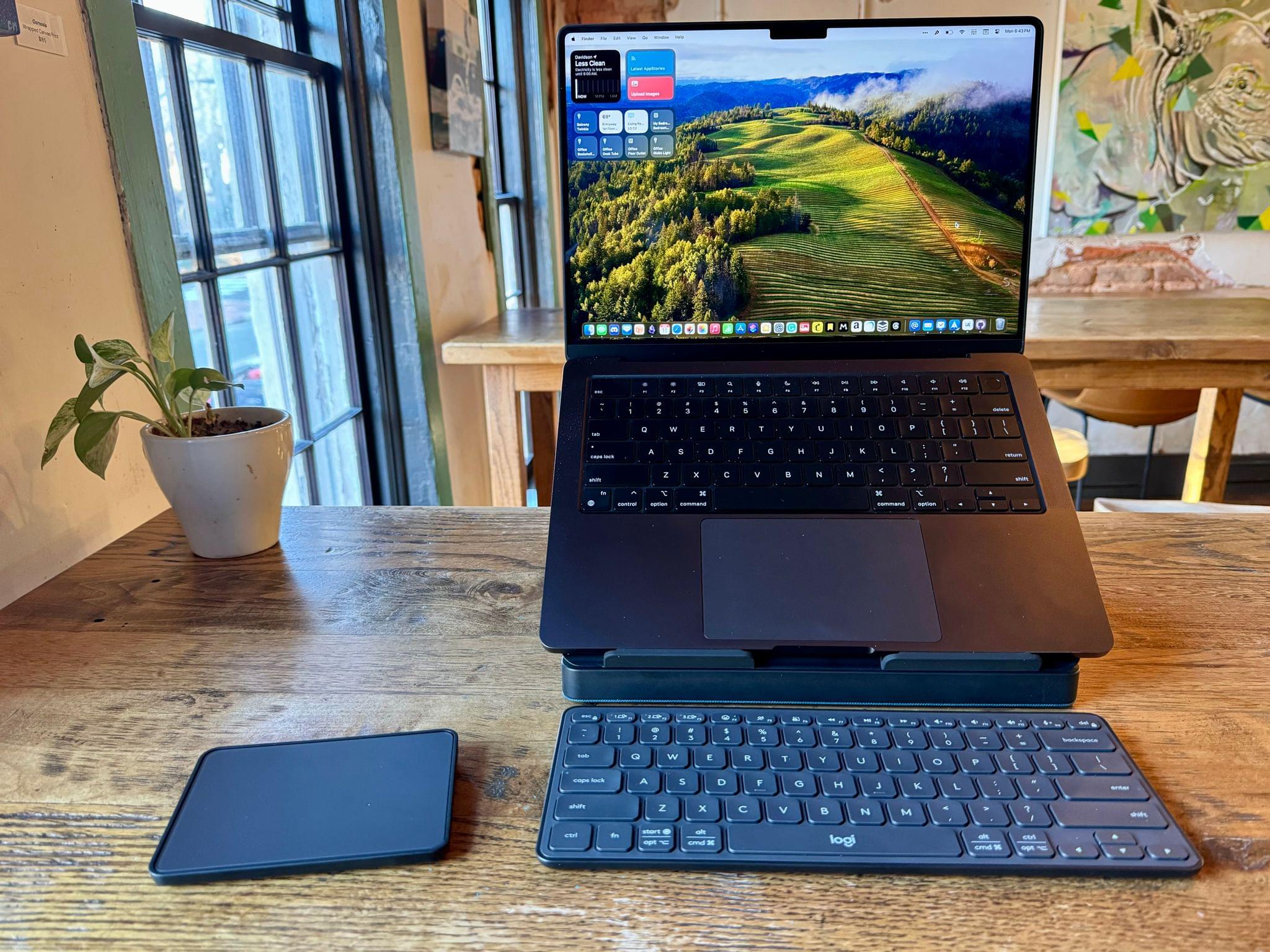
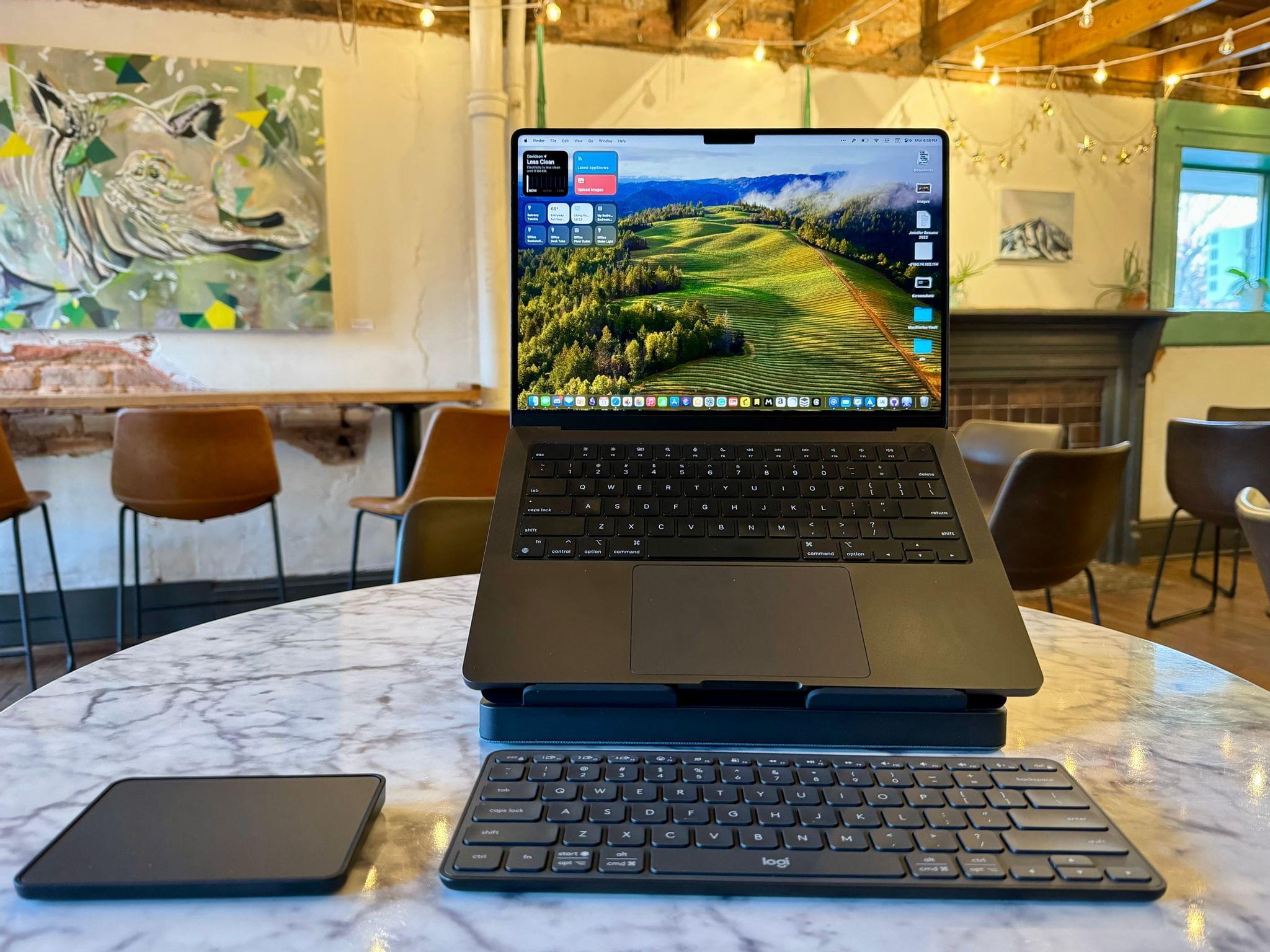
The Logitech Casa Pop Up Desk.

The Logitech Casa Pop Up Desk.

With summer around the corner, I’ve been refining my portable setup. The Logitech Casa Pop Up Desk that I reviewed recently is perfect for an afternoon at a coffee shop or sitting out on my balcony. I’ve enjoyed the Boox Tab Ultra so much that I added a Boox Palma for ultra-portable e-ink reading on-the-go.

The articles I save to read on the Palma and elsewhere are currently split between GoodLinks and Readwise Reader. I’ve also swapped out NaturalReader for Speechify for text-to-speech workflows, but I’m not completely satisfied with any read-aloud solution I’ve tried yet.

I’m also slowly refining my gaming setup. The ASUS ZenWiFi Pro Wi-Fi 6E mesh router system is a big step up from the Linksys Atlas routers I was using before in terms of both coverage and speed. I’m still floored by the bandwidth I get with my iPhone 15 Pro Max and Ayn Odin 2 Pro. I also picked up a Miyoo Mini+ retro gaming handheld because I’m traveling soon and wanted an ultra-portable handheld to take with me. Also, to track what I’m playing, I’ve been using GameTrack, which I recently reviewed.

Both of us have added a handful of other apps and gear, too, so be sure to browse through the Setups page to find the complete listing of our current setups.

Permalink

Logitech’s Casa Pop-Up Desk Elevates Your MacBook for More Comfortable Computing

When I’m sitting at home in my office, the ergonomics are perfect. I have a comfortable chair with plenty of back support, my keyboard is at the right height, and my Studio Display is at eye level. The trouble is, that’s not the only place I work or want to work. As a result, I spend time almost daily using a laptop in less-than-ideal conditions. That’s why I was eager to try the Logitech’s Casa Pop-Up Desk that debuted in the UK, Australia, and New Zealand last summer and is now available in North America, too.

Logitech sent me the Casa to test, and I’ve been using it on and off throughout the past 10 days as I work at home, away from my desk, and in various other locations. No portable desktop setup is going to rival the ergonomics of my home office, but despite a few downsides, I’ve been impressed with the Casa. By making it more comfortable to use my laptop anywhere, the Casa has enabled me to get away from my desk more often, which has been wonderful as the weather begins to warm up.

Read more


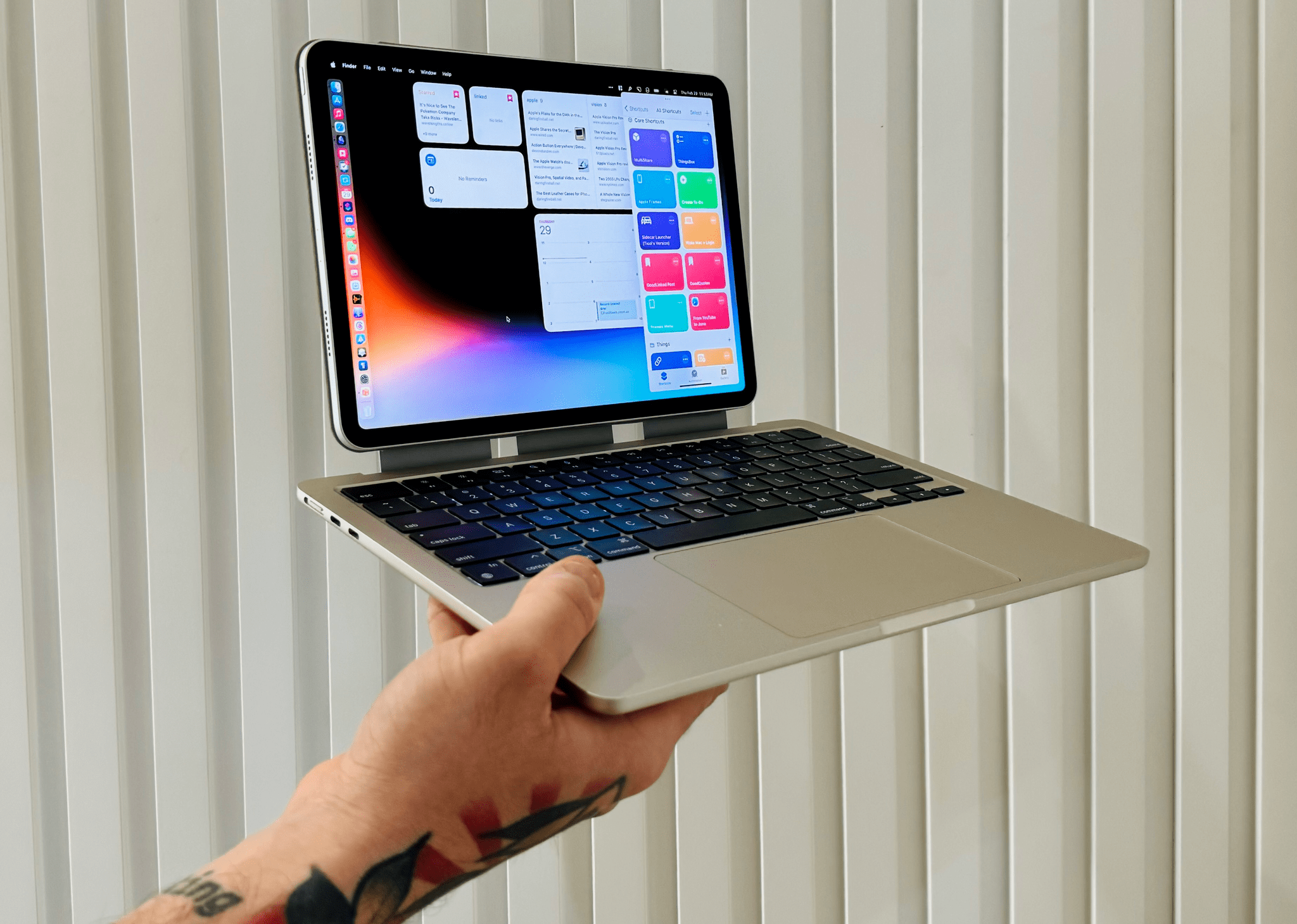
MacPad: How I Created the Hybrid Mac-iPad Laptop and Tablet That Apple Won’t Make

Hello, MacPad.

Hello, MacPad.

It all started because I wanted a better keyboard for my Vision Pro. I had no idea that, in looking for one, I’d accidentally create the hybrid Apple computer of my dreams.

As I quickly discovered after working on the Vision Pro daily, you can get by without an external trackpad, but a keyboard is necessary if you want to type something longer than a passcode. That’s where my journey began: if I wanted to write and edit articles on the Vision Pro, what would the best keyboard-trackpad setup be?

Over the past few weeks, I’ve tested all the options at my disposal. I started with an Apple Magic Trackpad and Keyboard, which I then placed inside a Twelve South MagicBridge (it was too uncomfortable to put on my lap for longer stretches of time). Next, I tried using different types of “trays” for these two accessories that offered a laptop-like layout (comfort was better, but lack of palm rejection was an issue). I even attempted to revive an old Brydge keyboard and use it with the Vision Pro, but, alas, third-party trackpads aren’t supported on visionOS at the moment.

Eventually, I settled on the solution that I should have known was coming for me all along: the best keyboard and trackpad combo for a Vision Pro is a Mac laptop. So I started using my MacBook Air every day, taking advantage of Mac Virtual Display and Universal Control to get work done with the Vision Pro in a mix of classic desktop apps and new visionOS experiences. I’ll write more about this soon, but, so far, it’s felt powerful and flexible in a way that iPadOS hasn’t made me feel in a while.

But something kept nagging me.

Read more


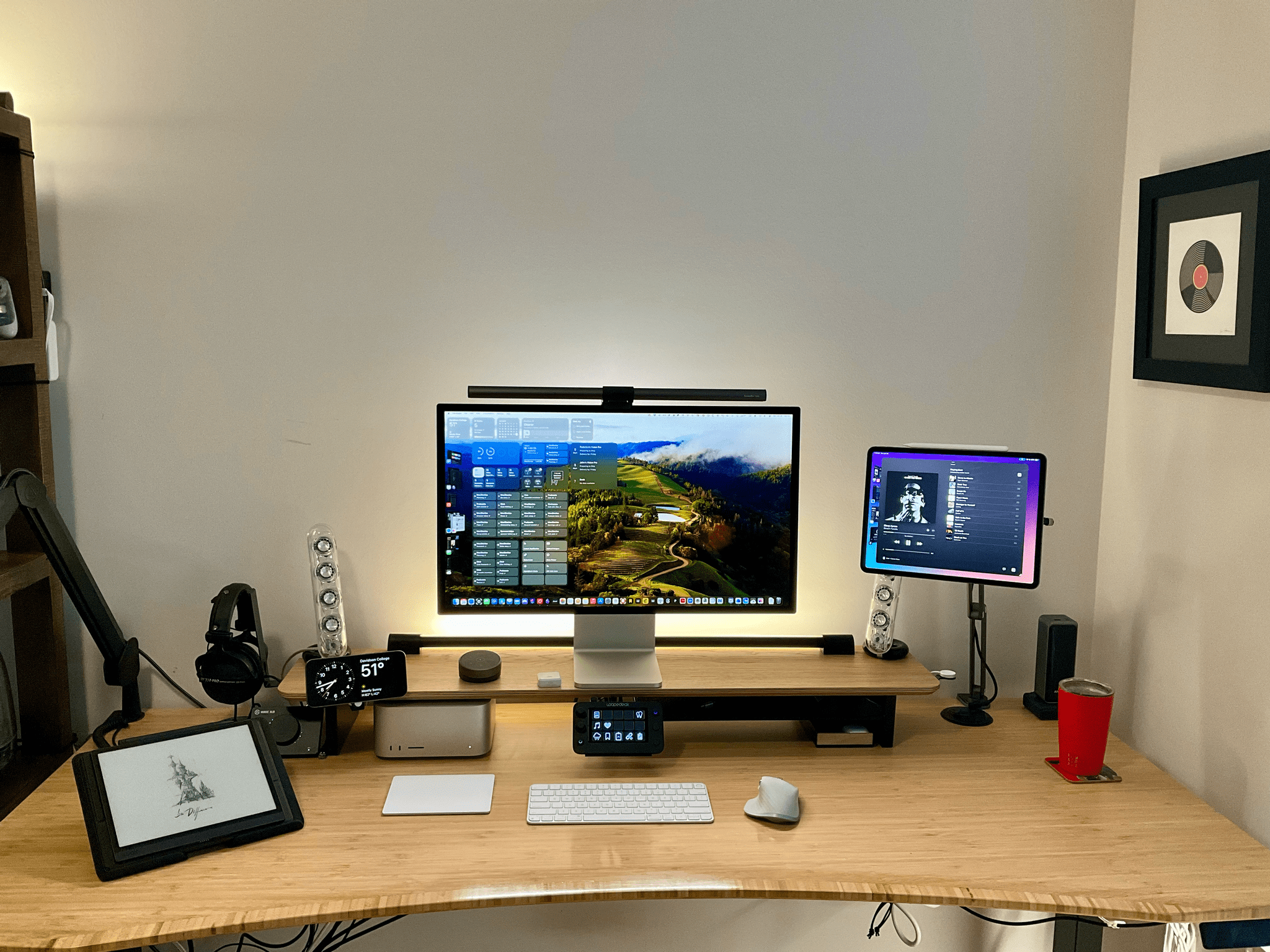
Tucked Away Nearby: A Refinement of my Desk Setup

When Federico and I published our setups last November, I was happy with mine, but there was still something that bothered me. Every day, I wound up with too much stuff strewn across my desk. At the same time, some of the things I use most days felt annoyingly out of reach. These weren’t monumental annoyances, but they were daily distractions that led me to leave things on my desk for long stretches of time where they were in the way. So, I started thinking about ways to improve my setup again.

What I realized is that I had nowhere to put any of the little things I use each day, so they’d end up all over my desk, which then snowballed into a bigger mess. The solution was to bring those little things closer but create places for them that are out of the way. At the same time, I made a greater effort to tuck cables and wires out of the way where I can’t see them, which has also helped cut down on clutter.

The centerpiece of this revised setup is a Balolo Setup Cockpit. There are a lot of companies that make desk shelves, but they never appealed to me because I’ve always been able to adjust my Studio Display to a comfortable height without one. I could tuck things under the shelf, but I needed more than that.

What I like about the Balolo shelf is that it has a system of attachment points on the underside of the shelf for adding accessories that have allowed me to get more off my desk and out of the way. It’s turned out to be the perfect floating, modular extension of my old setup that makes a long list of small adjustments that add up to a big difference overall.

Read more


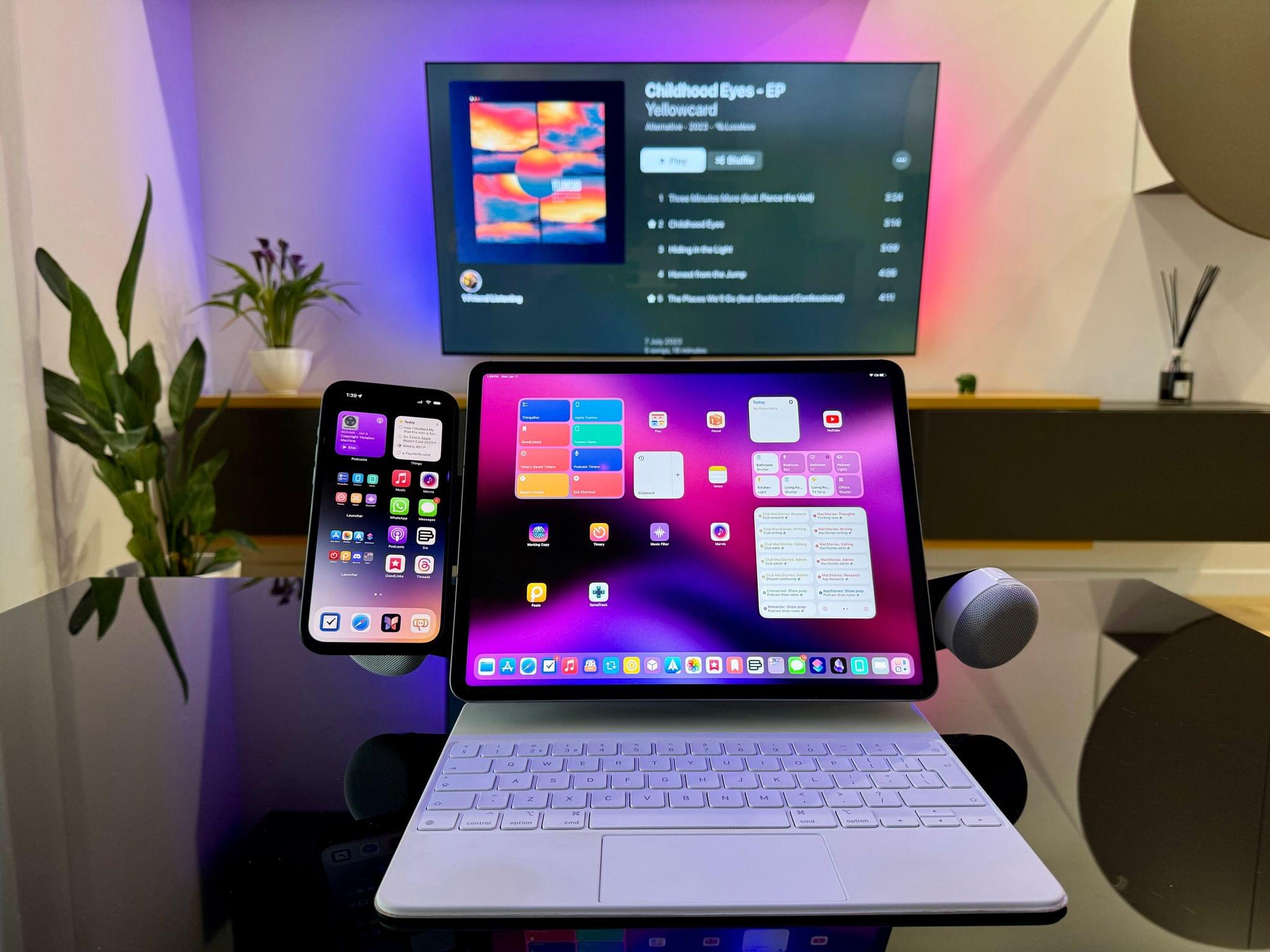
How I Modded My iPad Pro with a Screen Protector, iPhone Holder, and Magnetic Stereo Speakers

My new, modular iPad Pro 12.9" setup.

My new, modular iPad Pro 12.9” setup.

Those who have been reading MacStories for a few years should know something about me: I love modding things. Whether it’s customizing the silicone tips of AirPods Pro or adding kickstands to iPad covers (which I don’t do anymore), there’s something about the idea of taking an object and modding it specifically to my needs that my brain finds deeply satisfying. I’ve done it with videogame consoles; I’ve done it with IKEA furniture1; and I’ve done it – once again – with my 12.9” iPad Pro.

A new generation of iPad Pros and Airs is rumored to launch in the near future, and with the Vision Pro coming in a few weeks, what better way to wrap up my usage of the M2 iPad Pro than covering the mods I’ve been using?

Read more


The iPad Is Like Roadwork

Zac Hall, writing for 9to5Mac, has a great analogy about the iPad platform that I wish I thought of before:

Here’s the thing about the iPad line: it’s always being worked on, and that work is never complete. You know, like roadwork. As a kid, I recall thinking Atlanta was only under construction for a few weeks. Oh, the naïveté.

[…]

The awkward thing about this never ending construction project is when a lower-end model get a “new” feature before a premium model. That’s what happened with the iPad 10 and the iPad Pro in 2022. The awkwardness was compounded by the fact that Apple released no new iPads in 2023. Instead, Apple introduced a third (but not third-gen) Apple Pencil. More roadwork.

I think this is a perfect encapsulation of the state of the iPad. For better or worse, it’s always being worked on. Not like how the Mac and iPhone are always “being worked on” (of course they are), but more in the sense that there’s always something that obviously needs to get fixed and we’re waiting for it.

And the funny thing is, I’ve been using the iPad as my primary computer for long enough now, I find its “current” state kind of charming at this point. It’s definitely an acquired taste, but why would you get a reliable computer that does the same reliable things for a good number of reliable years when you can experience the thrill of a platform that still feels like it launched two years ago when it is, in fact, 14 years-old and that perennially feels like it’s waiting for the next shoe to drop? Why join the navy when you can be a pirate? I’m only half-kidding with this. Besides the fact that, for me, no other computer Apple makes is as flexible as an iPad, part of the enjoyment is (again, for me) its quirky nature, constantly on the verge of improvement. (Please don’t send me this page.)

If there’s one thing you can say about the iPad line is that it’s never boring, for better or worse. If anything, we’re still blogging about it – 14 years later.

Permalink

Globetrotter: Your Photos and Memories on a World Map

Every time I open the Memories tab in Apple’s Photos app, I feel disappointed. The memories it surfaces always seem to rehash the same events in my life, and they never really achieve to put my photos back in context. This is a big reason why, for so many years, I’ve been keeping a personal journal in Day One, which lets me revisit my journal entries by looking at a map of everywhere I’ve recorded a memory. Likewise, the ‘Places’ section in Apple Photos is my favorite way to browse through my older photos.

Globetrotter is a delightful new app created by indie developer Shihab Mehboob that embraces this idea of revisiting your photo memories by looking at them on top of a world map. The app does so in a beautifully-designed interface, with a focus on your travel memories. Let’s take a look.

Read more


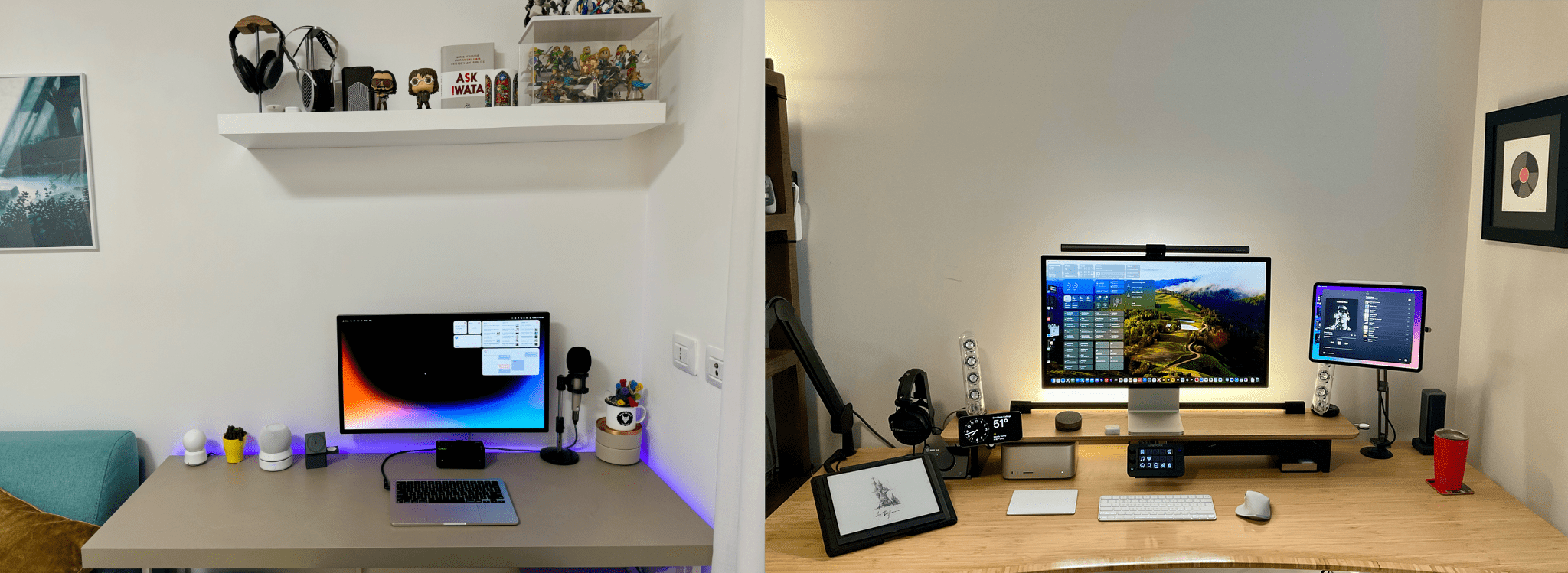
Introducing the New MacStories Setups Page

Federico's setup (left) and John's (right).

Federico’s setup (left) and John’s (right).

Setup optimization is a never-ending journey at MacStories. We’re always looking for the fastest, most efficient, and often, most portable way to do everything in our lives. The result is constant change. Hardware and apps are swapped in and out of our systems and workflows frequently.

We write or talk about our setups in a bunch of different places, which we realize can make it hard to keep up with the most current version of what we’re using. That’s why we’ve dedicated macstories.net/setups/ to our setups. That way, the next time you wonder, what was that pair of headphones Federico mentioned on AppStories or that giant battery pack John wrote about for Club MacStories, you’ll have a place where you can quickly find the answer. You’ll find a link to the new Setups page in the navigation bar at the top of the MacStories homepage, too.

Our new Setups page is what Apple might call ‘a living document.’ We’ll update it periodically throughout the year with changes we make with links to everything that’s still being sold somewhere.

Speaking of links, many of the ones you’ll find on the Setups page are affiliate links. If you buy something using those links, MacStories, Inc. will receive a small commission. You can learn more about how MacStories uses affiliate links in our privacy policy.

Also, if you have any questions about the gear and apps listed on the Setups page, feel free to reach out on Mastodon using @viticci or @johnvoorhees, or ping us on Discord.


Procreate Dreams First Impressions

Artwork source: Procreate.

Artwork source: Procreate.

I’ve been playing with Procreate Dreams for about a week. The brand new animation app from Procreate shares a lot of DNA with the company’s flagship drawing and painting app. As a result, despite my limited time and scant artistic talents, I expect Procreate Dreams will be a hit.

Procreate made a name for itself with artists with its gesture-driven, hands-on approach to art. By focusing on gestures, the company’s first app puts your artwork front and center, providing the maximum context for what you’re working on and reducing distractions. The approach also encourages interacting with the app’s canvas in a natural, fluid way.

Artwork source: Procreate.

Artwork source: Procreate.

That same approach is the hallmark of Procreate Dreams. The app tackles animation in much the same way Procreate reimagined drawing and painting on an iPad. The tools at your fingertips are deep and sophisticated but get out of the way of your creation. At times, the discoverability of features suffers a little as a result, but after spending some time tapping UI elements, long-pressing to reveal context menus, and experimenting with multi-finger gestures, Dreams reveals itself, rewarding the curious who take the time to learn what it can do.

All of the familiar Procreate brushes and tools are available in Dreams. Artwork source: Procreate.

All of the familiar Procreate brushes and tools are available in Dreams. Artwork source: Procreate.

Procreate Dreams, which has been in development for five years, offers multiple ways to create 2D animation. The full suite of Procreate brushes and tools is available to artists. For anyone who has used Procreate before, this is the perfect place to start with Dreams because it will immediately feel like home. However, underlying those familiar brushes is a new and more powerful painting engine that allows for larger canvases and more complex artwork, giving the app room to grow into the future.

Dreams also introduces a new way to animate called Performing, which allows artists to record the movement of their creations using touch. Tap record and drag a selected item on the app’s stage, and Procreate Dreams will add keyframes and paths automatically, simplifying the process of bringing your artwork to life.

Artwork source: Procreate.

Artwork source: Procreate.

Other edits can be accomplished from the timeline, which supports multiple layers, manual keyframing, cel animation, video editing and compositing, and more, all using gestures to access features and select content. When you put it all together, there’s a lot going on, but it works smoothly thanks to Apple’s Metal framework running on Apple silicon.

You’re not limited to hand-drawn animation on a blank canvas, either. Dreams supports video, to which you can add an animation layer and edit, crop, zoom, pan, and more. Separate audio tracks can be added, too.

I plan to spend some quality time in Procreate Dreams over the holidays. Drawing apps has never been my forté, and drawing on a timeline adds an additional element of complexity. However, Dreams isn’t like any other animation app I’ve tried before. My familiarity with Procreate gave me a head start, easing me into unfamiliar territory. That’s a big advantage for the app and an even bigger one for anyone who has ever wanted to try their hand at animation.

Procreate Dreams is available on the App Store as a one-time purchase for $19.99.